7.4 Proposal Structuring - Linking Facility with Collateral
This topic provides systematic instructions about facilities.
In case you want to secure facility with collateral, you can link the facility and the available collateral.
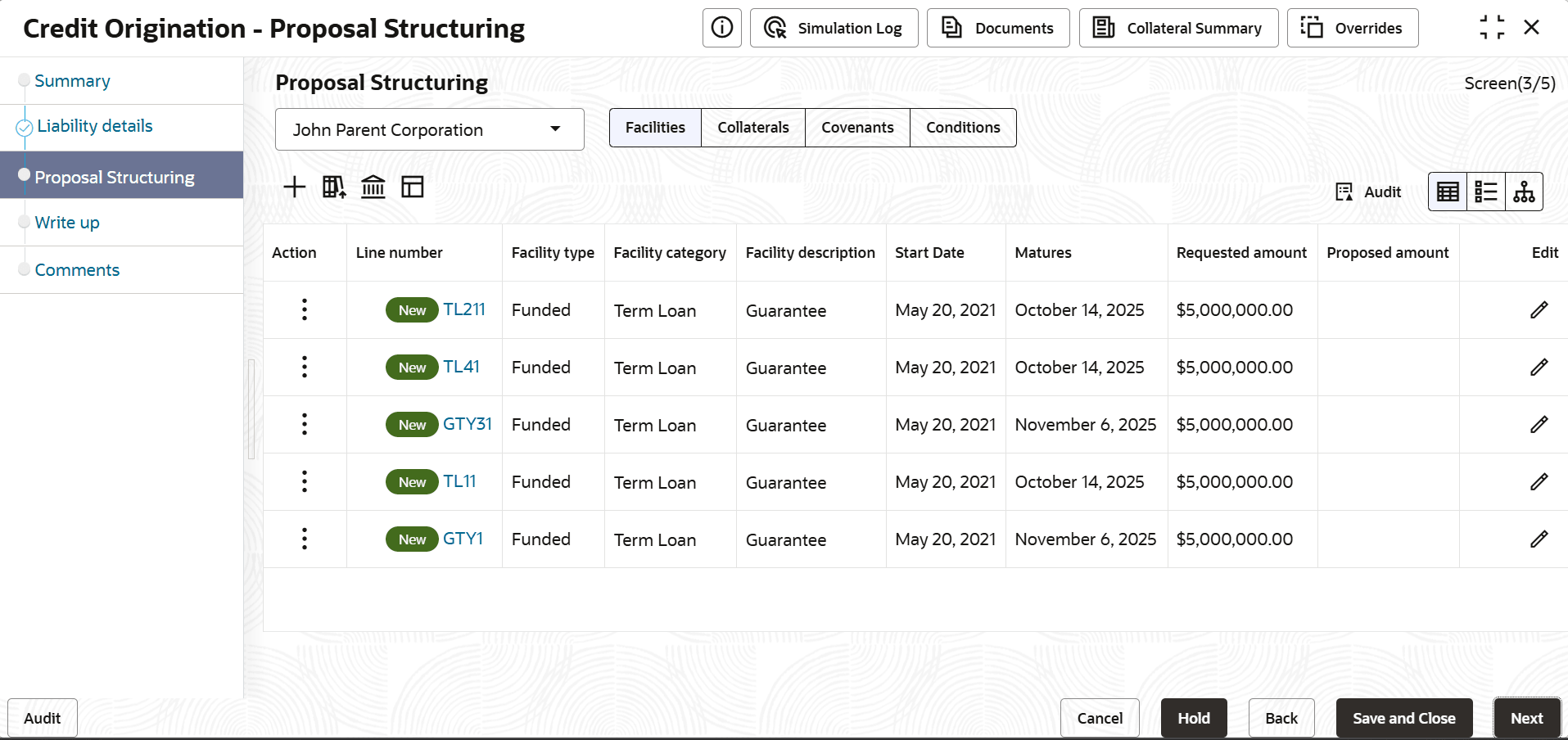
- Click Next in the previous data segment to proceed with
the next data segment, after successfully capturing the data. The Funding Requirement screen displays.
- Click the action icon in the required facility record and select
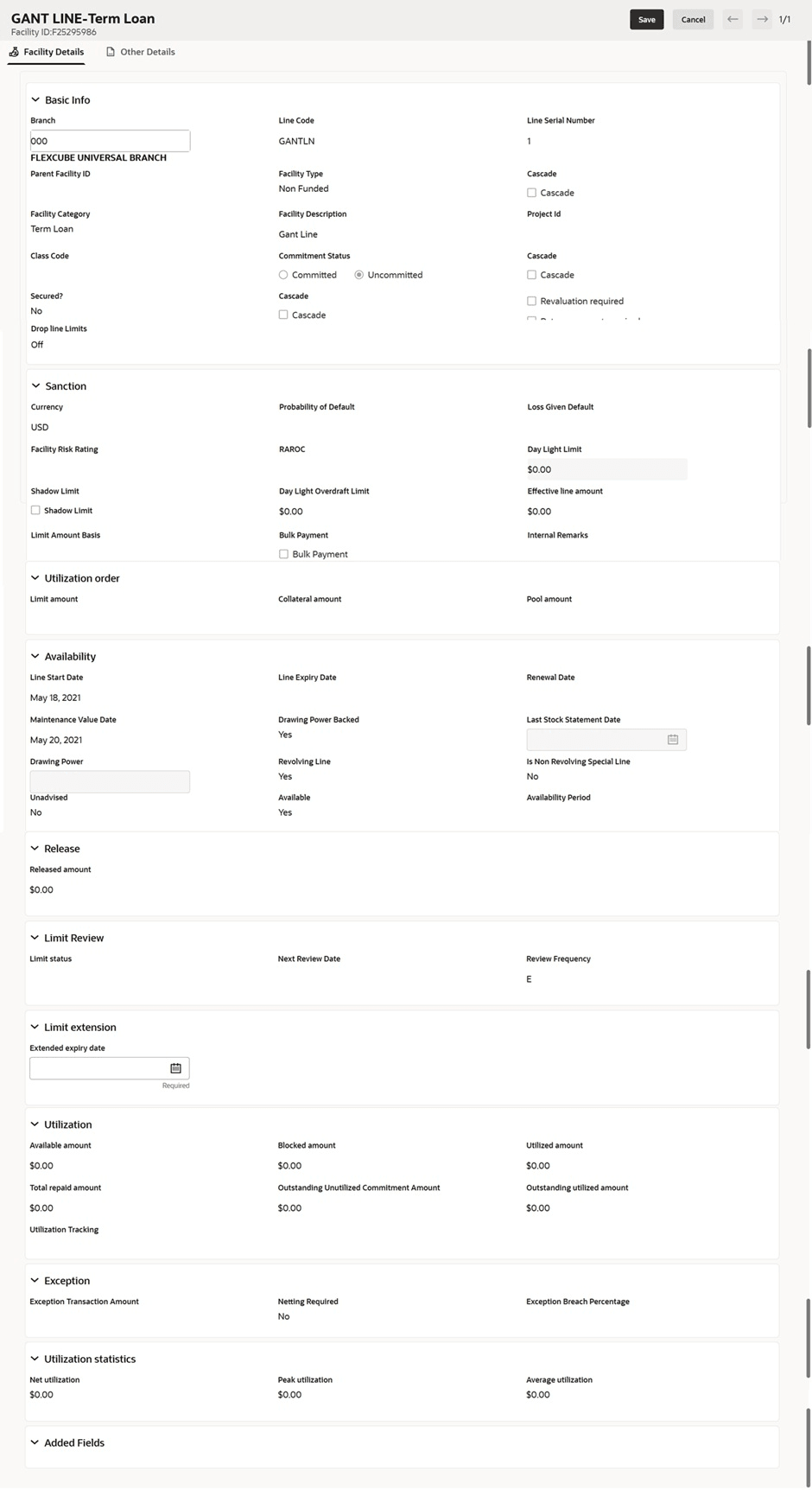
Edit.The Funding Requirement - Facility Details window is displayed.
Figure 7-35 Funding requirement - Facility Details
Table 7-11 Basic Info
Fields Description Branch Search and Select Branch from list of Branch Code. Line Code Enter Line Code for the facility. Line Serial Number Line Serial Number will be defaulted to 1 and you cannot modify line serial number. Parent Facility ID Search and Select Parent Facility ID and enter the following fields: - Facility ID
- Facility Description
- Line Code
- Line Serial
Facility Type Select Facility Type from the below checklist. The options are: - Funded
- Non Funded
Facility Category Search and Select Facility Category from list of Category Code. Facility Description Enter Facility Description for the facility. Project Id Search and Select Project Id from list of Category Code. Class Code Search and Select Class Code from list of Category Code. Commitment Status Select Commitment Status from the below checklist. The options are: - Committed
- Uncommitted
Secured Click Secured option and select Cascade check box, if required. Revaluation Required Select Revaluation Required option, if required. Rate Agreement Required Select Rate Agreement Required option, if required. Drop Line Limits Switch to indicate, if the facility limit drops over time based on a schedule. Table 7-12 Sanction
Fields Description Currency Search and select Currency in which the facility has to be offered. Requested Amount Specify the amount requested by the party in Requested Amount field. Probability of Default Enter Probability of Default. Select Decrement and Increment drop-down list option on right to increase or decrease the probability. Loss Given Default Enter Loss Given Default. Select Decrement and Increment drop-down list option on right to increase or decrease the loss given. Facility Risk Rating Enter Facility Risk Rating. Select Decrement and Increment drop-down list option on right to increase or decrease the facility risk rating. RAROC Enter RAROC. Select Decrement and Increment drop-down list option on right to increase or decrease the RAROC. Day Light Limit Enter Day Light Limit for the facility. Shadow Limit Click Shadow Limit check box to select Shadow Limit. Limit Amount Basis Select Limit Amount Basis from the below drop-down list. The options are: - Limit Amount
- Limit Amount + Collateral Contribution
- Minimum of Limit Amount or Collateral
Bulk Payment Click Bulk Payment check box to select Bulk Payment. Internal Remarks Enter Internal Remarks, if required. Table 7-13 Availability
Fields Description Line Start Date Select Date for Line Start Date. Line Expiry Date Click Select Date and select date for Line Expiry Date. Renewal Date Click Renewal Date and select date for Renewal Date. Maintenance Value Date Click Maintenance Value Date and select date for Maintenance Value Date. Drawing Power Backed Enable Drawing Power Backed, if required. Revolving Line Enable Revolving Line, if required. Is Non Revolving Special Line Enable Is Non Revolving Special Line, if required. Unadvised Enable Unadvised, if required. Available Displays the current Available status of the line. Availability Period Specify the Availability Period for the facility. Table 7-14 Limit Review
Fields Description Limit Status Select Limit Status from the drop-down list. The options are: - Active
- Closed
- Frozen
Next Review Date Select Date for Next Review Date. Review Frequency Select Review Frequency from the drop-down list. The options are: - Half yearly
- Monthly
- Quarterly
- Yearly
Table 7-15 Utilization
Fields Description Utilization Tracking Select Utilization Tracking from the drop-down list. The options are: - Local
- Global
Table 7-16 Exception
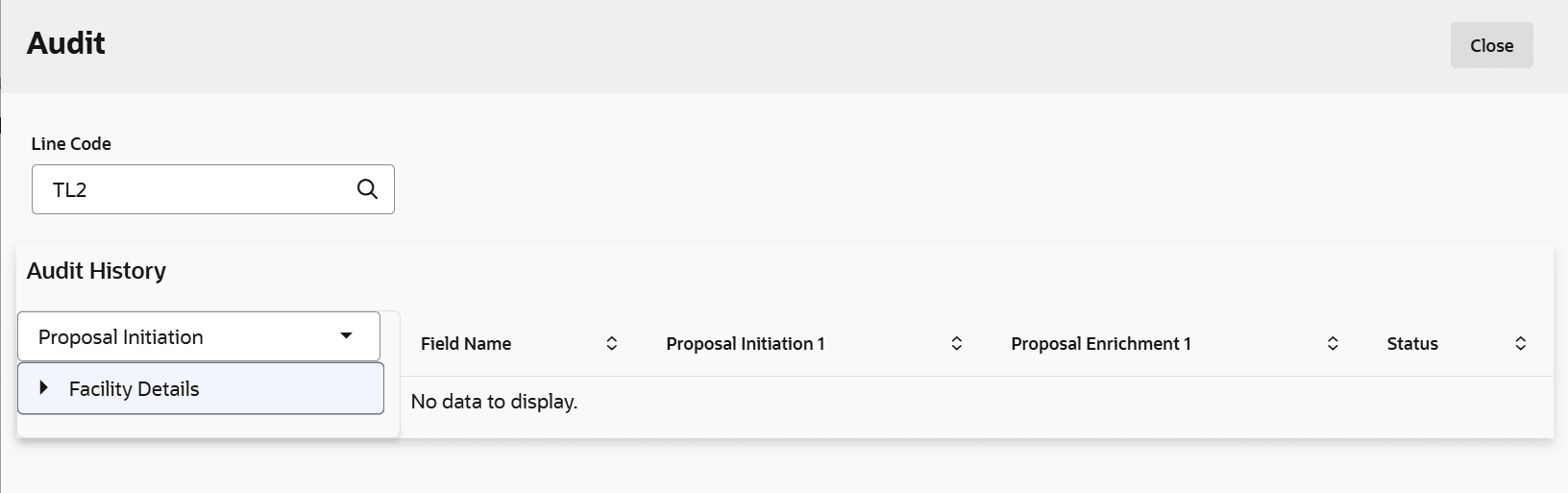
Fields Description Exception Transaction Amount Enter Exception Transaction Amount for the facility. Netting Required Select Netting Required, if required. Exception Breach Percentage Enter Exception Breach Percentage. Select Decrement and Increment drop-down list option on right to increase or decrease the exception breach percentage. - Click Audit.The Audit screen displays.
Parent topic: Proposal Structuring