7 Proposal Structuring
The following table provides high level overview about the Proposal Structuring stage.
Table 7-1 Proposal Structuring
| Information available for user | Activities that can be performed by user |
|---|---|
|
|
Steps to structure credit proposal
To structure the credit proposal, perform the following steps:
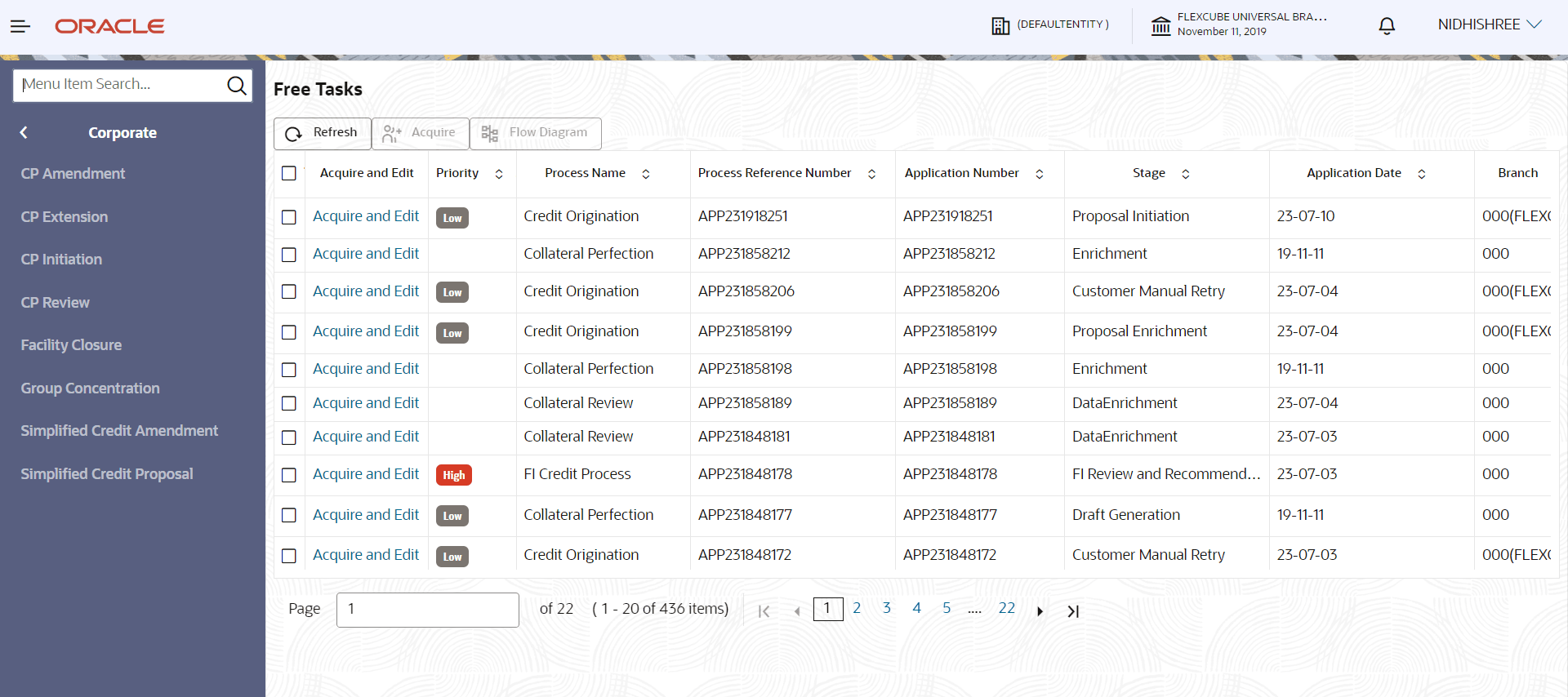
- In OBCFPM, navigate to Tasks > Free Tasks.The Free Tasks page is displayed.
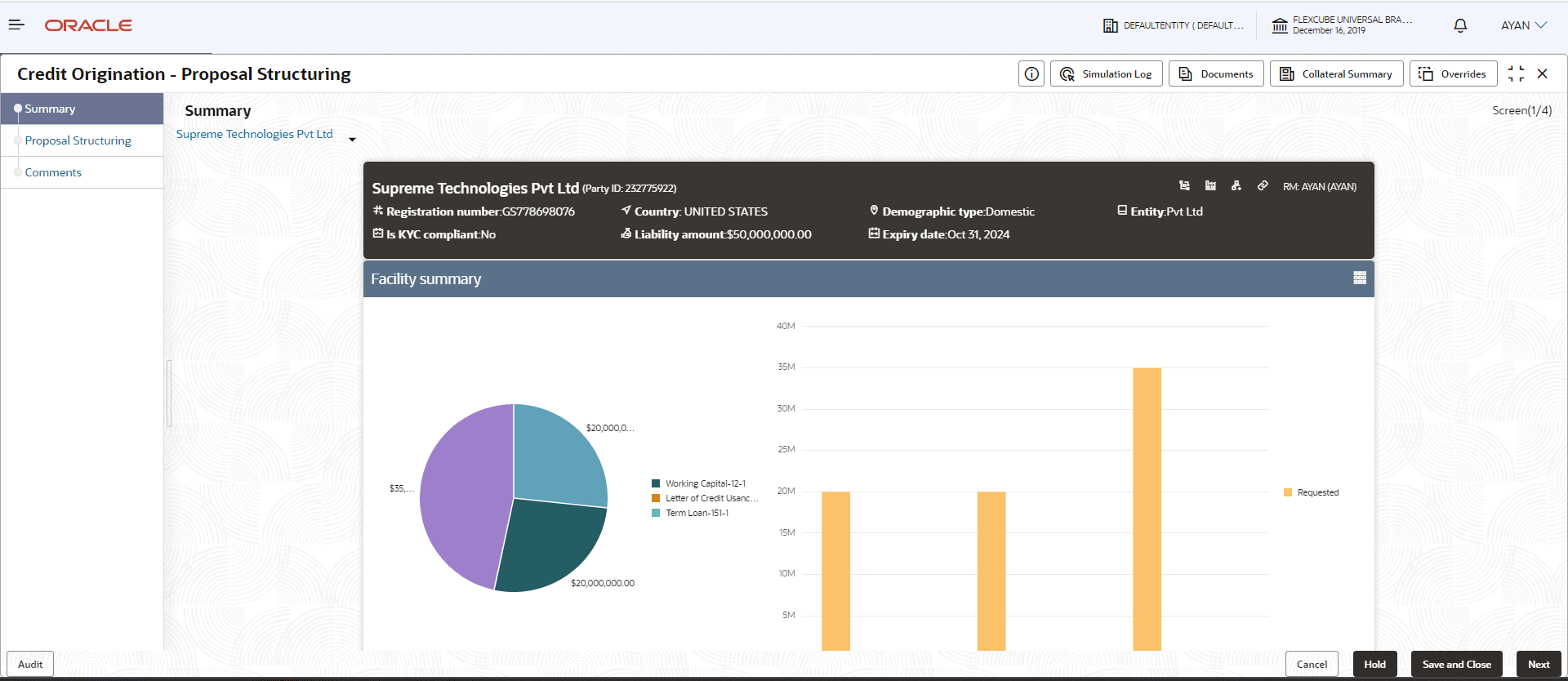
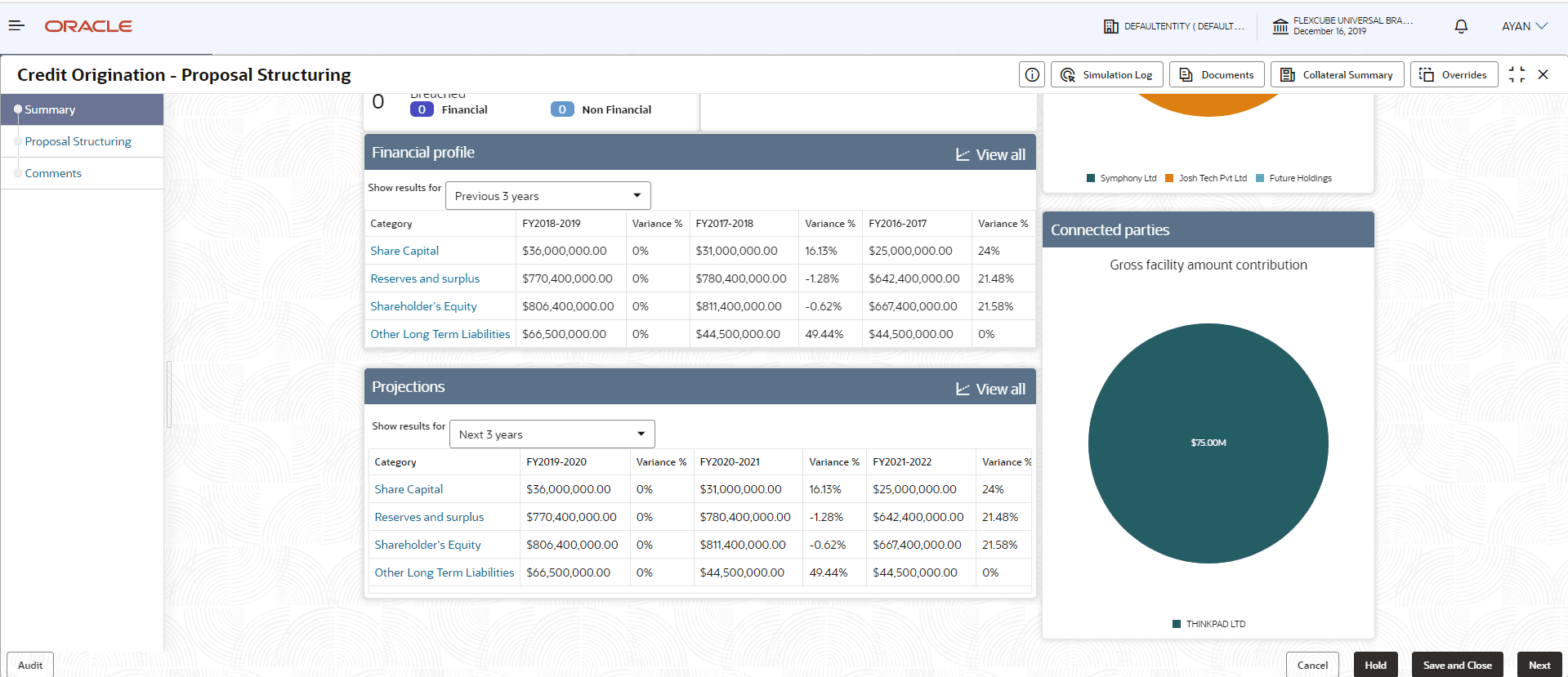
- Acquire & Edit the required Proposal Structuring task. The Credit
Origination - Proposal Structuring page summarizing the proposal
appears.
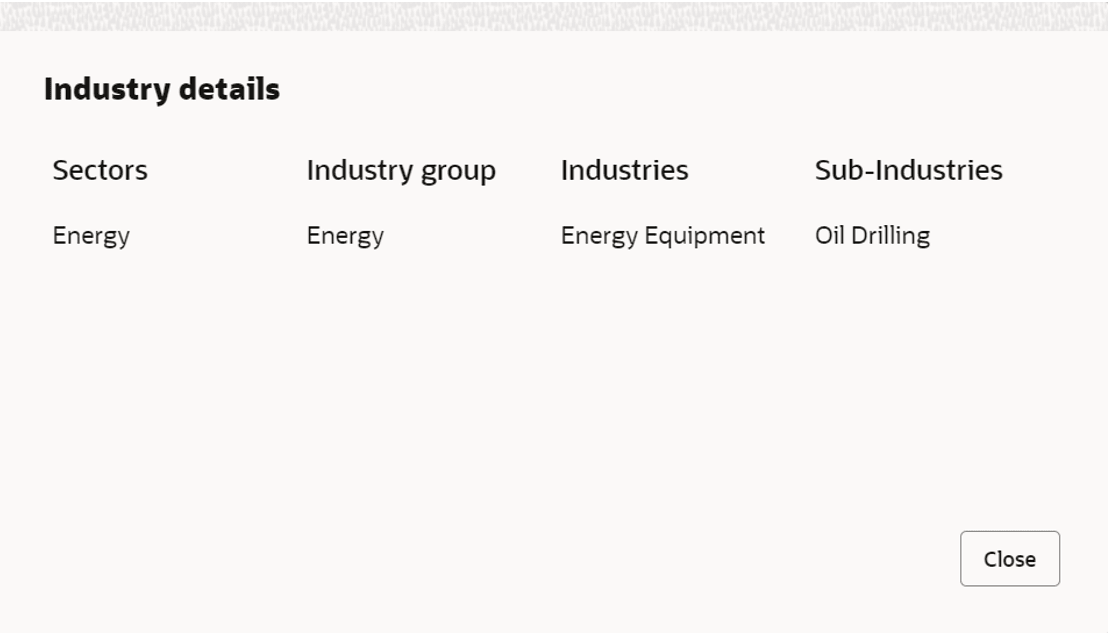
- To view the sector and industry information, click Industry icon in
Party Informationsection.The Industry Details window is displayed.
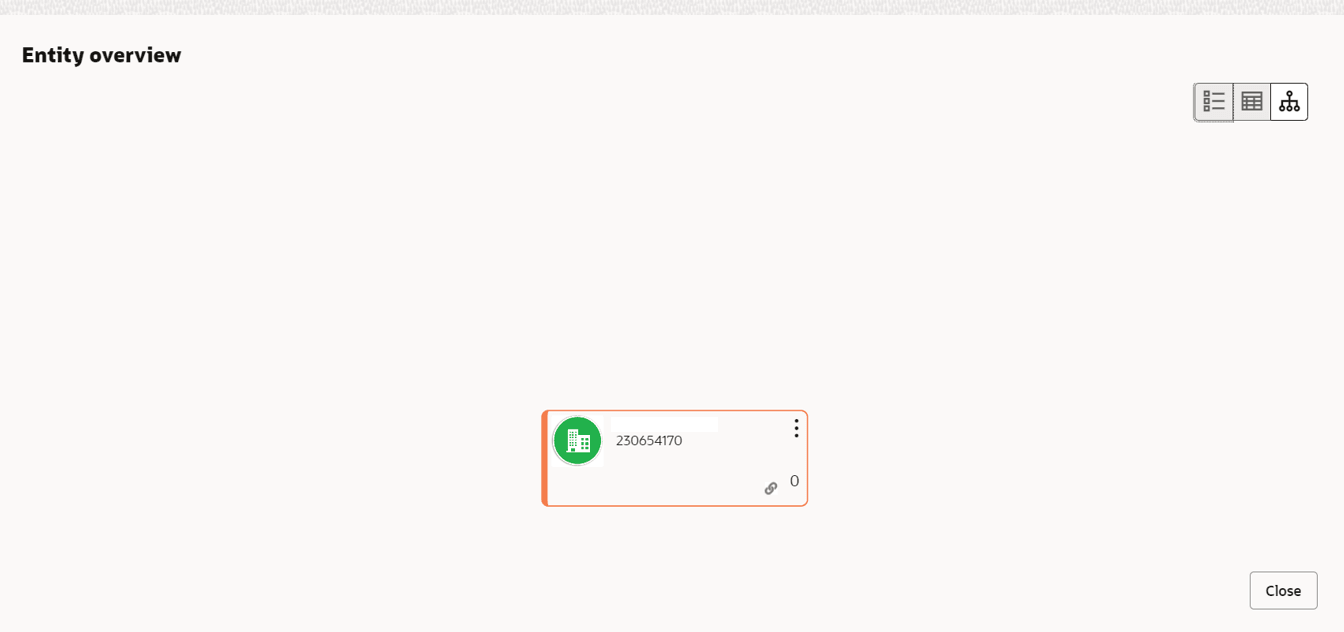
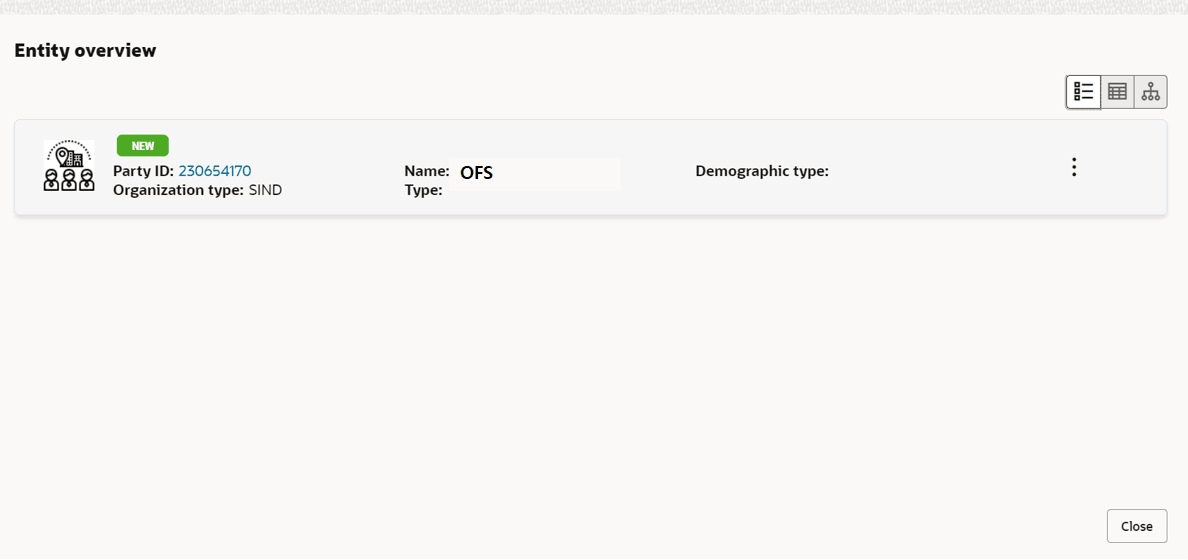
- To view the overview of the party, click Entity Overview icon in
Party Information section.The Entity Overview window appears.
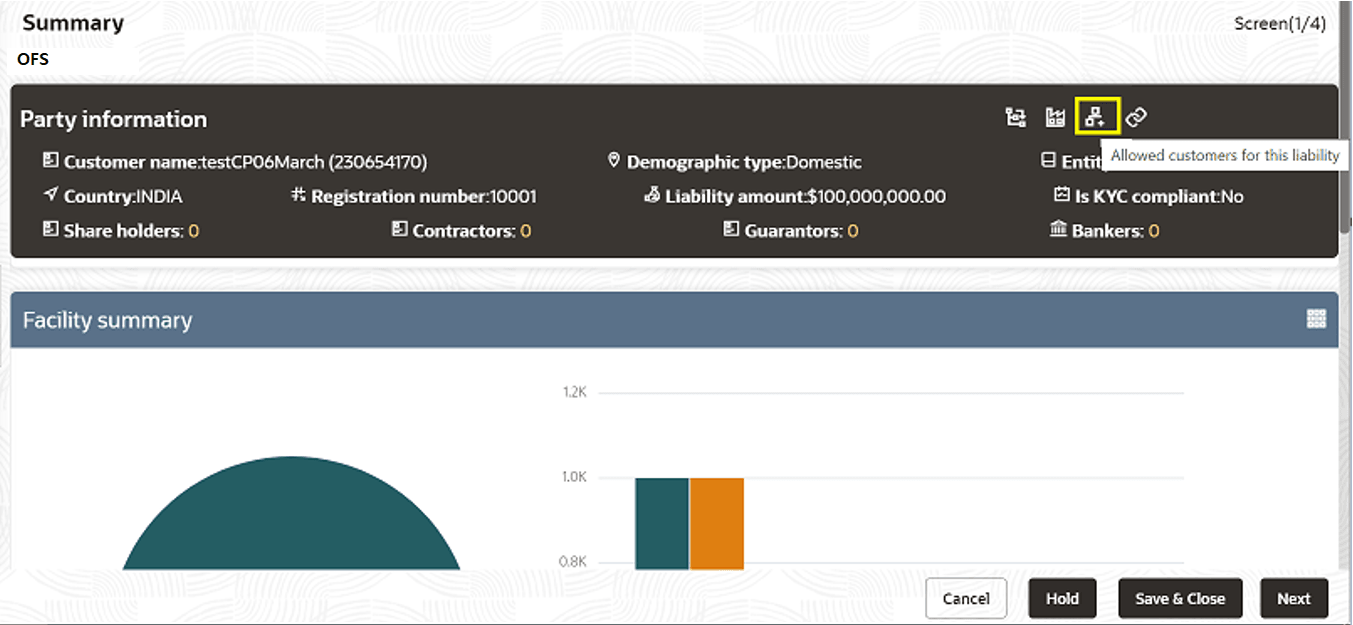
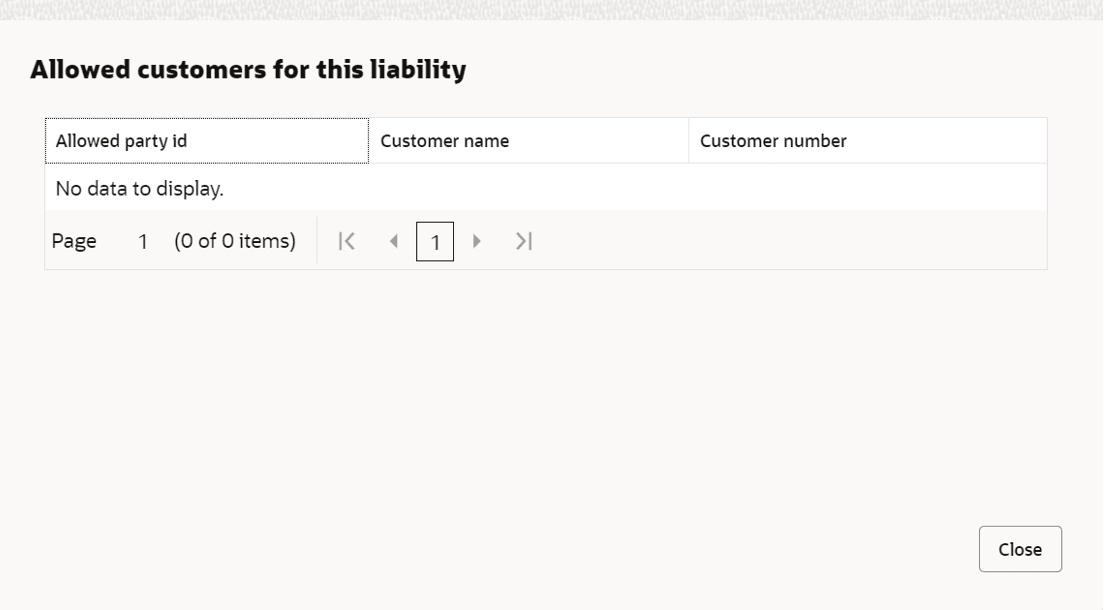
- Click Allowed Customers For This Liability icon in the Party
Information section, to view party's linked to the liability
information.The Allowed Customers For This Liability window appears.
Figure 7-8 Allowed Customers For This Liability
Figure 7-9 Allowed Customers For This Liability
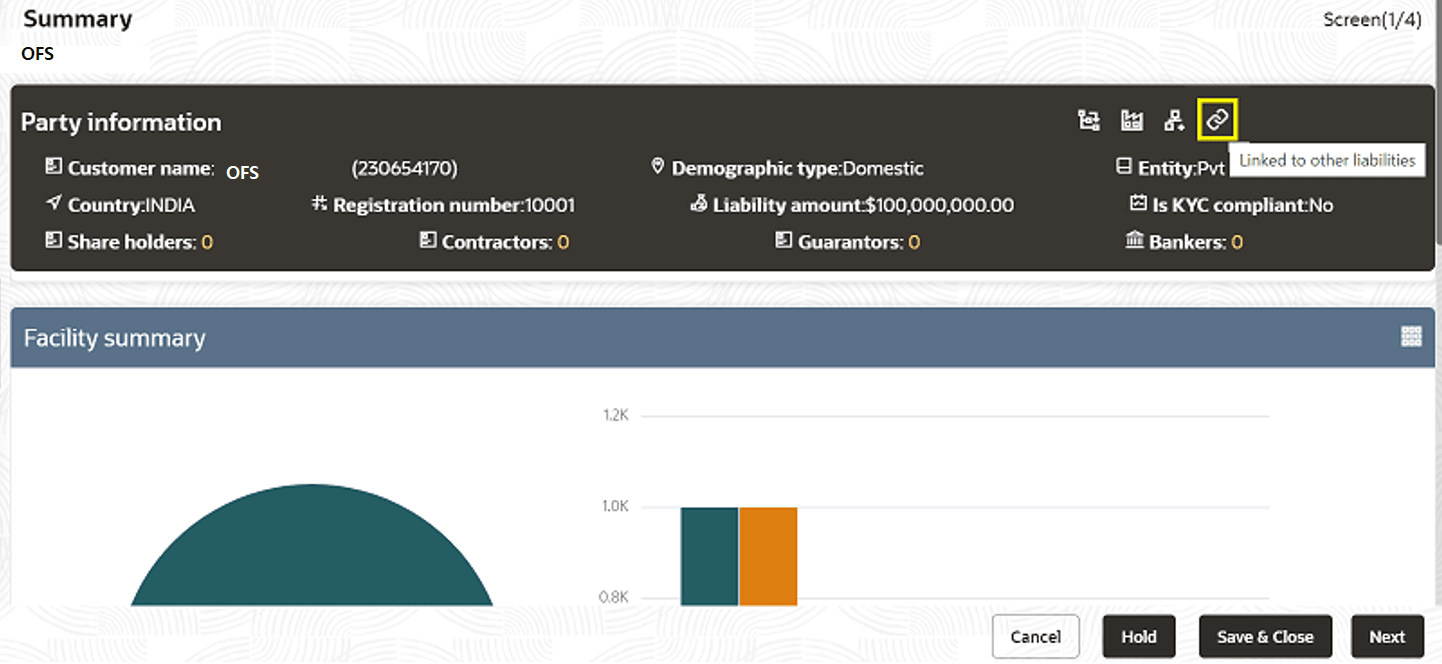
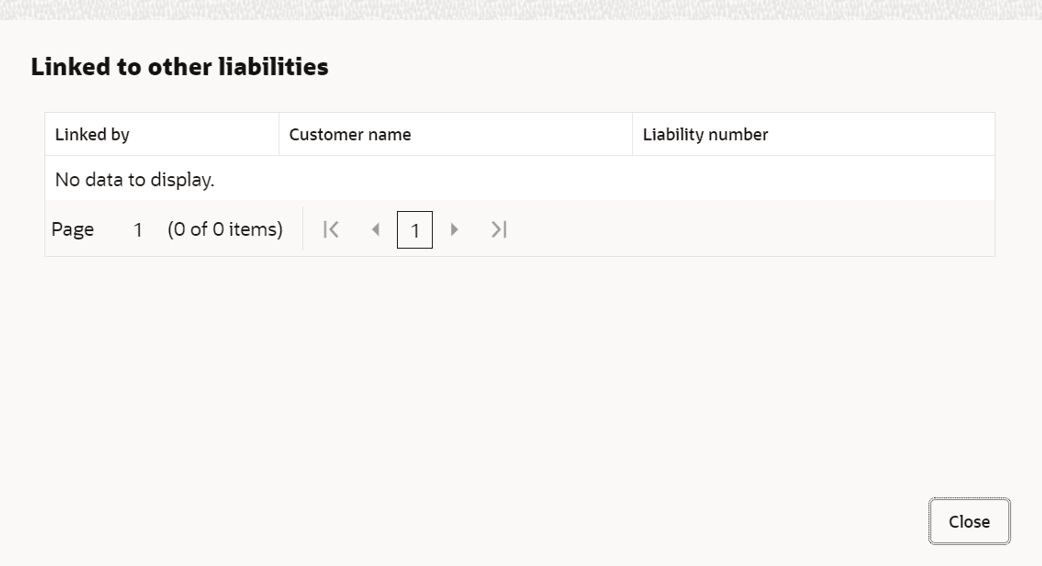
- Click Linked to other liabilities icon in the Party Information
section, to view other liabilities linked to the party information.The Linked to other liabilities window is displayed. If other liabilities are linked, the list of other liabilities details linked to the party window is displayed.
- Click Layout icon at the top right corner, to change the layout of the
Entity Overview.The Layout window is displayed.
- Select the required layout. Entity Overview is changed to the selected
layout as shown below.
Table 7-2 Entity Overview
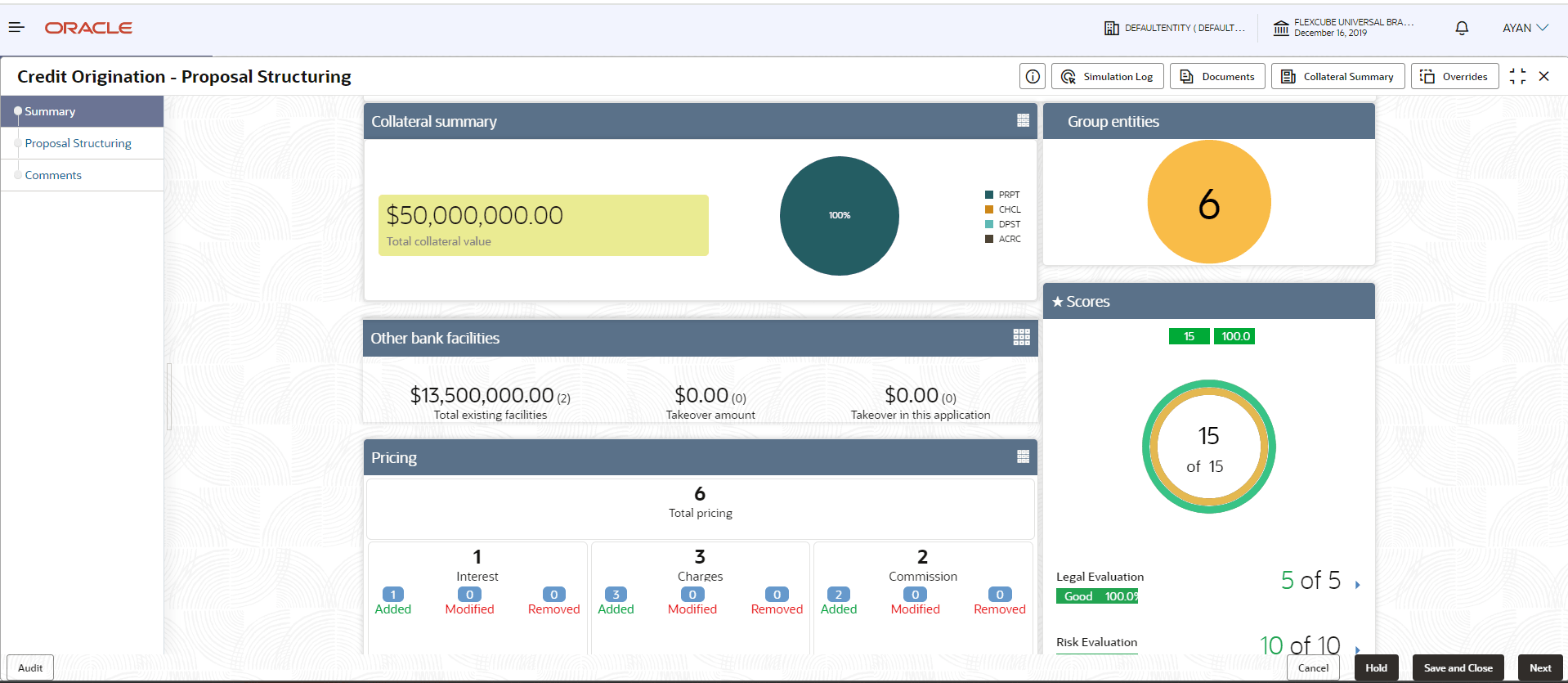
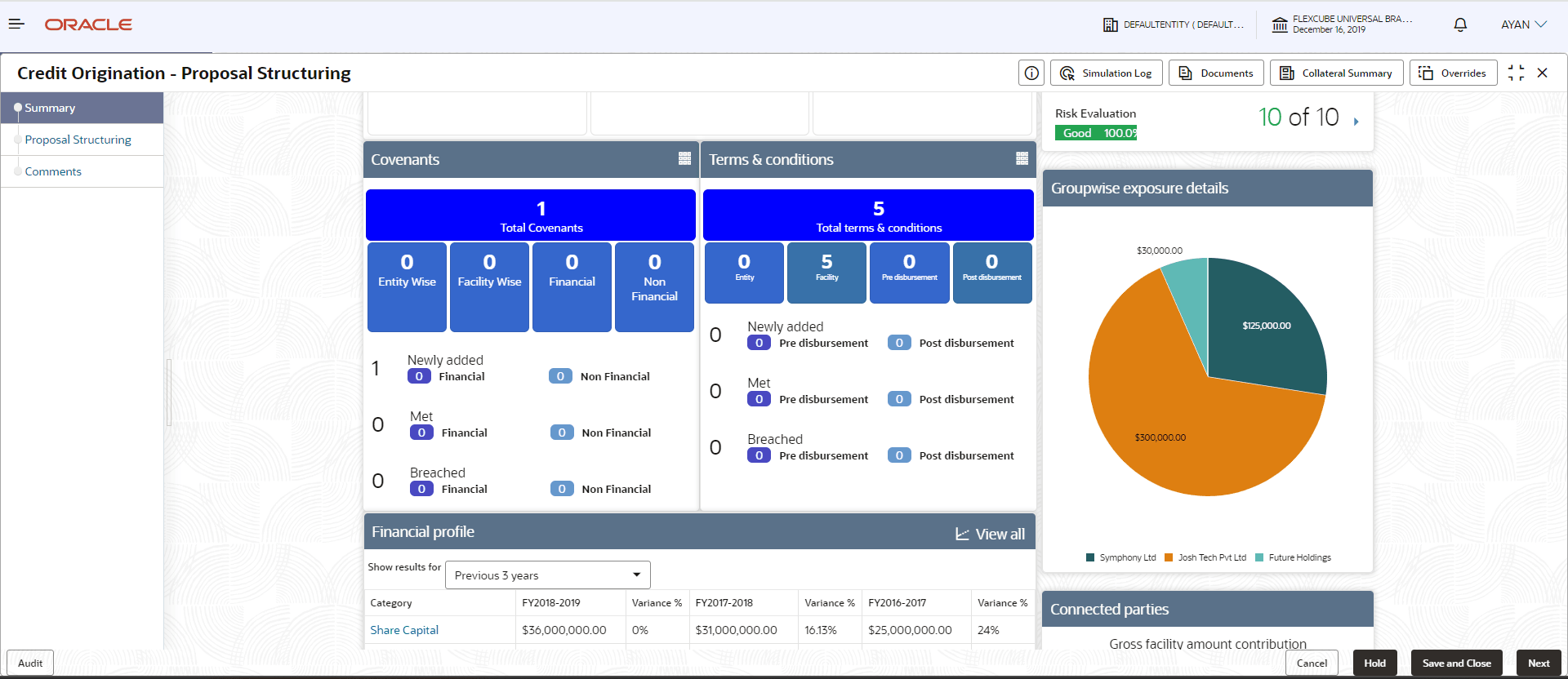
Fields/ Icons Description Close To exit Entity Overview window, click Close. In Party Information section, the count of Share Holders, Contractors, Guarantors, and Bankers is displayed.
Count Numbers To view the detailed information about the Share Holders, Contractors, Guarantors, and Bankers, click the respective count numbers. Layout Icon To change the layout of Facility Summary, Collateral Summary, Existing Facilities held with Other Bank, Pricing, Covenants, and Conditions widgets in Summary page, click Layout icon and select the required layout. View all To view detailed information about Financial Profile and Projection, click View all in the respective sections. By default, Financial Profile of the party and financial Projections for the party are listed for 3 years.
- Proposal Structuring - Liabilities
This topic provides systematic intsructions about liabilities. - Restricting Limit based on Tenor
- Linking Facility to the Pool
- Proposal Structuring - Linking Facility with Collateral
This topic provides systematic instructions about facilities. - Proposal Structuring - Collateral
- Proposal Structuring - Covenants
- Proposal Structuring - Covenant Details
- Proposal Structuring - Conditions