7.2 Restricting Limit based on Tenor
The system allows you to restrict the limit set for the facility for a
specific period. That is, you can define how much party's can utilize in a specific
period using the Tenor Restrictions feature.
- Click Tenor Restrictions from the left menu, to capture Tenor
Restrictions for a limit.
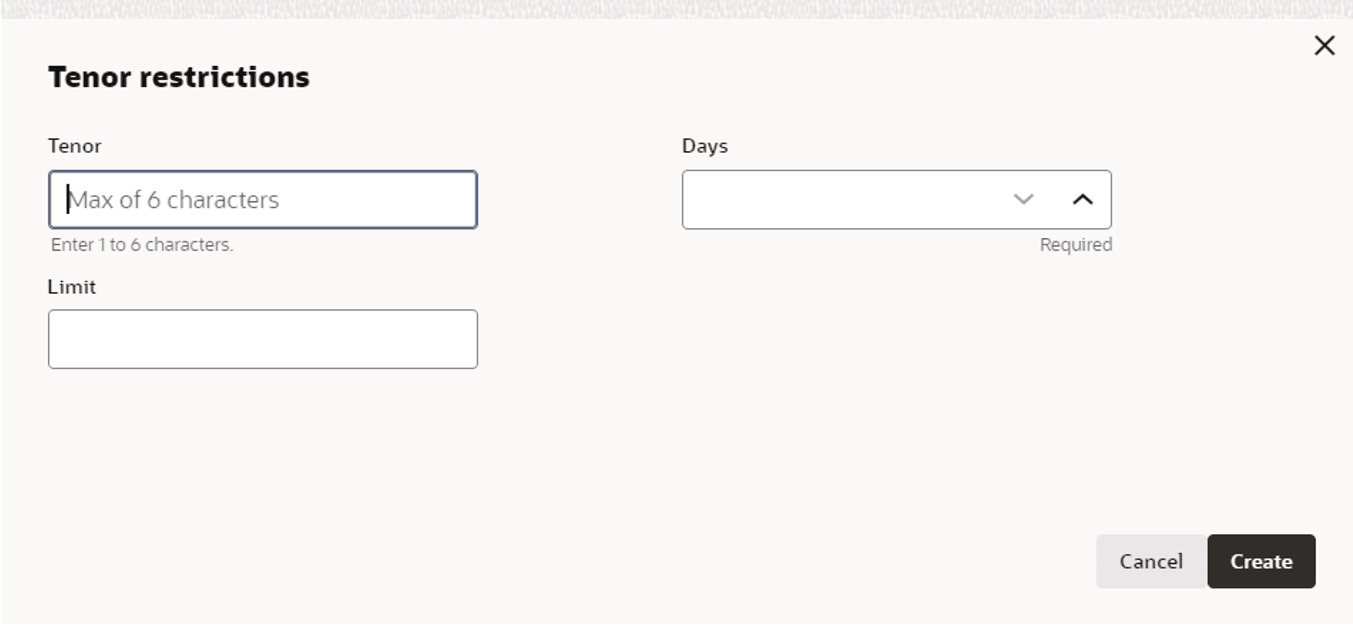
- Click + icon. The following window is displayed.
For Tenor Restrictions screen field level information refer the table below.
Table 7-4 Tenor Restrictions
Field/ Icons Description Tenor Specify the user defined Tenor ID. Days Specify Days till which the Limit has to be available to the party's. Limit Specify Limit that has to be made available for the defined period. Create Click Create. The details are added and listed in the Tenor Restriction page. View/Edit/Delete To View, Edit, or Delete the added tenor details, click the hamburger icon and select the required option. Adding Exposure Details
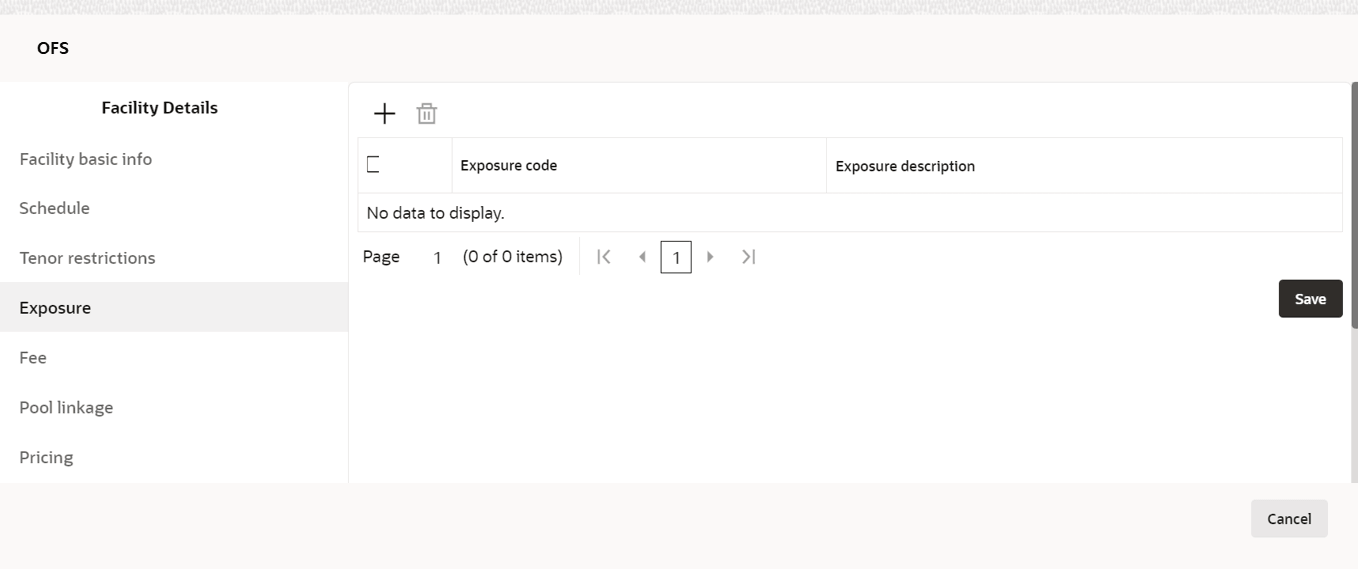
- Click Exposure from the left menu, to capture exposure
information.
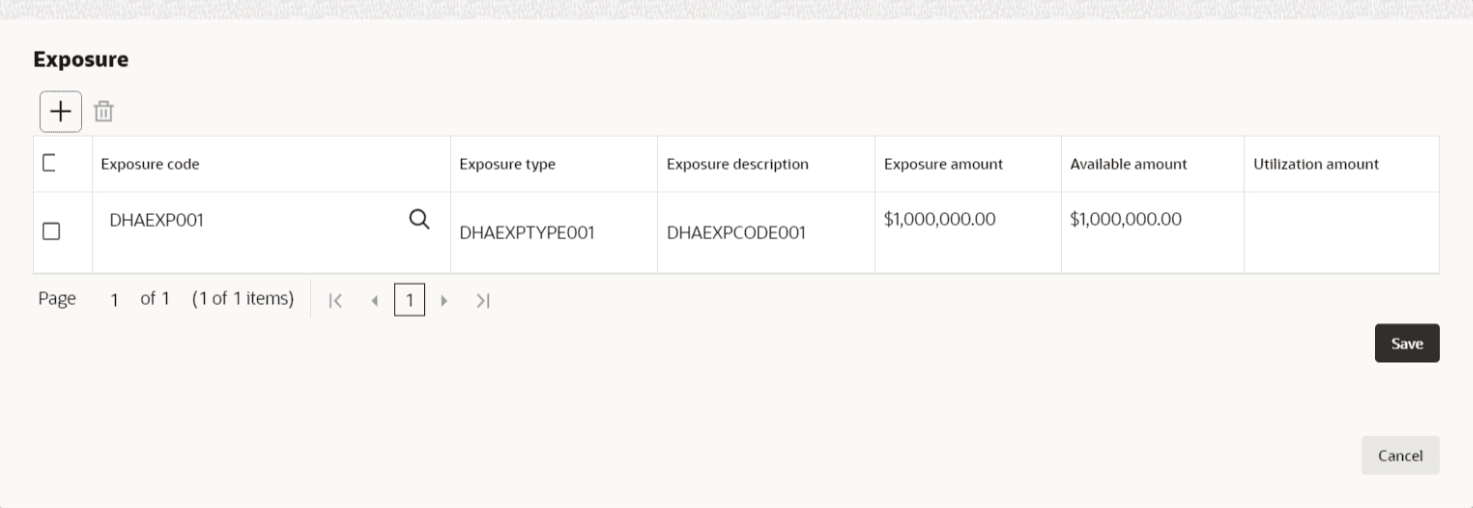
You can associate any exposure maintained in OBELCM to the facility for tracking purpose.
Table 7-5 Exposure Details
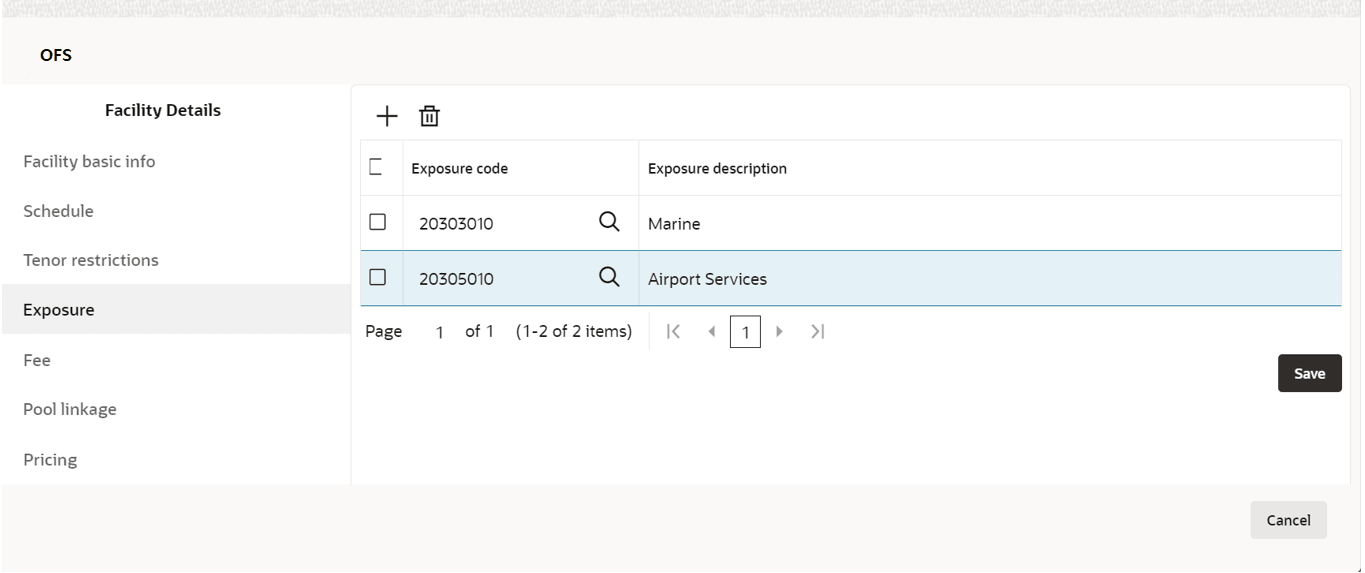
Fields/ Icons Description + (add) Click + icon. A record is created for capturing the exposure details. Exposure Type Specify Exposure Type for the facility. Exposure Code Specify Exposure Code for the facility. Exposure Description Description provided for the selected exposure type gets defaulted here. Exposure Amount Specify the exposure limit amount which is to be maintained for each exposure tracking maintenance. A confirmation is sought during utilization when the utilization amount crosses the exposure amount. Available Amount This is the limit amount that is considered when processing utilization requests for an exposure. It is the amount available after taking into account previous utilizations and amount block (earmark) in force for an exposure. It is calculated as shown below: Exposure Available Amount = Exposure Limit Amount – Utilization – Exposur block amount. Utilization Amount The system displays utilization for the exposure in this field. Utilizations affection a particular facility or liability will update the utilization amount of linked exposure as well as the related exposures up the hierarchy. - Click + icon again, to add another exposure type and code.
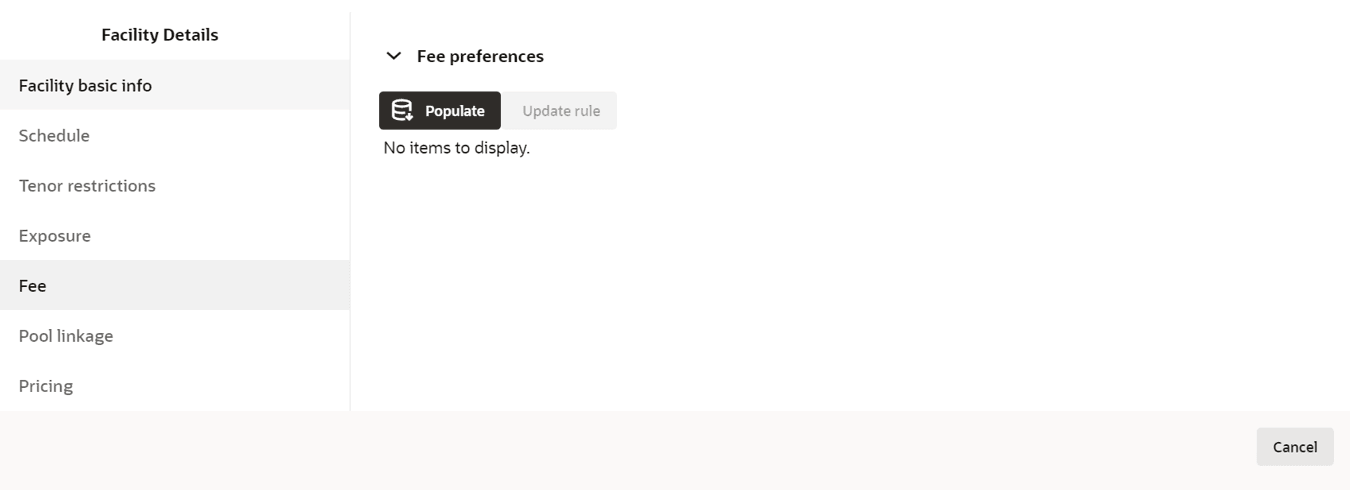
Adding Fee Details
- Click Fee from the left menu, to add fee preferences.

Parent topic: Proposal Structuring