5.9 Credit Analysis - Credit Scoring
Detailed information about the Credit Scoring tile in Credit Analysis Data segment.
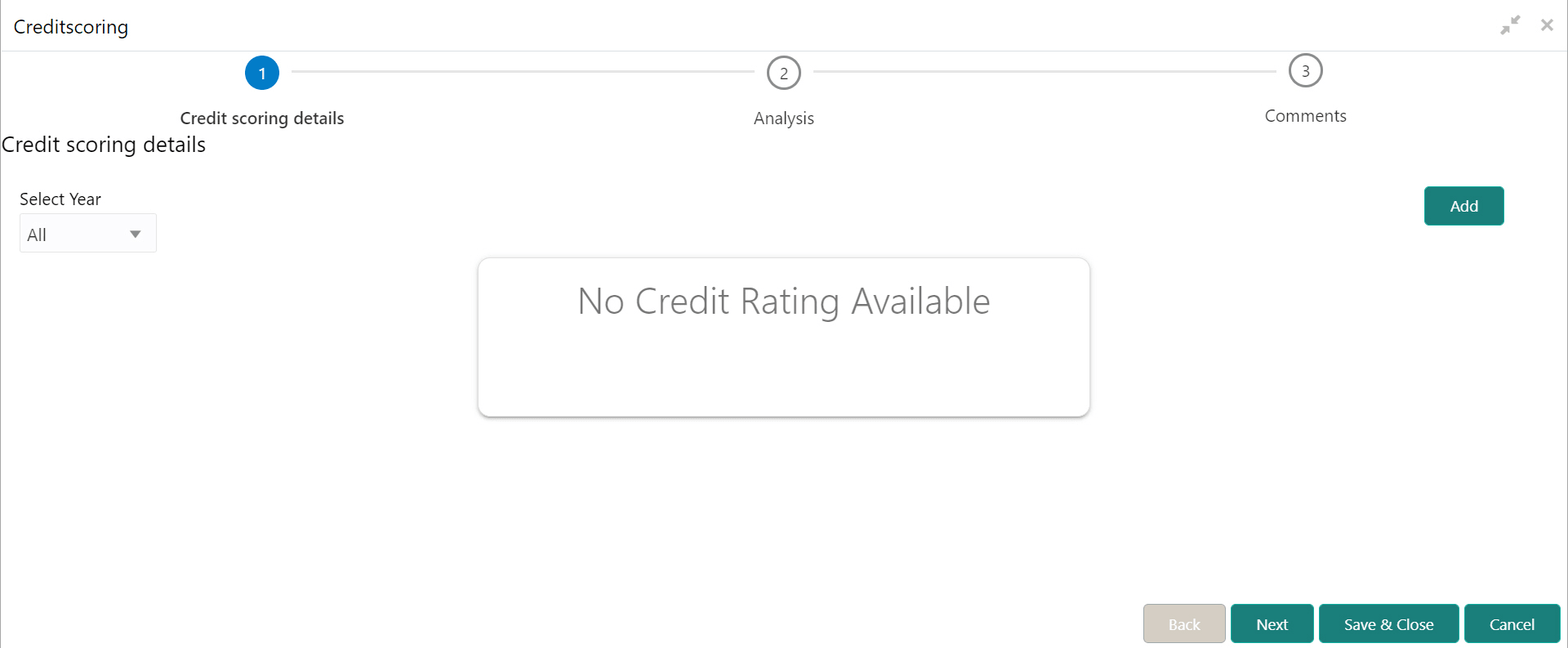
- Click Enrich in the Credit Scoring tile.The Credit Scoring page is displayed.
Figure 5-41 Credit Scoring
Adding Credit Score Details
- To add credit scoring details, click Add. The Add Credit Score window is displayed.For information on fields in the Add Credit Score screen, refer the below table.
Figure 5-42 Add Credit Score
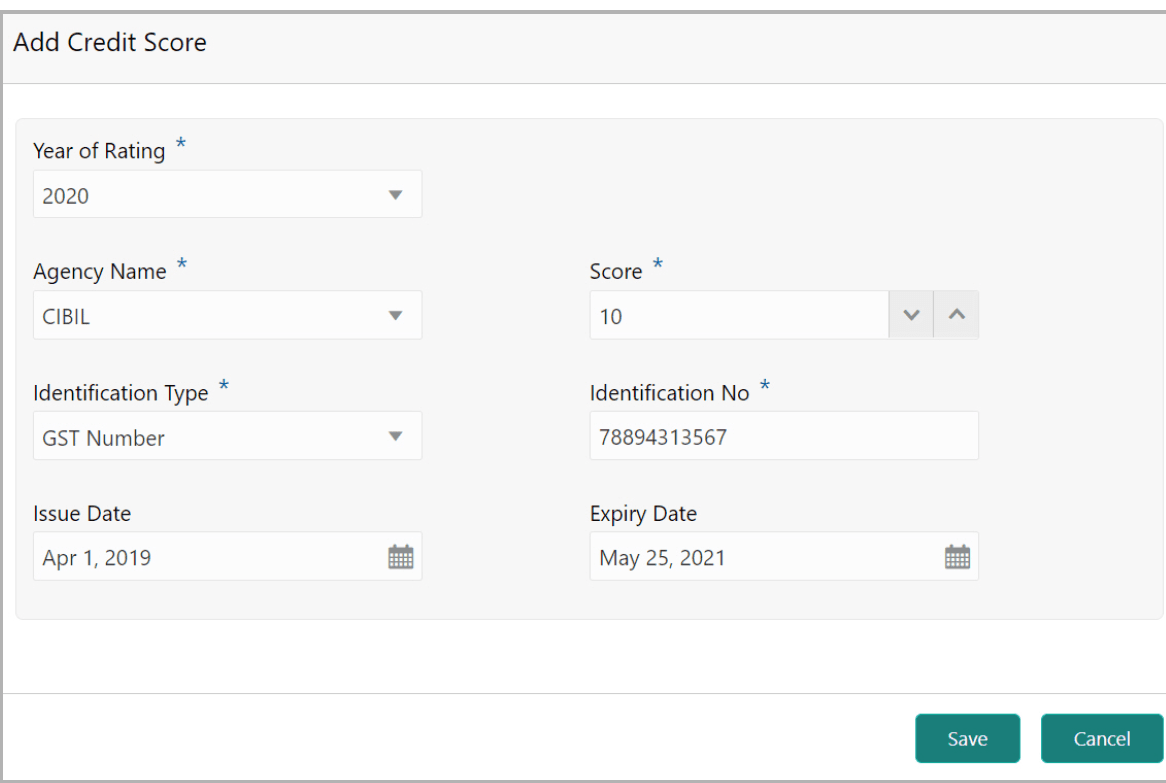
Table 5-15 Add Credit Score
Field Description Year of Rating Select the year in which credit score is provided from the Year of Rating drop down list. Agency Name Select the name of agency which provided the credit score from the Agency Name drop down list. Score Specify the Score provided by the selected agency in specified year. Identification Type Select the Identification Type for the customer prospect. The options available are: Registration Number, PAN, and GST Number. Identification No Specify the Identification No for the selected identification type. Issue Date In the Issue Date field, specify the date on which the credit score is issued by the selected agency. Expiry Date In the Expiry Date field, specify the date till which the credit score is valid. - Click Save. The details are added and displayed in the
Credit Scoring Details page as shown below:
Figure 5-43 Credit Scoring
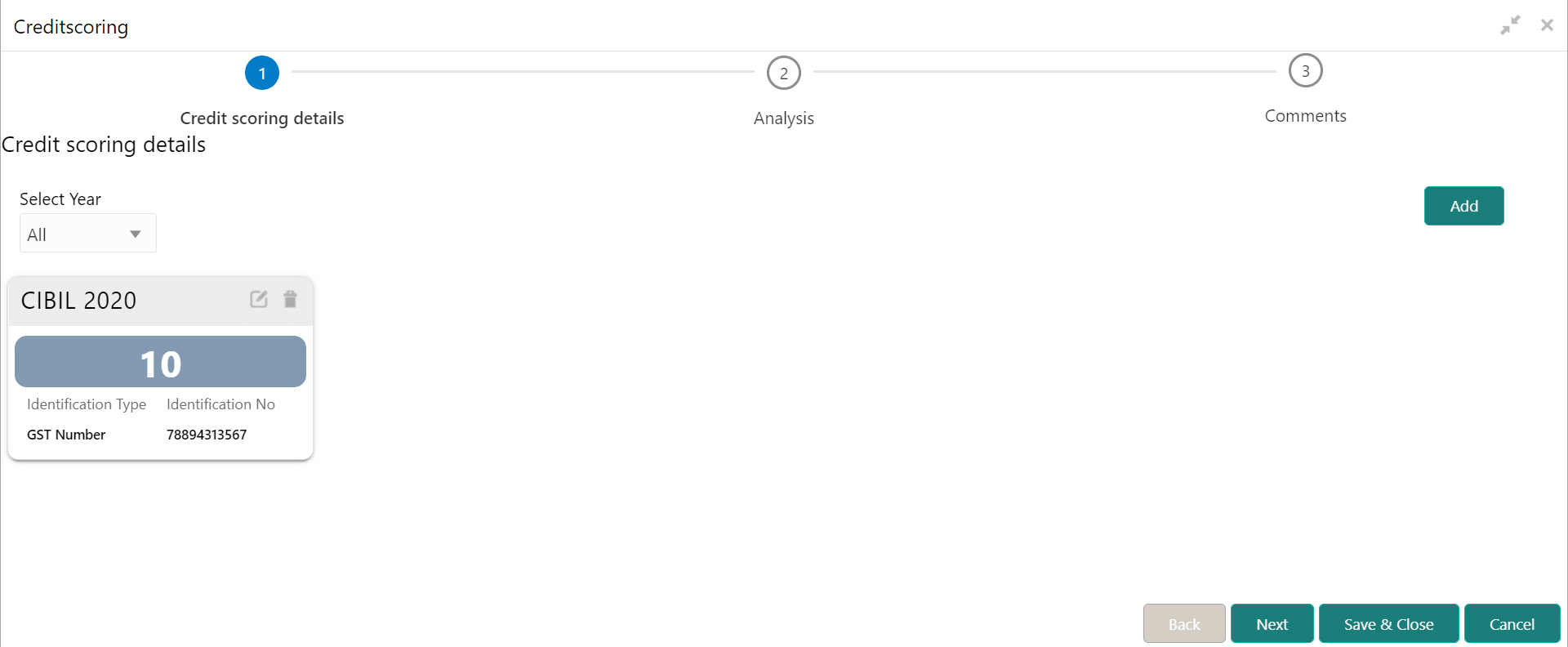
For information on fields in the Credit Scoring screen, refer the below table.
Table 5-16 Credit Scoring
Field Description edit or delete To edit or delete the added scoring detail, click the corresponding icon. Select Year To filter the scoring record based on scoring provided year, Select Year from the drop down
Analyzing Credit Score
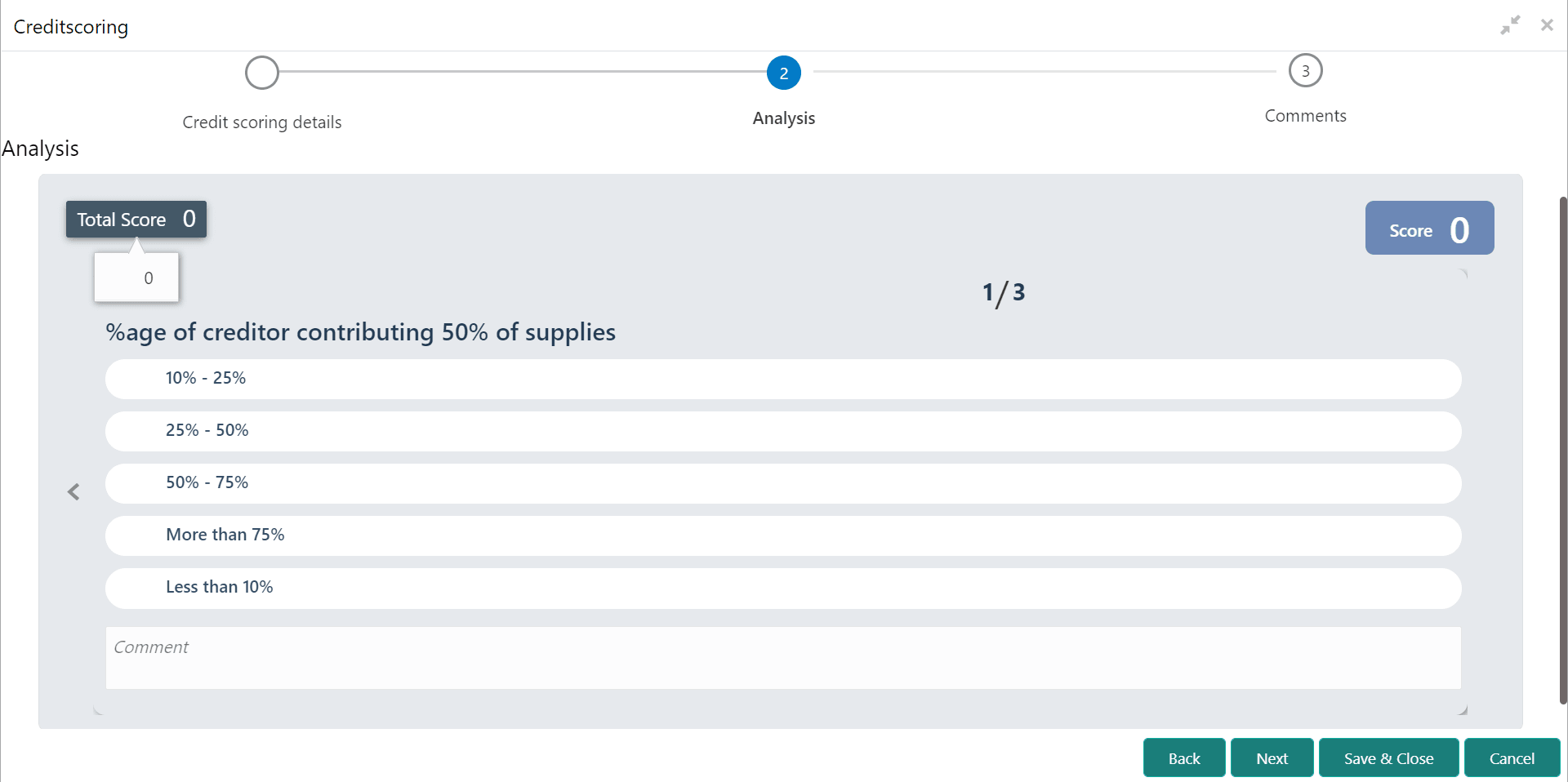
- To analyze the customer prospect credit score, click
Next in the Credit Scoring Details page.The Analysis page is displayed.
Figure 5-44 Creditscoring
- Click Next. The Comments page is displayed.
Figure 5-45 Credit Scoring - Comments
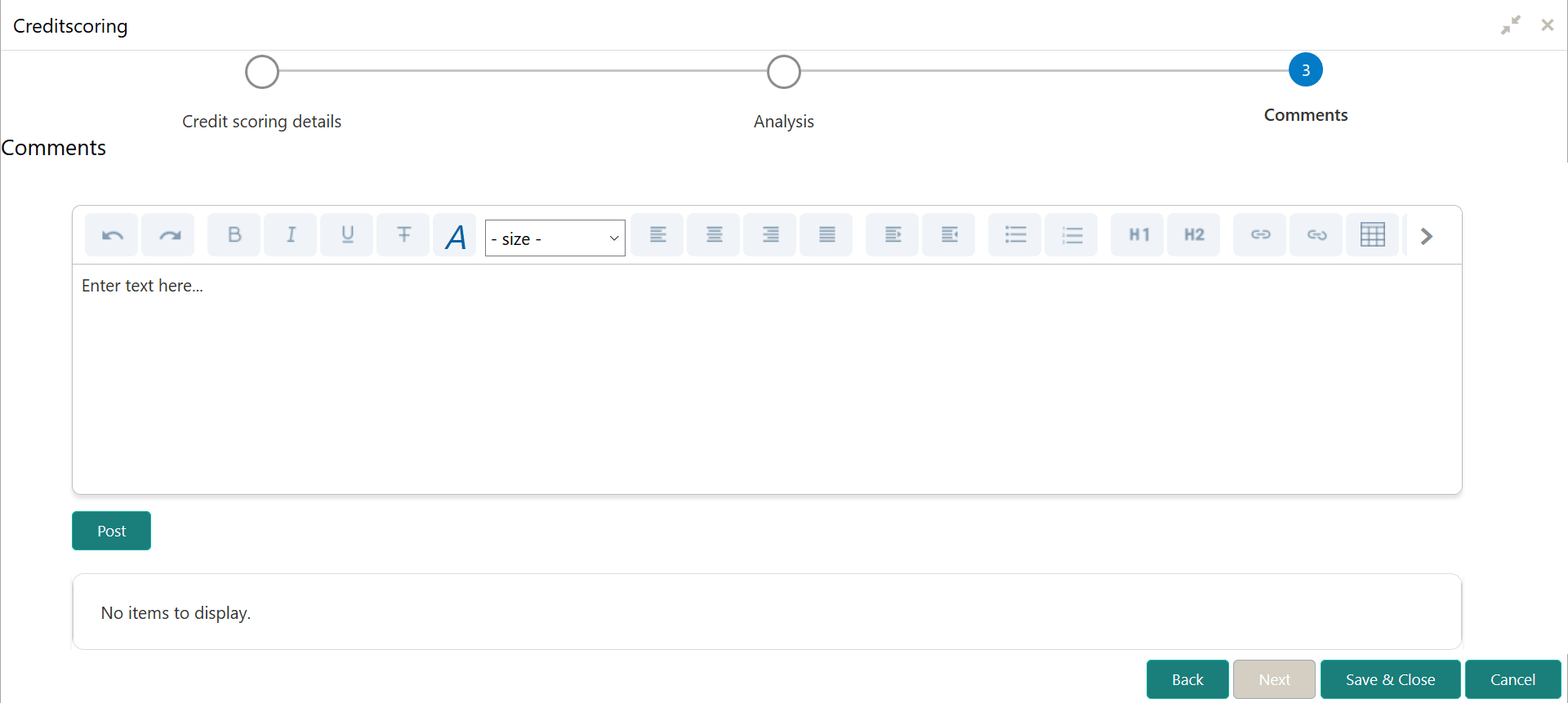
For information on fields in the Credit Scoring - Comments screen, refer the below table.
Table 5-17 Credit Scoring - Comments
Field Description Comments Type the overall Comments for the credit scoring analysis. Post Click Post. Comments are posted below the Comments box. - Click Save & Close.
Figure 5-46 Credit Scoring
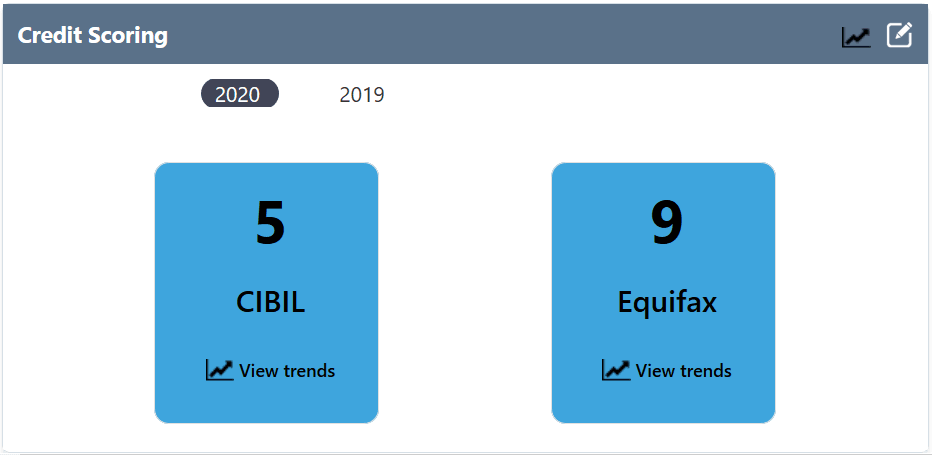
In the Credit Scoring tile, click on the year to view the customer prospect’s credit scoring in specific year.
Viewing Credit Scoring Trends
- To view credit scoring trends, click
 the Trend Analysis icon in Credit Scoring tile. The Credit Scoring Trends window is displayed.For information on fields in the Credit Scoring Trends screen, refer the below table.
Figure 5-47 Credit Scoring Trends
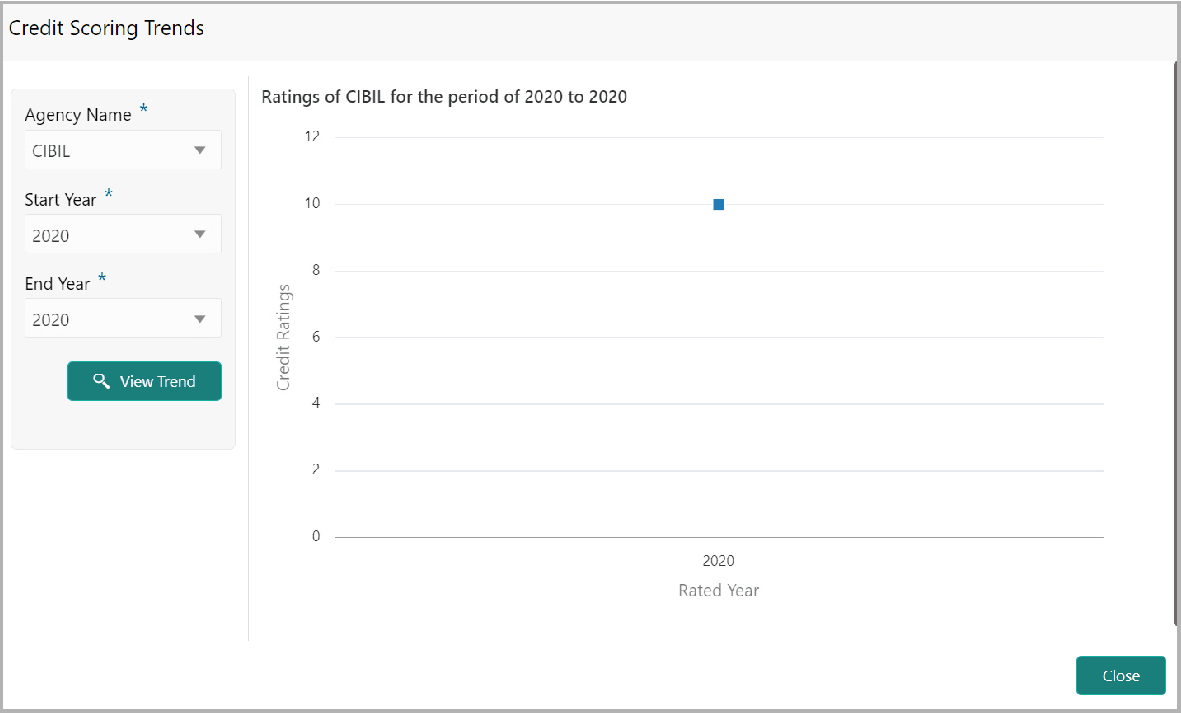
Table 5-18 Credit Scoring Trends
Fields Description Agency Name Select the Agency Name. Start Year and End Year Specify the period for which you want to view credit scoring trend by selecting Start Year and End Year. View Trend Click View Trend. Close To exit the Credit Scoring Trends window, click Close.