5.6 Credit Analysis - Rating Analysis
Detailed information about the Rating Analysis tile in Credit Analysis Data segment.
This tile allows to add rating details of your customer prospect. You can add
rating details for different financial years and perform questionnaire-based rating
analysis.
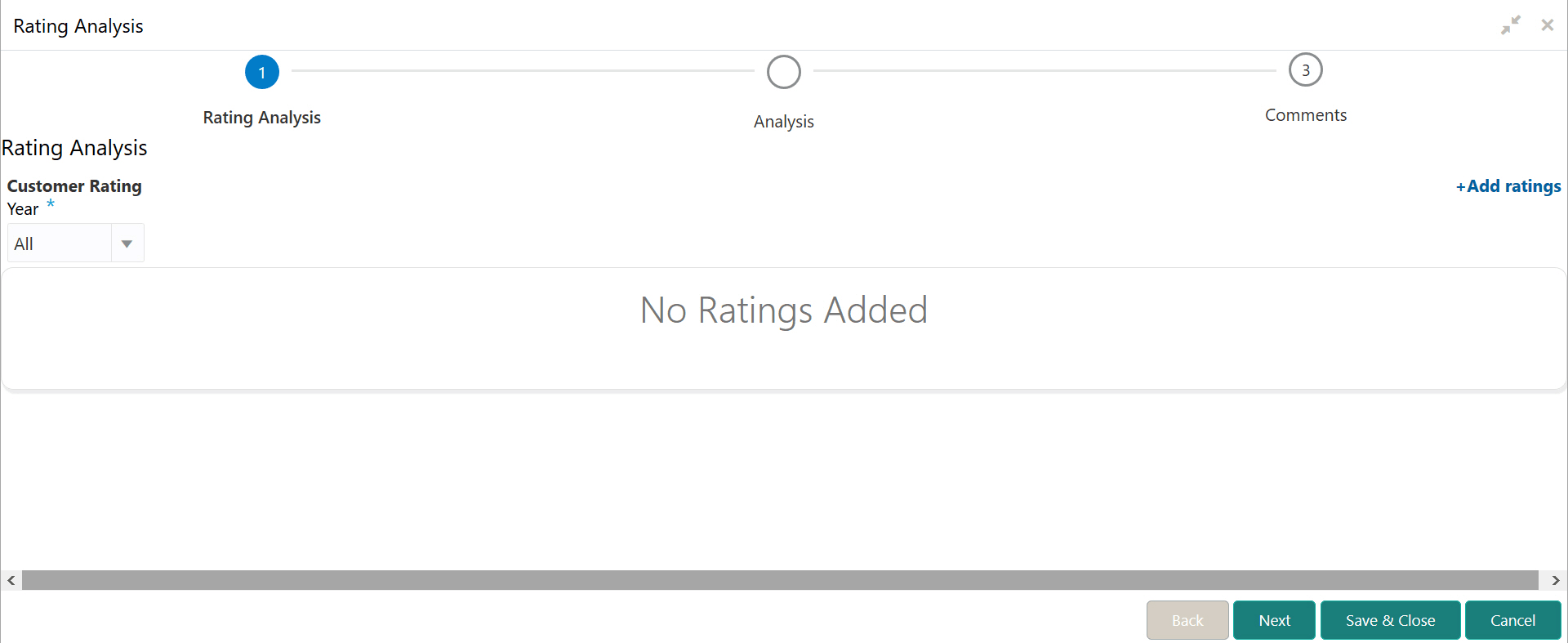
- Click Enrich in the Rating Analysis tile.The Rating Analysis page is displayed.
Figure 5-24 Rating Analysis
Adding Rating Details
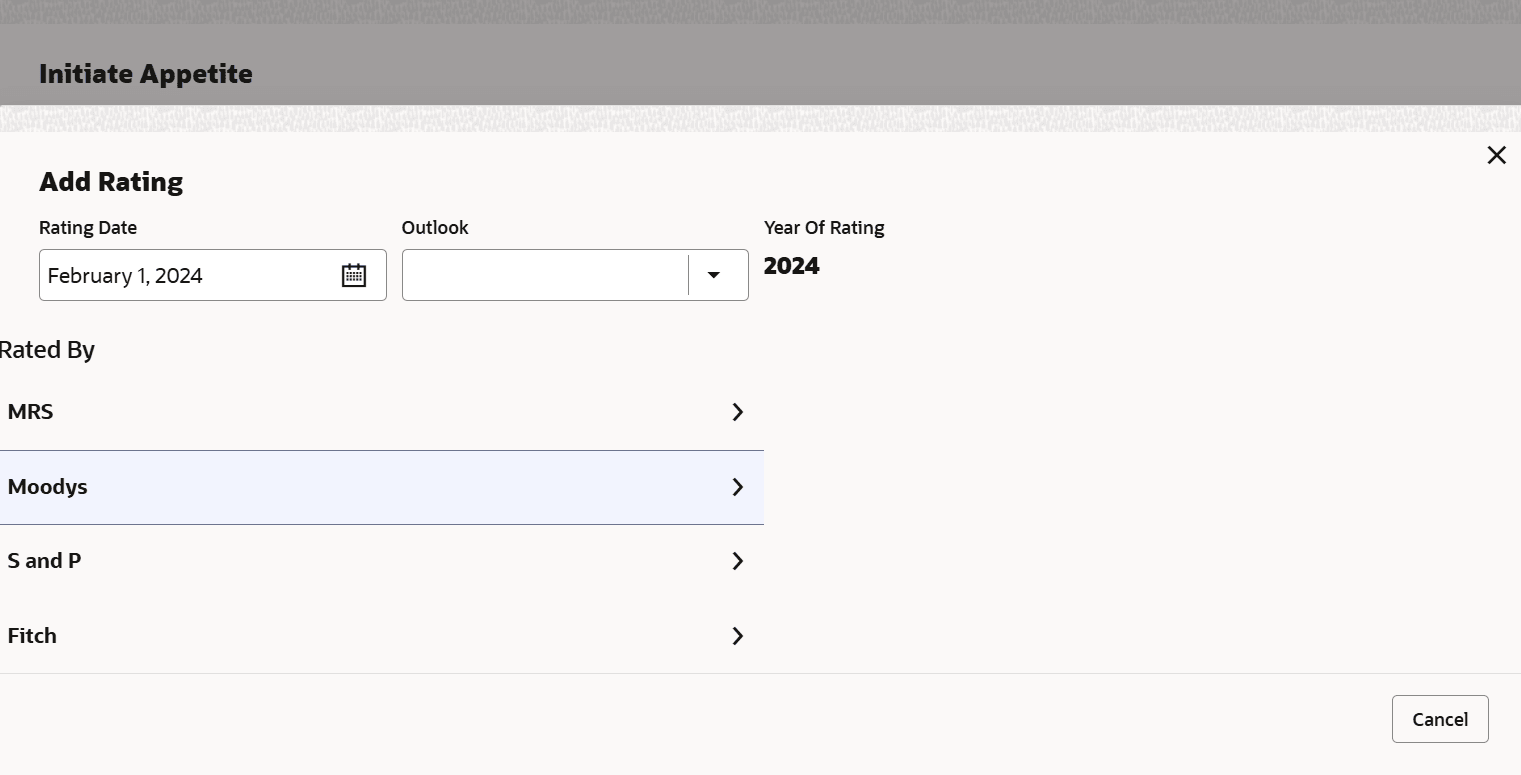
- To add rating details, click +Add ratings at the top right corner. The Add Rating window is diplayed.
- Select the following details:
- Rating Date
- Outlook
- Rated By
- Risk Ratings
The Year Of Rating is automatically populated based on the selected Rating Date.
Upon selection of the above details, the rating is added and displayed as shown below:
For information on fields in the Rating Analysis screen, refer the below table.Figure 5-26 Rating Analysis
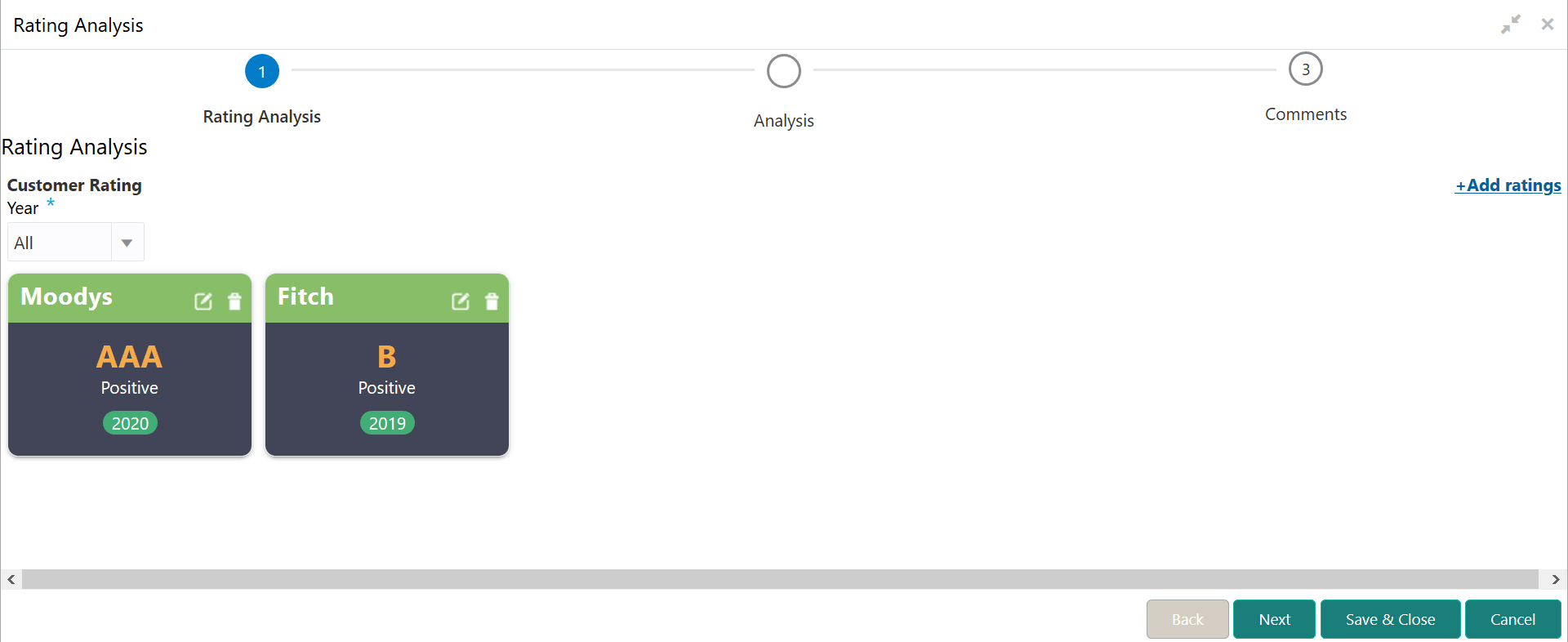
Table 5-9 Rating Analysis
Fields Description Year To filter the rating based on year of rating, select the required year from the Year drop down list. edit To modify the added rating, click the edit icon and change the required details. delete To delete the added rating, click the delete icon. Note:
If the customer prospect is rated by different rating firms, add all the rating information by clicking +Add ratings.
Analyzing Customer Prospect Rating
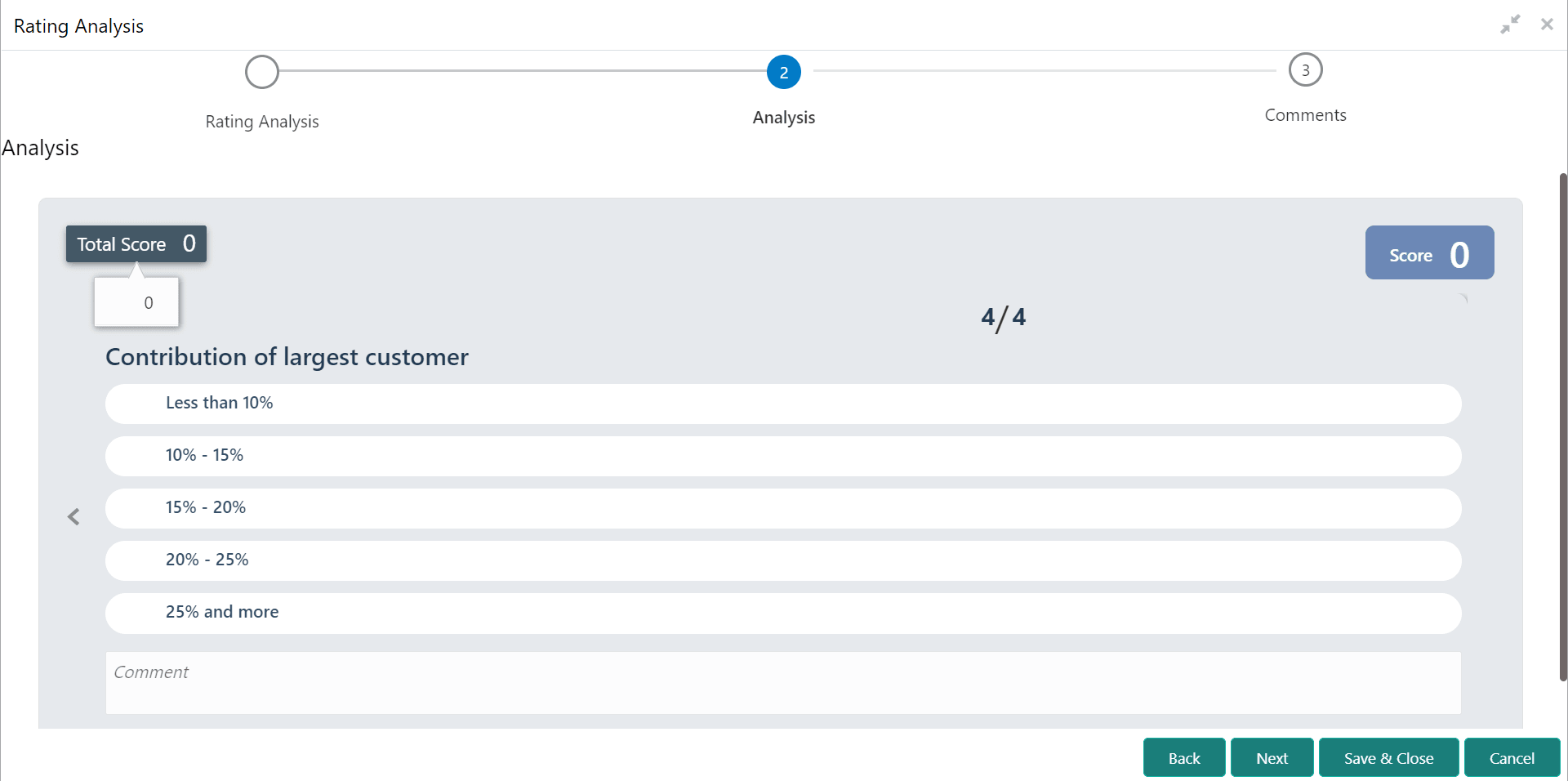
- To analyze the customer prospect rating, click Next in
the Rating Analysis page. The Analysis page is displayed.
Figure 5-27 Rating Analysis
- Click Next.The Comments page is displayed.For information on fields in the Rating Analysis - Comments screen, refer the below table.
Figure 5-28 Rating Analysis - Comments
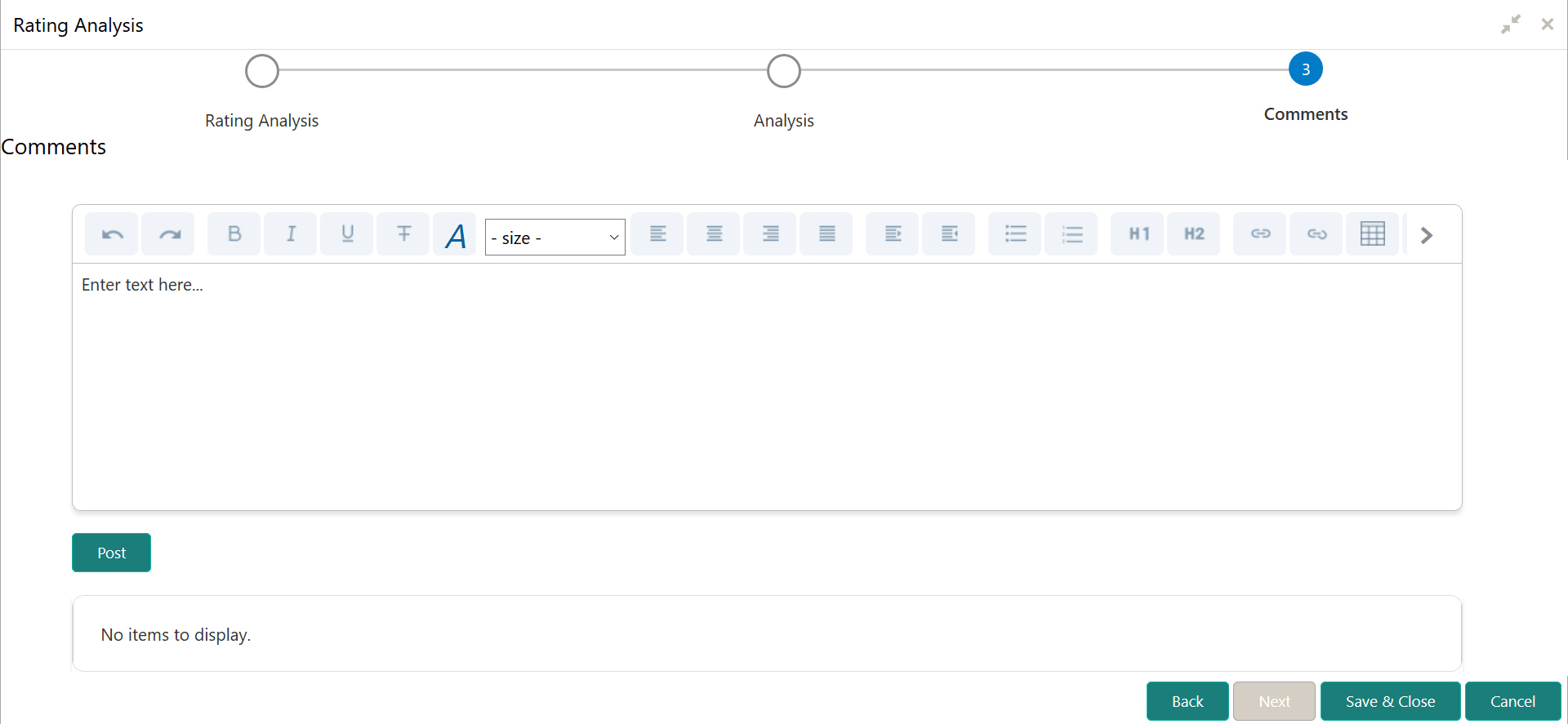
Table 5-10 Rating Analysis - Comments
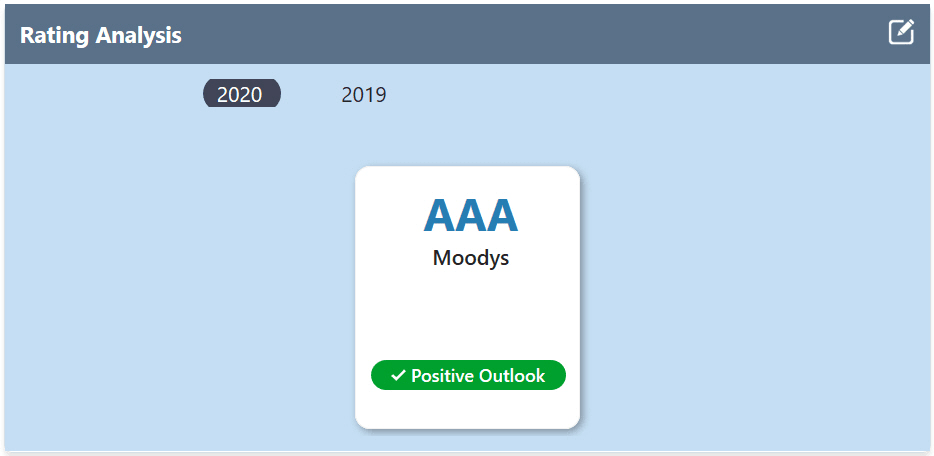
Fields Description Comments Type the overall Comments for the rating analysis. Post Click Post. Comments are posted below the Comments box. - Click Save & Close. The details are updated and
displayed in the Rating Analysis tile as shown below.
Figure 5-29 Rating Analysis
- To modify the rating details, click the
 edit icon and make necessary changes.