5.5 Credit Analysis - Trading Operations Details
Detailed information about the Trading Operations Details tile in Credit Analysis Data segment.
- Click Enrich in the Trading Operations Details
tile.The Trading Operations Details window is displayed.
Figure 5-15 Trading Operations Details
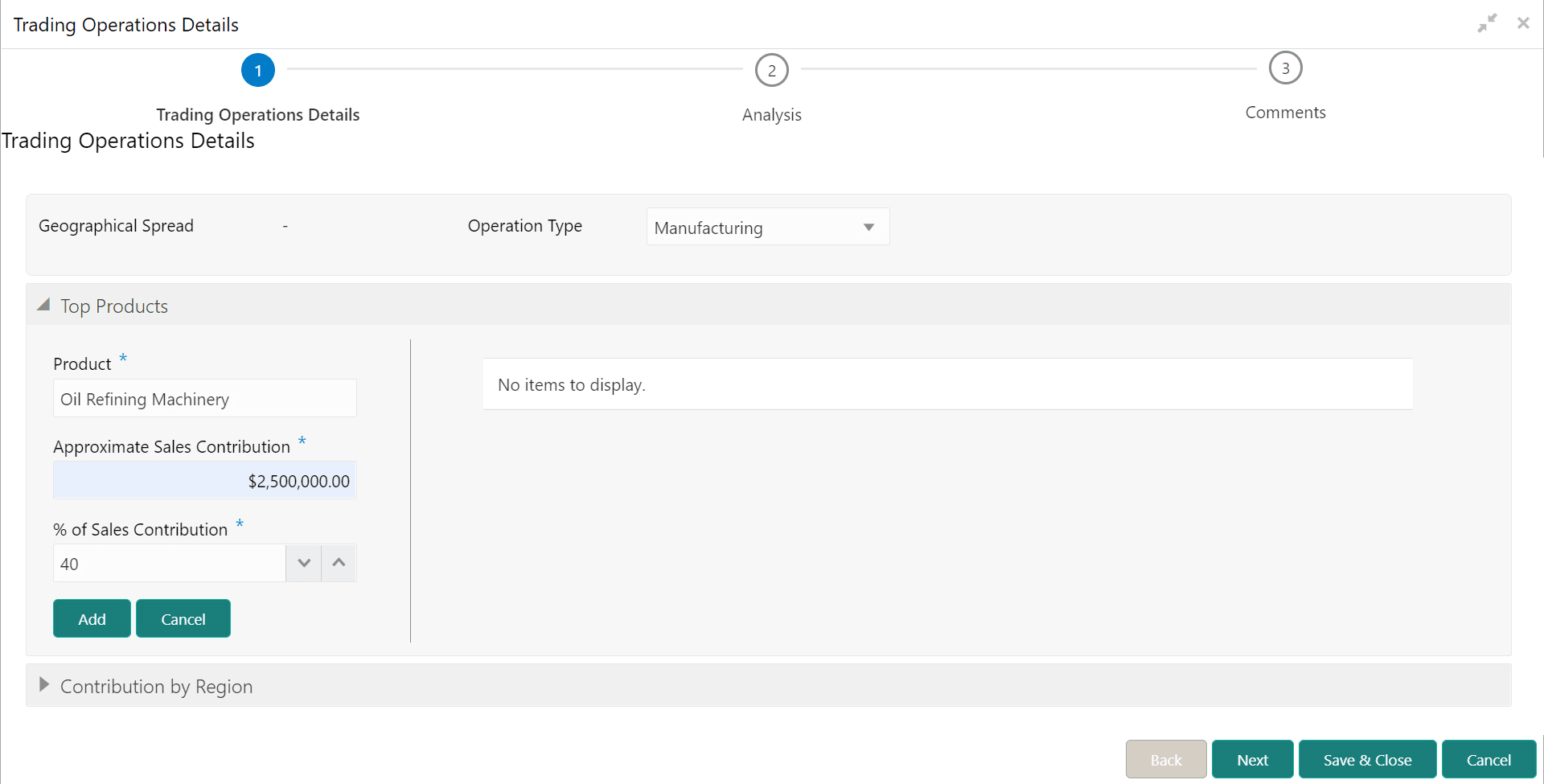
Adding Trading Operations Details
Top Products
For information on fields in the Top Products screen, refer the below tables.Detailed information.
Table 5-6 Top Products
| Fields | Description |
|---|---|
| Product / Service | Specify the name of top Product / Service provided by the customer prospect. |
| Approximate Sales Contribution | Specify the Approximate Sales Contribution (amount) by the mentioned product / service. |
| % of Sales Contribution | Specify the % of Sales Contribution by the mentioned product / service. |
- Click Add. The details are added and displayed at the
right side as shown below:
Figure 5-16 Trading Operations Details
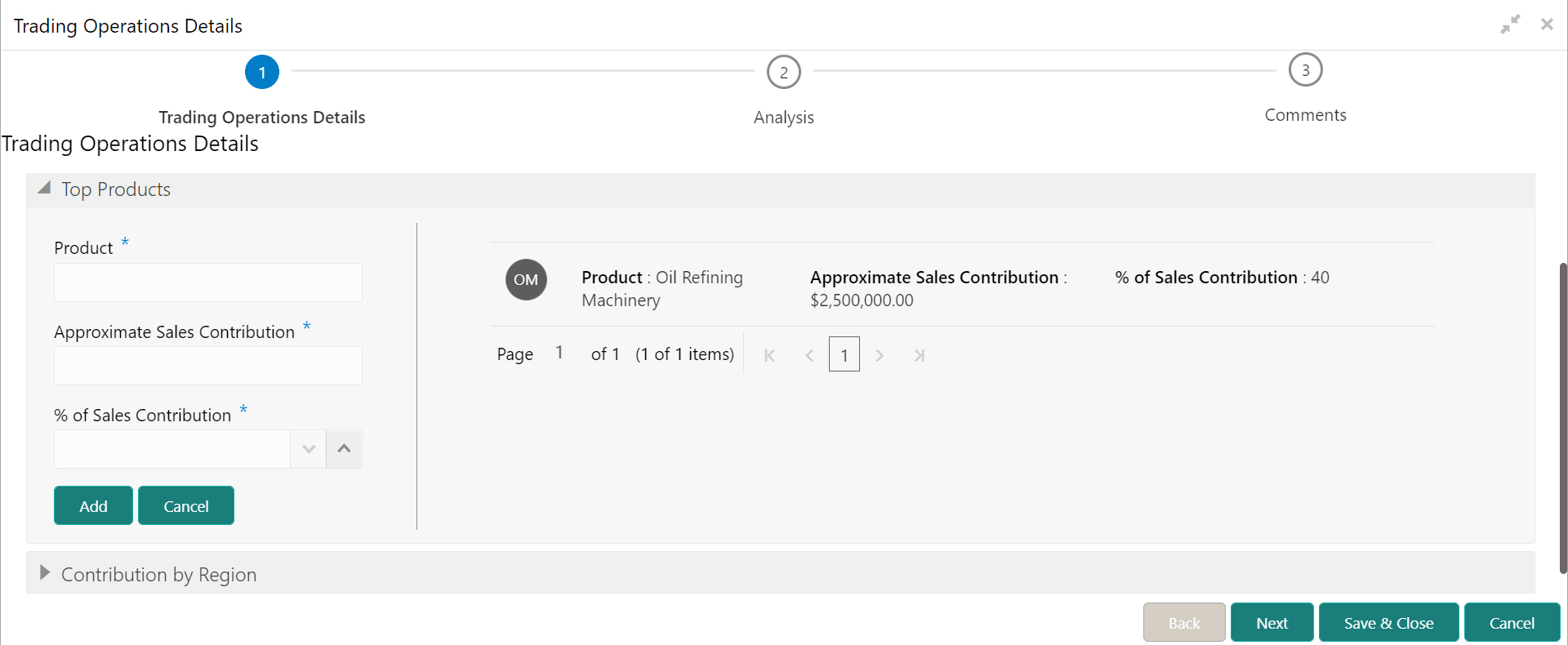
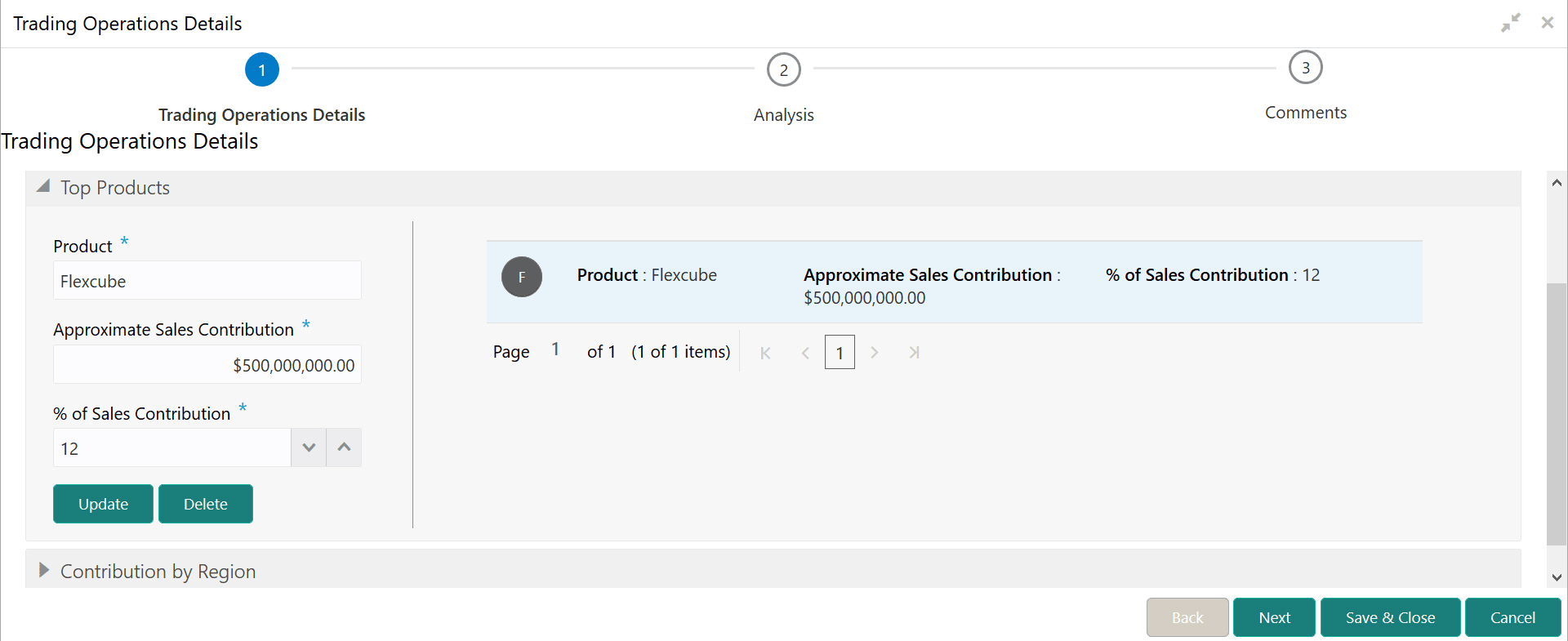
- To update or delete the added details, select the record from the right side.
The system displays the Update and
Delete buttons as shown below:
Figure 5-17 Trading Operations Details
Contribution by Region
- To add region-wise contribution details, expand the Contribution by
Region section.
Figure 5-18 Trading Operations Details
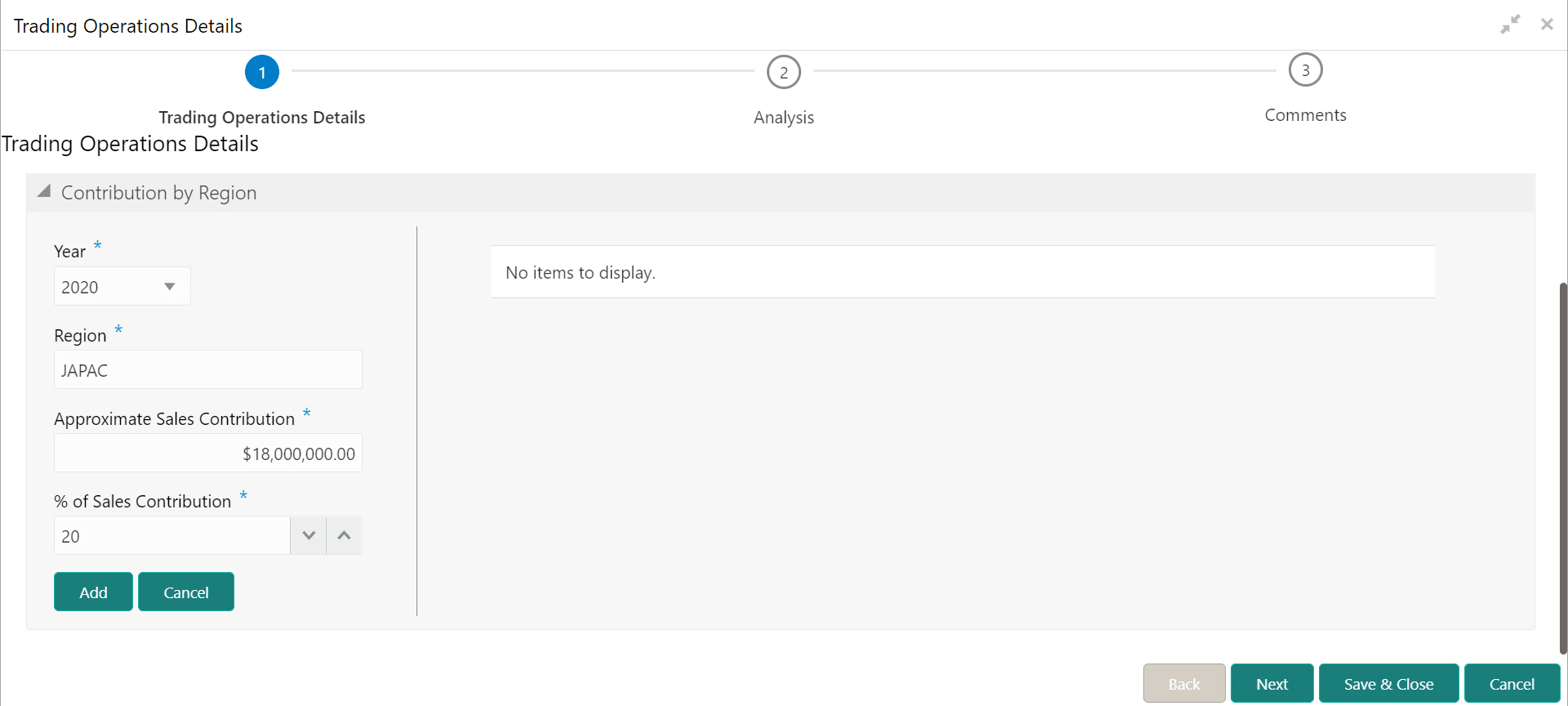
For information on fields in the Trading Operations Details screen, refer the below tables.Detailed information.
Table 5-7 Trading Operations Details
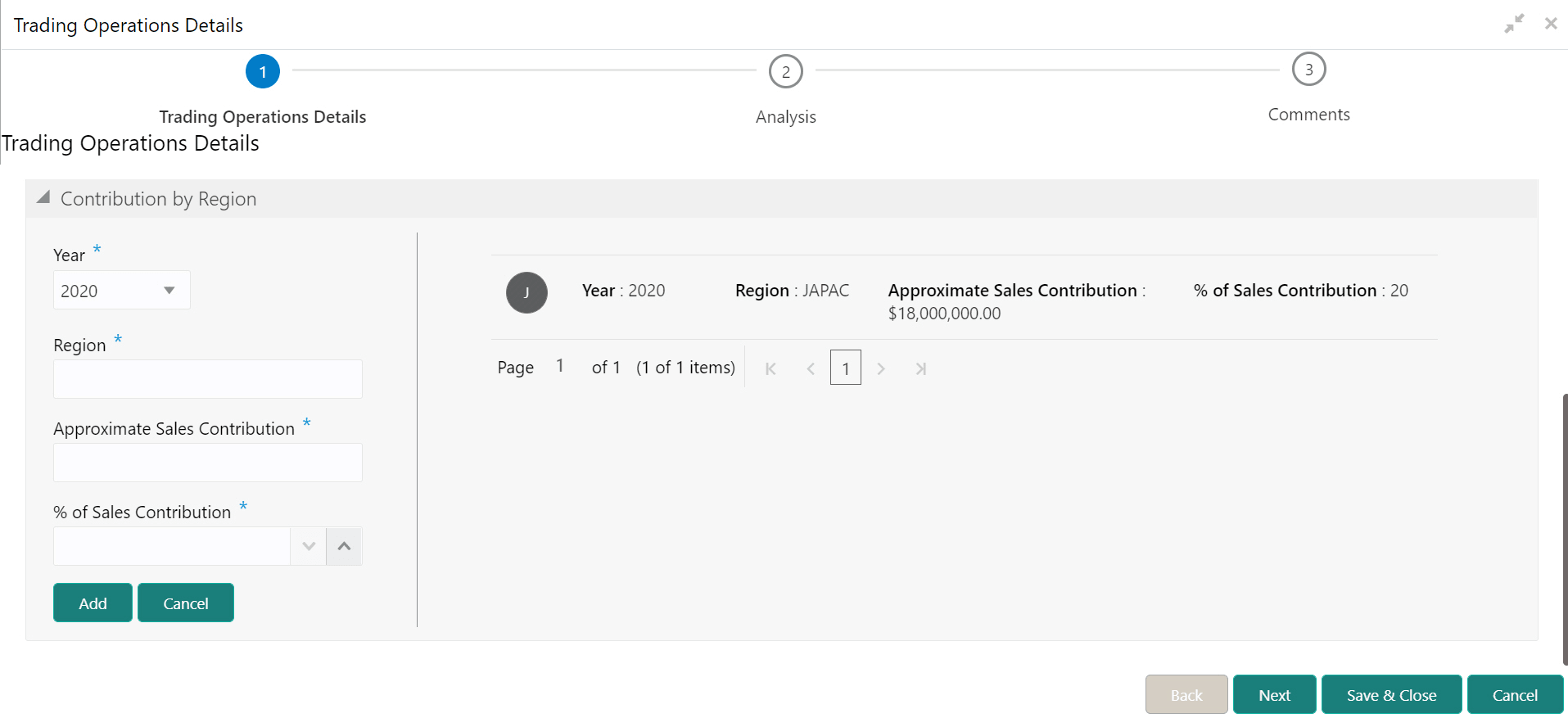
Fields Description Year Select the Year for which the sales contribution details are to be added. Region Specify the Region for which the sales contribution details are to be added. Approximate Sales Contribution Specify the Approximate Sales Contribution (amount) identified in the mentioned region. Sales Contribution Specify the % of Sales Contribution identified in the mentioned region. - Click Add. The details are added and displayed at the
right side as shown below:
Figure 5-19 Trading Operations Details
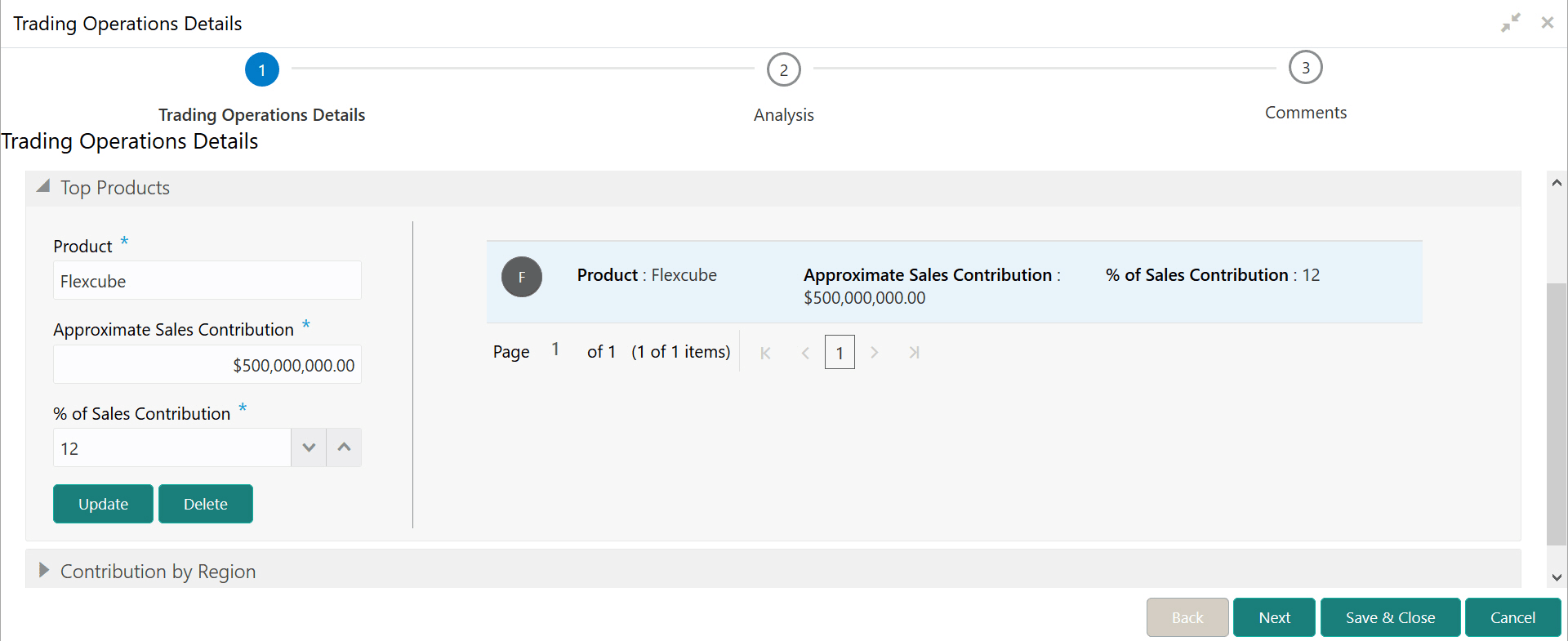
- To update or delete the added details, select the record from the right side.
The system displays the Update and Delete buttons as shown below:
Figure 5-20 Trading Operations Details
Analyzing Trading Operations Details
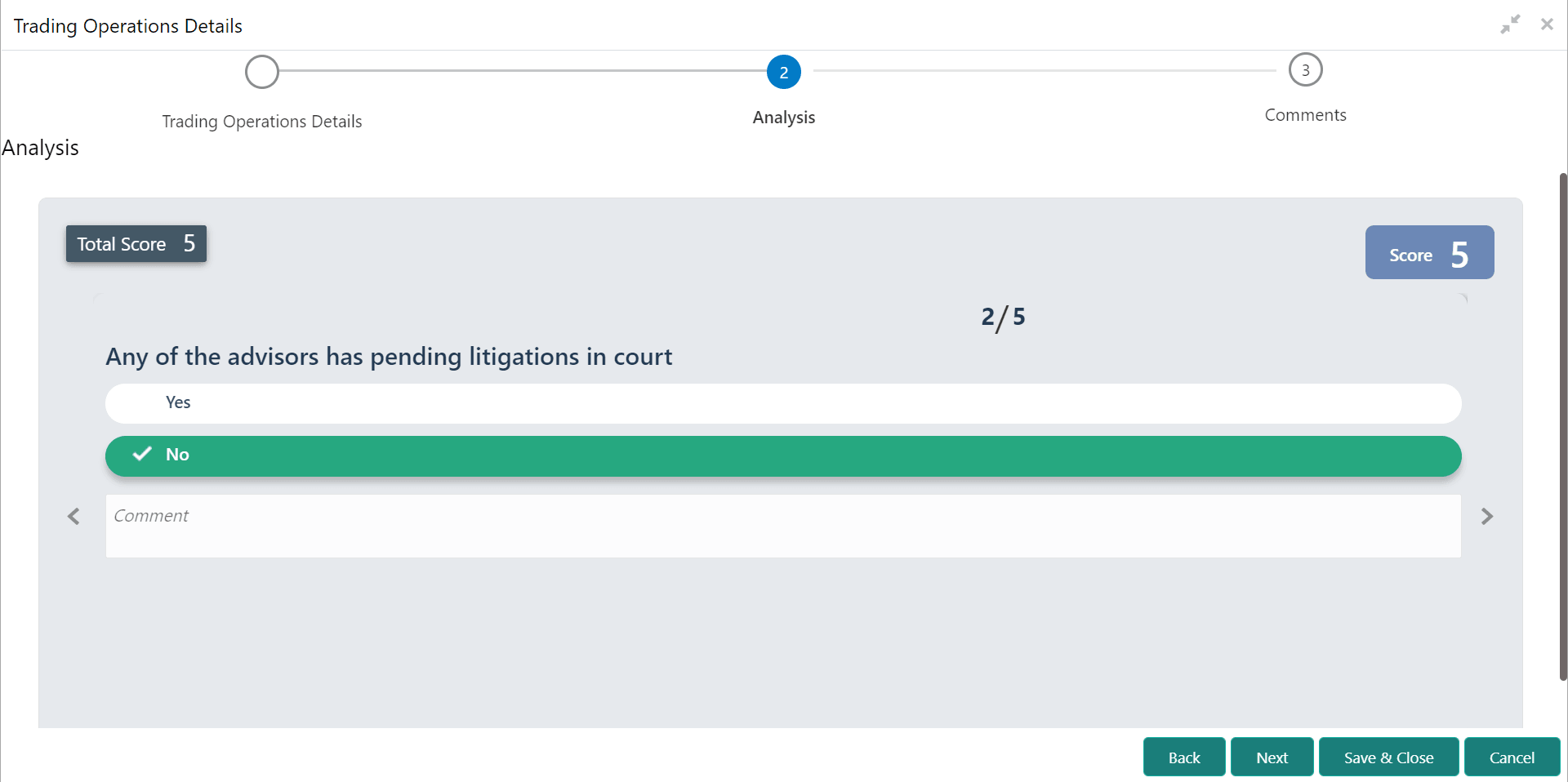
- To analyze the trading operations details, click Next in
the Trading Operations Details page. The Analysis page is displayed.
Figure 5-21 Analysis
- Click Next. The Comments page is displayed.
Figure 5-22 Comments
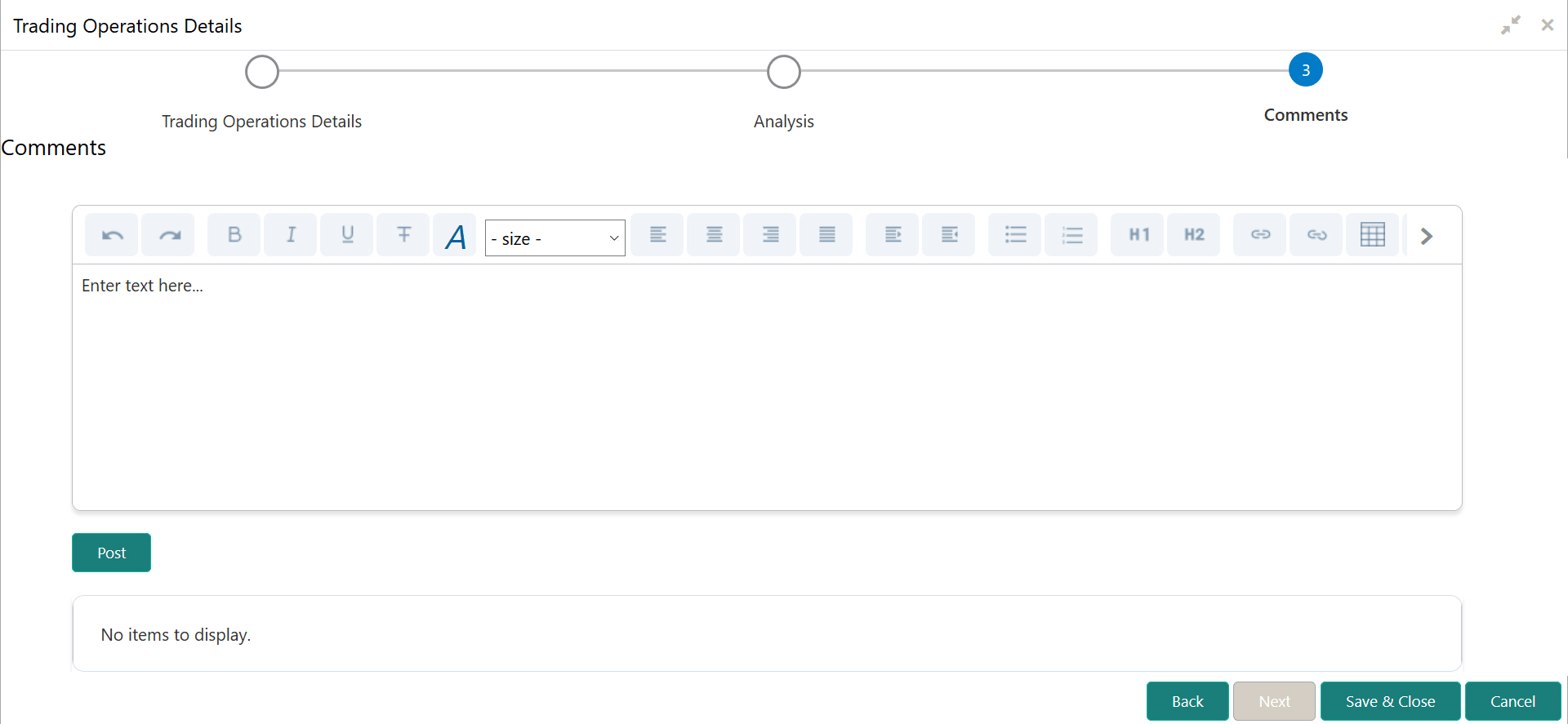
For information on fields in the Comments screen, refer the below tables.Detailed information.
The details are updated and displayed in the Trading Operations tile as shown below.Table 5-8 Comments
Fields Description Comments Type the overall Comments for the trading operations Analysis. Post Click Post. Comments are posted below the Comments box. Save & Close Click Save & Close. Figure 5-23 Trading Operations
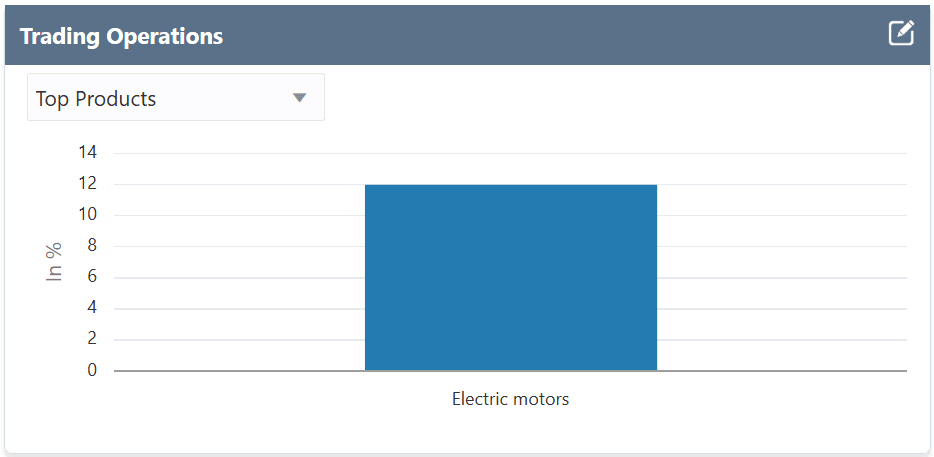
In the above tile, you can filter the trading operation details by selecting required option from the drop down list at top left corner. The options available for selection are: Top Products and Contribution by Region.