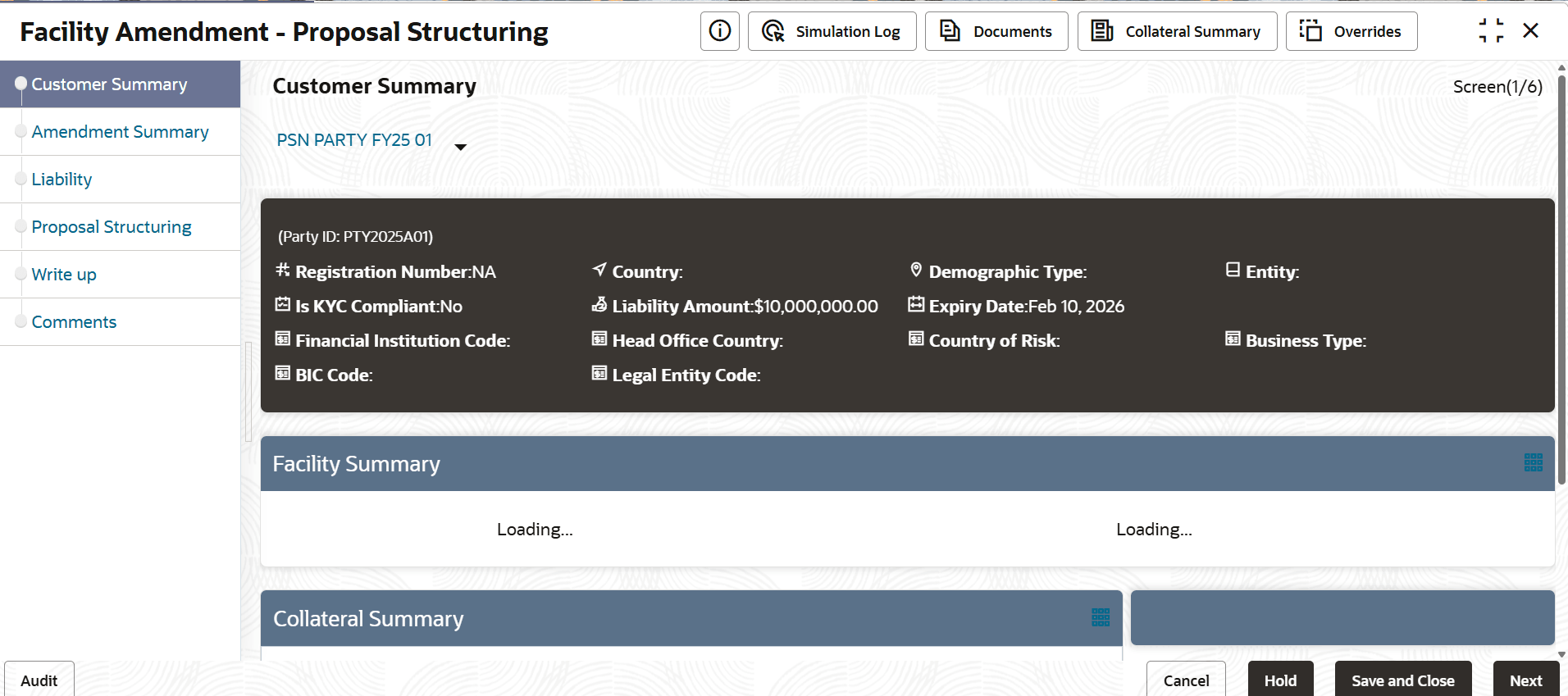
7.2 Amendment Structuring - Amendment Summary
This topic procides systematic instructions about Amendment Summary of the Amendment Structuring.
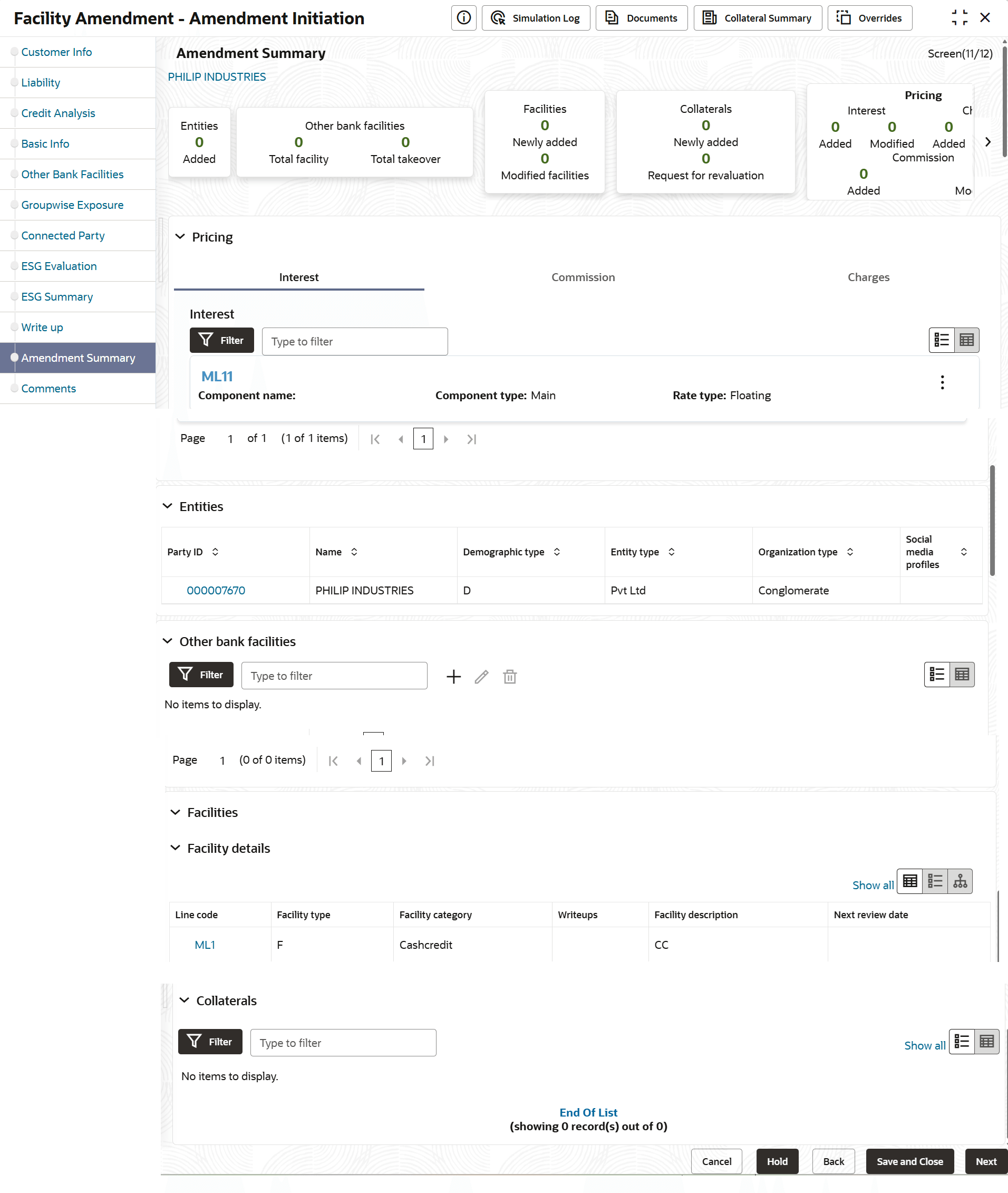
This data segment displays amendment summary of the facilities, collaterals, covenants and terms & conditions, thus the user can easily identify the changes made to the proposal.
- To view the existing and proposed entities, click and expand the Amendment
Impact Overview.
Figure 7-4 Amendment Impact Overview
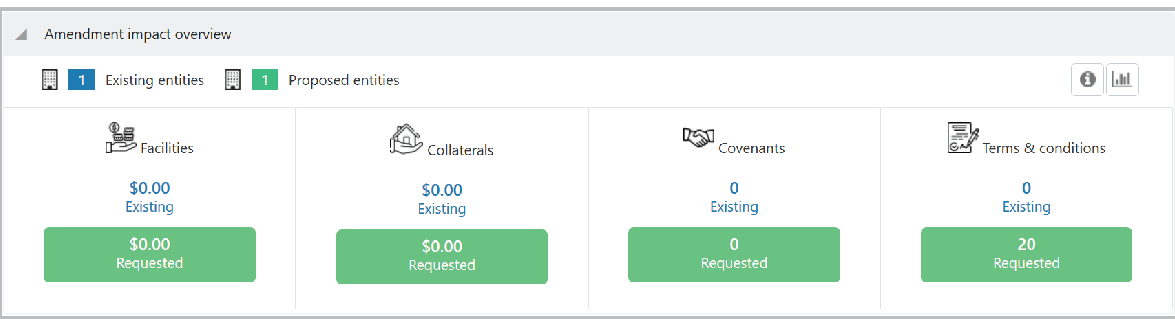
For information on fields in the Amendment Impact Overview page, refer the below table
Table 7-1 Amendment Impact Overview
Fields Description Filter To filter the required facility, click the Filter button and provide the filter parameters. (Or) directly type first 3 letters of the filter parameter in Type to filter text box. table icon To change the layout of Facilities page to the table view, click the table icon. Entities After viewing the Facility Amendment Summary, click the Entities tab. The Entities page is displayed. - To view the entity details, click the Party Id.The Entity Details window is displayed.
Figure 7-6 Entity Details
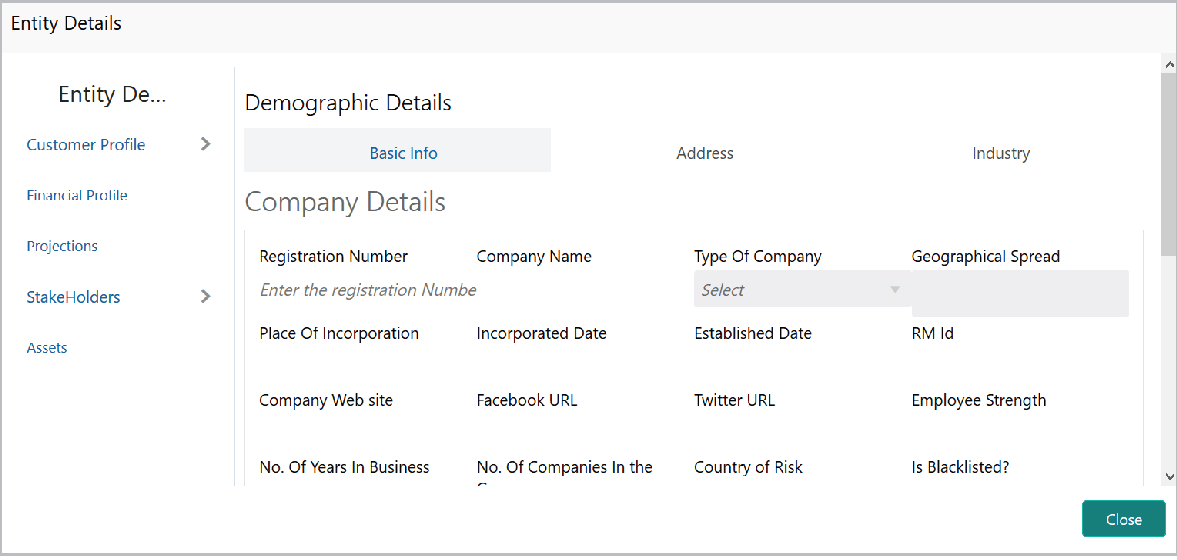
For information on fields in the Entity Details page, refer the below table
Table 7-2 Entity Details
Fields Description Address To view the entity’s address and industry information, click the Address and the Industry tabs respectively. Right arrow To view the business details, click the right arrow next to the Customer Profile menu and select the Business sub-menu. - To view the entity’s financial details, click Financial Profile from the
left menu.
Figure 7-7 Entity Details
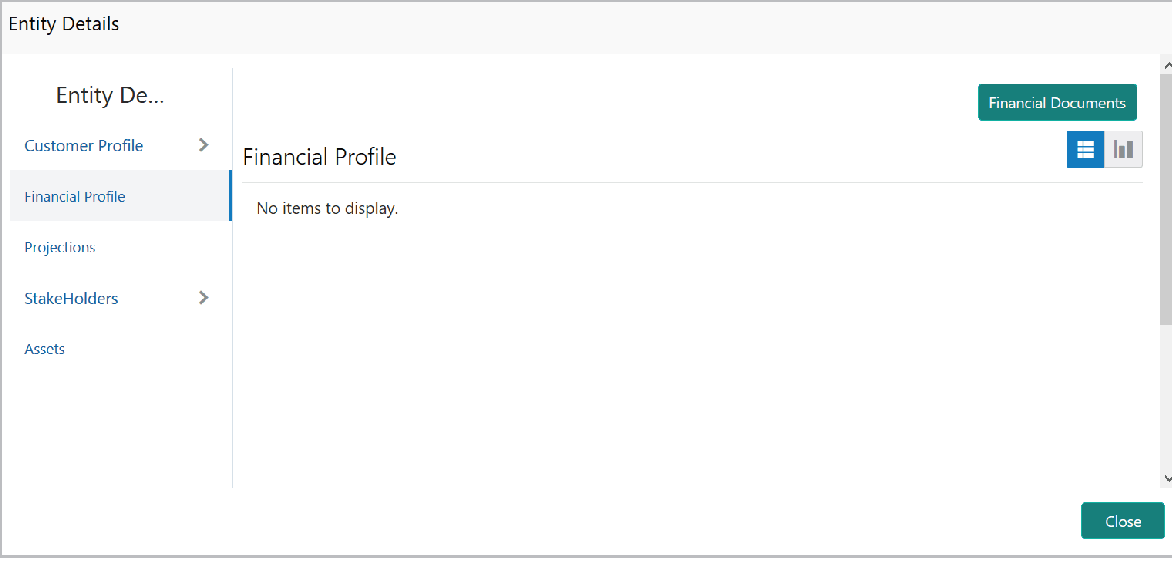
- To view the projections calculated for the entity, click Projections
from the left menu.For information on fields in the Entity Details page, refer the below table.
Figure 7-8 Entity Details
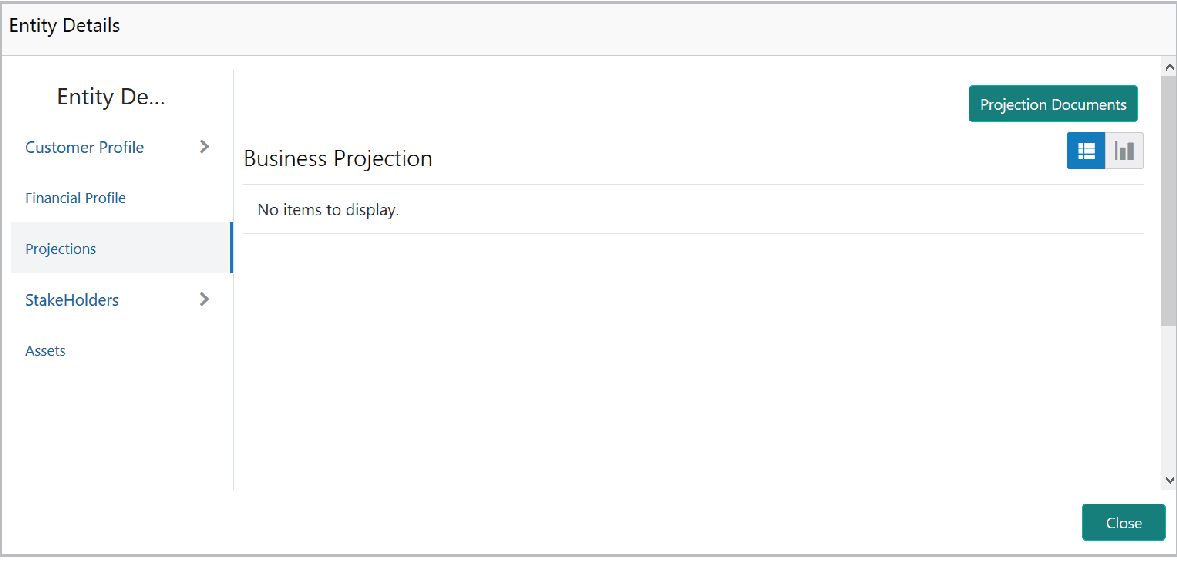
Table 7-3 Entity Details
Fields Description Projection Documents To view the projection documents, click the Projection Documents button. Rating To view the credit rating of party, click Rating from the left menu. - To view the information about entity’s stakeholders, click StakeHolders from
the left menu. Stakeholders menu expands. For information on fields in the Entity Details page, refer the below table.
Figure 7-9 Entity Details
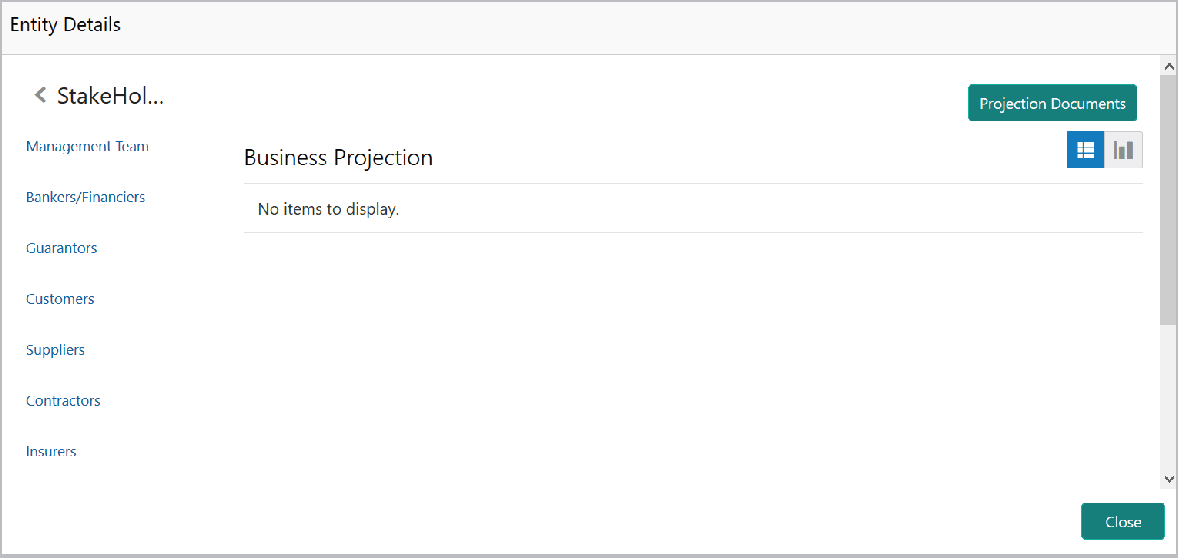
Table 7-4 Entity Details
Fields Description Assets To view the asset details, click Assets from the left menu. Customer Covenants To view the covenant details, click Customer Covenants from the left menu. Terms & Conditions To view the terms and conditions detail, click Terms & Conditions from the left menu. Close To exit the Entity Details window, click Close. Sub menu To view the stakeholder information such as Management Team, Bankers/ Financiers, Guarantors, Customers, Suppliers, Contractors and Insurers, click on the respective sub-menu. left arrow To go back to the main menu, click the left arrow at the top left corner. - To view the Collaterals Amendment Summary, click Collaterals tab in the
Amendment Summary page.
For information on fields in the Amendment Summary page, refer the below table
Table 7-5 Amendment Summary
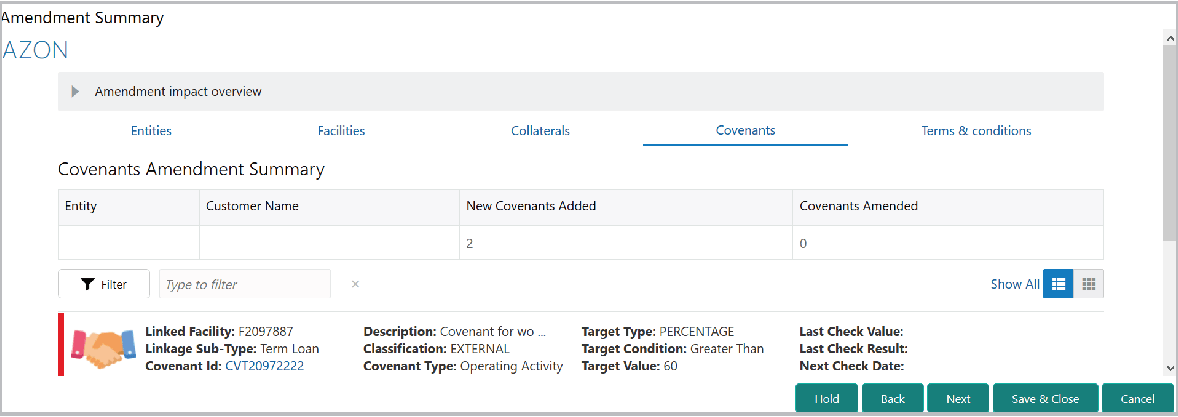
Fields Description Filter To filter the required collateral information, click the Filter button and provide the filter parameters. (Or) directly type first 3 letters of the filter parameter in Type to filter text box. Table View To change the layout of Collaterals page to the table view, click the Table View icon. - To view the Covenants Amendment Summary, click the Covenants tab.
Figure 7-11 Amendment Summary
For information on fields in the Amendment Summary page, refer the below table
Table 7-6 Amendment Summary
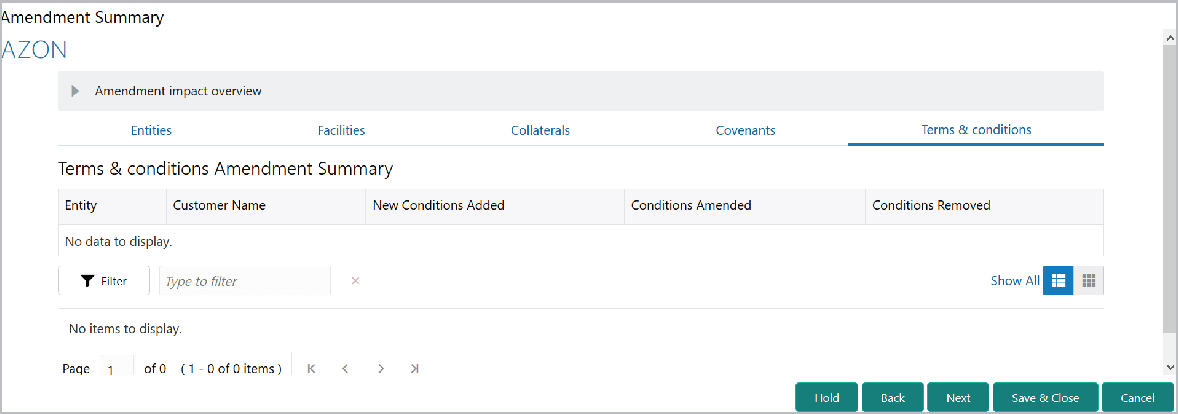
Fields Description Filter To filter the required covenants, click the Filter button and provide the filter parameters. (Or) directly type first 3 letters of the filter parameter in Type to filter text box. Table View To change the layout of the Covenants page to the table view, click the Table View icon. - To view the Terms & Conditions Amendment Summary, click the Terms &
Conditions tab.
Figure 7-12 Amendment Summary
For information on fields in the Amendment Summary page, refer the below table
Table 7-7 Amendment Summary
Fields Description Filter To filter the required terms & conditions, click the Filter button and provide the filter parameters. (Or) directly type first 3 letters of the filter parameter in Type to filter text box. Table View To change the layout of Terms & Conditions page to the table view, click the Table View icon.
Parent topic: Amendment Structuring