3.3 Seniority of Charge
This topic provides systematic instructions about the Senioity of Charge data segment in Evaluation Enrichment stage.
Figure 3-4 Enrichment - Seniority of Charge
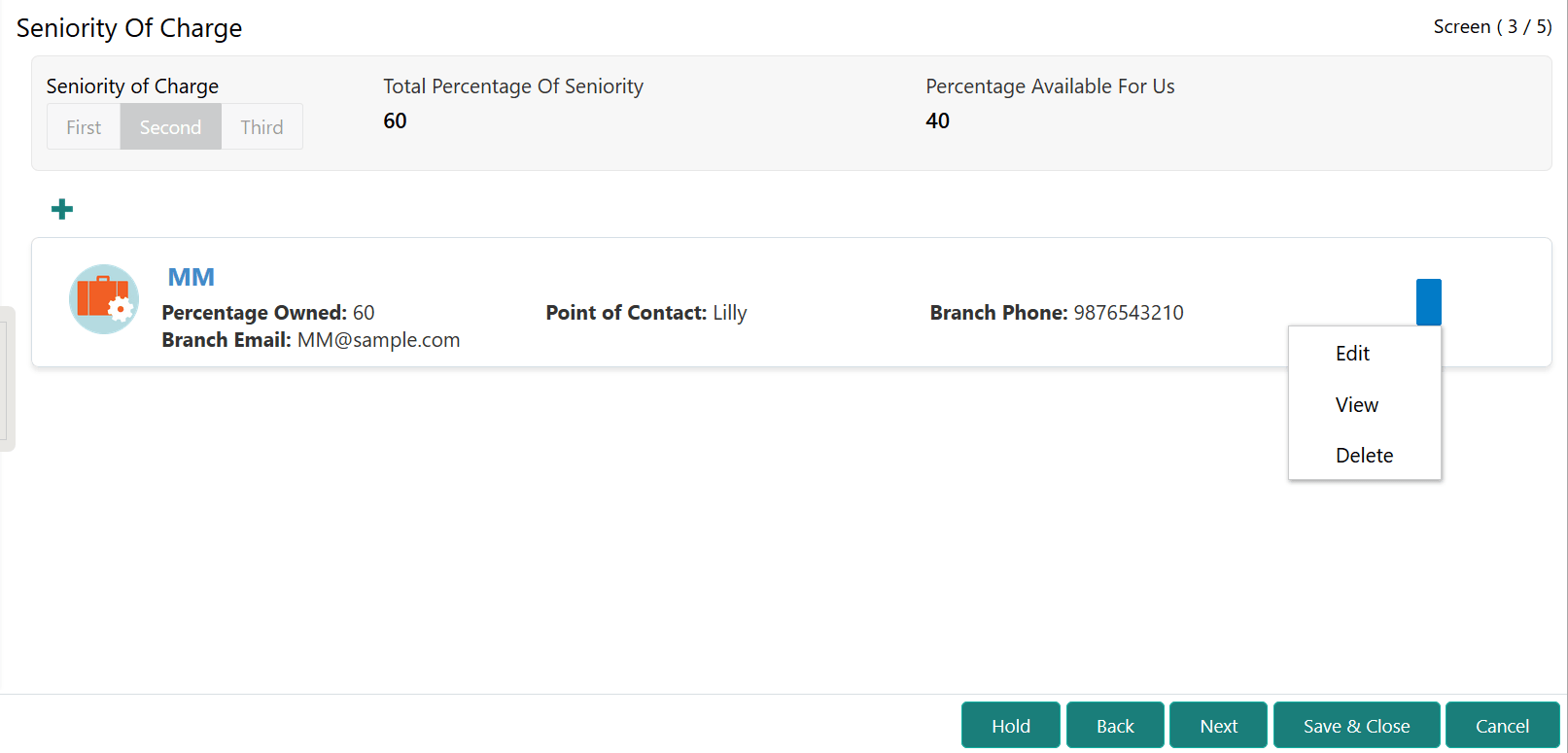
To add existing charge details:
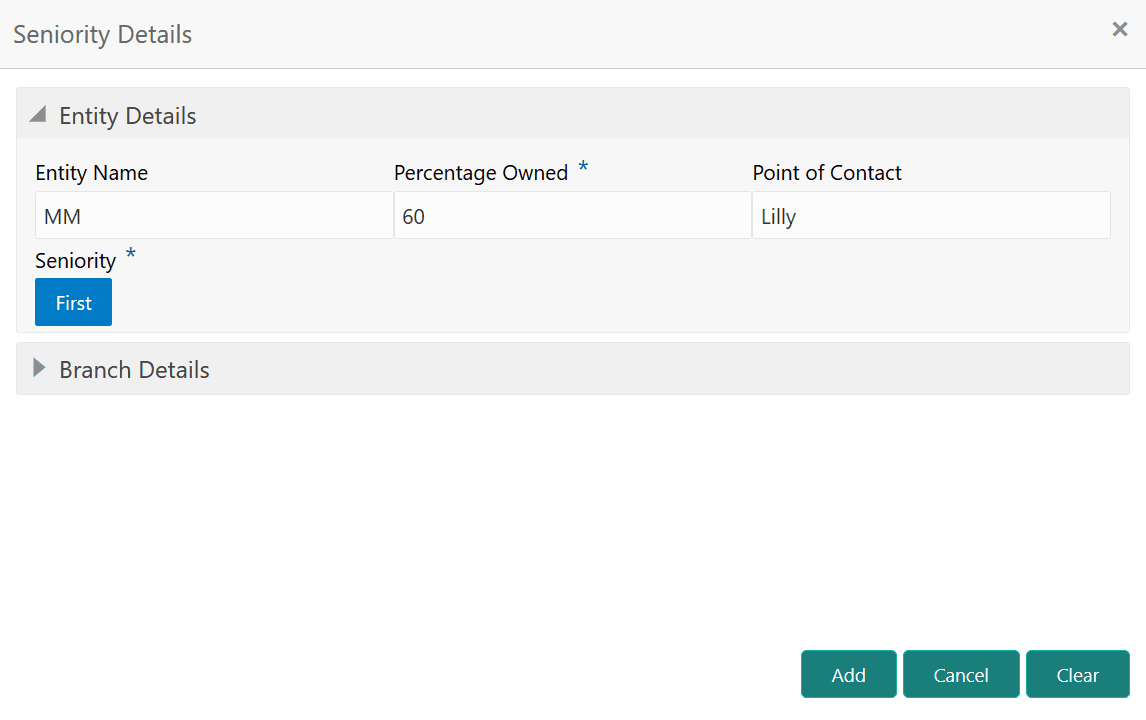
- Click the add icon.The Enrichment - Seniority Details screen is displayed.
- Specify the senioity details by referring the below table.
Table 3-3 Enrichment - Seniority Details - Entity Details - Field Description
Field Description Entity Name
Capture the name of the entity which has an existing charge on the collateral.
Percentage Owned
Capture the existing entity's percentage of Charge on the collateral.
Note: The total percentage owned by the existing charge holders cannot be 100.
Point of Contact
Capture the Point of Contact of the charge holding entity.
Seniority
Specify the existing entity's Seniority of charge on the collateral.
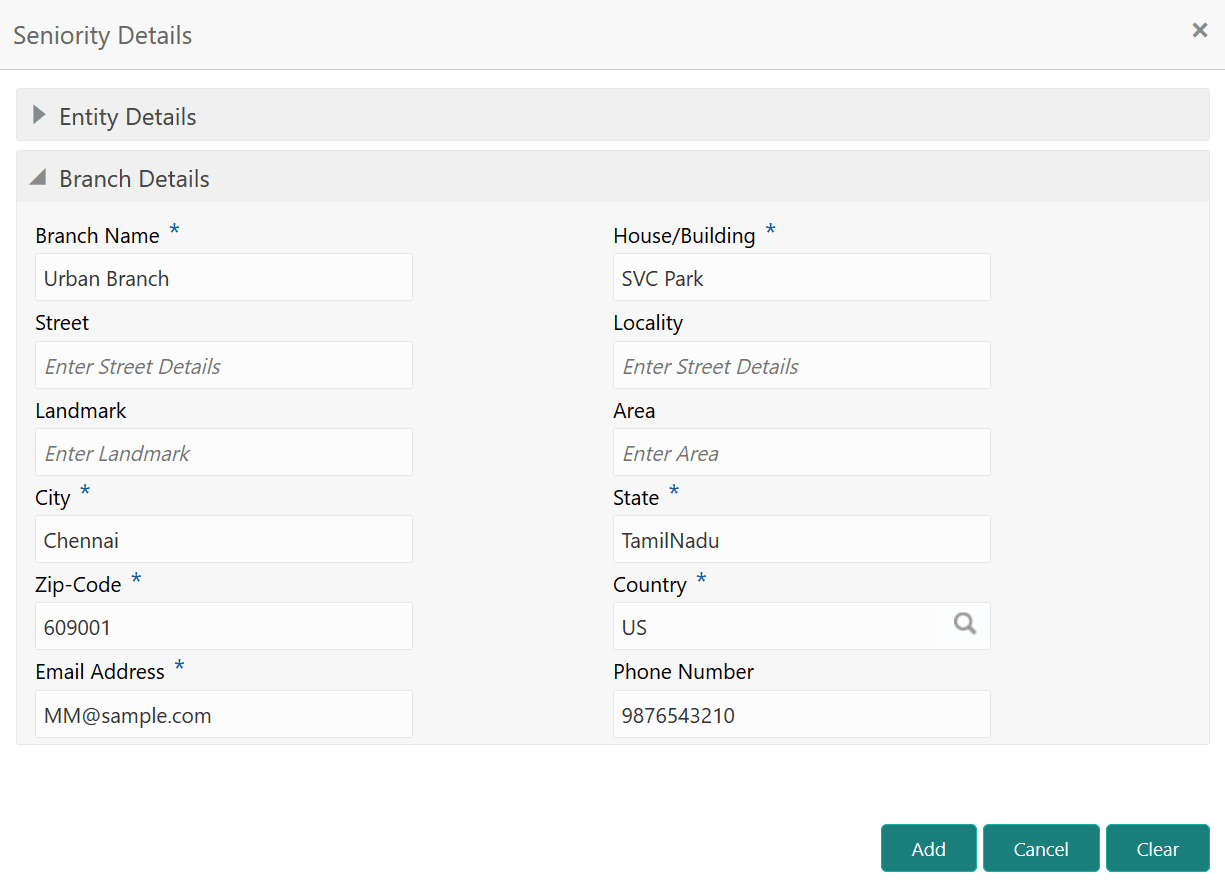
Figure 3-6 Enrichment - Seniority Details - Branch Details
Table 3-4 Enrichment - Seniority Details - Branch Details - Field Description
Field Description Branch Name
Specify the Branch Name of the entity which has an existing charge on the collateral.
House/Building
Specify the name of the building where the entity branch is located.
Street
Specify the Street in which the entity branch building is located.
Locality
Specify the Locality of the entity branch.
Landmark Specify the Landmark for the entity branch. Area Specify the Area of the entity branch. City Specify the City in which the entity branch is located. State Specify the State in which the entity branch is located. Zip-Code Specify the Zip-Code of the city. Country Specify the Country in which the entity branch is located. Email Address Specify the branch Email Address. Phone Number Specify the branch Phone Number.