3.4.23 Stocks
This topic provides systematic instructions the Stocks data segment in Evaluation Enrichment stage.
The Stock data segment appears in case Stock is selected
as the Collateral Type in Quick Initiation screen.
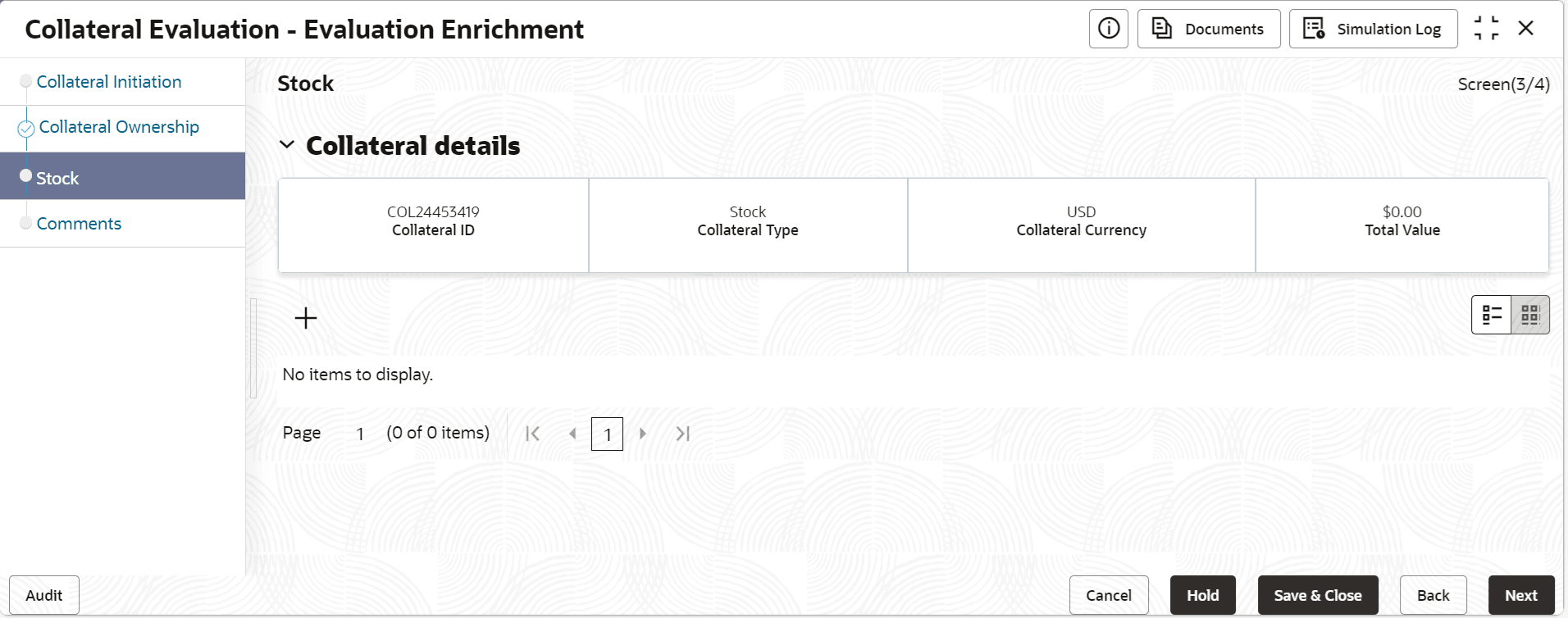
- Click the add icon.The Configure - Stock screen is displayed.
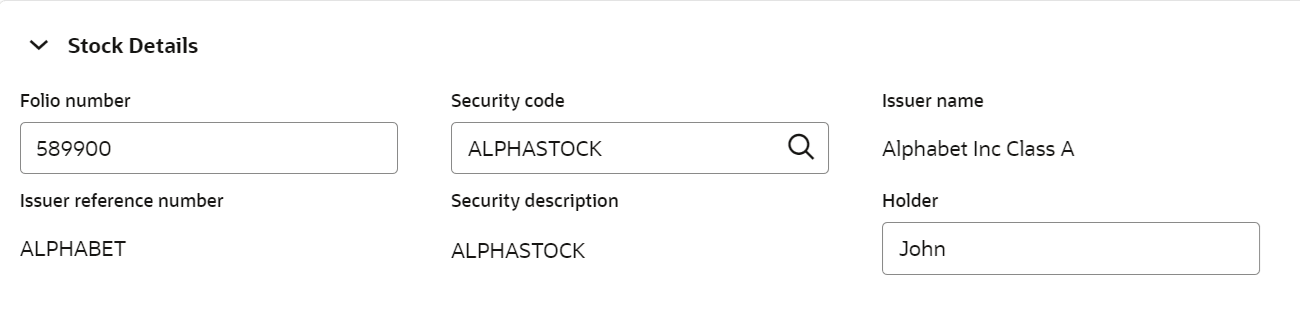
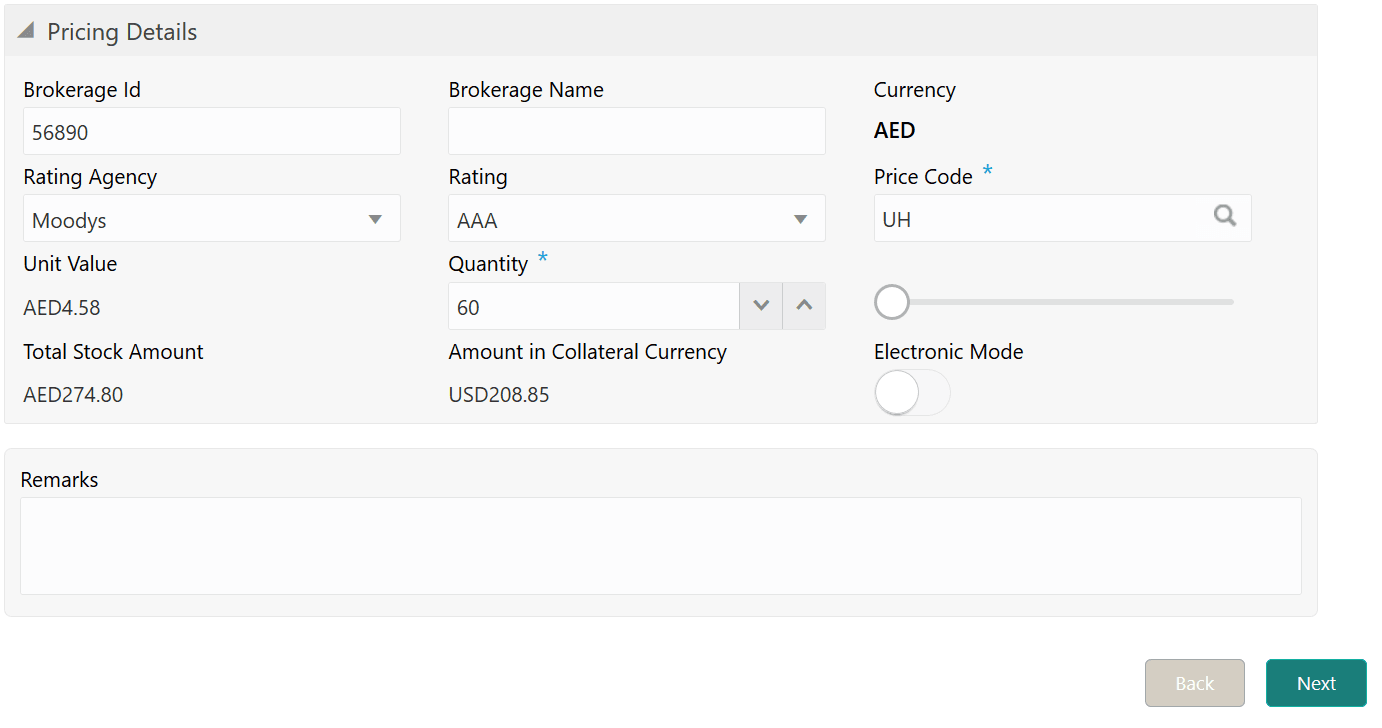
- Provide all the details about the stcok in the Configure - Stock
screen.For field level information, refer the following tables.
Table 3-70 Configure - Stock - Stock Details - Field Description
Field Description Folio Number Specify the stock Folio Number. Security Code Specify the stock Security Code. Issuer Name Specify the stock Issuer Name. Issuer Code Specify the stock Issuer Code. Security Description Security Description maintained for the selected Security Code is defaulted here. Holder Specify the name of stock holder. Figure 3-88 Configure - Stock - Pricing Details
Table 3-71 Configure - Stock - Pricing Details - Field Description
Field Description Brokerage Id Specify the stock broker Id. Brokerage Name Specify the stock broker name. Currency Displays the Bond currencybased on the selected Security Code. Rating Agency If the stock is rated by any agency, select the Rating Agency from the drop down list. Rating Select the Rating provided for the stock. Price Code Search and select the Price Code for stock. Unit Value Unit Value of the stock is defaulted based on the selected Price Code. Quantity Specify the number of stocks available as collateral. Total Stock Amount Total Stock Amount is calculated by multiplying the Quantity with the Unit Value of bond. Amount in Collateral Currency In case stock currency is different from the collateral currency, the stock amount is converted to collateral currency and displayed in this field. Electronic Mode Enable this flag, if the stock was purchased through electronic mode.