11.3 Covenant Details
This topic povides systematic instructions about procedure to add and manage covenants for the collateral.
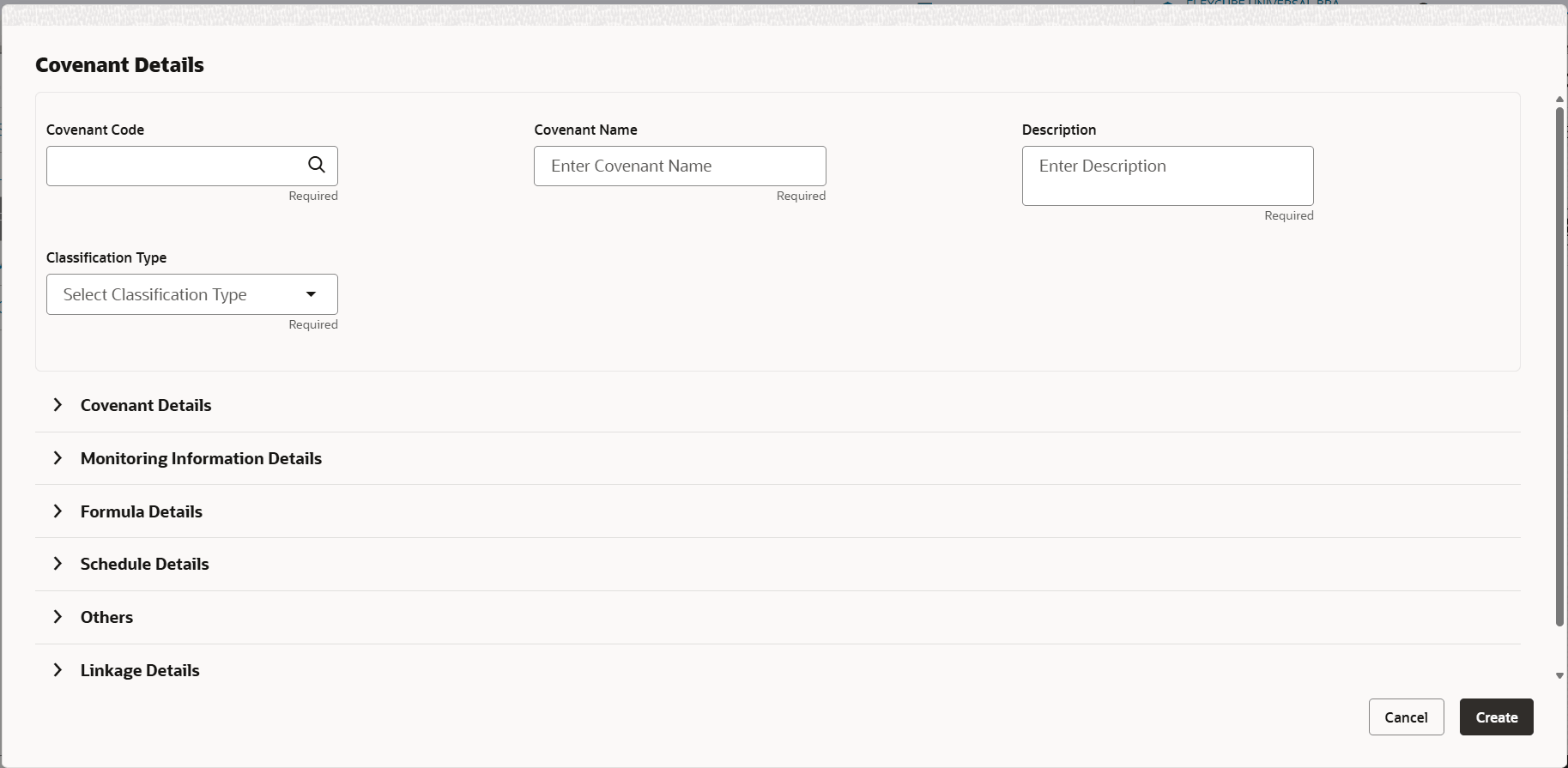
Figure 11-4 Valuation - Covenant Details
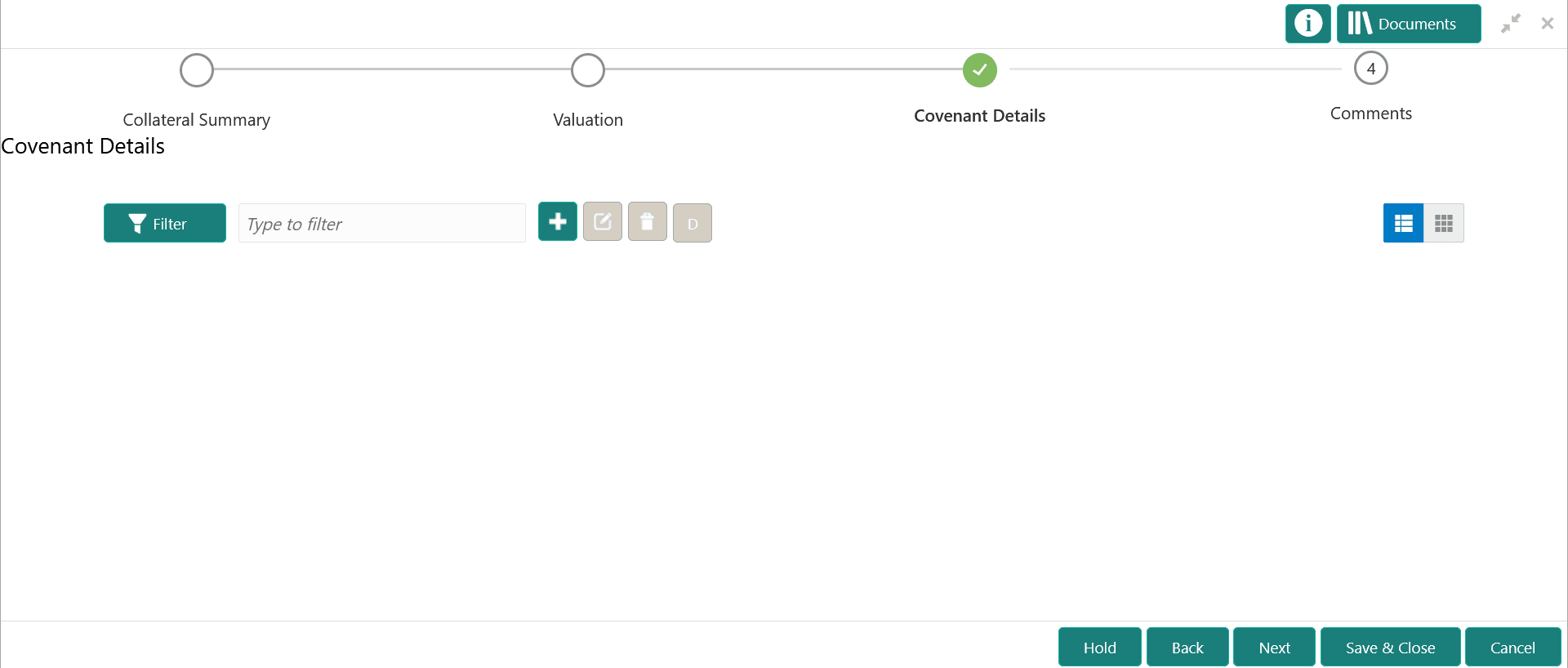
- To add a covenant, click the add icon.The Covenant Details window is displayed.
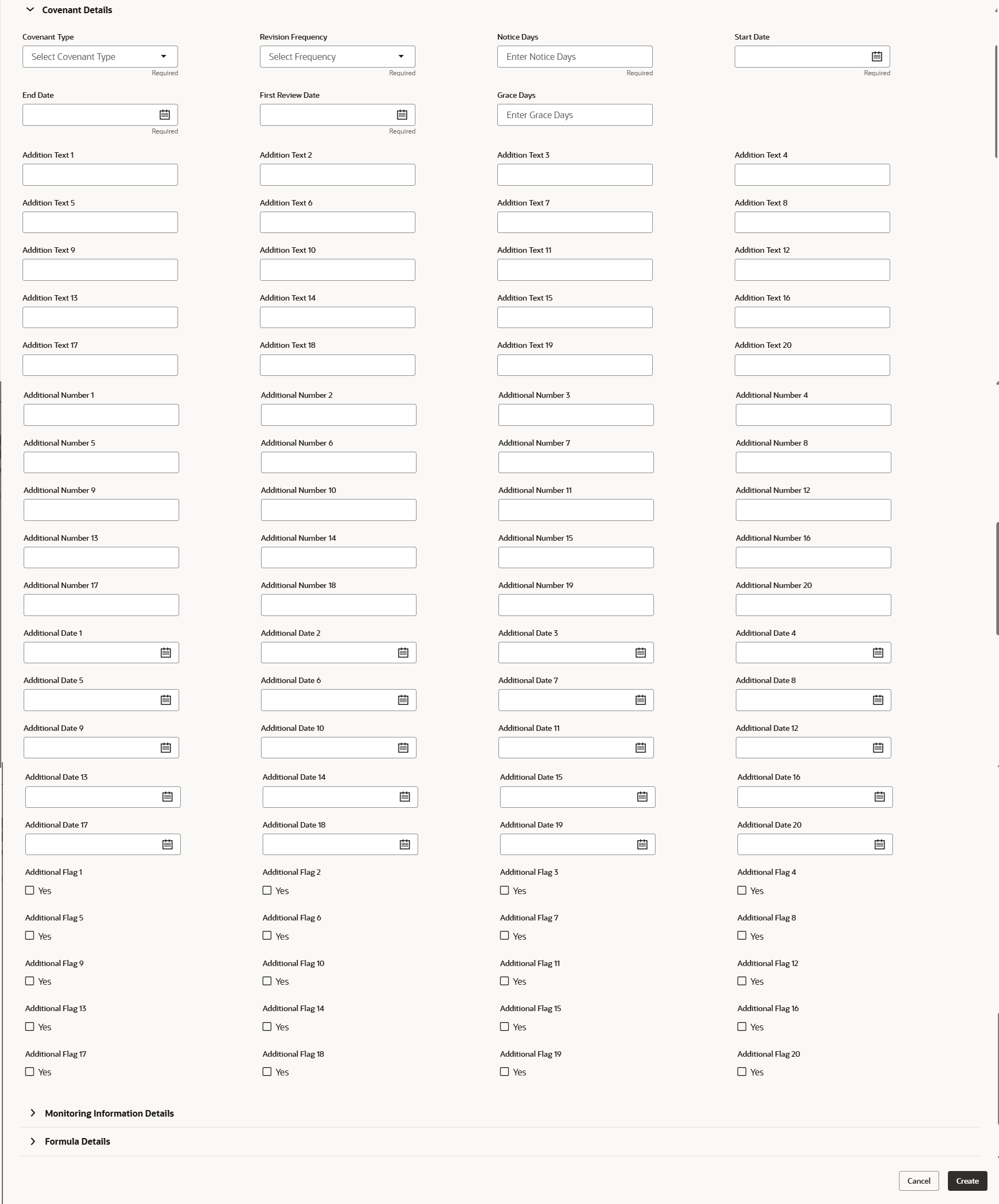
For process Covenant Details, user can set up extra placeholder fields in the Maintenance screen. For more information on managing these placeholders, refer to the Maintenance User Manual.
The system supports configuration of up to 20 fields each for the following data types:- Text
- Numeric
- Boolean
- Date
Each field type allows a minimum of 0 and a maximum of 20 fields per Covenant details, based on the requirements. These fields displays in the Covenant Details screen only if they are configured. If no additional fields are defined, the screen will display only the standard covenant details fields.
For example, we maintained 20 additional fields each for text, numeric, boolean, and date.
The Covenant Details screen displays. - To create new covenant, click the Click to add new
covenant link and specify all the details.
For more information on the fields, refer to the field description table below:
Table 11-2 Covenant Details - Field Description
Field Description Covenant code Specify a unique code for the covenant to be created. Covenant name Specify a name for the covenant to be created. Covenant description Provide a brief description about the covenant. Classification type Specify the covenant Classification Type as Internal and External. Table 11-3 Covenant Details - Covenant Details - Field Description
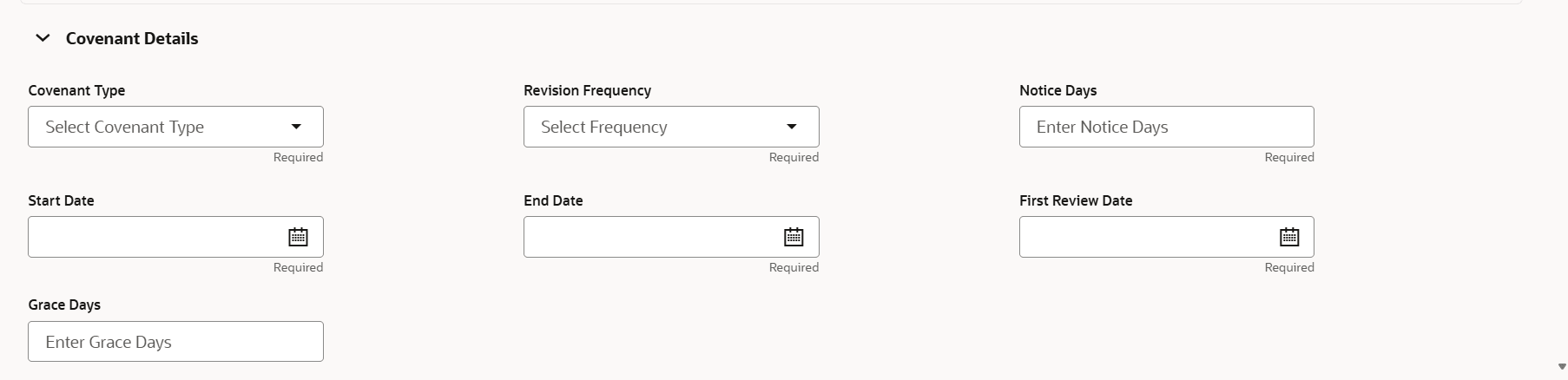
Field Description Covenant type Select the Covenant Type. The following options are available in the drop down list: - Financial
- Non-Financial
Covenant Sub Type Select the Covenant Sub Type from the drop down list.
In case of linking existing covenant, you cannot modify the Covenant Sub Type.
Notice Days Specify the number of days before which the covenant tracking task has to be created. Revision Frequency Select the frequency for reviewing the covenant, such as Quarterly, Monthly, Semi Annual, and Annual. Revision Days Specify the number of days in which the covenant must be reviewed. Start Date Specify the date on which the covenant becomes effective. End Date Specify the date on which the covenant expires. Maximum Defer Days Specify the number of days for which the covenant can be deferred. Table 11-4 Covenant Details - Monitoring Information
Field Field Description Monitoring Information Select the monitoring information. Monitoring information maintained in the Monitoring Information Maintenance module are displayed in the LOV. Table 11-5 Covenant Details - Formula Details - Field Description
Field Description Variable Select a Variable from the drop down list. The options available are - Debt
- Asset
- Debt Ratio
- Asset Ratio
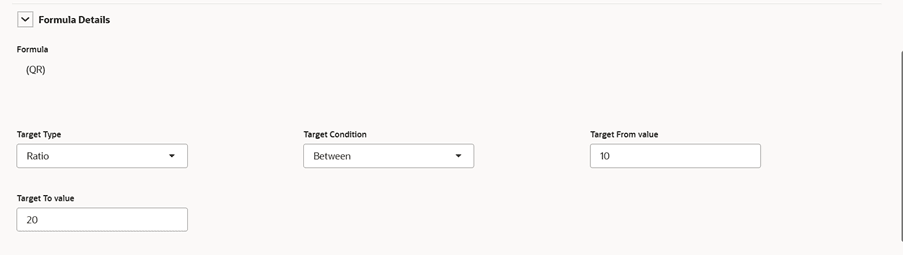
Operators Select the required operator from the available Operators. Custom Value Provide a Custom Value for building formula, if required. You can also select another Variable. Build Formula Click Build Formula. The formula is built and displayed below the formula box. The system also displays whether the formula is valid expression or invalid expression below the formula box. You must change the formula in case it is invalid expression.
Target Type Select the Target Type from the drop down list. The options available are: - Value
- Percentage
- Ratio
Covenant Check Condition Select the Covenant Check Condition from the drop down list. The options available are: Greater than, Greater than or equal to, Between, Less than or equal to, Equal to, and Less than. Target Value Specify the Target Value. Target Value 1, Target Value 2 If Between is selected as the Covenant Check Condition, Target Value 1 and Target Value 2 fields appear. You need to specify the range of target values. Note:
You can use any number of variables and operators to build the formula based on your requirement.The system periodically derives the built formula with the values obtained from customer / customer prospect’s financial documents and validate it against the set target values based on covenant check condition.
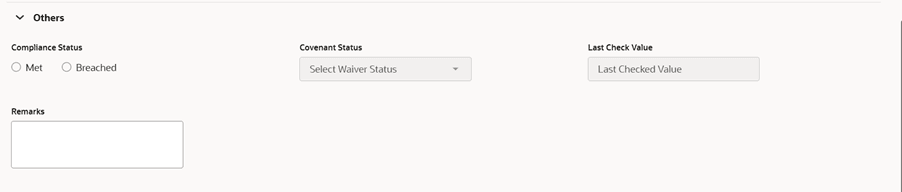
Table 11-6 Covenant Details - Others - Field Description
Field Description Compliance Status Select the current covenant Compliance Status of the party / collateral. The options available are: - Met
- Breach
Waiver Status Select the Waiver Status from the drop down list. The options available are: - Waive
- Waive all
Last Check Value Specify the target value observed during the last covenant check. Deferred Due Date Specify the Deferred Due Date. The covenant review can be postponed till the mentioned date. Remarks Capture overall Remarks for the covenant.