5 Recommendation
This topic provides systematic instructions about the Recommendation of the Economic Dependency Analysis.
In this stage, the Approver can approve the Economic Dependency Analysis task or initiate review process for the analysis based on the customer’s economic dependency details.
- From Home screen, click Tasks. Under Tasks, click Free Tasks.
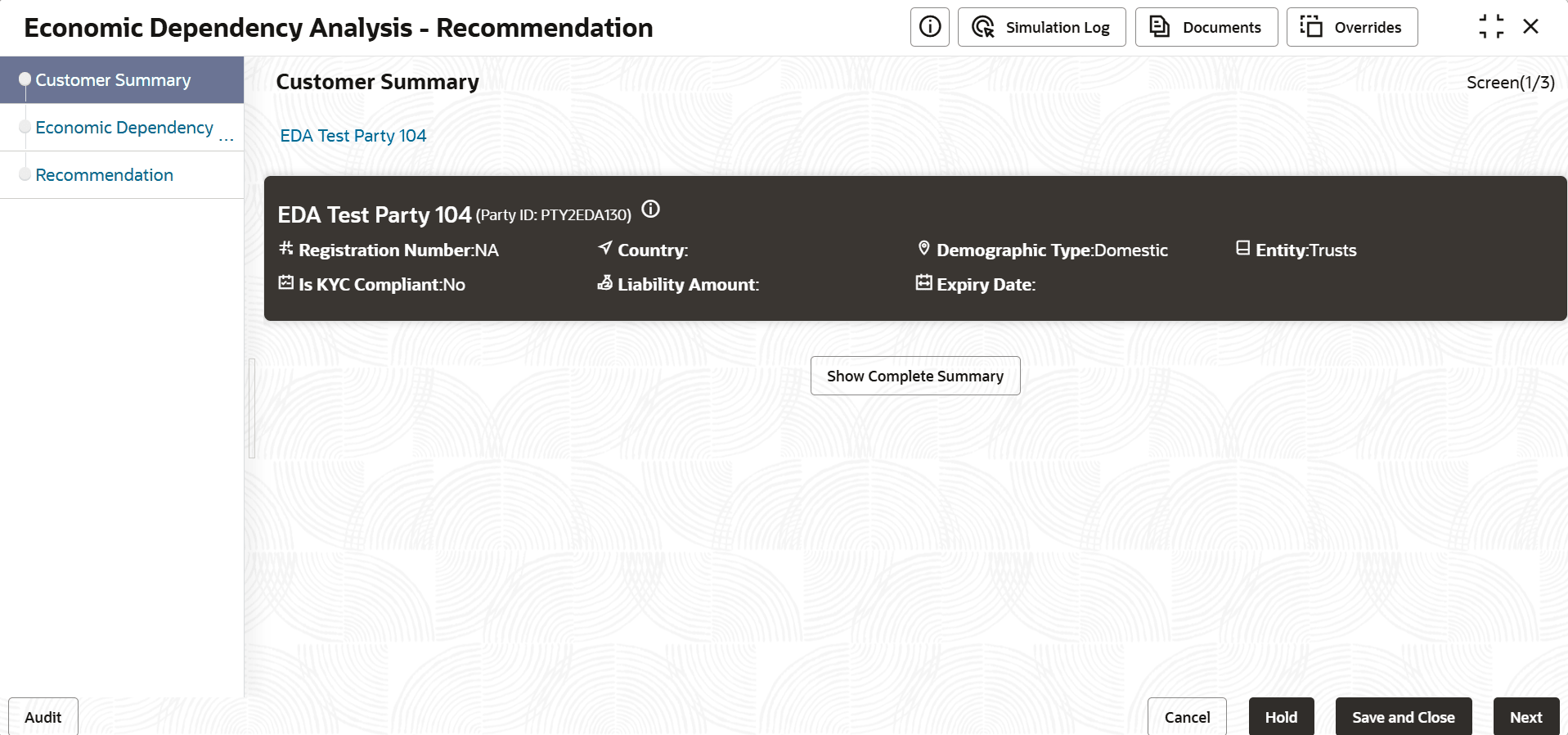
- Edit the required Recommendation task. The Recommendation Customer Summary screen is displays.
- View the customer summary and click Next. The Analysis screen is displayed.
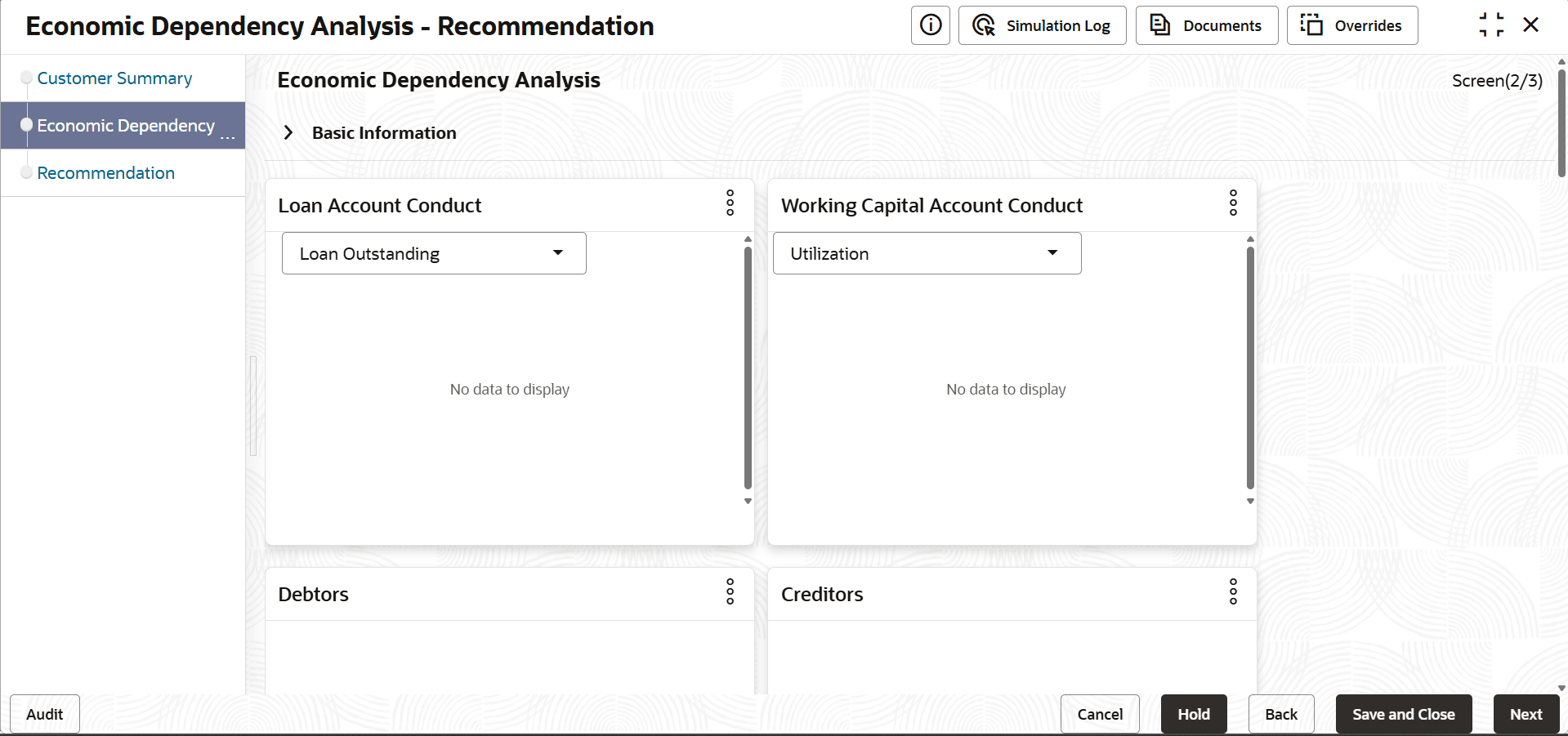
- Click the search icon in all the tiles and view the dependency details of all the dimensions.
- Click the search icon, the details page appears. For example, if the user
clicks the search icon in the Debtors tile.The Debtor details screen is displays.
- Click the hamburger icon in the required item and View the details.
- After viewing dependency details of all the dimensions, click Next in
the Analysis page.The Recommendation screen is displayed.
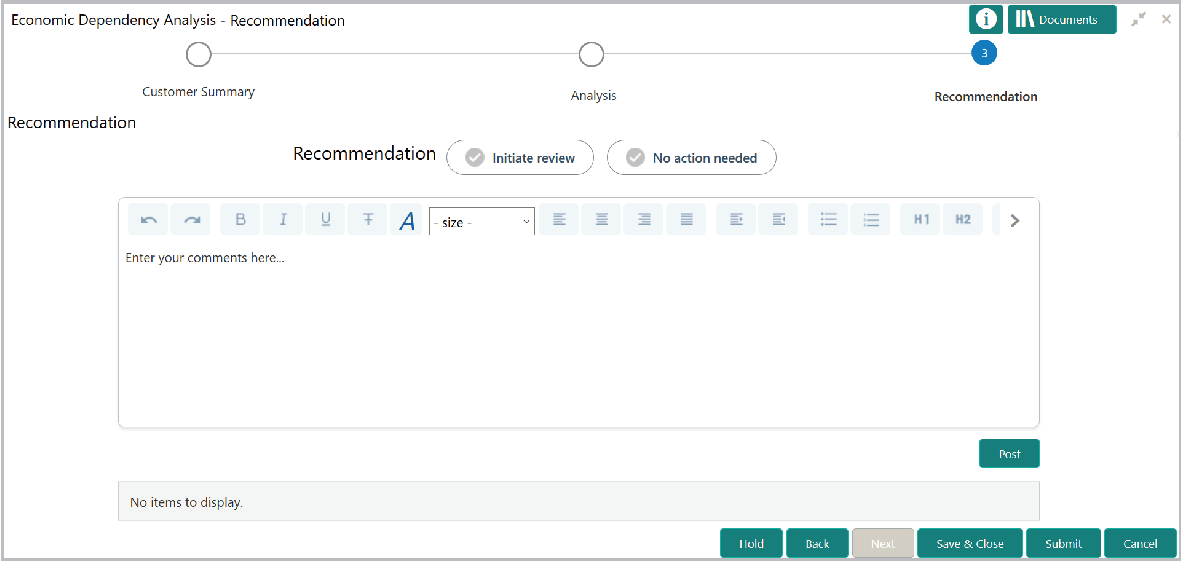
- Select the Recommendation option. The options available are: Initiate review
and No action needed.
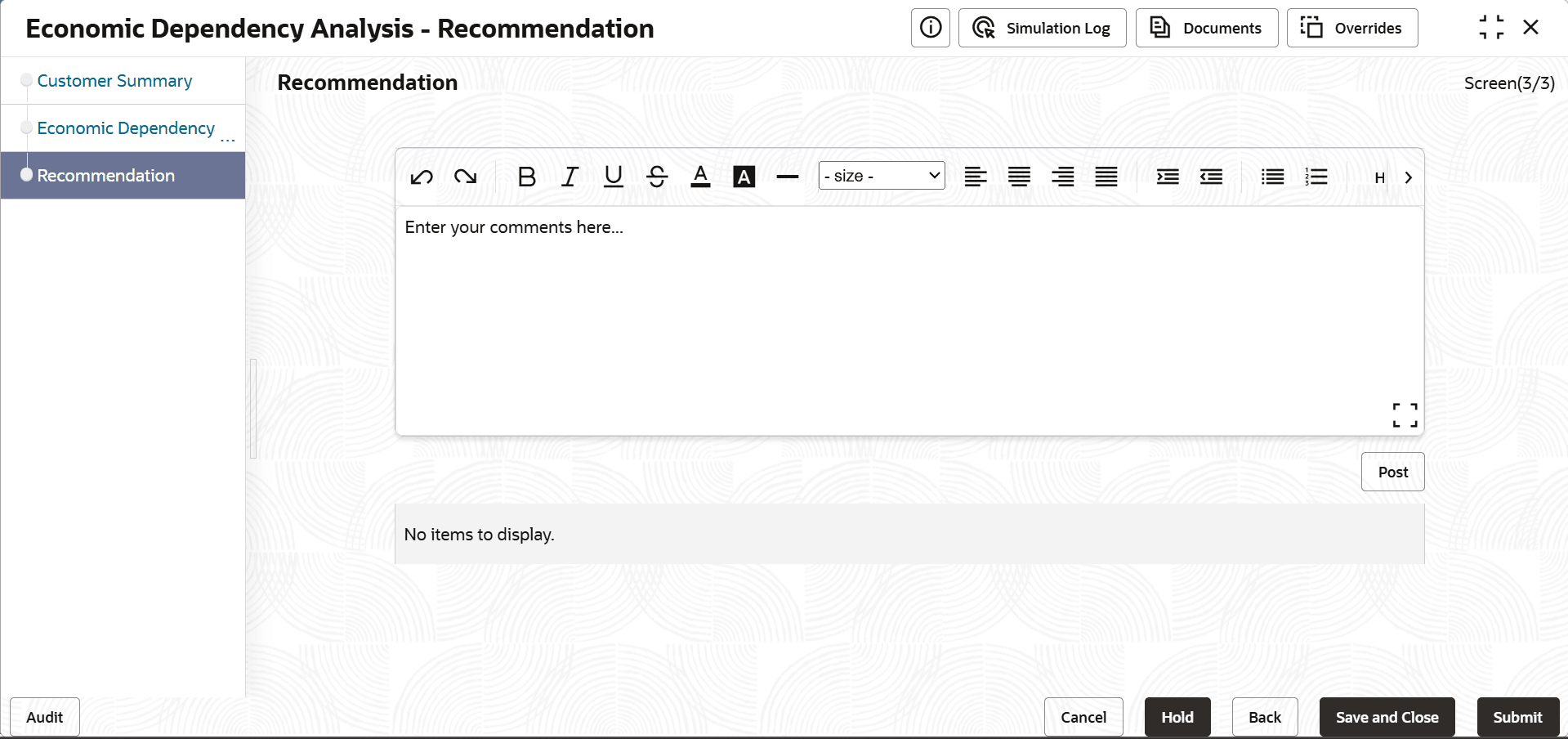
For information on fields in the Recommendation screen, refer the below table.
Table 5-1 Recommendation
Fields/ Icons Description Post Post the overall Comments for the Recommendation stage. Hold To hold the Recommendation task, click Hold. Back To go back to the previous page, click Back. Save & Close To save and exit the page, click Save & Close. Submit To submit the task, click Submit. Cancel To cancel the Recommendation task, click Cancel. - Click the Submit button, The Checklist screen is displayed.
- Select the Outcome as Proceed and click Submit.
The Economic Dependency Analysis process is completed if the “No action needed” is selected as Recommendation.
If Initiate review option is selected as Recommendation, the system creates Review task for the Economic Dependency Analysis.