3.7 Credit Evaluation
This topic provides systematic instrcutions about the Credit Evaluation of the FI Credit Proposal Initiation.
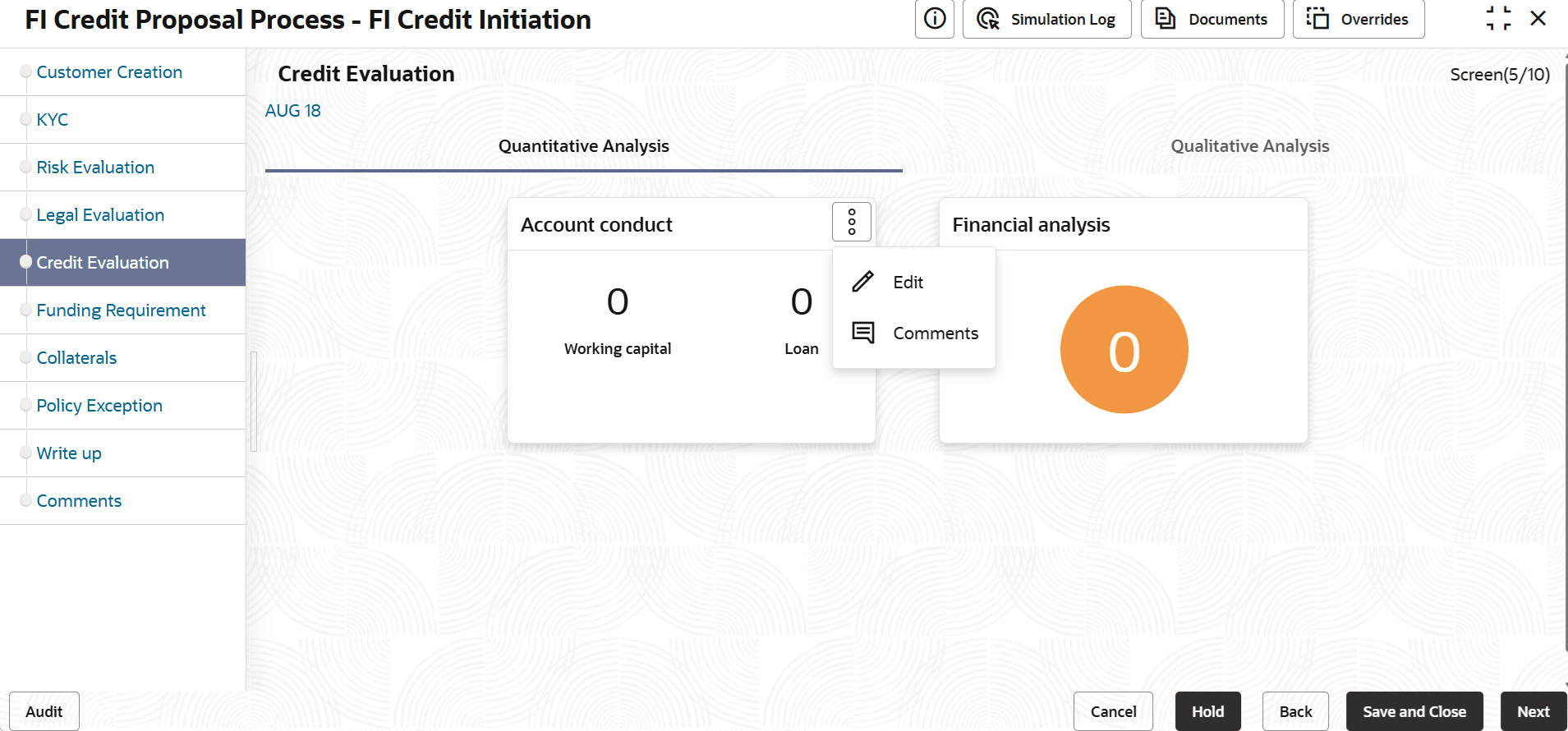
This data segment allows you to perform credit evaluation to determine the credit worthiness of the Financial Institution.
Figure 3-60 Credit Initiation_Credit Evaluation
Description of "Figure 3-60 Credit Initiation_Credit Evaluation"
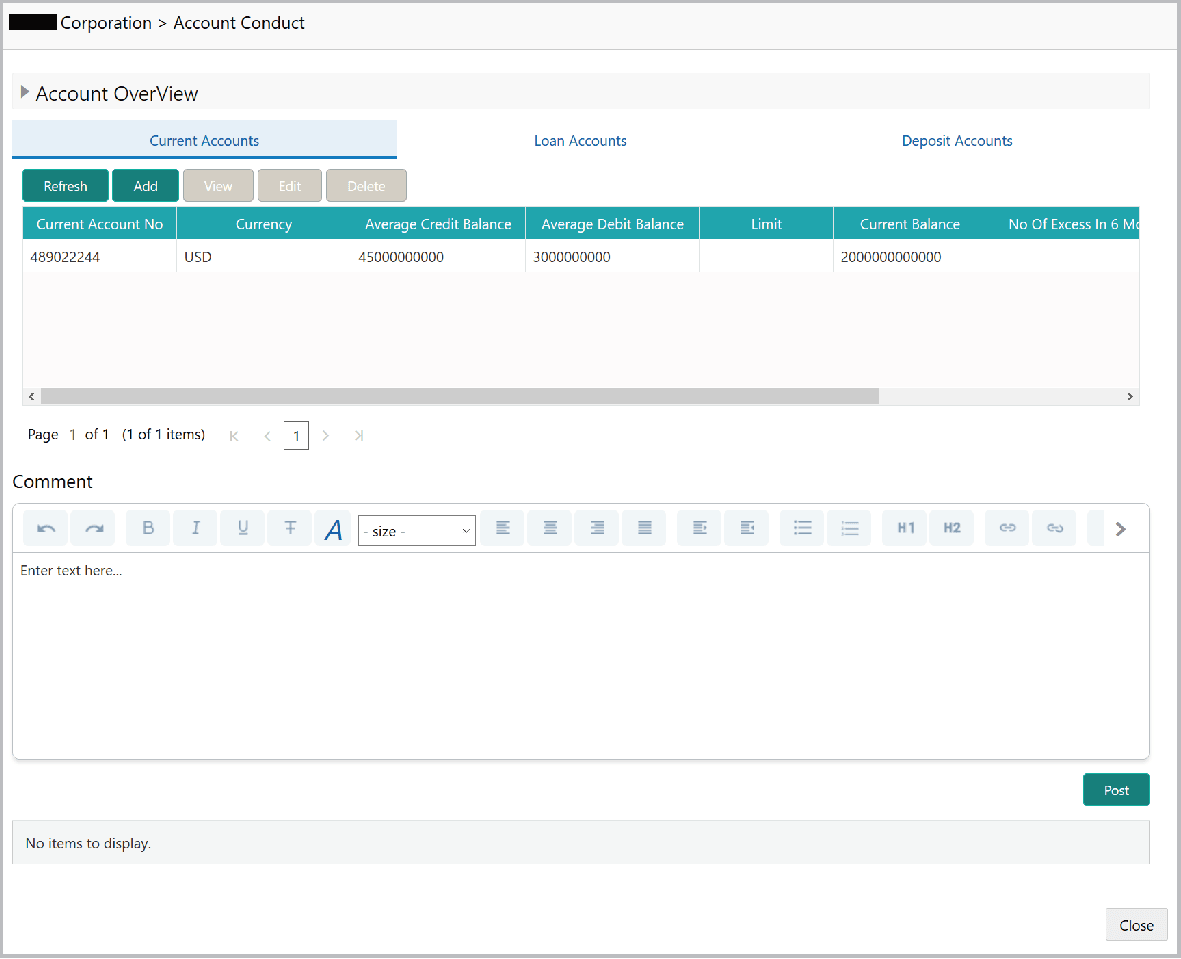
- To analyze the account conduct, click Evaluate in Account Conduct
tile.
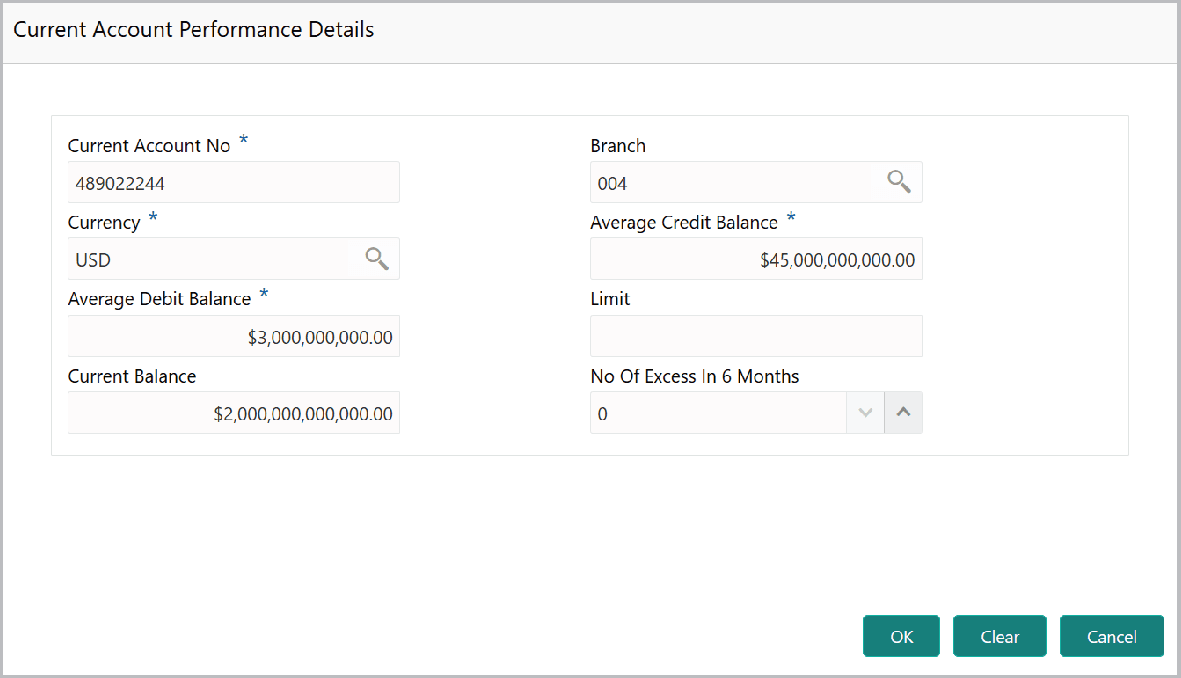
- To add the current account, click Add. The Current Account Performance Details screen appears.For information on fields in the Current Account Performance Details screen, refer the below table.
Figure 3-62 Current Account Performance Details
Description of "Figure 3-62 Current Account Performance Details"Table 3-32 Current Account Performance Details
Fields Description Current Account No Type the Current Account No. Branch and Currency Search and select the Branch and Currency. Specify the following details in corresponding fields:
- Average Credit Balance
- Average Debit Balance
- Limit
- Current Balance
- No Of Excess in 6 Months
OK Click OK. Details are added and displayed in Current Accounts page. Refresh To refresh the current account list, click Refresh. View To view the current account details, select the current account and click View. Edit To modify the current account details, select the current account and click Edit. Delete To delete the current account details, select the current account and click Delete. - To add the loan account, click the Loan Accounts tab and then click
Add. The Loan Account Performance Details screen displayed.
Figure 3-63 Loan Account Performance Details
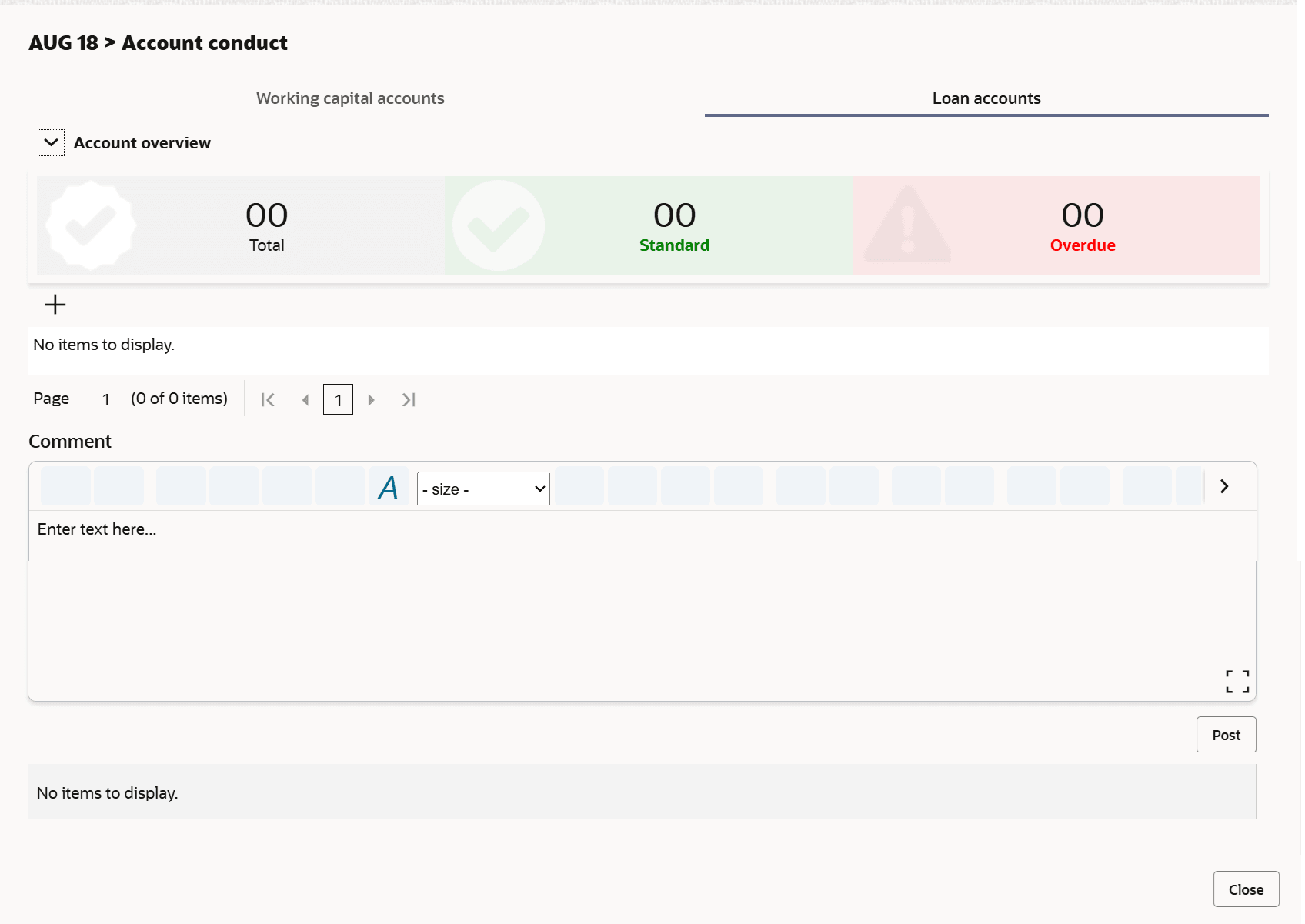
Description of "Figure 3-63 Loan Account Performance Details"For information on fields in the Loan Account Performance Details screen, refer the below table.
Table 3-33 Loan Account Performance Details
Fields Description Loan Account No Type the Loan Account No. Currency Search and select the Currency. Specify the following details in corresponding fields:- Sanctioned Amount
- Tenor (In Months)
- EMI Paid
- EMI Remaining
- Balance Outstanding
Discrepancy If there is a discrepancy in payment, enable the Discrepancy switch. OK Click OK. Details are added and displayed in Loan Accounts page. Refresh To refresh the loan account list, click Refresh. View To view the loan account details, select the loan account and click View. Edit To modify the loan account details, select the loan account and click Edit. Delete To delete the loan account details, select the loan account and click Delete. - To add the deposit account, click the Deposit Accounts tab and then
click Add.The Deposit Account Performance Details screen displays.
Figure 3-64 Deposit Account Performance Details
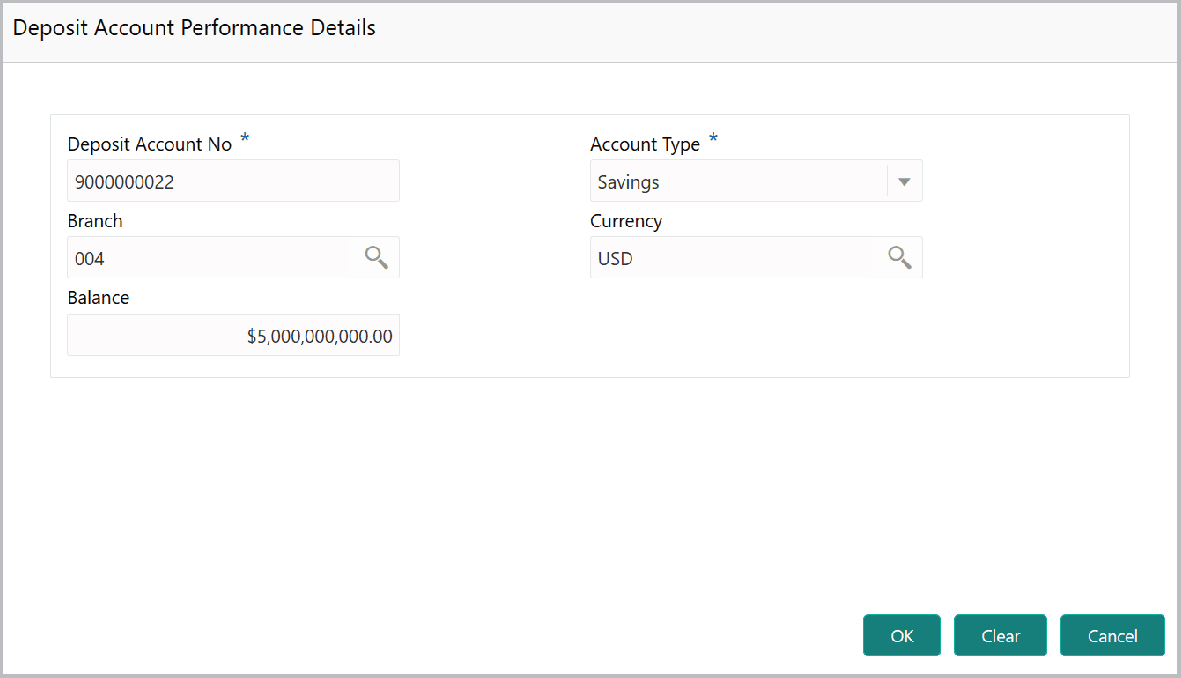
Description of "Figure 3-64 Deposit Account Performance Details"For information on fields in the Deposit Account Performance Details screen, refer the below table.
Table 3-34 Deposit Account Performance Details
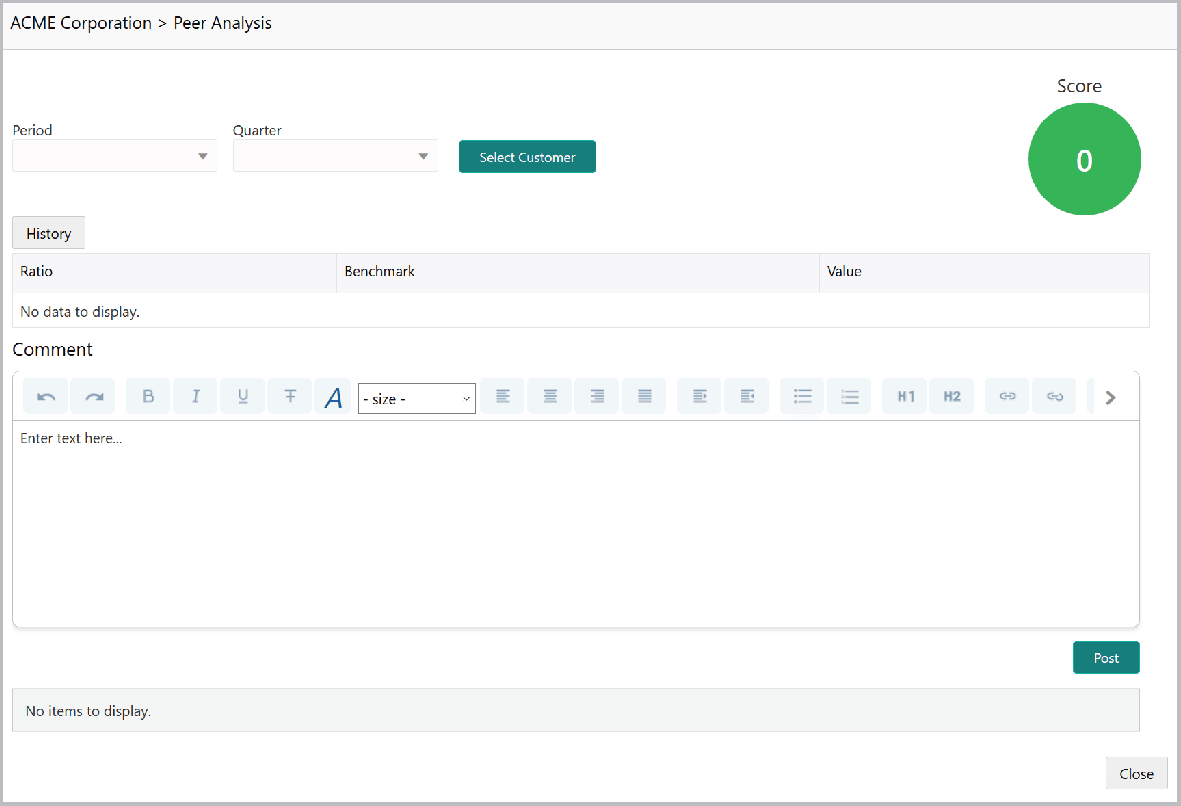
Fields/ ICons Description Deposit Account No. Type the Deposit Account No. Account Type Select the Account Type from the drop down list. Branch and Currency Search and select the Branch and Currency. Balance Specify the Balance in deposit account. OK Click OK. Details are added and displayed in Deposit Accounts page. Refresh To refresh the deposit account list, click Refresh. View To view the deposit account details, select the deposit account and click View. Edit To modify the deposit account details, select the deposit account and click Edit. Delete To delete the deposit account details, select the deposit account and click Delete. Post Post the Comments for the account conduct. - To perform peer analysis, click Evaluate in Peer Analysis tile.
The Peer Analysis window is displayed.
For information on fields in the Peer Analysis screen, refer the below table.
Table 3-35 Peer Analysis
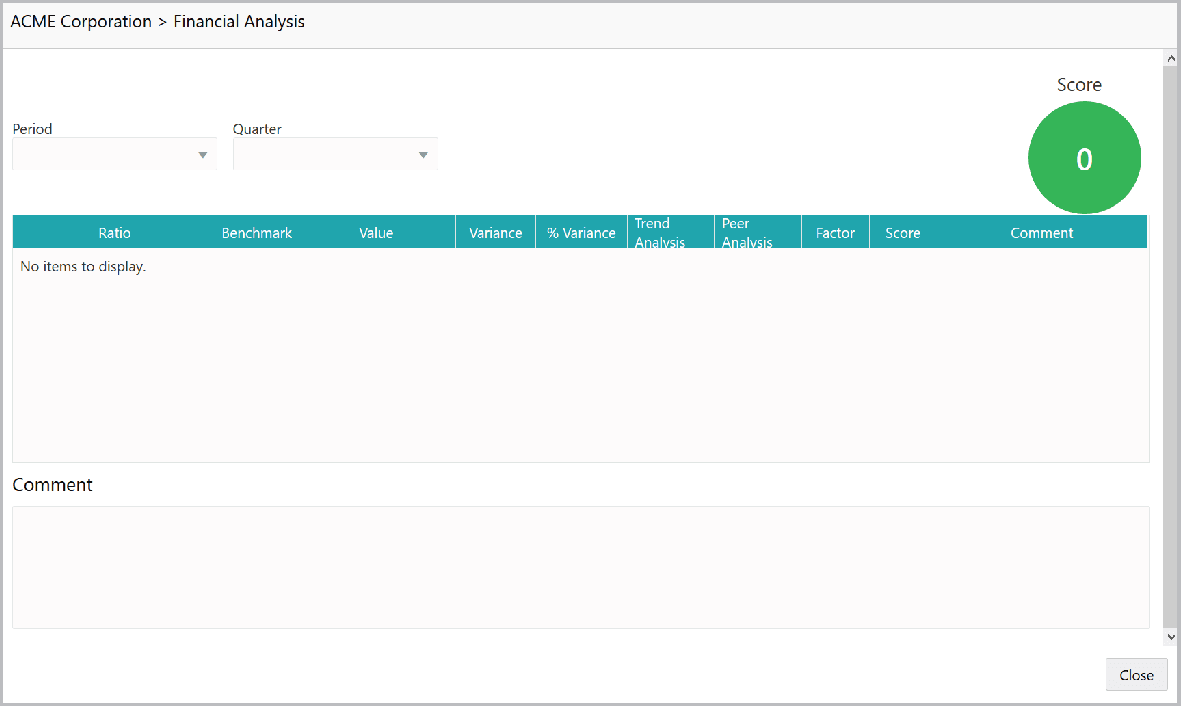
Fields Description Period and Quarter Select the Period and the Quarter and then perform the peer analysis. A score is generated for the analysis. Post Post the Comment for the Peer Analysis. Close Click Close. The score is displayed in the Qualitative Analysis window. - To perform financial analysis, click Evaluate in the Financial
Analysis tile.The Financial Analysis screen is displayed.
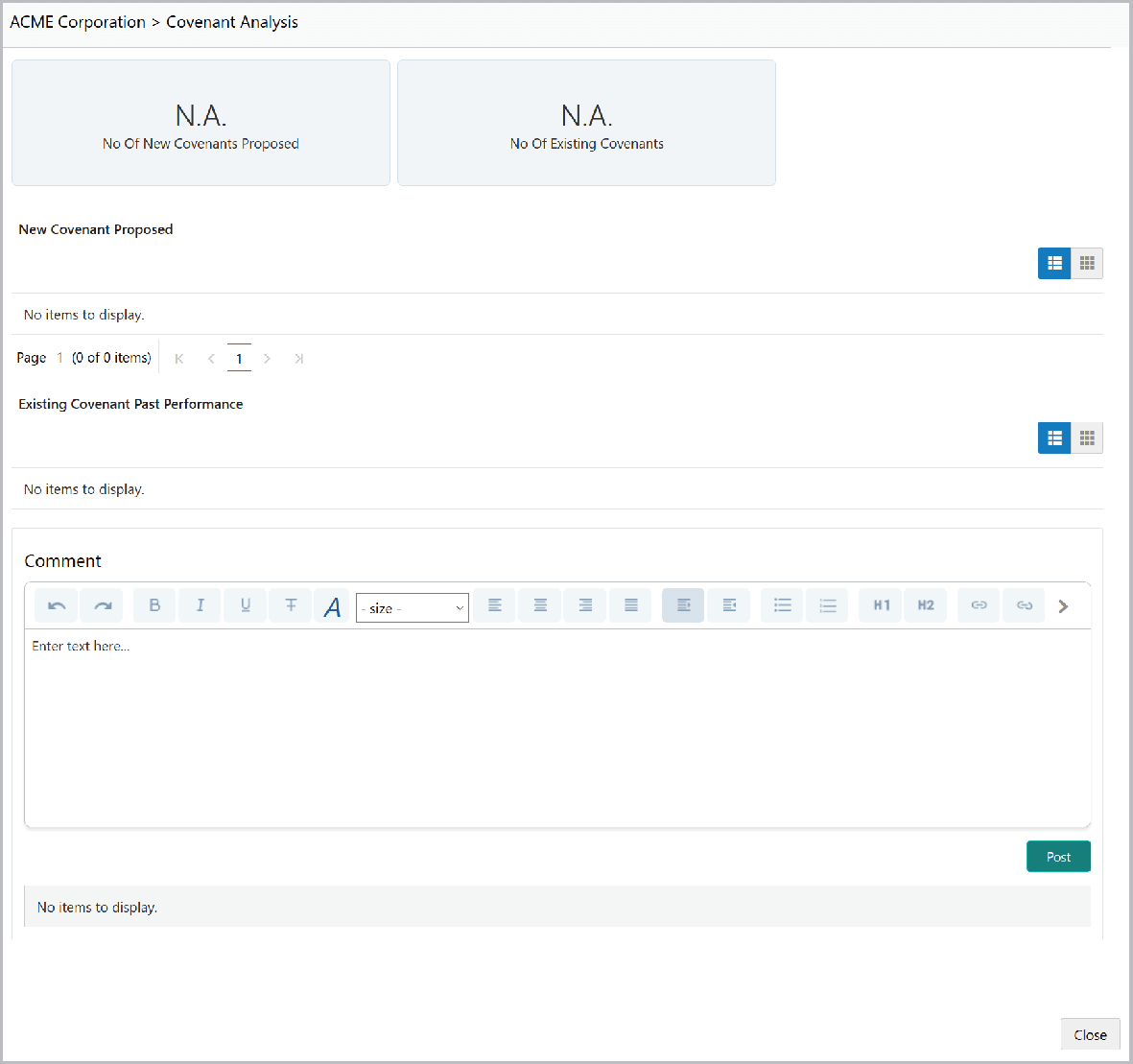
- To perform covenant analysis, click Evaluate in the Covenant Analysis
tile. The Covenant Analysis screen is displayed.
In Covenant Analysis window, the following details are displayed:
- New Covenant Proposed
- Existing Covenant Past Performance
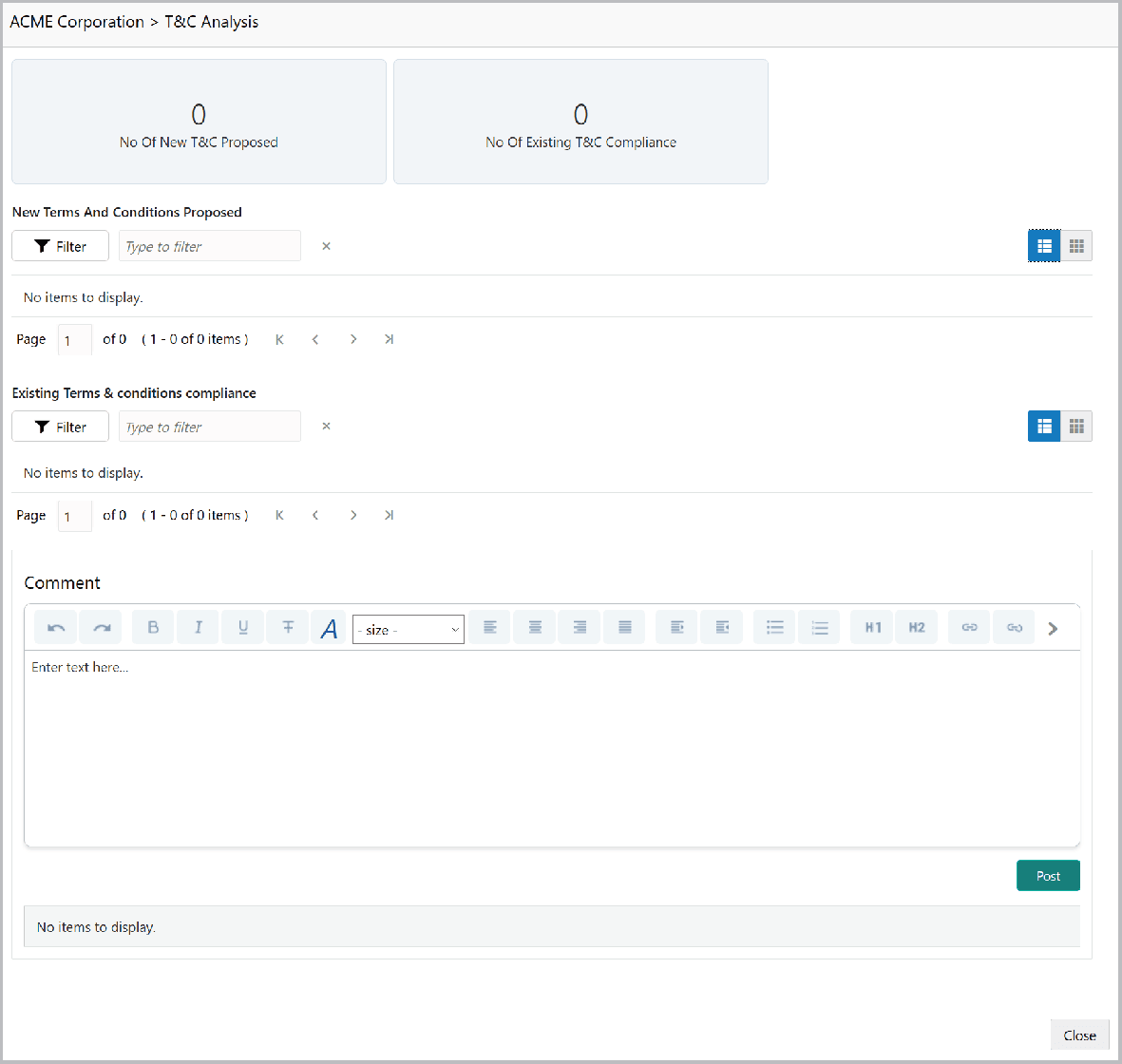
- To analyze terms & conditions, click Evaluate in the T&C
Analysis tile.The T&C Analysis screen is displayed.
In T&C Analysis window, the following information are displayed:
- New Terms And Conditions Proposed
- Existing Terms & conditions compliance
For information on fields in the T&C Analysis screen, refer the below table.
Table 3-36 T&C Analysis
Fields Description Post View the terms and conditions and then Post the Comments. Close Click Close. Count of New, Removed and Modified terms and conditions is displayed in the T&C Analysis tile. Edit To perform the analysis again, click Edit in the corresponding tile. Comment To capture comments for the analysis, click Comment in the corresponding tile.
Parent topic: Credit Initiation