3.32 Adding FX Rate Revaluation Details
You can add FX rate and revaluation details for the facility under the FX Rate Revaluation menu. The facility will be periodically re-valuated considering the FX rate, based on the configured frequency.
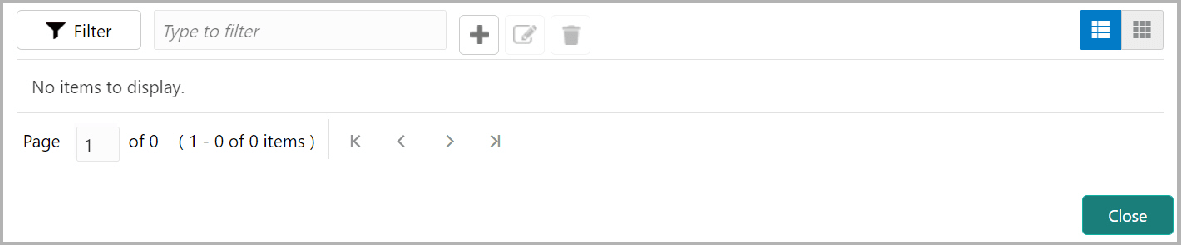
- Click the Add icon.The FX Rate Revaluation window is displayed.
For field level information refer the below table.
Table 3-33 FX Rate Revaluation details
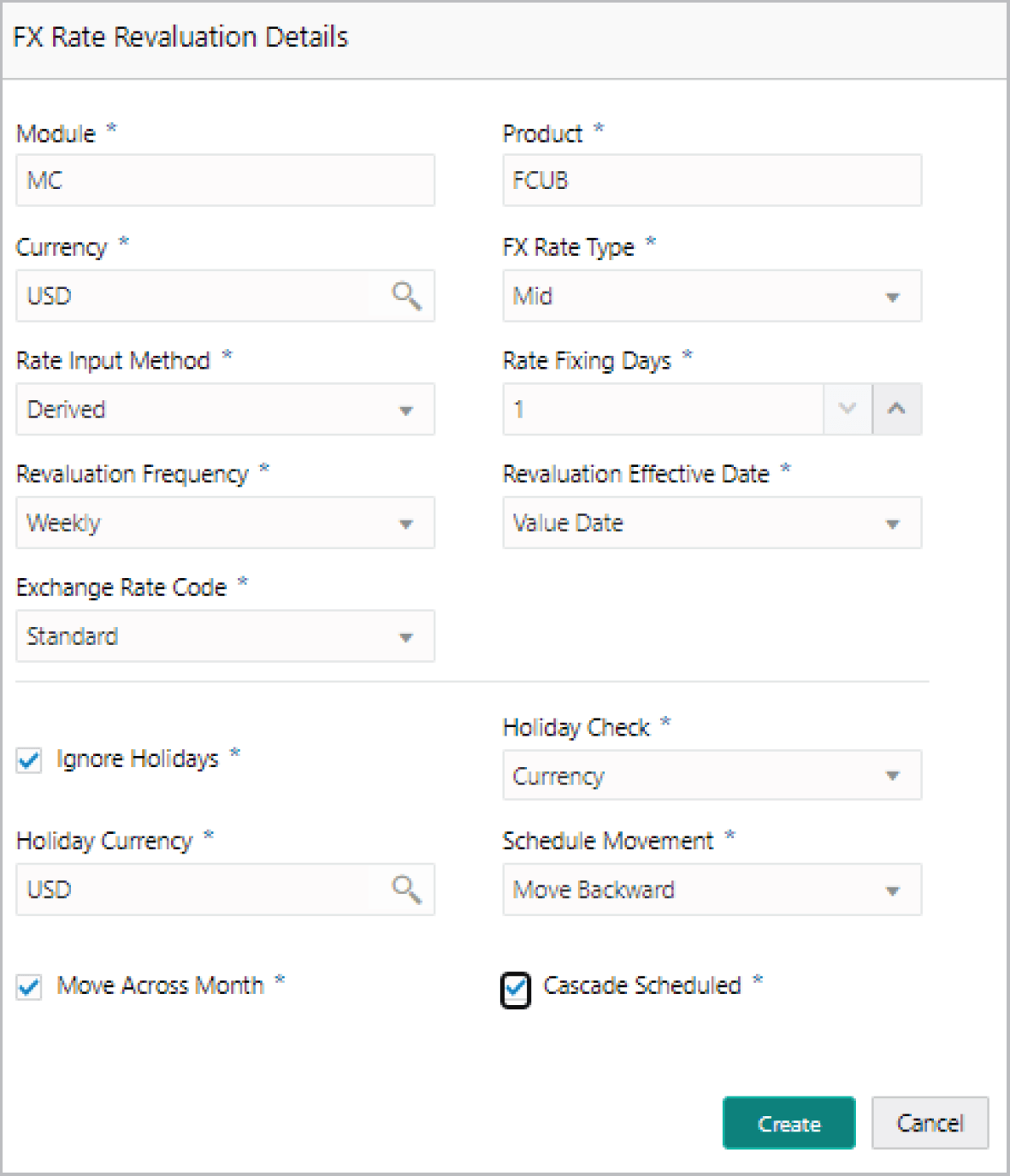
Fields/ Icons Description Module In the Module field, enter the name of module from which the FX rate detail has to be fetched. For example, LC (Letters of Credit module in FCUBS) Product In the Product field, enter the name of product from which the FX rate detail has to be fetched. For example, Import LC Issuance (product under LC module) Currency Select the Currency for which the FX rate has to be applied. FX Rate Type Select the FX Rate Type from the drop-down list. The options available are: Mid, Sell, and Buy. Rate Input Method Select the Rate Input Method from the drop-down list. The options available are Derived and Fixed. If Rate Input Method is selected as Derived, the Exchange Rate Code field appears. You must select the required exchange rate code from the list of codes maintained in the mentioned Product.
If Rate Input Method is selected as Fixed, the Fixed Rate field appears. You must specify the fixed rate for the revaluation.
Rate Fixing Days Specify the Rate Fixing Days. The value must be between 1 to 5. If the Rate Fixing Days is set as 1, the system will pick up the rate from previous day i.e. current day - 1.
Revaluation Frequency Select the Revaluation Frequency from the drop-down list. The options available are: Daily, Weekly, Monthly, Quarterly, Half Yearly, Yearly, and None. Revaluation Effective Date Select the Revaluation Effective Date from which the revaluation should happen. The options available are: Value Date and Calendar Date. Ignore Holidays Enable the Ignore Holidays check box, if required. The revaluations that are due on holidays will not be performed on the holiday. Holiday Check Select the Holiday Check option from the drop-down list. The options available are Currency, Both, and Local. The system will determine the holidays based on the selected Holiday Check option. For example, if Holiday Check is selected as Currency, then the system will refer the Currency Holiday Maintenance to determine holidays.
Holiday Currency Select the Holiday Currency for which the holiday table must be checked. Schedule Movement Select the Schedule Movement option from the drop-down list. The options available are: Move Backward and Move Forward. Move Backward If Move Backward option is selected, the system will schedule the revaluations that are due on holiday before the holiday. Move Forward If Move Forward option is selected, the system will schedule the revaluations that are due on holiday after the holiday. Move Across Month Enable the Move Across Month check box, if required. If you have chosen to move a schedule falling due on a holiday to the next working day, or the previous working day, and it crosses over into another month, the schedule date will be moved only if you indicate so. If not, the schedule date will be kept in the same month.
Cascade Schedule Enable the Cascade Schedule check box, if required. Next schedule will be fixed based on how the schedule date was moved for a holiday. Revaluation Frequency For example, if the Revaluation Frequency is Monthly and the schedule that is due on holiday (1st January) is moved forward to the next day (2nd January) based on selected Schedule Movement option, then from the next month (February), the schedule is shifted to 2nd of every month if the Cascade Schedule check box is enabled. Create Click Create. The FX rate revaluation details are saved. Edit To modify the added FX rate revaluation details, select the record and click the Edit icon. Delete To delete the added FX rate revaluation details, select the record and click the Delete icon.
Parent topic: Proposal Initiation