3.42 Connected Party
If the connected party of your customer is already linked with your bank, the connected party information can be added during proposal evaluation.
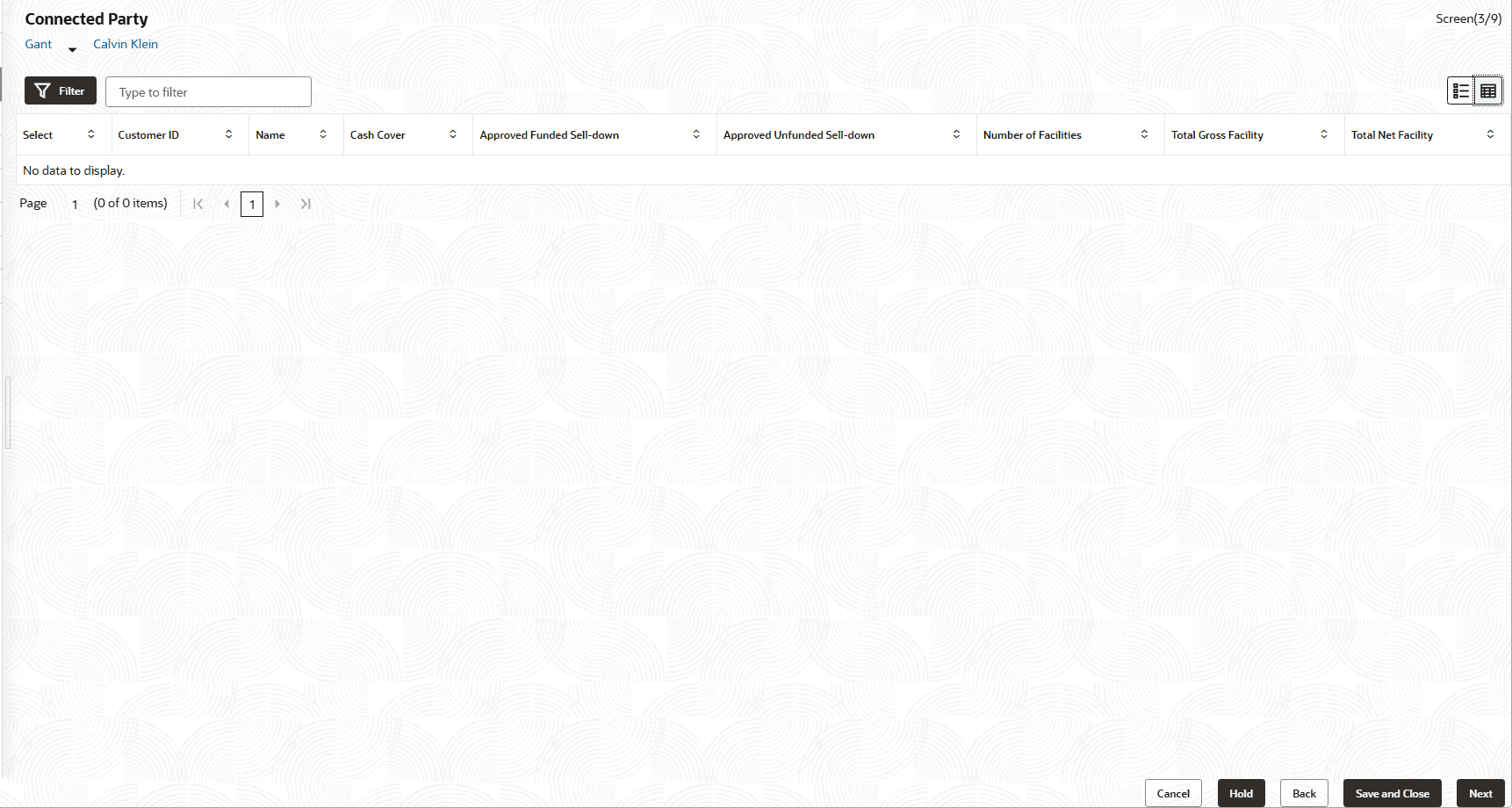
- Click the Add icon.The Connected Parties Details window is displayed.
Figure 3-97 Connected Party Details
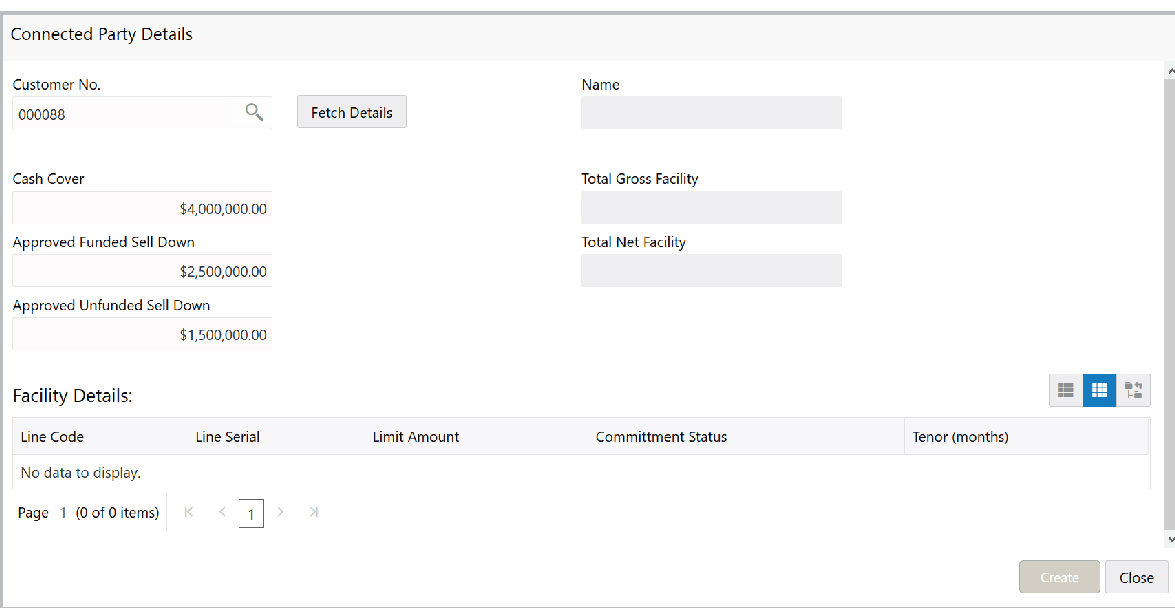
For field level information refer the below table.
Table 3-42 Connected Party Details
Fields Description Customer No Search and select the Customer No of the connected party. Fetch Details Click Fetch Details. Following details about the connected party are fetched and displayed: - Name
- Total Gross Facility
- Total Net Facility
- Cash Cover
- Approved Funded Sell Down
- Approved Unfunded Sell Down
- Facility Details
Facility Details To change the view of Facility Details, click the required icon from List View, Table View and Tree View icons. Create Click Create. Connected party details are added and displayed in the Connected Parties page. List view To change the layout of Connected Party page to list view, click the List view icon at the right corner. Note: If your customer has more than one connected party in your bank, add all the connected parties details by clicking add icon again.
Filter To filter the required connected party, click the Filter icon and specify the filter parameters or directly type the connected party detail in the Type to filter text box. Edit To edit the connected party details, Select the required party and click the Edit icon. Delete To delete the connected party, Select the required party and click the Delete icon. Next To add connected party details for the child party, click the arrow Next to the party name in the top left corner. Customer list appears.
Parent topic: Proposal Initiation