3.43 Write Up
You can add writeup for different writeup categories maintained in the system, if observations or additional customer information are available for the categories.
Note:
Write up data segment appears only if that data segment is enabled in the Maintenance module.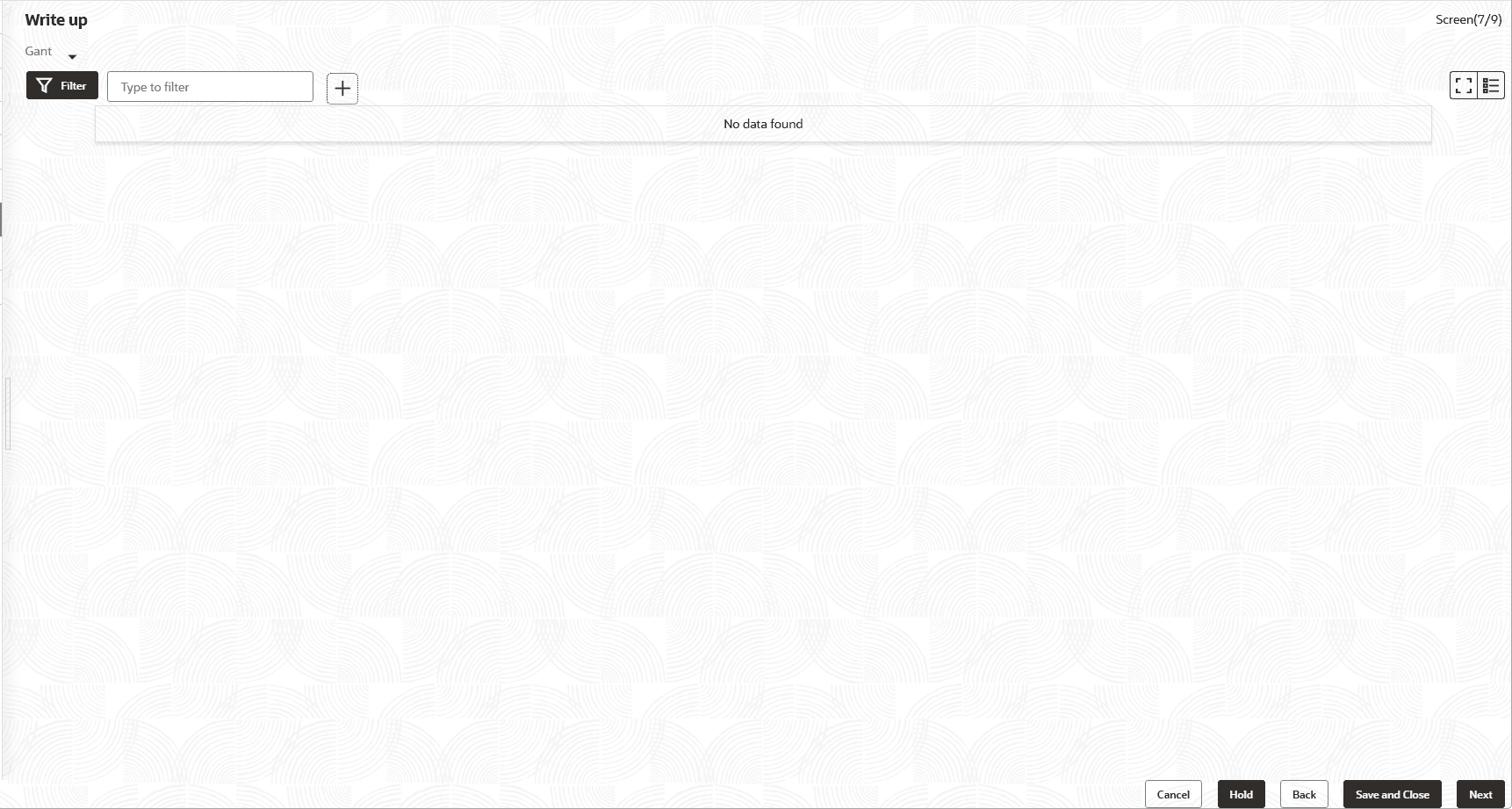
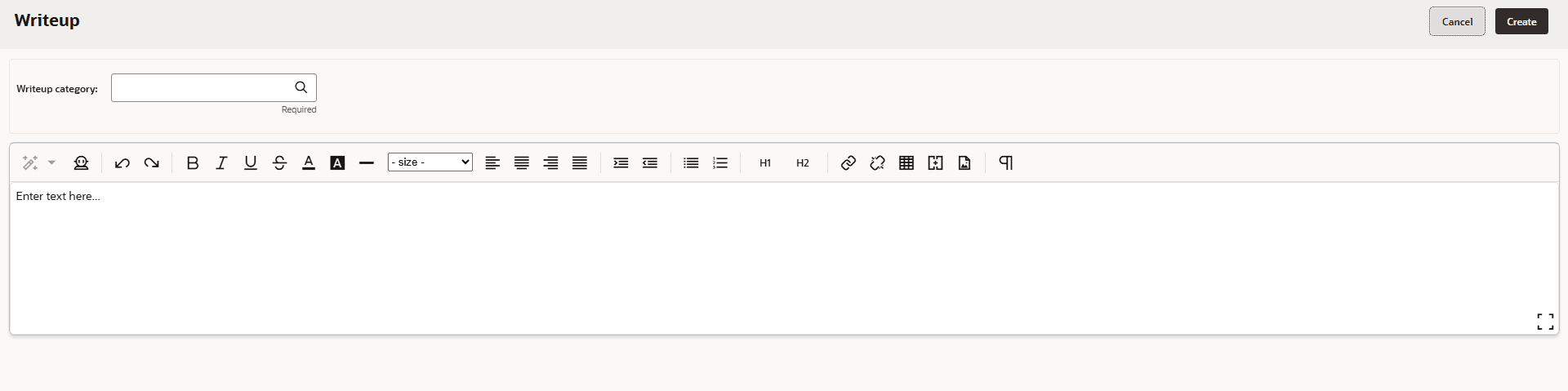
- Click the Add icon.The Write Up window is displayed.
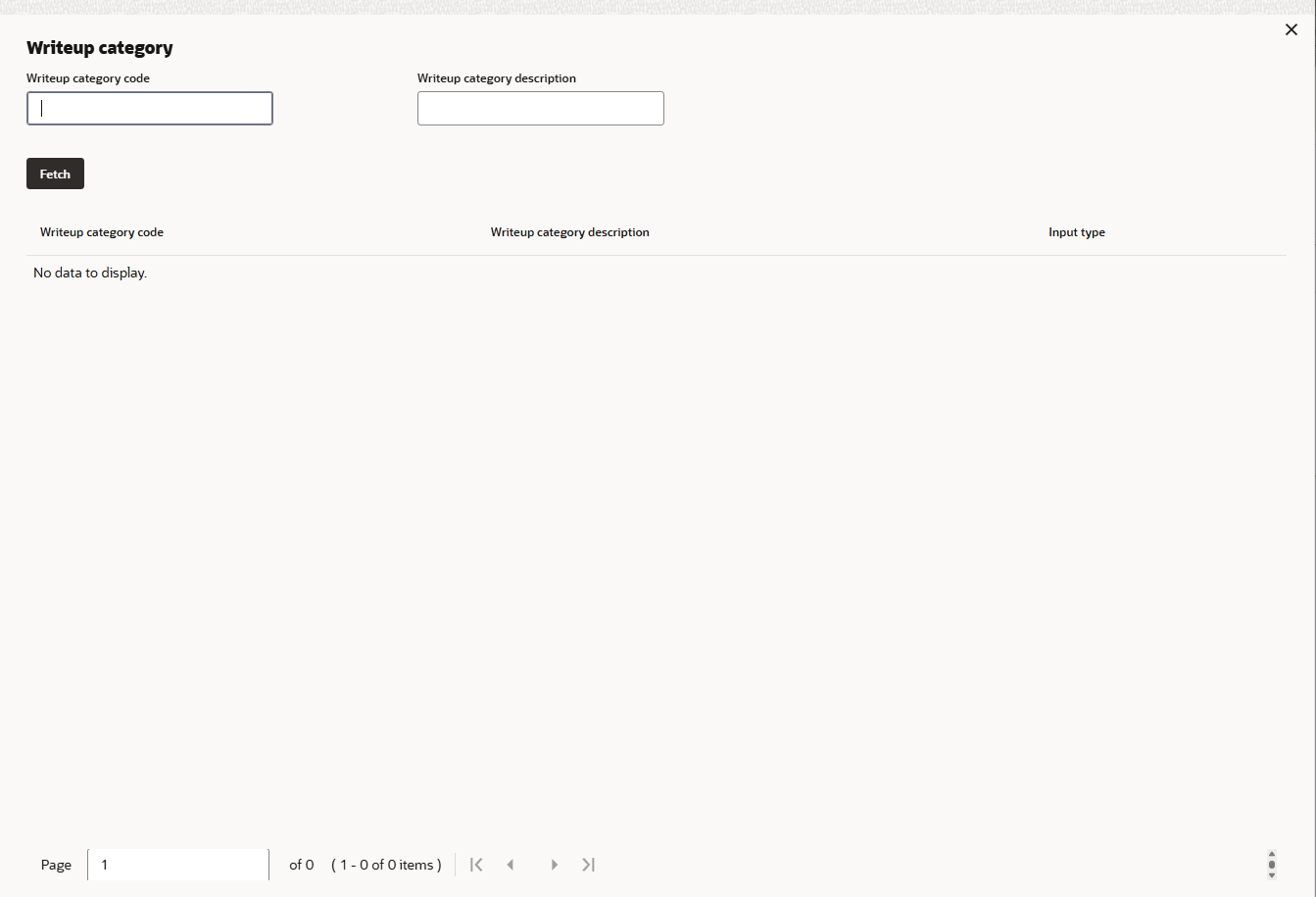
- Click the search icon in the Writeup Category field. The Fetch Writeup
Category window with the list of categories maintained in the Maintenance module
appears:
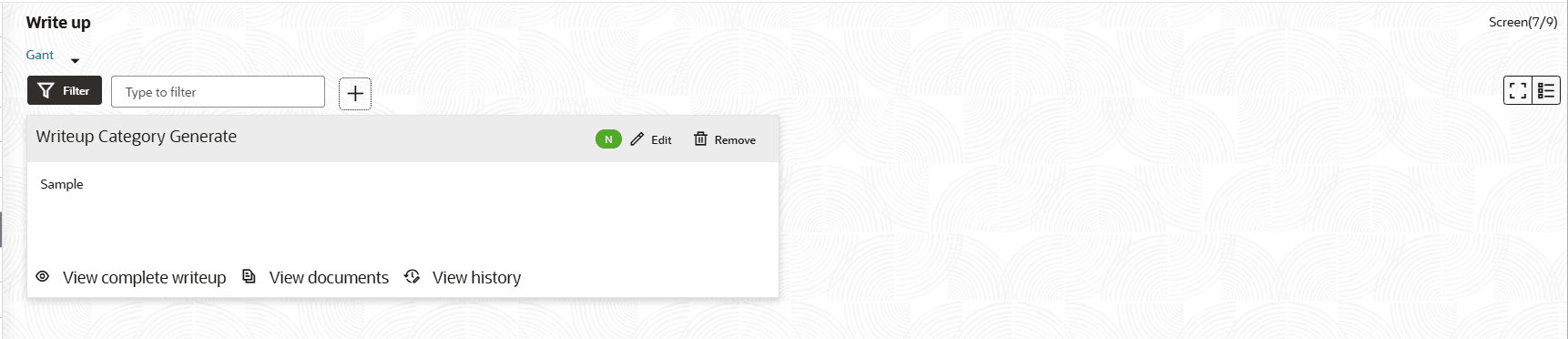
- Enter the observations in the text box and click Create. The
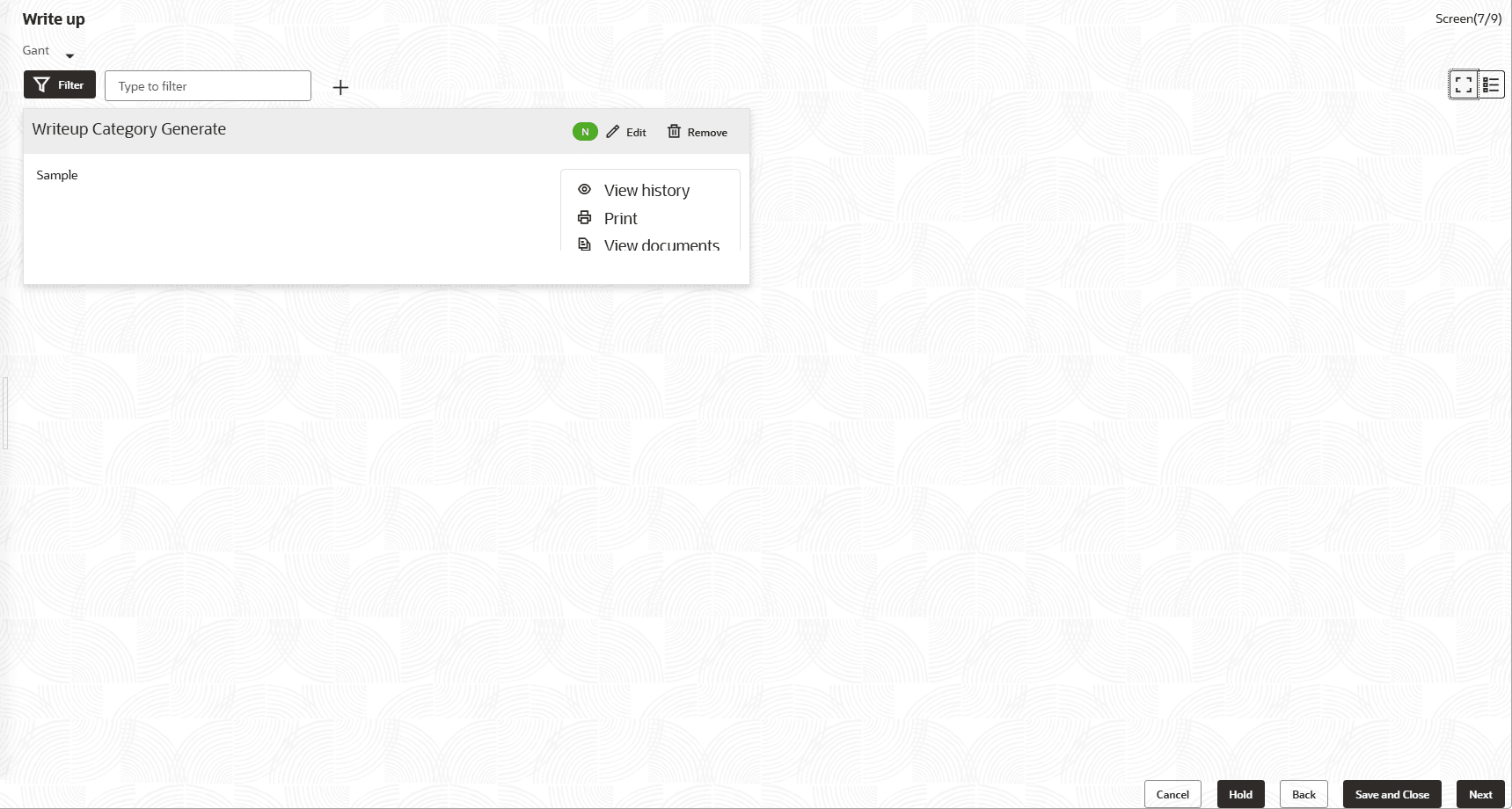
observations are added in the Write Up page as shown below:
- To change the layout of Write up data segment to the expanded view, click the
Expanded View icon at the top right corner. The write up is expanded as shown
below:
For field level information refer the below table.
Table 3-43 Write up
Fields Description Edit To modify the writeup, click the Edit icon and change the information. Remove To delete the writeup, click the Remove icon. A confirmation message appears. View history To view the writeup history, click the View history icon. Print To print the write up, click the Print icon. Note: To print the write up from tile view, click the View complete writeup icon and then click the Print icon.
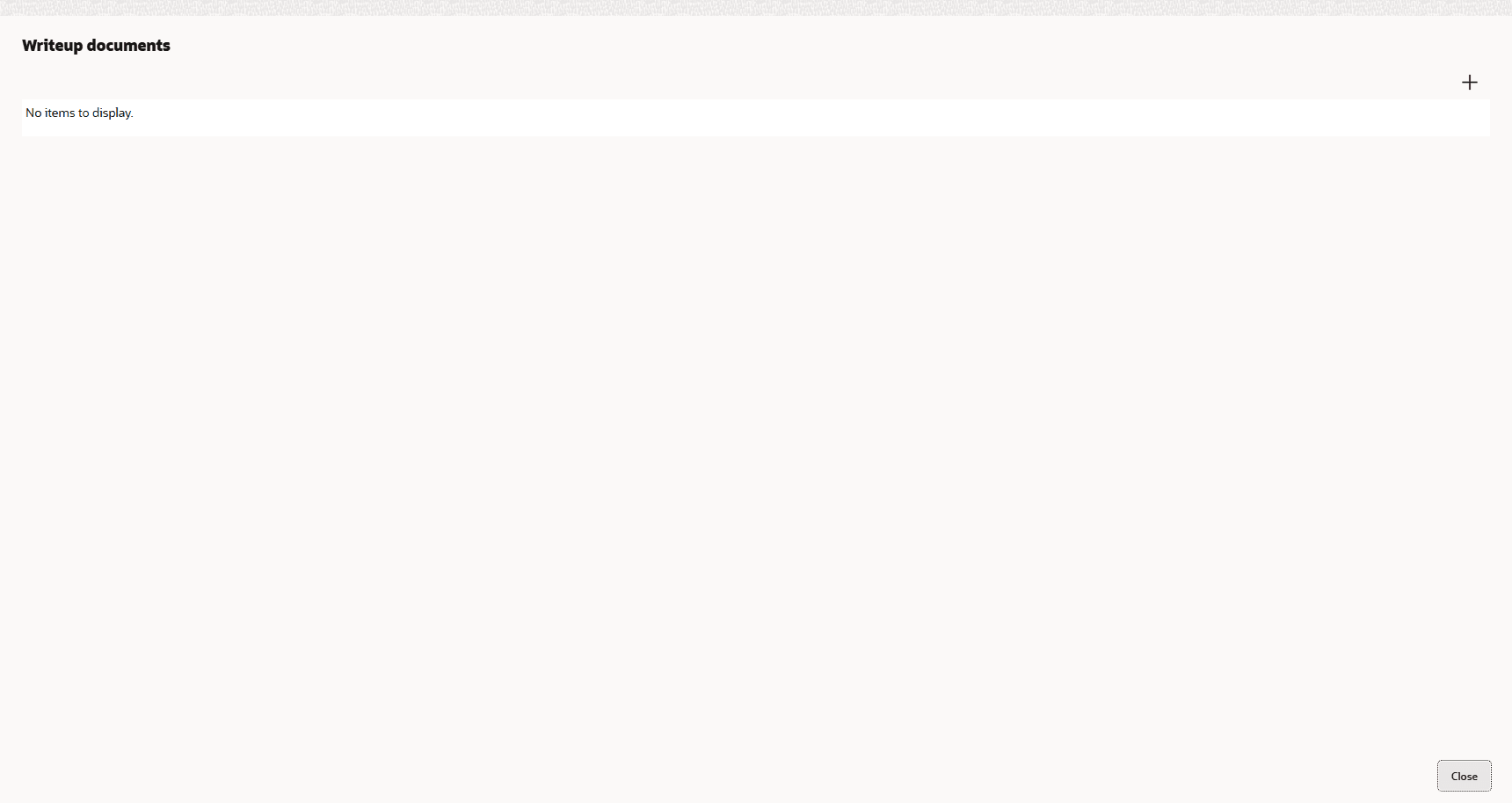
Yes Click Yes. The writeup is removed. - To attach or view writeup related documents, click View Documents
icon.The Writeup documents window is displayed.
Parent topic: Proposal Initiation