3.39 Filtering Facility
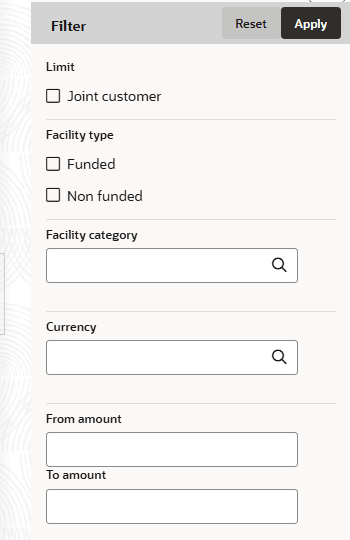
- To filter the required facility, provide the facility detail in Type to
filter text box or click the Filter icon.The Filter window is displayed.
For field level information refer the below table.
Table 3-35 Filter
Fields Description Filter Enter or select the Filter parameters. Apply Click Apply. Facility that matches the filter parameters are displayed. Facility To delete the facility, Select the Facility and click Delete icon. - To change the layout of facility details to table view, click the Table
View icon.
Figure 3-85 Table View
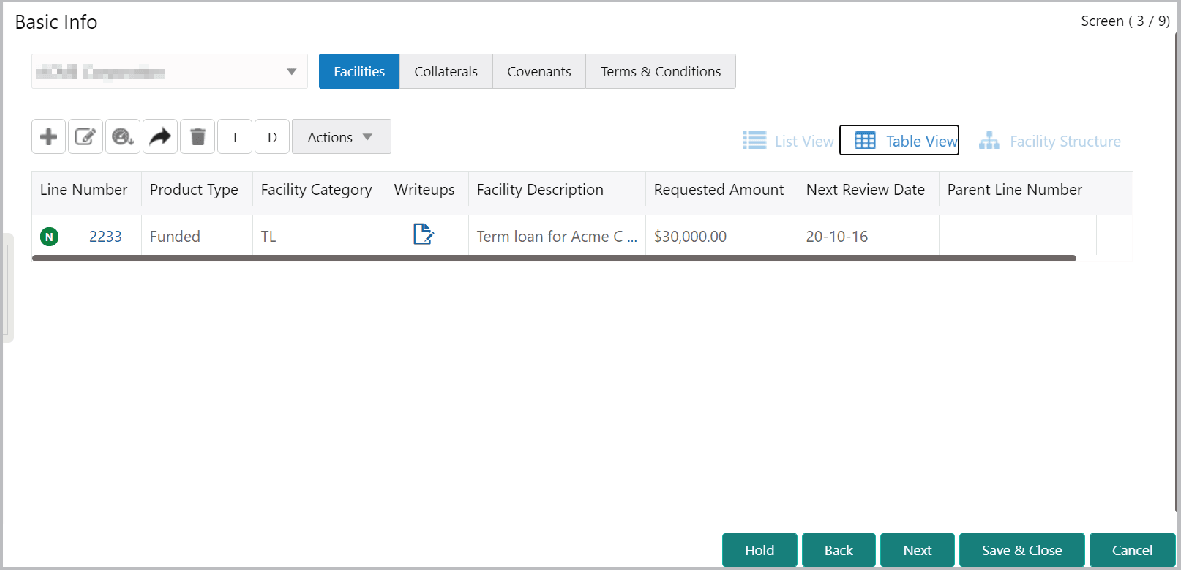
For field level information refer the below table.
Table 3-36 Table View
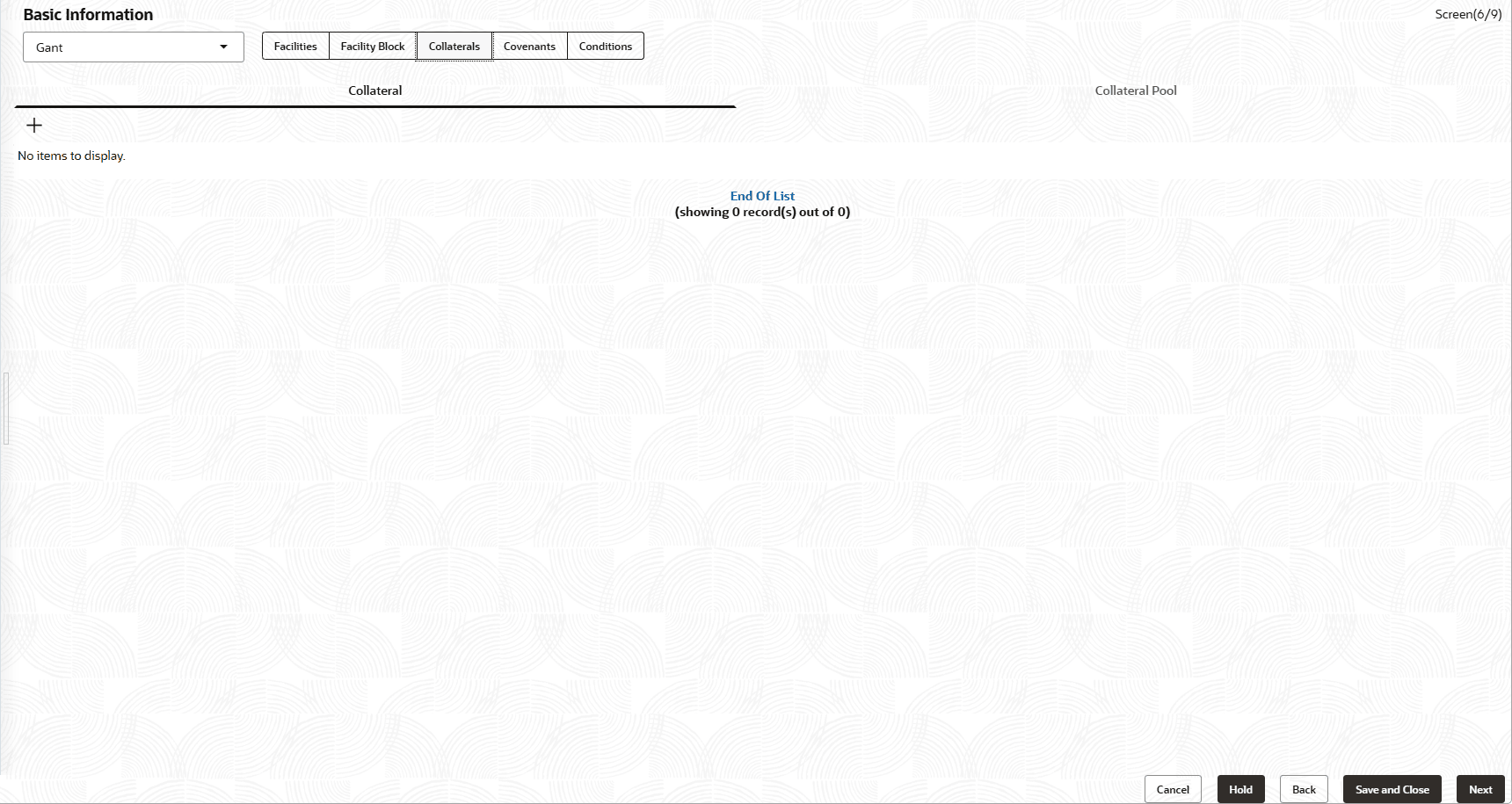
Fields Description Line Number To view the facility details in table view, click the Line Number. Writeup To capture writeup for the facility, click the Writeup icon. Facility Structure To change the layout of facility details to tree view, click the Facility Structure icon. Arrow To add facility details for the child party, click the Arrow next to the party name in the top left corner. Customer list appears. Child party Select the required Child party. Funding Requirement page appears. facility details Add the facility details for the child party. - To view, add, modify or delete the customer collateral, click the Collateral
tab.
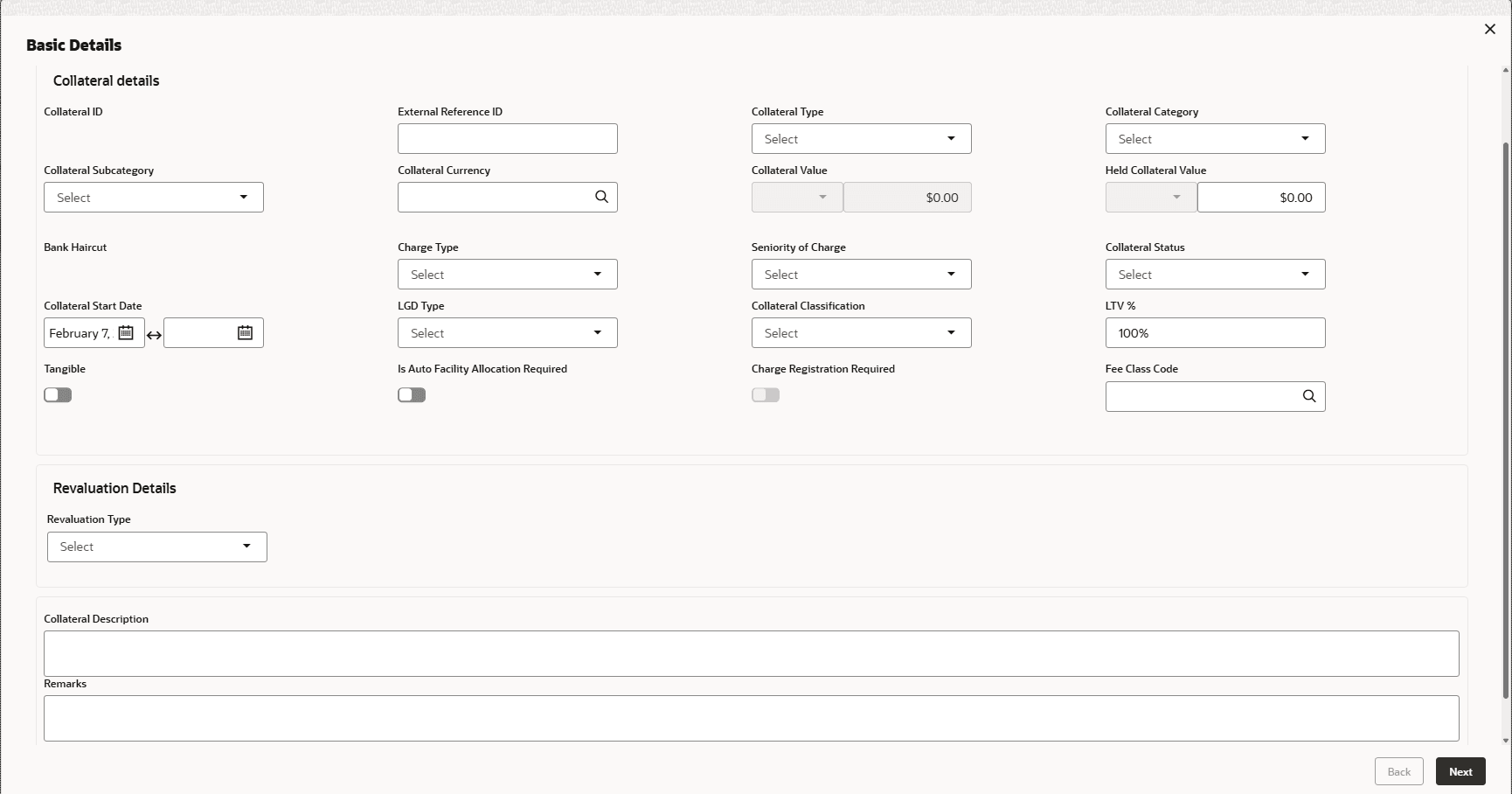
- To add information about new collateral, click the Add icon.The Collateral Details window is displayed.
For field level information refer the below table.
Table 3-37 Collateral Details
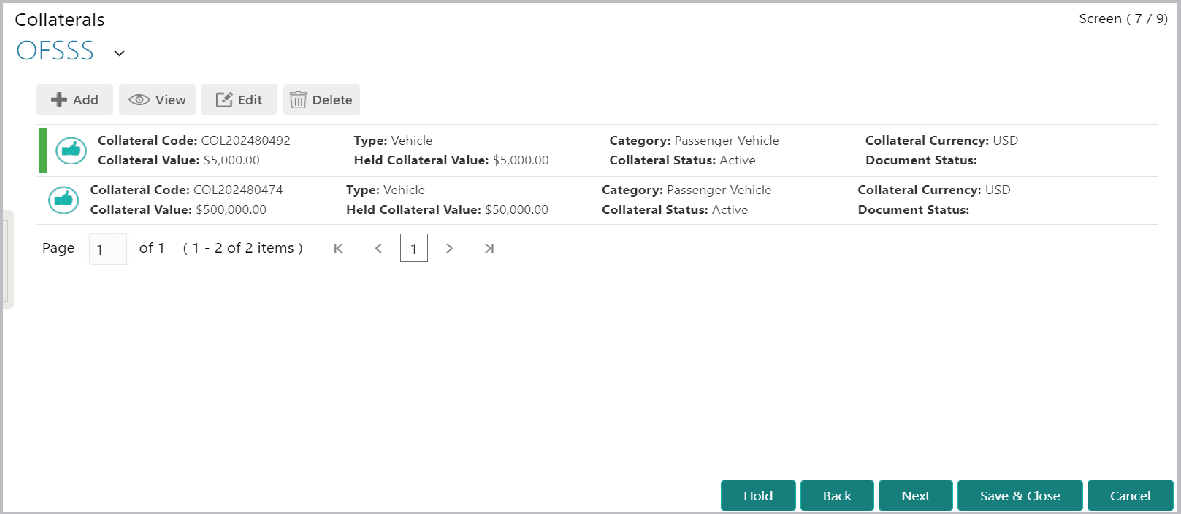
Fields Description Collateral Type Select the Collateral Type from the drop-down list. Collateral Description Enter the Collateral Description. Charge Hierarchy Choose the Charge Hierarchy. Collateral Currency Search and select the currency in which the collateral is evaluated from Collateral Currency search box. Owner estimated value Specify the Owner estimated value of the collateral. Purpose Of Collateral Enter the Purpose Of Collateral. - Click Create. Collateral details are added and listed as shown
below:
Figure 3-88 Create
Note:
To add details about more collateral, click the Add icon again and provide the details.For field level information refer the below table.
Table 3-38 Create
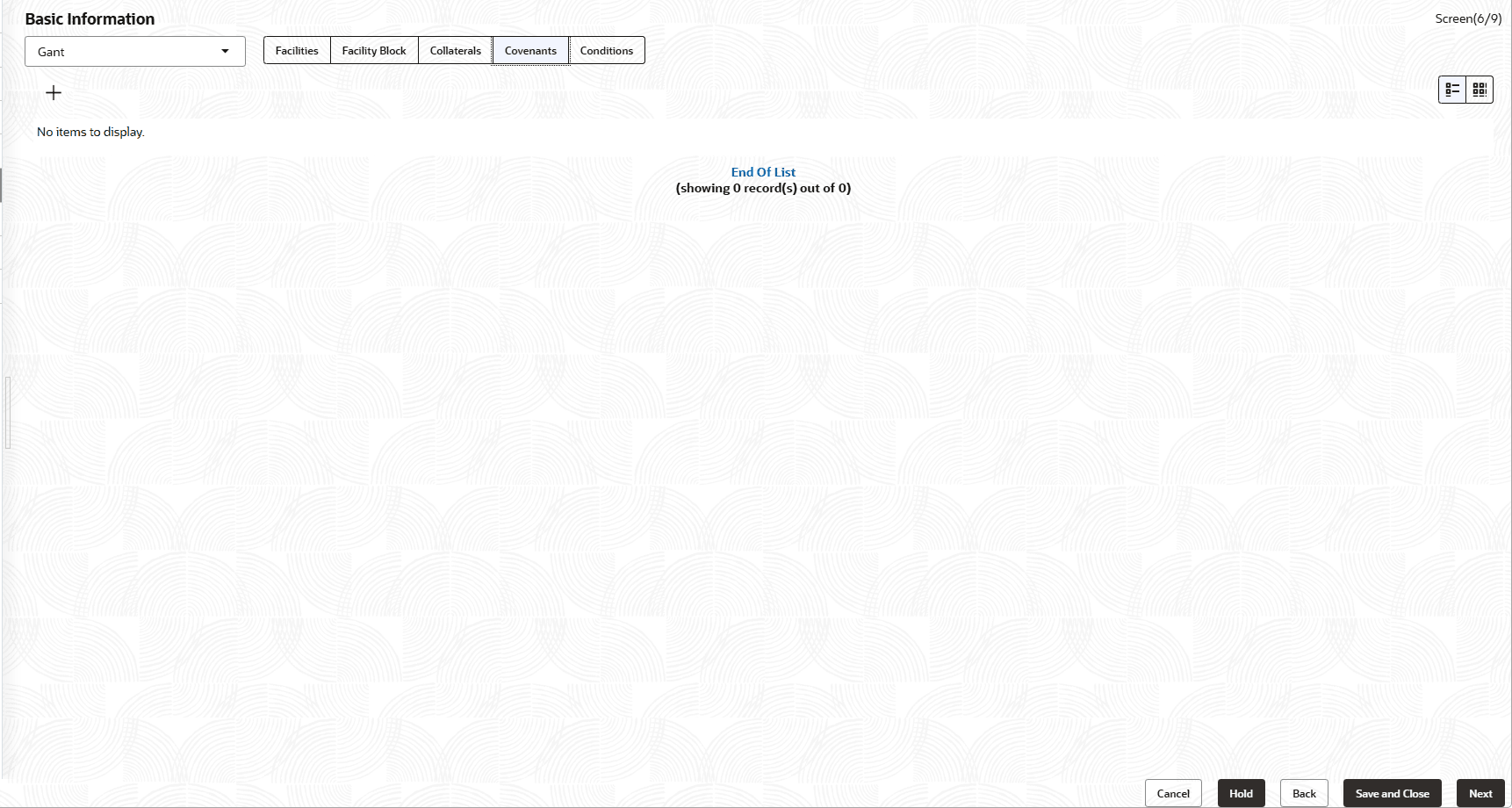
Fields Description Filter To filter the required collateral, click the Filter icon and specify the filter parameters or directly type the collateral detail in Type to filter text box. Edit To edit the collateral details, select the corresponding record and click the Edit icon. Delete To delete the collateral details, select the corresponding record and click the Delete icon. Table View To change the layout of Collateral page to table view, click the Table View icon at the right corner. Next To add collateral details for the child party, click the arrow Next to the party name in the top left corner. Customer list appears. - To view, modify, add or delete the Covenants, click the Covenants
tab.
For information on viewing, modifying, adding or deleting the Covenants, refer Customer Covenants
- To view, modify, add or delete the terms and conditions for customer, click the
Terms & Conditions tab.
Figure 3-90 Terms & Conditions
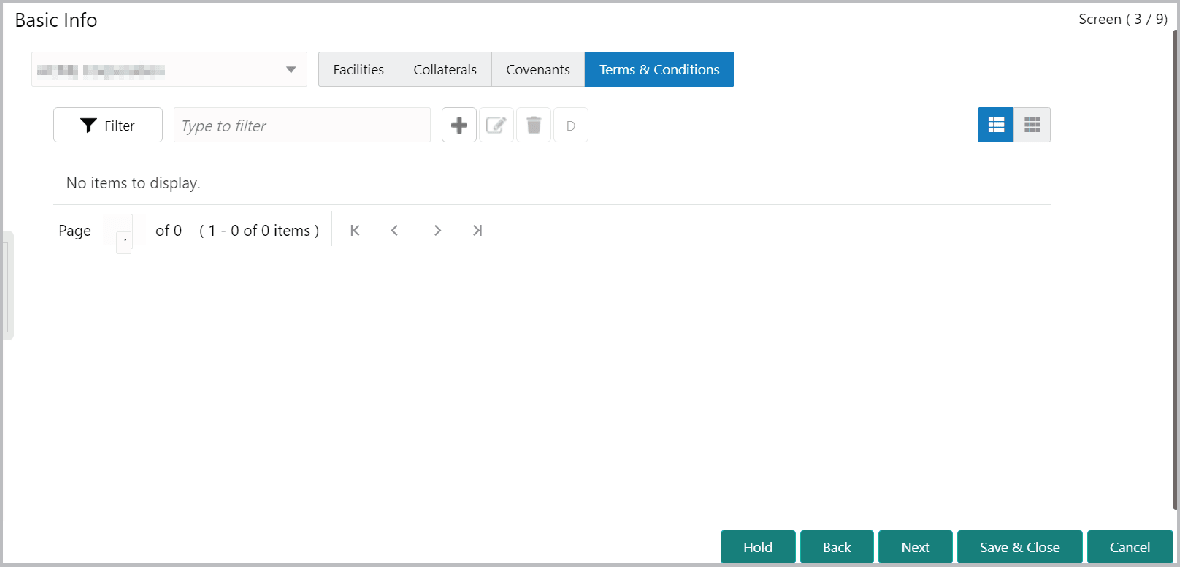
For information on viewing, modifying, adding or deleting the Terms and Conditions, refer
Conditions
Parent topic: Proposal Initiation