3.1.1 Data Segments

This topic provides sytematic intsructions about the procedure to manage data segments in each stage of a business process.

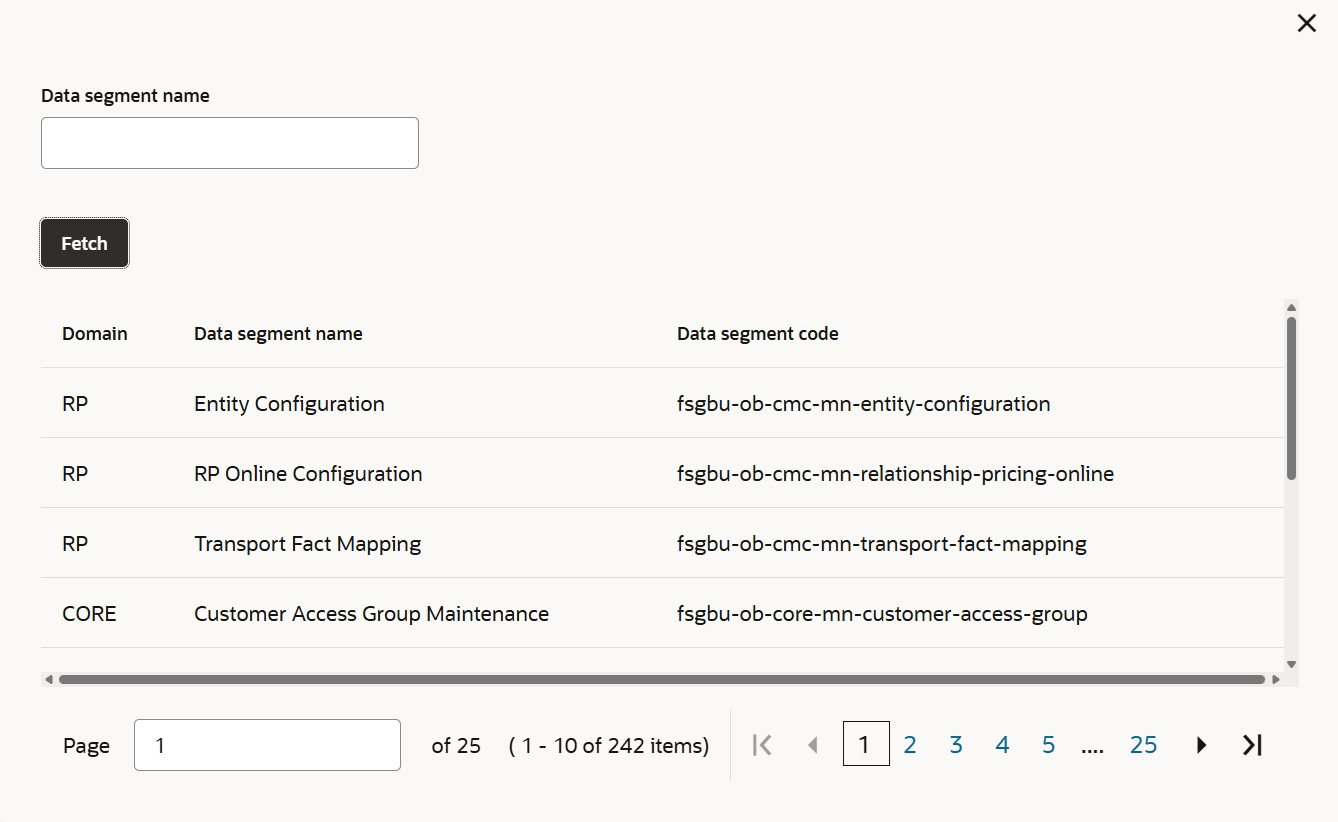
  1. To add data segments for a stage, select the required stage from left pane and click the add icon in the Data Segment tab.
    The following screen is displays.

    Figure 3-6 Data Segment - Fetch


  2. Click Fetch and select the required data segment.
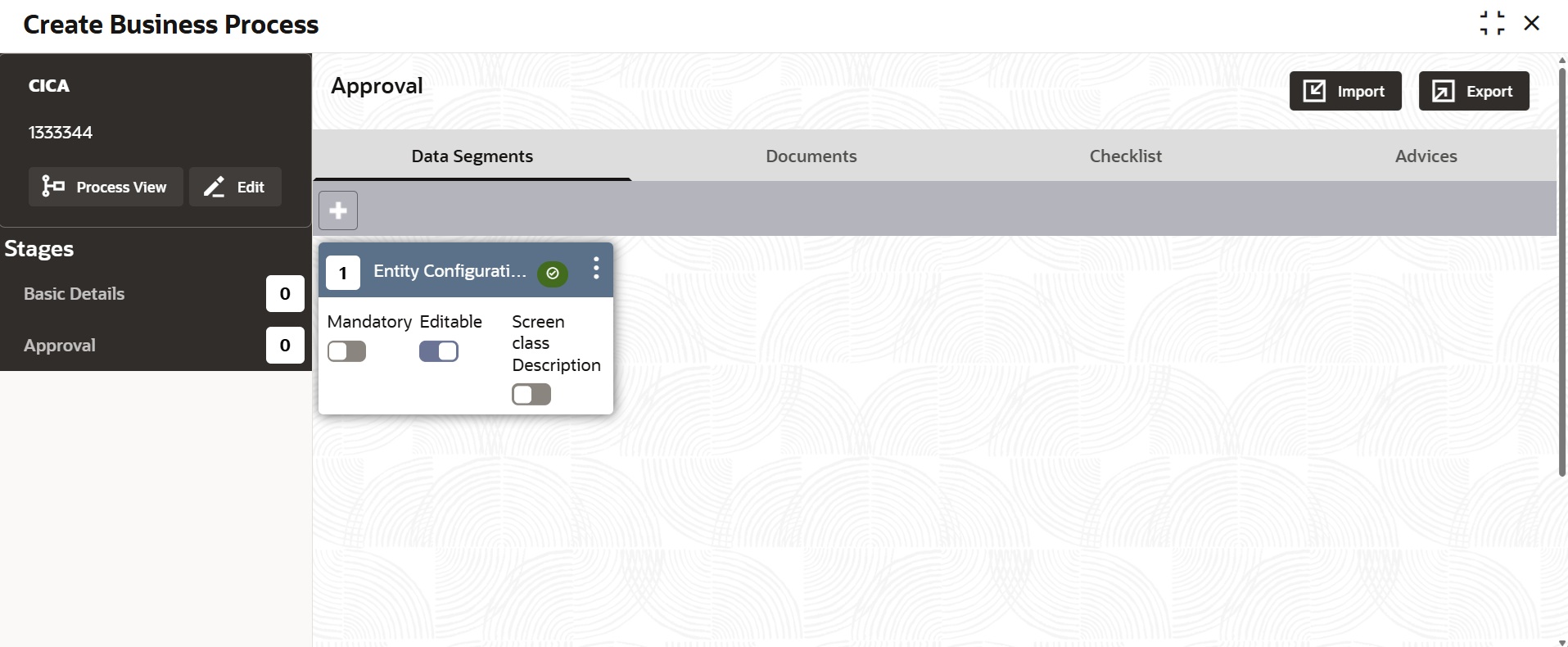
    The data segment is added in the Data Segment tab as shown below.

    Figure 3-7 Data Segment - Added


  3. To add another data segment, perform the above two steps again.

    By default, the system arranges the data segments in order in which they are added. User can rearrange the data segments by dragging and dropping them at the desired position.

  4. To set the data segment as mandatory in the business process, enable the Mandatory flag.

    The data segments added in the Data Segment tab can be configured as editable or non-editable. By default,the Editable flag is enabled for all the data segments. If you want the data segment to appear as display only screen in the business process, disable the Editable flag.

  5. Enable the Screen Class Description flag, if the data segment can be combined with other data segment.

    The action icon in the added data segment widget has the following options:

    • Field Configuration
    • Remove

    Field Configuration

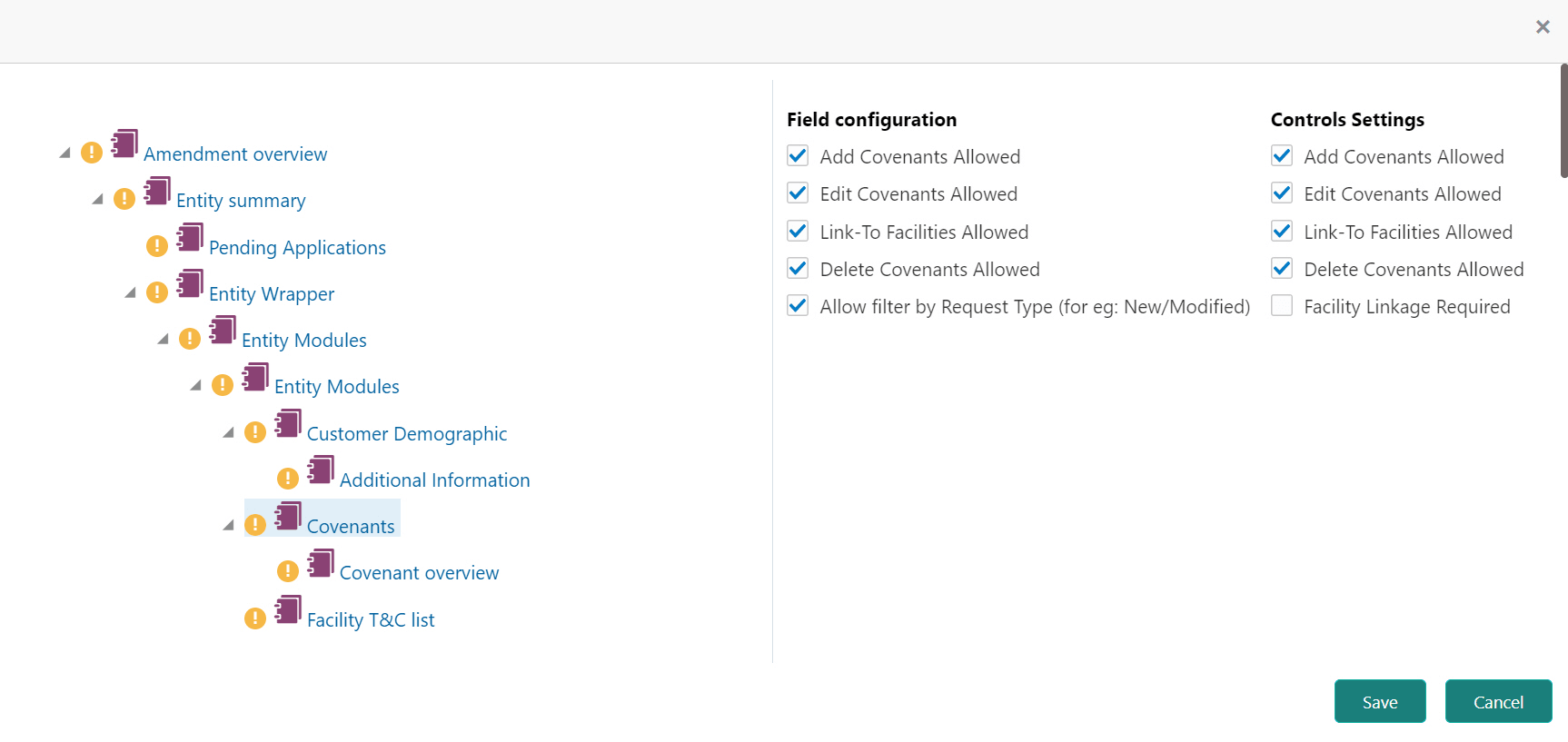
    User can use this option to display or hide a particular field in any of the data segments. Click Field Configuration, the following screen is displayed.
  6. Select the required component from the left pane.
    Fields related to the component are displayed.
  7. Enable or disable the required check boxes and click Save.

    Remove

    This option allows user to remove the added data segment. If user do not require a particular data segment in the stage, click the action icon and select Remove option. The data segment will be removed from the Data Segment tab.