3.1.2 Documents

This topic provides systematic instructions about the procedure to configure mandatory and optional document list for a process.

The Documents tab allows to configure the documents list that appears in the Link Document / Upload Document window throughout the business process.
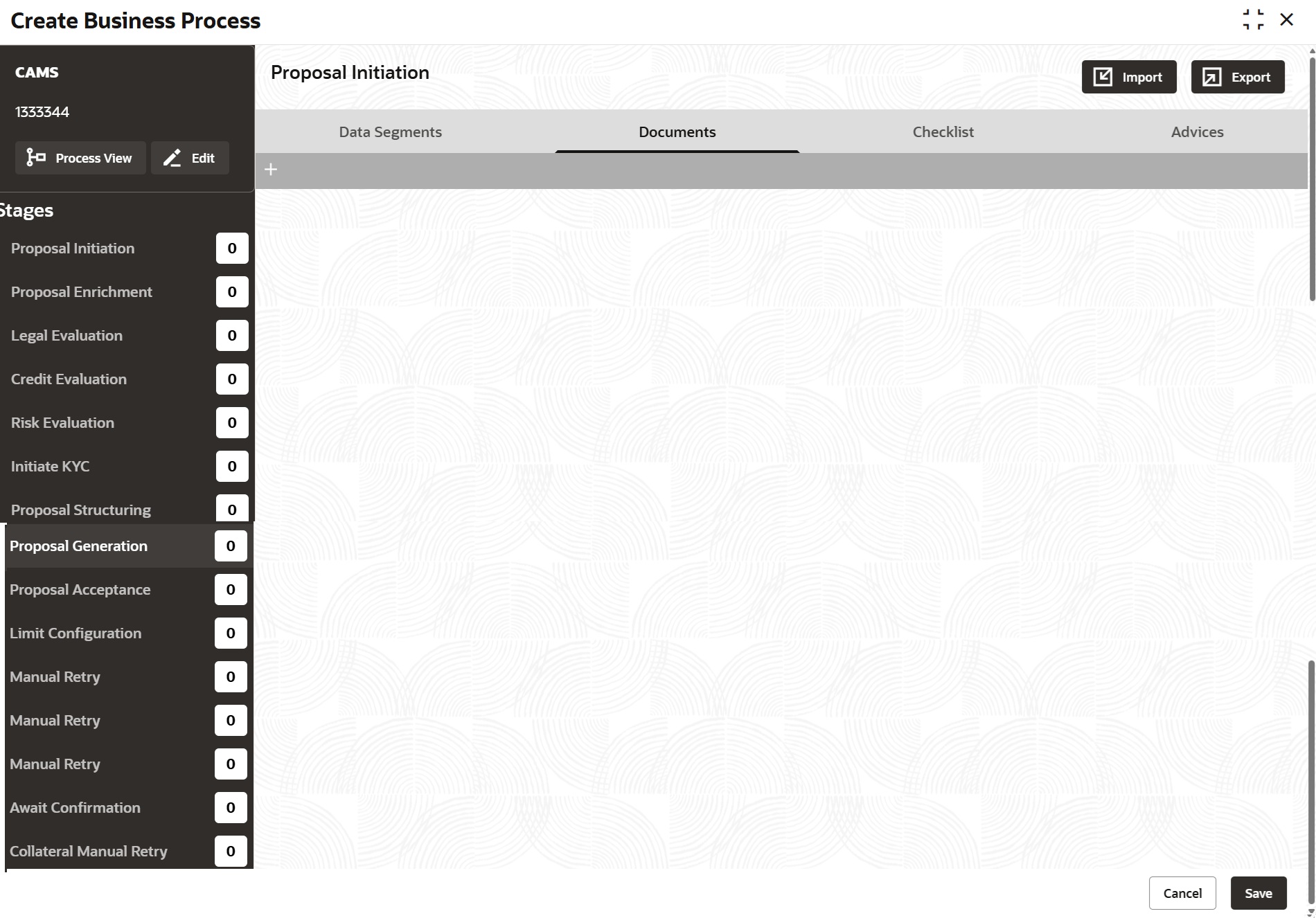
  1. Click the add icon.
    The Documents Tab is displayed as shown below.
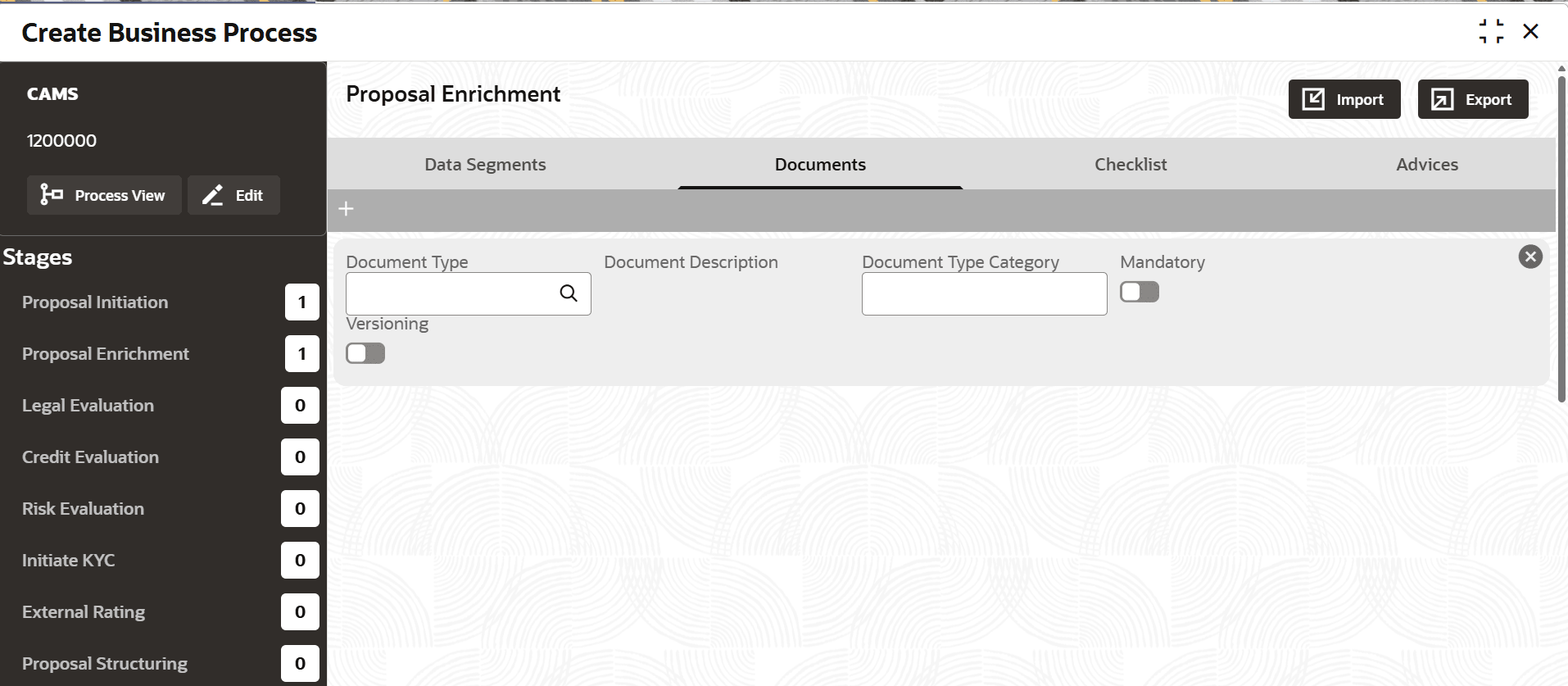
  2. Provide the document details based on description in the following table.

    Table 3-2 Documents Tab - Field Description

    Field Description
    Document Type Click the search icon and select the document type. The document types maintained in Common Core Maintenance module are displayed in the option list.
    Document Description Document description provided for the document type gets defaulted on selecting the Document Type.
    Document Type Category Specify the Document Type Category. For example, if the Document Type is selected as Address Proof, you can specify Aadhaar Card as document type category.
    Mandatory Enable this flag to specify that the document is mandatory.
    Versioning Enable this flag to allow uploading of same document in different versions.
  3. To add another document type, click the add icon again and provide the necessary details.
  4. To remove the added document type, click the close icon.
  5. After configuring the documents list, click Save.