3.1 Creating Business Process
Ths topic provides systematic instructions about creating business process.
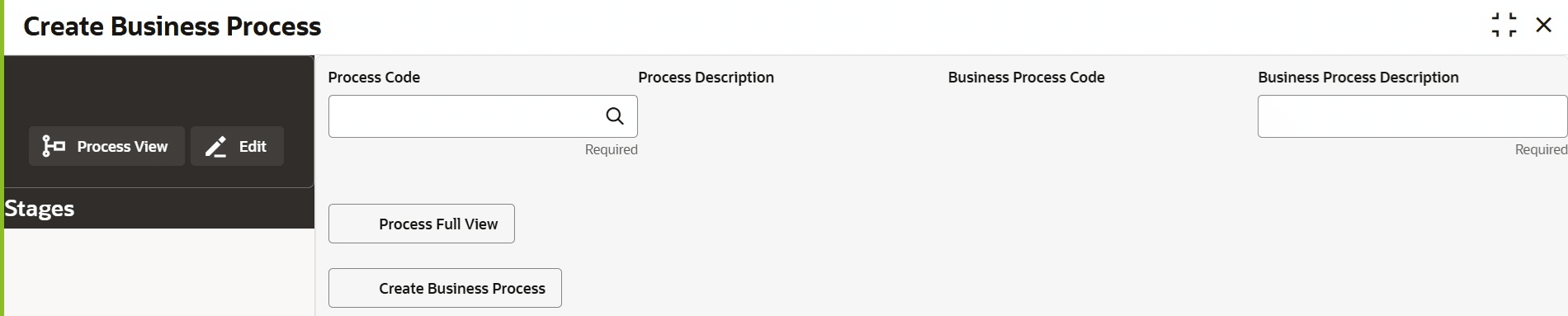
The Create Business Process screen provides an option to select and
customize the business processes maintained in Common Core Maintenance module.
- Under Maintenance, select Business Process. Under
Business Process, select Create Business Process . The Create Business Process screen is displayed.
Note:
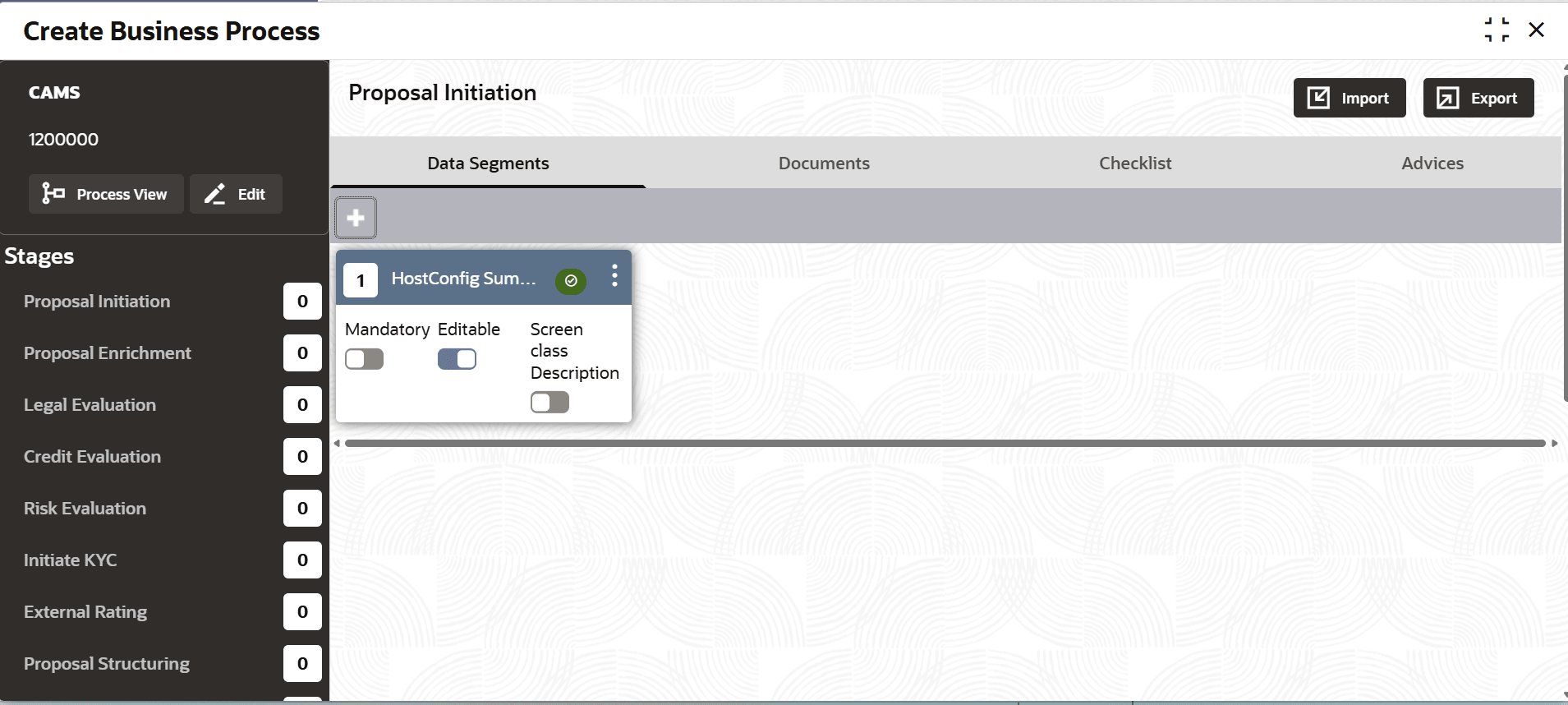
In the Create Business Process screen, stages maintained for the selected process in Common Core Maintenance module are displayed in the left pane. You cannot add / remove the stages in OBCFPM.
- Provide the process details based on description in the following table.
Table 3-1 Create Business Process - Field Description
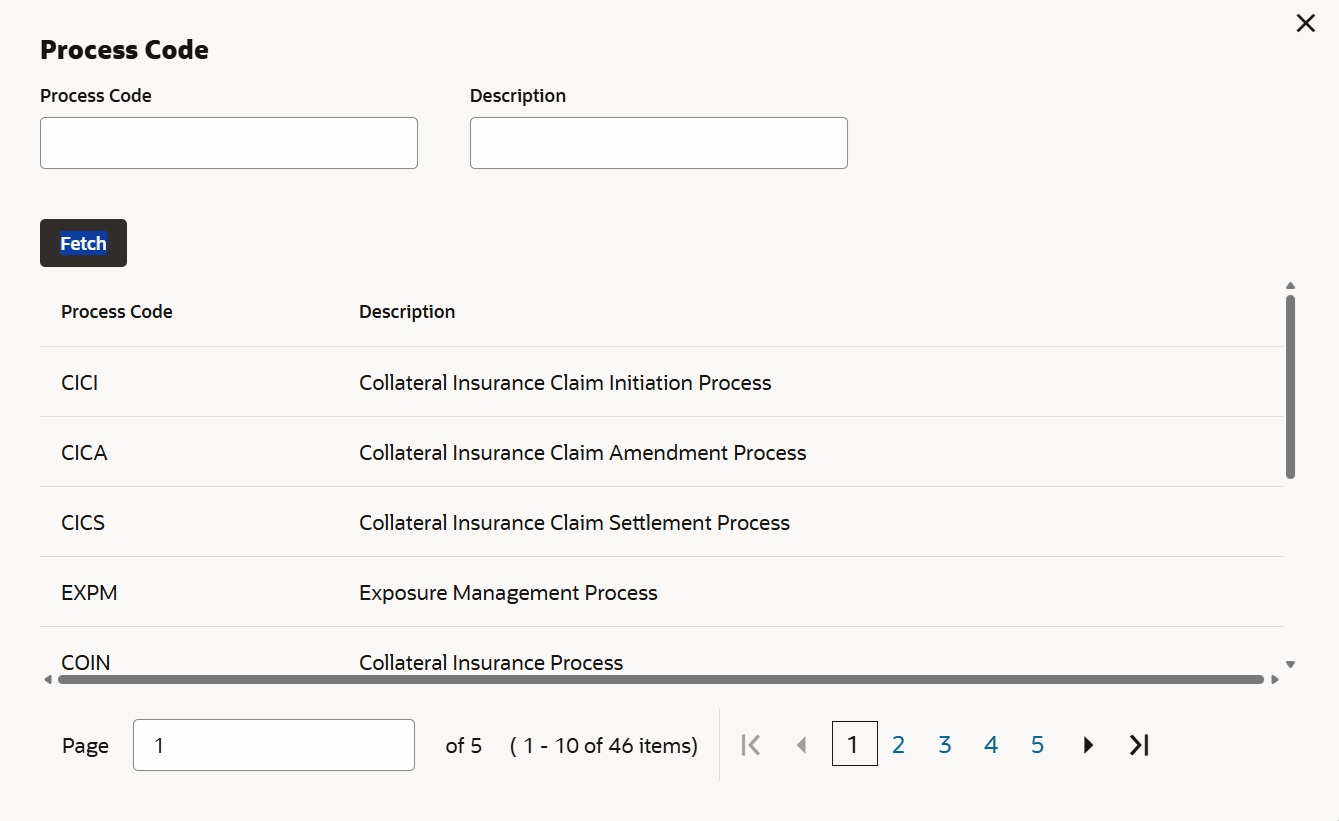
Field Description Process Code Click the search icon and select the required process code. Process codes maintained in the Common Core Maintenance module are displayed in the option list. Process Description Description provided for the process code in Process Code Maintenance screen is defaulted. Business Process Code Specify a unique code for the business process to be created. Business Process Description Specify description for the business process to be created. Click the search icon in Process Code field, the following window is displayed.
- Click on the required Process Code.Process Code and Process Description fields in the Create Business Process screen gets updated with the selected code details, and the following screen is displayed.
Figure 3-3 Create Business Process - Data Segment
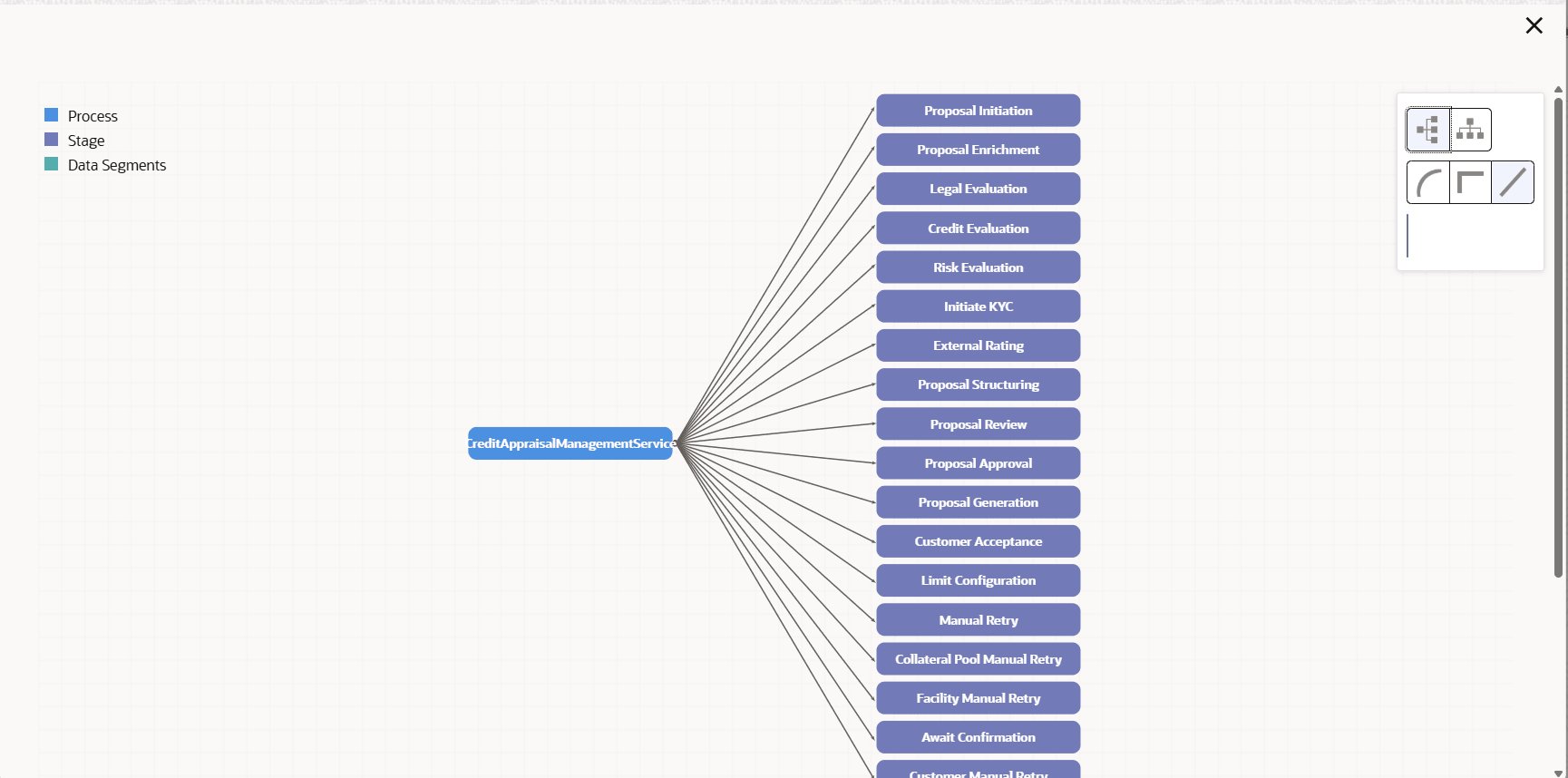
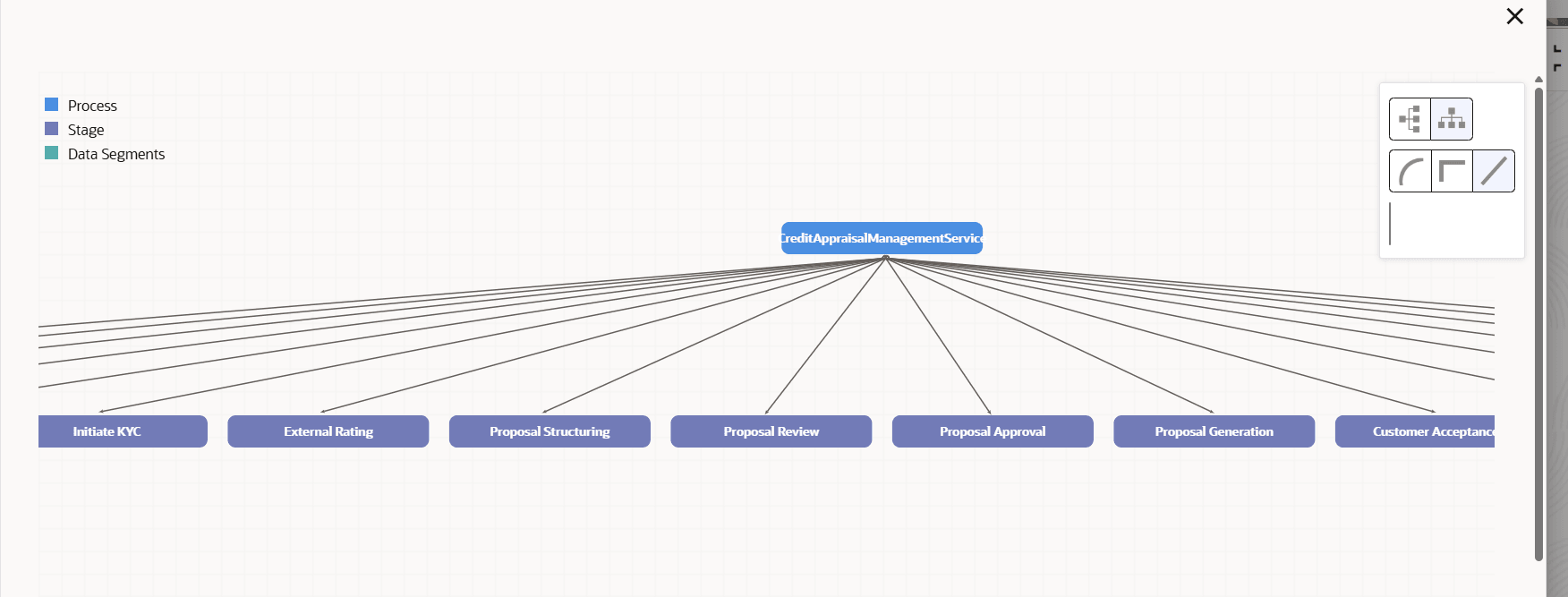
- To view the business process diagram, click the Process View icon.The process flow diagram is displayed as shown below.
- To change the layout of the process flow diagram, click the settings icon at the top right corner and select the required layout.The layout is changed based on the selected layout options. Sample screenshot is provided below for reference.
Figure 3-5 Process Flow Diagram - Horizontal Layout
- Data Segments
This topic provides sytematic intsructions about the procedure to manage data segments in each stage of a business process. - Documents
This topic provides systematic instructions about the procedure to configure mandatory and optional document list for a process. - Checklist
This topic provides the systematic instructions about the procedure to add checklist for the stages in a business process. - Advices
This topic provides the systematic intsructions about the procedure to configure advices to be sent to the customers.
Parent topic: Business Process