8.7.2 Cash Flow - Payment
This topic provides systematic instructions to de-reconcile cash flow and payment.
User must have valid corporate login credentials.
To de-reconcile cash flow and payment:
- From the Dashboard, click the Toggle
Menu, then click Receivables/Payables,
Reconciliation,
De-Reconciliation, and Cash Flow -
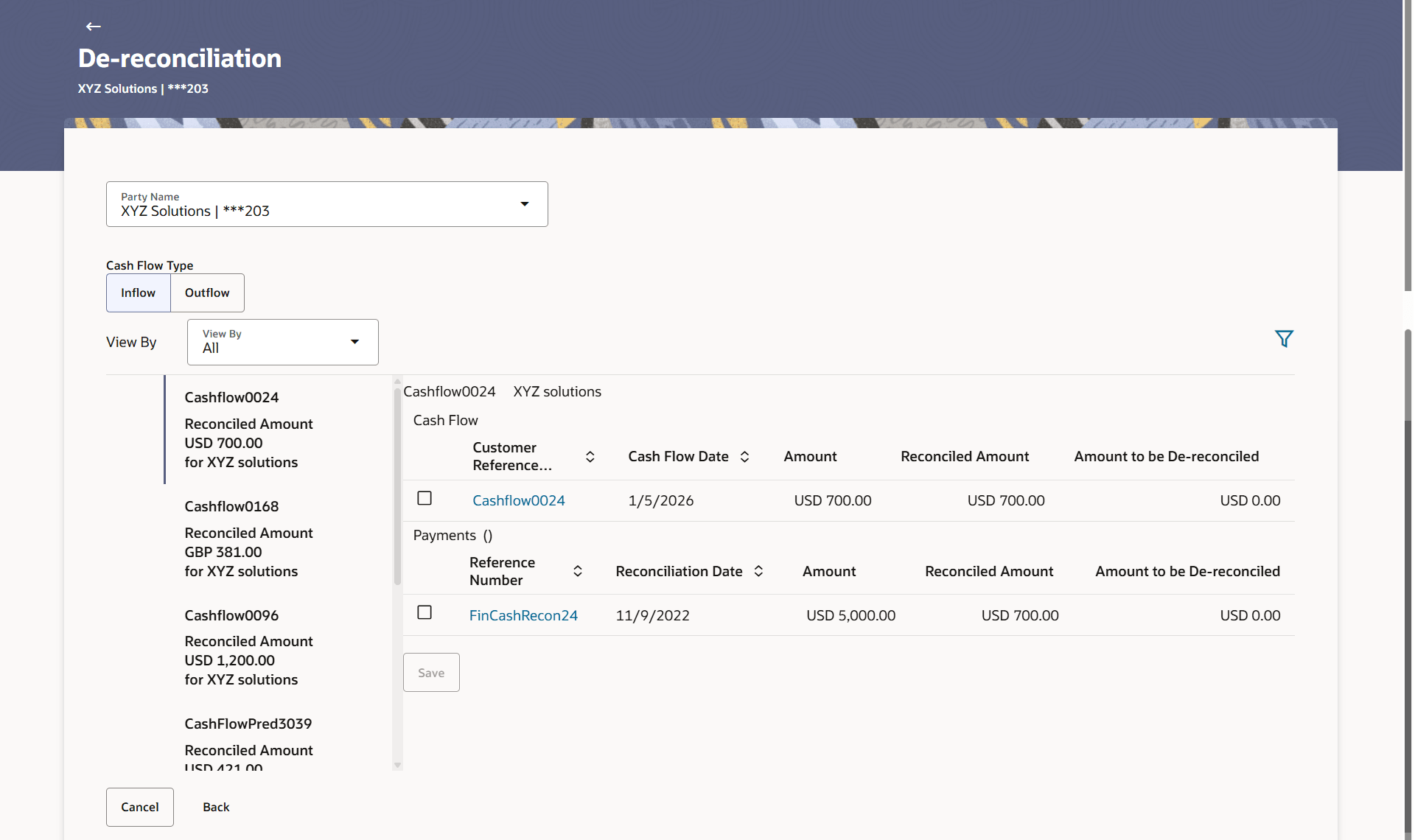
Payment.The De-reconciliation screen appears.
Table 8-45 De-Reconciliation - Field Description
Field Name Description Party Name Select the party name from the dropdown list in which the de-reconciliation for cashflow must be created. By default, the primary party/gcif of the logged-in user is selected. Note: Only accessible parties are displayed to the user.
Cash Flow Type Select the type of cash flow to be de-reconciled. The options are: - Inflow
- Outflow
View By Indicates the option to view the cash flows as de-reconciled / not de-reconciled / all. Based on your selection, a list of cash flows appears in a pane, with the cash flow reference number, reconciled amount, and the associated party name. 
Indicates the option to filter the reconciled cash flow-payment records based on date range and reference numbers. When you click this icon, the Search overlay window appears. For more information on the fields in this window, refer the Search section below. Cash Flow Reference Number The reference number of the cash flow selected from the View By pane is displayed. Cash Flow This section displays the details of the cash flow selected from the View By pane. Customer Reference Number Displays the reference number of the cash flow. This is a hyperlink which when clicked displays the details of the cash flow in an overlay window. Cash Flow Date Displays the date of the cash flow. Amount Displays the total amount of the cash flow. Reconciled Amount Displays the amount that has been reconciled. Amount to be De-reconciled Displays the cash flow amount that can be de-reconciled. Payments (number) This section displays the payments that have been reconciled against the cash flow. Reference Number Displays the reference number of the payment. This is a hyperlink which when clicked displays the details of the payment in an overlay window. Reconciliation Date Displays the date on which reconciliation has been performed. Amount Displays the payment amount. Reconciled Amount Displays the amount that has been reconciled. Amount to be De-reconciled in Cash Flow Currency Displays the payment amount in cash flow currency that can be de-reconciled. Search This overlay window appears when you click the  icon in the De-reconciliation screen.
Reconciled Date Range From / To Indicates an option to filter the cash flow-payment records based on a date range within which they have been reconciled. Customer Cash Flow Reference Number Indicates the option to filter the cash flow-payment records based on the reference number of the cash flow. Host Cash Flow Reference Number Indicates the option to filter the cash flow-payment records based on the reference number assigned by the host to the cash flow. Customer Payment Reference Number Indicates the option to filter the cash flow -payment records based on the customer’s reference number of the payment. Host Payment Reference Number Indicates the option to filter the cash flow-payment records based on the reference number assigned by the host to the payment. - Click on the required cash flow in the View By pane. You can also use
to filter the records.
Once the transaction is submitted, the approver is notified. If any
modifications are required, the approver can add relevant comments and send the
transaction back to the maker, using the Send to Modify feature. Once the
required modifications are made, the maker can re-submit the transaction.
Parent topic: De-Reconciliation