4.3 Edit
This topic provides systematic instructions to modify the receivable/payable.
The supplier can modify one or more receivables/payables.
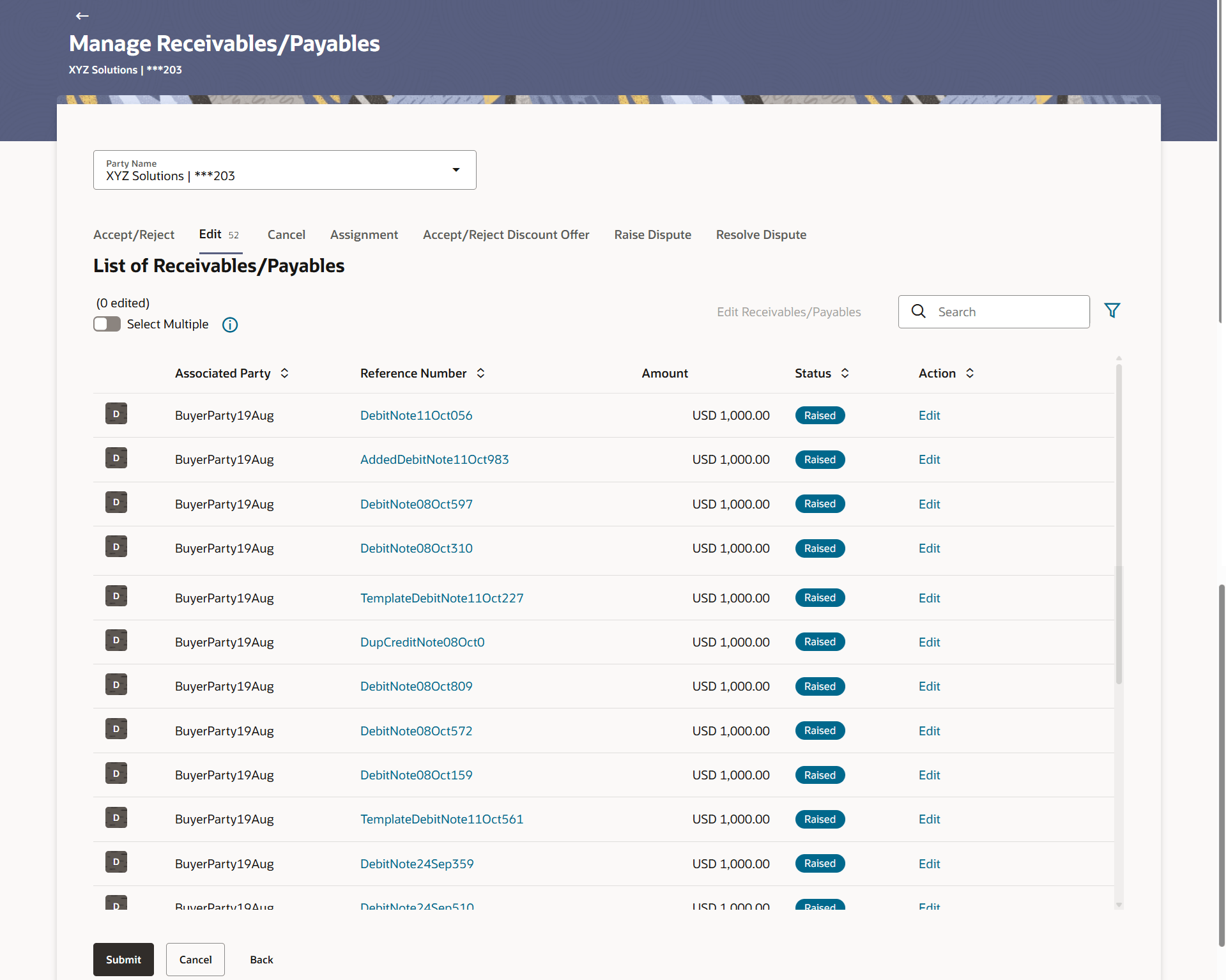
- In the Manage Receivables/Payables screen, click the Edit tile. A list of relevant receivables/payables appears.
Figure 4-10 Manage Receivables/Payables – Edit action selected
Table 4-5 Manage Receivables/Payables – Edit - Field Description
Field Name Description List of Receivables/Payables (number selected) This section displays a list of receivables/payables against which the ‘Edit’ action can be effected. Once you select one or more receivables/payables to edit, the number of receivables/payables selected appears in brackets. Search Specify the partial or full receivable/payable reference number / associated party name / status to search for specific receivables/payables. The results appear as and when you enter the data. 
Click this icon to filter the receivables/payables, based on certain criteria. For more information, refer the Search (overlay window for Manage Receivables/Payables) section below. Select Multiple Switch this toggle On, to edit multiple receivable/payable records together. Check Box To select all the receivables/payables in the list, select the main check box. To select specific receivables/payables, select the check boxes beside those receivables/payables. This check box becomes visible only if Select Multiple toggle switch is On.
Edit Receivables/Payables Click Edit Receivables/Payables to edit multiple receivable/payable records. This link becomes clickable only if both Select Multiple toggle switch is On and multiple receivable/payable records are selected.
Indicator Displays ‘I’ for an invoice and ‘D’ for a debit note. Associated Party User can search the receivables/payables by providing the associated party. The drop-down lists all the on-boarded associated parties and the list of on-boarded associated party is categorized by: - Anchor Buyer
- Anchor Supplier
- Counter Party Buyer
- Counter Party Supplier
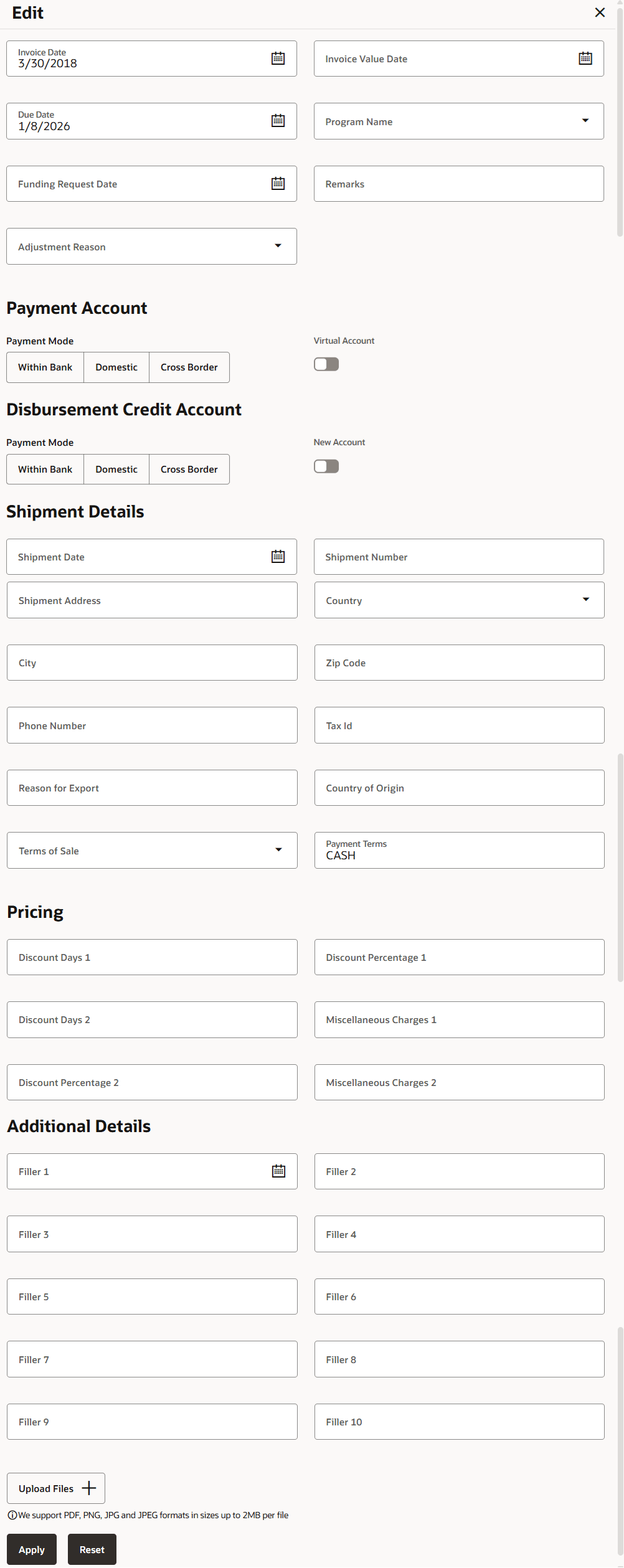
Reference Number Displays the unique reference number of the receivable/payable. The reference number is a hyperlink, which when clicked, displays the receivable/payable details in an overlay window. Amount Displays the total receivable/payable amount. Status Displays the status of the receivable/payable. Action Click Edit to edit the individual receivable/payable record. View Edited Details Click this link to view the edited details of a receivable/payable. - Click Edit to edit a receivable/payable. The Edit Overlay Window appears.Manage Receivables/Payables – Edit (Overlay Window)
Table 4-6 Manage Receivables/Payables – Edit (Overlay Window) - Field Description
Field Name Description Invoice Date Click the calendar icon and select the date of creation of the invoice. The Invoice Date should be greater than the Purchase OrderDate. You cannot enter a future date. This field cannot be edited if a discount offer is accepted.
Invoice Value Date Click the calendar icon and select the invoice value date. This date can be earlier than the Invoice Date. This field cannot be edited if a discount offer is accepted.
Due Date Click the calendar icon and select the date on which the invoice payment is due. The Invoice Due Date should be greater than or equal to the Invoice Date. This field cannot be edited if a discount offer is accepted or if the invoice is financed.
Program Name Select the program to which the invoice should be linked. Programs linked to the selected associated party are listed. This field cannot be edited once an invoice is financed.
Funding Request Date Specify the date when the invoice should be funded or financed. This date should be greater than the current business date. This field cannot be edited once an invoice is financed.
Remarks Specify any remarks, if applicable. Adjustment Reason Select the reason for adjustment. Bank Details This section displays the Bank Details related fields. Virtual Account Switch this toggle On, if the repayment account is a virtual one. Repayment Account Number Specify the account number to send the repayment amount to. Bank Specify the bank name of the repayment account number. Branch Specify the branch name of the repayment account number. BIC Routing Code Specify the BIC or SWIFT code of the financial institution, to send the payment amount to. Shipment Details This section displays the Shipment Details related fields. Shipment Date Specify the shipment date. Shipment Number Specify the shipment number. Shipment Address Specify the shipment address. Shipment City Specify the city to ship the goods to. Shipment Country Select the country to ship the goods to. Zip Code Specify the zip code to ship the goods to. Phone Number Specify the contact number of the person who will receive the shipment. Tax Id Specify the unique tax ID if the shipment charge includes tax amount. Reason for Export Specify the relevant reason of export. Terms of Sale Specify the applicable 3-digit Incoterms code. The available values are: - EXW | Ex Works
- FAS | Free Alongside Ship
- FCA | Free Carrier
- FOB | Free On Board
- CPT | Carriage Paid To
- CFR | Cost and Freight
- CIP | Carriage and Insurance Paid To
- CIF | Cost Insurance and Freight
- DAP | Delivered at Place
- DPU | Delivered at Place Unloaded
- DDP | Delivered Duty Paid
Country of Origin Specify the country from where the shipment will originate. Payment Terms Specify the payment terms. Pricing Details This section displays the Pricing Details related fields. Discount Days 1 Specify the primary discount days. Discount Percentage 1 Specify the primary discount percentage. Discount Days 2 Specify the secondary discount days. Discount Percentage 2 Specify the secondary discount percentage. Miscellaneous Charges Des 1 Specify the miscellaneous charges. Miscellaneous Charges 2 Specify the miscellaneous charges. Additional Details This section displays the Additional Details. Filler Fields Specify the required information in the filler fields. Upload Documents Click  to upload relevant documents. Once you select a
receivable/payable, this icon becomes clickable.
to upload relevant documents. Once you select a
receivable/payable, this icon becomes clickable.
The following document formats are supported: JPEG, JPG, PNG, and PDF. A maximum of 5 documents can be uploaded.
Once you upload documents, the number of documents uploaded appears as a hyperlink in brackets, beside this icon. On clicking this hyperlink, a pop-up window appears with the names of the documents uploaded. To delete an uploaded document, click beside the document in the pop-up window.
Note:
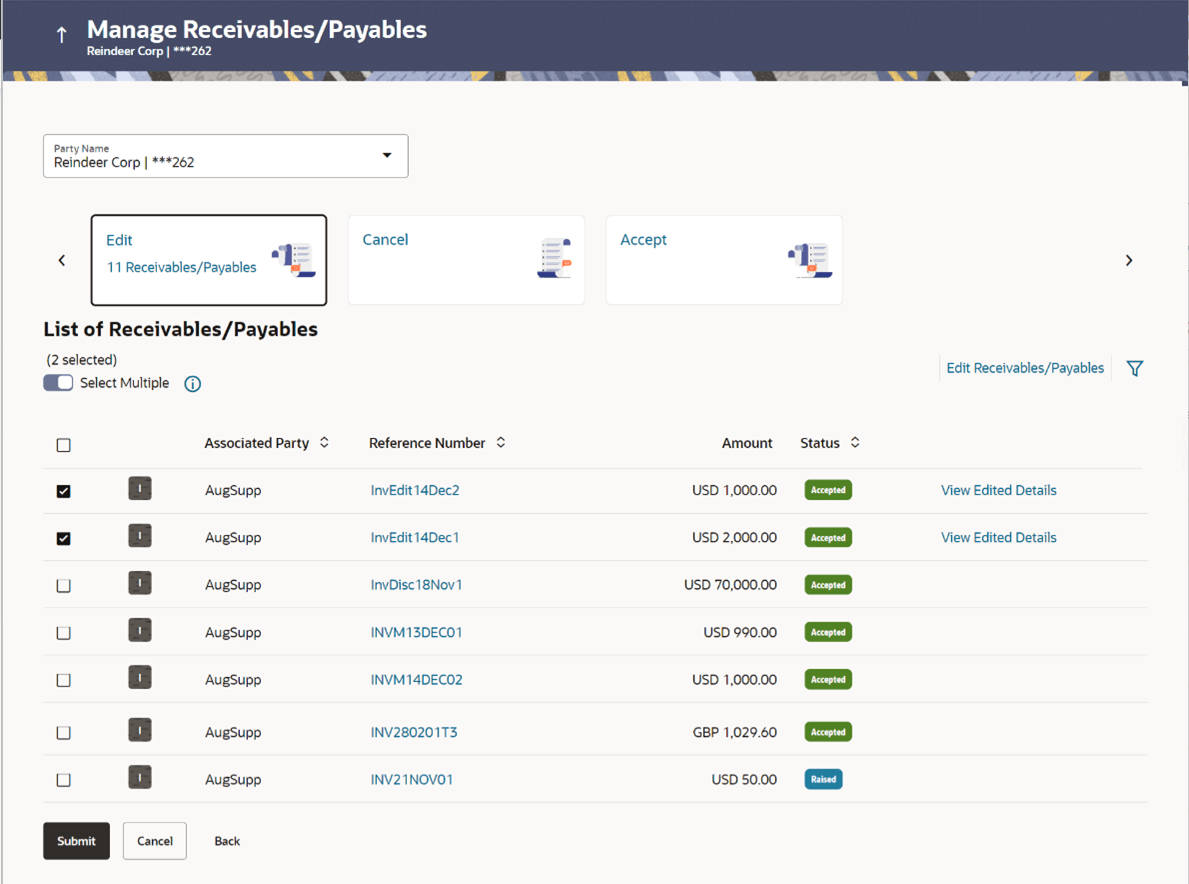
These documents can also be viewed and downloaded by the approver/checker. - To edit multiple records, switch the Select Multiple toggle switch to
On. Select the required receivable/payable records and click the Edit
Receivables/Payables link.
Note:
- Bulk edit can be executed only if the Associated Party, Invoice Status, and Payment Status values of the receivables/payables are same.
- If you edit multiple records, data modified will be applied across the selected records. If any record was modified using edit link of individual record, then the previously modified data will get overridden on clicking Apply.
Compare Details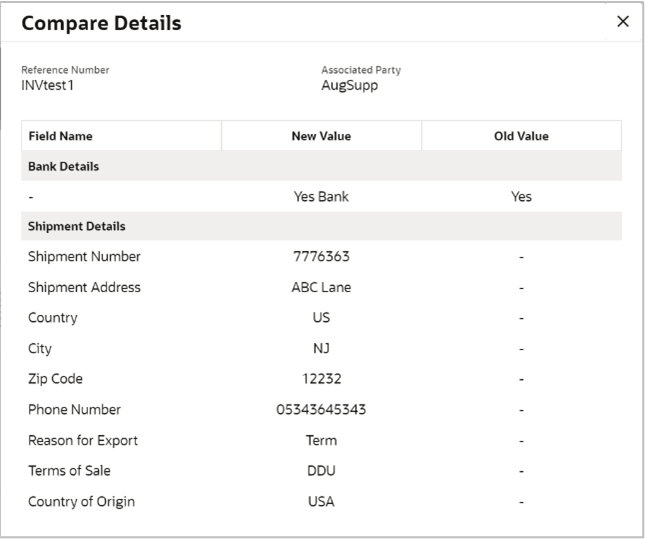
Description of the illustration manage-receivablespayables_compare-details.png
Parent topic: Manage Receivables/Payables