2.2.1.1 Preview and Download Invoice
This topic provides systematic instructions to preview and download the invoice.
Invoice Details
Figure 2-50 Preview and Download - Invoice Details
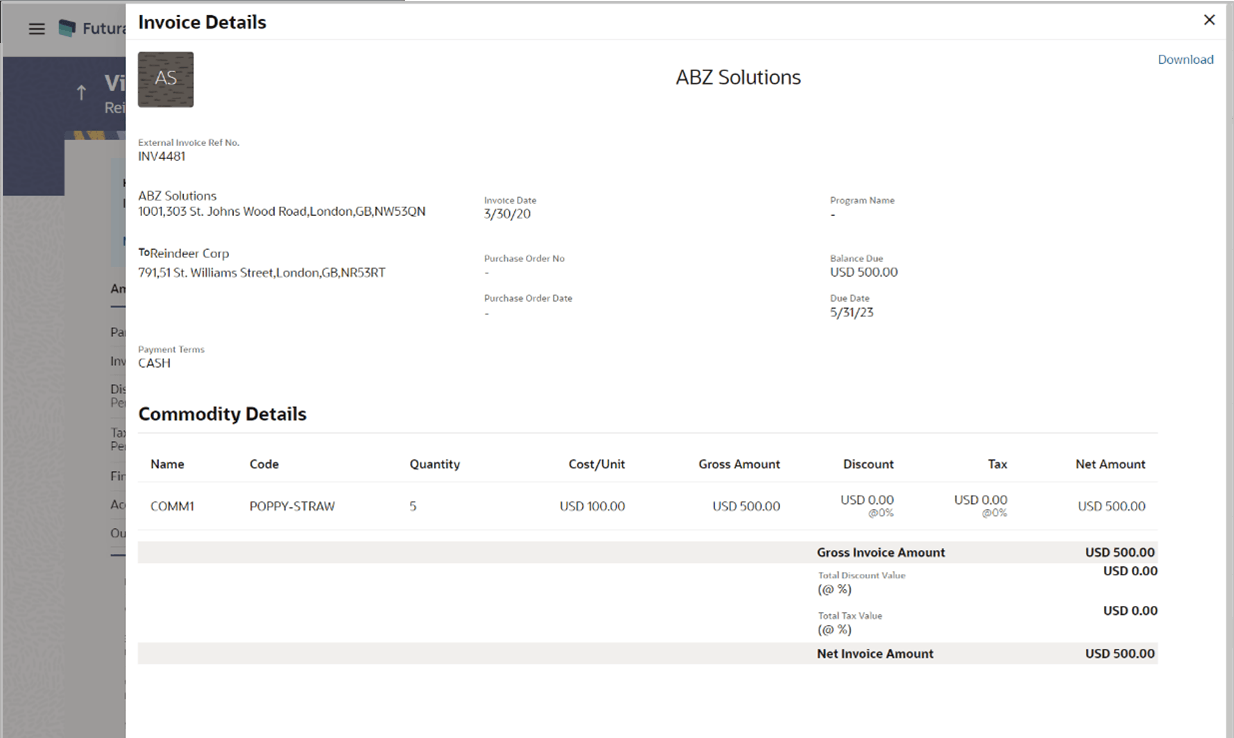
Table 2-37 Field Description
| Field Name | Description |
|---|---|
| Invoice Details overlay window | This overlay screen displays the invoice details. |
| External Invoice Ref No. | Displays the customer’s own invoice reference number. |
| Download | Click to download the invoice in PDF format. |
| Party name & address | Displays the name and address of the supplier. |
| Invoice Date | Displays the date on which the invoice has been raised. |
| Program Name | Displays the program to which the invoice is linked. This field is visible only if the Oracle Banking Supply Chain Finance application is implemented by the bank. |
| To | Displays the name and address of the buyer. |
| Purchase Order No | Displays the customer’s purchase order number. |
| Purchase Order Date | Displays the date on which the purchase order has been raised. |
| Balance Due | Displays the invoice due amount along with the currency. |
| Due Date | Displays the invoice due date. |
| Payment Terms | Displays the agreed terms for payment of the invoice. |
| Commodity Details | |
| Name | Displays the name of the commodity. |
| Code | Displays the code of the commodity. |
| Quantity | Displays the quantity of the commodity being purchased. |
| Cost/Unit | Displays the cost per unit of the commodity. |
| Gross Amount |
Displays the gross amount of the commodity along with the currency. It is the product of the entered quantity and cost per unit. Gross Amount = Quantity * Cost/Unit |
| Discount | Displays the discount applicable to the commodity. |
| Tax | Displays the tax applicable to the commodity. |
| Net Amount |
Displays the net amount of the commodity. Net Amount = Gross Amount – Discount + Tax |
| Gross Invoice Amount | Displays the total amount of all the commodities being purchased (gross amount). |
| Total Discount Value |
Displays the total discount amount of all the commodities added. The average discount percentage of all added commodities is also displayed. Total Discount % = (Sum of discount amount of all commodities / Sum of gross amount of all commodities) *100 |
| Total Tax Value |
Displays the total tax amount of all the commodities added. The average tax percentage of all added commodities is also displayed. Total Tax % = [Sum of tax amount of all commodities / (Sum of gross amount of all commodities - Sum of discount amount of all commodities)] *100 |
| Net Invoice Amount |
Displays the calculated value on basis of discount and tax values entered. Note: The Net Invoice Amount gets auto calculated as follows: Net Invoice Amount = Gross Invoice Amount - Total Discount Value + Total Tax Value |
- Click Download to download the invoice details in PDF format. Or click
 to close the window.
Parent topic: View Invoice Details