2.2.2 View Debit Note Details
This topic provides systematic instructions to view Debit Note details.
You can view the following details:
- Itemized amount details
- Commodity details, if they have been added during creation.
- Linked invoices
- Reconciliation details, if reconciled.
- Finances details, if finance has been availed against the debit note.
- Margin Settlement, if any margin amount is applicable for the debit note after partially or fully reconciled with payment(s).
- For viewing invoices/debit notes - User must have valid corporate login credentials.
- For editing invoices/debit notes - User must have valid corporate login credentials for creation of invoices/debit notes, norder to be able to edit them.
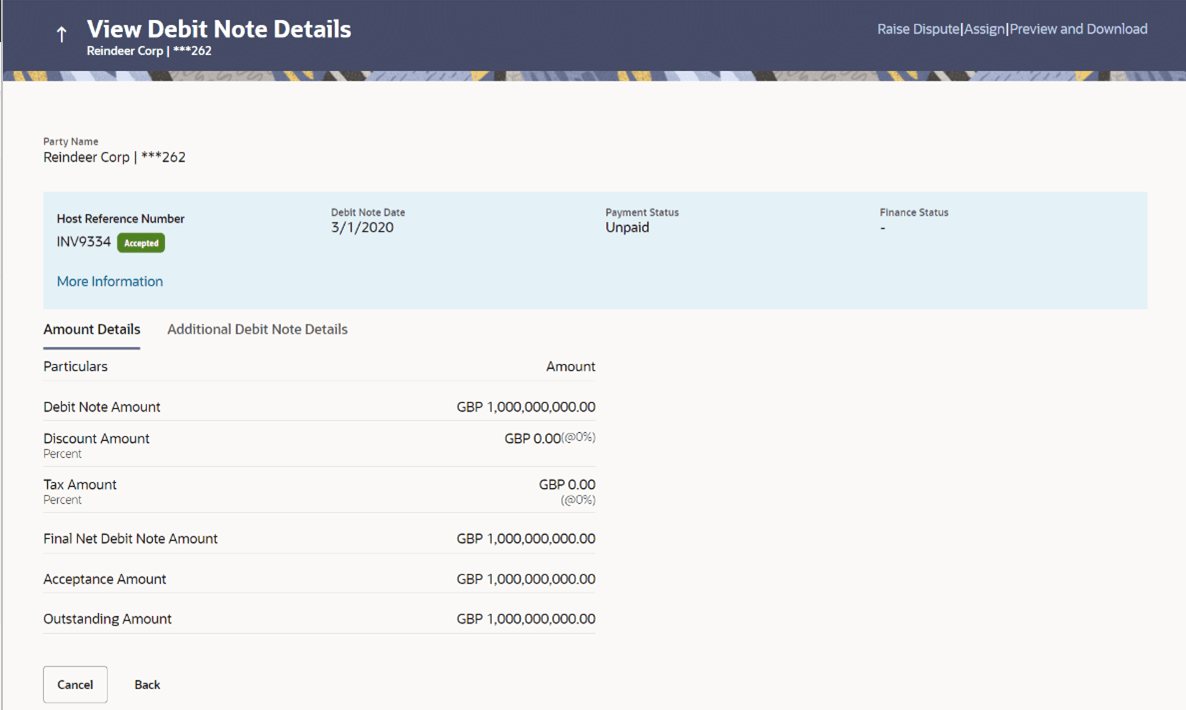
- Click the Customer Reference Number link of a particular debit note to
view its details.
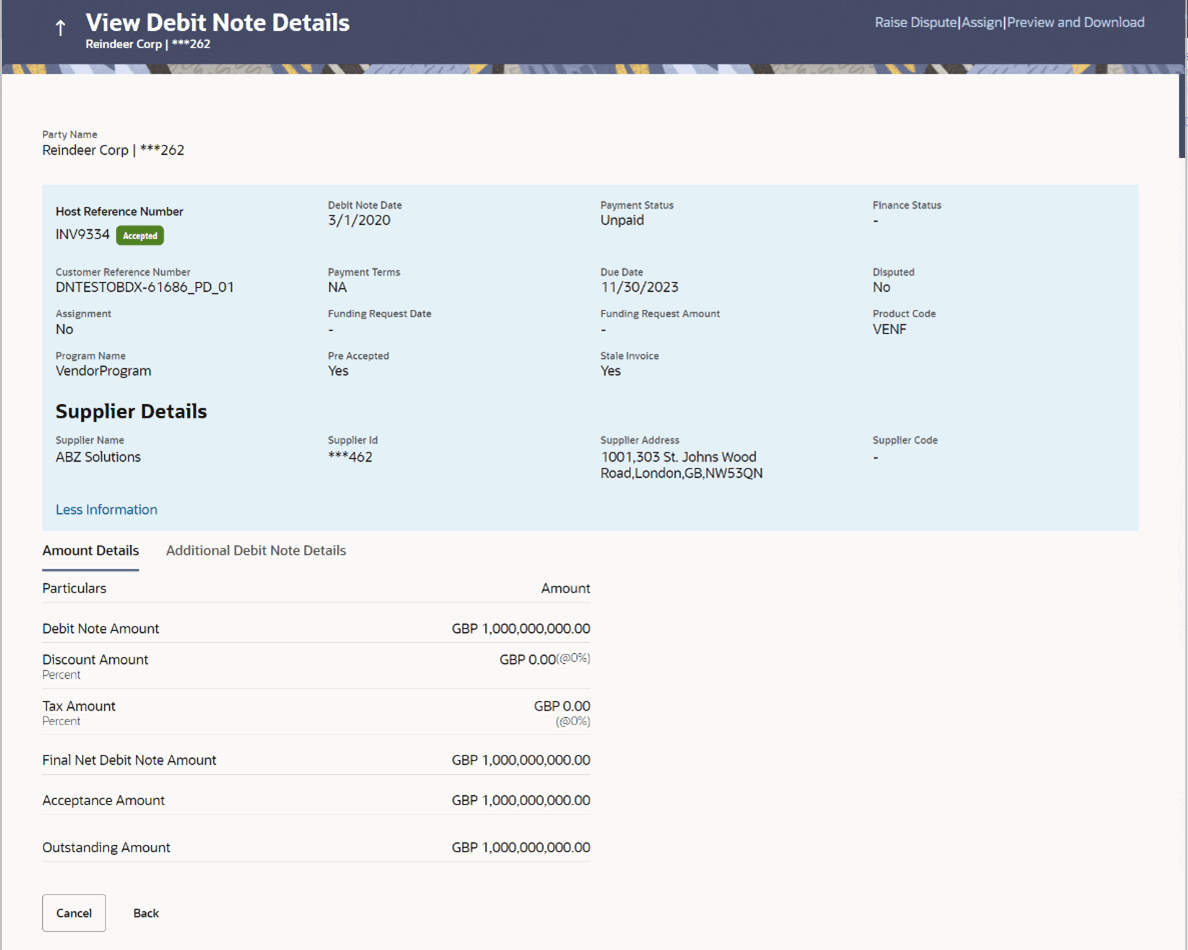
Figure 2-52 View Debit Note Details - More Information
Note:
The View Debit Note Details screen can also be viewed on a mobile device. The debit note details present in the desktop version, are also available on the mobile device.Table 2-38 Field Description
Field Name Description Party Name & ID Displays the name and ID of the logged-in corporate party. Host Reference Number Status
Displays the reference number of the debit note as fetched from the host. The status of the debit note is also displayed.
Date Displays the date of creation of the debit note. Payment Status Displays the status of the payment of the debit note. Finance Status Displays whether the debit note has been financed, not financed, or partially financed. This field is visible only if the Oracle Banking Supply Chain Finance application is implemented by the bank. Pre Accepted Displays ‘Yes’ of the debit note is pre-accepted, else, displays ‘No’. Customer Reference Number Displays the reference number assigned to the debit note by the corporate party. Payment Terms Displays any payment terms captured during the creation of the debit note. Due Date Displays the date when the debit note must be fully paid off. Disputed Displays whether any dispute has been raised against the debit note. Assignment Displays ‘Yes’ if the debit note has been assigned. This field is visible only if the Oracle Banking Supply Chain Finance application is implemented by the bank. Funding Request Date Displays the date when funding has been requested. This field is visible only if the Oracle Banking Supply Chain Finance application is implemented by the bank. Funding Request Amount Displays the funding amount that has been requested. This field is displayed only if a funding request date has been captured during creation of the debit note. This field is visible only if the Oracle Banking Supply Chain Finance application is implemented by the bank. Product Code Displays the product code associated with the debit note. This field is visible only if the Oracle Banking Supply Chain Finance application is implemented by the bank. Program Name Displays the program associated with the debit note. This field is visible only if the Oracle Banking Supply Chain Finance application is implemented by the bank. Pre Accepted Displays ‘Yes’ if the debit note is pre-accepted and ‘No’ otherwise. Stale Invoice Displays ‘Yes’ if the debit note is stale and ‘No’ otherwise. Supplier Details/Buyer Details This section displays the Supplier Details/Buyer Details. Supplier Name / Buyer Name Displays the name of the associated party. Supplier Id / Buyer Id Displays the ID of the associated party. Supplier Address / Buyer Address Displays the address of the associated party. Supplier Code / Buyer Code Displays the code linked to the associated party. The following tabs are present in the View Debit Note Details screen:
- Amount Details
- Additional Debit Note Details
- History
- Reconciliation Details
- Commodity Details
- Finances (Applicable only if the Oracle Banking Supply Chain Finance application is implemented by the bank)
- Linked Invoices
- Margin Settlement
Note:
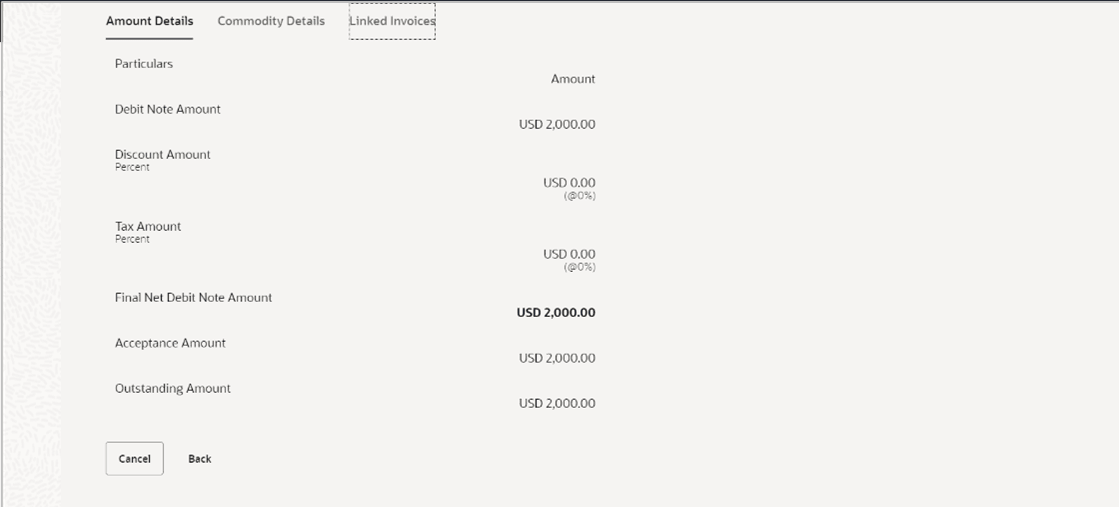
These tabs can also be viewed on a mobile device. - Click the Amount Details tab to view the amount details of the debit
note.
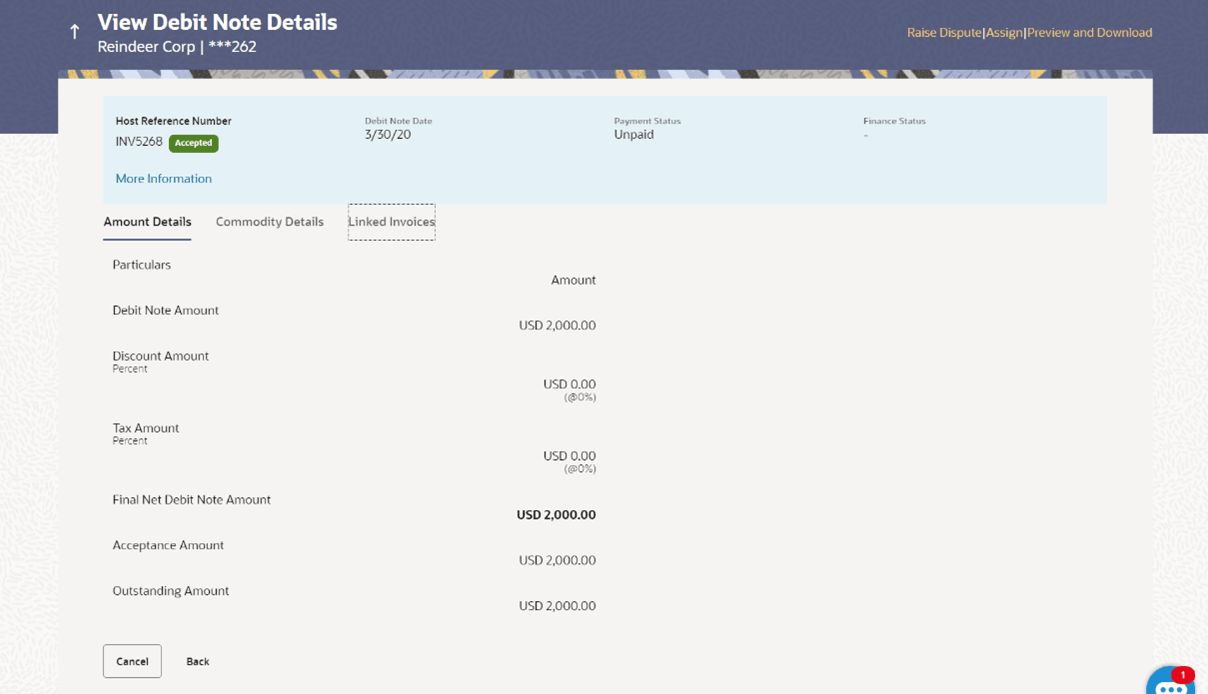
Figure 2-53 View Debit Note Details – Amount Details tab
Table 2-39 Field Description
Field Name Description Amount Details tab The itemized categories appear under Particulars and the respective amounts appear under Amount. Debit Note Amount Displays the debit note amount along with the currency. Discount Amount Percentage Displays the discount amount based on the discount percentage, along with the percentage value. Tax Amount Percentage Displays the tax amount based on the tax percentage, along with the percentage value. Net Debit Note Amount Displays the net calculated value on the basis of discount and tax values that are entered. Note: The Net Debit Note Amount gets auto calculated as follows: Net Debit Note Amount = Debit Note Amount - Discount Amount + Tax Amount.
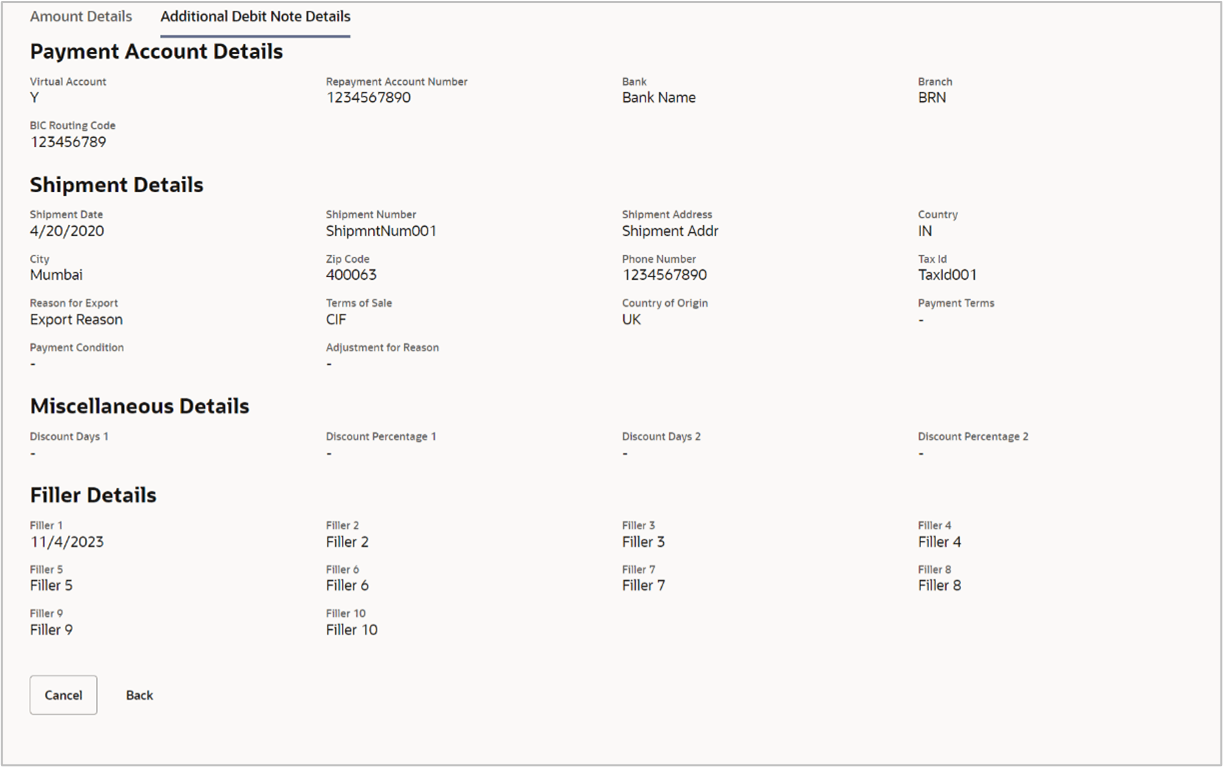
Acceptance Amount Displays the debit note amount that has been accepted. Outstanding Amount Displays the debit note amount that is outstanding. - Click the Additional Debit Note Details tab to view the reconciliation
details of the debit note.
Figure 2-54 View Debit Note Details – Additional Debit Note Details
Table 2-40 Field Description
Field Name Description Additional Debit Note Details tab The additional Debit Note details tab appears next to the Amount Details tab. Payment Account Details This section displays Payment Account details. Payment Mode Displays the mode of the payment. Virtual Account Displays True if the repayment account is a virtual one. Account Number Displays the account number. Account Name Displays the account name of the payment account. Bank Code Displays the bank code of the payment account. Bank Name Displays the bank name of the payment account. Branch Name Displays the branch name of the payment account. Disbursement Credit Account This section displays Disbursement Credit Account details. Payment Mode Displays the mode of the payment. Account Number Displays the account number. Account Name Displays the name of the account. Bank Code Displays the code of the bank. Bank Name Displays the bank name of the payment account. Branch Name Displays the branch name of the payment account. Shipment Details This section displays Shipment details. Shipment Number Displays the shipment number. Shipment Address Displays the destination address of the shipment. City Displays the destination city of the shipment. Country Displays the destination country of the shipment. Zip Code Displays the zip code of the shipment. Phone Number Displays the contact number of the shipment. Tax Id Displays the unique tax ID if the shipment charge includes tax amount. Reason for Export Displays the reason for export. Terms of Sale Displays the applicable 3-digit Incoterms code. Country of Origin Displays the country from where the shipment will originate. Payment Terms Displays any payment terms captured during debit note creation. Adjustment Reason Displays the reason for raising the debit note. Miscellaneous Details This section displays the Miscellaneous details. Discount Days 1 Displays the primary discount days. Discount Percentage 1 Displays the primary discount percentage. Discount Days 2 Displays the secondary discount days. Discount Percentage 2 Displays the secondary discount percentage. Filler Details This section displays the Filler details. Filler Fields 1 to 10 This section displays the Filler Label Fields. The bank can configure these fields on Day 0, based on their requirement. - Click the Reconciliation Details tab to view the reconciliation details
of the debit note.
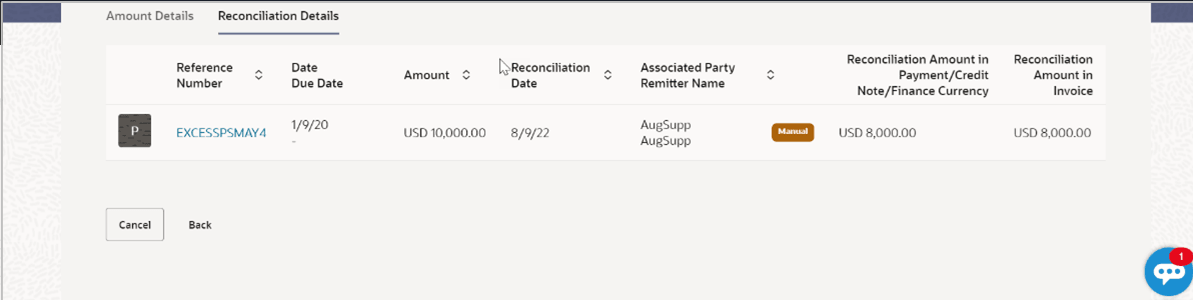
Figure 2-55 View Debit Note Details – Reconciliation Details tab
Table 2-41 Field Description
Field Name Description Reconciliation Details tab This tab appears if the debit note is reconciled against payments. Multiple payments may have been reconciled against a debit note. Indicator Displays ‘P’ if the debit note has been reconciled with a payment and ‘C’ if it has been reconciled with a credit note. Reference Number Displays the reference number of the payment/credit note that has been reconciled with the debit note record. This is a hyperlink, which when clicked displays the payment/credit note details. For more information, refer the View Payments (details) section / View Credit Note Details section in this user manual. Date Due Date Displays the date of payment / due date of credit note. Amount Displays the payment/credit note amount. Reconciliation Date Displays the date when the reconciliation has been performed. Associated Party / Beneficiary Name Displays the name of the associated party, in case of an inflow payment. Displays the name of the beneficiary, in case of an outflow payment. Reconciliation Amount in Payment/Credit Note Currency Displays the reconciliation amount in the currency of the payment/credit note. Reconciliation Amount in Debit Note Currency Displays the reconciliation amount in the currency of the debit note. - Click the Commodity Details tab to view the commodity details of the
debit note.
Figure 2-56 View Debit Note Details – Commodity Details
Table 2-42 Field Description
Field Name Description Commodity Details tab This tab appears only if the commodity details have been entered during creation of debit note. Name Displays the name of the commodity. Code Displays the code of the commodity. Quantity Displays the quantity of commodity. Cost/Unit Displays the cost per unit of the commodity. Gross Amount Displays the total amount of the commodity. This is the product of quantity and cost per unit. Discount Amount Displays the discount amount and percentage offered on the commodity. Tax Amount Displays the tax amount and percentage charged on the commodity. Net Amount Displays the net amount for the commodity.
Net Amount = Gross Amount – Discount + Tax.
Linked Invoices Displays the reference number of the linked invoice. - Click the Finances Details tab to view the finance details of the debit
note.
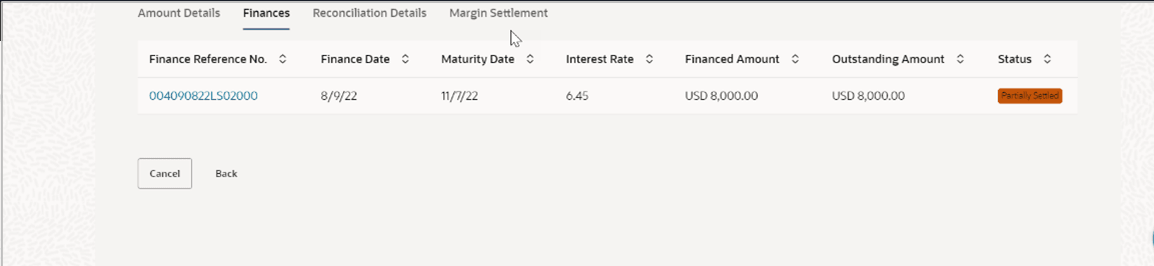
Figure 2-57 View Debit Note Details – Finances tab
Note:
This tab is visible only if the Oracle Banking Supply Chain Finance application is implemented by the bank.Table 2-43 Field Description
Field Name Description Finances tab This tab appears if finances have been availed against the debit note. Multiple finances can be availed for a debit note. Finance Reference No. Displays the reference number of the availed finance. This is a hyperlink, which when clicked opens the View Finance details screen. For more information, refer the View Finance Details section in User Manual Oracle Banking Digital Experience Corporate Supply Chain Finance. Finance Date Displays the date when the finance amount was disbursed. Maturity Date Displays the date when the finance must be fully repaid. Interest Rate Displays the rate of interest charged on the finance. Financed Amount Displays the amount that was financed. Outstanding Amount Displays the outstanding amount to be paid. Status Displays the status of the finance. - Click the Linked Invoices tab to view the linked invoice(s) details of
the debit note.
Figure 2-58 View Debit Note Details – Linked Invoices tab
Table 2-44 Field Description
Field Name Description Linked Invoices tab This tab appears if the debit note has been linked with invoices. Invoice Reference No. Displays the reference number of the invoice. This is a hyperlink which when clicked displays the details of the invoice. Customer Invoice No. Displays the customer’s reference number of the invoice. Due Date Displays the due date of the invoice. Invoice Amount Displays the invoice amount. Financed Amount Displays the invoice amount that has been financed. Invoice Status Displays the status of the invoice.


This History tab will be visible to show the changes in Debit Note lifecycle, along with any comments added during each event in the process.
Figure 2-59 View Debit Note Details – History tab

Table 2-45 Field Description
| Field Name | Description |
|---|---|
| Date | Displays the date of the invoice order. |
| Action | Displays the action, which needs to be performed. |
| Action Owner | Displays action owner. |
| Comments | Displays comments provided by the user during processing the transaction. |
- Click the Margin Settlement tab to view the margin settlement details
of the Debit Note.
Note:
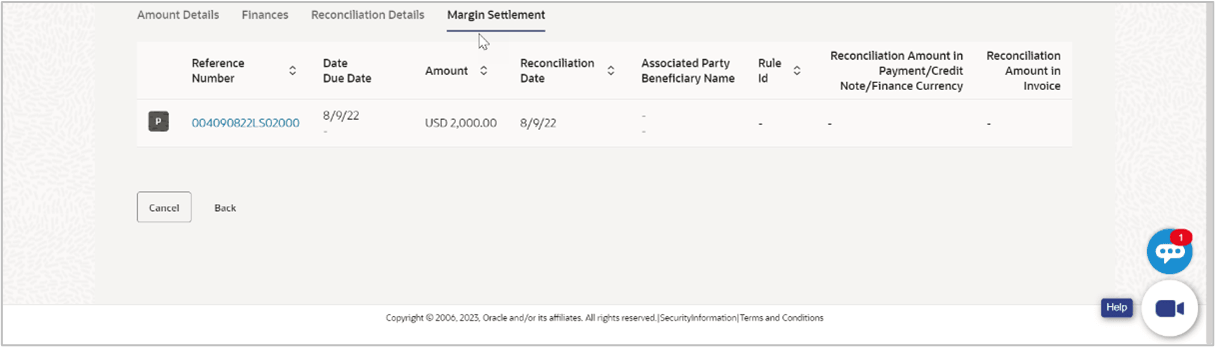
This tab is visible only if the Oracle Banking Supply Chain Finance application is implemented by the bank.Figure 2-60 View Debit Note Details – Margin Settlement tab
Table 2-46 Field Description
Field Name Description Margin Settlement tab This tab appears if the debit note for which lesser finance is availed and is reconciled against the payment for full outstanding value of the debit note. Post settlement of the finance, the balance amount remaining out of the payment is termed as the Margin which would be either refunded or reconciled as per set up. Indicator Displays ‘F’ if the invoice has been reconciled with a payment. Reference No. Displays the reference number of the payment/credit note that has been reconciled with the invoice record. This is a hyperlink, which when clicked displays the payment/credit note details. For more information, refer the View Payments (details) section / View Credit Note Details section in this user manual. Displays the status as Refunded if the margin amount is refunded to the associated party. Click the (
 ) icon to view the refund details i.e., refund
transaction number, refund party, refund account, and
bank code.
) icon to view the refund details i.e., refund
transaction number, refund party, refund account, and
bank code.
Date Due Date Displays the date of payment / due date of credit note. Amount Displays the payment/credit note amount. Reconciliation Date Displays the date when the reconciliation has been performed. Associated Party / Beneficiary Name Displays the name of the associated party, in case of an inflow payment. Displays the name of the beneficiary, in case of an outflow payment. Rule ID Displays the unique rule ID. For the rule being created, this field appears blank. An ID is assigned once the rule is created. Reconciliation Amount in Payment/Credit Note Currency Displays the reconciliation amount in the currency of the payment/credit note. Reconciliation Amount in Invoice Currency Displays the reconciliation amount in the currency of the debit note. - In the View Debit Note Details screen, click Preview and
Download.The Debit Note Details overlay window appears. The debit note fields displayed here are the ones entered during the creation of the debit note.
Figure 2-61 Preview and Download Debit Note
Table 2-47 Field Description
Field Name Description Debit Note Details overlay window The secction displays the Debit Note Details overlay window details. External Invoice Ref No. Displays the customer’s own reference number. Download Click to download the debit note in PDF format. Party name & address Displays the name and address of the supplier. Debit Note Date Displays the date on which the debit note has been raised. Program Name Displays the program linked to the debit note. To Displays the name and address of the buyer. Linked Invoice Number Displays the reference numbers of the invoices linked to the debit note. Balance Due Displays the balance debit note amount to be paid. Adjustment Reason Displays the reason for adjusting the initial invoice amount. Due Date Displays the due date of the debit note. Payment Terms Displays the agreed terms of payment. Terms of Sale Displays the 3-digit Info terms code. Shipment Date Displays the date of the shipment. Shipment Country Displays the destination country of the shipment. Commodity Details The section displays the Commodity details. Linked Invoice Number Displays the reference number of the invoice linked to the specific commodity. Name Displays the name of the commodity. Code Displays the code of the commodity. Quantity Displays the quantity of the commodity. Cost/Unit Displays the cost per unit of the commodity. Gross Amount Displays the gross amount of the commodity along with the currency. It is the product of the entered quantity and the cost per unit. Gross Amount = Quantity * Cost/Unit
Discount Displays the discount applicable to the commodity. Tax Displays the tax applicable to the commodity. Net Amount Displays the net amount of the commodity. Net Amount = Gross Amount – Discount + Tax
Gross Debit Note Amount Displays the total amount of all the commodities (gross amount). Total Discount Value Displays the total discount amount of all the commodities added. The average discount percentage of all added commodities is also displayed. Total Discount % = (Sum of discount amount of all commodities / Sum of gross amount of all commodities) *100
Total Tax Value Displays the total tax amount of all the commodities added. The average tax percentage of all added commodities is also displayed. Total Tax % = [Sum of tax amount of all commodities / (Sum of gross amount of all commodities - Sum of discount amount of all commodities)] *100
Net Debit Note Amount Displays the calculated value on basis of discount and tax values entered. Note: The Net Invoice Amount gets auto calculated as follows:
Net Invoice Amount = Gross Invoice Amount - Total Discount Value + Total Tax Value
- Click Download to download the debit note details in PDF format. Or
click
 to close the window.
Parent topic: View/Edit Receivables/Payables