2.2 View/Edit Receivables/Payables
This topic provides systematic instructions to view a list of receivables/payables (invoices and debit notes) based on the corporate party’s role as a buyer or supplier.
- For viewing invoices/debit notes - User must have valid corporate login credentials.
- For editing invoices/debit notes - User must have valid corporate login credentials for creation of invoices/debit notes.
- Perform any of the following actions:
- From the Dashboard, click the Toggle Menu, then click Receivables/Payables, Receivables/Payables Management, and View/Edit Receivables/Payables.
- From the Dashboard, click the Toggle Menu, then click Supply Chain Finance, Overview, Quick Linksand View Invoice.
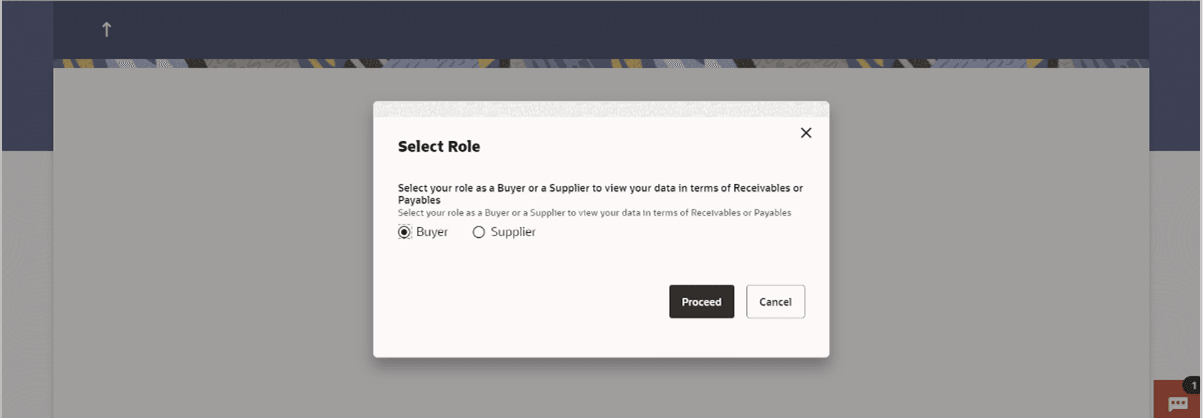
The Select Role pop-up window appears.Table 2-21 Field Description
Field Name Description Select Role Select the role of the corporate party to view data in terms of Receivables or Payables. The options are:
- Buyer
- Supplier
- Click Proceed. The View Receivables/Payables
screen appears. Or, click Cancel to cancel the
transaction.
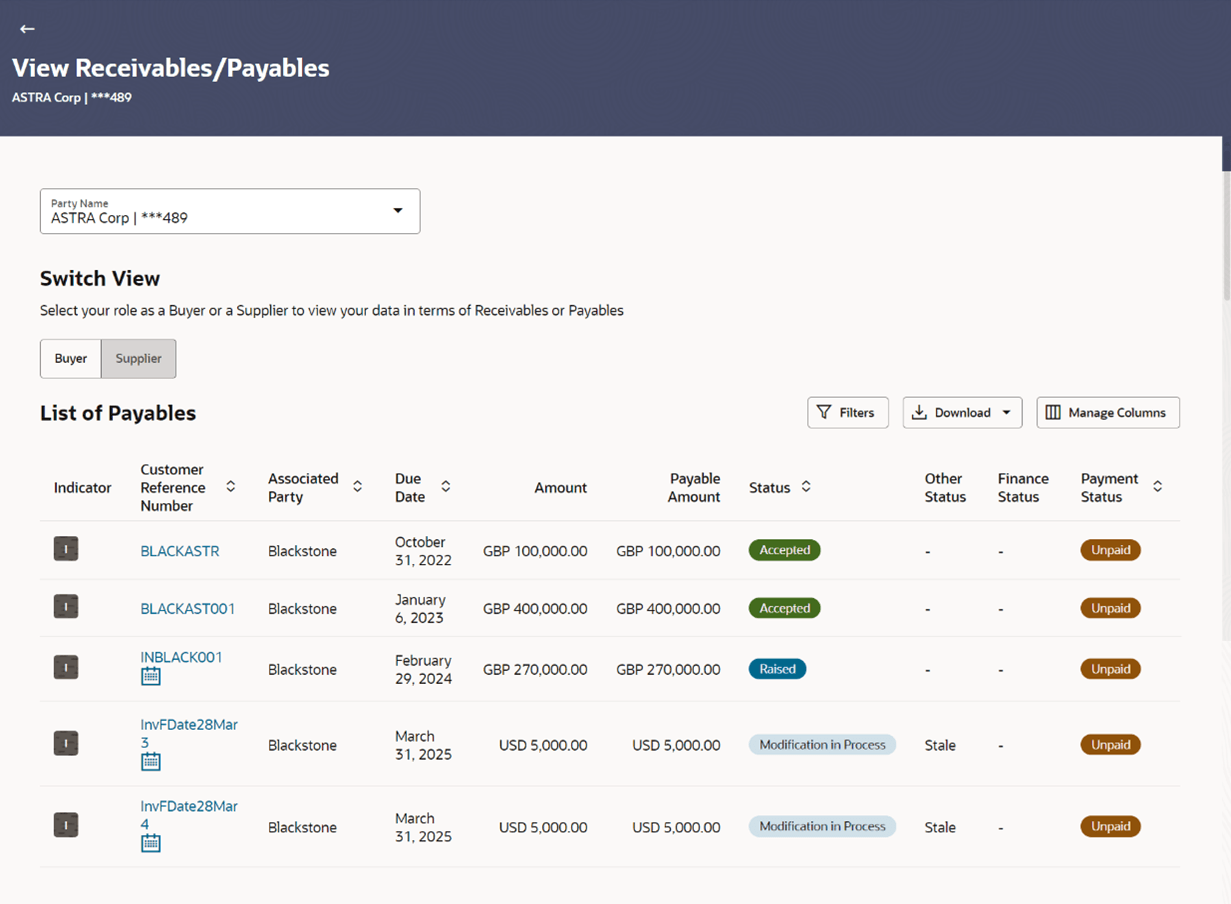
Figure 2-31 View Receivables/Payables screen (for Buyer Role)
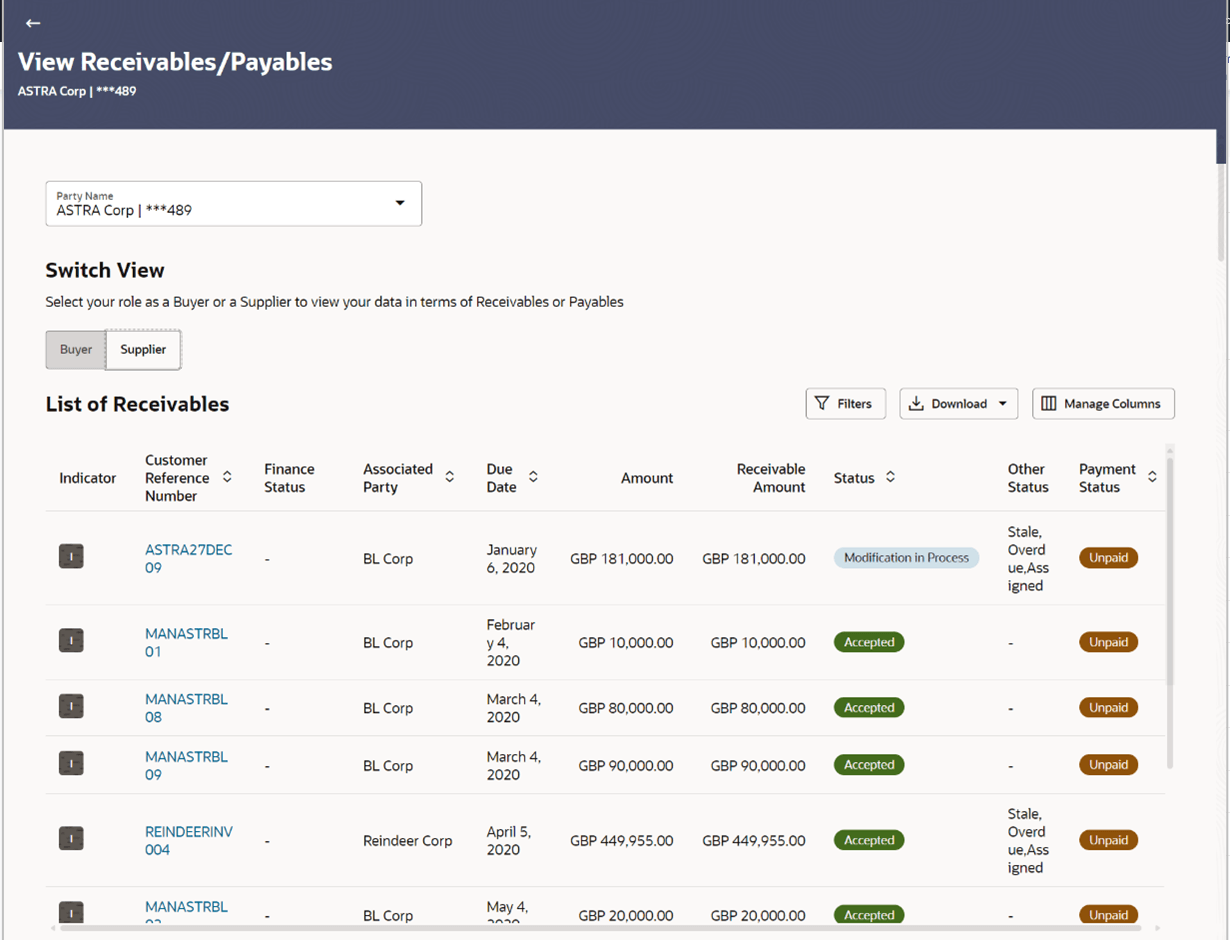
Figure 2-32 View Receivables/Payables screen (for Supplier Role)
Table 2-22 Field Description
Field Name Description View Receivables/Payables This screen displays a list of invoices and debit notes based on the role of the logged-in party. Party Name Select the party name from the dropdown list to view the applicable list of receivables/payables. By default, the primary party/gcif of the logged-in user is selected. Note: Only accessible parties are displayed to the user. Based on the party selection, the list of receivables/payables is displayed.
Switch View Indicates the option to view the receivables/payables based on the corporate party’s role. The options are:
- Buyer
- Supplier

Click this icon to filter the receivables/payables, based on certain criteria. For more information, refer the Filter (overlay window for View Receivables/Payables) section below. Download Click this linkto download the list of receivables/payables in CSV or PDF format. Click this link to personalize the columns i.e., rearrange/remove columns in the search result grid. The Manage Columns overlay window appears. For more information, refer the Manage Columns (overlay window for View Receivables/Payables) section below. List of Receivables / List of Payables A list of receivables/payables is displayed in this section. If the ‘Buyer’ role is selected, then this section displays a list of payables. And if the ‘Supplier’ role is selected, then a list of receivables is displayed. Note: By default, the list displays the receivables/payables with the due dates greater than or lesser than the Current Business Date by 3 months. You can configure the number of months in the System Configuration. For more information, refer to Oracle Banking Digital ExperienceSystem Configuration manual.
No. of Record(s) Displays the total number of receivables/payables listed by default or after a filter criteria is applied. Indicator Displays ‘I’ for an invoice and ‘D’ for a debit note. Customer Reference Number 
Indicates the unique reference number of the receivable/payable. This is a hyperlink which when clicked displays the details of the receivable/payable. Refer the View Invoice Details and the View Debit Note Details sections for more information. Click the calendar icon to view the Funding Request Date. This icon is present only if the Funding Request Date has been captured during receivable/payable creation.
Associated Party User can search the receivables/payables by providing the associated party. The drop-down lists all the on-boarded associated parties and the list of on-boarded associated party is categorized by: - Anchor Buyer
- Anchor Supplier
- Counter Party Buyer
- Counter Party Supplier
Due Date Displays when the receivable/payable is due. Amount Displays the total receivable/payable amount. Receivable/Payable Amount Displays the amount that is yet to be received/paid. The Offer Details (
 ) icon is displayed beside this amount, if any
offer has been applied to the invoice or debit note. On
clicking this icon, the Early Payment Discounts overlay
window appears with the details of the offer. For more
details, refer the Early Payment Discounts (from View
Discount Offer Details)section
below.
) icon is displayed beside this amount, if any
offer has been applied to the invoice or debit note. On
clicking this icon, the Early Payment Discounts overlay
window appears with the details of the offer. For more
details, refer the Early Payment Discounts (from View
Discount Offer Details)section
below.
Status Displays the status of the receivable/payable. Other Status Displays the other status of the receivable/payable. This value can be one of the following: - Approved
- Asssigned
- Indirect Payment
- Overdue
- Payment Under Approval
- Stale
Payment Status Displays the status of payment of the receivable/payable. This can be one of the following: - Paid
- Partially Paid
- Payment in Process
- Unpaid
Finance Status Displays the status of any finance availed against the instrument. This value can be one of the following: - Financed
- Partially Financed
- Finance in Process
- Rejected
Note: If Finance is rejected, an info icon will show up to present the partner's response, which could be based on their feedback or if the user removed it.
If the instrument has not been financed, or if the finance is in progress, then this field remains blank.
Filter (overlay window for Receivables/Payables)
This overlay window appears when you click in the View Receivables/Payables screen.
Figure 2-33 Search
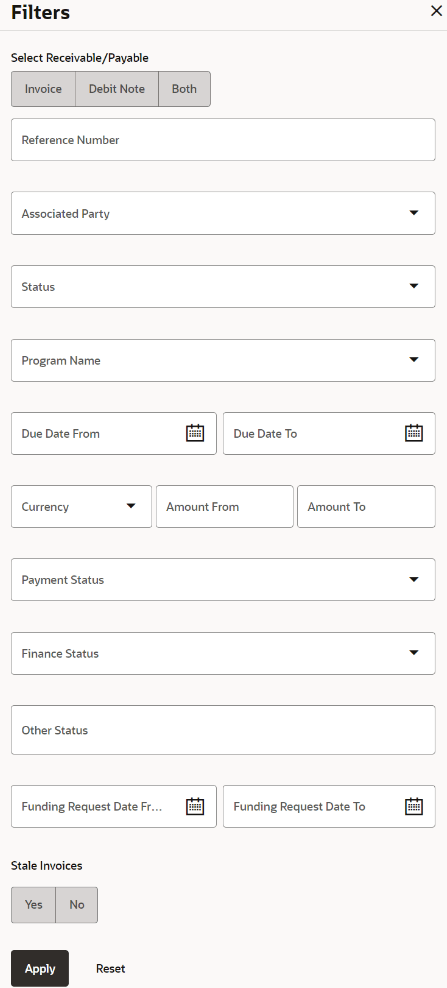
Table 2-23 Field Description
| Field Name | Description |
|---|---|
| Select Receivable/Payable | Select the required receivable/payable for
viewing. The options are:
The Both option is selected by default. |
| Reference Number | Indicates an option to search for the receivables/payables using the customer’s own reference number. |
| Associated Party Name | Indicates an option to search for the receivables/payables based on the counter party associated. |
| Status | Indicates an option to search for the
receivables/payables based on their status.
The options are:
|
| Program Name | Indicates an option to retrieve the receivables/payables associated with a particular program. This field is visible only if the Oracle Banking Supply Chain Finance application is implemented by the bank. |
| Due Date From/To | Indicates the option to retrieve the receivables/payables that are due in a specific time range. |
| Amount Range Currency From/To | Indicates the option to search for the receivables/payables of a particular currency, within a specific amount range. |
| Payment Status | Indicates an option to retrieve the
receivables/payables with payments in a particular status.
The options are:
|
| Finance Status | Indicates an option to search for
receivables/payables based on their finance status, whether
financed, or partially financed. The options are:
This field is visible only if the Oracle Banking Supply Chain Finance application is implemented by the bank. |
| Other Status | Indicates an option to filter
receivables/payables based on the status. The options are:
|
| Funding Request Date From/To | Indicates the option to retrieve the receivables/payables with funding request dates in a specific time range. |
| Stale Invoices | Indicates an option to retrieve invoices based on whether they are stale or not. Select ‘Yes’ to retrieve stale invoices and ‘No’, otherwise. |
- To filter the list of receivables/payables, either use the Search field or the
Filter () option.
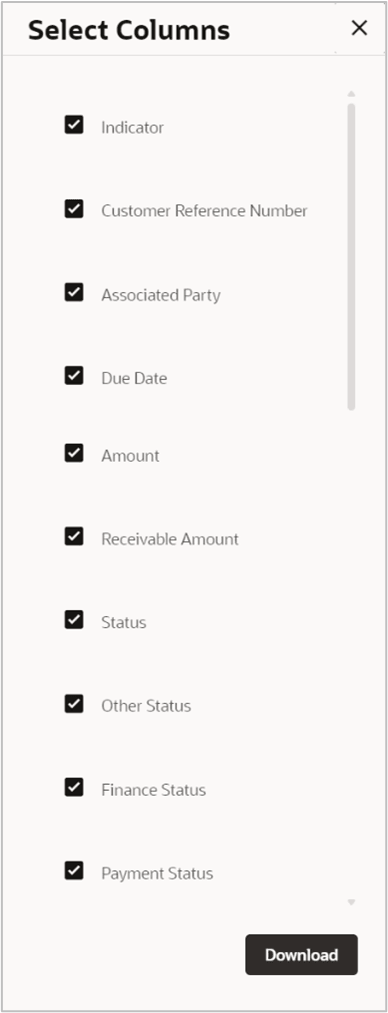
- Click Download and select the CSV from the dropdown list. The Select Columns overlay screen appears.
Figure 2-34 View Receivables/Payables – Select Columns
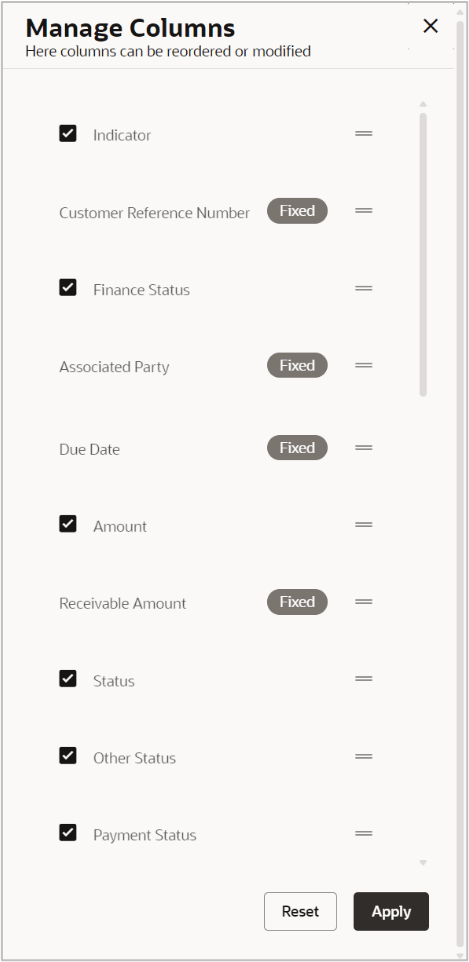
- Click Manage Columns to reorder or modify or save column preferences in
view payment screen.
Figure 2-35 Manage Columns (overlay window for View Receivables/Payables)
- Click Apply to apply the modified columns preferences.
- Click Reset to reset the columns preferences.
- View Invoice Details
This topic provides systematic instructions to view the detailed information of the invoice. - View Debit Note Details
This topic provides systematic instructions to view Debit Note details.
Parent topic: Receivables/Payables Management