4.5 Raise Dispute
This topic provides systematic instructions to raise a dispute against the receivable/payable.
- In the Manage Receivables/Payables screen, click the Raise
Dispute link or the Raise Dispute tile. A list of receivables/payables that on which dispute can be raised, appears.
Figure 4-14 Manage Receivables/Payables – Raise Dispute action selected
Table 4-8 Manage Receivables/Payables – Raise Dispute - Field Description
Field Name Description List of Receivables/Payables (number selected) This section displays a list of receivables/payables against which ‘Raise Dispute’ action can be effected. Once you select one or more receivables/payables to raise dispute against, the number of receivables/payables selected appears in brackets. Search Specify the partial or full receivable/payable reference number / associated party name / status to search for specific receivables/payables. The results appear as and when you enter the data. 
Click this icon to filter the receivables/payables, based on certain criteria. For more information, refer the Search (overlay window for Manage Receivables/Payables) section below. Check Box To select all the receivables/payables in the list, select the main check box. To select specific receivables/payables, select the check boxes beside those receivables/payables. If you select more than one receivable/payable, the following message appears:  You may add comments for all selected
receivables/payables. Click Here.
Note: To add comments for all selected receivables/payables:
You may add comments for all selected
receivables/payables. Click Here.
Note: To add comments for all selected receivables/payables:- Click the Click Here link. A pop-up window appears.
- Add relevant comments.
- Click Apply to apply the same. Or, click Cancel to cancel adding the comments.
Indicator Displays ‘I’ for an invoice and ‘D’ for a debit note. Associated Party User can search the receivables/payables by providing the associated party. The drop-down lists all the on-boarded associated parties and the list of on-boarded associated party is categorized by: - Anchor Buyer
- Anchor Supplier
- Counter Party Buyer
- Counter Party Supplier
Reference Number Status Displays the unique reference number of the receivable/payable along with its status. The reference number is a hyperlink, which when clicked, displays the receivable/payable details in an overlay window. Due Date Displays the date on which the receivable/payable must be fully paid. Amount Displays the total receivable/payable amount. Disputed Amount Indicates the amount that is being disputed. By default, the total receivable/payable amount is displayed in this field. Once you select a receivable/payable, this field becomes editable. Note: You can edit this field as follows:- Select the check box beside the receivable/payable to be partially accepted.
- Click
 and enter the amount that you wish to
accept.
and enter the amount that you wish to
accept.
- Click
 to save the entered amount.
Dispute Reason Select the reason for the dispute from this list. Once you select a receivable/payable, this field becomes editable. Comments Specify any relevant comments. Once you select a receivable/payable, this field becomes editable. Upload Documents Click  to upload relevant documents. Once you select a
receivable/payable, this icon becomes clickable.
to upload relevant documents. Once you select a
receivable/payable, this icon becomes clickable.
The following document formats are supported: JPEG, JPG, PNG, and PDF. A maximum of 5 documents can be uploaded.
Once you upload documents, the number of documents uploaded appears as a hyperlink in brackets, beside this icon. On clicking this hyperlink, a pop-up window appears with the names of the documents uploaded. To delete an uploaded document, click beside the document in the pop-up window.
Note: These documents can also be viewed and downloaded by the approver/checker.
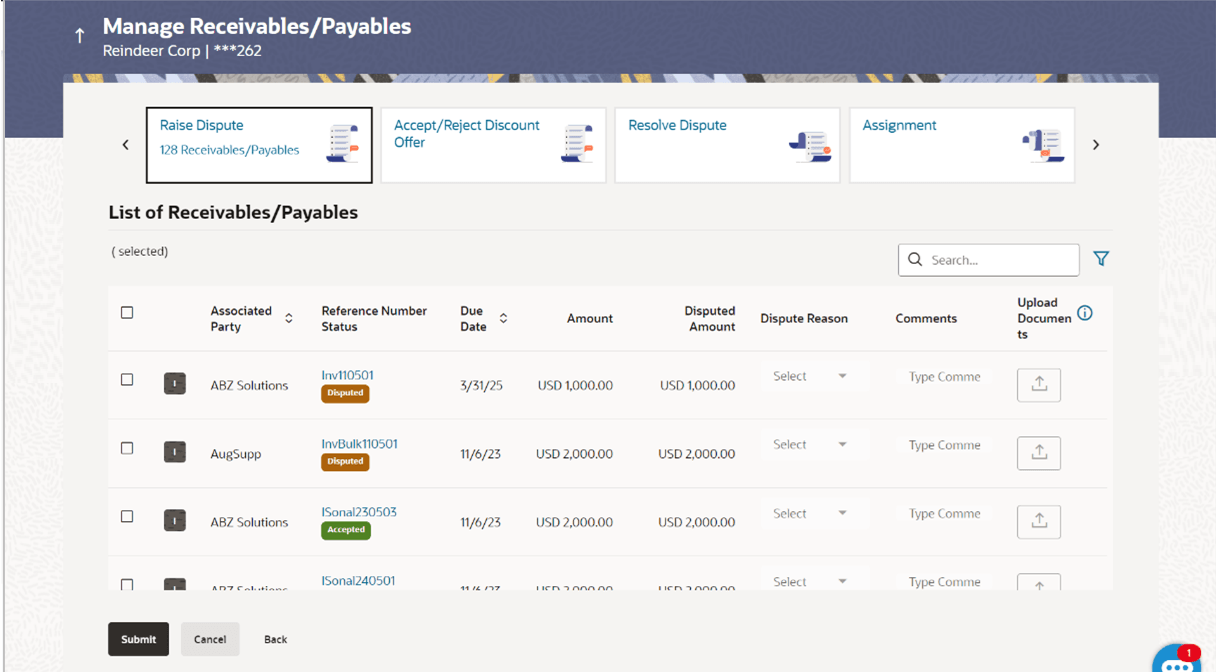
Figure 4-15 After Selecting Records
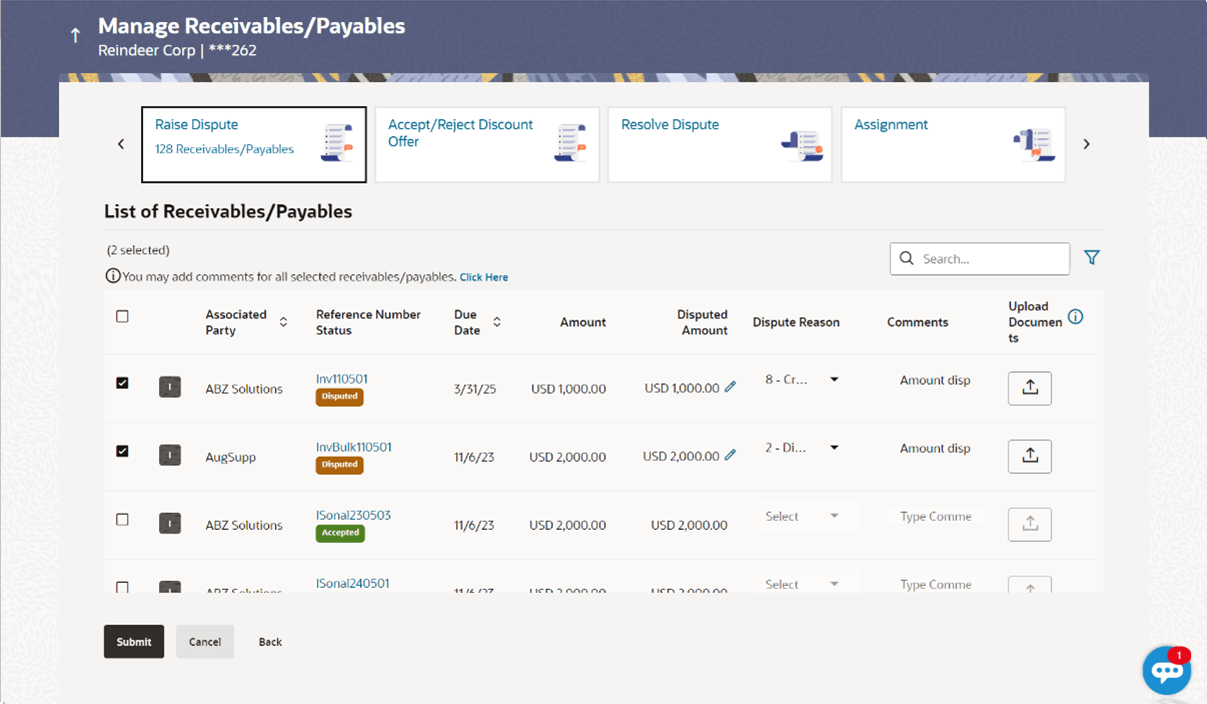
- Once you select the required receivable/payable, update the Disputed
Amount field, select the reason for dispute, and enter relevant
comments.
- You can also click and upload relevant documents, if required.
- You can also click
Parent topic: Manage Receivables/Payables