3.3 View Discount Offer
This topic provides systematic instructions to view the discount offers that have been created.
- From the Dashboard, click the
Toggle Menu, then click
Receivables/Payables,
Dynamic Discounting, and
View Discount Offer.The View Discount Offer screen appears.
Table 3-3 Field Description
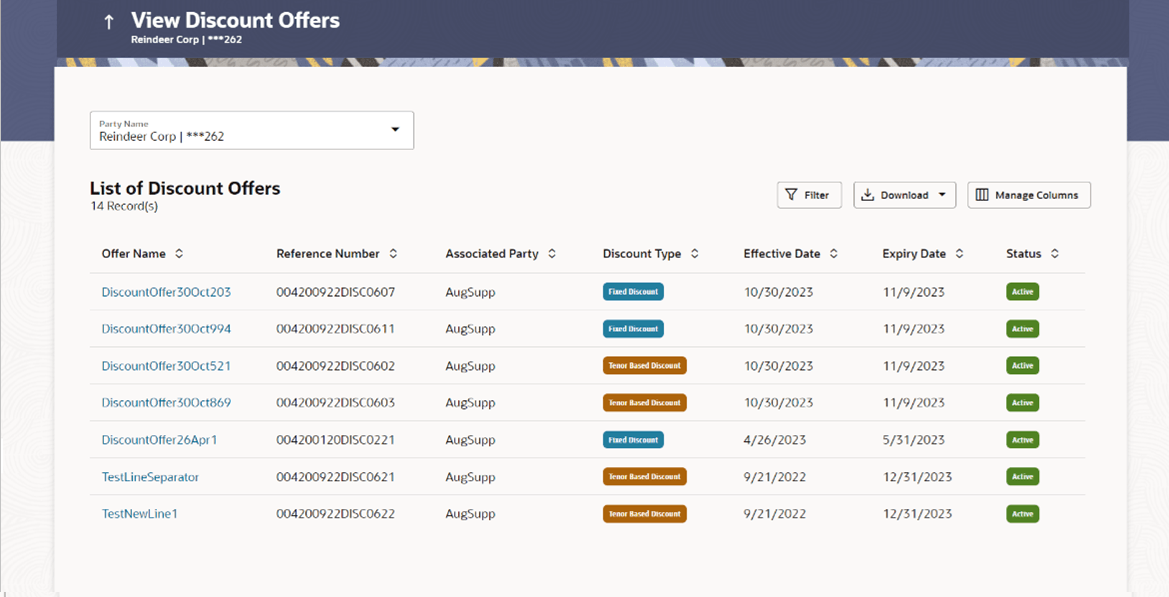
Field Name Description Party Name & ID Select the party name from the dropdown list to view the applicable list of discount offers. By default, the primary party/gcif of the logged-in user is selected. Note: Only accessible parties are displayed to the user. Based on the party selection, the list of discount offers is displayed.
Filter Click the filter icon to filter the discount offers based on certain search criteria. The Search overlay window appears. For more information, refer the Search (overlay window for Discount Offers) section below. Download Click this link to download the list of discount offers in CSV format. Manage Columns Click Manage Columns to personalize the columns i.e., rearrange/remove columns in the search result grid. The Manage Columns overlay window appears. For more information, refer the Manage Columns (overlay window for Discount Offers) section below. List of Discount Offers This section displays List of Discount Offers. Offer Name Displays the name of the offer. This is a hyperlink, which when clicked opens the Discount Offer details. For more information, refer the View Discount Offer Details section below. Reference Number Displays the reference number of the discount offer, fetched from the host. Associated Party User can search the offer by selecting the associated party. The drop-down lists all the on-boarded associated parties and the list of on-boarded associated party is categorized by: - Anchor Buyer
- Anchor Supplier
- Counter Party Buyer
- Counter Party Supplier
Discount Type Displays whether the discount offer is a Fixed Discount or Tenor Based Discount. Effective Date Displays the start date of validity of the discount offer. Expiry Date Displays the final date of validity of the discount offer. Status Displays the status of the discount offer.
Search (overlay window for Discount Offers)
This overlay window appears when you click  in the View Discount Offers screen.
Figure 3-8 Search (overlay window for Discount Offers)
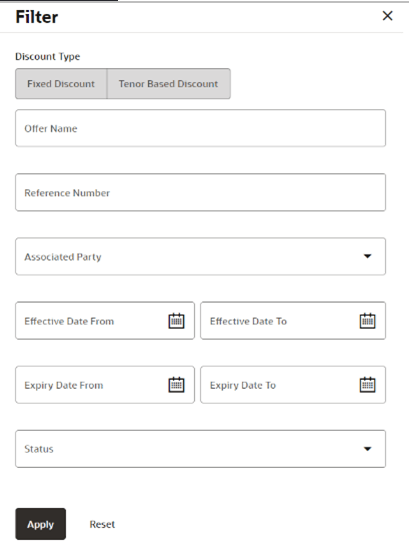
Table 3-4 Field Description
| Field Name | Description |
|---|---|
| Search | This section displays the Search related fields |
| Discount Type | Select the type of discount to be searched, whether Fixed, or Tenor Based. |
| Offer Name | Specify the name of the discount offer to be searched. |
| Reference Number | Specify the reference number of the discount offer to be searched. |
| Associated Party | Select the associated party linked to the discount offer(s). |
| Effective Date From - To | Indicates an option to search for discount offers whose effective dates lie within a specific time period. Click the calendar icons and select the start and end dates of the required period. |
| Expiry Date From - To | Indicates an option to search for discount offers whose expiry dates lie within a specific time period. Click the calendar icons and select the start and end dates of the required period. |
| Status | Select the status of the
discount offers to be searched, whether Active or Expired.
Once the required search criteria have been entered, click Apply to get the relevant search results. Or click Reset to reset the search criteria. |
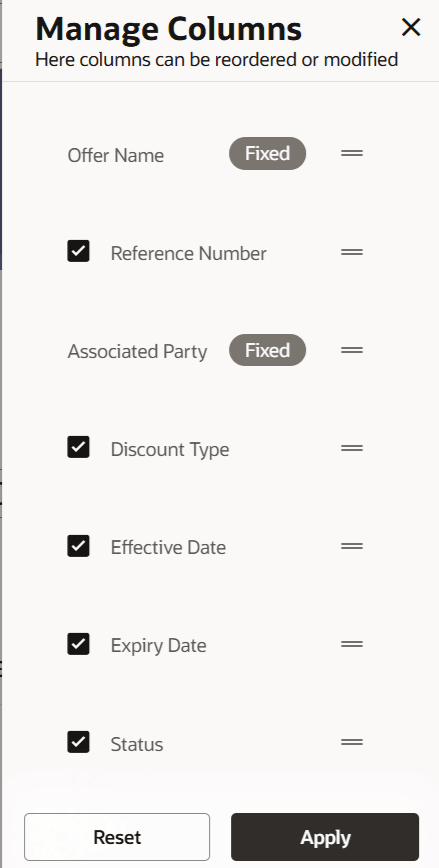
- Click Manage Columns to reorder or modify or save column
preferences in View Discout Offer screen.
Figure 3-9 Manage Columns (overlay window for View Discout Offer)
- Click Apply to apply the modified columns preferences.
- Click Reset to reset the columns preferences.
- Click the Offer Name hyperlink of a discount offer in
the View Discount Offers page to view its
details.
Table 3-5 Field Description
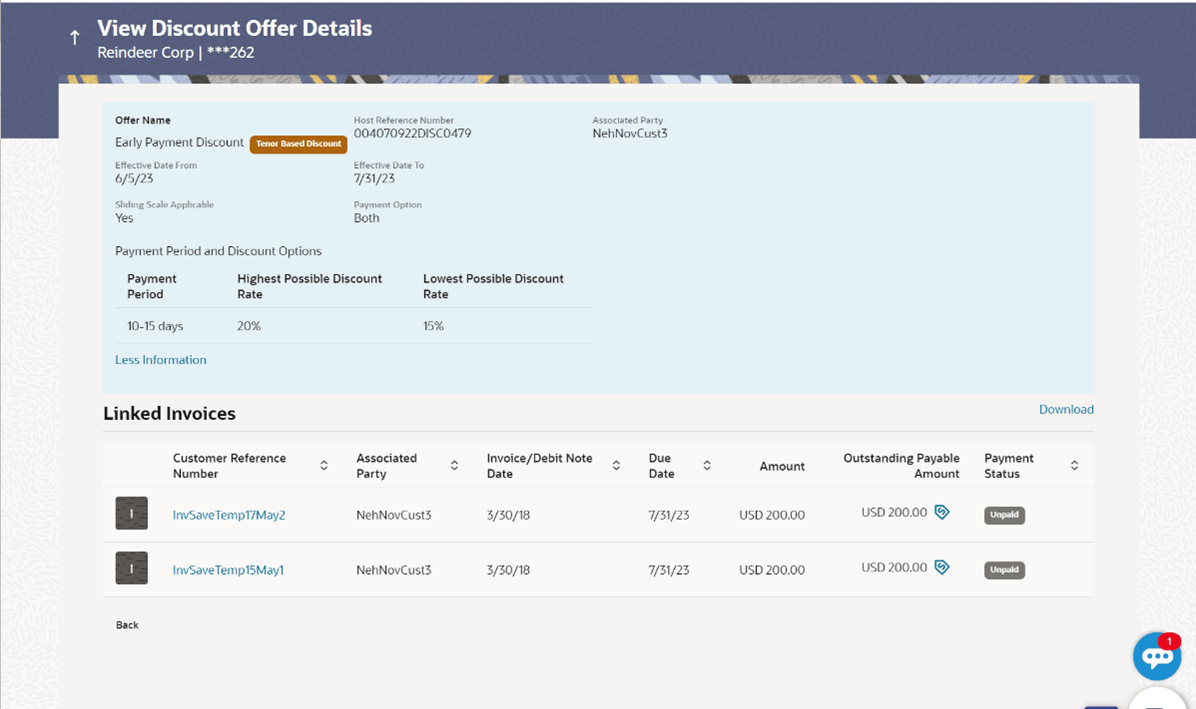
Field Name Description Party Name & ID Displays the name of the logged-in corporate party. Offer Name Displays the name of the discount offer. Also displays the colour-coded discount type of the offer, whether Fixed Discount or Tenor Based Discount.
Host Reference Number Displays the reference number of the offer, assigned by the host. Associated Party Displays the name of the associated party linked with the discount offer. Discount Rate Displays the fixed discount percentage being offered. This field is displayed in case of Fixed Discount type. Effective Date From Displays the start date of validity of the discount offer. Effective Date To Displays the final date of validity of the discount offer. Sliding Scale Applicable Displays ‘Yes’ if sliding scale is applicable, and ‘No’, otherwise. Payment Option Displays the option for making the payment, whether Fixed Date, Flexible Date, or Both. Payment Period and Discount Options The following fields appear in tabular format in case of Tenor Based Discount type: Payment Period, Discount Rate, Highest Possible Discount Rate, and Lowest Possible Discount Rate. Payment Period Displays the ‘from’ – ‘to’ days for which the discount rate or the sliding discount rate is applicable. This is applicable only in case of Tenor Based Discount type. Discount Rate Displays the discount rate applicable for the payment period. This is applicable only in case of Tenor Based Discount type, and if sliding scale is not applicable. Highest Possible Discount Rate Displays the starting discount rate for the payment period. This is applicable only in case of Tenor Based Discount type, and if sliding scale is applicable. Lowest Possible Discount Rate Displays the final discount rate for the payment period. This is applicable only in case of Tenor Based Discount type, and if sliding scale is applicable. Table 3-6 Field Description
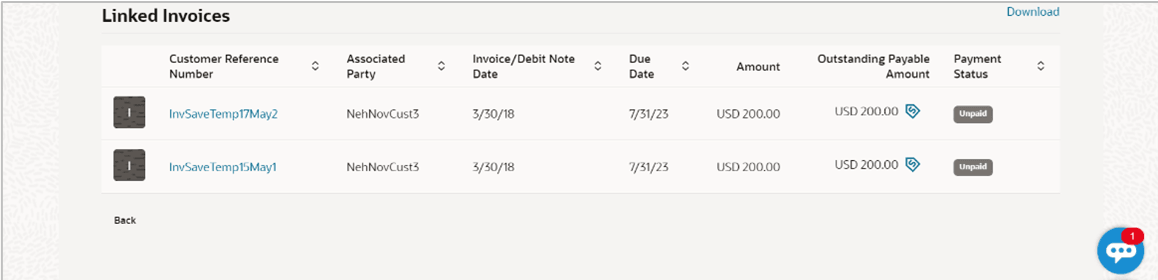
Field Name Description Download Indicates an option to download the linked invoices list in CSV format. Indicator Displays ‘I’ for invoice. Customer Reference Number Displays the invoice reference number. This is a hyperlink which when clicked displays the details of the invoice. Refer the View Invoice Details section for more information. Associated Party Displays the name of the associated party linked with the invoice. Invoice/Debit Note Date Displays the date of creation of the invoice. Due Date Displays the date when the invoice is due for full payment. Amount Displays the invoice amount. Outstanding Receivable/Payable Amount Displays the invoice amount that is yet to be received/paid.
The discount offer icon is also displayed beside the amount, which when clicked displays the Early Payment Discounts overlay window. Refer the Early Payment Discounts (from View Discount Offer Details) section below.
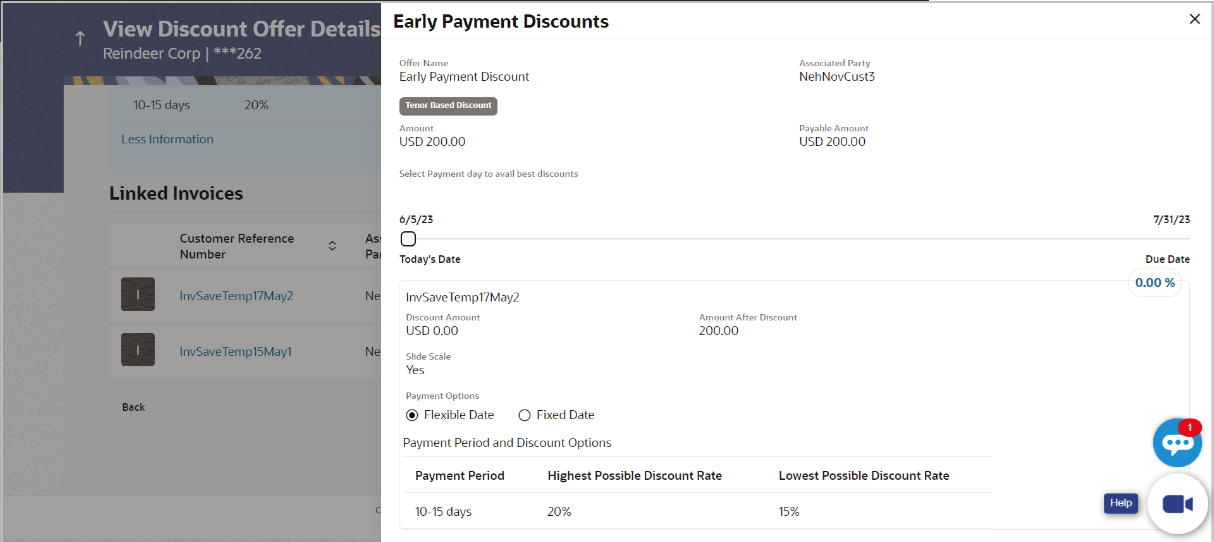
Payment Status Displays the payment status, whether unpaid, or partially paid. Figure 3-12 Early Payment Discounts (from View Discount Offer Details)
Table 3-7 Field Description
Field Name Description Offer Name Discount Rate Type Displays the name of the applied offer. The colour-coded discount rate type is also displayed below the offer name. This can be either Fixed or Tenor Based.
Associated Party Displays the name of the associated party linked with the invoice record. Amount Displays the invoice amount. Receivable Amount Displays the outstanding invoice amount. Select Payment day to avail best discounts Move the slider along the date line to select a particular payment date to view the discount being offered on that date. The start date of the slider is always the current business date. The due date of the receivable/payable is the end date of the slider. The payment date and discount rate are displayed in the receivable/payable tile below. Receivable/Payable tile The applicable discount rate is displayed in the top right corner of this tile. Reference Number Displays the reference number of the receivable/payable. Payment Date Displays the payment date that is selected using the slider. Discount Amount Displays the discount amount applicable. Amount After Discount Displays the receivable/payable amount after application of discount. Slide Scale Displays Yes if the Sliding Scale Applicable switch has been enabled during discount offer creation, and No, otherwise. Payment Option Displays the payment option that has been selected during discount offer creation. This can be one of the following: - Fixed
- Flexible
- Both
Payment Period and Discount Options This section is displayed only for Tenor Based discount rate type. It displays a table with the Payment Period and the applicable Discount Rate. In case Slide Scale is ‘Yes’, then instead of Discount Rate, the Highest Possible Discount Rate and the Lowest Possible Discount Rate are displayed.
Parent topic: Dynamic Discounting