8.4.1.1 View Reconciliation Rules
This topic provides systematic instructions to view the reconciliation details for all Recon criteria.
The user can view the Recon details for all Recon criteria like Corporate based, Relationship based, Counterparty based, Program based, Relationship and Counterparty based, Program and Counterparty based or Default.
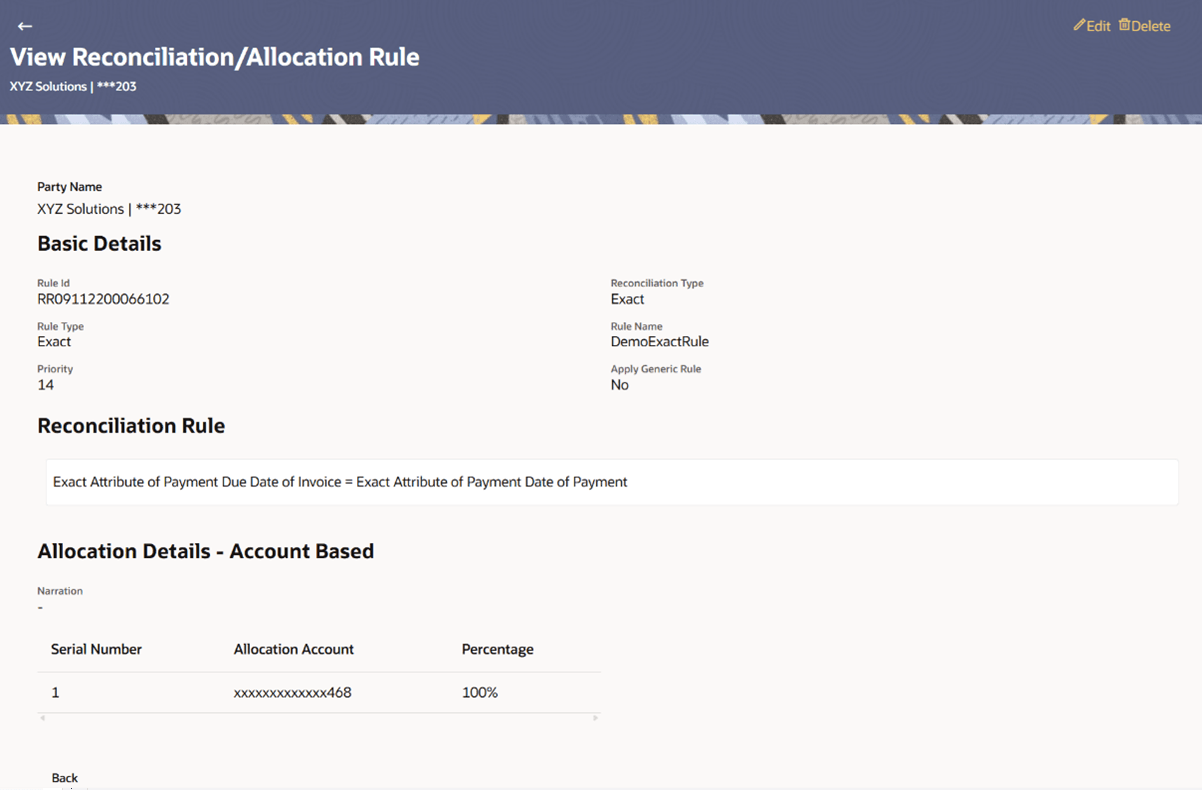
- Click the Rule Id of a record with Rule Type as Exact. The View Reconciliation Rules screen with details of Exact Rule Typeappears.
Figure 8-34 View Reconciliation Rule – Exact
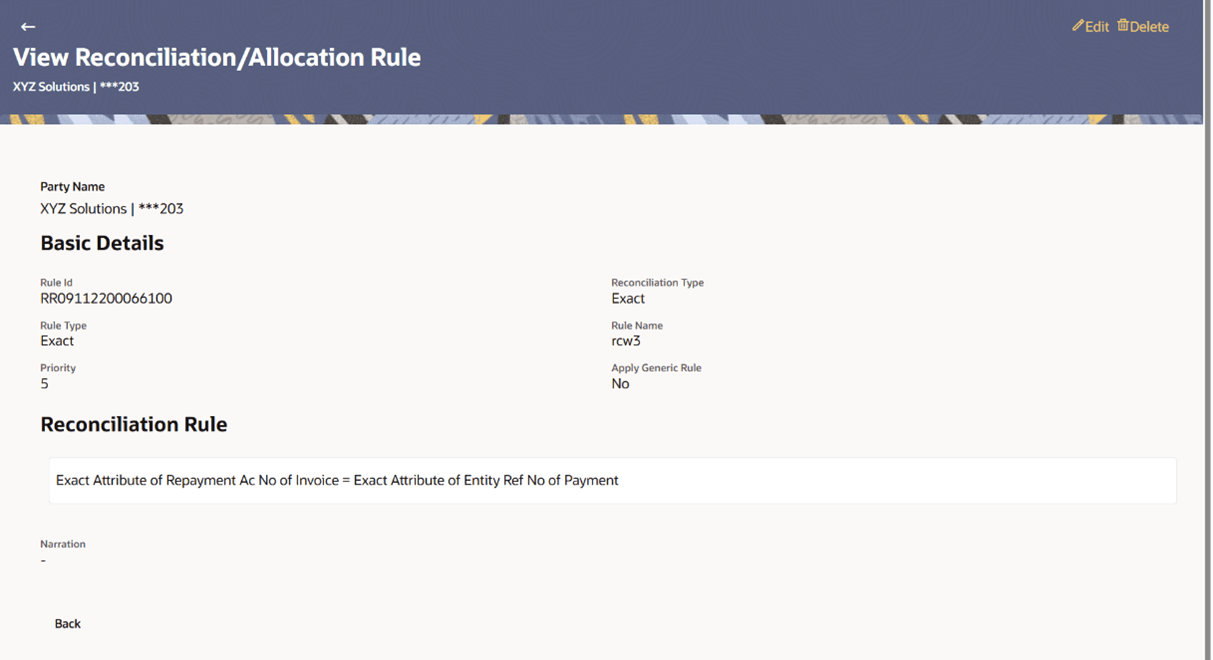
Figure 8-35 View Reconciliation Rule – Exact – Corporate Based
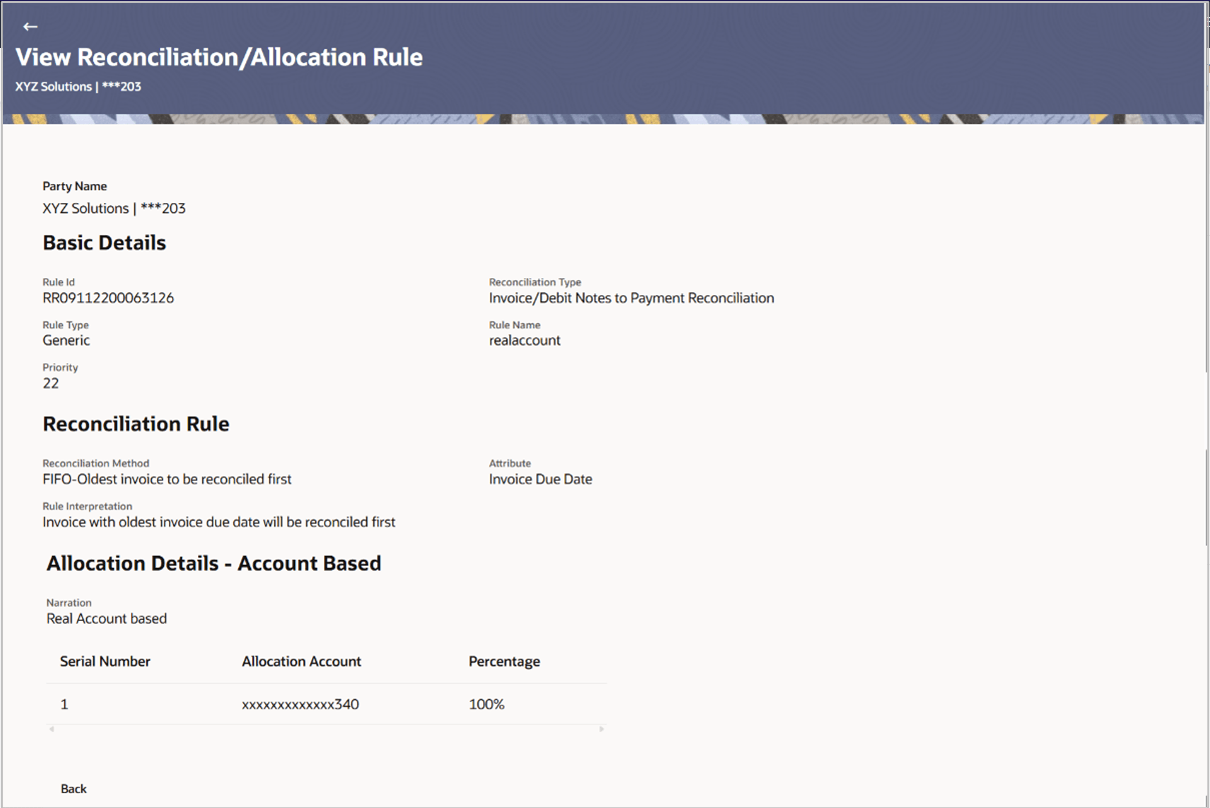
- Click the Rule Id of a record with Rule Type as Generic. The View Reconciliation Rules screen with details of Generic Rule Typeappears.
Figure 8-36 View Reconciliation Rule – Generic
Table 8-16 View Reconciliation Rule – Generic - Field Description
Field Name Description Party Name Displays the name of the logged-in corporate party. Basic Details This section displays the basic details. Rule Id Displays the rule ID of the reconciliation rule. Reconciliation Type Displays the type of payment the reconciliation rule has been created for. Rule Type Displays whether the rule is generic or exact. Rule Name Displays the name of the rule. Priority Displays the priority of the rule. If a payment meets the criteria of more than one rule, then the rule with the higher priority (1 being highest) is applied. Apply Generic Rule Displays whether apply generic rule is selected as ‘yes’ or ‘no’. Generic recon is to be executed if there are more than one matching record post exact reconciliation and if generic recon rule is to be executed for matching outstanding payment to invoice. Reconciliation Rule For an Exact rule, this section displays the rule that has been defined. The rule can be a combination of single sided conditions or double sided conditions or both. The conditions are clubbed together either by the AND or the OR relational operator. A single sided condition includes a single attribute of either payment or expected-cash-flow/invoice entity compared to a specific value using logical operators; whereas a double sided condition includes both cash-flow/invoice and payment attributes with operator conditions along with the specific patterns on their respective matching attributes. Narration Displays the narration. Reconciliation Rule For a Generic rule, the following fields appear. Reconciliation Method Displays the method employed for reconciliation. The options can be:
- LIFO – Latest invoice/cash flow to be reconciled first
- FIFO – Oldest invoice/cash flow to be reconciled first
- LAFO – Lowest amount to be reconciled first
- HAFO – Highest amount to be reconciled first
Attributes Displays the attribute on which the reconciliation method will be applied. - If the reconciliation criteria is either LIFO or FIFO, then a date-specific attribute is present in this field.
- If the reconciliation criteria is either LAFO or HAFO, then an amount-specific attribute is present in this field.
Rule Interpretation Displays the interpretation of the reconciliation method applicable. Account Based Allocation This section appears if Account Based option has been selected in the Allocation Basis field. Serial Number Displays the serial number of the allocation account. Allocation Account Displays the virtual account that has been selected for allocation. Percentage Displays the percentage of payment allocated. Attribute Based Allocation This section appears if the Attribute Based option has been selected for allocation.. Serial Number Displays the serial number of the entity and attribute combination. Allocation Entity and Attributes Displays the entity and their respective attributes that have been selected for allocation. Percentage Displays the percentage of payment allocated.
Parent topic: View Reconciliation Rules