8 View Limits
This topic provides systematic instructions to view limits.
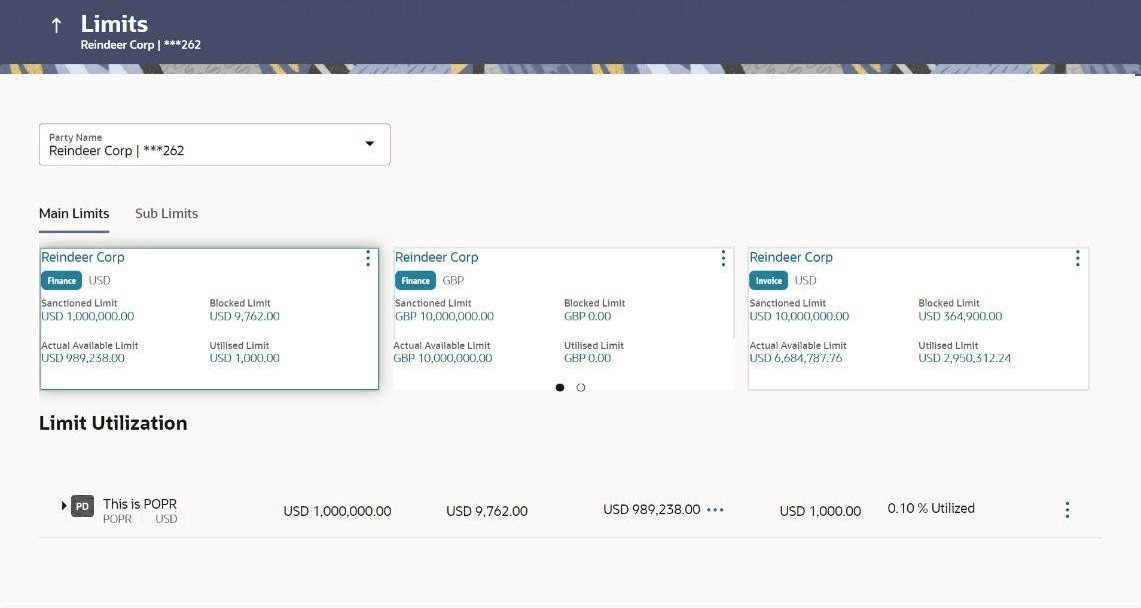
Using this screen, a corporate customer can view the limits that have been set for the corporate party with respect to supply chain financing. Limits are assigned in a hierarchical format to the various entities involved, such as, anchor party, product, program, spoke party, and so on. The main entity or the anchor party is the topmost entity of the hierarchy. It is also referred to as the parent entity. The entities that form the next level of the hierarchy are its child entities. Similarly, the parent-child hierarchy can continue further based on the limit-setting requirement.
A corporate user from the anchor party can view those limits that are assigned to their party ID, including the associated parties, linked programs, and products. A corporate user from the associated party (spoke) can only view the limits assigned to their party ID and to the linked programs.
- On Dashboard, click the Toggle
Menu, then click Supply Chain Finance.
From Supply Chain Finance, click View
Limits.The Limits screen displays.
For more information on fields, refer to field description table.
Table 8-1 Limits - Field Description
Field Description Party Name & ID Displays the name and ID of the logged-in corporate party. Main Limits This tab displays the overall limits associated with the party (main entity), for each currency that the party deals with. You can swipe left/right to view the limits for the various currencies. Party Name Displays the name of the party whose limits are being viewed. 
If the main limits have been frozen for the corporate party, then this icon appears beside the Party Name field, with a tool tip that suggests the same. If limits have been frozen at a line-level, and not at the main-level, then this icon appears in the respective line or card. Role – Limit Type Displays the role of the party. Also displays the type of limit. Currency Displays the currency of the limit. Effective Date Displays the earliest effective date from among the limits with respect to the party’s role. Expiry Date Displays the final expiry date from among the limits with respect to the party’s role. Line Id Displays the limit line ID obtained from the host. If the line limit has been frozen, then the limits freeze ( ) icon appears beside the ID.
Interchangeable Displays whether the limits assigned to the main parent entity can be fully transferred to each of its child entities. If this field displays true, then each child entity can have the same limits assigned to the parent entity. If this field displays false, then the sum of the limits of all child entities must not exceed that of the parent entity. Sanctioned Limit Displays the total limit amount assigned to the party for the specific role. Available Limit Displays the limit amount that is available to the party.
Available Limit = Sanctioned Limit – Blocked Limit – Utilized Limit
Blocked Limit Displays the limit amount that has been blocked by any ongoing transactions. Actual Available Limit Displays the actual limit amount that is available to the party.
Actual Available Limit = Available Limit - Blocked Limit
Utilized Limit Displays the limit amount that has been utilized. Adhoc Sanctioned Limit Displays the maximum amount that can be added on an adhoc basis, in case the available limit is insufficient for a particular transaction. Adhoc Available Limit Displays the adhoc amount available.
Adhoc Available Limit = Adhoc Sanctioned Limit - Adhoc Blocked Limit - Adhoc Utilised Limit
Adhoc Blocked Limit Displays the adhoc amount that has been blocked for ongoing transactions. Adhoc Actual Available Limit Displays the actual adhoc limit amount that is available to the party. Adhoc Actual Available Limit = Adhoc Available Limit – Adhoc Blocked Limit.
Adhoc Utilized Limit Displays the adhoc amount that has been utilized. Entity Tile A tile is present for each entity that is included under the main limit. For more information, refer the Entity Tile section below. Limit Utilization This section displays an overview of the limit parameters, of the selected Entity Tile. You can expand the hierarchy to view the entities at the next level. For more information, refer the Limit Utilization section below. Entity Tile
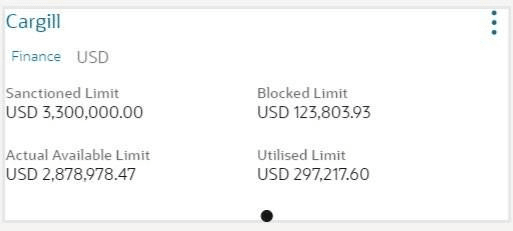
A tile is present for each entity that is included under the main limit.
For more information on fields, refer to field description table.
Table 8-2 Entity Tile
Field Description Entity Name Displays the name of the entity. In most cases, a tile represents a product. The name of the product is displayed in this field. Limit Type Displays the type of the limit. Currency Displays the currency of the limit. Sanctioned Limit Displays the total limit amount assigned to the entity. Blocked Limit Displays the limit amount that has been blocked by any ongoing transactions. Actual Available Limit Displays the actual limit amount that is available to the entity. Actual Available Limit = Sanctioned Limit – Blocked Limit – Utilized Limit Utilized Limit Displays the limit amount that has been utilized. 
Click this icon for further options. Select the View Details option to view further details of the limits assigned to the entity. An overlay window appears with the details. For more information, refer View Details section below.
Limit Utilization
This section displays an overview of the limit parameters, of the selected Entity Tile. In most cases, these entities are the programs, products and the spoke parties. You can expand the hierarchy to view the entities at the next levels.
Figure 8-3 Limit Utilization
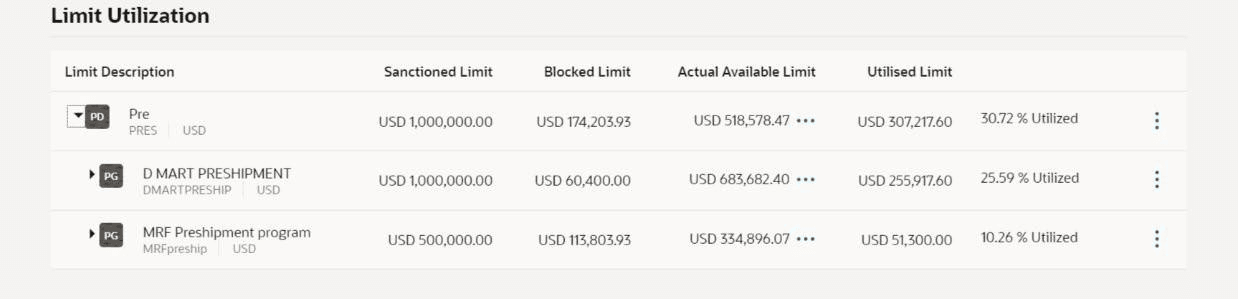
For more information on fields, refer to field description table.
Table 8-3 Field Description
| Field | Description |
|---|---|
| Limit Description | Displays an indicator for the type of entity, whether program or spoke party. Also displays the entity name, entity ID, and limit currency. |
| Sanctioned Limit | Displays the total limit amount assigned to the entity |
| Blocked Limit | Displays the limit amount that has been blocked by any ongoing transactions. |
| Actual Available Limit | Displays the actual limit amount that is available to the entity. Available Limit = Sanctioned Limit – Blocked Limit – Utilized Limit |
| Utilized Limit | Displays the limit amount that has been utilized |
| Percentage Utilized | Displays the percentage value of the utilized limit, along with a line graph. |
|
Click this icon for further options. Select the View Details option to view further details of the limits assigned to the entity. An overlay window appears with the details. For more information, refer View Details section below |
Figure 8-4 Sub Limits
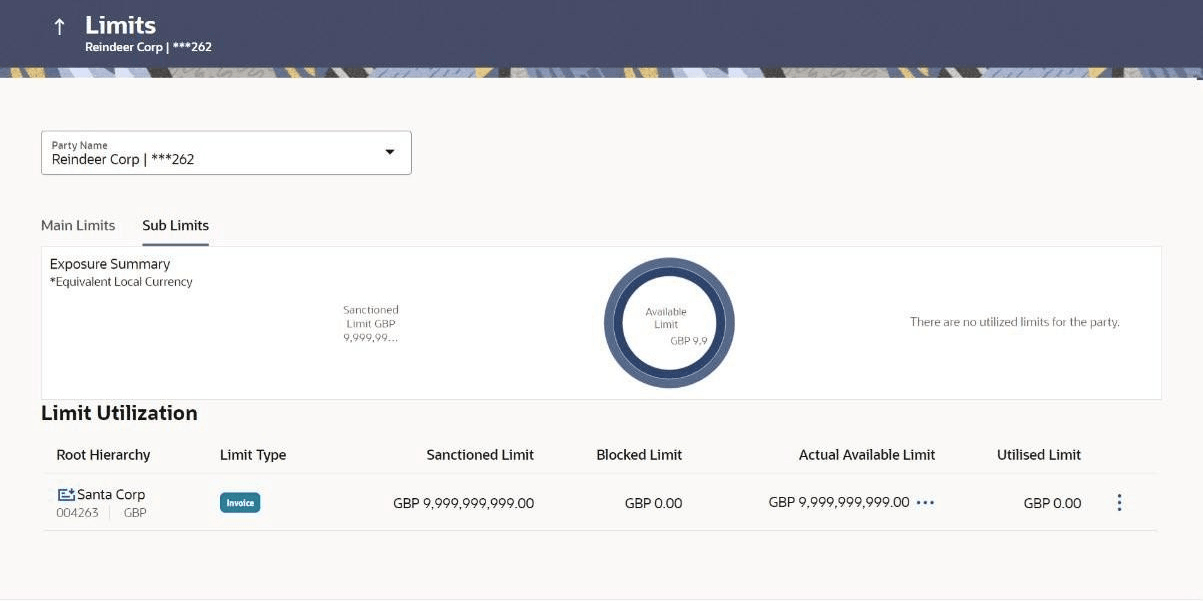
For more information on fields, refer to field description table.
Table 8-4 Field Description
| Field | Description |
|---|---|
| Sub Limits | This tab displays the exposure summary and the sub limit details set for the corporate party. |
| Exposure Summary | This section displays the sanctioned, available and utilized sub limits in the equivalent local currency. |
| Limit Utilization | This section explains the Limit Utilization. |
| Root Hierarchy | Click to view the hierarchy of the entities for which limits have been set. |
| Limit Type | Displays the type of the limit. |
| Sanctioned Limit | Displays the total limit amount assigned to the hierarchy. |
| Blocked Limit | Displays the limit amount that has been blocked by any ongoing transactions. |
| Available Limit | Displays the limit amount that is available to the hierarchy.
Available Limit = Sanctioned Limit – Blocked Limit – Utilized Limit |
| Utilized Limit | Displays the limit amount that has been utilized. |
|
Click this icon for further options. Select the View Details option to view further details of the sub limits assigned to the entity. An overlay window appears with the details. For more information, refer View Details section below. |
Note:
If the sub-limits have been frozen at a particular line, then the Limits Freeze icon () appears beside that specific line along with a tool tip suggesting the
same. If all sub-limits have been frozen, then the icon appears at all lines and
also in the Exposure Summary section.
- Click icon .
- Select the View Details option to view further details of the sub limits assigned to the entity.
For more information on fields, refer to field description table.
Table 8-5 Field Description
Field Name Description Entity Name Displays the name of the entity, whose details are being viewed. Line Id Displays the limit line ID obtained from the host. Line Currency Displays the limit line currency. Effective Date Displays the effective date of the limit. The effective date of the limit of a child entity is always greater than or equal to that of its parent entity. Expiry Date Displays the expiry date of the limit. The expiry date of the limit of a child entity is always less than or equal to that of its parent entity. Sanctioned Limit Displays the total limit amount assigned to the entity. Blocked Limit Displays the limit amount that has been blocked by any ongoing transactions. Available Limit Displays the limit amount that is available to the entity.
Available Limit = Sanctioned Limit – Blocked Limit – Utilized Limit
Utilized Limit Displays the limit amount that has been utilized. Interchangeable Displays whether the limits assigned to the main parent entity can be fully transferred to each of its child entities. If this field displays true, then each child entity can have the same limits assigned to the parent entity. If this field displays false, then the sum of the limits of all child entities must not exceed that of the parent entity. Sanctioned Limit Displays the maximum amount that can be added on an adhoc basis, in case the available limit is insufficient for a particular transaction. Available Limit Displays the adhoc amount available.
Adhoc Available Limit = Adhoc Sanctioned Limit - Adhoc Blocked Limit - Adhoc Utilised Limit
Utilized Limit Displays the adhoc amount that has been utilized.
