29.1 Transaction Code Logo Maintenance - Create
This topic describes the systematic instruction to Transaction Code Logo Maintenance - Create option.
Using this option, the System Administrator can create a new
transaction code–logo mapping by associating a transaction code with a logo. The
administrator can create multiple mappings and assign logos to different transaction
codes as required.
To create a transaction code logo:
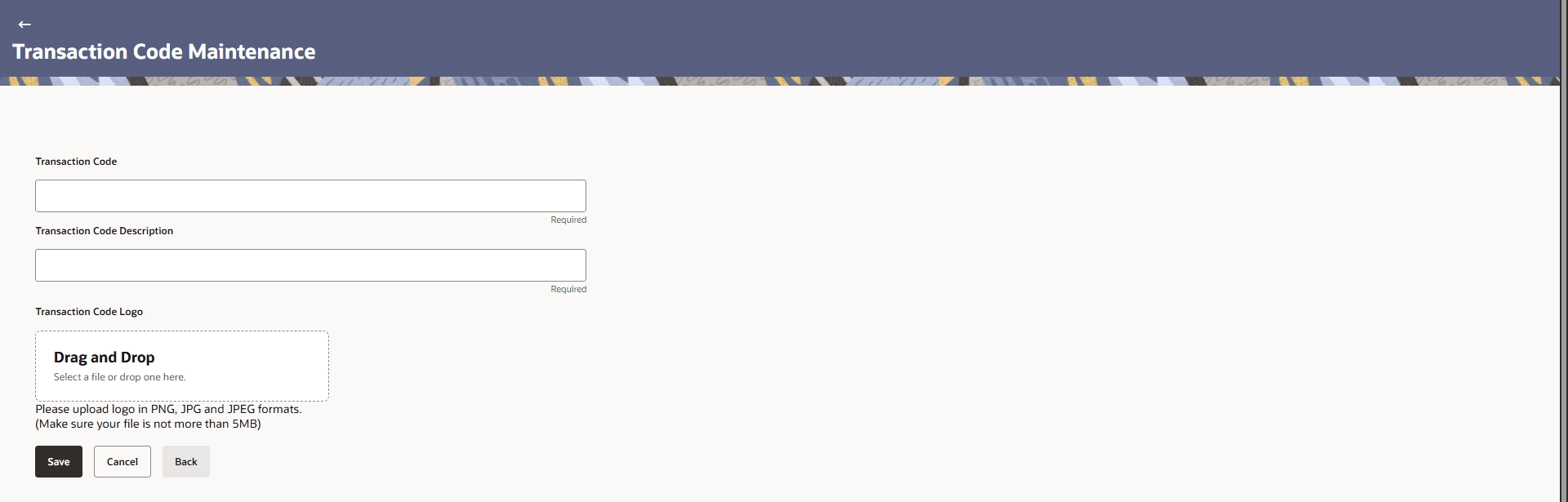
- Click Create.The Transaction Code Logo Maintenance - Create screen appears.
Figure 29-1 Transaction Code Logo Maintenance - Create
Note:
The fields which are marked as Required are mandatory.For more information on fields, refer to the field description table.
Table 29-1 Transaction Code Logo Maintenance - Create - Field Description
Field Description Transaction Code Specify the unique transaction code for which the logo mapping is to be created. Transaction Code Description Specify the description of the transaction code to help identify its purpose. Transaction Code Logo This field allows the user to upload a logo associated with the transaction code using drag-and-drop or file selection.
Parent topic: Transaction Code Logo Maintenance