22.12 Initiate Islamic Outward Guarantee/Stand By LC - Attachments

This topic provides the systematic instructions to capture the LC Attachments details in the application.

Displays the list of documents presented to initiate the Outward Guarantee.

To Attach Documents:

  1. Specify the Attachments details.

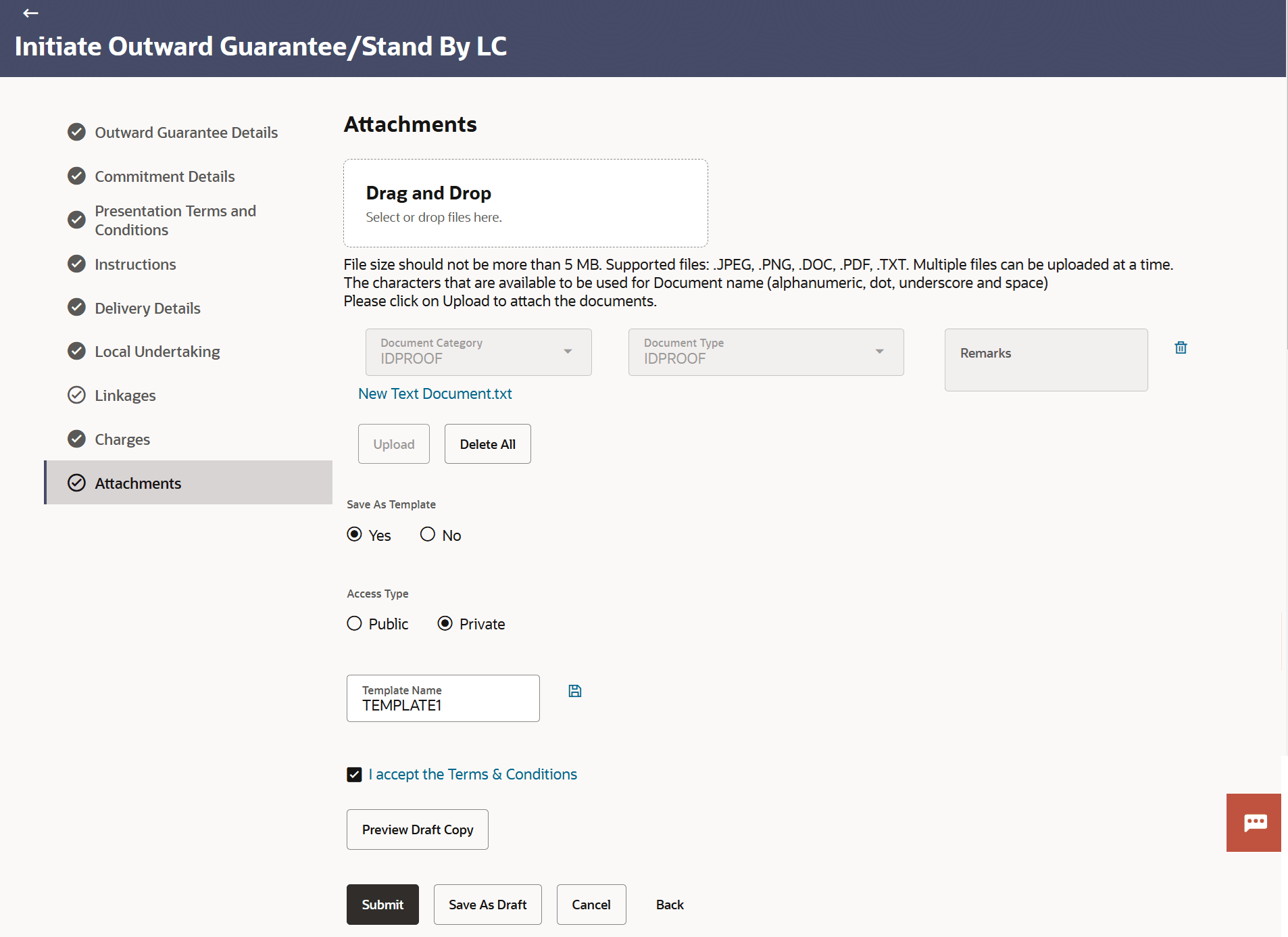
    Figure 22-16 Initiate Outward Guarantee/Stand By LC - Attachments


    Note:

    The fields which are marked as Required are manadatory.

    For more information refer to the field description table below:

    Table 22-15 Attachments - Field Description

    Field Name Description
    Drag and Drop Click to browse and select the file to be uploaded or drag and drop the file to be uploaded.
    Document Category Select the category of the document uploaded.
    Document Type Select the type of the document uploaded.
    Remarks Displays the notes added, if any, for attaching the document.
    Delete Click the icon to remove the attached document.
    Document Name Displays the name of the attached documents.

    Displays the link to download the attached document.

    Save As Template Options to save the transaction as template.

    The options are:

    • Yes
    • No
    Access Type Indicates the type of access for the template.

    The options are:

    • Public
    • Private
    This field is enabled if the Yes option is selected in Save as Template.
    Template Name The name using which template is stored and can be used in future.
  2. Click Drag and Drop to browse and select the required document present on your computer.
    The Attach Document popup window appears
  3. Select the required document present on your computer to upload.
  4. Click Upload to upload document.
  5. Click Delete to remove the attached document.
  6. Click Delete All to delete all the attachments.
    1. In the Save as Template field, select Yes, if you want to save the transaction as template.
    2. If you select Yes, In the Access Type field, select the appropriate option.
    3. In the Template Name field, enter the name of the template.
  7. Select the I accept the Terms and Conditions check box to accept the Terms and Conditions.
  8. Click Preview Draft Copy to have a preview of draft.
  9. Click Submit.
    The transaction is saved and the Initiate Islamic Outward Guarantee/Stand By LC – Review screen appears.

    It displays all the sections with their respective fields namely Outward Guarantee Details, Commitment Details, Presentation Documents and Undertaking Terms and Conditions, Delivery Details, Local Undertaking, Linkages, Expiry & Extension Instructions, Charges, Commissions and Taxes and Attachments with an option to edit them individually.

  10. Perform any one of the following actions:
    • Verify the details, and click Confirm.

      The success message initiation of Outward Guarantee appears along with the reference number. Click OK,to complete the transaction.

      Click Save As Draft, system allows transaction details to be saved as a template or draft. (For more details, refer Save As Template or Save As Draft sections.)
    • Click Cancel to cancel the transaction.

      The Dashboard appears.

    • Click Back to go back to previous screen.