22.13 Save as Template
This topic provides the systematic instructions to save Outward Guarantee application as a Template.
User can save Outward Guarantee application as a Template so that same can be
used for creation of similar Guarantee, if required in future. The application allows the
template access as public or private if saved as template.
- Public: A template marked as ‘Public’ is visible to all the users mapped to the Party ID for which the user has created the template. All such users will only be able to view and use this template, however they will not be able to edit or delete the template. Only the creator of the template is allowed to edit or delete the template.
- Private: A template marked as ‘Private’ is available to only the creator of the template. Only creator of the template can use the template while initiating Guarantee and modify or delete such templates.
User can search the saved Outward Guarantee template by template name in search
tab. The Outward Guarantee applications earlier saved as template can also be saved as draft
while initiating an Outward Guarantee.
Note:
User cannot save application with attached document as Template.To save Guarantee application as template:
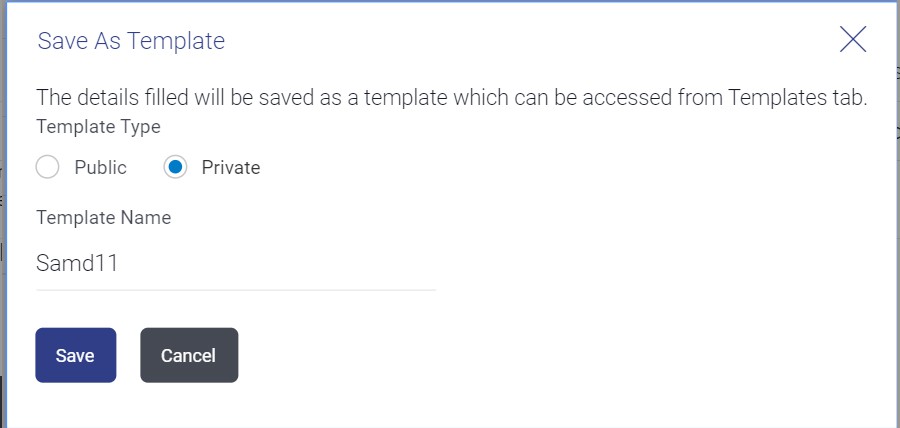
- Click Save As Template and then select Template option.The Save As Template screen appears.
For more information refer to the field description table below:
Table 22-16 Field Description
Field Name Description Template Type Select the type of access for the template. The options are:
- Public: A template marked as ‘Public is visible to all the users mapped to the Party ID of the user who created the template. All such users will only be able to view and use whereas they will not be able to edit and delete template. Only the creator of the template is allowed to edit or delete the template.
- Private: A template marked as ‘Private’ is available to only the creator of the template. Only creator of the template can use while initiating Guarantee and modify or delete such template.
Template Name Specify the name of the draft template.
Parent topic: Initiate Islamic Outward Guarantee/Stand By LC