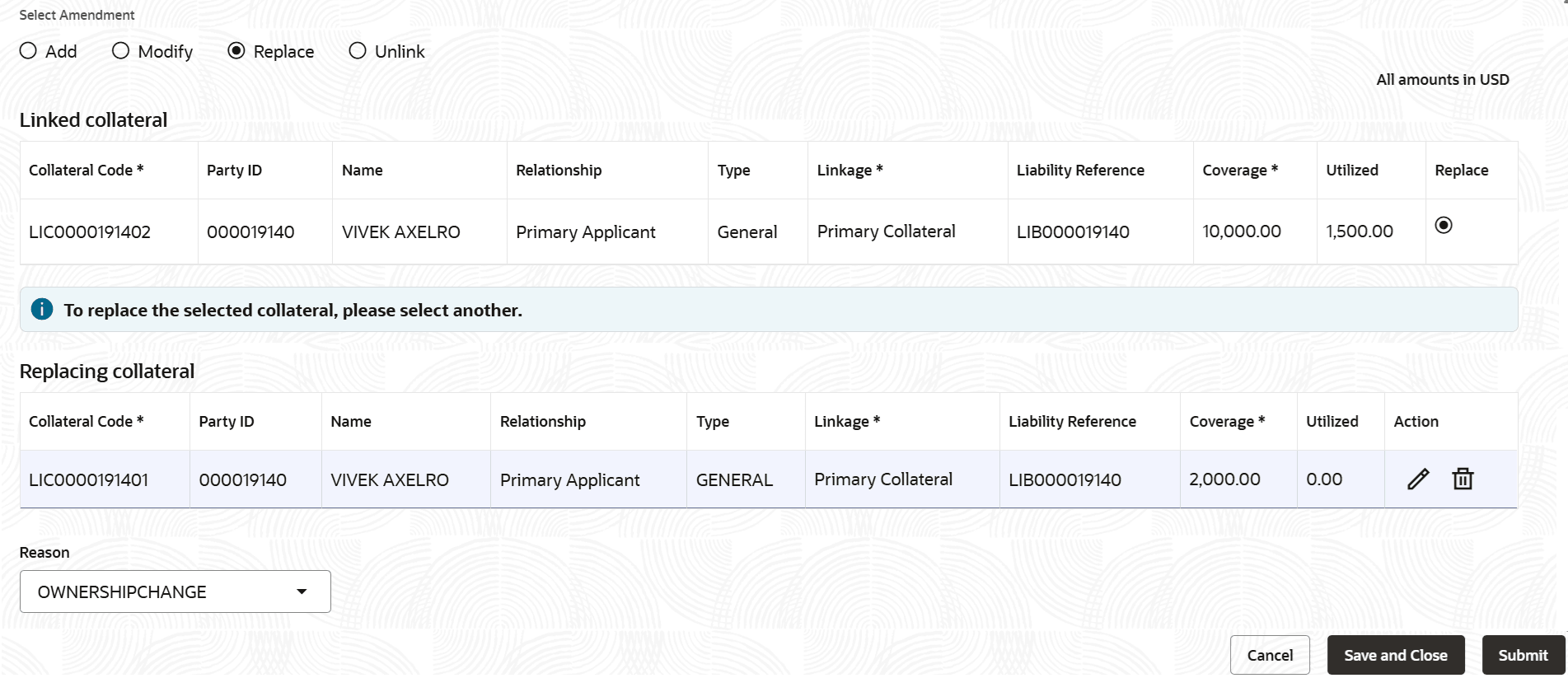
3.5.18.2.3 Replace Collateral
This topic explains the systematic instructions for adding a collateral to the loan account.
To replace a collateral:
Note:
The fields marked as Required are mandatory.- From the Select Amendment field, select Replace.In the Linked collateral section, the Replace option is enabled.
- In the Linked collateral and Replacing collateral sections, perform the required actions.
Table 3-59 Modify Collateral – Field Description
Field Description Linked collateral This section displays the linked collateral details. Collateral Code Displays the collateral code to linked to the account. Party ID Displays the party ID linked to the collateral. Name Displays the party name. Relationship Displays the relationship of the party. Type Displays the collateral type. Linkage Displays the linkage type for the collateral. The possible options are: - Primary Collateral
- Secondary Collateral
Liability Reference Displays the reference number for the liability. Coverage Specify the coverage amount. Utilized Displays the utilized amount. Replace Click the option to replace the linked collateral. Replacing collateral This section displays the limit details which can be replaced with the existing linked limit. Note:
This section is displayed if the user clicks the Replace option in the Linked limit section. Also, an information to select another limit is displayed above this section.Collateral Code Select the collateral code to linked to the account. The drop-down list displays the collateral code, party name, collateral type, and collateral amount.
Party ID Displays the party ID linked to the collateral. Name Displays the party name. Relationship Displays the relationship of the party. Type Displays the collateral type. Linkage Select the linkage type for the collateral. The options are: - Primary Collateral
- Secondary Collateral
To enable the field, user should double click the field or click Edit from Action field.
Liability Reference Displays the reference number for the liability. Coverage Specify the coverage amount. Utilized Displays the utilized amount. Action Displays the following icon:  : Click to save the details added or modified. This icon is displayed only after the required mandatory details are specified.
 : Click to close the row added. This icon is displayed only after the required mandatory details are specified.
 : Click to edit the limit ID and expiry date of the limit. Once all the required mandatory details are specified, this icon is not displayed.
 : Click to delete the entry.
Reason Select the reason for replacing the limit.
Parent topic: Manage Loan Securities - Collateral