3.5.17 Sanctioned Amount Revision
User can initiate a top-up by capturing required details and proceed with steps required for credit appraisal before submitting the final application using the Sanctioned Amount Revision screen.
To revise the sanctioned amount:
Note:
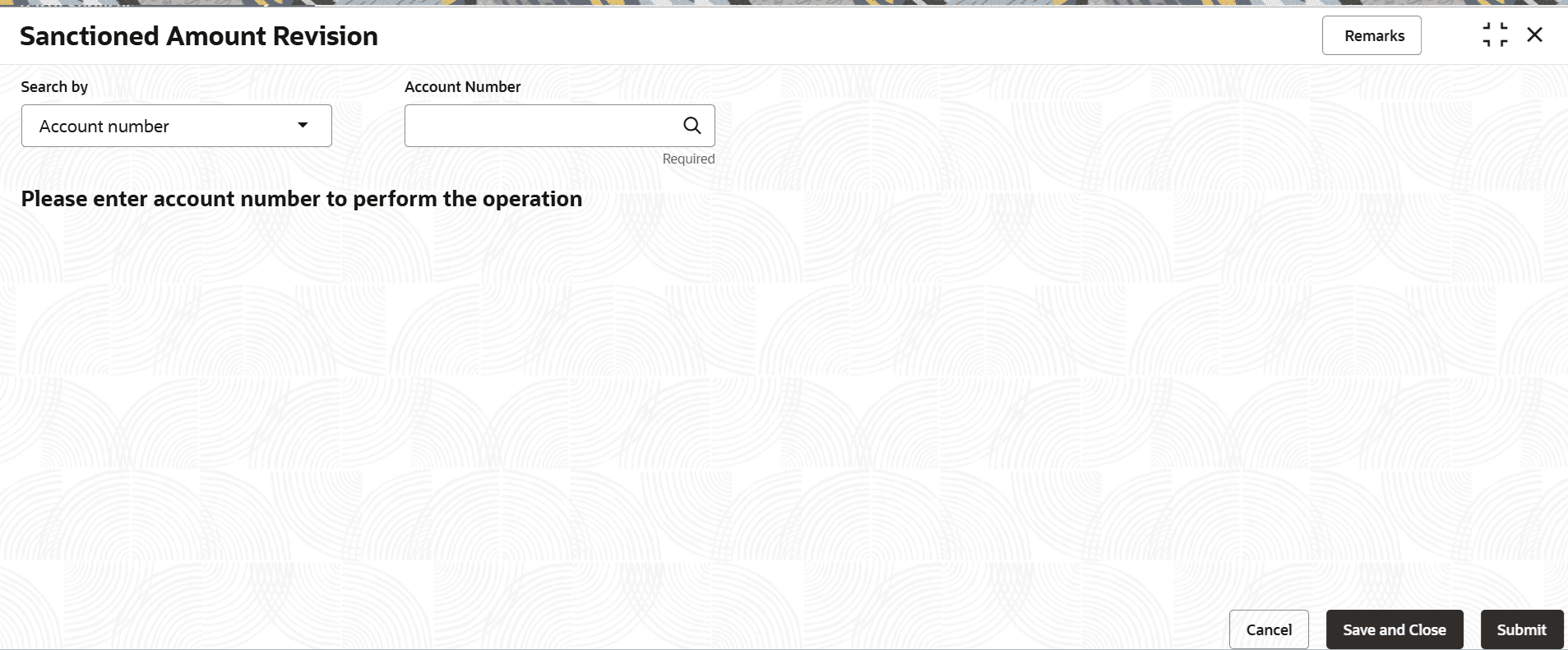
The fields marked as Required are mandatory.- On the Homepage, from Retail Lending Services mega menu, under Accounts, click Sanctioned Amount Revision. User can also open the screen by specifying Sanctioned Amount Revision in the search icon bar and selecting the screen.The Sanctioned Amount Revision screen is displayed.
- Perform the required action, based on the option selected from the
Search by field.
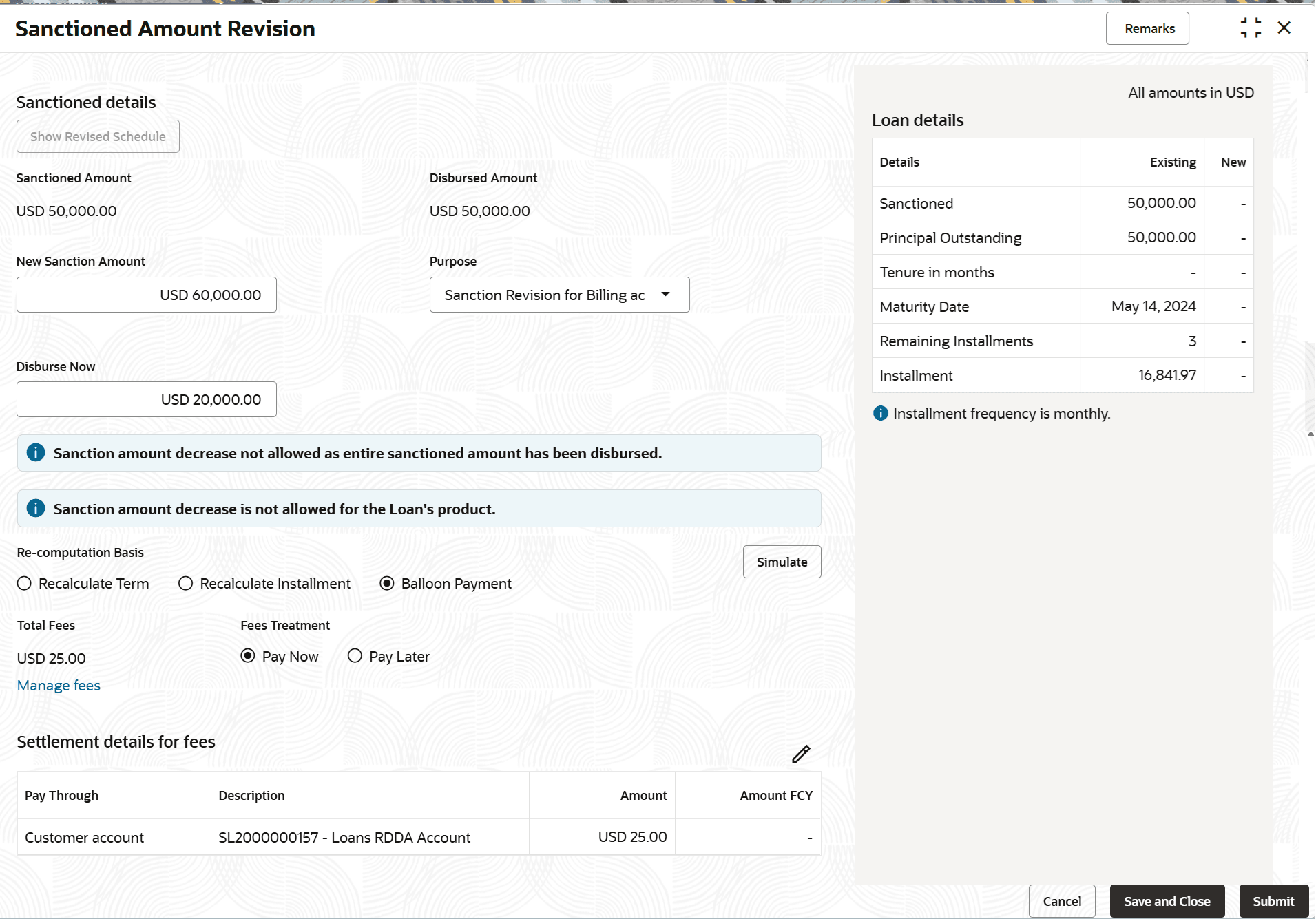
Figure 3-77 Sanctioned Amount Revision - Revised Amount Details
Note:
A user is not allowed to decrease a sanctioned amount, if the previously sanctioned amount is fully disbursed. A message too is displayed on the screen specifying the same. - On the Sanctioned Amount Revision screen, specify the fields. For more information on fields, refer to field description table below:
Table 3-52 Sanctioned Amount Revision – Field Description
Field Description Search by Users can search for an account number by using any of the available search criteria. The account number is set as the default search option. Users can specify the account number directly in the adjacent field or search for an account number by clicking the Search icon. Users can also search for the specific account number by providing customer ID, account number, or account name.
Other search options available in the Search by field are Customer ID, Tax Identification Number, Mobile Number, and Email.A specific customer ID can be searched by providing the customer name or customer ID. If Tax Identification Number, mobile, or email IDs are chosen to find an account number, the respective IDs have to be input entirely in the adjacent field for the system to display the account number. For a given search criteria, multiple account numbers may be linked.
For example, two or more account numbers can be linked to a single mobile number. In such cases, the system displays all the account number matches and the user can select the relevant account number on which to perform a servicing operation.Sanctioned details This section displays the detail of the sanctioned amount. The Show Revised Schedule button is enabled, after user clicks the Simulate button next to the Re-computation Basis field..
Sanctioned Amount Displays the sanctioned loan amount. Disbursed Amount Displays the amount disbursed from the sanctioned amount. New Sanctioned Amount Specify the new loan amount to be sanctioned. Purpose Select the purpose for sanctioning new amount from the list. Disburse Now Specify the amount to be disbursed now from the newly sanctioned amount. Note:
This field is displayed and enabled if the New Sanctioned Amount is more than the Sanctioned Amount.Loan details This widget displays the loan details along with existing and new values. Note:
This widget is displayed after the user specifies the amount in the Disburse Now field.Details Displays the loan details. Existing Displays the existing amount based on the earlier disbursed amount. New Displays the new amount based on the newly disbursed amount. Re-computation Basis Select the re-computation basis from the list. The options are: - Recalculate Term - The installment amount remains same as before the operation and term is recomputed.
- Recalculate Installment - The term remains the same as before and Installment amount is recomputed.
- Balloon Payment - Neither the term nor the installment is changed, anything excess will be adjusted
Total Fees Displays the total fees applicable for the disbursed amount. The Manage Fees link is displayed below this field. For more information, refer .
Note:
This field is displayed after the user specifies a value in the New Sanctioned Amount field.Fee Treatment Displays the action to be taken for fee treatment. The options are: - Pay Now
- Pay Later
Note:
This field is displayed after the user specifies a value in the New Sanctioned Amount field.Settlement details for fees This section displays the existing settlement details. If no settlement details are present for the account, then user can add new settlement details using the Add New Settlement button. User can settle by Customer Account and Other Customer's Account. For more information, refer Settlement Details. Note:
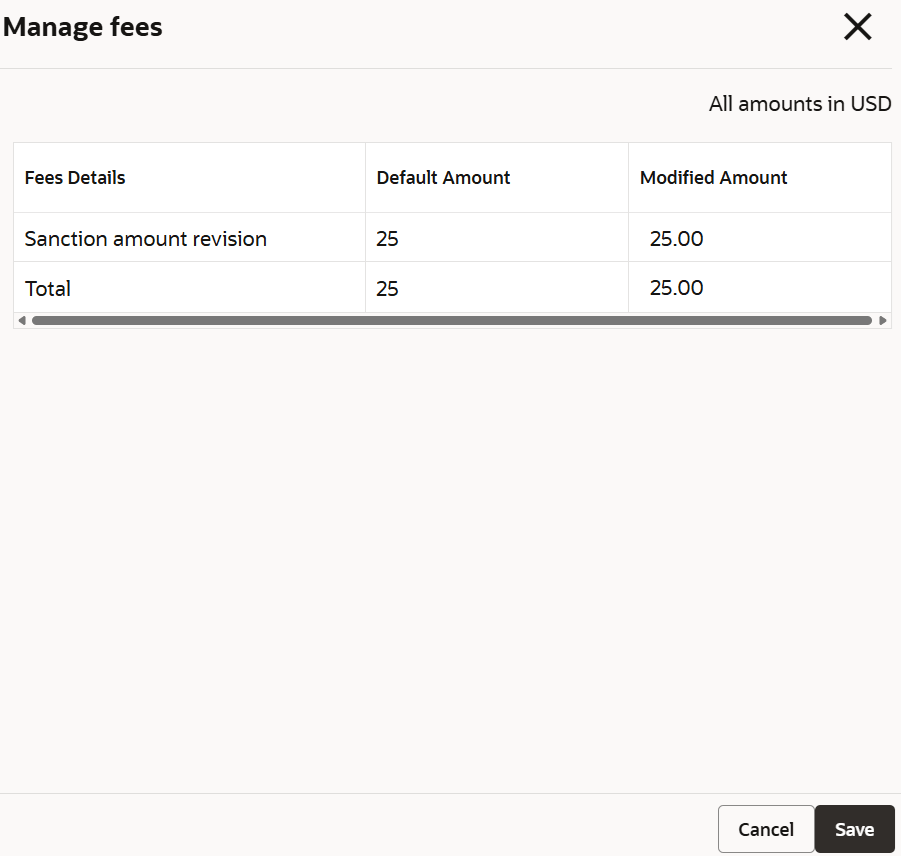
This section is displayed after the user specifies a value in the New Sanctioned Amount field and the Pay Now option is selected from the Fees Treatment field.To manage fees:- Click the Manage Fees link.
The Manage Fees section is displayed.
For more information on fields, refer to field description table below:Table 3-53 Manage Fees - Field Description
Field Description Fees Details Displays the details of the fees applicable for the account. Defaulted Amount Displays the fee amount defaulted. Modified Amount Specify the amount to be paid. - Click Save.
To view the revised schedule:- Select an option from the Re-computation Basis field and click Simulate.
The Show Revised Schedule button is enabled in the Sanctioned details section.
- Click Show Revised Schedule.
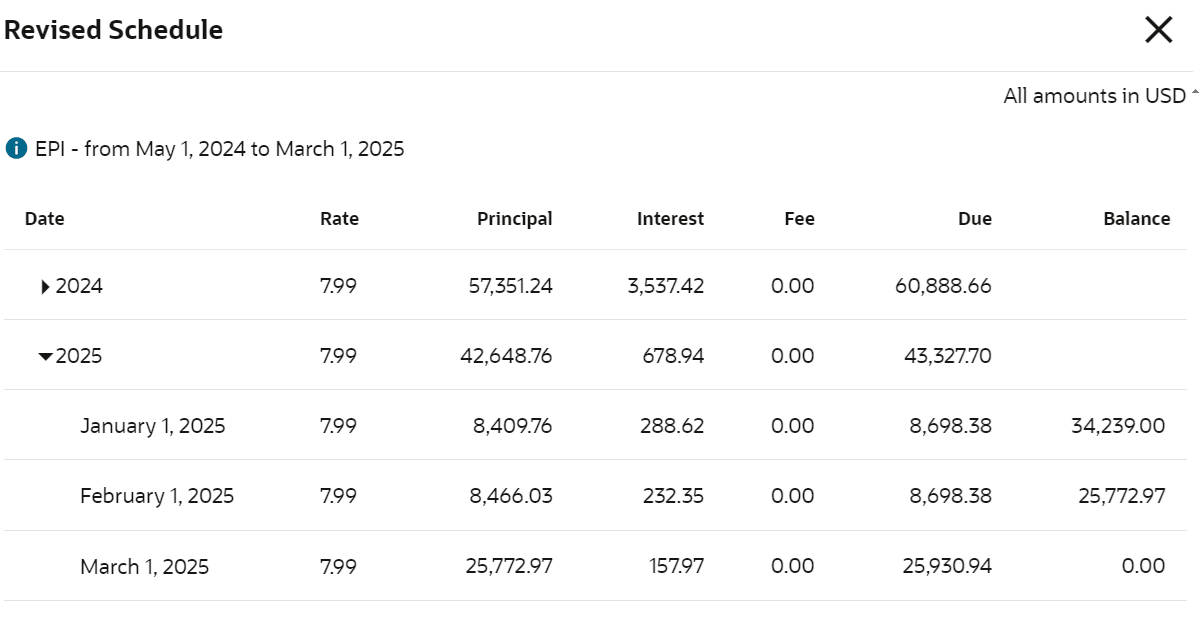
The Revised Schedule section is displayed.
For more information on fields, refer to field description table below:
Table 3-54 Revised Schedule - Field Description
Field Description Date Displays the year and the dates in a year when the arrear is raised. This column lists the years for which the schedule is generated. If you click the Expand icon corresponding to a particular year, the monthly date schedule list for a year displays.
Rate Displays the rate of interest. Principal Displays the amount of principal arrears. Interest Displays the amount of interest. Fees Displays the amount of fees. Due Displays the amount due. Balance Displays the balance amount after every installment.
Parent topic: Accounts