3.8 Define Notification Messages

This topic provides the systematic instructions to define notification message.

The Outgoing Message Browser also displays the notification messages. Every time the database layer receives a notification message, it updates the Outgoing Message Browser to display the same.

At the branch level, maintain notification codes for each branch using the Notifications Installed screen.

Specify the User ID and Password, and login to Homepage.
  1. On the Homepage, type GWDNTFIN in the text box, and click the next arrow.
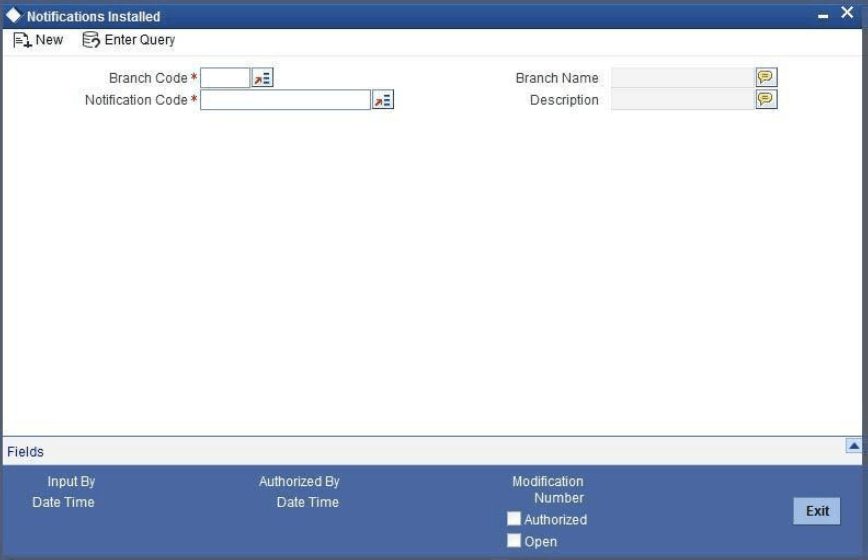
    The Notifications Installed screen is displayed.

  2. On Notifications Installed screen, specify the fields.
    For information on fields, refer to Table 3-15:

    Table 3-15 Notifications Installed - Field Description

    Field Description
    Branch Code Select a Branch Code to assign a notification code. Once you select the branch code, the corresponding description is displayed.
    Branch Name The system displays Branch Name when the Branch Code is selected.
    Notification Code Select a Notification Code to link with the branch from list of values. This field generates notification for the entire branch.

    In addition to maintaining a Notification Code for a given branch, user can also specify a topic or a queue to which the notification messages should be sent.

    User can define a topic/queue for a given branch and notification code in the Notifications Enroute screen.

    Description The system displays Description when the Notification Code is selected.