3.7.1 Query Outgoing Message Browser
This topic provides the systematic instructions to query outgoing message browser.
User can query the list of outgoing messages using the Outgoing
Message Browser screen.
Specify the User ID and Password, and login to Homepage.
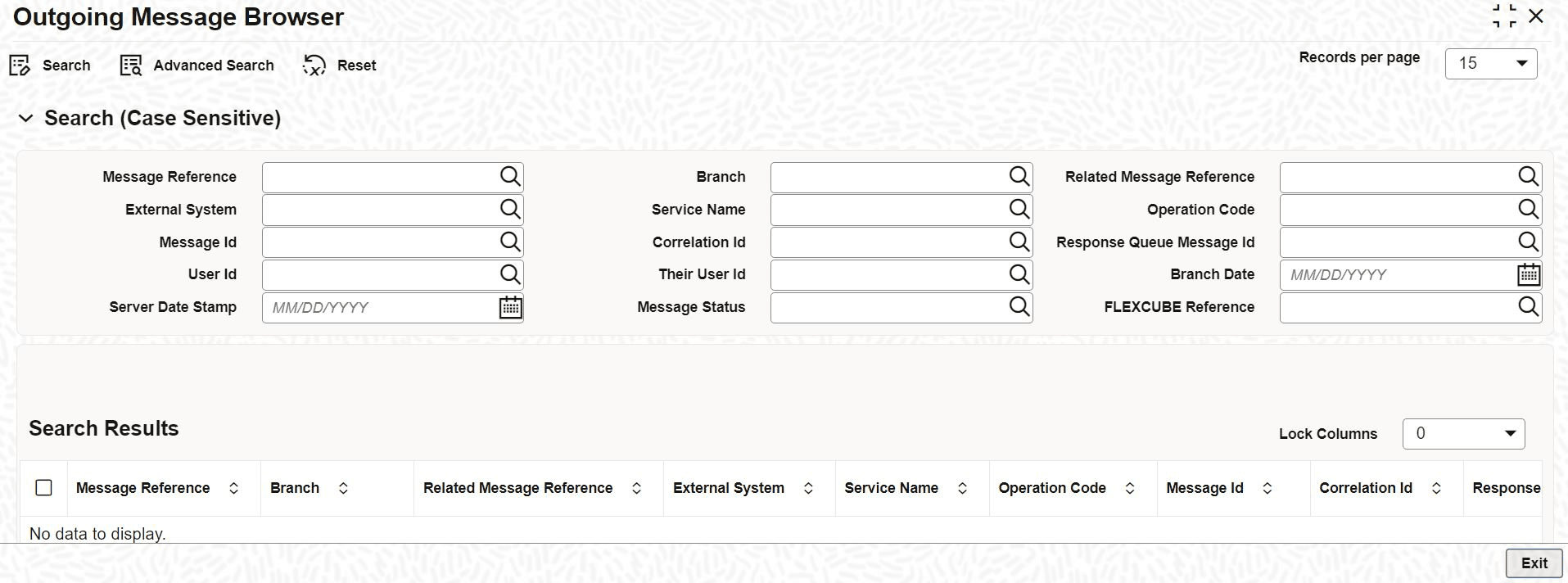
- On the Homepage, type GWSOTBRW in the text box, and click the next arrow.The Outgoing Message Browser screen is displayed.
Specify the criteria (Message Reference Number, External System, Service Name etc) for outgoing messages. The Search Result list displays the messages that matches the query.
Parent topic: Outgoing Message Browser