1.4.4 View Customer Account Balance on F11 Key Press
This topic describes about the view customer account balance on F11 key press.
User can view the balance and account status of a customer account in the Customer Account Balance View by pressing hot key (F11) on the Customer Account field of any screen.
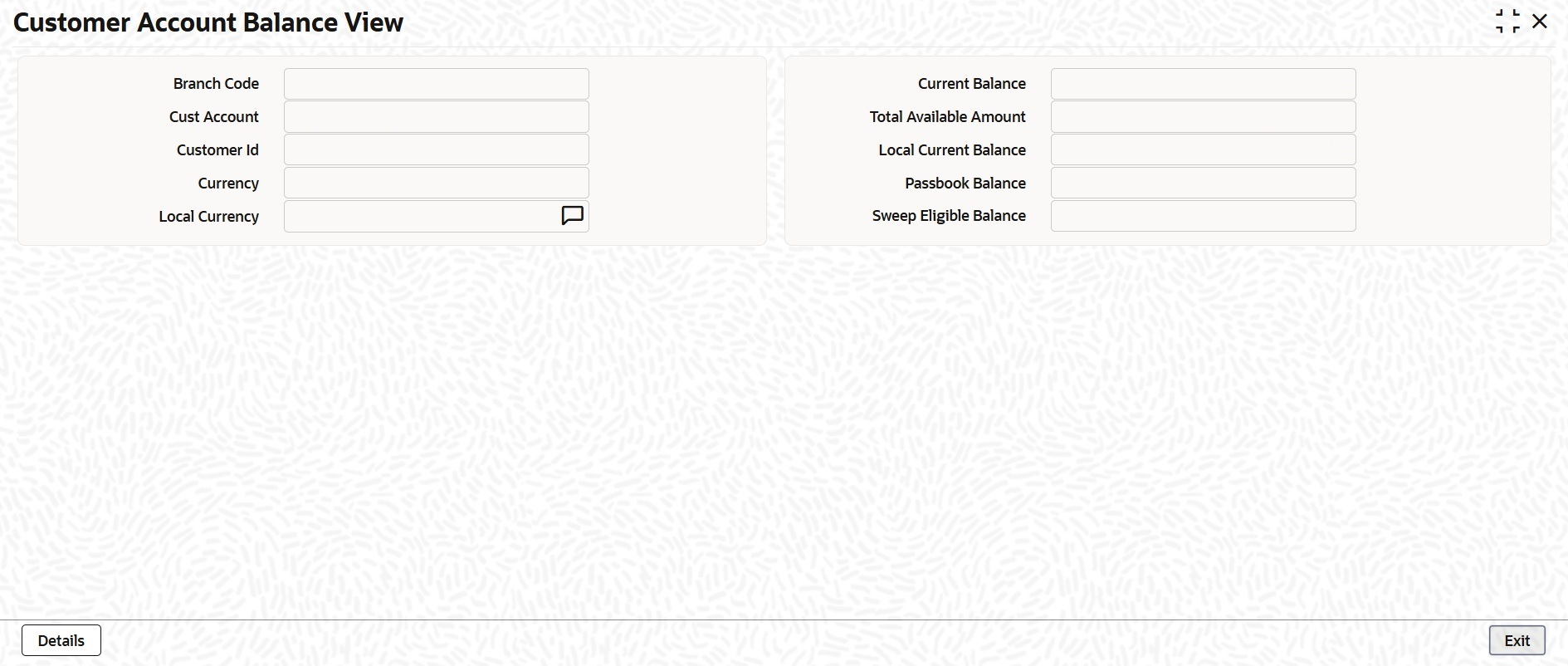
- Branch Code
- Customer Account
- Customer ID
- Local Currency
- Current Balance
- Total Available Balance
- Local Currency Balance
- Passbook Balance
- Sweep Eligible Balance
Note:
- If a product processor is deployed standalone (without FCUBS), pressing the hot key (F11) on a screen, the Customer Account Balance View (STDCOBAL) screen (Common Core screen) will display the account balance details for that customer.
- If a product processor is co-deployed (with FCUBS), pressing the hot key (F11) on an FCUBS screen, the Customer Account Balance View (STDCUBAL) screen (FCUBS screen) will display the account balance details for that customer.
- If a product processor is co-deployed (with FCUBS), pressing the hot key (F11) on a screen that does not belongs to FCUBS, the Customer Account Balance View (STDCOBAL) screen (Common Core screen) will display the account balance details for that customer.
Click Details button on the Customer Account Balance View (STDCOBAL) screen to open the Customer Account Balance screen. This screen consists of detailed information on customer’s balance. If the selected customer account is valid, the system displays the detailed balance information.
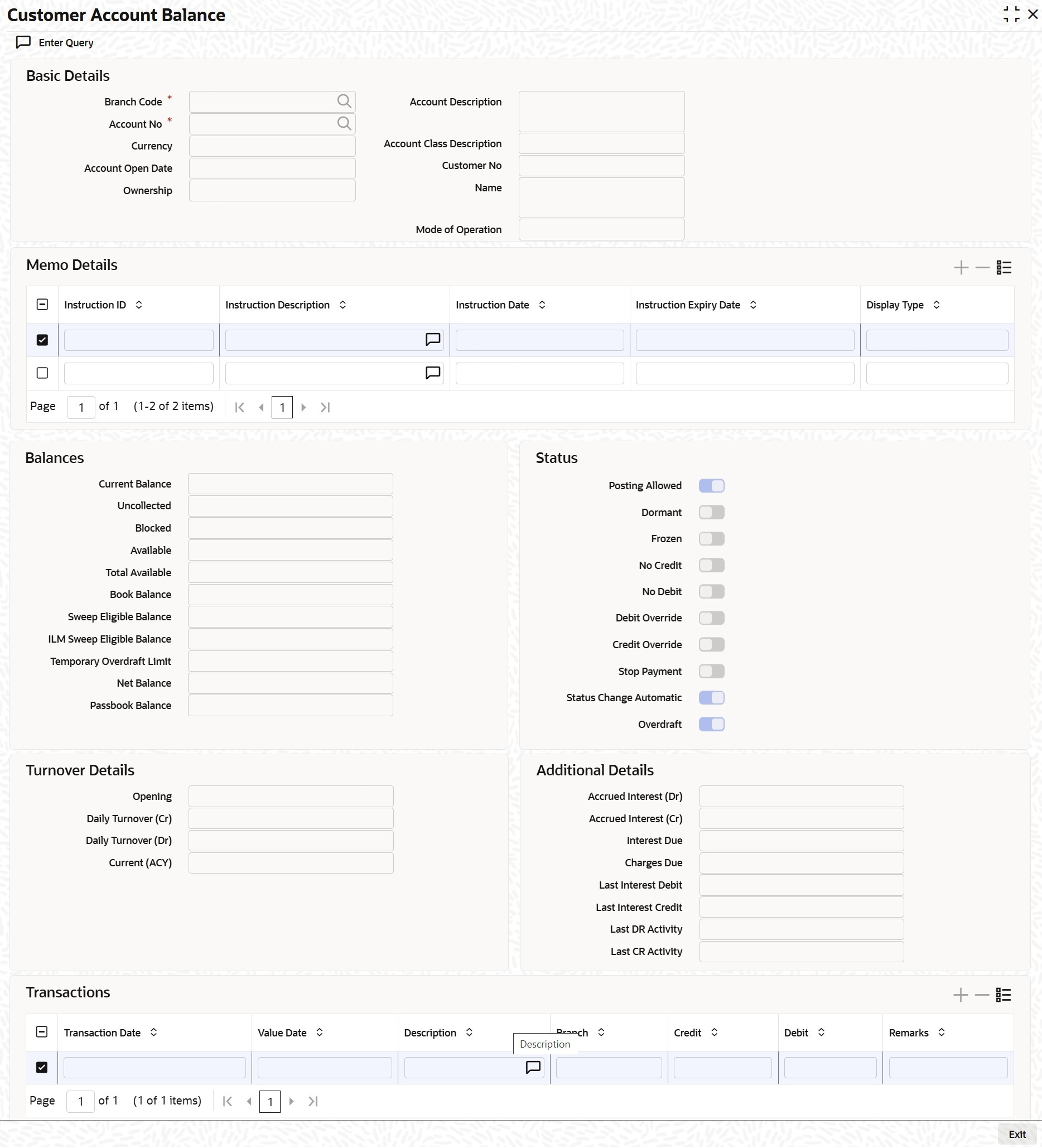
- Branch Code
- Account Number
- Currency
- Account Open Date
- Ownership
- Account Description
- Account Class Description
- Customer Number
- Name
- Mode of Operation
To view the details of a joint holder for an account and the mode of operation maintained at the account level, place the cursor on the Account Number field and press Ctrl+J. The system displays the Joint Holder screen.
- Instruction ID
- Instruction Description
- Instruction Date
- Instruction Expiry Date
- Display Type
- Current Balance
- Uncollected
- Blocked
- Available
- Total Available
- Book Balance
- Sweep Eligible Balance
- ILM Sweep Eligible Balance
- Temporary Overdraft Limit
- Net Balance
- Passbook Balance
User can check the last printed passbook balance while doing transaction by placing the cursor at account number field and pressing F11 hot key. A new screen will appear, displaying the last printed passbook balance along with the other details.
The system displays the Passbook Balance and current balance when hot key (F11) is pressed. However it does not mandate the teller to check passbook balance and current balance, which needs to be controlled operationally.
- Net balance = (Available Limit from Credit Line + Available Balance + TOD Limit + Day light limit + Utilized Line Amount of the Account +Withdraw able Uncollected funds) - (Minimum Balance)
- The minimum Balance will be considered only if it is less than the available balance. If the available balance is more than zero and less than the minimum balance, then the system considers available balance as zero.
- As the unauthorized debits and amount block are already considered for calculating the available balance, the unauthorized debits and amount block are not included in the formula for new net balance.
- The net balance will be in the account currency.
- Net balance is not applicable and will be empty if a valid non revolving line is linked to the customer account.
- The available amount that can be swept from the cover account will be derived based on the Sweep limit and Retain Minimum Balance field values. Sweep Eligible Balance field in the Amounts and Dates screen will be derived based on this value. For more information on how this field is derived, refer to the table in Cover Account Details section in this User Manual.
- Posting Allowed
- Blocked
- Dormant
- Stop Payment
- Frozen
- Status Change Automatic
- No Credits
- Debit Override
- Credit Override
- Sweep in Enabled
The system will capture the required information from the Transaction Inquiry screen and defaults the same information in transaction details.
- Opening
- Daily Turnover (Cr)
- Daily Turnover (Dr)
- Currency (ACY)
- Accrued Interest (Dr)
- Accrued Interest (Cr)
- Interest Due
- Charges Due
- Last Interest Debit
- Last Interest Credit
- Last DR Activity
- Last CR Activity
- Transaction Date
- Value Date
- Description
- Branch
- Credit
- Debit
- Remarks
Parent topic: External Entities Maintenance