1.4.5 View Customer Signature on F12 Key Press
This topic describes about the view customer signature on F12 key press.
The user can view the customer signature in account opening message on the Customer Signature View (SVDCOSGN) screen by pressing hot key (F12) on Customer Number field of any screen.
When the user presses the hot key (F12), the system will invoke the Customer Signature View screen to display the signatory details of the customer account, which will also include Account Opening Message.
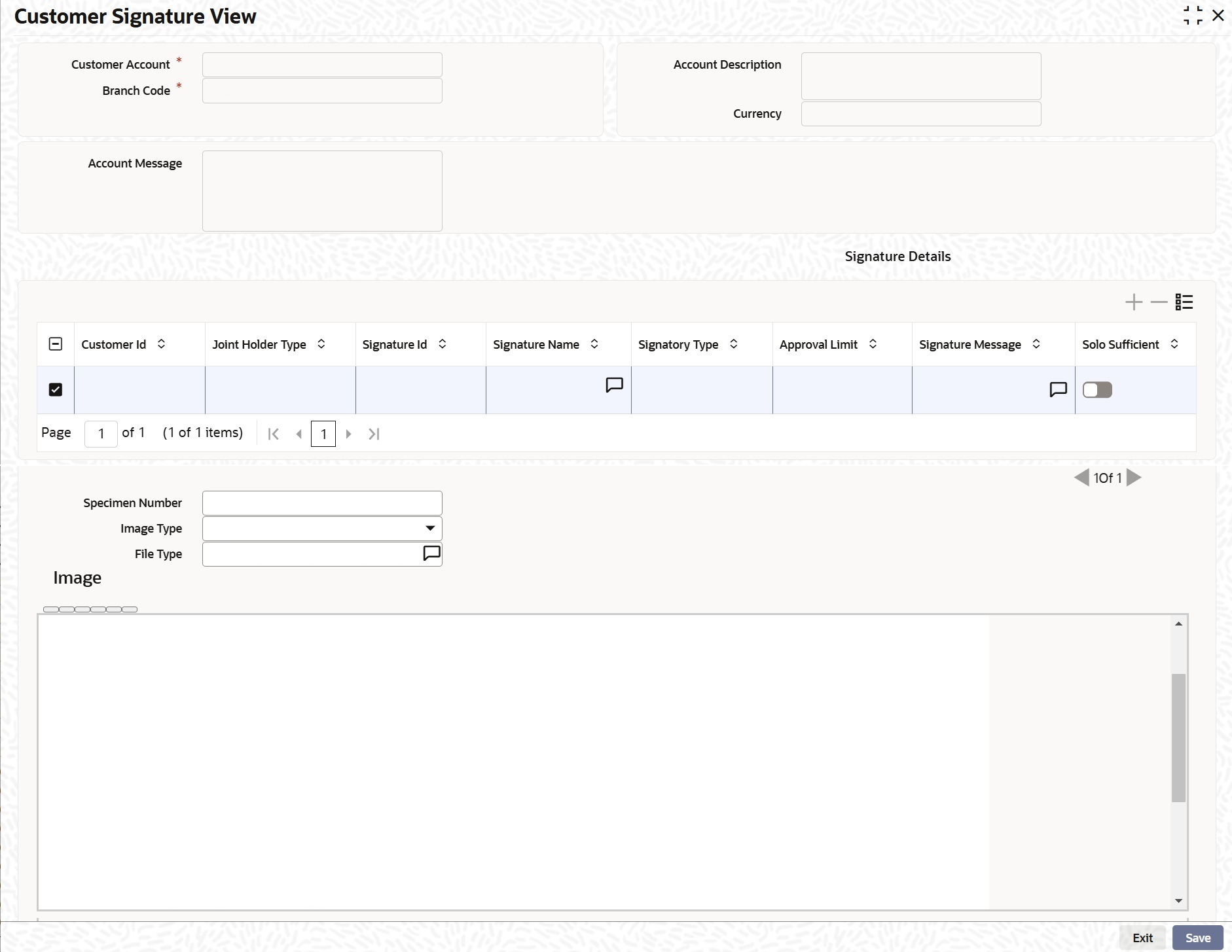
Along with the customer signature and image details the screen also displays the joint account holder details.
The following details are displayed here:
- Customer Number
- Branch Code
- Account Message
- Account Description
- Currency
The following details are displayed under Signature Details
Tab:
- Customer ID
- Joint Holder Type
- Signature ID
- Signature Name
- Signature Type
- Approval Limit
- Signatory Message
- Solo Sufficient
- Specimen Number
- Image Type
- File Type
- Signature Image
Note:
- If a product processor (PP) is deployed standalone (without FCUBS), pressing the hot key (F12) on a screen, the Customer Signature View (SVDCOSGN) (Common Core screen) will display the customer signatory details associated with that account.
- If a product processor is co-deployed (with FCUBS), pressing the hot key (F12) on an FCUBS screen, the Customer Signature and Image View (SVDIMGVW) screen (FCUBS screen) will display the customer signatory details associated with that account.
- If a product processor is co-deployed (with FCUBS), pressing the hot key (F12) on a screen that does not belongs to FCUBS, then the Customer Signature View (SVDCOSGN) (Common Core screen) will display the customer signatory details associated with that account.
Parent topic: External Entities Maintenance