1.4.6 View Customer Image on F10 Key Press
This topic describes about the view customer image on F10 key press.
User can view the customer images from any Customer Account field of any screen. After selecting the Customer Number and pressing hot key (F10).
When the user presses the hot key (F10), the system will invoke the Customer Signature and Image View (SVDCOIMG) screen to display the images of the customer linked to the account.
Figure 1-15 Customer Signature and Image View
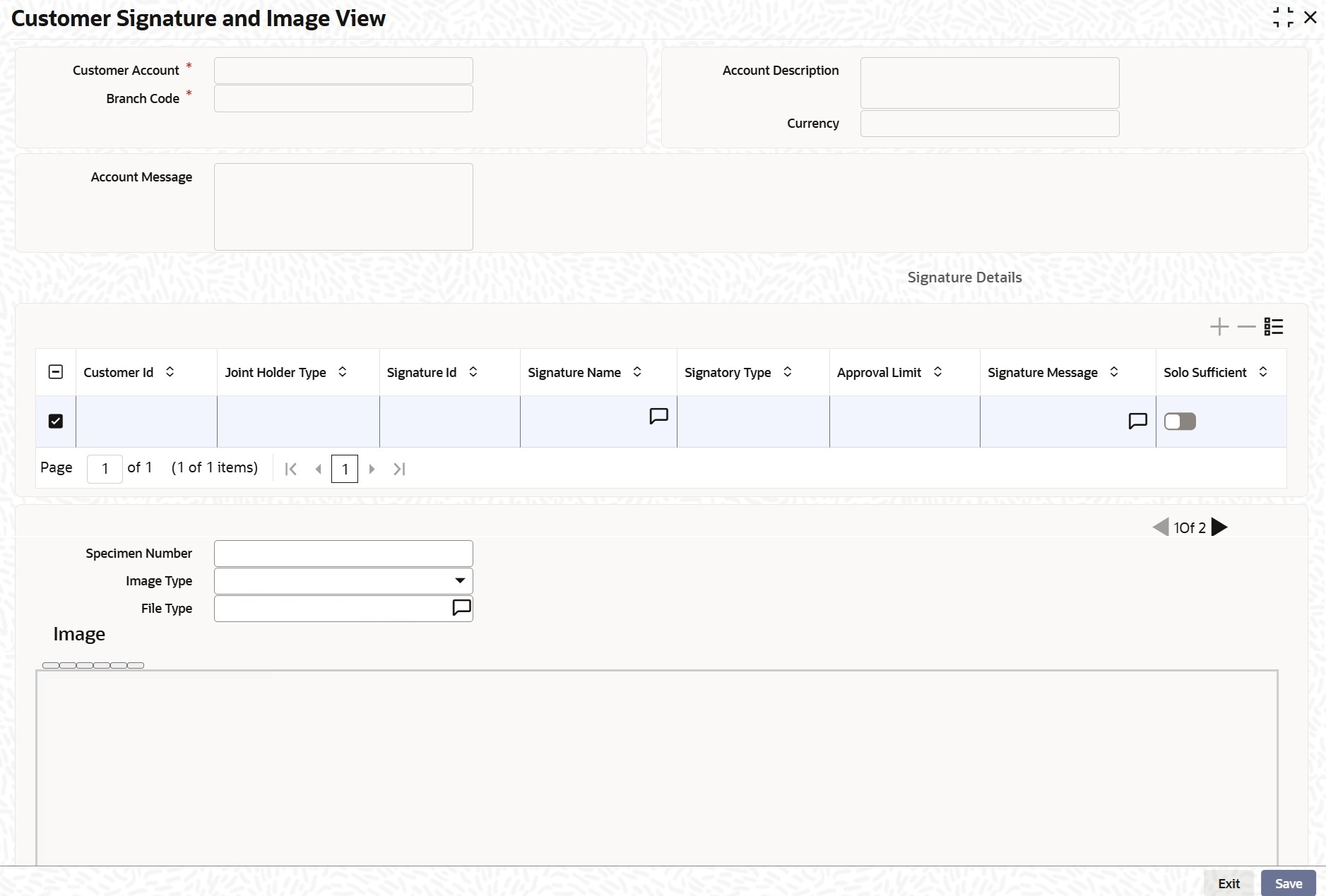
The system displays the first image by default. If there is more than one image linked to a customer account, then they would be displayed in different pages.
Each image is provided with the following buttons:
- Zoom In
- Zoom Out
- Rotate Clockwise
- Rotate Anticlockwise
- Flip Horizontal
- Flip Vertical
Note:
- If a product processor (PP) is deployed standalone (without FCUBS), pressing the hot key (F10) on a screen, the Customer Signature and Image View (SVDCOIMG) (Common Core screen) will display the customer image associated with that account.
- If a product processor is co-deployed (with FCUBS), pressing the hot key (F10) on an FCUBS screen, then the Customer Signature and Image View (SVDIMGVW) screen (FCUBS screen) will display the customer image associated with that account.
- If a product processor is co-deployed (with FCUBS), pressing the hot key (F10) on a screen that does not belongs to FCUBS, then the Customer Signature and Image View (SVDCOIMG) (Common Core screen) will display the customer image associated with that account.
Parent topic: External Entities Maintenance