2.3.1 Quick Search Section
This topic provides information on the quick search section, which allows users to locate applications efficiently.
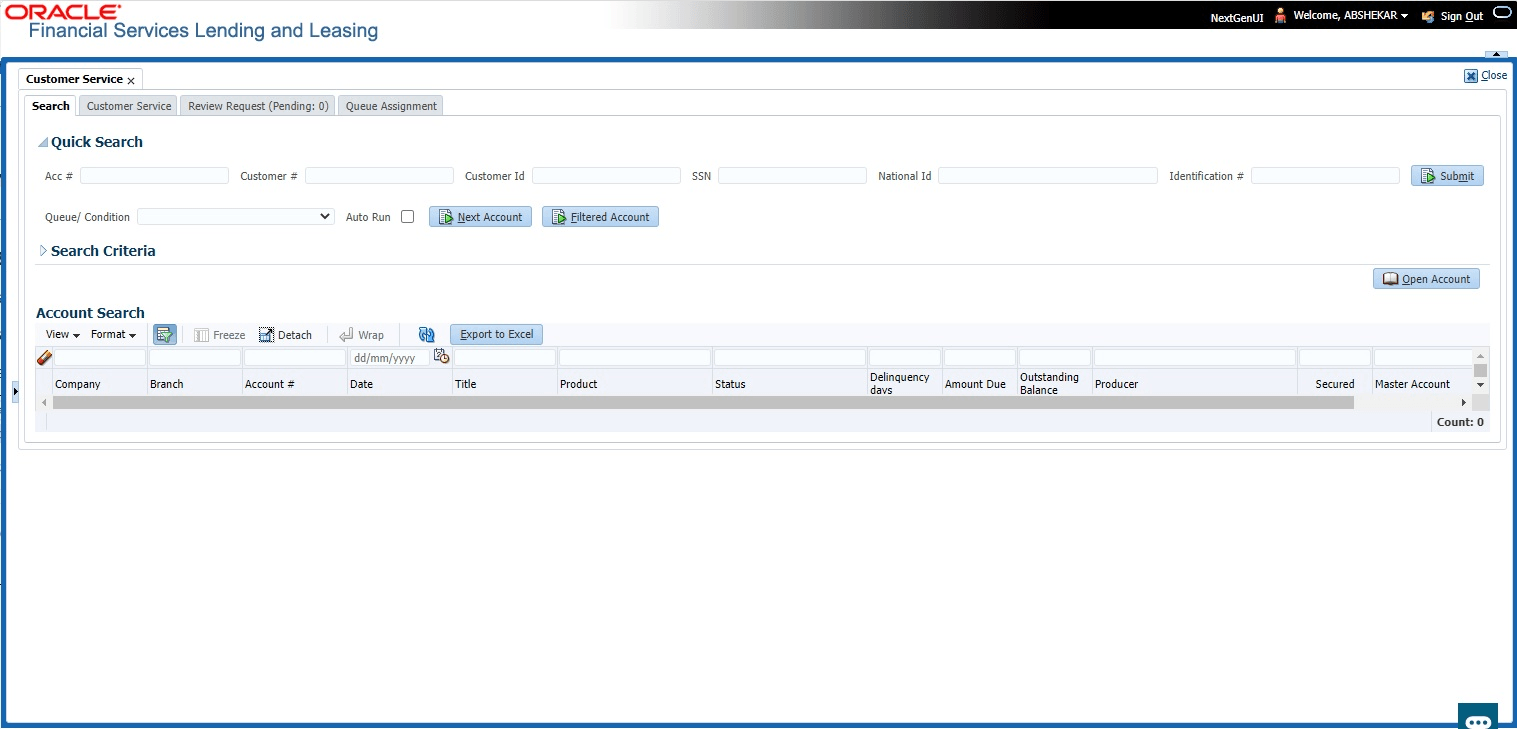
The Quick Search section in Customer Service screen enables User to load accounts using any one of the fields Account Number, Customer #, Customer Id, SSN, National Id, Identification #, or Queue/Condition.
To load an account using the Quick Search section
- On the Servicing, click Servicing. Under Servicing, click Servicing. Under Servicing, click Customer Service.
- In the Quick Search section’s Acc#/Customer #/Customer Id/SSN/National Id/Identification # fields, specify the corresponding details in the respective fields and click Submit.
- User can also search for accounts which are mapped to a particular Queue or Condition by selecting the same from Queue/Condition drop-down list and clicking Next Account button.
- Clicking Filtered Account opens the subsequent account fetched during a queue search and listed in Queue Assignment section.
- When the request to access an application comes from an external system,
user needs to check Auto Run and click Next button.
System displays the customer service screen for the respective Account.
To load an account from a queue
In the Quick Search section’s Queue field, select the queue user want to work with and click Next Account.
Parent topic: Searching for an Account and Customer