2.3.2 Search Using Customer Details
This topic provides information on searching using customer details.
There are different ways to search a customer account using the customer details.
To search for and load the customer details with the Search screen
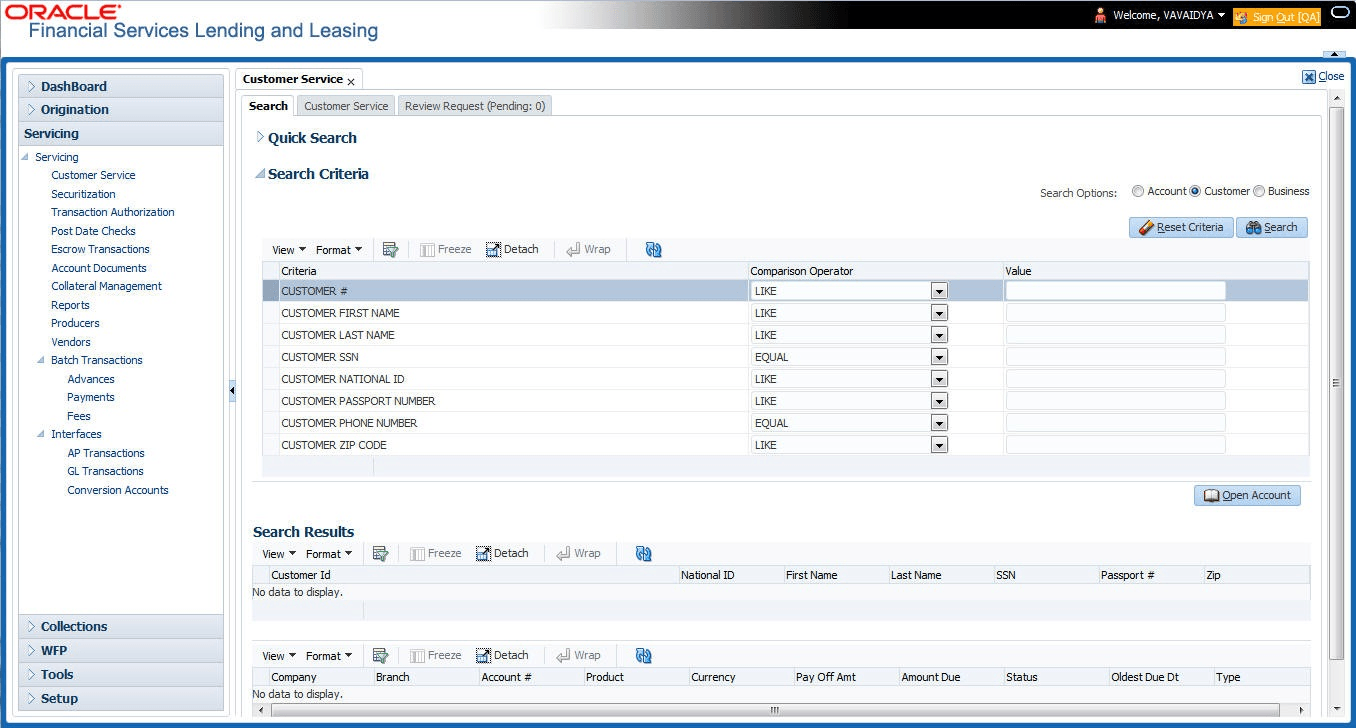
- On the Servicing, click Servicing. Under Servicing, click Servicing. Under Servicing, click Customer Service. Under Customer Service, click Search Criteria.
- Select Customer as a search option.
- On Search Criteria screen, use Comparison Operator and Value columns to create a search criteria to find the account using customer details. User can click Reset Criteria at any time to clear the Comparison Operator and Value columns.
- Click Search.
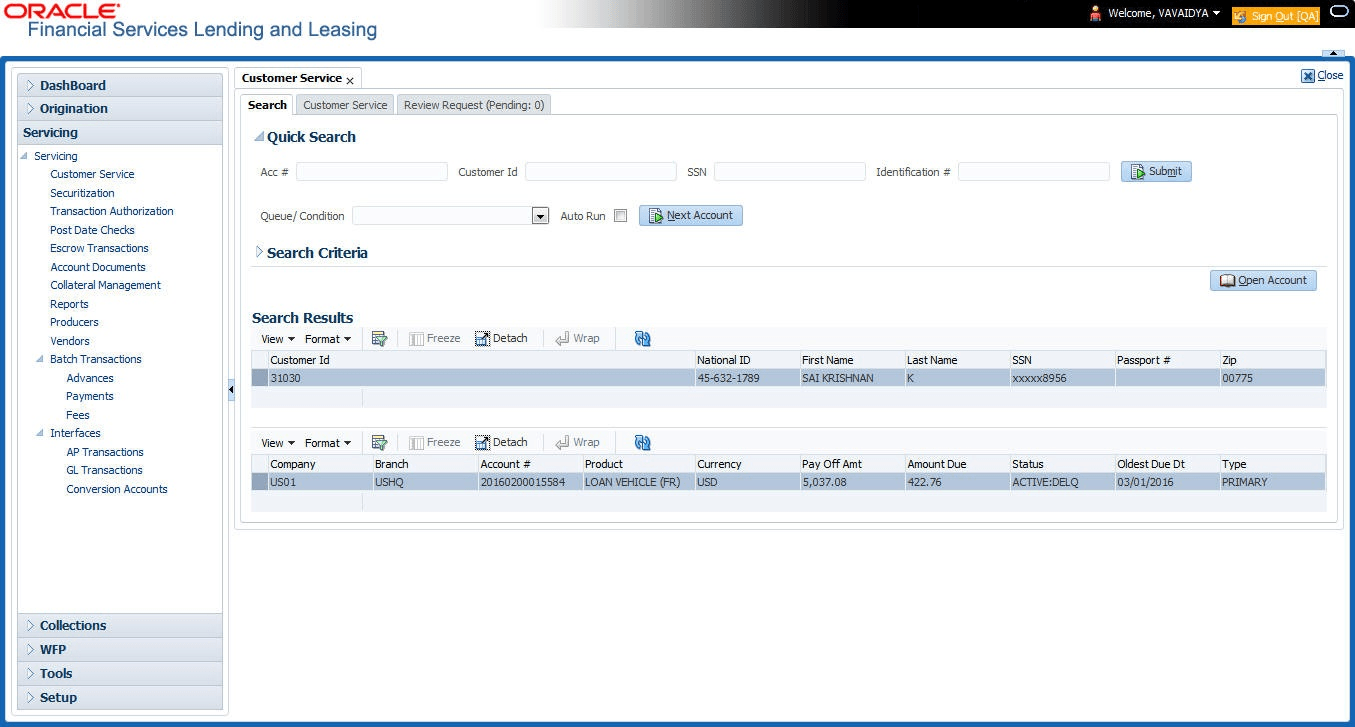
The system locates and displays all the accounts that meet user search criteria on Search Results screen.
- On the Search Results screen, view the following information for each
account:
Table 2-8 Search Results screen
Field Description Company Displays the company of the account. Branch Displays the branch of the account. Account # Displays the account number. Product Displays the Loan product of the account. Currency Displays the currency in which the account is operated. Pay Off Amt Displays the total pay off amount on the account. Amount Due Displays the total amount due on the account. Status Displays the status of the account. Oldest Due Dt Displays the oldest payment due date on the account. Type Displays the type of account. Also the Customer Details section below displays the Customer Information along with Addresses, Telecoms, Employments, and Tracking Attributes. User can click View to display the details in each section.
- On the Search Results screen, select the customer user want to
retrieve. The system displays all the accounts pertaining to that customer Id.
Select an account and click Open Account.
The system displays the account details on Customer Service tab.
Parent topic: Searching for an Account and Customer