2.3.3 Search Using Account Details
This topic provides information on search using account details.
To search for and load an account using the Search screen
- On the Servicing, click
Servicing. Under Servicing, click
Servicing. Under Servicing, click
Customer Service. Under Customer
Service, click Search
Criteria.
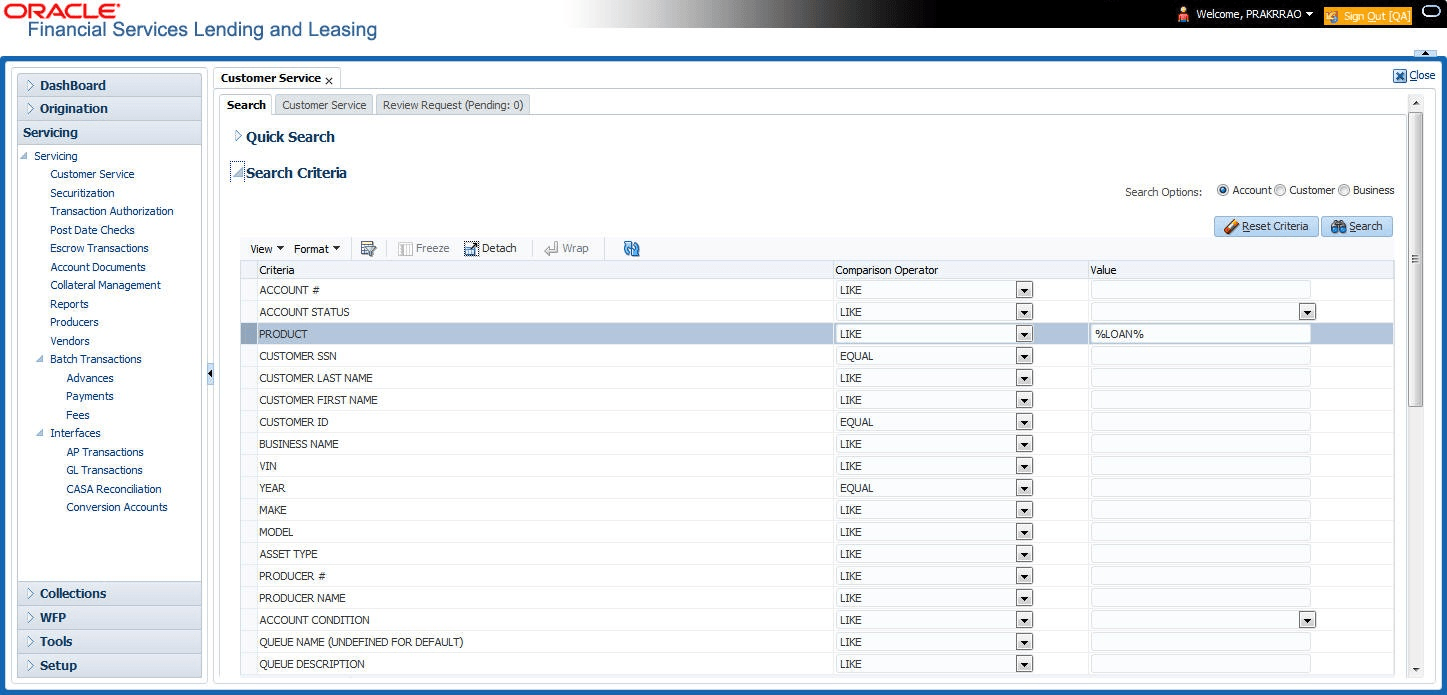
The Search Criteria screen displays.
- Select Account as a search option.
- On the Criteria screen, use the Comparison Operator and Value columns to create a search criteria to find an account. User can click Reset Criteria at any time to clear the Comparison Operator and Value columns.
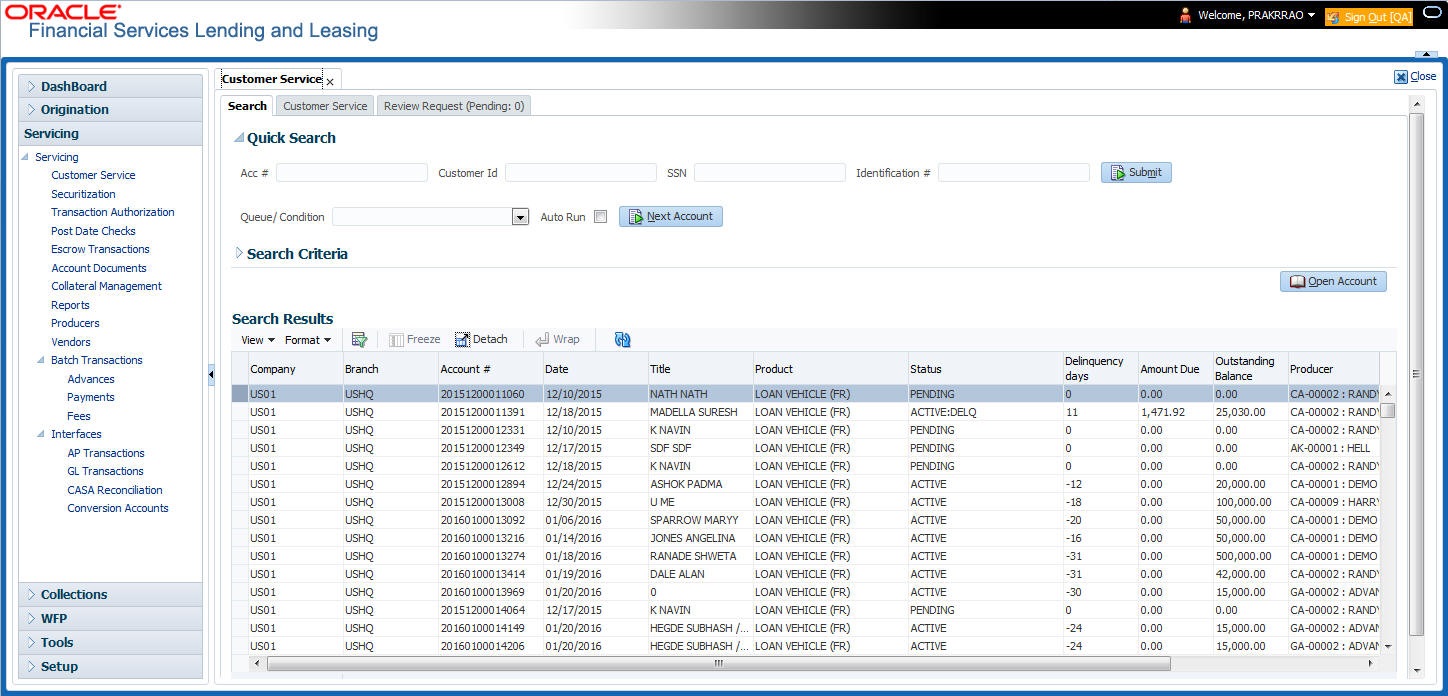
- Click Search. The system locates and displays all the accounts that meet user search criteria on Results screen.
- On the Search Results screen, view the following information for each
account:
Table 2-9 Search Results screen
Field Description Company Displays the company of the account. Branch Displays the branch of the account. Account # Displays the account number. Date Displays the date, the account was created. Title Displays the primary and other applicant(s) attached to the account. Product Displays the Loan product of the account. Status Displays the status of the account. Delinquency days Displays the number of days the account has been delinquent. Amount Due Displays the total amount due for the account. Outstanding Balance Displays the total outstanding balance for the account. Producer Displays the producer of the account. Secured If selected, indicates the account is secured and may only be loaded by authorized users. - On the Results screen, select the application user want to
retrieve and click Open Account.
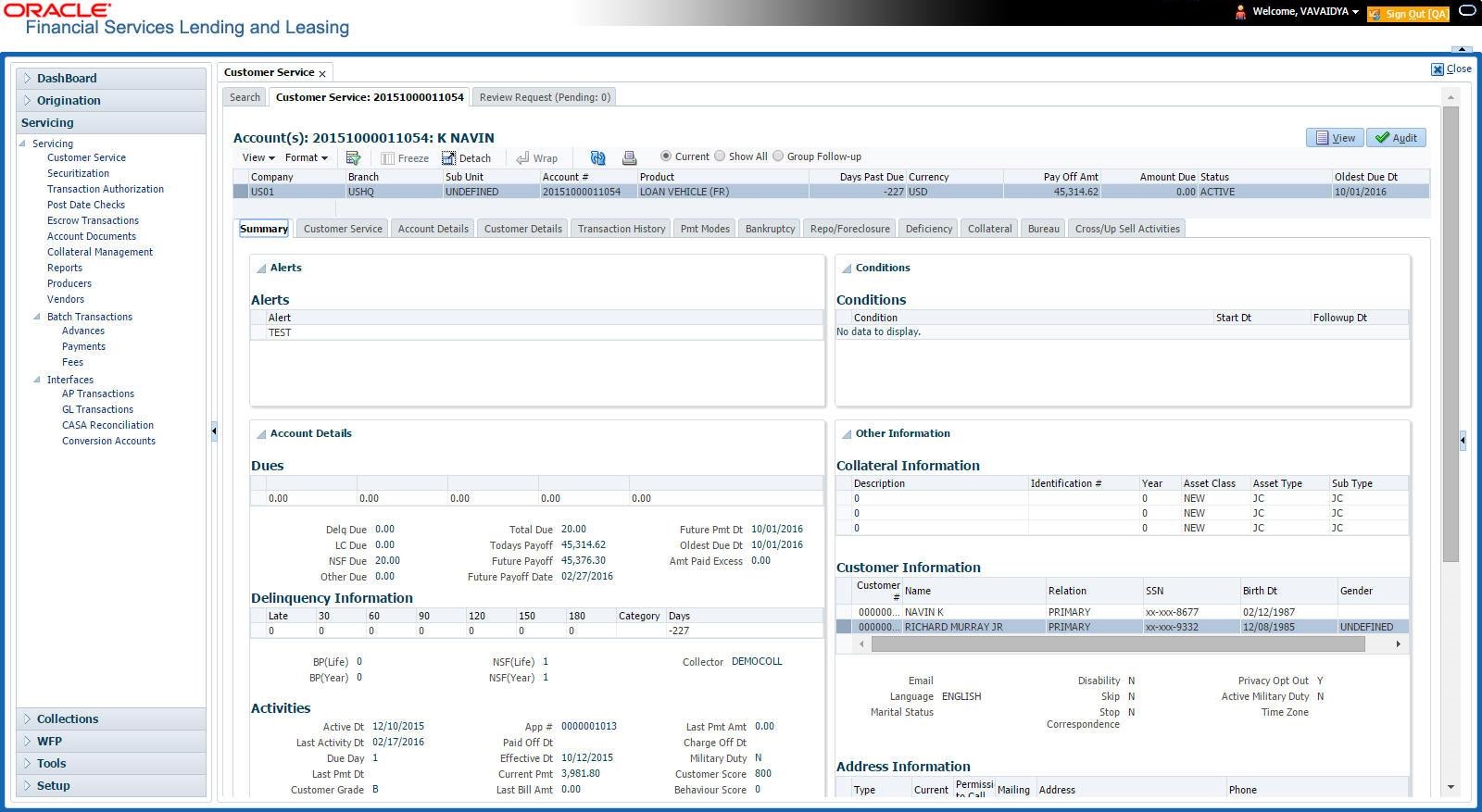
The system loads the account under the Customer Service tab.
User are now ready to begin work on the account.
User can view the accounts pending for user review by selecting Receiver in the Review Request tab.
Parent topic: Searching for an Account and Customer