1.2.5 Configure DBAdapter
This topic explains the steps to configure DBAdapter.
To configure DBAdapter, follow the steps given below.
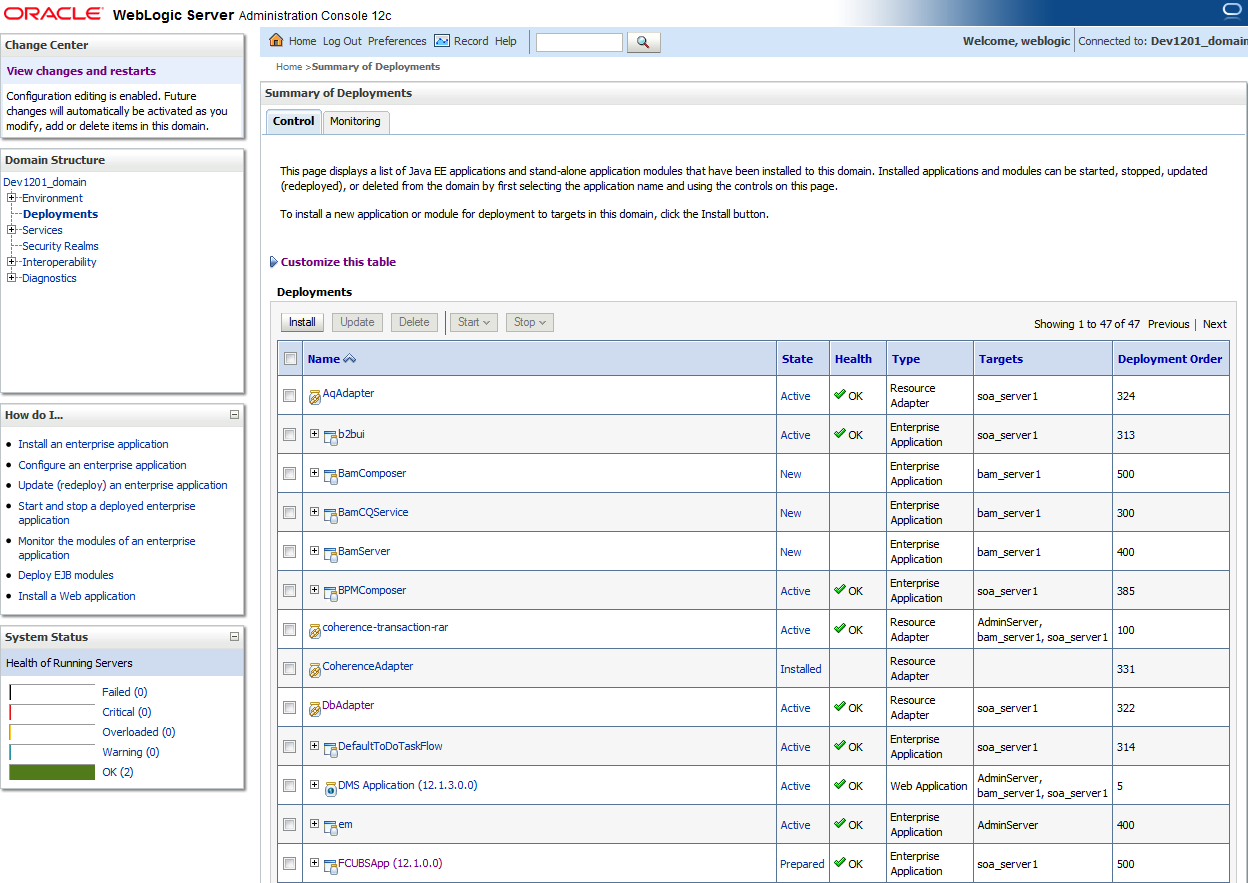
- Log in to Weblogic Console and click Deployment under Domain Structure.The Summary of Deployments screen is displayed.
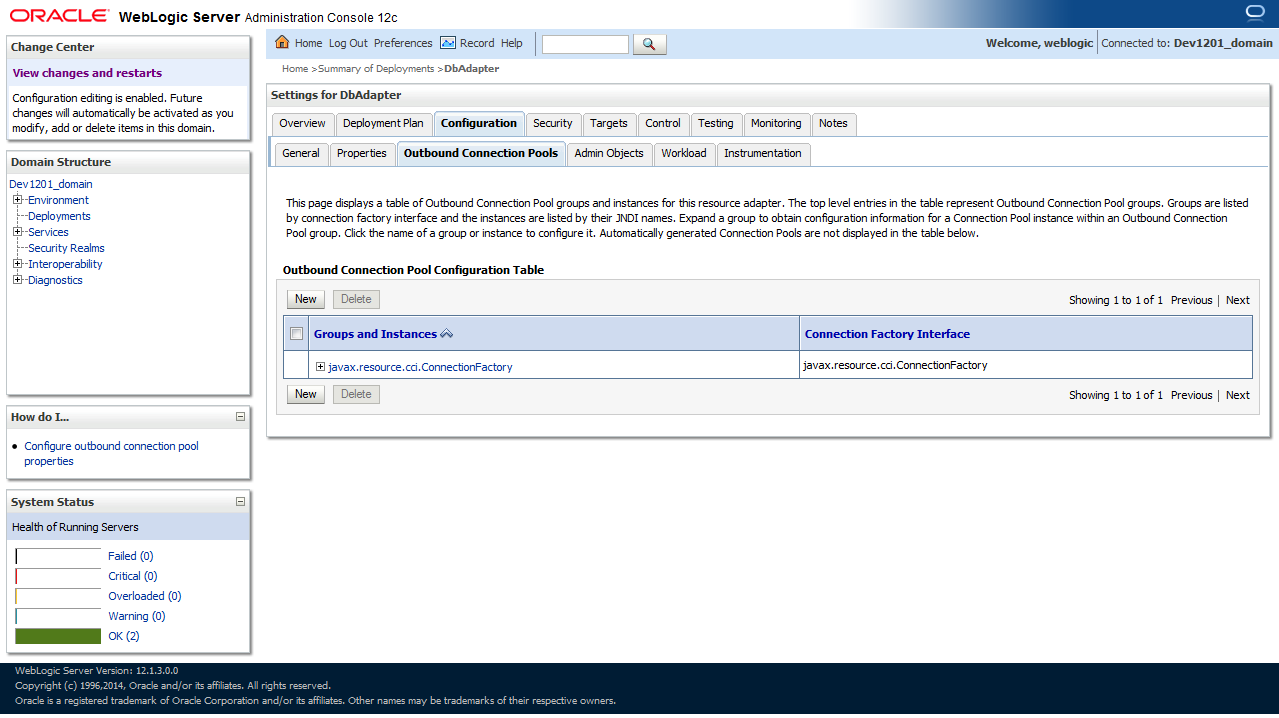
- In the Deployments table, select DbAdapter. You will be navigated to Settings for DbAdapter.The Settings for DBAdapter screen is displayed.
- Define JNDI Name as eis/DB/FCCDEV and click on Finish.

The jndi name should be the same as the one in the Dbutility sub-process. - Click on the hyperlink
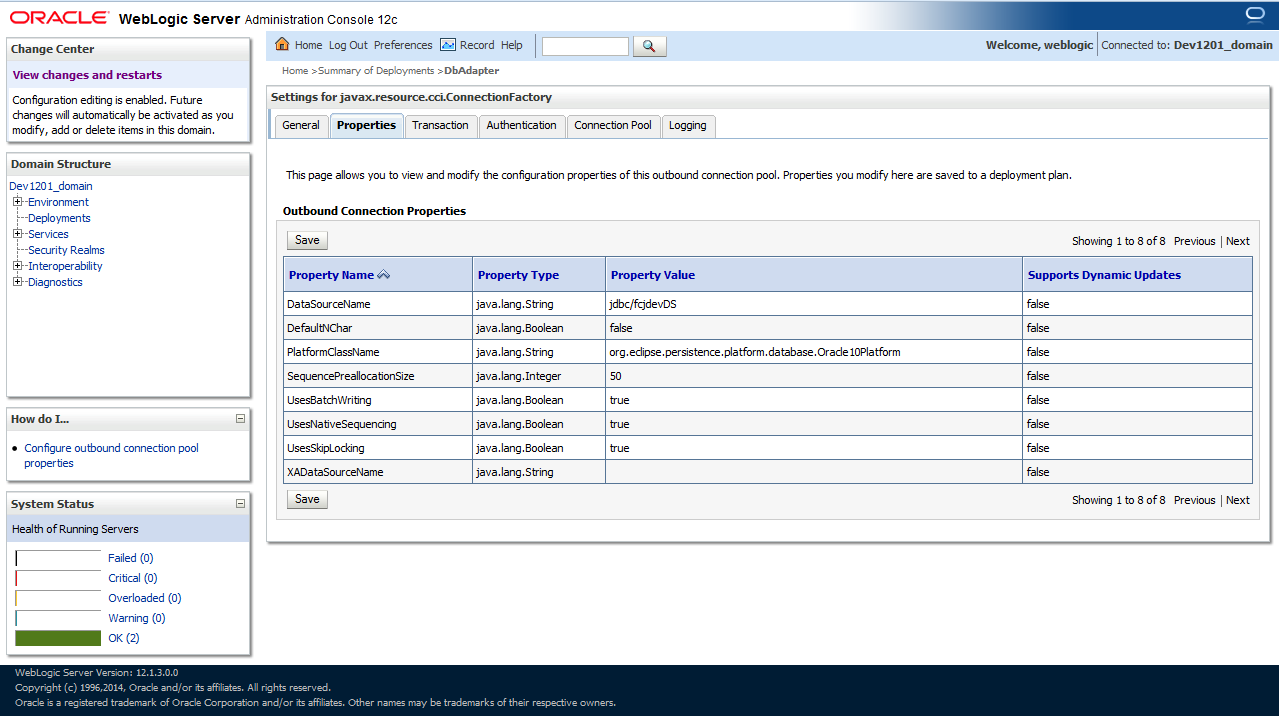
eis/DB/FCCDEV.The Settings for javax.resource.cci.ConnectionFactory screen is displayed.Figure 1-21 Settings for javax.resource.cci.ConnectionFactory
Parent topic: Integrating Oracle FLEXCUBE IS and BPEL