Creating a Reclassification Rule
To create a reclassification rule, follow these steps:
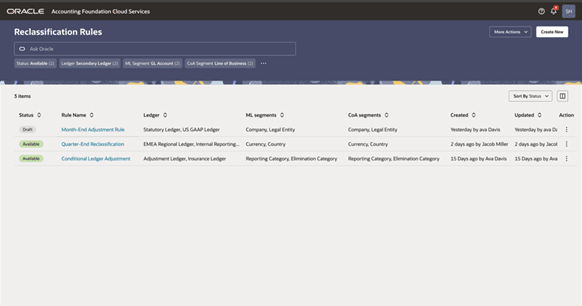
- Click Reclassification tab at the bottom of the page and the Reclassification Summary page is displayed.
Figure 15-3 Reclassification Rules Summary page
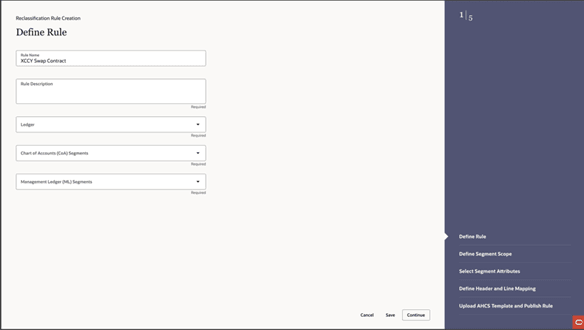
- Click Create Rule button and the Define Rule page is displayed.
Figure 15-4 Define Rules page
- Provide the following Define Segment Scope details:
Figure 15-5 Define Segment Scope Page
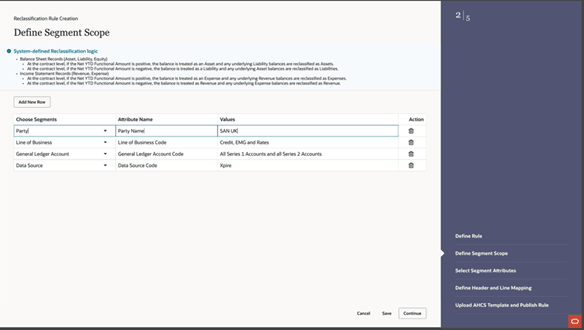
- From the list of segments available, select the required segment.
- Click Add New Row to add your own segment and provide the following details.
- Choose the segment table to scope which records the rule applies to.
- Enter the attribute name.
- Enter the value for the rule.
- Click Save. The segment details are added to the rule.
- Click Continue and Select Segment Attributes page is displayed.
- Provide the following Segment Attributes details:Select the subledger attributes where the rule needs to reference.
Figure 15-6 Define Segment Attributes page
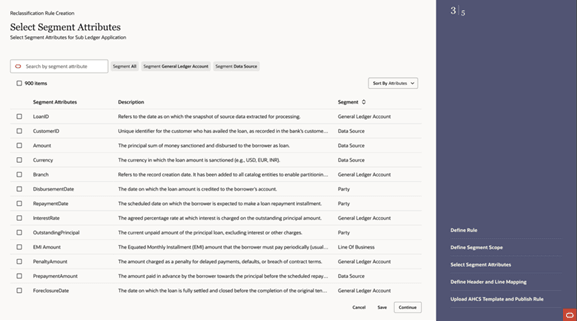
- From the list of attributes available in the application, select the required attribute using the search box to search for an attribute.
- Review the Description column to confirm what each attribute represents.
- Select the checkbox next to each attribute you want to include for the sub-ledger application.
- Click Continue and Define Header and Line Mapping page is displayed.
- Provide the following Header and Line Mapping details:
Figure 15-7 Define Header and Line Mapping page
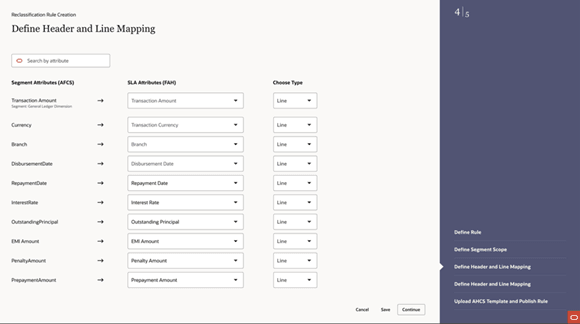 AFCS uses Header and Line Mapping to separate transaction-level context from repeatable accounting details. Header Mapping captures fields that apply to the whole business event, such as Transaction Number, Transaction Date, Ledger Name, Event Type, and Source System. Line Mapping captures fields that can vary within the transaction, such as Amount, Currency, Account Code, Product Line, and Distribution ID. Transaction Number links each line to the correct header, allowing one inbound file to create multiple headers with one or more lines under each header. This structure supports accurate journal generation, validation, reconciliation, traceability, and stronger control checks before accounting is completed.
- To map the segment attribute to the SLA Attributes, select the corresponding SLA attribute from the drop down list.
- Choose the attribute type as Header or Line from the drop down list .
- Click Save.
- Click Continue and Upload AHCS Template page is displayed.
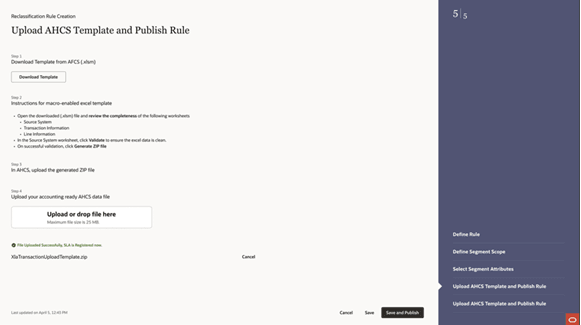
- Provide the following Upload AHCS Template details: This step registers the reclassification SLA header and line mapping details into the Accounting Hub to apply this mapping to the rule that sends the information.
Figure 15-8 Upload AHCS Template page
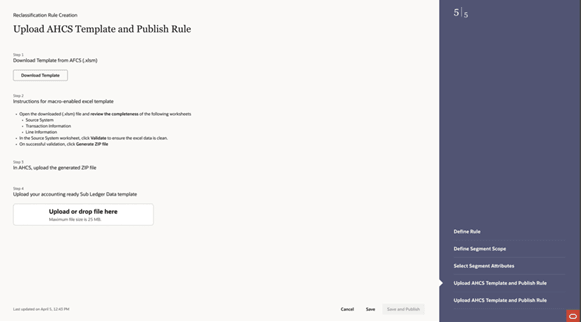
- Click Download Template to download the template.
- Verify the details and upload the file to the AHCS application.
- Download the Zip file from the AHCS application, and upload the downloaded zip file in the AFCS application.
Figure 15-9 File Uploaded page