5.2.2 Components of DOEP E-File List
The DOEP E-File List page is composed of the following components:
Searching and Viewing DOEP E-File List
The DOEP E-File List page displays the summary of the DOEP E-File that are in various statuses. This section contains the following topics:
Searching DOEP E-File List Using Search Components
This page allows you to filter the Search and List using the search components. To filter the DOEP E-File List using search components, follow these steps:
- On the DOEPE-File List, click Search. The Search Components page displays.
Figure 5-3 DOEP E-File Search Components
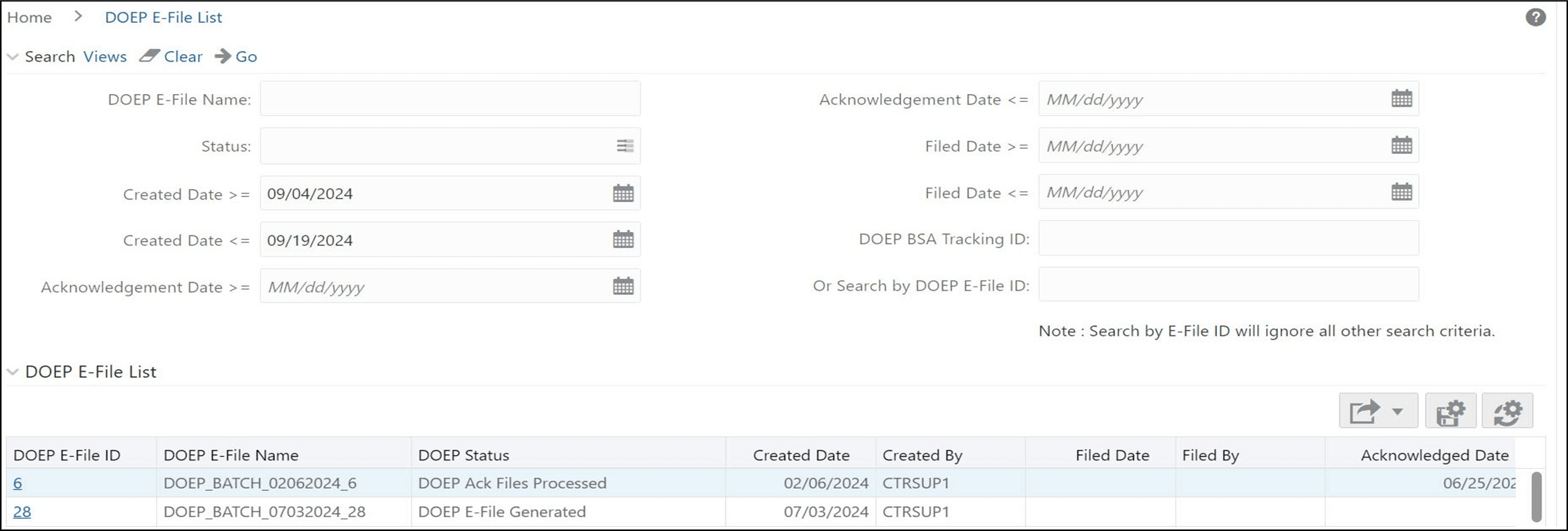
- Enter the details in the search fields as explained in the following
table:
Table 5-1 DOEP E-File Search Field Descriptions
Column Name Description DOEPE-File Name This field displays the name of the created batch file. The entered name must be the file name when it is submitted to FinCEN. This field supports wildcard. Status Select the required statuses from the options listed in the drop-down. The options listed in the status drop-down are as follows:
- DOEPE-File Generated
- DOEPFiled - Transmitted
- DOEPFiled - Transmitted w/Warnings
- DOEPFiled - Rejected
- DOEPFiled - Ack Received
- DOEPFiled - Ack Processed
- DOEPE-File Regenerated
Created Date >= Enter the date range for when the DOEP E-File was generated. This field defaults to the current date. Created Date <= Enter the date range for when the DOEP E-File was generated. This field defaults to the current date. Acknowledgment Date
>=
Enter the date range for acknowledgment from FinCEN that was received. This field searches for DOEP E-File based on the action date of user action Ack Rcvd. Acknowledgment Date
<=
Enter the date range for acknowledgment from FinCEN that was received. This field searches for a DOEP E-File based on the action date for user action of Ack Rcvd. Filed Date >= Enter the date range for when submitted to FinCEN and submission tracked. This field searches for a DOEP E-File based on user action date that specifies the E-File site submission status namely, DOEP E-File Transmitted, DOEP E-File Transmitted w/Warnings, and DOEP E-File Rejected. Filed Date <= Enter a date range to search for DOEP E-File which were submitted to FinCEN and whose submission was tracked. This field searches for a DOEP E-File based on user action date that specifies the DOEP E-File submission status namely, DOEP E-File Transmitted, DOEP E-File Transmitted w/Warnings, and DOEP E-File Rejected. DOEPBSA Tracking ID Enter the DOEP BSA tracking ID to search for Tracking IDs associated with the submitted DOEP E-File. The tracking ID is defined by the FinCEN. This search is basedon Tracking ID that was added to the DOEP E-File record by the user as part of one of the post DOEP E-File submission actions namely, DOEP E-File Transmitted, DOEP E-File Transmitted w/Warnings, and DOEP E-File Rejected. Or Search by DOEP E- File ID Search by the DOEP E-File ID is mutually exclusive of other search filters. Note: Searching by ID will ignore other filters. - ClickGo. The relevant search list page displays.
Searching DOEP E-File List Using Pre-defined Views
This page allows you to filter the DOEP E-File List using the pre-defined views. To search the DOEP E-File using pre-defined views, follow these steps:
- On the DOEPE-File List, select any pre-defined views from the Views
drop-down list namely, E- Files for Submission, Rejected E-Files, and E-Files
w/Warnings. The relevant search list page displays.
The following table lists the various pre-defined view options and their description:
Table 5-2 E-File Pre-defined Views
Views Description E-Files for Submission Returns all E-Files currently in a status of DOEP E-File Generated or DOEP Filed - Regenerated Rejected E-Files Returns all E-Files currently in a status of DOEP Filed - Rejected. E-Files w/Warnings Returns all E-Files currently in a status of DOEP Filed - Transmitted w/Warnings.
Note:
When a user accesses the Search and List page, the E-Files are listed based on a default search criteria. If there are more than 10 E-Files for a search criterion, the list will automatically display pagination option.
Actions
The system provides the following actions that appear above the list of Search and List:
- Export to Excel and CSV: This option
allows you to export the Search and List records to a spreadsheet.
Figure 5-4 Export to Excel and CSV

Column Headings
Column headings provide labels that tell you what kind of information displays in the columns. Most column headings in the Search and List matrix are sortable.
Right-click the column heading to sort the display. A list of sorting menu displays. For example, Ascending,Descending, Clear Sort, Field Chooser, and Transpose. Select the relevant sorting option. The CTR refreshes the list and re-sorts the DOEP E-File List records based on the selected criteria.
The DOEP E-File List page has the following column headings:
- DOEPE-File ID
- DOEPE-File Name
- DOEPE-File Status
- Created Date
- Created By
- Filed Date
- Filed By
- Acknowledged Date
- Acknowledged By
- DOEP Count
- DOEP BSA Tracking ID
- E-File