Customer Risk Score Override
Use this dashboard to view the Customers whose risk scores have been manually overridden.
To generate Customer Risk Score Override Report, follow these steps:
- Navigate to the MIS Reports.
- Expand the KYC option displayed on the LHS.
- Click the Customer Risk Score Override option.
- Click the Global Filters icon.
The Global Filters are displayed on the left hand side.
Figure 4-43 Global Filters for Customer Risk Score Override Report
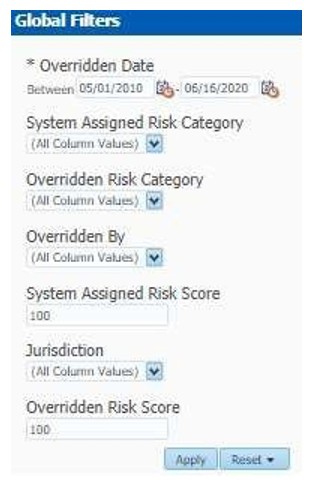
- Enter the following filter details:
Table 4-14 Customer Risk Score Override Report Filter Descriptions
Field Description Overridden Date
Select the date range between which the risk score has been overridden forthe customer. The format is DD/MM/YYYY.
System Assigned Risk Category
Select the system assigned risk category.
Overridden Risk Category
Select the new risk category of the customer.
Overridden By
Select the user who has overridden the risk score.
System Assigned Risk Score
Enter the previous risk score. A risk score of 100 is assigned by default.
Jurisdiction
Select the new business jurisdiction (geographic location) of the risk assessment. The list of jurisdictions that appear in the drop-down list isbased
on your access permission.
Overridden Risk Score
Enter the new risk score. A risk score of 100 is assigned by default.
- Click Apply.
The data is filtered to satisfy all the specified filter conditions, and the result displays the following category of reports:
- Risk Score Overridden By Jurisdiction
- Risk Score Overridden By User
- List of Customers - Risk Score Overridden