Coming Onboard Validation
To manage the embarkation process, the security officer can scan or manually search for individuals boarding the ship, including guests, residents, visitors, and crew members. The following settings can be configured in the OHC Administration, under System Setup > Database Parameters:
- Allow offline expected embarkation today on board: Specify whether to allow expected profile to embark.
- Check-in via FC Security: Enable or disable check-in via FC Security for: Guests and Residents.
- Check-in via FC Security – Crew: Enable or disable check-in via FC Security for crew.
- Check-in via FC Security – Visitor: Enable or disable check-in via FC Security for visitor.
- Extended Search Criteria Check-in: To support Single Check In / Batch Check In / Disable Check In.
Check-in
This feature allows you to search for passengers who are not pre-registered for embarkation and check them in at the gangway. The type of check-in allowed is determined by the Extended Search Criteria Check-in setting in the OHC Administration, under System Setup, Database Parameters.
The available check-in options are:
- 0 - Single Check-in: Check in passengers individually
- 1 - Batch Check-in: (Not currently supported)
- 2 - Disabled Check-in: Check-in is disabled.
Note:
While offline, the system does not perform check-in validation and the "Auto Check In" link are disabled.
Single Check In Validation
To enable single check-in, which allows users to check in one person at a time, set the parameter Gangway, Extended Search Criteria Check in to 0.
To activate the Auto Check In link on the Profile Movement page, enable any of the following parameters:
- Check-in via FC Security - for guest/resident check-in.
- Check-in via FC Security-Crew - for crew check-in.
- Check-in via FC Security - Visitor for visitor check-in.
When you select the Auto Check In link shows the available
profile types that you can check in.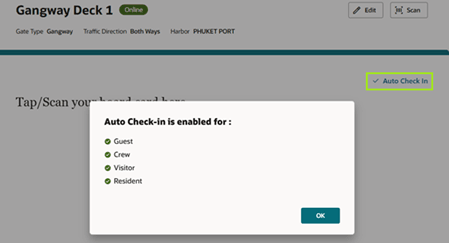
Enable Check In
When moving a guest, resident, crew, or visitor who is currently ashore and whose reservation status is Embarkation Today to onboard, a confirmation message will be shown: <Profile Type > has not checked in yet, <Profile Type > is expected today , Would you like to check in <profile’s full name>?. This message can be customized in OHC Administration, under Administration > System Setup, Labels Setup, GNG122 and GNG121.
Resident has not checked in yet. Warning! Resident is not expected today. Proceed with the check-in for <profile’s full name>?This message can be customized in OHC Administration, under Administration > System Setup, and GNG016.
Guest has not checked in yet. This Guest has not been through the Complete Check-In Process. Would you like to check him/her in anyway?’This message can be customized in OHC Administration, under Administration > System Setup, Labels Setup, GNG123 and GNG120.
The confirmation message header can also be customized to include the profile salutation, stateroom, nationality, or other details by using predefined codes (see table - Predefined Validation Codes).
| Predefined Code | Field |
|---|---|
|
%1 |
Profile |
| %2 | Salutation + Full Name |
|
%3 |
Stateroom |
|
%4 |
Nationality |
|
%5 |
Age |
|
%6 |
Onboard CC Number (RES_BOARDCC_EXT) |
|
%7 |
Reservation Status |
|
%8 |
Onboard Status |
|
%9 |
Passport Number |
| %10 | Gender |
Disable Check-in and Restrict Onboard Access
Note:
These predefined codes applicable to Label GNG120, 121, 122, 123 and 124.
Note:
To disable check-in for an expected today profiles (guests, residents, crew or visitors) and prevent profiles from going onboard,disable the relevant parameters under Gangway group:
- Check-in via FC Security - for guest/resident check-in.
- Check-in via FC Security - Crew - for crew check-in.
- Check-in via FC Security-Visitor - for visitor check-in.
- Allow offline expected embarkation today on board - This will not use in conjunction with offline QCI.
When moving a guest, resident, crew, or visitor who is currently ashore and whose reservation status is Embarkation Today to onboard, an error message will appear: Check in via FC Security feature is disabled. This message can be customized in OHC Administration, under Administration > System Setup > Labels Setup, GNG017.
Enable the parameter General, Require Visitor to check in, when this parameter is enabled, visitors who have not checked-in will be denied onboard access.
Disable Check in and Allow Onboard Access
To allow an expected today profile (guests, residents, and crew) to go onboard when the check-in feature is disabled, enable the parameter Gangway, Allow offline expected embarkation today onboard.
To allow an expected today visitor, disable the parameter Require Visitor to check in in OHC Administration, under System Setup > Database Parameters, General.
By enabling/disabling these parameters, this disable the check-in process for different types of profiles and allow them to go onboard without being marked as checked in.
Disable Check-in but Allowing Profile Onboard
To disable the auto check-in process and require profiles to proceed to the check-in counter to complete the check-in process, set the parameter Gangway, Extended Search Criteria Check-in to 2.
When moving an expected profile (guest, resident, crew, or visitor), a default movement confirmation message appears: "Please proceed to reception to board check in. Selecting OK will move the profile's status to onboard.
Deny Boarding
The error message appears when Deny Boarding is enabled (set to 'YES') and a Deny Boarding Reason is specified in either the OHC Management, Cashier Handling, Guests, Edit Information for the selected guest profile, or the OHC Crew, Crew Members, Edit Information for the selected crew profile.
When a guest or crew member attempts to board, the error message will show the specified Deny Boarding Reason. If no reason is provided, a default message Onboarding denied. Please contact the crew purser for assistance is shown. This default message can be customized in the OHC Administration underAdministration > System Setup > Labels Setup, ODCT01.
Visitor Card Validity
When the Check Visitor Card parameter is enabled, the system validates the visitor card's valid dates against the system date.
- If the visitor's estimated embark date is earlier than the system date, an error message is shown: The visitor card has expired on <visitor valid to date>. This message can be customized in OHC Administration, under Administration > System Setup > Labels Setup, GNG039.
- If the visitor's estimated embark date is later than the system date, an error message is shown: The visitor card is valid only from <visitor valid from date>. This message can be customized in OHC Administration under Administration > System Setup > Labels Setup, GNG040.
If the visitor is restricted to boarding at the terminal only (as configured in OHC Management under Visitor Handling, Early Boarding Visitor), an error message is showed: The visitor is allowed to board at terminal only. This message can be customized in OHC Administration under Administration > System Setup > Labels Setup, GNG041.