Gangway/Tender
People movement can be initiated using a RFID card, barcode scanning, or manual search; however, the information displayed and system behavior may vary based on gate type, system settings and, profile’s movement information - reservation status and onboard status.
Gate location is configured in Cruise Shipboard Property Management System, Cruise Property Management, Administration, Enterprise, Gate Location. Ensure that the gate location name does not exceed more than 50 characters.
Note:
Resident profile movement will be based on parameter General - Use Resident.
- At the left navigation menu, select Gateway Security, Gangway/ Tender.
- On the Open, Gate page, select a
value for all the mandatory fields:
- Gate Type – Either “Gangway” or “Tender”
- Gate Location – the value is obtained from the Administration menu under Gate Location
- Traffic Direction –
- If the gate type is Gangway: Show either Inwards (Allow people to coming onboard), Outwards (Allow people to go ashore) or Both ways.
- If the gate type is Tender: Show either Inwards (The tender boat is going to the ship, people allows to go into the boat and get out from the boat) or Outwards (The tender boat is going to the shore, people allows to go into the boat and get out from the boat).
- If the selected Gate Type is “Tender”, additional fields needed for Tender Boat
will populate. These values are obtained from Mobile
Administration, Enterprise,
Tender Boat.
- Tender Boat Name
- Tender Boat Capacity – Total seating capacity of the boat. You can override and define a value. Any changes you make to the capacity will be saved by the system.
- Tender Boat Threshold – Seating threshold for the boat. You can override and define a value. Any changes you make to the threshold will be saved by the system.
- Tender Boat Availability Legend – This is a read-only field. This field
is showed once the Tender Boat Name is selected.
The legend shown is based on the allowed capacity in Tender
Boat Capacity and Tender Boat
Threshold. The tender boat legend color group represents
the following:
- Green: indicates the tender boat has plenty of seats.
- Yellow: indicates the tender boat has limited seating.
- Red: indicates the tender boat is full.
Note:
For the Gate Type “Tender”, the Traffic Direction must be set to either “Outwards” or “Inwards”.
- Select the Start Movement button. The system navigates to
the People Movement page where the gate selections
appear at the top of the page.
- For “Tender”, the system allows you to access to a tender boat at
different location at a time. If the tender boat is using at the
different location with any direction. The system will prompt following
options:
- Cancel: Close the confirmation.
- Start New: Start a new gateway. This will
close the previous gate and create a new gate.
Note:
If someone is using the previous gateway, you need to notify the user to refresh the page after you select Start New.- Known Issue: Currently, users connected to the previous gateway will not be automatically notified and must refresh their page to continue. We plan to enhance this process in a future release.
- Rejoin: Continue with the previous gangway.
Note:
Tender is available only in online mode. If tender is used while the device is offline, the system shows an error message, and the Tender movement process does not continue.
- For “Tender”, the system allows you to access to a tender boat at
different location at a time. If the tender boat is using at the
different location with any direction. The system will prompt following
options:


On the page, you can perform below actions:
- Change gate selection - See Change Gate Selection for more information.
- Resetting tender boat count - See Resetting Tender Boat Count for more information.
- View Current Harbor: See the current harbor location.
- Move Profiles: Tap a contact less card, scan a barcode, or manually search for a profile to process people movement - See Perform the Profile’s People Movement for more information.
- Quick Move for Travelers: If a profile includes travelers, you can quickly move them by selecting the profile from Card View, View More, Move Travelers (X).
- View Profile Information and Movement History: Access detailed profile data and a history of movements.
- View Stats: Check key statistics about people’s movements.
- Update Profile Information: Update details such as photo or special needs that a profile may require.
- Gangway/Tender - See Tab: Gangway/Tender for more information.
- Stats - See Tab: Stats for more information.
- Search – See Tab: Search for more information.
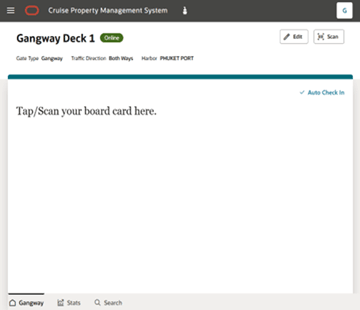
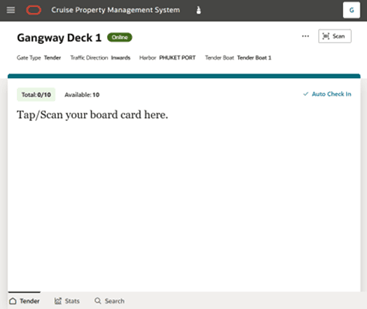
Change Gate Selection
- On the People Movement page, select Edit button.
- An Edit drawer opens on the right.
- Change any value of the fields.
- Select Apply button.
- Select the Cancel button to close the edit drawer and return to the previous screen.
Resetting Tender Boat
- On the People Movement page, select Reset Tender Boat menu. A message appears to confirm, Reset Tender Boat?.
- Select Reset - The system starts a new gateway with the same selections and updates the tender boat’s total seated count to 0.
- Select Cancel - To close the dialog box and return to the
previous screen.
Note:
Only applicable to the selected gate type “Tender”.
If someone is using the previous gateway, you need to notify the user to refresh the page after you select Reset.
Known Issue: Currently, users connected to the previous gateway will not be automatically notified and must refresh their page to continue. We plan to enhance this process in a future release.