1 Getting Started
The Mustering module is an add-on to Oracle Hospitality Cruise Shipboard Property Management System that simplifies crew access and tracks movements of passenger and crew. It is ideal for managing crowd activity in an emergency drill or actual emergency, ensuring efficient handling of such situations. The module provides accurate head counts and real time status updates for passenger, crew and visitor status.
Launching the Application
To launch the application on an Android device:
-
Turn on Near Field Communication (NFC) in the device settings.
-
Open your browser and enter the URL for the application. See Oracle Software Web Browser Support Policy for more information. It is strongly recommend using the PWA application to launch the system.
-
A notification Add to Home Screen appears. Tap the button to add.
-
Enable Allow NFC from the browser settings to allow system to access NFC reader. You can change this setting in Google Chrome. Go to Google Chrome browser, Settings, Site Settings, NFC devices.
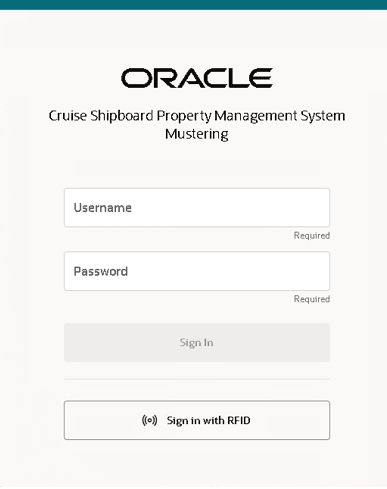
Figure 1-1 Login Page
-
Open your browser, and enter the URL for the application. See Oracle Software Web Browser Support Policy. It is strongly recommend using the PWA application to launch the system.
-
MICROS tablet works with a keyboard wedge, hence you need to ensure the settings is configured to automatically read RFID.
The below parameters are configurable in OHC Administration module, Administration, System Setup, Database Parameters, System and is used in online mode only.
Max Logins: maximum logins attempt before account is locked.
Lockout Minutes: number of minutes the lockout expires for retry.
Account Lockout Duration: number of minutes before it resets the maximum login attempt count.
Log in to the Application (Contactless Login)
The application allows you to login with your RFID card and below are the supported RFID card type.
MIFARE Classic 1K
MIFARE DESFire Card
MIFARE PLUS EV1
MIFARE Ultralight-C
MIFARE Ultralight EV1
-
On the login page, clicking the Sign In with RFID button and the Allow button on the NFC confirmation prompt would enable NFC on the device.
-
If you have selected Allow NFC previously, the Start sign in with RFID button is greyed out, indicating that you can log in by tapping the RFID card.
-
To sign in with RFID card, you must first login successfully with your credential login at least. On the application page, enter your username and password and click the Sign In button.
Note:
The username and password are case-sensitive. -
To log in with RFID card, place the card on the NFC scanning of your device.
-
Upon successful login, your user name and profile picture is shown at the top right of the page, and it brings you to the first page, for example, Register page.
-
When logging with a valid RFID card and system returns ‘Something went wrong Error 403 – Please try again. If problem persists, contact your system administrator.’, this would mean you need to log in using your credential.
-
When the system detects a login attempt with an invalid RFID, it displays the error message: "Invalid Card. Please check your card and try again". Access gets locked after several unsuccessful attempts, and the error message “RFID feature is locked for x minutes. Please try again later and sign in manually.” will be shown.
Note:
The number of failed attempts and lock out duration is managed by the value set in System, Max Login and Lockout Minutes parameter. -
Once the RFID login is disabled after the maximum login attempts, you can still proceed to log in using your credential. If the authentication is successful, you can then perform RFID login without waiting for lockout minutes to reset.
-
If an account is locked due to manual login credential attempts, you can still attempt to log in using your RFID card. If the RFID card is linked to the same locked account, and if both methods are locked, an error message is displayed: “Your account is locked out for X minutes. Please try again later” .
-
If you select to block the NFC at the confirmation box, a notification ‘NFC device is blocked’ shall prompt.
-
If the device does not support RFID scanning, a notification ‘RFID not supported’ shall prompt.
-
If your account does not have a permission to the application, an error page ‘Permission is required to view this application’ shall prompt.
Session Timeout
-
Time out when there is no synchronization process running in the background and screen is left idle for 45 minutes, before prompting a 30 second countdown screen and expiring the session.
-
If the user does not perform any action within the countdown period, system will log out the user automatically and redirects to the Login screen.
-
If the Sign Out button is clicked, it signs out and redirects to the Login screen.
-
If the Continue button is clicked, it remained signed in at the last visited screen.
Resumed Network Connection
Note:
You must complete the Synchronization successfully before you continue working offline.
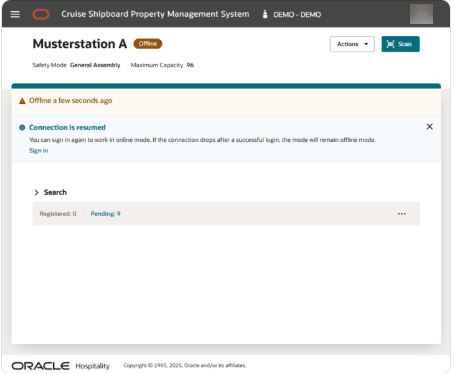
Figure 1-2 Network Banner
-
Tapping Sign In button at the Login Page will automatically sign you out and navigate to the Login page. The safety mode becomes Online when you re-login successfully. However, if the connection drops after tapping the Sign In button, it will remain logged in as Offline mode.
-
The application remains in an offline mode:
-
If no further action is taken
-
When you tap the X icon of the banner message, this will hide the banner and re-appear when you navigate to other page.
-
User Security Access
To use the system, you must have at least one access rights listed below. Once the access is granted, you can log in and are directed to your first available page. If you do not have the required access, you will see an error message on the login page or will be redirected to a permission error page
- If you granted with Mustering, Registration, Register Profile access only, you will see the Register menu.
- If you granted with Mustering, Registration, Unregister Profile access only, you will see the Unregister menu.
-
If you granted with Gateway Security, Gangway and Tender, Access Movement access only, you will see the Gateway Security, Gangway/Tender menu.
-
If you successfully land on any of the pages mentioned above, you will always see Synchronization in the menu. This page is used to sync data from the database to your device, enabling the system to function offline.
Note:
See Cruise Property Management User Guide, Role Manager section for assignment of user access by user groups.