Application Navigation
You can quickly access and manage all areas of OPERA Cloud using the following navigation options.
Figure 1-1 Application Navigation

-
Current Business Date: Displays the current business date at your property; this could be different to the system (calendar) date.
-
Current Location: Property or Hub. Click Property or Hub. Click to change your location, set a home page or to log out of OPERA Cloud.
-
Quick Launch and Notifications: Click
 or press F2 to launch Quick Launch..
-
Dashboard: Click
 to display the dashboard.
-
Notifications: Click
 to view notifications refer Notifications.
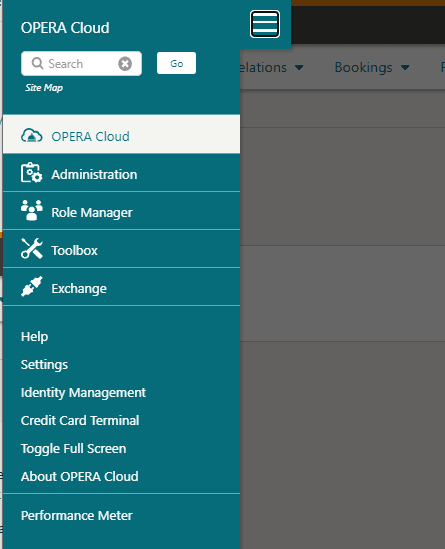
- Side Menu: Click to display the side menu
- Home: Click OPERA Cloud to return to your home page.
- Menu: The primary application menu; based on the tasks granted to your role(s).
- Search: Enter any menu option and click Go to display matching result(s).
Parent topic: Common Actions, Icons, and Navigation
Side Menu
Table 1-1 OPERA Cloud Application Menu
 |
|
Parent topic: Application Navigation
Notifications
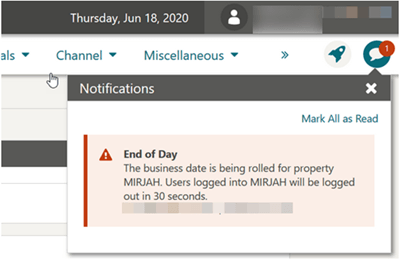
Notifications is a component to alert you of certain events. When a notification is raised, you will see a number in red indicating a count of unread notices. Your role must be granted the Notifications task to access these notifications.
-
Click the icon to open the notification panel.
Figure 1-2 Notifications Panel
-
Click Mark All as Read to clear the unread count indicator.
-
Click X to close the panel.
Parent topic: Application Navigation