1 Feature Summary
Column Definitions
| SMALL SCALE: These UI or process-based features are typically comprised of minor field, validation, or program changes. Therefore, the potential impact to users is minimal. |
| LARGE SCALE: These UI or process-based features have more complex designs. Therefore, the potential impact to users is higher. |
| STEPS NEEDED TO ENABLE: You must take steps to enable these features before they can be used. These features are delivered disabled, and you choose if and when to enable them. See the Steps to Enable in the linked topic. |
Features that are specific to:
Oracle Hospitality OPERA Cloud Service, Sales and Event Management Premium Edition are marked with the PREMIUM badge.
Oracle Hospitality OPERA Cloud Service, Casino and Gaming Management Add-on are marked with the GAMING badge.
Oracle Hospitality OPERA Cloud Service, Loyalty are marked with the LOYALTY badge.
Oracle Hospitality OPERA Cloud Central Management Services are marked with the CENTRAL badge.
Oracle Hospitality OPERA Distribution Channel Cloud Services subscription are marked with the DISTRIBUTION badge.
BLOCK MANAGEMENT
Block Deposit/Cancellation Updated
CENTRAL
In a central environment, properties display all valid deposit and cancellation rules, even if no subscription is active for that property.
OPERATIONAL BENEFITS
Central-environment properties can consistently view and manage all valid deposit and cancellation rules regardless of local subscription status, improving configuration visibility, reducing support dependency, and enabling accurate reservation-policy management.
Block Notification OPERA Controls Added
The following property-level settings are available in OPERA Controls under Blocks – Setting, to set default values for all mandatory fields for blocks. If an incoming REST call (REST API postBlock) contains invalid values for the mandatory fields, the system bypasses validation and applies the configured default value for the missing or incorrect value.
- Block Notification Default Block Status Code
- Block Notification Default Channel Code
- Block Notification Default Market Code
- Block Notification Default Rate Code
- Block Notification Default Reservation Type
- Block Notification Default Source Code
OPERATIONAL BENEFITS
This enhancement enables integrations to create blocks successfully even when mandatory postBlock fields are missing or invalid by automatically substituting configured default values.
IMPACT OR OTHER CONSIDERATIONS
The change applies only to the postBlock API.
ACTION REQUIRED (STEPS TO ENABLE)
- From the Side Menu, select Administration , select Enterprise, and then select OPERA Controls.
- Select or confirm the Property.
- Select the Blocks group.
- Locate and configure the applicable settings.
Block Status Change Updated
A Background Process checkbox is added to the Block Status Change screen. Select this option for very long blocks or blocks with many events. This runs the status change process in the background, allowing you to continue working on another screen while it completes.
OPERATIONAL BENEFITS
The new Background Process option lets you run status changes for very large blocks or blocks with many events in the background so that you can continue working elsewhere in the application without waiting for processing to finish improving efficiency.
Web Bookable OPERA Control added
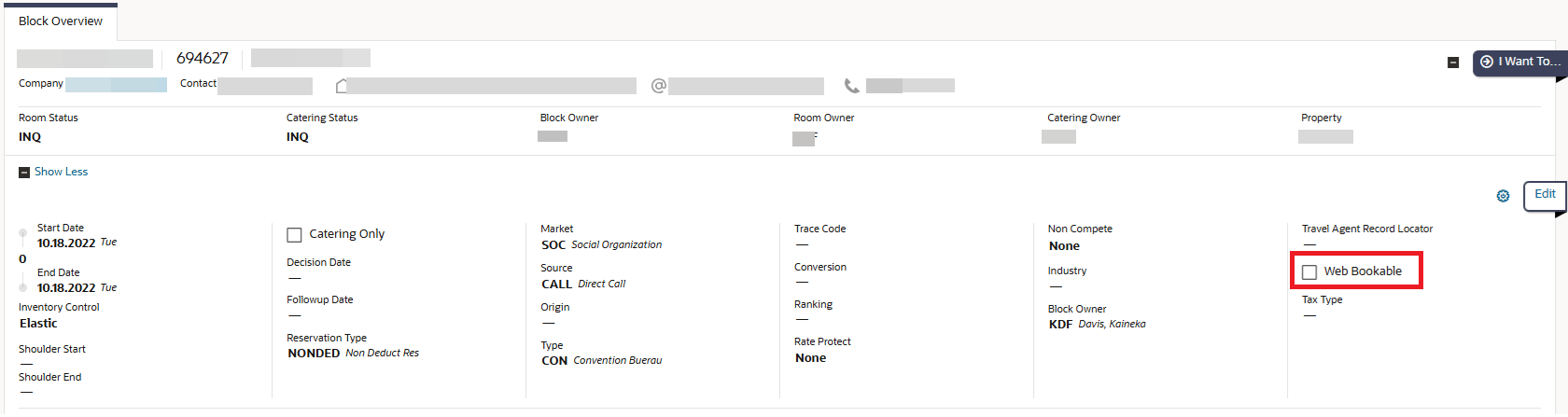
A Web Bookable OPERA Control is added in Blocks Control. When enabled, a checkbox for Web Bookable is available in the block presentation screen.
OPERATIONAL BENEFITS
This functionality allows for properties to enable booking reservations for selected blocks via web channels.
ACTION REQUIRED (STEPS TO ENABLE)
- From the Side Menu, select Administration, select Enterprise, and then select OPERA Controls.
- Select or confirm the Property.
- Select the Blocks group.
- Locate and turn on the Web Bookable parameter.
CASHIERING AND FINANCIALS
AI Assistant Added to Rate Code Long Information
Note:
Before using AI Generate to create descriptions in OPERA Cloud, ensure that the property's Base Language is configured.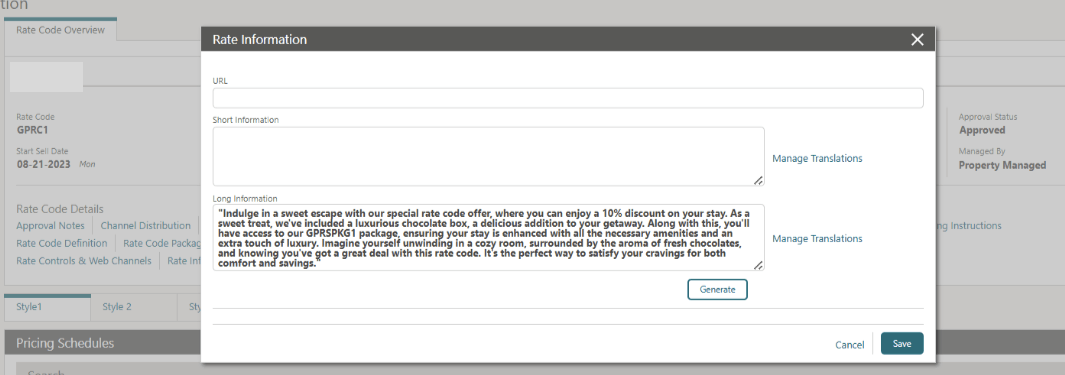
OPERATIONAL BENEFITS
Enhances efficiency and consistency in creating rate descriptions by automatically generating detailed, accurate text using AI — reducing manual effort and ensures brand standardsare consistently applied.
It is available to a limited set of early adopters for evaluation and feedback.
IMPACT OR OTHER CONSIDERATIONS
STEPS TO ENABLE
- From the Side Menu, select Administration, select Enterprise and then select OPERA Controls.
- Select or confirm the Property.
- Select the Rate Management group.
- Locate and activate the AI Rate Description Assistant parameter.
Additional Charges Updated for Routing
1. The Additional Charges screen is updated to display a checkbox for Auto Attach Elements when the Additional Charges OPERA Control is active, the Routing OPERA Control is active, and the Auto Attach Elements OPERA Control is active, so that when you check the box for Auto Attach Elements, the required fields for Room and Routing Code are visible.
2. When an Additional Charge is configured with Auto Attach Elements, OPERA Cloud automatically creates Room Routing Instructions during Check In for reservations that meet the conditions of the Additional Charge.
OPERATIONAL BENEFITS
Users can configure an Additional Charge to include Room Routing Instructions, which OPERA Cloud automatically applies during Check In for reservations that meet the conditions of the Additional Charge.
ACTION REQUIRED (STEPS TO ENABLE)
- From the side menu, select Administration, select Enterprise, and then select OPERA Controls.
- Select or confirm the Property.
- Select the Cashiering group.
- Locate and activate the Routing function.
- Select the Reservations group.
- Locate and activate the Reservation Auto Attach Elements function.
Auto-transfer VCC Payment Method OPERA Control Added
For properties with the Virtual Credit Card OPERA Control active, a new Auto-transfer VCC Payment Method OPERA Control setting is added to the Credit Card group to define the destination folio window for Virtual Credit Card (VCC) payment methods. When configured, VCC payment methods are automatically transferred to the specified folio window, and the payment method in Folio Window 1 is replaced with the property's Default Cash Payment Method. If a Default Cash Payment Method is not configured, the VCC payment method remains in Folio Window 1.
Batch Deposit processing supports Virtual Credit Card payment methods. For reservations with a VCC payment method, a pay-only request is sent to the payment service provider to process the deposit payment. When the Payment Services Directive (PSD2) OPERA Control is active, pay-only requests include the VCC flag for all Virtual Credit Card payment and settlement transactions. The VCC flag is also available for Reporting and Analytics reporting.
OPERATIONAL BENEFITS
- Automates placement of Virtual Credit Card payment methods into the appropriate folio window, reducing manual effort.
- Simplifies deposit processing for reservations using Virtual Credit Cards.
- Ensures consistent payment processing and PSD2 compliance for VCC transactions.
- Improves reporting and reconciliation with Virtual Credit Card indicators available in Reporting and Analytics.
ACTION REQUIRED (STEPS TO ENABLE)
- From the Side Menu, select Administration, select Enterprise and then select OPERA Controls.
- Select or confirm the Property.
- Select the Credit card group.
- Locate and update the Auto-transfer VCC Payment Method OPERA Control setting.
Batch Deposit Screen Reservation Status Filter Added
The Batch Deposit screen is enhanced with a Reservation Status multi-select list of values (LOV) filter in the search criteria, allowing selection of Arrival, Cancelled, No Show, and Reserved reservation statuses. Batch Deposit search results display only reservations matching the selected statuses. If no status is selected, all reservation statuses are included in the search results.
OPERATIONAL BENEFITS
- Simplifies Batch Deposit processing by filtering reservations based on status.
- Reduces manual effort by excluding cancelled and no-show reservations from deposit processing.
- Helps prevent deposit requests from being processed for reservations that do not require payment.
CITY_TAX Package Formula Updated
CITY_TAX PACKAGE FORMULA - UPDATED TO SUPPORT CALCULATION OF TAX BASED ON RESERVATIONS CREATED FROM A SPECIFIC DATE
The following is generically available, but should be reviewed by properties in the United Kingdom.
Package Formula CITY_TAX is updated as follows:
- A new formula parameter Calculate for Reservations Created From is available. The date selected for this parameter is compared with the reservation creation date when calculating City Tax.
- The creation date is the property business date on which the reservation is originally created.
- The new parameter can be combined with existing parameters to calculate City Tax as required.
- In the Look to Book screen, before a reservation is created, the property business date is used for validation against the date selected in the Reservation Creation Date formula parameter.
NOTE: Reservations created via the Blocks module use the actual creation date of the reservation for validation. Reservations created from reservations for multiple rooms using the Split Reservation functionality use the actual creation date of the main reservation for validation.
For Example:
OPERA Control Default Purpose of Stay for City Tax Calculations = CTAX
Package formula CITY_TAX Package is configured to calculate 5% Gross Room Rate, based on Purpose of Stay 'CTAX', with a 'Start Date' of 1st January, 2027 and a 'Reservations Created from' date of 1st August, 2026. The Package is attached to a rate code.
Scenario 1:
On Business Date 1st July, 2026 a Reservation is created using the rate code with the City Tax package. The Reservation Arrival Date is 10th January, 2027. The Default Purpose of Stay CTAX is considered in the City Tax calculation. The City Tax is not calculated because the Reservation Creation date is before August 1, 2026.
Scenario 2:
On Business Date 1st August, 2026 a Reservation is created using the rate code with the City Tax package. The Reservation Arrival Date is 10th January, 2027. The Default Purpose of Stay CTAX is considered in the City Tax calculation. The City Tax is calculated because the Reservation Creation date is on 1st August, 2026.
OPERATIONAL BENEFITS
Properties in specific cities in the United Kingdom are required to charge City Tax/Tourist Levy based on the creation date of the reservation, combined with the stay dates of the reservation.
Adding the ability to specify a date for Reservations Created From allows flexibility of the existing CITY_TAX Package Formula, to calculate the tax based on a combination of the new and existing Parameters.
Comp Accounting Negative Postings and POS Check Details Updates
GAMING
For properties with the Gaming subscription active, POS check details are available for transactions transferred to comp folio windows (101–108) after the transaction status is updated by the gaming vendor. The Supplement and Reference fields are retained on the comp posting transaction after it is moved to the comp folio window and the transaction status is updated by the gaming vendor.
Validation is added to prevent negative comp postings in Comp folio windows 101–108. The validation applies to manual drag-and-drop transactions, transfer postings from guest folio windows to comp folio windows, and routing transactions. If a negative charge is posted to a guest folio window and a matching comp routing instruction exists, the transaction remains on the guest folio window and is not routed to the comp folio window. The Changes Log records the reason when a negative transaction is prevented from being routed to a comp folio window.
OPERATIONAL BENEFITS
- Improves visibility of POS transaction details for gaming comp postings.
- Preserves transaction references after gaming vendor updates, supporting reconciliation and auditing.
Comp Routing Codes Added to Comp Authorizer Limits Calculation
GAMING
For properties with the Gaming subscription active, the Comp Authorizer Limits calculation supports Comp Routing Codes assigned to Comp Authorizers. The Comp Authorizer Limits screen includes the transaction codes associated with configured Comp Routing Codes when calculating authorizer usage and available limits. Comp Authorizers configured with Comp Routing Codes, individual transaction codes, or a combination of both are displayed in the Comp Authorizer Limits screen when qualifying comp posting activity exists.
OPERATIONAL BENEFITS
- Provides accurate authorizer limit calculations for comp postings using Comp Routing Codes.
- Improves consistency between the Comp Authorizer Limits screen and the Comp Posting Journal.
Credit Card Rebate Validation Updated
For properties with the Credit Card Rebate Validation OPERA Control active, credit card rebate validation verifies eligible payment activity for the selected credit card on the current reservation before processing a refund. Refunds are allowed only when the selected credit card has qualifying payment activity on the current reservation, and payment activity from other reservations is not considered. Refund amounts are validated against the remaining refundable amount for the selected credit card, taking previous refunds and reversals into account. Refund requests that exceed the eligible refundable amount or reference a credit card with no qualifying payment activity are prevented with an error message. Users assigned the Credit Card Rebate Can Exceed Credit Card Payments task can override the validation and process the refund.
OPERATIONAL BENEFITS
- Improves refund accuracy by validating payment activity for the current reservation only.
- Prevents refunds that exceed the eligible refundable amount or reference invalid payment activity.
Days to Purge Credit Cards For Property OPERA Control Added
A new Days to Purge Credit Cards For Property OPERA Control setting is added to the Credit Card group, allowing each property to configure its own credit card retention period. When configured, the credit card purge process uses the property's retention period. If the setting is left blank, the purge process uses the chain-level Days to Purge Credit Cards OPERA Control setting.
The property-level setting follows the existing validation rules, accepting integer values between 5 and 365 days while allowing blank values to use the chain-level setting. The credit card purge process runs in the property context, ensuring credit card records are purged according to each property's configured retention period. Existing purge safeguards continue to exclude credit card records associated with active or future reservations, reservation payment methods, recent financial transactions, pending settlements, and unpurged Accounts Receivable invoice activity.
OPERATIONAL BENEFITS
- Enables each property to configure credit card retention periods based on operational or regulatory requirements.
- Prevents one property's purge configuration from affecting another property's credit card records.
- Maintains existing safeguards to protect credit card records required for active business processes and financial reconciliation.
ACTION REQUIRED (STEPS TO ENABLE)
- From the Side Menu, select Administration, select Enterprise, and then select OPERA Controls.
- Select or confirm the Property.
- Select the Credit Card group.
- Locate and configure the Days to Purge Credit Cards For Property setting.
Default Rate Category/Class OPERA Control Added
A new property-level Default Rate Category/Class setting is available in OPERA Controls under Rate Management – Setting.
When the postRatePlan API creates a rate code:
- If no Rate Category is supplied, the configured default is used as both the Rate Category and Rate Class.
- If the supplied Rate Category is not configured, it is created using the configured default as its Rate Class.
OPERATIONAL BENEFITS
This enhancement enables integrations to create rate codes without requiring every Rate Category to be configured manually in advance. It provides consistent Rate Category and Rate Class configuration across properties and reduces failed postRatePlan requests caused by a missing setup.
IMPACT OR OTHER CONSIDERATIONS
The change applies only to the postRatePlan API.
Do not recalculate generates for Full Credit Bill OPERA Control Added
OPERA CONTROL - DO NOT RECALCULATE GENERATES FOR FULL CREDIT BILL
The Do not recalculate generates for Full Credit Bill OPERA Control (Cashiering group)is added.
When the Do not recalculate generates for Full Credit Bil OPERA Control is active, in a scenario where the Tax amount or percentage was changed after the original folio was generated, generating a Credit Bill for All Transactions considers the tax postings on the original folio and credit the original transaction codes and amounts.
For Properties in India using Transaction Code Generate Formula GET_INDIA_GST_TAX2, the All Transactions option in the Credit Bill screen displays the breakdown of the original individual postings and Tax, and credits the same amounts as the original folio.
Note:
This functionality is only applicable when generating a Credit Bill for All Transactions.OPERATIONAL BENEFITS
Properties where a VAT/Tax rate change occurs need to generate Credit Bills for Folios generated at the old VAT/Tax rate as they are a reversal of the original postings.
ACTION REQUIRED (STEPS TO ENABLE)
- From the side menu, select Administration, select Enterprise, and then select OPERA Controls.
- Select or confirm the Property.
- Select the Cashiering group.
- Locate and activate the Do not recalculate generates for Full Credit Bill Parameter.
External System Credit Card Token Validation Added
For properties with the OPI Cloud Credit Card Handling OPERA Control active, credit card token validation is enhanced for tokens received from external partner integrations. OPERA Cloud validates whether the submitted value is a valid payment service provider (PSP)-issued token or a Primary Account Number (PAN) with the help of OPI Cloud. If the value is identified as a valid PSP-issued token, processing continues. If the value is identified as a PAN for a reservation, OPERA Cloud removes the credit card details and continues processing. For non-reservation transactions, processing is blocked and an error message is returned. If OPI Cloud validation is unavailable, times out, or returns an inconclusive result, OPERA Cloud accepts the submitted token, continues processing, and records the validation outcome.
OPERATIONAL BENEFITS
- Enhances payment security by validating externally submitted credit card tokens before processing.
- Helps prevent accidental storage or processing of Primary Account Numbers (PANs).
- Ensures uninterrupted payment processing when token validation is temporarily unavailable.
External System Credit Card Tokens Automatically Stored in Wallet
For properties with the Default Store Credit Card Token to the Wallet OPERA Control set to Yes, credit card tokens received from the OEDS external system are automatically stored in the Profile or Reservation Credit Card Wallet, based on the configured Credit Card Wallet OPERA Control setting.
OPERATIONAL BENEFITS
- Automates storage of credit card tokens received from external integrations.
- Ensures consistent token storage based on the configured Credit Card Wallet setting.
Move Payment Method Updated
When a payment method is moved to a different folio window using the Move Payment Method option, the No Post flag is automatically refreshed based on the payment method configuration of the destination folio window.
OPERATIONAL BENEFITS
- Ensures the No Post status remains consistent with the destination folio window configuration.
- Reduces manual updates after moving payment methods between folio windows.
NEW FOLIO Business Event for Interim, Advance, and Checkout Bills
OPERA Cloud introduces the Cashiering / NEW FOLIO Business Event for successfully generated Interim Bills, Advance Bills, and Checkout Bills.
One Business Event is generated for each eligible folio. When one billing action generates multiple eligible folios, including multi-window or sharer checkout processing, a separate event is generated for each folio.
The BILL TYPE data element identifies the billing scenario using one of the following values:
INTERIM BILLADVANCE BILLCHECKOUT BILL
The event supports the following subscriber-selectable data elements:
RESORTRESV NAME IDFOLIO IDFOLIO NOBILL TYPETIMESTAMPFOLIO BALANCEZERO BALANCE YNGUEST NAME IDCONFIRMATION NOCONFIRMATION LEG NOBILL NOFOLIO TYPEBILL GENERATION DATEBILL GENERATION TIMEWINDOWCASHIER
The feature also covers eligible Checkout Bills generated during sharer checkout and eligible Advance Bills generated through the Check-In Prepay Rule when it results in Advance Bill generation.
OPERATIONAL BENEFITS
The new Business Event enables financial systems, loyalty systems, CRM applications, analytics platforms, and other downstream consumers to receive bill-generation information without regularly polling OPERA Cloud.
It provides the following benefits:
- Near-real-time notification when an eligible bill is generated.
- One event per generated folio for clear correlation and reconciliation.
- Identification of Interim, Advance, and Checkout Bill scenarios through
BILL TYPE. - Identification of qualifying zero-balance folios through
ZERO BALANCE YN. - Support for zero and negative folio balances.
- Improved traceability of bill-generation activity.
- Subscriber control over the data elements included in the payload.
IMPACT OR OTHER CONSIDERATIONS
- This feature introduces no new billing screen and does not change the steps used to generate Interim, Advance, or Checkout Bills.
- The
NEW FOLIOevent is available only to external systems configured to subscribe to it. Payload content depends on the data elements selected for that external system. Optional conditions and theSend Delta Onlysetting also affect the information included in or filtered from the payload. - The approved data-element catalog contains operational identifiers and billing information but no direct personal, contact, document, or payment-card information.
- Existing posting and Reservation lifecycle Business Events remain separate from the new Cashiering bill-generation event.
- Properties and integration partners should validate their subscription configuration and downstream processing before relying on the event in production.
ACTION REQUIRED (STEPS TO ENABLE)
An authorized Business Event administrator must configure the event for each applicable property and external system.
- From the Administration menu, select Interfaces, Business Events, and then Business Event Configuration.
- Click New, or edit the applicable existing Business Event configuration.
- Select the property.
- Select the external system.
- Select module Cashiering.
- Select Business Event NEW FOLIO.
- Select the data elements required by the receiving integration. At minimum, select the identifiers required to correlate the folio and
BILL TYPEto distinguish the billing scenario. - If required, add conditions using
BILL TYPEto subscribe only to:INTERIM BILLADVANCE BILLCHECKOUT BILL
- Enable Send Delta Only only when the receiving integration supports partial payloads and understands that unchanged or empty selected values can be excluded.
- Click Save.
- Generate an eligible bill and confirm that the external system receives one
Cashiering / NEW FOLIOevent for each generated folio.
Pre Authorization Days OPERA Control Added
For properties with the Pre-authorize Credit Cards prior to Check In OPERA Control active, a Pre Authorization Days OPERA Control setting is added to define the maximum number of days before arrival that reservation credit cards can be pre-authorized. The setting defaults to 10 days, preserving the existing pre-authorization behavior. If the setting is left blank, the restriction on the number of days before arrival is removed.
The configured day limit applies when determining eligibility for manual and additional pre-authorizations on reservations. This setting doesn't apply to the Batch Deposit process, which continues to support pre-authorizations only for reservations with arrival dates within 10 days. During the End of Day process, pre-authorizations are removed for reservations with arrival dates more than 10 days in the future, regardless of the configured Pre Authorization Days setting. Existing pre-authorization eligibility rules, payment processing, deposit handling, tokenization, reservation workflows, and payment service provider (PSP) processing remain unchanged.
Refer to the Documentation tickets:
OPERATIONAL BENEFITS
- Provides flexibility to configure the reservation pre-authorization window based on operational requirements.
- Helps reduce unnecessary pre-authorizations for reservations with distant arrival dates.
- Preserves existing payment processing and pre-authorization behavior while allowing property-specific configuration.
ACTION REQUIRED (STEPS TO ENABLE)
- From the Side Menu, select Administration, select Enterprise, and then select OPERA Controls.
- Select or confirm the Property.
- Select the Credit Card group.
- Locate and update the Pre Authorization Days setting.
Price by Age Category Calculation Rule for Packages Added
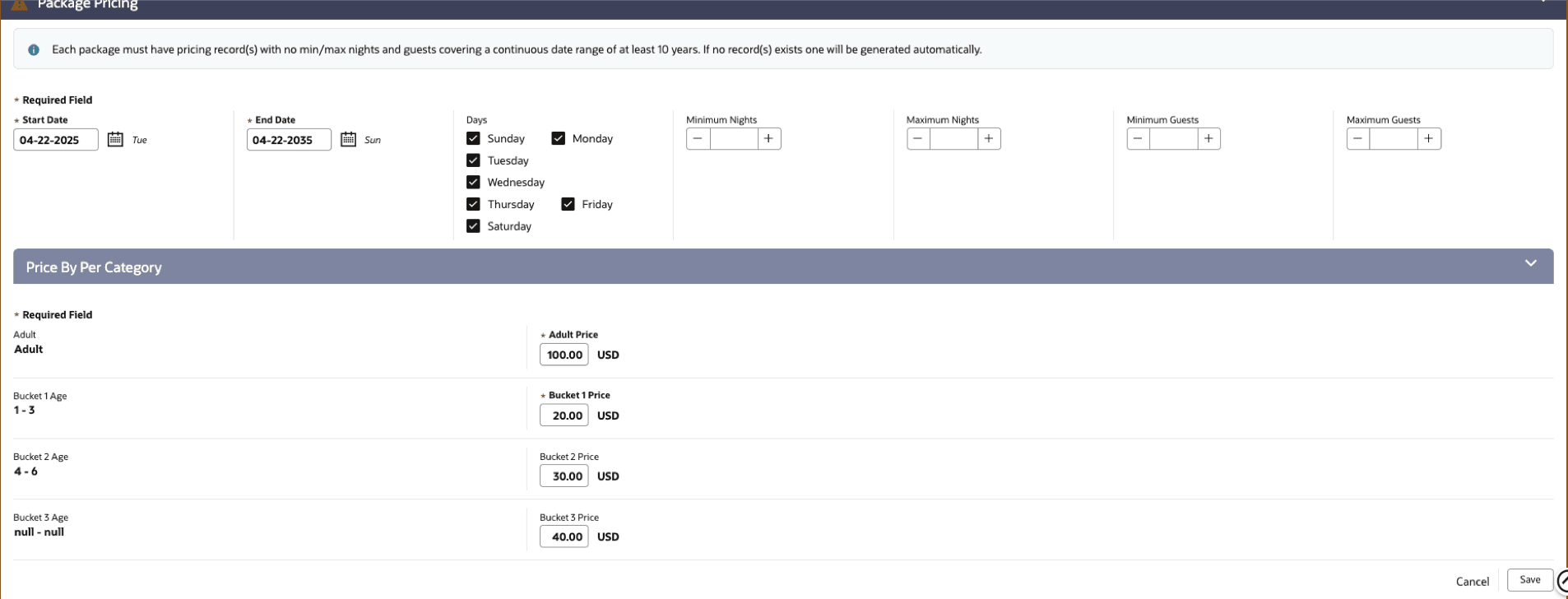
The Price by Age Category calculation rule for Packages lets you configure adult and child pricing within a single package. When the Advanced Packages OPERA Control is enabled, you can also configure allowances by age category.
When the Rates Defined by Buckets or Guest Age Category OPERA Control is enabled, child-related fields display and apply based on the configured Guest Category or Child Bucket definitions.
This feature is not supported by OPERA Cloud Distribution.
Calculation Rule

OPERATIONAL BENEFITS
Simplifies package configuration by allowing adult and child pricing, and age-based allowances (when Advanced Packages is enabled), to be managed within a single package. This reduces the need for separate packages for different guest types, minimizes configuration effort, and ensures accurate pricing based on the configured Rates Defined by Buckets or Guest Age Category OPERA Control definitions.
Rate Code and Attached Included in Rate Package Validation Added
Validation is added to prevent configuring the same transaction code on both a Rate Code header and any attached Included in Rate package. Rate codes cannot be saved when the rate header transaction code matches the transaction code of one or more attached Included in Rate packages, and the validation message identifies the package code(s) containing the conflicting transaction code.
The same validation applies during the post room and tax process during the End Of Day, and thePost Rate Code from the Billing screen. If a conflicting transaction code configuration is detected, posting is prevented, and an error message identifies the affected rate code and package. This validation applies only to packages configured as Included in Rate.
OPERATIONAL BENEFITS
- Prevents duplicate financial transaction postings caused by conflicting transaction code configurations.
- Ensures accurate revenue allocation for Included in Rate packages.
- Identifies configuration issues before posting, reducing processing errors and simplifying troubleshooting.
Update Charge Details Task Updated
Users with the Update Charge Details task can edit the amount and quantity of eligible posted charges from the Edit Posting screen on the current business date. Without this task, the amount or quantity of posted charges cannot be edited, including charges posted on the current business date using the same cashier ID. This validation applies consistently across all workflows that support editing posted charges. All changes to charge amounts and quantities are recorded in the Changes Log, including the user, timestamp, and before-and-after values.
OPERATIONAL BENEFITS
- Restricts updates to posted charge amounts and quantities to authorized personnel only.
- Improves accountability by recording all charge modifications with a complete audit trail.
- Reduces the risk of unauthorized or fraudulent changes while maintaining accurate financial records.
IMPACT OR OTHER CONSIDERATIONS
Review the roles and users that require permission to modify posted charges, and assign the Update Charge Details task only where this capability is required.
If direct modification is not appropriate for your organization's security policies, correct posted charges by reversing the original transaction with an offsetting entry and posting a new transaction with the correct amount. This approach preserves a complete audit trail while maintaining accurate financial records.
CLIENT RELATIONS
Alternative Stay Profile Search Exchange Interface Control Added
CENTRAL
Enhanced incoming Cloud HUB Stay Record processing with the Alternative Stay Profile Search OPERA Cloud Exchange interface control, which determines how a stay record is matched to a profile in OPERA Cloud Central.
- When the control is enabled, the system first attempts to match the incoming stay record using the membership number or the reservation confirmation number. If no match is found, the system attempts to match using the subscription ID. If neither identifier finds a matching profile, the stay record is created as an orphan record.
- When the control is disabled, matching is performed using the subscription ID only; records without a matching subscription ID are created as orphan records.
OPERATIONAL BENEFITS
- Hotels and loyalty operations teams can configure stay-record matching based on their integration and data-quality requirements. Enabling membership number or reservation confirmation number matching supports processing when a subscription ID is unavailable or does not identify a profile, while disabling the fallback ensures stay records are not attached to an incorrect profile in environments where duplicate membership numbers exist.
- This controlled matching approach improves the accuracy of profile and membership associations, reduces the risk of assigning stay activity and loyalty transactions to the wrong member, and enables unmatched records to remain identifiable as orphan records for appropriate review and resolution.
Countries Template Enhanced
Enhanced Countries Template configuration to support translations for the Country Name when adding or editing country records.
OPERATIONAL BENEFITS
Administrators can maintain localized country names through the standard configuration workflow, supporting consistent and understandable country descriptions for multilingual operations.
Country Dialing Code Option for Phone Numbers
Introduced structured, country-aware entry for phone and fax communications across all profile types, allowing you to optionally select a country within the Communication panel View Options. Its corresponding dialing code is displayed as a read-only value and stored with the entered phone or fax value. The optional country selection supports consistent capture of international contact details without affecting existing local phone-entry workflows. Country and dialing-code information is retained with the communication record for supported integrations and profile merges, while existing phone and fax values remain unchanged.
See Managing Profile Communication.

OPERATIONAL BENEFITS
- Hotels can capture guest contact details more consistently for international communications, reducing errors caused by manually entered dialing prefixes.
- Structured telephone entries improve the accuracy and usability of guest contact data while allowing existing local phone-entry workflows to continue. Retaining the country and dialing code also supports more reliable profile data sharing and downstream integrations.
IMPACT OR OTHER CONSIDERATIONS
Existing phone and fax values remain unchanged until you edit and save them. The feature uses the existing profile communication value and country metadata; it does not introduce a new API or integration contract.
Cross-Property Features Hidden When Profile Sharing Is Inactive
When the PROFILE SHARING OPERA Control Chain parameter is not active, the following areas in OPERA Sales & Event Management are hidden even when working in HUB mode:
- Copying a block to a different property
- Creating Master / Sub Blocks across multiple properties
- Creating Tours across multiple properties
- Creating property leads from central sales
- Creating events in a different property than the block
OPERATIONAL BENEFITS
Ensure Blocks and Activities are associated to account and contact profiles from the correct properties within the chain.
IMPACT OR OTHER CONSIDERATIONS
Please be aware of the impact this change has for Central Sales. Even though Central Sales will still be available to activate when Profile Sharing is not active, the Opportunity and Property Lead functionality will not be available.
Default Property for Profile Sharing
When chain parameter PROFILE SHARING is not active, the Quick Profile Search Screen and the Quick Profile Add Screen both show a property filter in HUB mode. The block / activity property is the default and cannot be changed.
OPERATIONAL BENEFITS
When operating with the chain parameter PROFILE SHARING inactive, the property defaults from the block or the activity to prevent an invalid property selection.
Profile Merge Enhanced with Additional Profile Details
You can compare additional profile details during Profile Merge including membership information, preferences, keywords, title, birthday, enrollment code, and available UDF values. UDFs are identified using their field codes. Compared profiles can be opened in read-only mode from the Main Profile and Profiles to Merge panels. When you change the main profile, previously selected Review Merge Details are cleared to prevent them from being carried forward. See Merging Profiles.
OPERATIONAL BENEFITS
You can make more informed profile merge decisions by comparing relevant profile information in one place and reviewing source profiles without leaving the merge process. Clearing retained-detail selections when the main profile changes helps prevent unintended information from being carried into the resulting profile. Display limits keep profile comparisons easier to review while preserving the existing merge outcome.
IMPACT OR OTHER CONSIDERATIONS
Additional profile details may now appear in the Profile Merge comparison and review flow when those details are available on the compared profiles. Your existing Profile Merge workflow, merge permissions, merge eligibility rules, and merge completion behavior remain unchanged.
For easier review, Profile Merge displays up to 20 membership records and up to 10 Accounts Receivable, address, communication, preference, keyword, and UDF records in each panel. These display limits do not affect merge eligibility or the records retained on the resulting profile.
SMART Profiles Reprocessing Updated
CENTRAL
SMART Profiles is enhanced to update profile regions using the current SMART Profile Region configuration when records are reprocessed. Following a region configuration change, such as updating or deleting a region assignment for a resort, you can apply filters to identify the affected SMART Profile records and select Reprocess; all records returned by the current filter criteria are reprocessed using the latest region configuration. Alternatively, use the row-level Reprocess option to reprocess an individual record.
The reprocess workflow prevents deleted or outdated region configuration from continuing to determine a profile’s assigned region. Based on the current configuration, the profile region is updated, reassigned, or cleared as applicable, while profile data unrelated to region calculation remains unchanged.
OPERATIONAL BENEFITS
- Hotels and central profile-management teams can correct affected SMART Profile records after a region configuration change without manually reviewing or updating each profile. Using filters helps you target only the relevant resort, region, or profile records, reducing the operational effort and risk associated with broad profile maintenance.
- This ensures that profiles are evaluated against the current region and associated SMART Profile merge rules, rather than stale configuration. As a result, teams can maintain accurate regional assignments, reduce incorrect profile-processing outcomes, and more efficiently investigate and resolve region-related discrepancies.
COUNTRY SPECIFIC
Country Specific - France - Daily Archive Exports and Grand Totals Updated
COUNTRY SPECIFIC - FRANCE - SERVICE TYPES ADDED TO DAILY ARCHIVE EXPORTS
The following update is specific to properties in France.
1. The Daily Archive Exports(DAILY_ARCHIVE, DAILY_ARCHIVE_DAY) are updated to include new elements related to Service Types functionality, when the Service Types OPERA Control is active.
The <ServiceTypeHeader> element is visible in the <Invoice> records, which contain folio details.
- If all charges on the folio correspond to the 'Goods' Service Type, then the <ServiceTypeHeader> value is GOODS.
- If all charges on the folio correspond to the 'Services' Service Type, then the <ServiceTypeHeader> value is SERVICES.
- If the charges on the folio are a mix of 'Goods' Service Type and 'Services' Service Type, then the <ServiceTypeHeader> value is GOODS AND SERVICES.
- If there are no charges on the folio (for example, positive and negative payments only), then the <ServiceTypeHeader> element is hidden.
The <ServiceType> element is visible in the <DocumentLine> records, which contain transaction details.
- If the Transaction Code of the charge corresponds to the 'Goods' Service Type, then the <ServiceType> value is G.
- If the Transaction Code of the charge corresponds to the 'Services' Service Type, then the <ServiceType> value is S.
- If there are no charges on the folio (for example, positive and negative payments only), then the <ServiceType> element is hidden.
Note:
Transaction Codes without a Service Type value are considered 'Services' by OPERA Cloud.Refer to France - Oracle Hospitality OPERA Cloud Fiscal Reference Guide.
COUNTRY SPECIFIC - FRANCE - DEPOSITS NO LONGER CONTRIBUTE TO GRAND TOTALS
The following update is specific to properties in France.
1. The Grand Totals are no longer affected by Deposit Folios or Credit Bills generated against Deposit Folios.
Refer to France - Oracle Hospitality OPERA Cloud Fiscal Reference Guide.
IMPACT OR OTHER CONSIDERATIONS
Note:
Properties in France must recreate the Daily Archive Exports (DAILY_ARCHIVE, DAILY_ARCHIVE_DAY) for these changes to take effect.ACTION REQUIRED (STEPS TO ENABLE)
- From the side menu, select OPERA Cloud, select Miscellaneous, select Exports, and then select Country.
- Enter search criteria then click Search.
- Select the DAILY_ARCHIVE Export, click the vertical ellipsis Actions menu, and select Delete.
- Click New from Template.
- Search and select DAILY_ARCHIVE.
- Click Create and Continue.
- Enter search criteria then click Search.
- Select the DAILY_ARCHIVE_DAY Export, click the vertical ellipsis Actions menu, and select Delete.
- Click New from Template.
- Search and select DAILY_ARCHIVE_DAY.
- Click Create and Continue.
Country Specific - Italy - Custom Charge Export for Italy (IT-Tracciati) Added to R+A
The following is generically available in Reporting and Analytics, but should be reviewed by properties in Italy.
The Custom Charge Export for Italy (Italy City Tax Export) is available in Reporting and Analytics using ITA-Tracciati.xml located in /Shared Folders/Templates/Fiscal/Italy (Folder). NOTE: Full details showing required OPERA Cloud functionality and how to configure and run the ITA-Tracciati.xml to provide the required data is available in the Italy - Oracle Hospitality OPERA Cloud Fiscal Reference Guide.
Refer to Italy - Oracle Hospitality OPERA Cloud Fiscal Reference Guide.
OPERATIONAL BENEFITS
Properties in Italy are required to report data related to City Tax (Custom Charges) generated during guest stays.
To ensure legal compliance the Custom Charge Export is created to generate the required data.
Country Specific - Portugal - Advanced Packages OPERA Control No Longer Displayed
To avoid issues with the PT_SAFT_104 Country Export, the Advanced Packages OPERA Control is no longer displayed for Properties in Portugal.
Properties with this parameter currently set to active should set this to inactive before moving to OPERA Cloud 26.4 to ensure the Package Allowance fields are not displayed.
IMPACT OR OTHER CONSIDERATIONS
Advanced Packages functionality is not compatible with the PT_SAFT_104 Country Export required by properties in Portugal.
Country Specific - Spain - Spain Municipality Code Functionality Added
The following is available for properties in Spain(including Catalonia and Basque Country).
When Country Mode = ES
The ability to import Municipality Codes, display on Profiles, Police Registration Cards and R&A Reports is available.
The Display Municipality Codes and Municipality Code Region OPERA Controls are added to the Country Specific group along with Import Municipality Code tasks in the Toolbox group, enabling the following:
When Display Municipality Codes OPERA Control is active, the following values are available for Municipality Code Region OPERA Control: - ESP - Spain - BAS - Basque Country - CAT - Catalonia
Note:
The region the property is located in should be selected in the Municipality Code Region OPERA Control to ensure the correct Municipality Code format is displayed on the Police Registration Card.ROLE MANAGER A Role Manager Task for Toolbox is available for Import Municipality Codes under Import Data. The Task allows users to import municipality codes into OPERA Cloud.
TOOLBOX - IMPORT DATA Municipality Code data can be imported using a .CSV file. Details for converting an .xlsx format file for import as .csv are listed in the ICCP OPERA Cloud Fiscal Documentation for Spain. The Import Data screen Global option displays the Data Type 'pain Municipality Codes. This option is used to import or reload the Municipality Code data stored in OPERA Cloud.
CHANGES LOG A record is created for Action Type Import Municipality Codes in Miscellaneous Group when Municipality Codes are imported.
PROFILE The Municipality Code field is displayed for Properties with Country Mode = ES when the Profile Address Country is ES or ESP. If the Profile Address Country is not ES or ESP the field is not displayed. The ability to search for the required Municipality Code is available by entering the Municipality name or number in the List of Values search. The Municipality Code field is not mandatory and there is no validation of the data selected. NOTE: The full 6 digit Municipality Code is always displayed on the profile.
POLICE REGISTRATION CARD The merge code MUNICIPALITY_CODE is available for sample_police_reg_card.rtf and can be added during customization. The required 5 digit or 6 digit Municipality Code format for the is displayed on the Police Registration Card based on the value of the OPERA Control for Municipality Code Region.
R+A REPORTS The existing R+A Police Reports for Spain are updated to display the Municipality Code data from the Profile. If no municipality code exists in the new field, the existing previous behavior is displayed in the report.
The following R+A Reports are located in Shared Folders/Templates/Fiscal/Spain: - ESP-Viajeros - ESP-Reserva_Hospedaje - CAT-Viajeros - CAT-Reserva_Hospedaje - BAS-Viajeros - BAS-Reserva_Hospedaje
Note:
If the reports are setup as Scheduled Reports, no update should be required to the scheduled report job and the updated report should automatically be used.R+A SUBJECT AREAS
Municipality Code data is available in the following Subject Areas:
Subject Area: AR-Accounts Receivable Accounts – Details – Primary Contact Details (Folder) - Municipality Code
Subject Area: Bookings - Reservation Reservation Overview – Details (Folder) - Travel Agent Municipality Code
Reservation Overview – Details (Folder) - Company Municipality Code
Reservation Overview – Details (Folder) - Source Municipality Code
Reservation Overview – Details (Folder) - Individual Municipality Code
Guest Profile – Profiles-Individuals - Guest Details (Folder) - Municipality Code
Accompanying – Guest Details (Folder) - Municipality Code
Account Profiles – Company Profile – Profiles-Company - Address & Communications (Folder) - Municipality Code
Account Profiles – Travel Agent Profile – Profiles-Travel - Address & Communications (Folder) - Municipality Code
Account Profiles – Source Profile – Profiles-Source - Address & Communications (Folder) - Municipality Code
Subject Area: Profiles- Accounts Address & Communication (Folder) - Municipality Code
Subject Area: Profiles-Addresses Details (Folder) - Municipality Code
Subject Area: Profiles-Contacts Address & Communication (Folder) - Municipality Code
Subject Area: Profiles-Individuals Guest Details (Folder) - Municipality Code
Refer to Spain - Oracle Hospitality OPERA Cloud Fiscal Reference Guide.
OPERATIONAL BENEFITS
Properties in Spain are required to provide the official Municipality Codes for Spanish addresses to the Police based on the region the property is located in when submitting Police Exports (Viajeros and Reserva_Hospedaje exports).
ACTION REQUIRED (STEPS TO ENABLE)
- From the side menu, select Administration, select Enterprise, and then select OPERA Controls.
- Select or confirm the Property.
- Select the Country Specific group.
- Locate and activate the Display Municipality Code OPERA Control.
- Locate the Municipality Code Region OPERA Control, select Edit, select the required value from the LOV and select Save.
- From the side menu, select Role Manager and then select either Manage Chain Roles or Manage Property Roles according to your needs.
- Enter search criteria and click Search.
- Select the role to update, click the vertical ellipsis Actions menu, and select Edit.
- Select the Toolbox group and grant the Import Data task Import Municipality Code Account Folio.
- Click Save.
Country Specific - Sweden - Country Statistics for Sweden Export (SWEDEN_COUNTRY_STAT) Added to R+A
The following is generically available in R+A, but should be reviewed by properties in Sweden.
The Country Statistics for Sweden Export is available in Reporting and Analytics using SWEDEN_COUNTRY_STAT xml located in /Shared Folders/Templates/Fiscal/Sweden (Folder). NOTE: Full details showing how to configure and run the SWEDEN_COUNTRY_STAT xml to provide the required data is available in the Sweden -Oracle Hospitality OPERA Cloud Fiscal Reference Guide.
Refer to Sweden - Oracle Hospitality OPERA Cloud Fiscal Reference Guide (DOC6521).
OPERATIONAL BENEFITS
Properties in Sweden are required to report data for Country Statistics.
The new R+A SWEDEN_COUNTRY_STAT Export delivers the data in the latest format to ensure properties are legally compliant.
DISTRIBUTION
AI Channel Rate Description Assistant OPERA Control Added
DISTRIBUTION
OPERA Cloud Distribution's Channel Management module features AI-assisted channel rate description generation within Channel Distribution attributes and Channel Rate Configuration screens. Revenue managers can utilize AI-generated descriptive text derived from the OPERA Cloud Rate description and attributes, allowing them to preview and edit the content for accuracy, as well as set default descriptions. This enhancement streamlines the process of creating rate code descriptions for various channels, resulting in greater efficiency and consistency across distribution channels.
When AI Channel Rate Description Assistant is enabled in Property level OPERA Controls - Channel Management, the AI Assistant is available to generate channel rate descriptions.
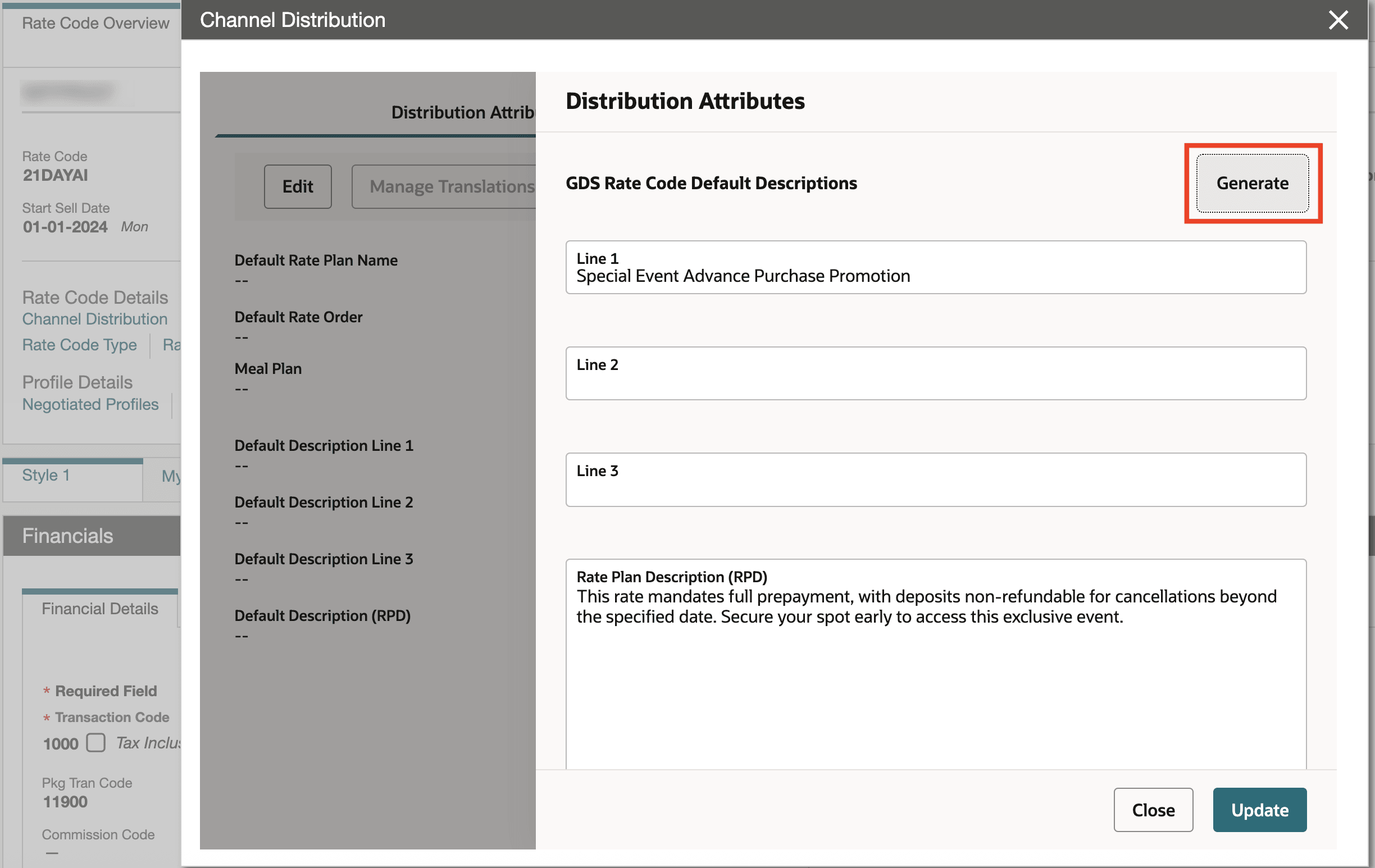
The Generate button is visible in the following screens under OPERA Cloud Administration:
- Financials - Rate Management - Channel Distribution - Distribution Attributes and Channel Rate Configuration
- Distribution - Channel Distribution - Channel Rate Plans - Channel Rate Code
When the Generate button is selected, OPERA Cloud creates suggested rate descriptions based on factors such as the rate long description, package attributes, and channel type. Users can choose to accept and save the generated description as provided, or edit it before saving the updated version.
Financials - Rate Management - Channel Distribution - Distribution Attributes
Financials - Rate Management - Channel Distribution - Channel Rate Configuration
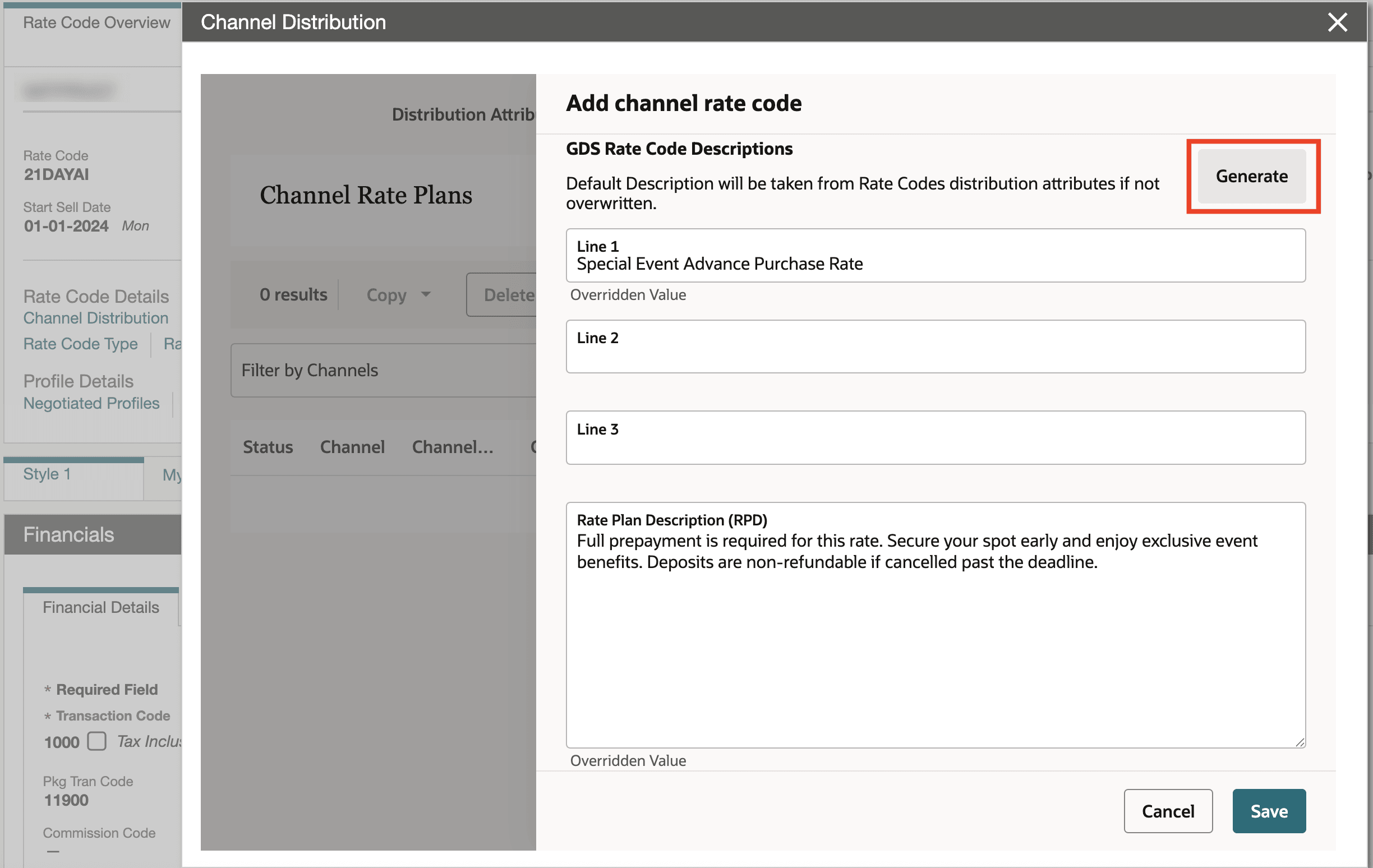
Example:
Distribution - Channel Distribution - Channel Rate Plans - Channel Rate Code
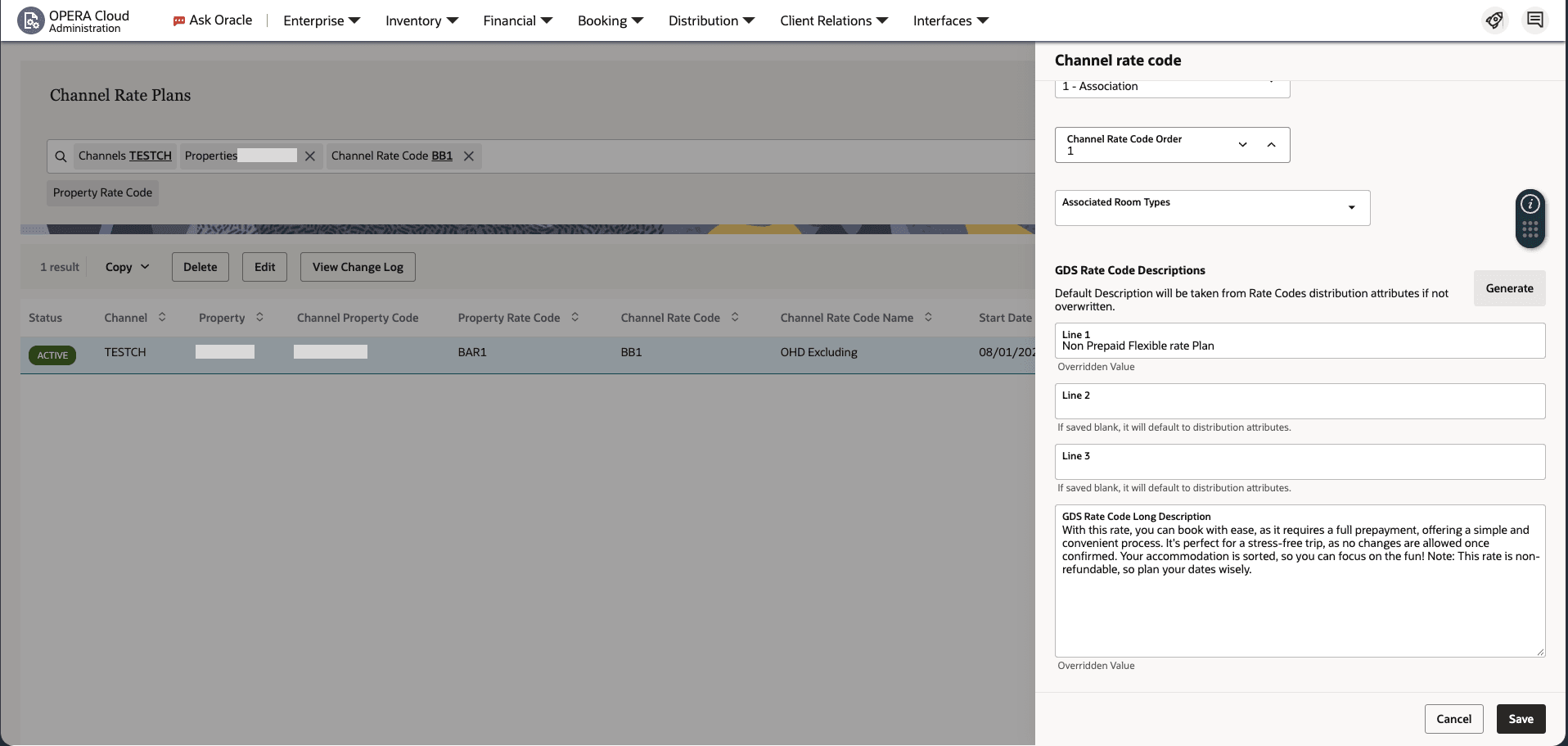
OPERATIONAL BENEFITS
- Increased Efficiency: Automates the creation of channel rate descriptions, significantly reducing the time and manual effort required by distribution and revenue managers.
- Improved Accuracy: Helps minimize human error by providing AI-generated content that is accurate, easy to understand, and maintains a consistent tone and style throughout.
- Enhanced Consistency: Ensures uniformity in rate descriptions across different distribution channels.
- Greater Flexibility: Allows quick editing and updating of descriptions, enabling rapid response to market and business changes.
- Streamlined Workflows: Consolidates manual and AI-driven tasks in a single user interface, enhancing user productivity and process management.
IMPACT OR OTHER CONSIDERATIONS
The AI Generation for channel rate descriptions generates descriptive text based on OPERA Cloud rate attributes provided at the time of each request, leveraging pre-trained AI language model. When users edit or modify generated descriptions and save them, these edits can be incorporated as dynamic examples to guide and improve future responses for similar prompts within the system. However, user-edited content is not directly used to retrain the underlying AI language model, ensuring that user data remains private and compliant with data protection guidelines. The generated content will adapt over time based on saved examples, while always respecting privacy and compliance policies.
STEPS TO ENABLE
Enable AI Channel Rate Description Assistant OPERA Cloud control, under Channel Management Controls.
- From the Side Menu, select Administration, select Enterprise and then select OPERA Controls.
- Select or confirm the Property.
- Select the Channel Management group.
- Locate and activate the AI Channel Rate Description Assistant parameter.
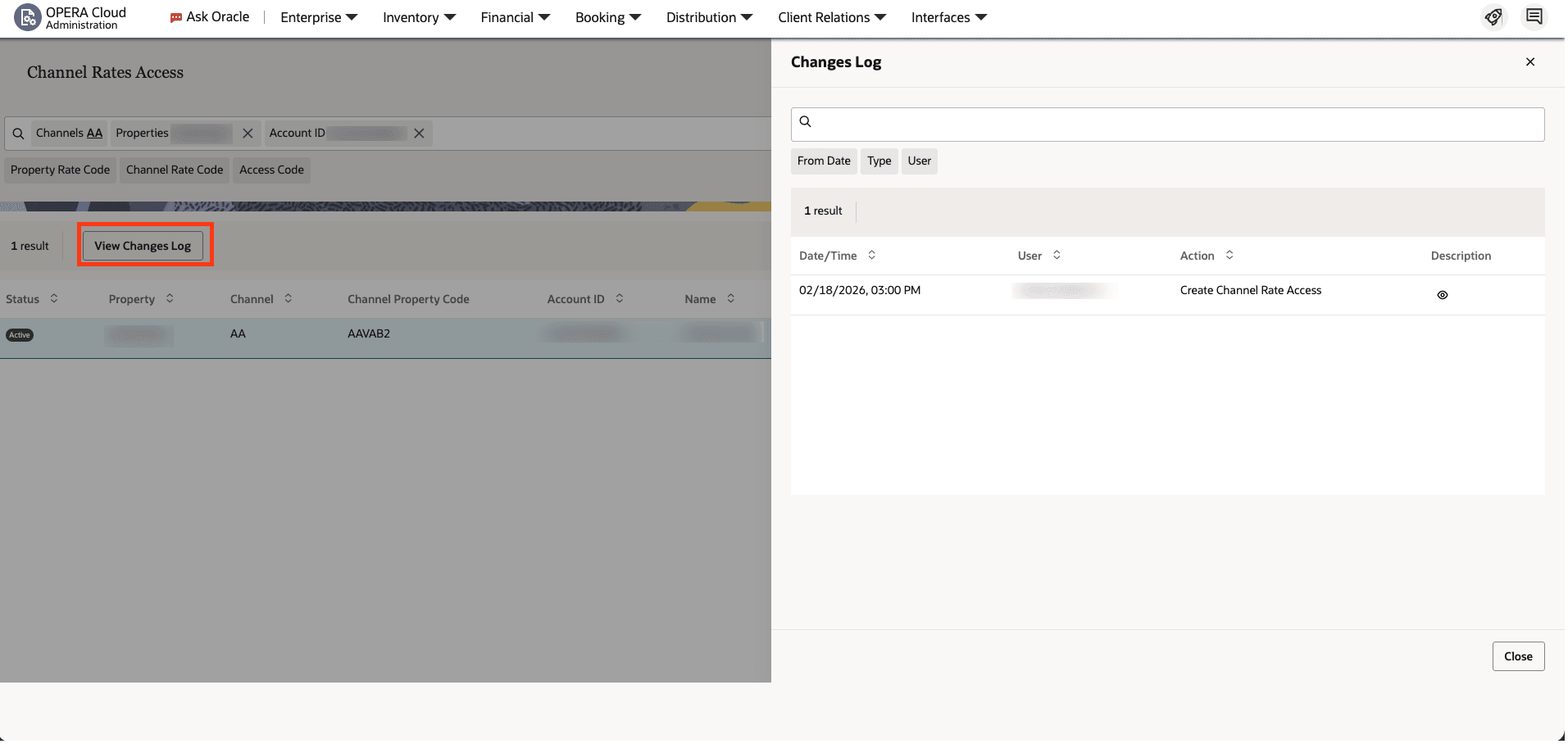
Changes Log Option Added to Channel Distribution
DISTRIBUTION
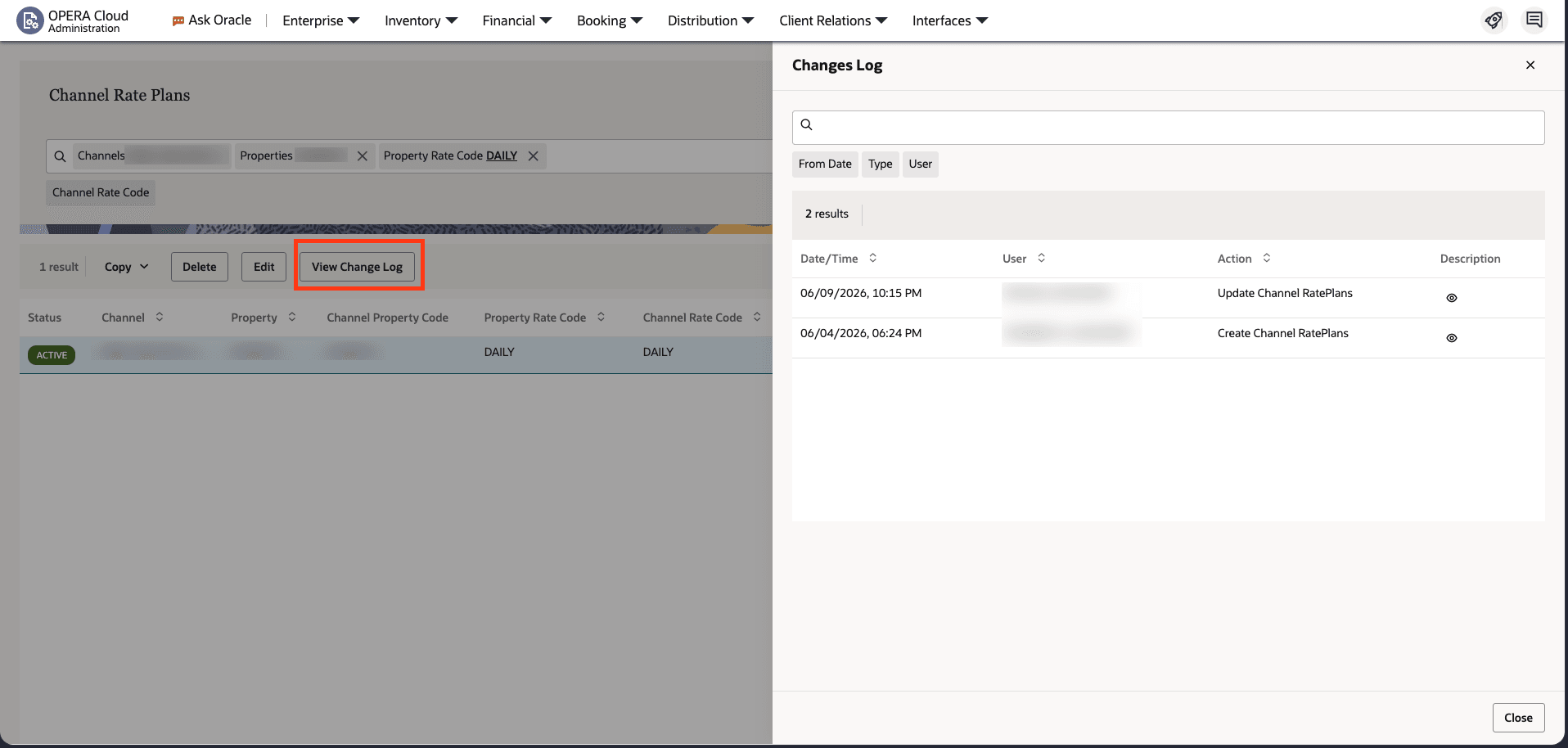
Channel Rate Plans
An Option to view the changes logs is added to Channel Rate Plan Screens under Channel Distribution Menu in both HUB and Property Mode.
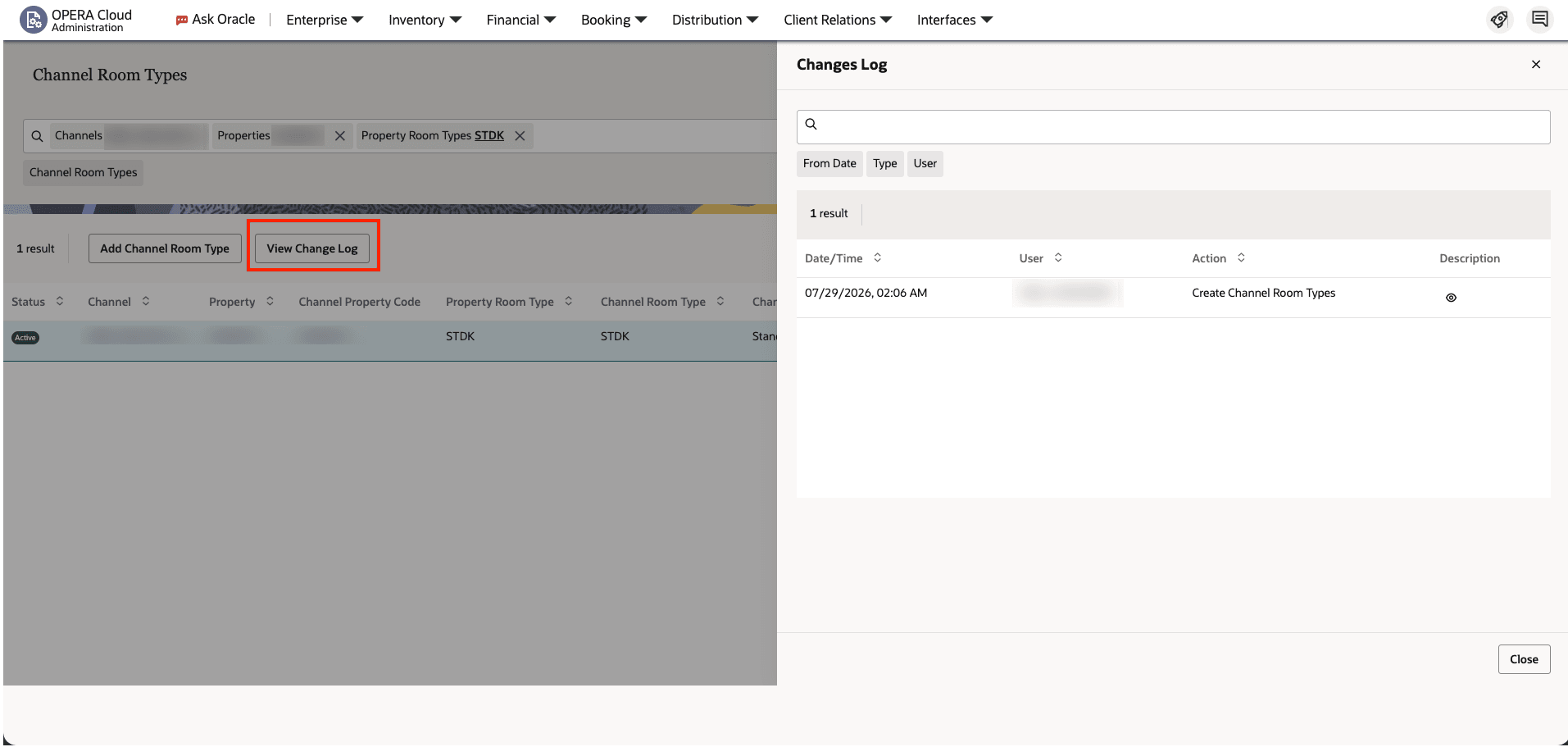
Channel Room Types
An Option to view changes logs is added to Channel Room Type Screens under Channel Distribution Menu in both HUB and Property Mode.
Channel Rate Access
An Option to view changes logs is added to Channel Rate Access Screens under Channel Distribution Menu in both HUB and Property Mode.
OPERATIONAL BENEFITS
You can view changes log for specific channel rate plan, channel room types, and channel rate access records in both Property and HUB Mode.
IMPACT OR OTHER CONSIDERATIONS
These menus are available only when using OPERA Cloud Distribution 25.4 or higher.
Make sure you have the necessary tasks assigned at the cluster level and property level in OPERA Cloud Distribution.
Manage Rate Codes and Room-to-Rate Assignment in Booking.com
DISTRIBUTION
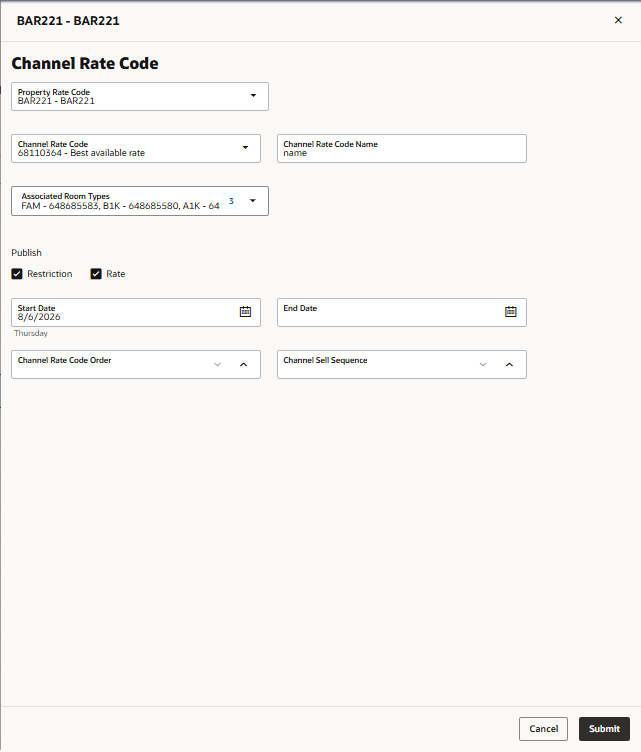
This release introduces OPERA Cloud Distribution Content integration with Booking.com for managing rate codes and room-to-rate assignments.
New outbound APIs enable properties to manage Booking.com rate codes, including:
- Create, update, delete, and retrieve rate codes.
- Create, update, delete, and retrieve room-rate products that link a Booking.com room type to a Booking.com rate code.
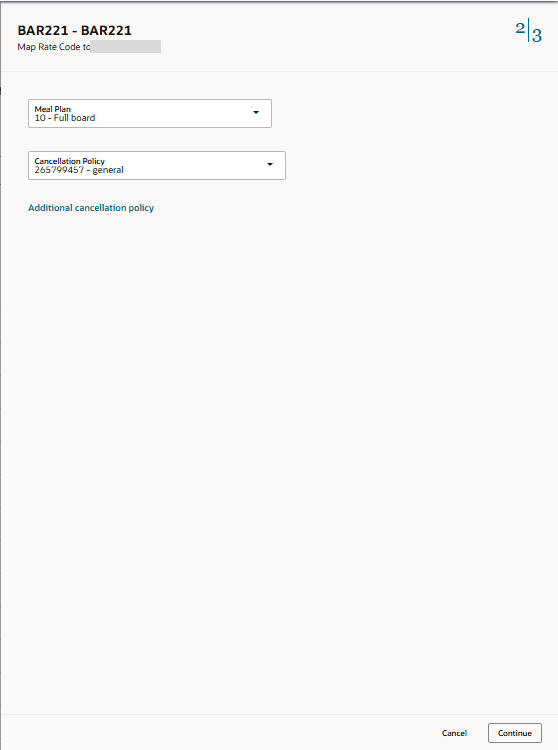
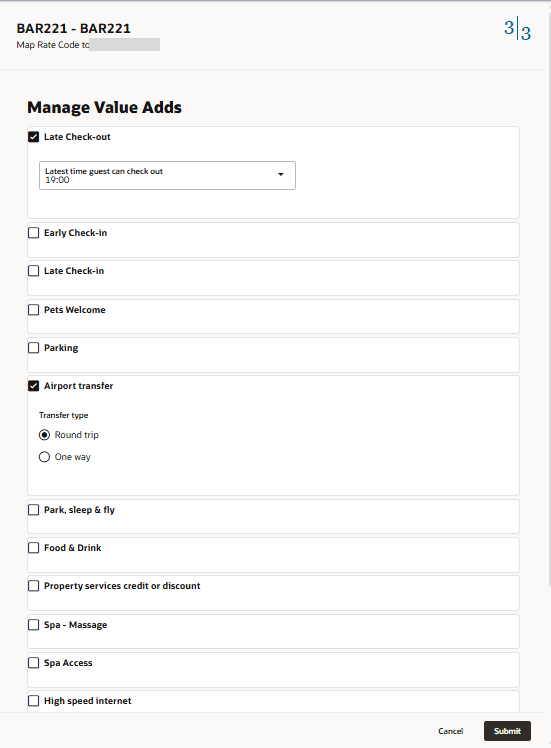
- Associate existing cancellation policies, meal plans and Value Adds with room-rate products.
The feature supports configuration of Booking.com rate codes and room-rate assignments from OPERA Cloud, reducing manual maintenance and helping keep rate configuration aligned across both systems.
Booking.com room types and rate codes must exist before a room-rate product can be created. If no cancellation policy is specified, Booking.com applies the property’s default policy.
Refer to Distribution Administration - Configuring Channels.
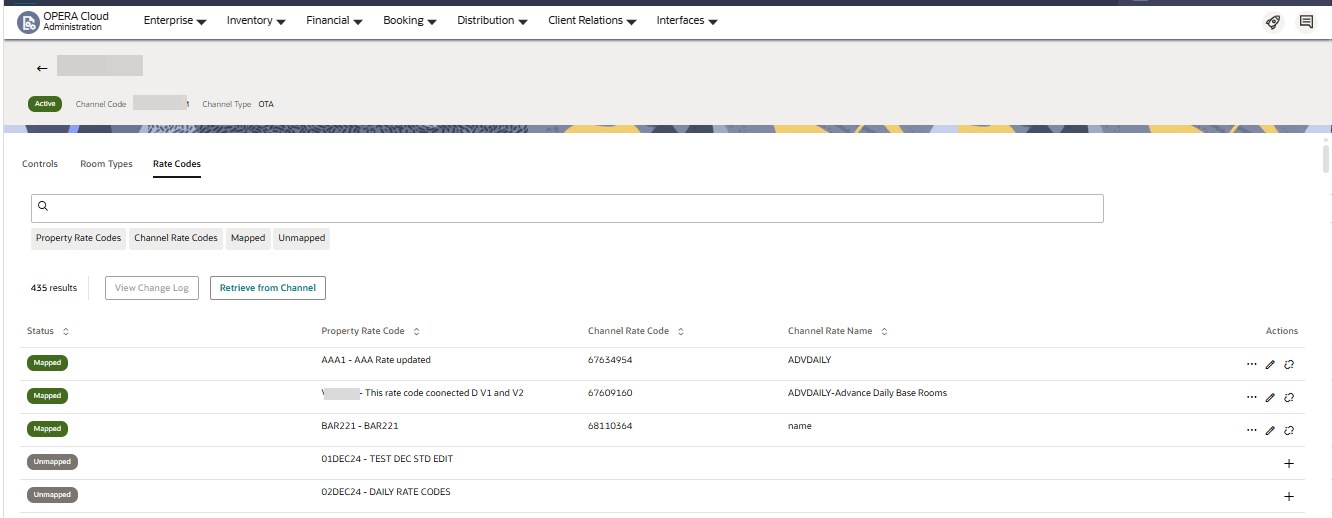
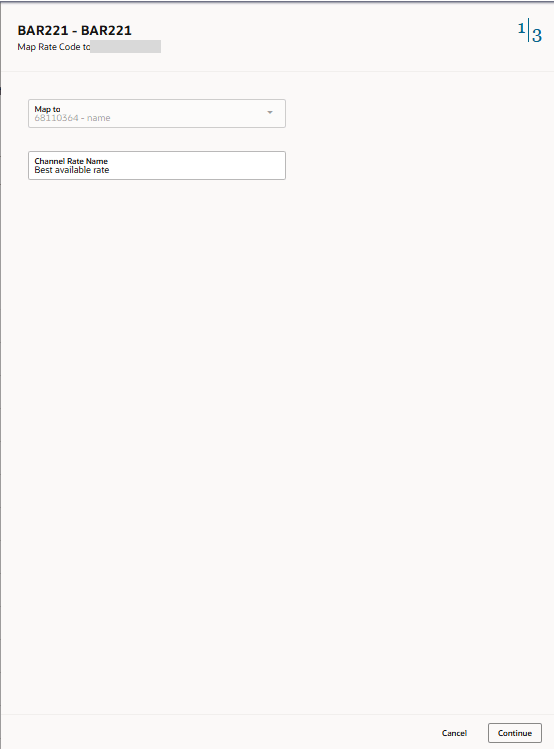
Step 1 Add or Edit Rate Code to Booking.com
Step 2 Add Meal plan and Cancellation policy
Step 3 Manage Value Adds to be offered with the Rate Code on Booking.com
Step 4 Map the Rate code to associated Room types in Booking.com
OPERATIONAL BENEFITS
To manage rate codes and room rate link-creation for partner systems like Booking.com from OPERA Cloud, will reduce manual labor and discrepancies that is a risk when manual input is maintained in multiple places.
IMPACT OR OTHER CONSIDERATIONS
- To use this functionality the Property must enable "Content" with Oracle Hospitality Channel Connect in Booking.com.
- The Rate Codes TAB on the Channel screen is only available for channel booking.com.
- Integration using Booking.com OTA_HotelRatePlanNotif API and Booking.com OTA_HotelProductNotif API and APIs to get Meta data for meal plans and value adds, and Property APIs to get policies.
ACTION REQUIRED (STEPS TO ENABLE)
- Hotels need to be on Booking.com and have enabled the "Oracle Hospitality Channel Connect" in their extranet for the given property.
- In Booking.com under "What your provider manages", Properties must add "Content" to be managed via Oracle.
EVENTS
-
Oracle Hospitality OPERA Cloud Service, Sales and Event Management Essentials Edition.
-
Oracle Hospitality OPERA Cloud Service, Sales and Event Management Standard Edition.
-
Oracle Hospitality OPERA Cloud Service, Sales and Event Management Premium Edition.
Features that are specific to the Sales and Event Management Premium
Edition are marked with the Premium badge. 
Function Diary Quick Navigation
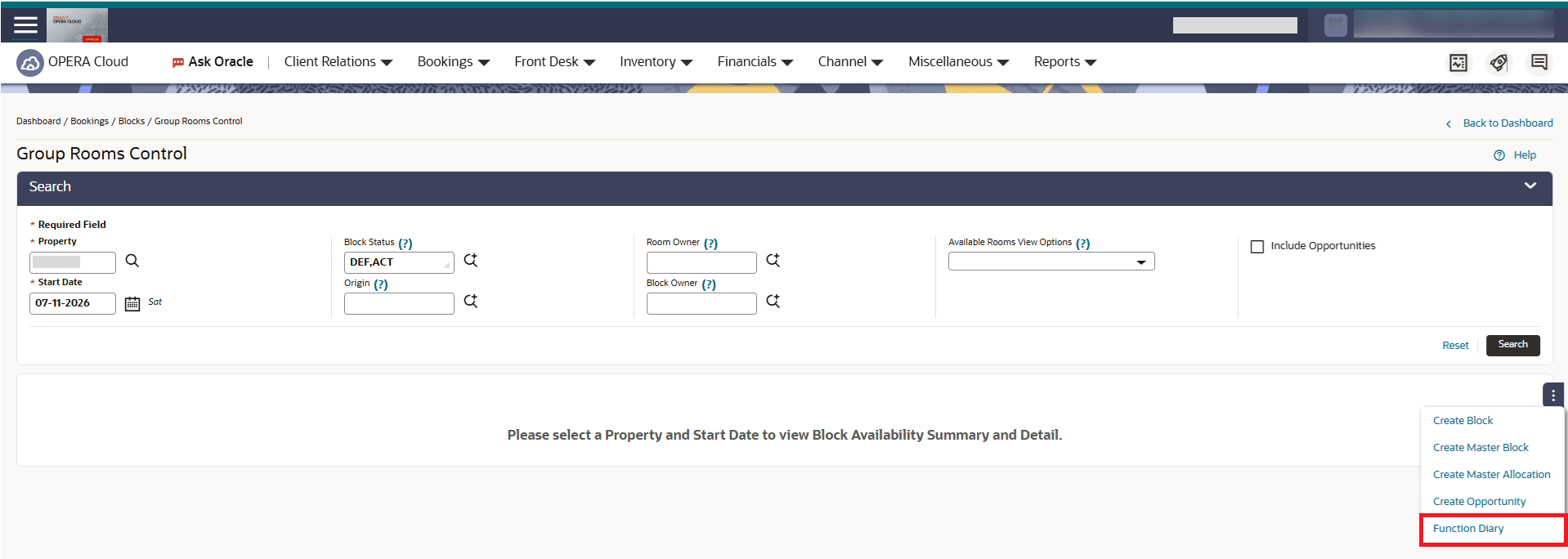
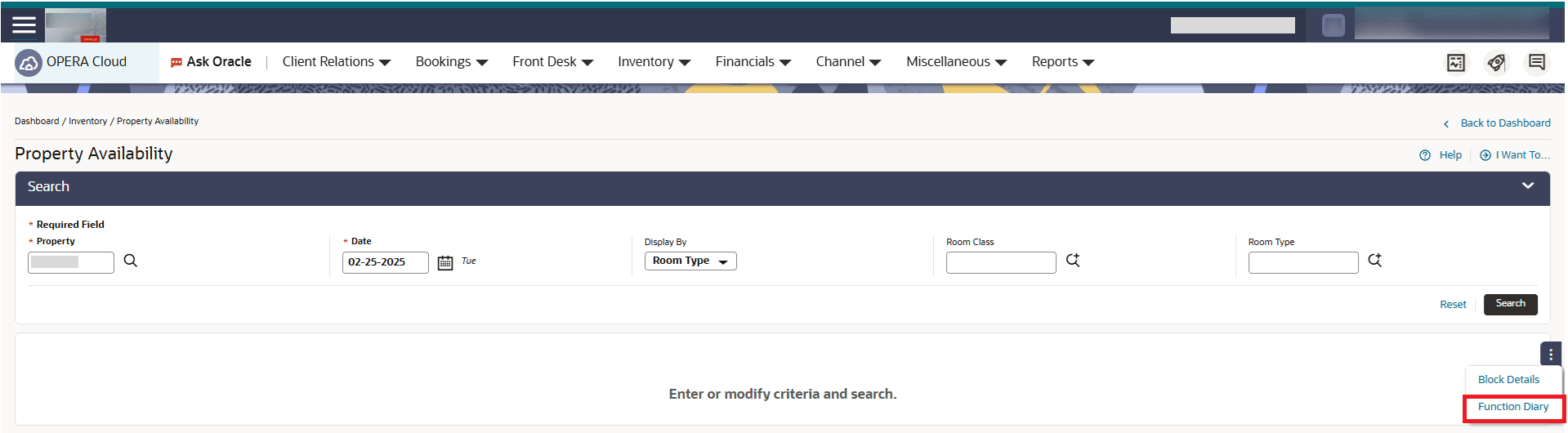
For properties with the Function Diary or Simple Events OPERA Control active, you can navigate directly to the Function Diary from the Group Rooms Control and Property Availability screens, providing quicker access to function space availability. When a property and date are selected, Function Diary opens defaulting the selected property and start date, and automatically performs a search using the existing saved defaults.
OPERATIONAL BENEFITS
Provides quicker access to function space availability when checking guest room availability in the Group Rooms Control or Property Availability screens.
Inactive Check Box Added to Rental Code Configuration
For properties with the Catering Events OPERA Control active, an Inactive checkbox is available when editing Rental Codes. When selected, the rental code will no longer be available when editing or creating new events and configuring function spaces. The record will still be available for reporting purposes and existing events where it was assigned. When copying an event with an inactive rental code to other dates or other spaces, the inactive code will be replaced with Custom and the rental amount will be retained.

OPERATIONAL BENEFITS
Allows properties to retire obsolete rental codes without losing historical event and revenue data. This prevents users from assigning outdated codes to new events or function spaces, while preserving existing event records and reporting accuracy.
FRONT DESK
AI Reservation Summary at Check In OPERA Control Added
When the AI Reservation Summary at Check In OPERA Control is enabled, the Reservation Summary displays relevant stay information such as Guest Name, Membership Information, VIP Status, previous stay (duration and room), and Special Requests on the Check In screen. Fields without associated data are not shown, resulting in a clear and concise view that helps streamline the check in process.
OPERATIONAL BENEFITS
This reduces the time needed for the Front Desk agent to review reservation details during check in by surfacing key information directly in the check in workflow.
ACTION REQUIRED (STEPS TO ENABLE)
- From the Side Menu, select Administration, select Enterprise and then select OPERA Controls.
- Select or confirm the Property.
- Select a property and click Search.
- Select the Front Desk group.
- Locate and activate the AI Reservation Summary at Check In parameter.
Digital Registration Functionality Added
The Digital Registration OPERA Control is available, and when active you can generate configurable Digital Registration Forms from reservation and check in workflows and share them with guests on a desktop or mobile device. Guests can review and update permitted details, accept terms, and sign the form. Completed forms are stored with the reservation and applicable updates are saved in OPERA Cloud. The Days to Purge Digital Registration child setting lets you specify how many days after checkout the saved Digital Registration forms are purged. Digital Registration templates can be managed at chain and property level.
Three user tasks are added in the Enterprise Admin group for this functionality: Digital Registration (Parent task), Manage Digital Registration Templates on Chain Level, and Manage Digital Registration Templates on Property level.
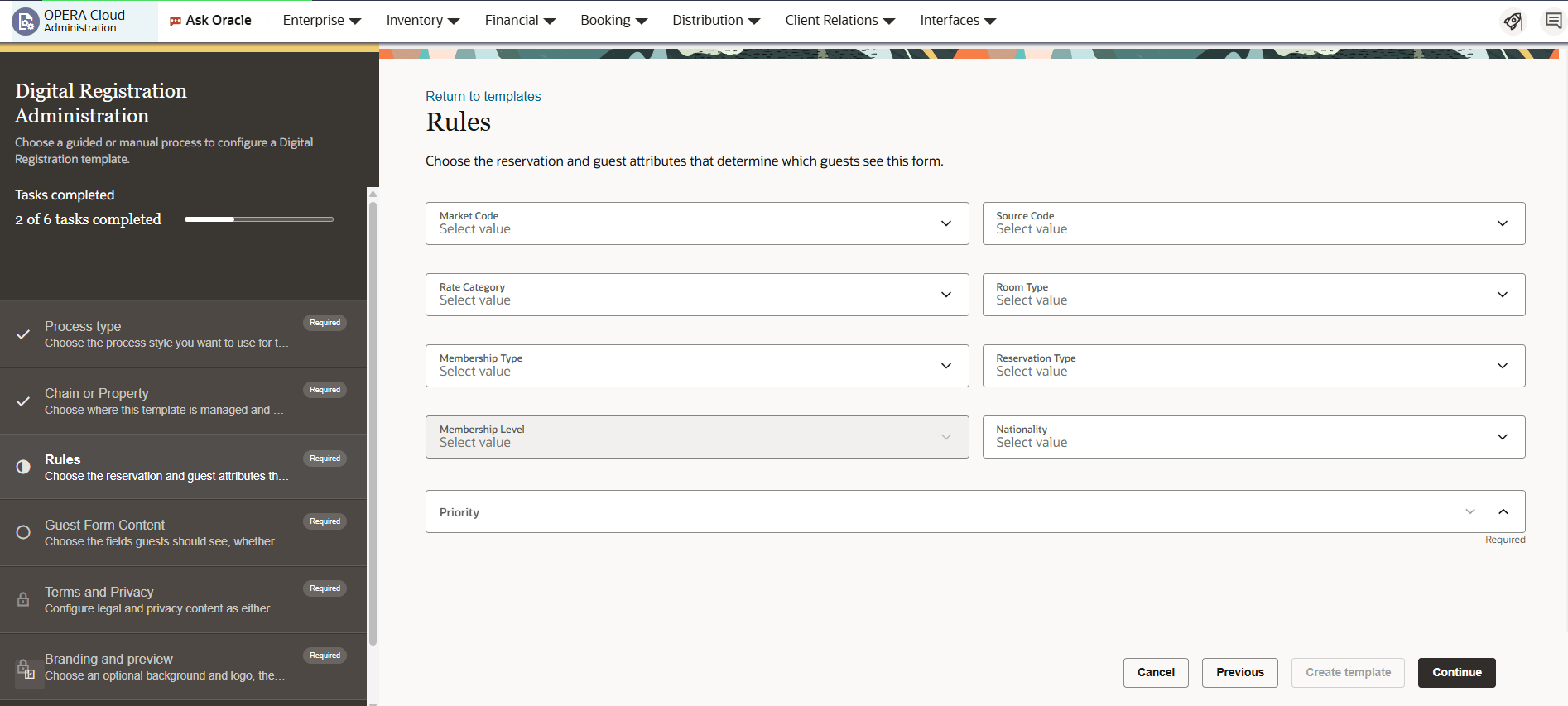
Configuration
Templates are configured on the Digital Registration screen (Administration - Enterprise - Chain and Property Management - Digital Registration).
A guided process is available to configure the following items:
- Chain or Property level and template Name
- Matching Rules and Priority (these rules determine which reservations see
which digital registration guest form). The following matching rule
attributes are available:
- Market Code
- Source Code
- Rate Category
- Room Type
- Membership Type and Level
- Reservation Type
- Nationality
- Guest Form Content (here you are able to choose which fields you want add to the guest form and if the fields are editable and/or required)
- Terms and Conditions and Privacy Rules
- Background and Logo
Templates saved as Chain templates can be linked or copied into properties. If a template is linked to a property it cannot be edited on the Property Level. If a template is copied to a property it can be edited on the property level.
User tasks are available to control chain and property template management.
Example of guided process for new template creation
Application
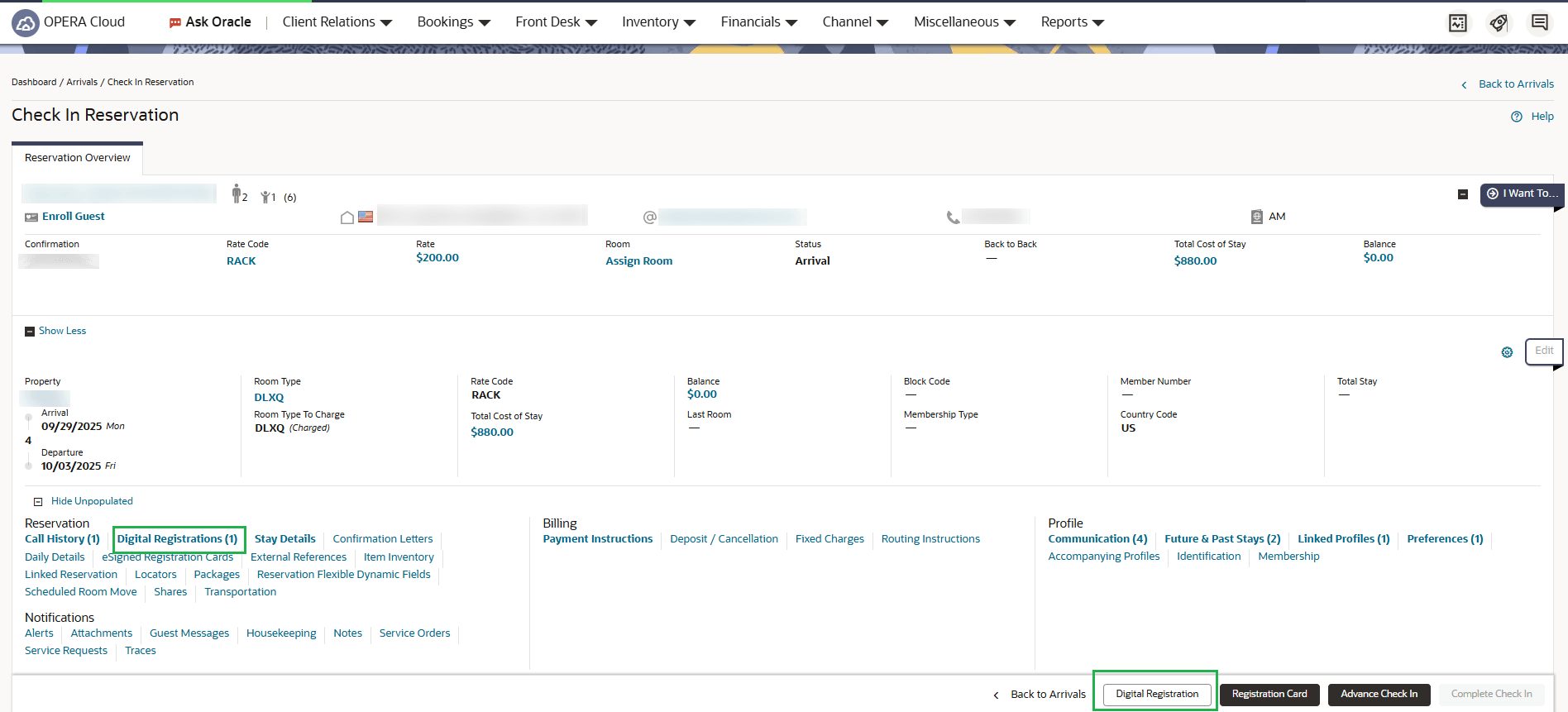
The Digital Registration guest form can be generated from the I Want To menu as well as from the Digital Registration button on the Check In Reservation screen.
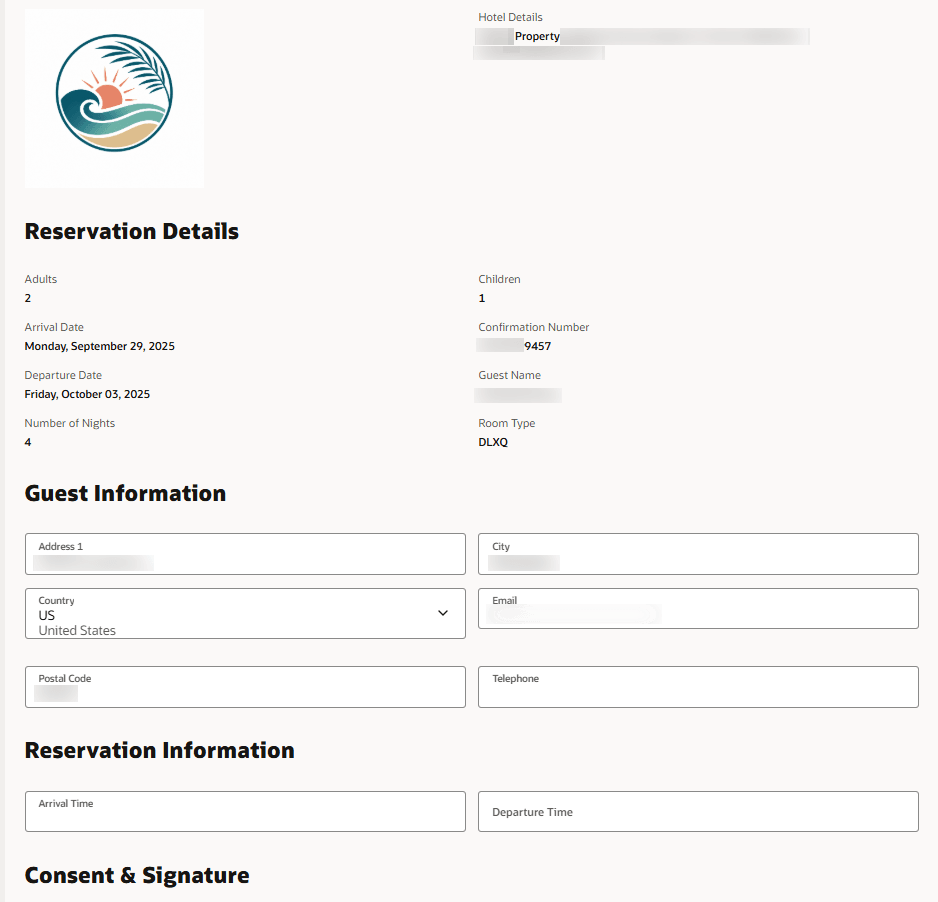
The guest form is generated on the device the agent is using and will show all the items configured on the template that match the reservation attributes.
After the guest verifies, updates, and completes the guest form by initialing, signing, and submitting it, any necessary updates are made in OPERA Cloud and saved in the changes log. The completed Digital Registration is then stored and can be accessed in the Digital Registration panel of the reservation. For security reasons a PIN override is required by the agent after the guest form is submitted by the guest. This assures that the guest does not have access to other areas of the application.
Example of partial guest form
Example of the Check In Reservation screen
OPERATIONAL BENEFITS
Digital Registration streamlines check in by enabling guests to complete required registration details and signatures themselves. This reduces manual data entry for front desk staff, supports a consistent branded guest experience across devices, and keeps guest and reservation information accurate in OPERA Cloud.
IMPACT OR OTHER CONSIDERATIONS
This feature is being released incrementally, and availability may be delayed in some instances.
- From the Side Menu, select Administration, then Enterprise, and then OPERA Controls.
- Select or confirm the Property.
- Select the Front Desk group.
- Locate and activate the Digital Registration function.
- Locate and define the Days to purge Digital Registration setting.
- From the Side Menu select Role Manager, then either Manage Chain Roles or Manage Property Roles according to your needs.
- Enter search criteria and click Search.
- Select the role to update, then click the vertical ellipsis Actions menu and select Edit.
- Select the Enterprise Admin group and grant the following tasks as
needed:
- Digital Registration
- Manage Digital Registration Templates on Chain Level
- Manage Digital Registration Templates on Property Level
- Click Save.
eSign Registration Card for Accompanying Guests Added
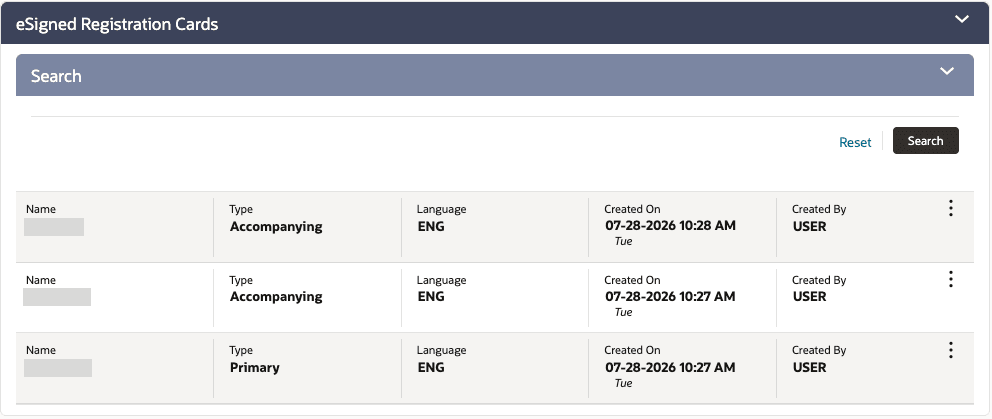
In properties where the Accompanying Guest OPERA Control is active, the eSign Registration Card functionality is enhanced to support generating and saving separate electronic registration cards for accompanying guests on a reservation. When the Generate Registration Cards for Accompanying Guests OPERA Control is enabled, you can select the primary guest or an accompanying guest profile from the eSign Registration Card profile list. Guests can complete the required signature or initials, and you can use Save and Next to continue through the available guest cards.
When the Age Threshold to print Registration Card OPERA Control is set, eSign Registration Cards are generated for accompanying guest profiles at or above the configured age threshold. The eSign Registration Card template generates profile details for the selected guest profile, while reservation details are generated from the primary guest reservation.
Saved eSign Registration Cards are stored separately and are available from the reservation eSign Registration Cards panel with guest-identifying details for the primary or accompanying guest. Changes Log entries also identify the guest type and profile name, helping you retrieve and audit signed registration cards for each applicable guest.
The Generate Registration Cards for Accompanying Guests OPERA Control is available outside the Registration Cards OPERA Control and supports both Registration Cards and eSign Registration Cards.

OPERATIONAL BENEFITS
You can generate, capture, store, and retrieve eSigned Registration Cards for accompanying guests directly from the reservation. Each card is linked to the guest’s profile, making it easier to verify and review signed cards for eligible guests.
ACTION REQUIRED (STEPS TO ENABLE)
- From the Side Menu, select Administration , select Enterprise, and then select OPERA Controls.
- Select or confirm the Property.
- Select the Front Desk group.
- Locate and enable the Generate Registration Cards for Accompanying Guests parameter.
- Set the Age Threshold to print Registration Card setting, if needed.
Front Desk Work Space Updated
The Front Desk Workspace includes a Country and State Check option that lets you manually validate reservations with missing Country or State information before the scheduled End of Day (EOD) process. The check uses the existing EOD validation logic and displays affected records for a selected property and business date in an EOD-style results list. The feature is available when the COUNTRY_CHECK OPERA Control (setting) or STATE_CHECK OPERA Control (parameter) is enabled. You can review and update one record at a time using the existing edit workflow, helping resolve validation exceptions before EOD processing begins.
OPERATIONAL BENEFITS
You can identify and correct missing Country or State information before the End of Day process, reducing EOD validation issues and improving data quality. By using the familiar EOD validation and edit workflow, the enhancement helps streamline exception handling without changing existing EOD processing.
INTEGRATIONS
OPERA Cloud Central Added with Third-Party PMS Integration Capability
CENTRAL
The Third Party PMS Integration enables OPERA Cloud Central customers to integrate with non-Oracle PMS (the approved list) and share the business data as described in the following table.
| # | Business functions | How it works | Data flow direction |
|---|---|---|---|
| 1 | OPERA Cloud Central is able to activate Third-party PMS integration for the required Central Property from OPERA Controls. | Activate OPERA Control : Third-party PMS Integration at the property context. | Activation. |
| 2 | OPERA Cloud Central can receive rates and schedules from Third-party PMS. | Third-party PMS sends the rates and schedules created or updated. OPERA Cloud Central receives the rate header, rate schedules from PMS and creates or updates the rate information. | Third-party PMS to OPERA Cloud Central |
| 3 | OPERA Cloud Central can receive restrictions from Third-party PMS. | Third-party PMS sends the restrictions created or updated. OPERA Cloud Central receives the restrictions from PMS and creates or updates the restrictions for the respective property. | Third-party PMS to OPERA Cloud Central |
| 4 | OPERA Cloud Central can receive inventory updates from Third-party PMS. | Third-party PMS sends the inventory updates. OPERA Cloud Central receives the inventory updates from PMS and updates the Central inventory for the respective property. | Third-party PMS to OPERA Cloud Central |
| 5 | OPERA Cloud Central can send reservations created, updated, cancelled to Third-party PMS. | OPERA Cloud Central sends the reservations created, updated, cancelled for the respective property. Third-party PMS receives the reservations and creates or updates or cancel the reservations for the respective property. | OPERA Cloud Central to Third-party PMS |
| 6 | OPERA Cloud Central can perform reservation reconciliation with PMS reservations and sync to Third-party PMS. | OPERA Cloud Central Reconciliation compares the reservations from Central and Third-party PMS and can sync the missing reservations from Central to PMS.Third-party PMS receives the reservations missed from Central and creates or updates the reservations for the respective property. | OPERA Cloud Central to Third-party PMS |
| 7 | OPERA Cloud Central can perform inventory reconciliation with PMS inventory and sync to Central system. | OPERA Cloud Central Reconciliation compares the inventory from Central and Third-party PMS and can sync the missing inventory received from the PMS. | Third-party PMS to OPERA Cloud Central |
| 8 | OPERA Cloud Central can show Inbound and Outbound Integration Messages status review and reprocess the failed messages. | OPERA Cloud Central Integration Messages shows the Inbound messages (rates, restrictions and inventory) received from PMS under Inbound tab for the selected property and date range. OPERA Cloud Central Integration Messages shows the Outbound messages (reservations) sent from Central to PMS under Outbound tab for the selected property and date range. The Message Status screen allows users to reprocess failed messages after data correction on the core systems. Failed messages are notified on OPERA Notifications panel. | Third-party PMS to and from OPERA Cloud Central |
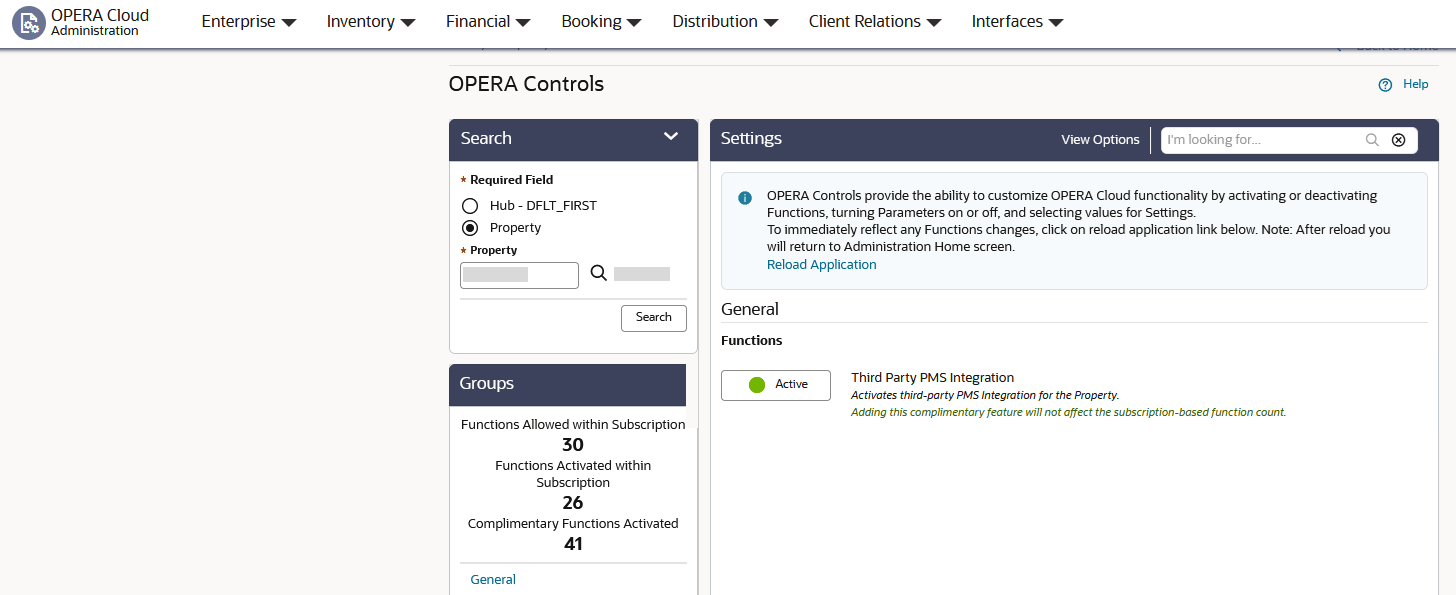
OPERA Control
Activate OPERA Control - General Function : Third Party PMS Integration at Property context.
The activation process autoconfigures all of the required setups.
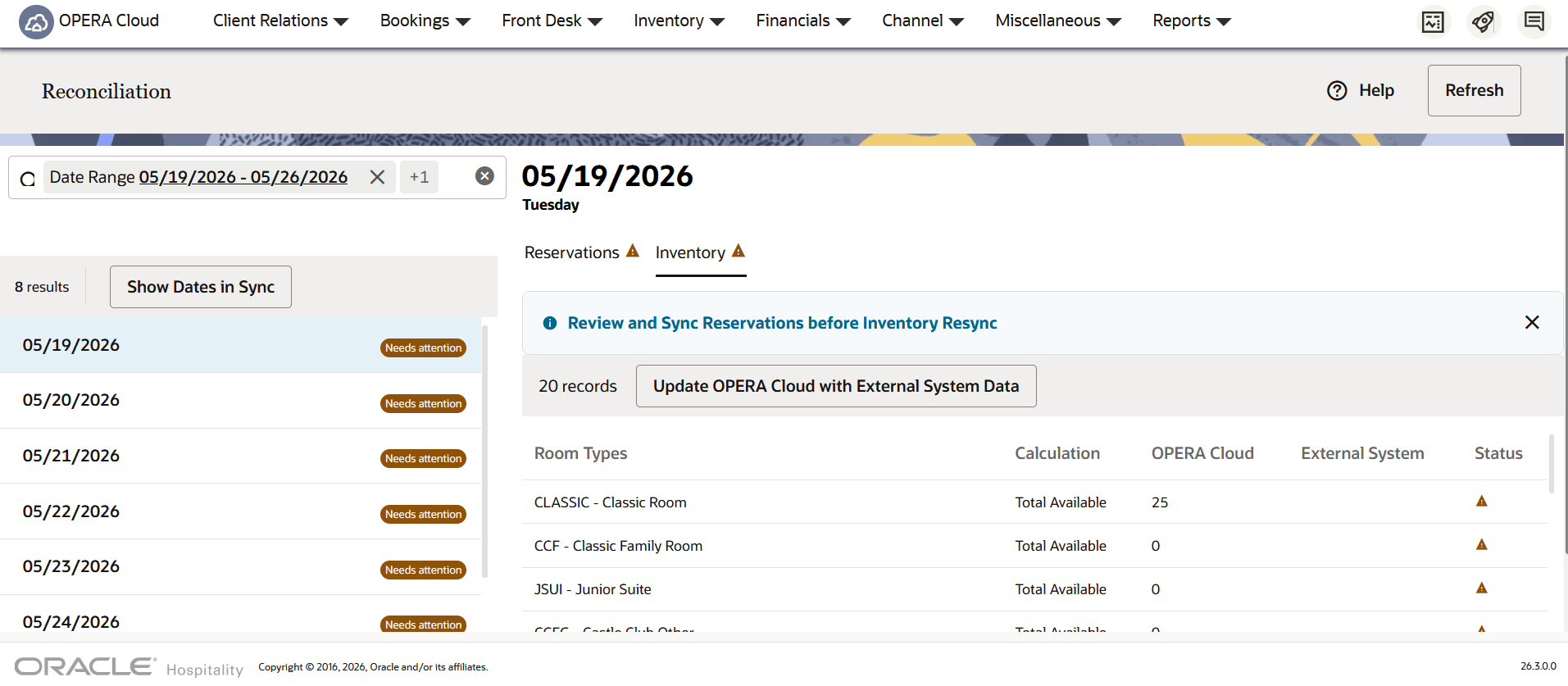
RECONCILIATION UI
Reservation Reconciliation(default tab)is to compare Reservation data between OPERA Cloud Central and the connected External System / Third-party PMS.
This helps identify missing or mismatched reservations and allows users to update the external system with OPERA Cloud data when needed.
InventoryReconciliation is to compare inventory data between OPERA Cloud Central and the connected External System / Third-party PMS.
This helps identify inventory mismatches by date, property, and room type.
Integration Messages (Monitoring) UI
The Integration Messages screen allows users to monitor inbound and outbound integration messages between OPERA Cloud Central and the third-party PMS.
Use this screen to review message processing status, identify failed messages, view message details, and reprocess failed messages when applicable.
| Inbound | View Inbound messages such as Rates, Restrictions, and Inventory received from Third-party PMS into OPERA Cloud Central. |
| Outbound | View Outbound messages such as Reservations sent from OPERA Cloud Central to Third-Party PMS. |
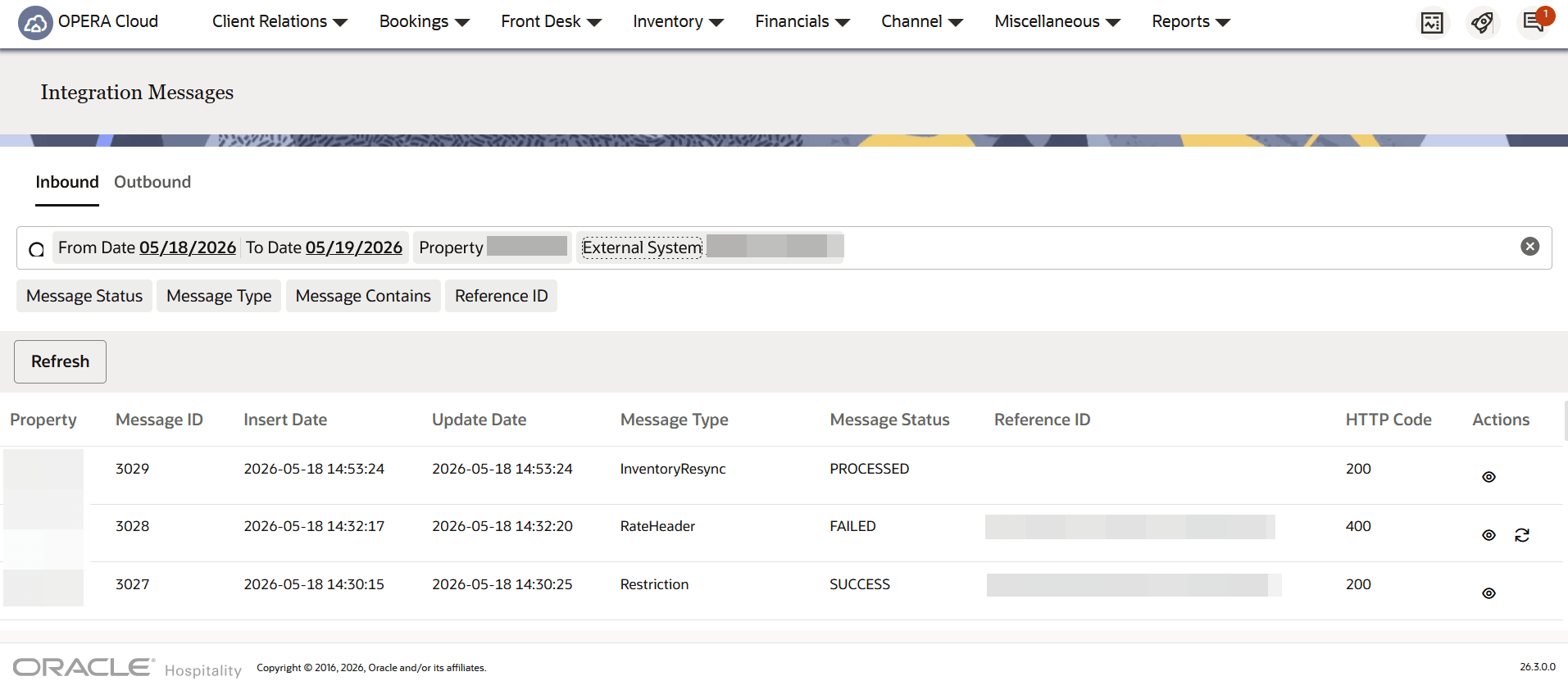
For messages with a Failed status, a Reprocess icon appears in the Actions column. After reviewing the message payload to identify and resolve the reason for the failure, you can click Reprocess to process the message again.
OPERATIONAL BENEFITS
As an OPERA Cloud Central customer, I can have Third-party PMS systems integrate with the Central system and receive Rates, Restrictions, and Inventory, and send the Reservations.
As an operational user, I can have the Reconciliation screen for Reservations and Inventory to compare Central data with the PMS data for the selected Property and Date Range, and Sync missing data.
As an operational user, I can have the Integration Message Status screen for monitoring Inbound and Outbound messages with the integrated Third-party PMS systems and its Success or Failure status details.
As an operational user, I can receive alerts for message failures on the Notifications panel for awareness and to review the failure messages.
IMPACT OR OTHER CONSIDERATIONS
Third Party PMS Integration can be enabled only for OPERA Cloud Central environments with Central Management Services for Multi-Data Source Subscription (Part #: B96579) and the Oracle Hospitality OPERA Cloud Service, Central Management Services Third-Party Property Connection (Part Number #: B96580).
Prerequisite: Customer should approve the Partner Request for the Environment Access with the List of Third-Party PMS Properties associated.
ACTION REQUIRED (STEPS TO ENABLE)
OPERA Control:
- From the Side menu, select Administration, select Enterprise, and then select OPERA Controls.
- Select a Property that requires Third-party PMS integration, apply Search.
- Select the General Group.
- Locate and activate the Third-Party PMS Integration function.
Task Permissions:
- From the Side menu, select Role Manager, select either Manage Chain Roles or Manage Property Roles according to your needs.
- Enter search criteria and click Search.
- Select the role to update, click the vertical ellipsis Actions menu, and select Edit.
- Select the Miscellaneous group and grant the Integration Messages and the Reconciliation tasks.
- Click Save.
INVENTORY
Property Availability Updated
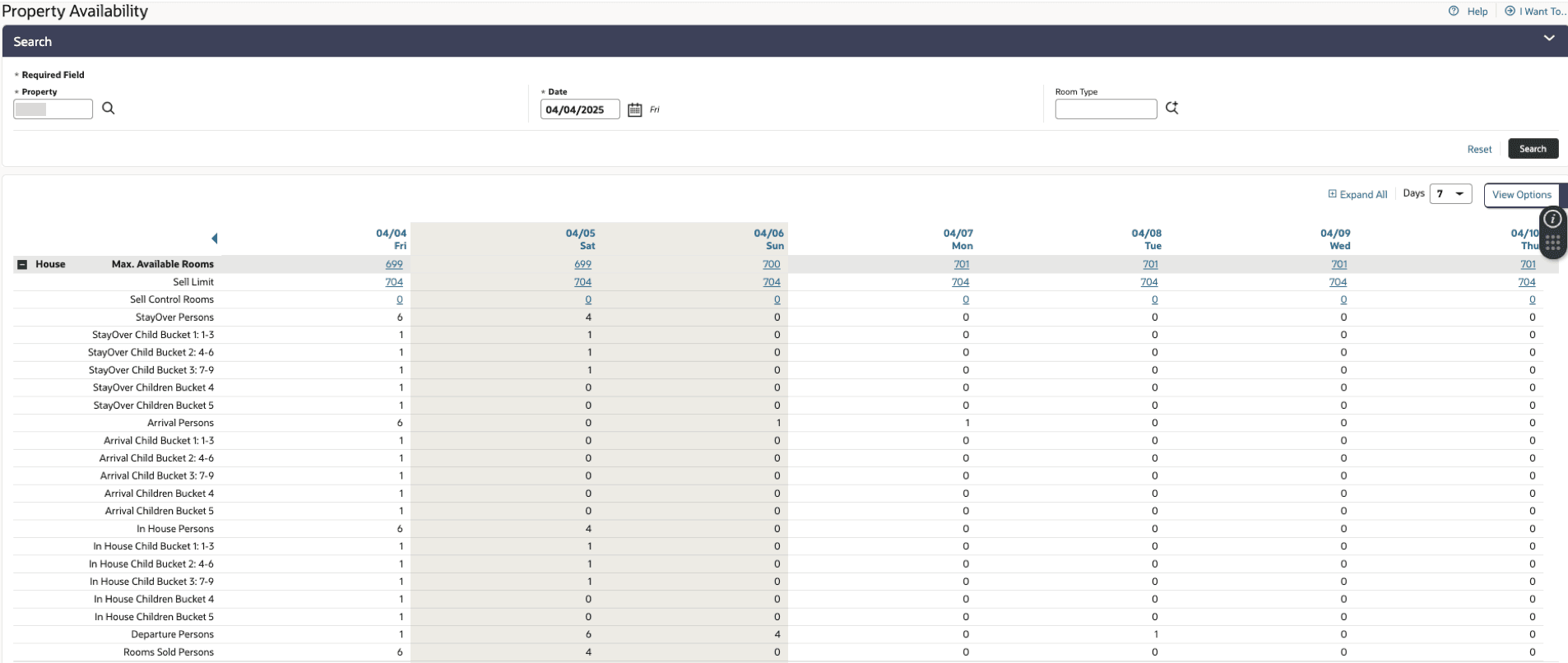
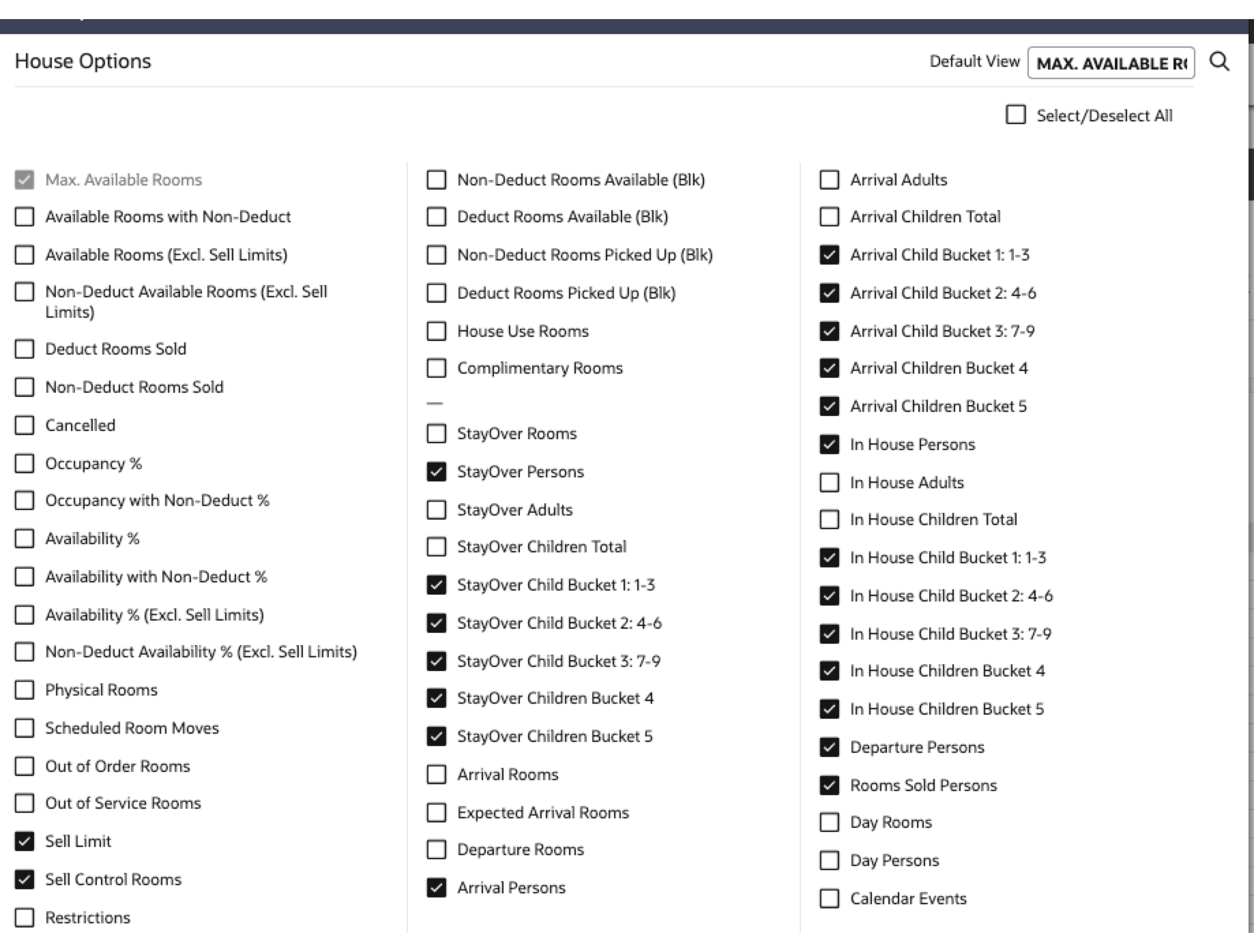
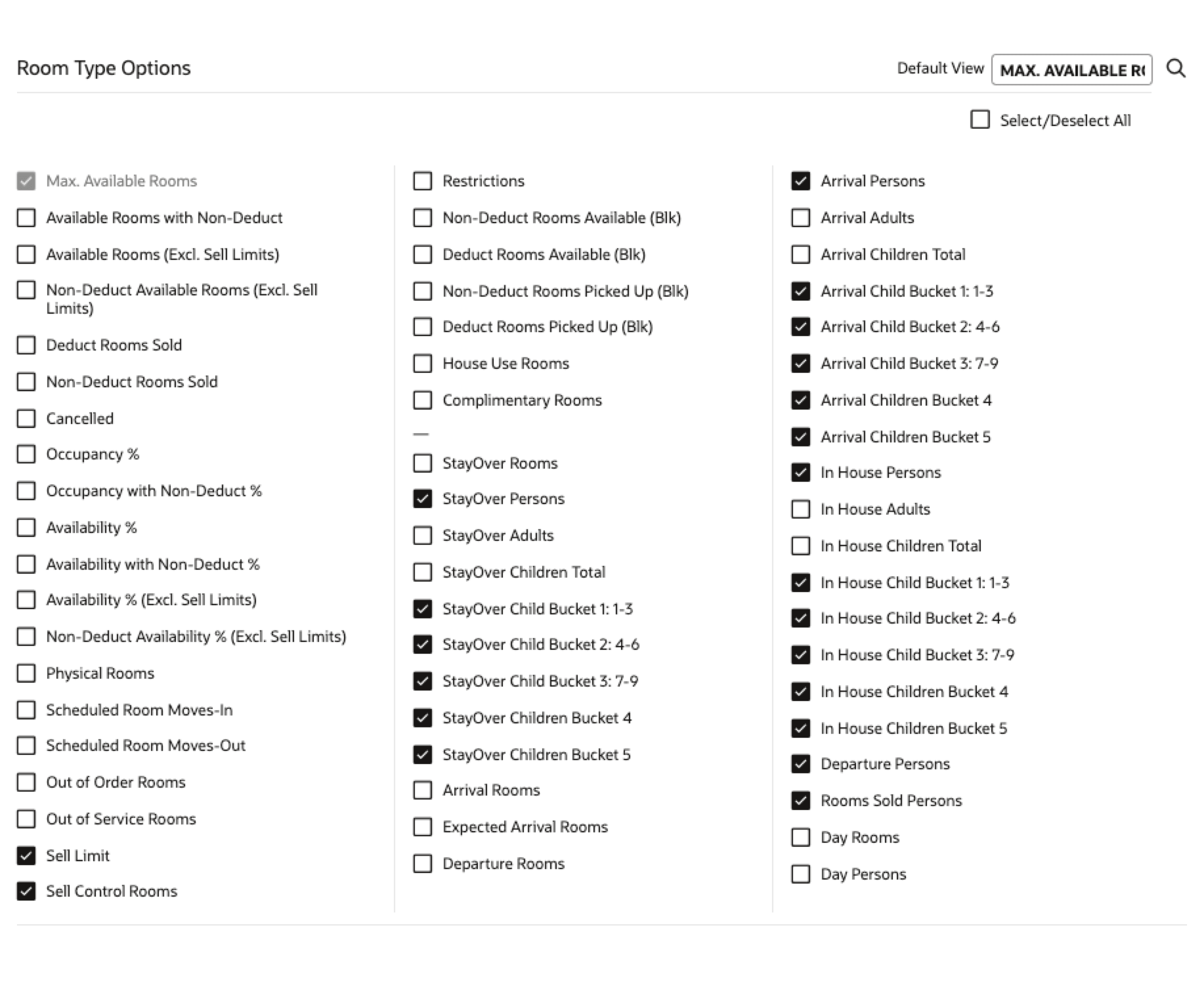
For properties where Child by Defined Bucket or Guest Age Category OPERA Controls areactive, the Property Availability screen shows the counts forChild 4andChild 5acrossArrival Guests, In-House Guests, and Stay-Over Guests. These counts are available at theHouse, Room Class, and Room Typelevels.
You can choose to show or hide the Child 4 and Child 5 counts using View Options. When selected, the corresponding child counts show in the Property Availability search results.
HOUSE LEVEL
ROOM TYPE
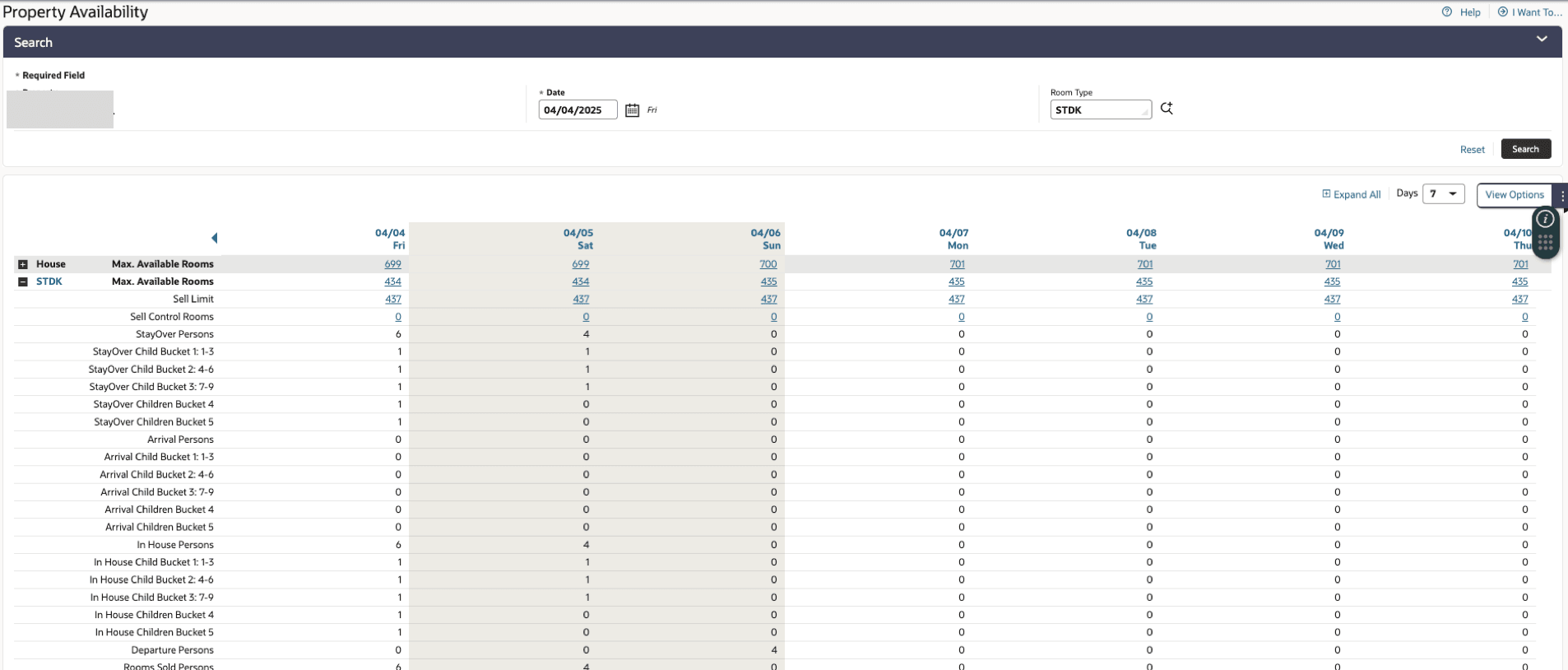
VIEW OPTION - HOUSE LEVEL
VIEW OPTION - ROOM TYPE LEVEL
OPERATIONAL BENEFITS
Provides better visibility into child occupancy by displaying Child 4 and Child 5 counts for arriving, in-house, and stay-over guests, helping with resource planning and operational decisions. The View Options provide flexibility to show or hide these counts as needed.
Rate Code Booking Limit OPERA Control Added
CENTRAL
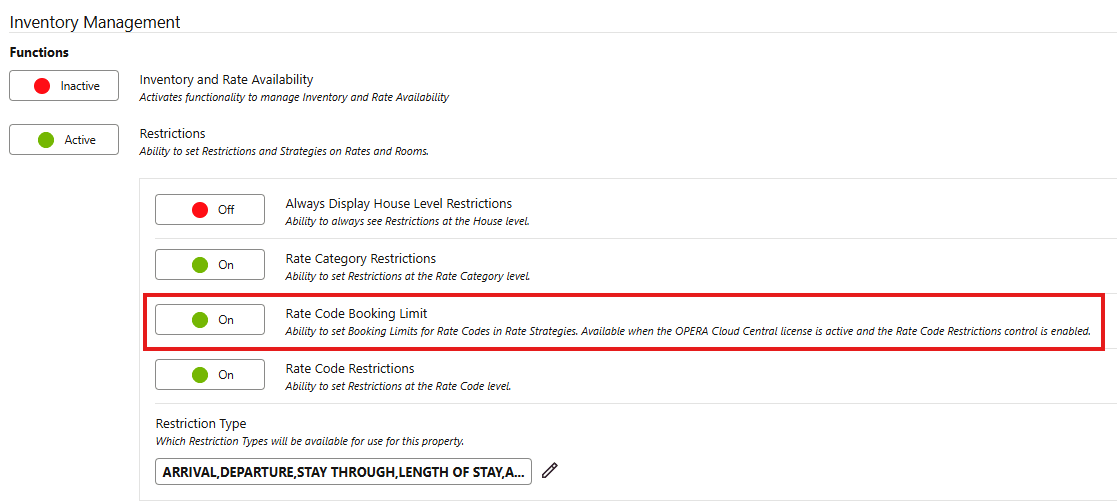
For properties with an active OPERA Cloud Central chain subscription and the Restrictions(Function) and Rate Code Restrictions(Parameter) OPERA Controls enabled, the new Rate Code Booking Limit OPERA Control in Inventory Management enables booking limits for rate codes in Rate Strategies based on the cumulative booking count across a specified date range.
- You can configure the Booking Limit Reaches and Booking Limit is Less conditions for a selected rate code and date range. When the configured condition is met, a restriction is created for that date range.
- The new booking limit feature is integrated into the existing Rate Strategy and Restriction functionality.
- If one of the required OPERA Controls or the OPERA Cloud Central chain subscription is deactivated, the booking limit conditions become unavailable and all booking limit Rate Strategies are deleted.
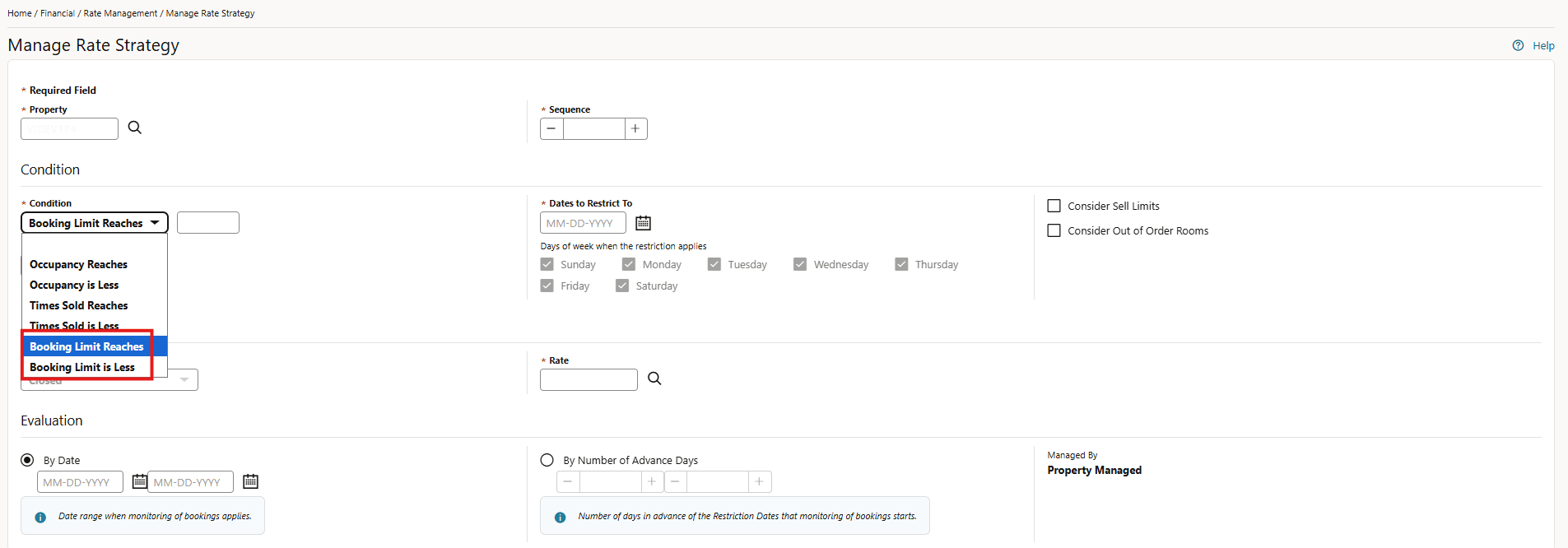
OPERATIONAL BENEFITS
You can manage the total number of bookings for a rate code across a date range and have the corresponding restriction created when the configured booking limit condition is met.
IMPACT OR OTHER CONSIDERATIONS
The booking limit feature uses the existing Rate Strategy and Restriction functionality.
The Rate Code Booking Limit OPERA Control depends on the Restrictions and Rate Code Restrictions OPERA Controls and an active OPERA Cloud Central subscription. If either required OPERA Control or the subscription is deactivated, the booking limit conditions become unavailable and all booking limit Rate Strategies are deleted.
ACTION REQUIRED (STEPS TO ENABLE)
Activate the Rate Code Booking Limit OPERA Control under Inventory Management > Restrictions.
- From the Side Menu, select Administration, select Enterprise, and then select OPERA Controls.
- Select or confirm the Property.
- Select the Inventory Management group.
- Locate and activate the Restrictions function, and turn on the Rate Code Restrictions and the Rate Code Booking Limit parameters.
Then configure a Rate Strategy under Administration, Financials, Rate Management, Rate Strategies using the Booking Limit Reaches or the Booking Limit is Less condition for the applicable rate code and date range.
rateStrategyConditionType Enumeration Updated
CENTRAL
For properties with an active OPERA Cloud Central Management Services subscription, and Restrictions,Rate Code Restrictions, and Rate Code Booking Limit OPERA Controls active, Application Programming Interface (API) consumers can configure booking limit Rate Strategies for rate codes across a specified date range. If these prerequisites are not met, attempts to create or update a booking limit Rate Strategy through the API result in an error.
The rateStrategyConditionType enumeration includes the following new values:
BookingLimitReaches, which closes the rate when the configured booking limit is reached.BookingLimitIsLess, which opens the rate when the booking count is less than the configured limit.
Existing rateStrategyConditionType values remain unchanged.
The following existing operations support the expanded enumeration:
getRateStrategiespostRateStrategyputRateStrategyputUpsertRateStrategysetRateStrategies
OPERATIONAL BENEFITS
Application Programming Interface (API) consumers can configure and retrieve booking limit Rate Strategies for rate codes across a date range by using the new condition values.
IMPACT OR OTHER CONSIDERATIONS
Application Programming Interface (API) consumers that validate, map, or deserialize rateStrategyConditionType values should support the new BookingLimitReaches and BookingLimitIsLess values.
ACTION REQUIRED (STEPS TO ENABLE)
- Ensure that the property has an active OPERA Cloud Central Management Services subscription and that the Restrictions, Rate Code Restrictions, and Rate Code Booking Limit OPERA Controls are enabled.
- Update integrations that process
rateStrategyConditionTypevalues to recognize BookingLimitReaches and BookingLimitIsLess. - You can then use the supported Rate Strategy API operations to create, update, or retrieve booking limit Rate Strategies for the applicable rate code and date range.
StayOver Statistics and Display By Room Class Views Added
You can add StayOver statistics to the House Level and Room Type level views from the View Options panel. Day Use reservations and Departures are not included in the StayOver calculation.
When the Room Class OPERA Control is active, the Room Type options also apply to Room Classes.
Available StayOver statistics include StayOver Rooms, StayOver Persons, StayOver Adults, and total StayOver Children.
For properties with the Child Rates By Defined Buckets OPERA Control active or Guest Age Categories OPERA Control active, detailed child StayOver statistics are also available.
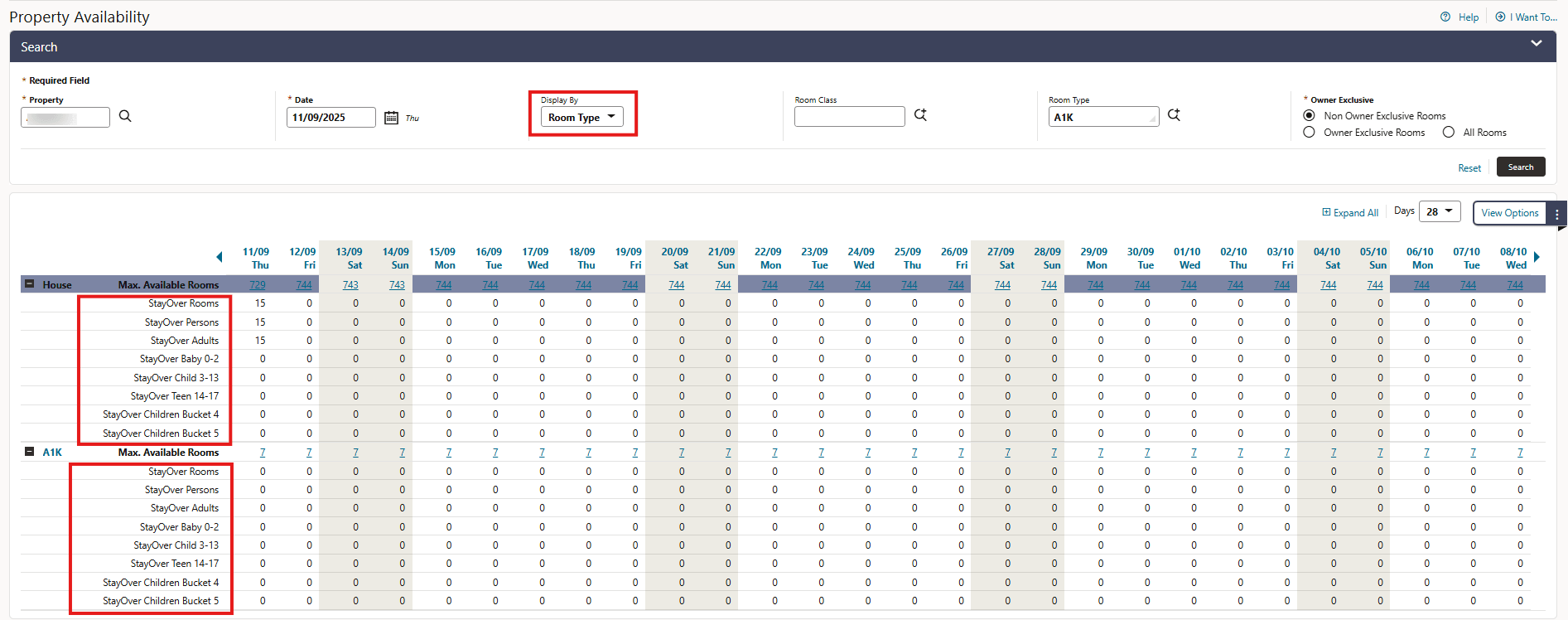
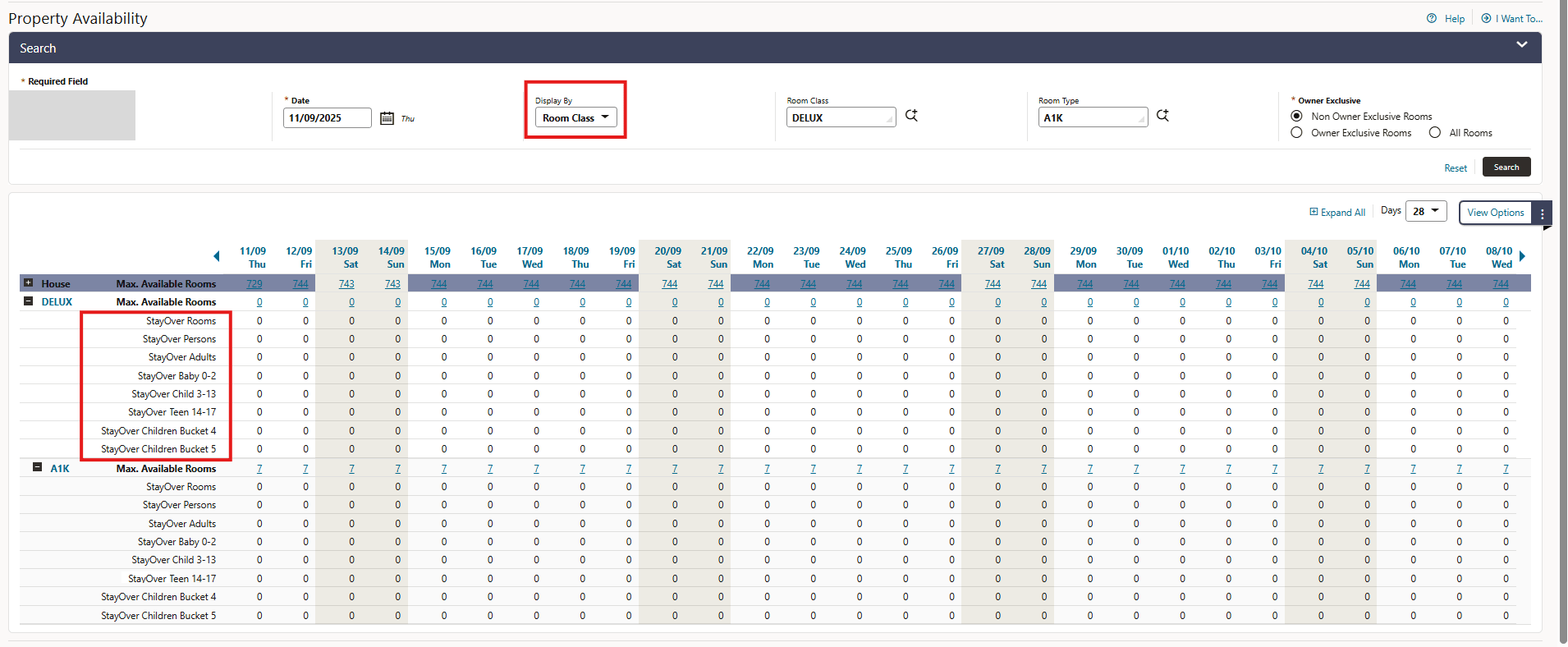
Display By Room Class For properties with the Room Class OPERA Control active, the Display By Room Class view shows the associated room types below each room class. In addition, you can also filter by room type. Room class and House Level totals remain unchanged.
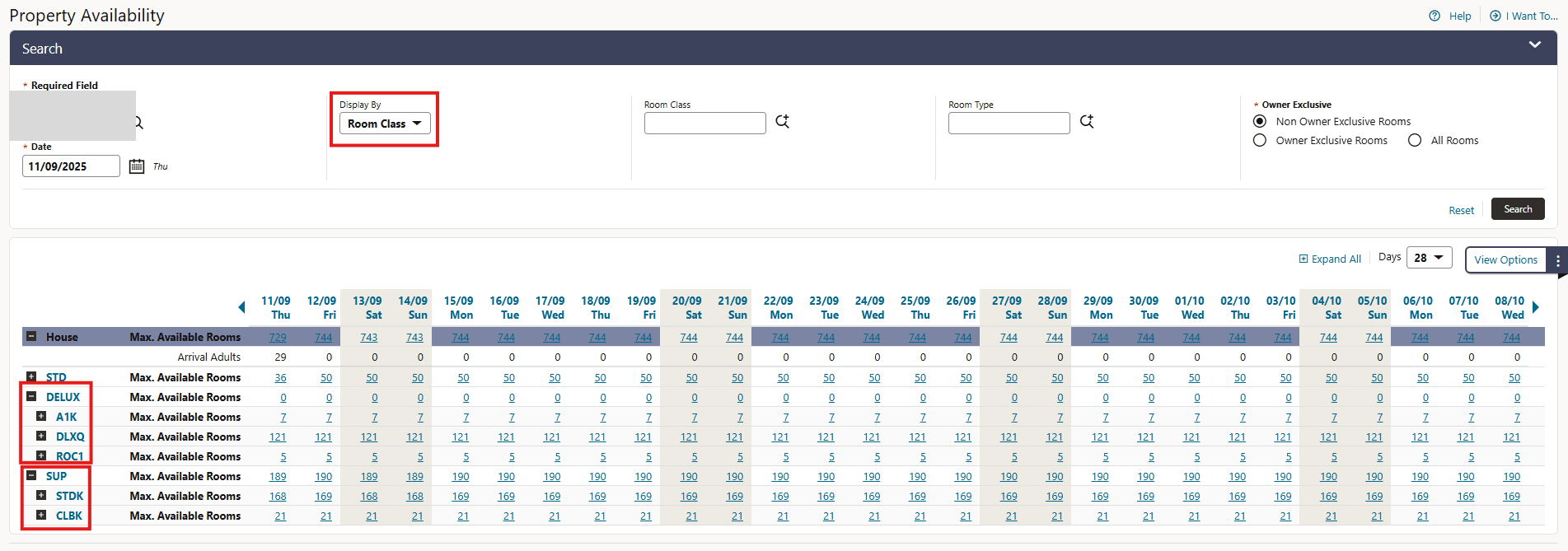
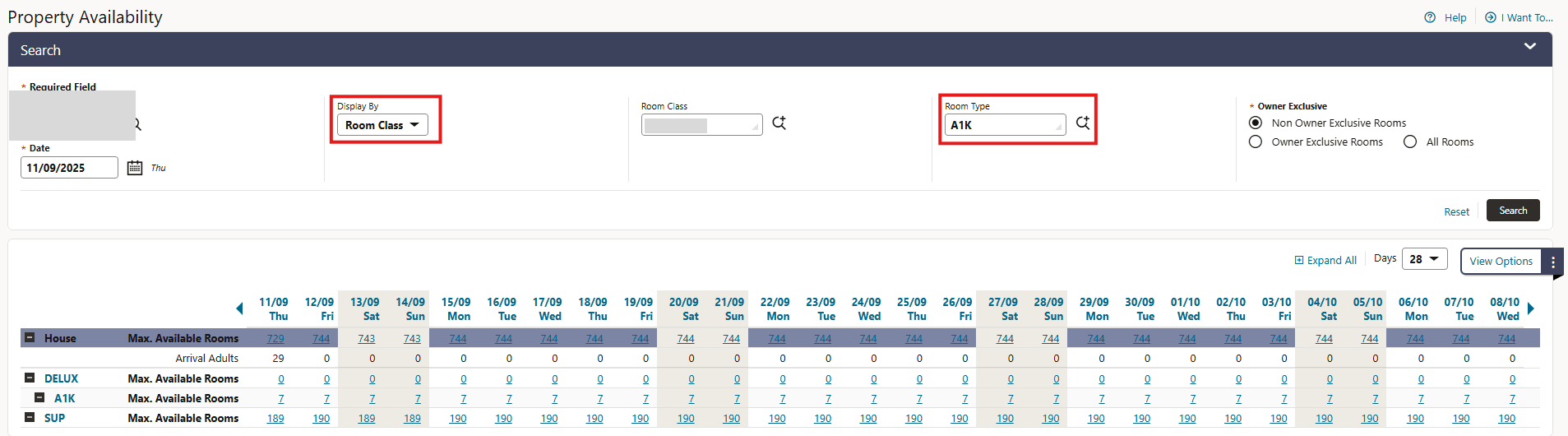
OPERATIONAL BENEFITS
The additional stayover statistics provide greater visibility into rooms and guests continuing their stay. Displaying associated room types below each room class helps you to review room class totals and detailed room type values in the same view and refine the results by room type.
Update Item Inventory
For properties with the Item Inventory OPERA Control active, you can filter your daily item inventory by Item Class and Items and you can manually enter free text to search for matching items. In addition, when the Event Resources OPERA Control is active, you can also filter items by Applicable for Reservations or Events.
At HUB level, you must select a property first to access these filter options.
The search result displays the available quantity and the quantity in stock for each item and date. Hover over a cell to see the complete Available and Quantity in Stock values and identify each value. The Quantity in Stock is calculated using the Daily Inventory Quantity. If the Daily Inventory Quantity is empty or not configured, the Quantity in Stock value is used. Zero and negative values are displayed in red for easier identification.
Hub Level > Selection on property
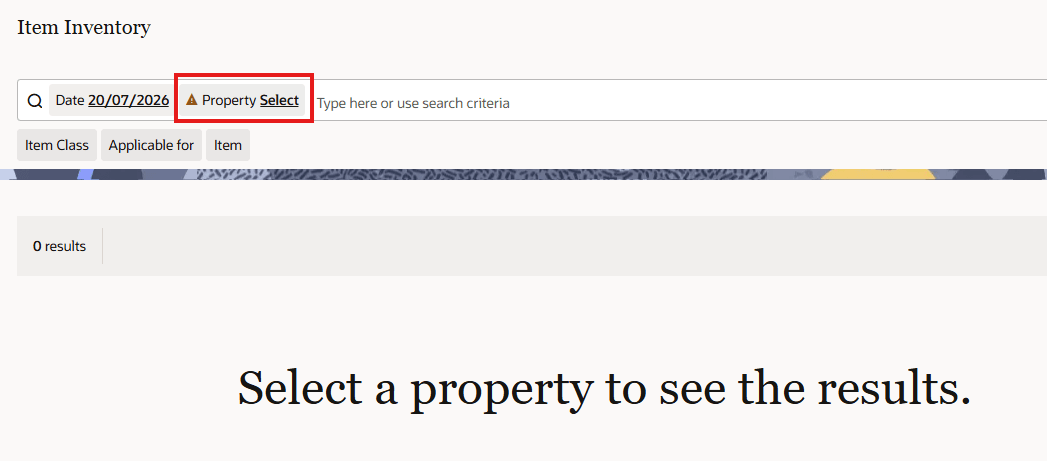
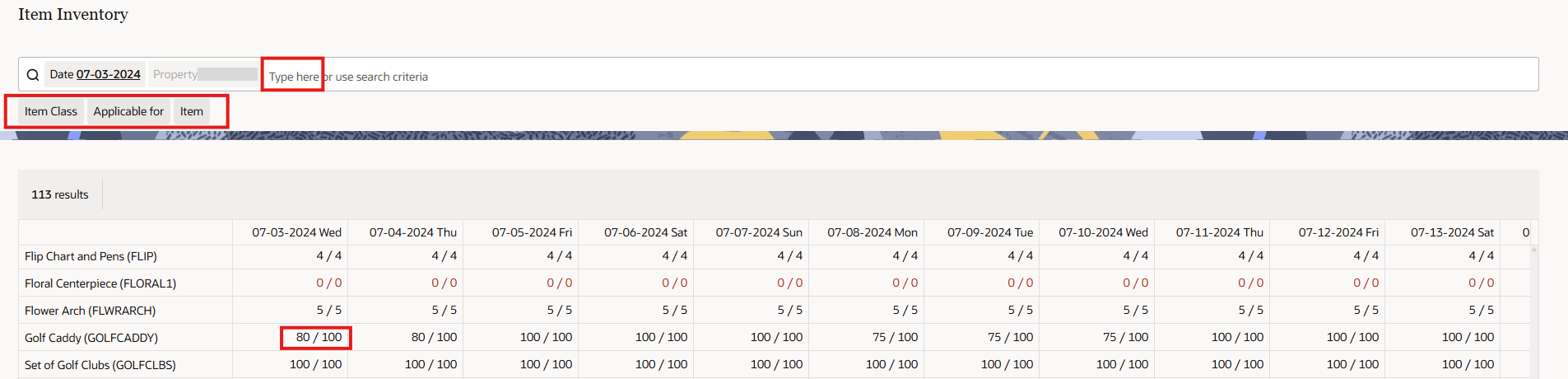
OPERATIONAL BENEFITS
You can locate relevant inventory items more efficiently and compare availability with the configured in-stock quantity for each day.
LEISURE MANAGEMENT
Leisure Management Functionality Added
OVERVIEW
OPERA Cloud introduces Leisure Management functionality for properties with an OPERA Cloud Services or OPERA Cloud Central Management Services subscription. This functionality enables properties to configure, sell, schedule, and manage guest experiences directly within the OPERA Cloud environment.
Leisure Management supports bookable guest services such as spa treatments, children’s activities, rentals, tours, cabanas, classes, and other scheduled leisure experiences. This enhancement allows properties to expand their service offerings while maintaining centralized control over availability, pricing, resources, and guest scheduling.
LEISURE MANAGEMENT OPERA CONTROL GROUP AND LEISURE EXPERIENCES OPERA CONTROL ADDED
For properties with an Oracle Hospitality OPERA Cloud Services or an Oracle Hospitality OPERA Cloud Central Management Services subscription, a new Leisure Management OPERA Control group is added and a new Leisure Experiences OPERA Control that supports Leisure Management capabilities.
LEISURE MANAGEMENT TASKS ADDED UNDER BOOKINGS, BOOKING ADMIN AND REPORTS
In Role Manager, new Leisure Management tasks are added under Bookings, Booking Admin, and Reports to access and manage Leisure Management-related booking experiences.
LEISURE MANAGEMENT SUMMARY
Leisure Management provides properties with the ability to configure and manage the core components required to offer scheduled guest experiences. Before agents can schedule Leisure Experiences for guests, an administrator must complete the required setup, including:
- Leisure locations
- Experience categories
- Resources
- Pricing
- Schedules
- User permissions and task access
After configuration, authorized users can schedule, edit, and cancel Leisure Experiences for guests with an existing reservation, as well as schedule an experience during the reservation process.
LEISURE EXPERIENCES WITHOUT A ROOM STAY (PASSER BY)
You can schedule eligible experiences for guests without a room reservation, capture the required guest and booking details, and provide a confirmation reference from the profile indicator Future & Past Leisure Experiences.
You can capture a credit card as a guarantee when scheduling a passerby Leisure Experience. The Post Payment action link available for each scheduled experience allows you to collect a card or cash payment, create and close the passerby folio, and provide a printed or emailed receipt without requiring a room reservation. When multiple Leisure Experiences share the same confirmation number, a single total charge is applied.
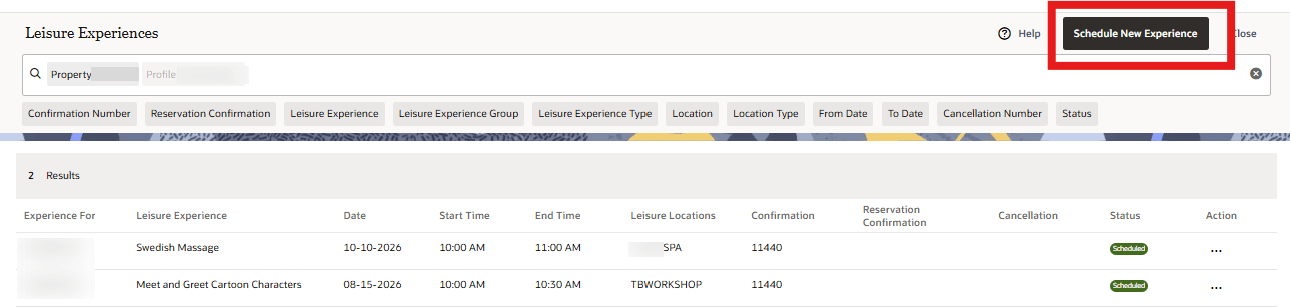
LEISURE EXPERIENCE STATUS LIFECYCLE
The Leisure Experience status lifecycle provides clear visibility into where each experience stands from planning through completion. Each status represents a defined step in the guest experience journey.
Experience status updates are not automated and must be updated manually as the experience progresses. An experience may begin as On Hold while details are being confirmed. Once the experience is officially scheduled, the status is changed to Scheduled. When the guest arrives or begins the experience, the status can be updated to Checked In. After the experience is completed, it should be changed to Checked Out. If the experience no longer takes place, it should be marked as Cancelled. If the guest does not check in for the scheduled experience, the experience is marked as No Show during the End of the Day process.
There is an automated hold process that reserves availability for 30 minutes. If the experience is not scheduled and confirmed within that time, the hold expires and the availability is released back to inventory.
This lifecycle helps properties manage operational flow, track guest participation, and maintain accurate experience records.
LEISURE WORKSPACE
You can view scheduled experiences by personnel or space from the Leisure Workspace menu in Bookings. The Day view supports filtering by property (mandatory), location (mandatory), experience, experience group, experience type, and resource. Each time slot shows key booking details and available actions, including check-in, check-out, edit, and change-log review.
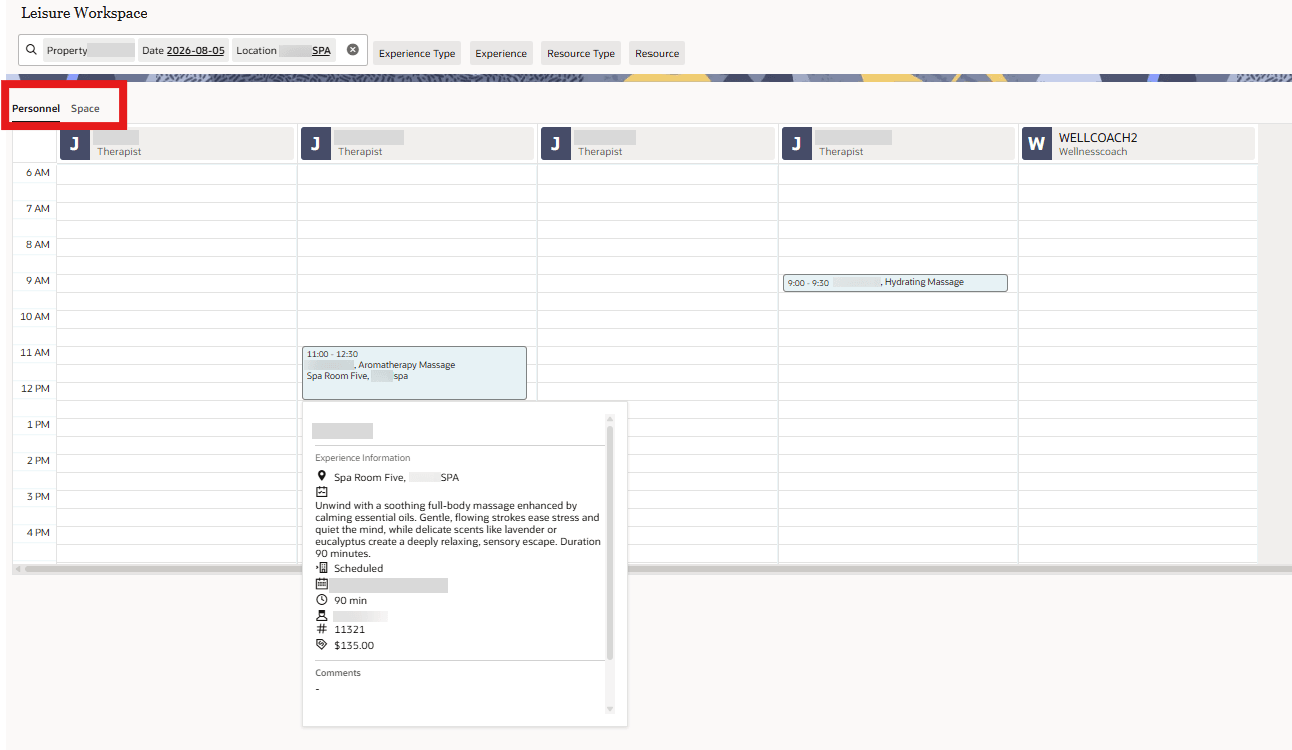
LEISURE EXPERIENCE CONFIGURATION STEPS
The Leisure Management configuration is available in Administration under the Booking menu. The following steps are the correct flow to configure a leisure experience.
- Enable controls, licenses, and tasks.
- Configure Experience Package Codes for pricing.
- Configure Location Types and Locations.
- Configure Experience Groups and Experience Types.
- Configure Feature Types and Features, if needed.
- Configure Resource Types and Resources.
- Create Experiences and attach required resources.
- Validate availability.
Each configuration step prepares information used later in the setup. For example, you configure Location Types before Locations, Resource Types before Resources, and Resources before the final bookable Experience.
You can schedule an Experience only after its location, experience type, required resources, resource availability, and pricing are configured.
CONFIGURATION CONCEPTS
| Configuration Item | Purpose | Example |
|---|---|---|
| Experience Package Code | Package code used to price the Experience | SPA_60MIN, CABANA_FULLDAY |
| Location Type | Category of places | Spa, Pool, Beach |
| Location | Actual place where the Experience occurs | Royal Spa, Luxe Pool |
| Experience Group | Broad guest-facing category | Spa Treatments, Water Experiences |
| Experience Type | Category of service within a group | Massage Treatments, Cabana Rentals |
| Feature Type | Category of resource attributes | Gender, View, Skillset, Size |
| Feature | Specific resource attribute | Female, Oceanview, Deep Tissue Certified |
| Resource Type | Category of resource needed | Therapist, Cabana, Bicycle |
| Resource | Actual person, space, or item | <Name>, Cabana 12, Bicycle Inventory |
| Experience | Final bookable item | 60-Minute Relaxation Massage |
REPORTING AND ANALYTICS FOR LEISURE MANAGEMENT
R+A reports for Leisure Management are available in OPERA Cloud to help Leisure Experiences managers track production, consumption, revenue, and resource usage. Reports include Most Popular Experiences, Production, Resource Allocation and Utilization, Resource Utilization, and Top Revenue Experiences. You must have the SA_RESERVATION_ROLE assigned in Reporting and Analytics to see the subject areas.
USER AND OPERATIONAL IMPACT
With the proper tasks assigned, you can manage Leisure Experiences for guests with active reservations. This supports a more efficient booking workflow by allowing properties to manage guest activities and services within OPERA Cloud.
Administrators are responsible for ensuring that the correct configuration and permissions are in place before the functionality is used operationally. This includes validating that users have access to the required Leisure Management tasks and that configured experiences display with the correct availability, pricing, and scheduling rules.
Before release, properties should confirm the following:
- Leisure Management functionality is enabled for eligible OPERA Cloud Services or OPERA Cloud Central Management Services subscriptions.
- Leisure locations, categories, resources, pricing, and schedules are configured.
- User roles and permissions are assigned appropriately.
- Agents can schedule, edit, and cancel Leisure Experiences for eligible guest reservations.
- Status changes can be applied correctly throughout the lifecycle: On Hold, Scheduled, Checked In, Checked Out, and Cancelled.
- Availability and pricing display as expected based on configuration.
OPERATIONAL BENEFITS
Leisure Management helps properties centralize the management of guest experiences and bookable services. By configuring leisure offerings in OPERA Cloud, properties can improve operational visibility, reduce manual tracking, and provide agents with a consistent process for scheduling and managing guest activities.
ACTION REQUIRED (STEPS TO ENABLE)
- From the side menu, select Administration, select Enterprise, and then select OPERA Controls.
- Select or confirm the Property.
- Select the Leisure Management group.
- Locate and update the Leisure Experiences function.
- From the Side menu select Role Manager, select either Manage Chain Roles or Manage Property Roles according to your needs.
- Enter search criteria and click Search.
- Select the role to update, click the vertical ellipsis Actions menu, and select Edit.
- Select the Bookings/Booking Admin/Report group and grant the tasks for Leisure Management.
- Click Save.
MEMBERSHIP
Bypass Enrollment Code Validation OPERA Control Added
Introduced Bypass Enrollment Code Validation OPERA Control Setting under the Membership Groupallowing administrators to select active membership types whose incoming enrollment codes are retained without validation against the configured enrollment-code list. Use for membership types that don't require strict enrollment-code validation, while primary membership types can continue to use the existing validation process. The configured behavior applies to profile memberships processed through the user interface, APIs, and Cloud Hub.
OPERATIONAL BENEFITS
Hotels can preserve strict enrollment-code validation for primary memberships while preventing non-primary membership details from causing profile processing interruptions when externally supplied enrollment codes are not configured in OPERA Cloud. This helps retain valid profile and membership information, reduces unnecessary Cloud Hub suspensions, and lowers the effort required to maintain external enrollment codes centrally.
ACTION REQUIRED (STEPS TO ENABLE)
- From the Side Menu, select Administration, select Enterprise, and then select OPERA Controls.
- Select the Membership group.
- Locate the Bypass Enrollment Code Validation setting.
- Select the Membership Type.
Loyalty Rate Discount OPERA Controls Added
LOYALTY
Introduced Loyalty Rate Discount, enabling loyalty members to apply available points as a monetary discount to an eligible reservation rate when they don't have enough points for a full rate award. The feature is available when the Loyalty Rate Discount Award OPERA Control is active.
- You can identify eligible rate codes using Points Discount, configure a Default Discount Code, and create Rate Discount awards for applicable membership types. Award configuration determines the required points, monetary award value, and maximum percentage of the room rate that can be discounted.
- While creating an eligible reservation from the Look To Book Sales Screen, you can apply either the maximum redeemable points or a custom number of points. The discount screen displays rate amounts in property and central currencies, while the reservation displays the points redeemed, discounted rate, updated total cost, and remaining points. You can update or remove the discount before completing the reservation. When the reservation is canceled, redeemed points are credited according to the configured cancellation policy. Points Discount is applied as a Rate Discount, reducing the reservation’s daily rat,e and is reflected in the daily rate breakdown, consistent with standard discounts.
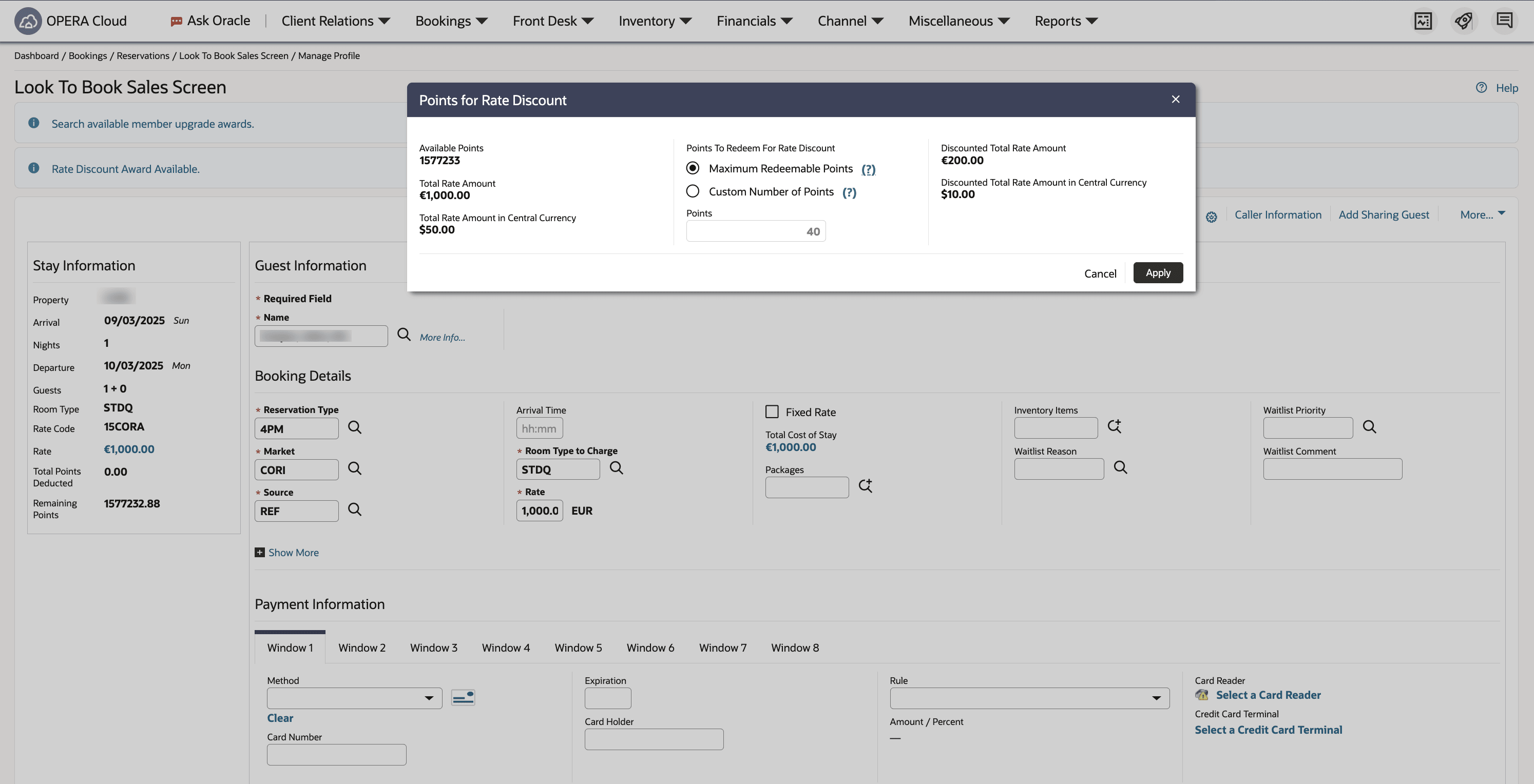
OPERATIONAL BENEFITS
Loyalty Rate Discount provides a flexible points-redemption option that benefits guests, hotels, and loyalty programs by enabling partial redemption while maintaining control over eligibility, discount values, and reservation pricing.
- Hotels: Enables you to configure eligible membership types and rate codes, point values, maximum discount percentages, and default discount codes. Automatic calculations and currency conversion reduce manual effort and support accurate reservation pricing.
- Guests: Allows guests to use available points when they do not have enough for a full Rate Award. They can redeem the maximum eligible points or a custom amount and pay the remaining balance.
- Loyalty Programs: Encourages point redemption by providing an alternative to full Rate Awards. Configurable eligibility and discount limits help manage redemption costs while supporting member engagement, satisfaction, and program participation.
ACTION REQUIRED (STEPS TO ENABLE)
Steps to enable new OPERA Controls:
- From the Side Menu, select Administration, select Enterprise, and then select OPERA Controls.
- Select or confirm the Property.
- Select the Membership group.
- Locate and activate the Award Points Redemption function.
- Locate and activate the Loyalty Rate Discount Award parameter
- Locate and update the Default Discount for Loyalty Rate Discount Award setting.
Membership Claims Updated
LOYALTY
Membership claims user interface and profile-centered management are updated:
- Enhanced Manage Membership Claims to efficiently retrieve existing claims using available search filters, and to create new claims. When creating a new claim, Profile Search retains the entered last-name and first-name criteria, reducing duplicate entry of member or guest details.
- The Membership Claims panel on individual profiles provides a profile-centered view of associated claims. Open claims display by default, and additional filters allow you to review claims as needed. You can also create a new Membership Claim directly from the profile without leaving the profile workflow.
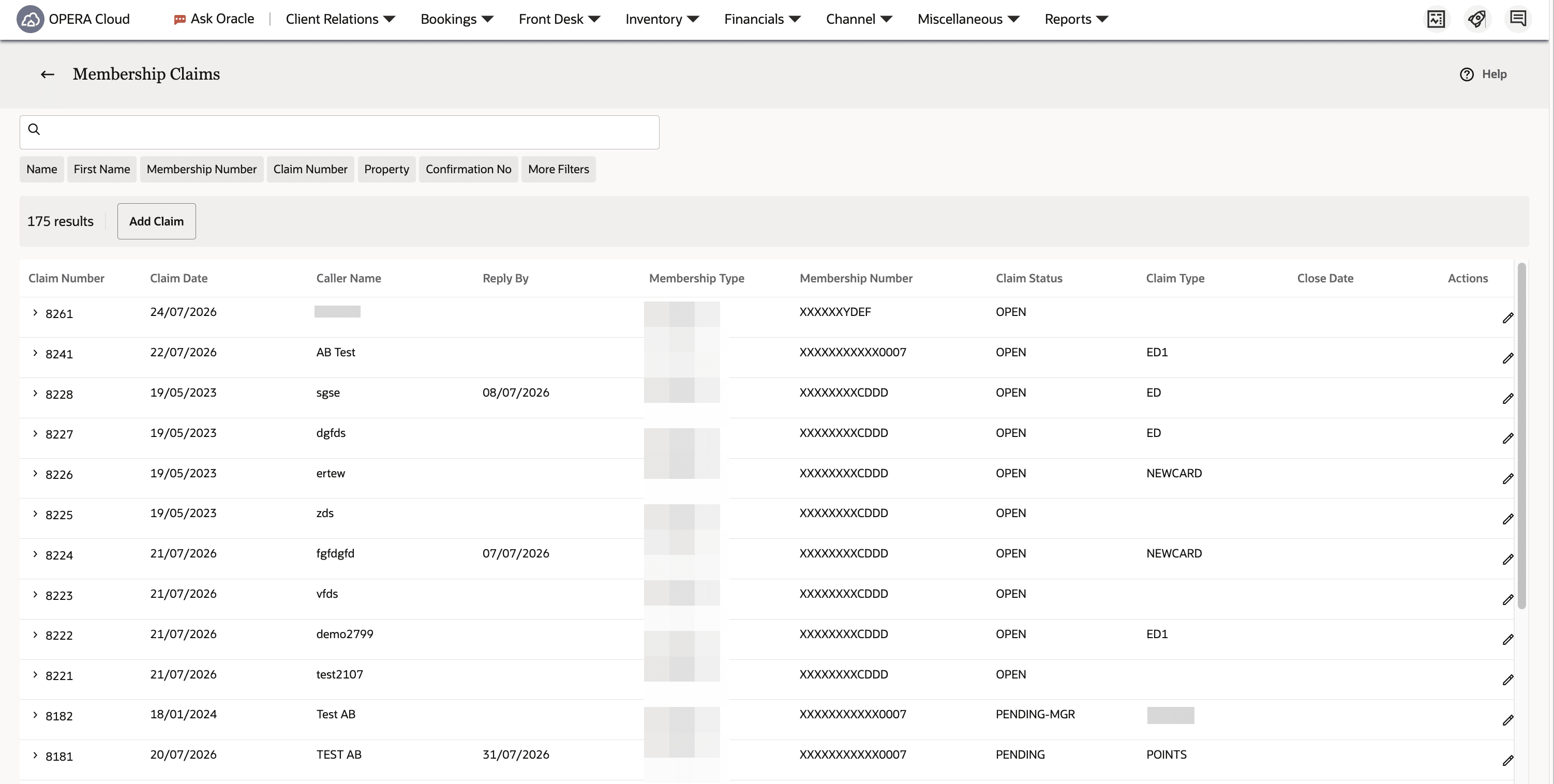
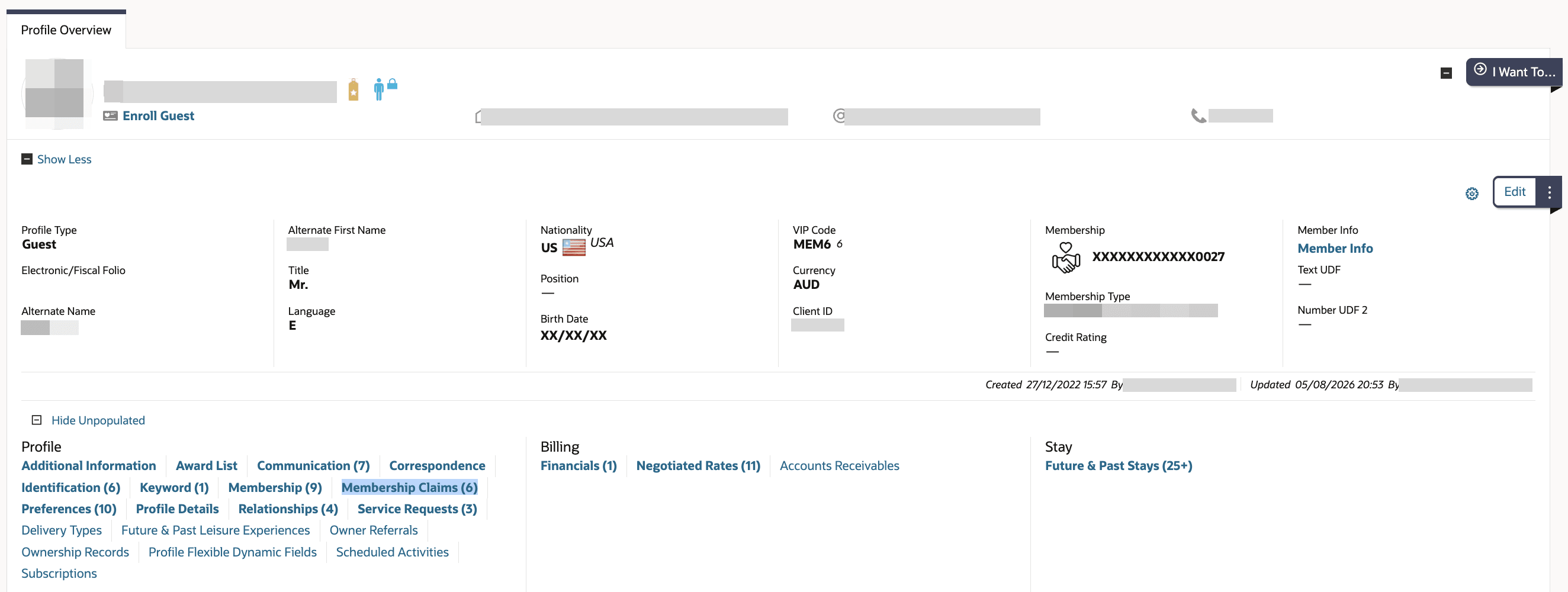
OPERATIONAL BENEFITS
- Enables loyalty team and hotel users to find relevant claims and initiate new claims with reduced manual entry. Retaining search criteria eliminates repeated profile searches, minimizes data-entry errors, and supports accurate association of claims with the appropriate guest or member, improving claim-processing efficiency during high-volume service periods.
- Direct access to a guest’s open claims from the profile enables outstanding issues to be identified promptly, while claim-status filters provide the historical context needed for review. In-profile claim creation further reduces navigation between screens and supports a continuous guest-service workflow.
Membership Points Calculation Updated
LOYALTY
Enhanced Membership Points Calculation Rules for members to earn points for eligible stays based on their birthday or enrollment anniversary. You can configure the rule to apply when the stay includes the applicable date, occurs during the applicable month, or falls within a custom eligibility period of up to 15 days before and after the date.
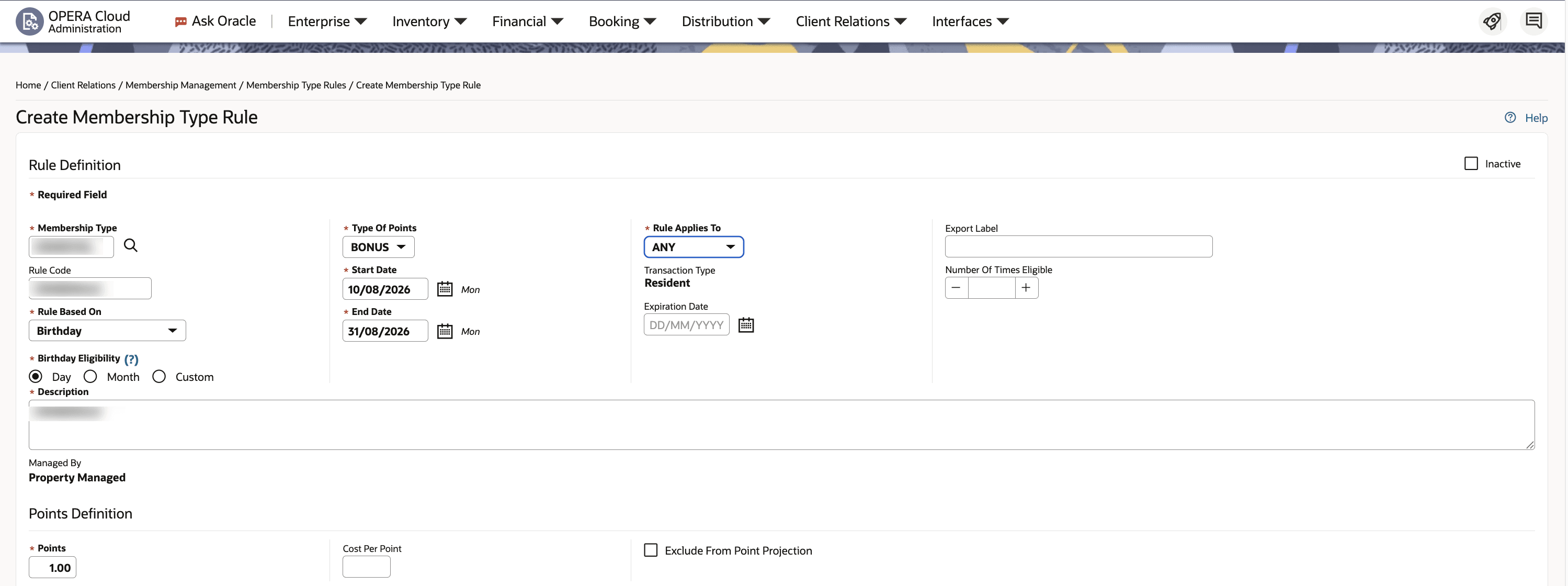
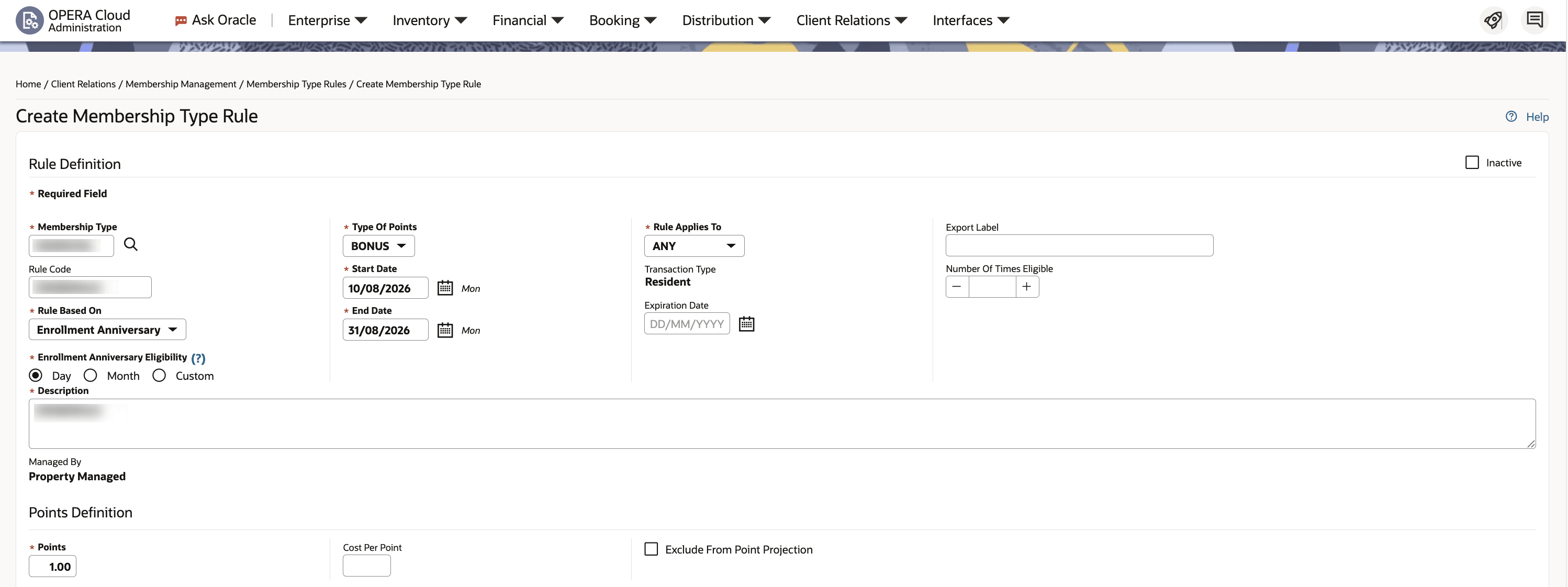
OPERATIONAL BENEFITS
This enhancement enables more personalized points-earning opportunities around important membership dates.
- Hotels: You can configure targeted earning promotions around guest birthdays and enrollment anniversaries without requiring manual point adjustments.
- Guests: Provides additional opportunities to earn points for eligible stays associated with personally relevant dates.
- Loyalty Programs: Supports personalized campaigns that encourage stays, strengthen member engagement, and recognize long-term membership relationships.
Membership Type Expiry Period Updated
Enhanced Membership Type Configuration supports non-expiring memberships, allowing a membership to be added to a profile without an expiration date. When a Membership Level Card Expiry Period is configured, the corresponding expiration date is applied when adding a membership at that level to a profile.
OPERATIONAL BENEFITS
- Hotels with loyalty programs that do not expire can create guest memberships without an expiration date, eliminating the need to manually remove system-generated dates or maintain artificial expiry periods. This supports long-term or lifetime membership programs, reduces administrative effort, and avoids unintended membership expiration.
- Hotels can also support a combination of non-expiring and expiring memberships. Where a Membership Level Card Expiry Period is configured, the appropriate expiration date is automatically applied when a membership is added at that level, ensuring that expiry behavior remains aligned with the membership program design.
MISCELLANEOUS
Application Information Moved
The Application Information has moved from the persistent footer to the User/Location Menu. This includes the OPERA Hospitality logo, copyright information, and OPERA Cloud version details.
OPERATIONAL BENEFITS
This change keeps important application details available, while giving the main OPERA Cloud workspace a cleaner, more modern layout.
Ask Oracle Chat Experience Updated
Ask Oracle enables an AI-powered assistant that allows users to interact with OPERA Cloud through natural language. Ask Oracle helps users retrieve relevant OPERA Cloud information and receive contextual guidance based on product knowledge.
OPERATIONAL BENEFITS
You can continue conversations efficiently, understand response status, follow suggested next questions, provide actionable feedback, reuse answers, and start a new context without leaving your current OPERA Cloud work area.
IMPACT OR OTHER CONSIDERATIONS
Ask Oracle availability and responses remain governed by existing property enablement, signed-in user and session context, supported languages, and the configured enterprise Support URL. Active-chat continuity applies only within the authorized signed-in browser session; New Chat clears the current conversation context.
This feature is being released incrementally and availability may be delayed in some instances.
ACTION REQUIRED (STEPS TO ENABLE)
- From the Side Menu, select Administration, select Enterprise and then select OPERA Controls.
- Select or confirm the Property.
- Select a property and click Search.
- Select the General group.
- Locate and activate the Ask Oracle parameter.
Daily Projections Dashboard Updated
OPERA Cloud Dashboards
On the Daily Projections tile, you can select a future date in the settings to reach the date you want to view more quickly. Your business date is selected by default, and existing arrow navigation remains available.
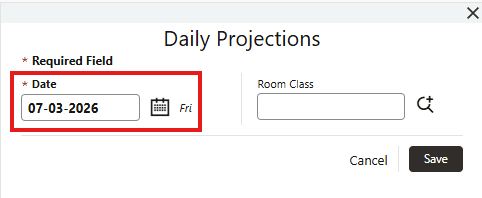
OPERATIONAL BENEFITS
You can quickly access projection information for a specific future date without repeatedly navigating through dates one at a time.
IMPACT OR OTHER CONSIDERATIONS
The Date field is required. Dates prior to the business date cannot be selected.
NEW ITEM LOAD and DELETE ITEM LOAD Business Events Added
On Administration - Interfaces - Business Events - Business Event Configuration - Configuration Module, the NEW ITEM LOAD and DELETE ITEM LOAD business events enable subscribed external systems to receive notification when Daily Item Inventory records are added, updated, or removed. You can monitor business event activity inOPERA Cloud - Monitoring - Business Event Queue.
OPERATIONAL BENEFITS
External systems remain synchronized with Daily Item Inventory changes, reducing manual reconciliation and improving the accuracy of integrated inventory processes.
IMPACT OR OTHER CONSIDERATIONS
Business events are generated only after the corresponding Business Event Configuration is defined for the external system and the required data elements are selected. Customers who have already configured the NEW ITEM LOAD and DELETE ITEM LOAD business events should review their configuration after upgrading.
ACTION REQUIRED (STEPS TO ENABLE)
Verify the existing configuration or configure the NEW ITEM LOAD and DELETE ITEM LOAD business events in Administration - Interfaces - Business Events - Business Event Configuration - Module Configuration for the external systems that should receive Daily Item Inventory notifications.
Smart Service Order Task Request OPERA Control Added
A new OPERA Control for Smart Service Order Task Request is added to help you create a new Service Order using images. When enabled, you can capture or add multiple photos for analysis by OPERA Cloud. The analysis considers the complete set of selected images and suggests Service Order details before creation. You can review and confirm or adjust any suggested values before creating the Service Order.
Suggested details can include:
- Location: the related room when a room-number image is identified.
- Service Order Task: one or more configured Service Order Tasks that best match the issue identified in the submitted images.
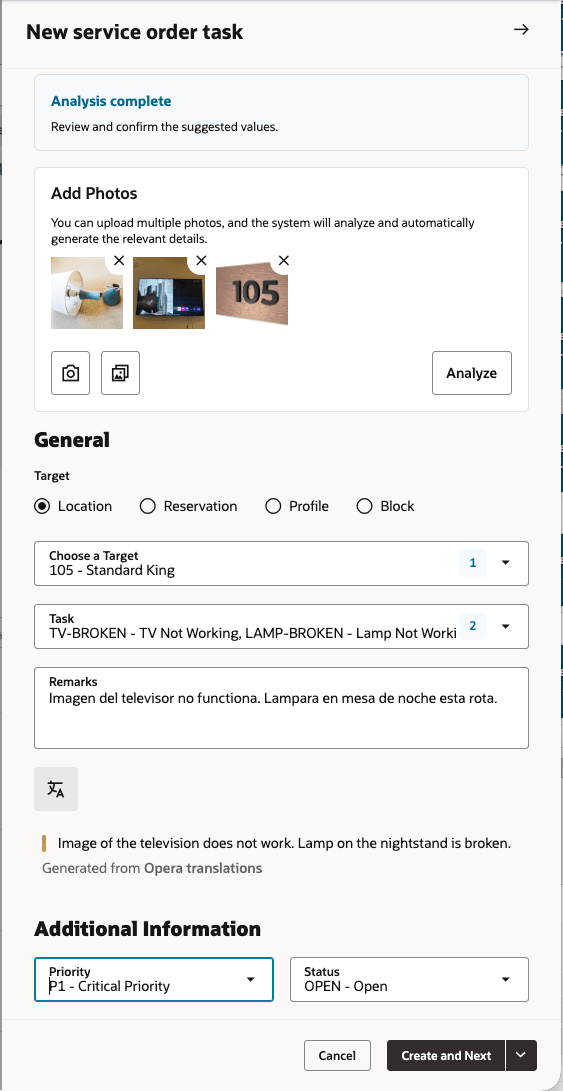
For example, photos showing a room number, a non-working television, and a broken bedside lamp can suggest the room as the target location and the corresponding television and lamp tasks. You can review, confirm, edit, add, or remove every suggested value before creating the Service Order. Suggestions depend on the visual evidence and the property's existing Service Order Management configuration.
Selecting the Translate option, OPERA Cloud translates remarks entered in any language to the logged-in user’s language.
OPERATIONAL BENEFITS
Smart Image Analysis makes it faster and more convenient to create Service Orders by using multiple images to suggest the Location and applicable Service Order Task(s), reducing manual entry and initial classification. The Translate Remarks option translates remarks entered in another language into the logged-in user’s language, helping users understand and act on the Service Order more quickly.
IMPACT OR OTHER CONSIDERATIONS
- This is an assistive feature. Analysis results are suggestions and must be reviewed before the Service Order is created.
- The feature does not replace existing Service Order Management validation, access, assignment, status, or audit behavior.
- The suggested Target and Service Order Task values depend on the visual evidence and the property’s existing Service Order Management configuration.
- Confirm supported image formats, maximum file size, and any device-specific capture constraints with the final implementation ticket before publication. The earlier maintenance-request release documented PNG, JPG, JPEG, GIF, and BMP formats with a maximum 5 MB per image; do not carry those limits forward unless the new tickets confirm them.
- The feature is available only when the Smart Service Order Task Request OPERA Control is enabled. It is off by default and is therefore non-disruptive after upgrade.
ACTION REQUIRED (STEPS TO ENABLE)
- From the side menu, select Administration, select Enterprise, and then select OPERA Controls.
- Select or confirm the property.
- Select the General group.
-
Locate the Service Order Management function.
- Locate and activate the Smart Service Order Task Request parameter.
MOBILE
AI Booking Suggestions OPERA Control Added
For properties with the AI Booking Suggestions OPERA Control active,AI-generated profile summary and booking suggestions are availablebased on the guest profile associated with past stays and/or future bookings.
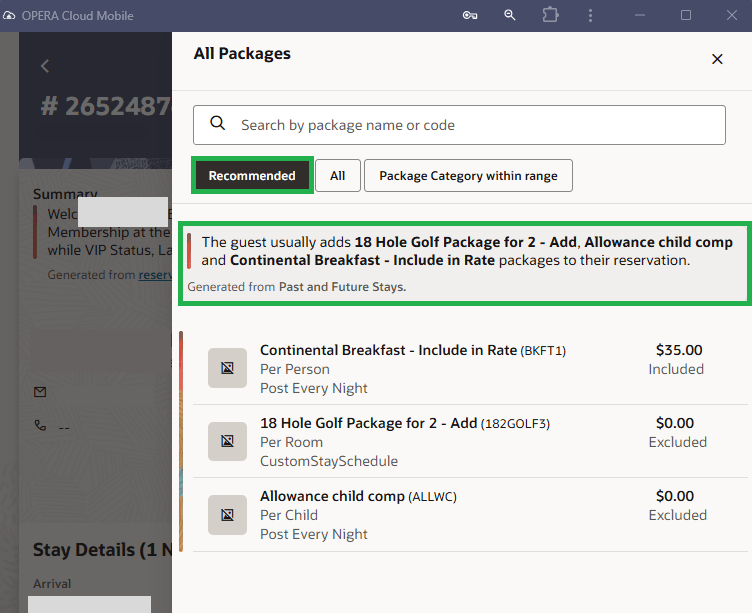
OPERATIONAL BENEFITS
Package recommendations empower you to provide a more personalized service with less effort and increases conversion of upsell opportunities which can drive incremental revenue.
ACTION REQUIRED (STEPS TO ENABLE)
- From the Side Menu, select Administration, select Enterprise, and then select OPERA Controls.
- Select or confirm the Property.
- Select the Look to Book group.
- Locate and activate the AI Booking Suggestions parameter.
New: Introduce NOR1 Upgrade Check-In Workflow
OPERA Cloud Mobile supports Reservation Upgrade Powered by Nor1 PRiME with a mobile-optimized interface for viewing and managing upgrade offers, improving navigation, readability, and usability on handheld devices.
After selecting your Arrival Reservation, the Offer Guest Upgrade presents with any available Nor1 Prime offers. You are able to select 'View Offer' to see all available CheckIn Merchandising Upgrades or to 'Skip' and you are able to continue with your Check In flow.
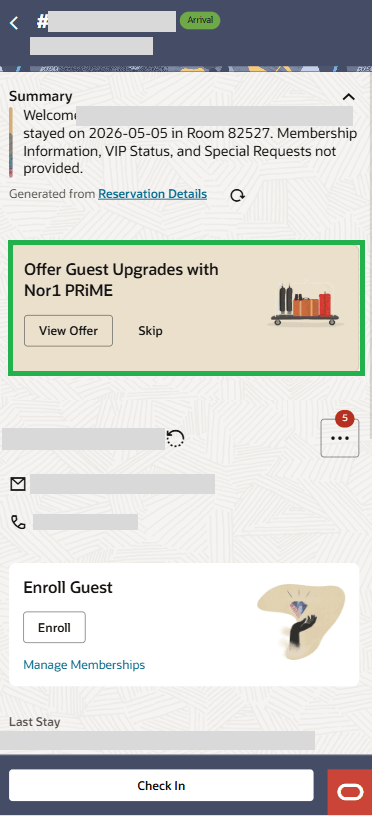
Upon selection of View Upgrades, you are presented with all available offers and you may select 'Accept' or 'Not Interested':
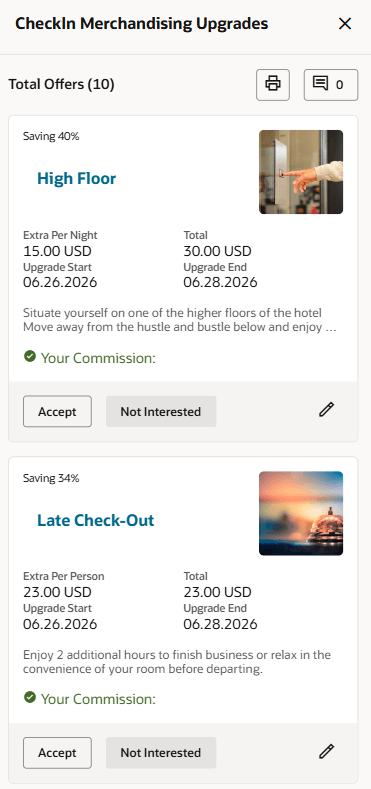
Upon accepting the offer, your Reservation refreshes and updates with the changes.
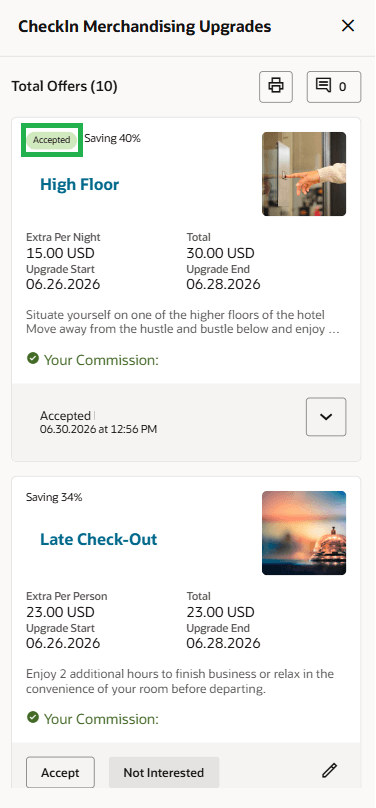
If you select 'Skip', the offer is dismissed:
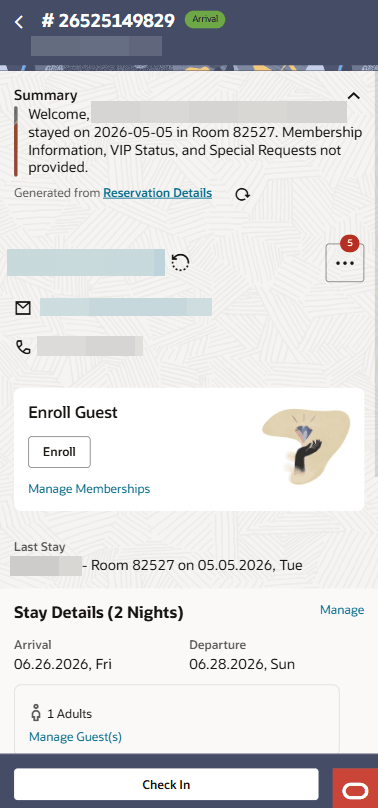
OPERATIONAL BENEFITS
Reservation Upgrade Powered by Nor1 PRiME features an updated user interface aligned with OPERA Cloud design standards, delivering a consistent and responsive experience across mobile and desktop devices. You can easily view and manage upgrade offers through an optimized layout for different screen sizes. The improved design enhances navigation and usability, helping you select upgrades and make updates with greater clarity while supporting a consistent experience across all devices.
IMPACT OR OTHER CONSIDERATIONS
Note: Enabling Reservation Upgrade - Powered by NOR1 PRiME is a prerequisite for enabling Auto-Display NOR1 Upgrade During Check-In. Ensure the Reservation Upgrade parameter is active before configuring the check-in setting.
ACTION REQUIRED (STEPS TO ENABLE)
Reservation Upgrade - Powered by NOR1 PRiME:
- From the Side Menu, select Administration, select Enterprise, and then select OPERA Controls.
- Select or confirm the Property.
- Select the Reservations group.
- Locate and activate the Reservation Upgrade - Powered by NOR1 PRiME parameter.
- Click Save.
Auto-Display NOR1 Upgrade During Check-In:
- From the Side Menu, select Administration, select Enterprise, and then select OPERA Controls.
- Select or confirm the Property.
- Select the Front Desk group.
- Locate the Auto-Display NOR1 Upgrade During Check-In setting.
- Update the setting to Y (Yes).
- Click Save.
Translated Housekeeping Attendant Notes added to Task Companion
When the Task Sheet Instructions Translation OPERA Control is enabled, Task Companion in OPERA Cloud Mobile can translate free-text attendant notes into the user’s login language.
OPERATIONAL BENEFITS
Translating attendant notes withinOPERA Cloud Mobile delivers a very tangible operational impact—especially in hotels where housekeeping teams are multilingual. The benefit isn’t just convenience; it directly improves productivity, accuracy, and service quality.
ACTION REQUIRED (STEPS TO ENABLE)
Steps to enable new OPERA Controls
- From the Side Menu, select Administration, select Enterprise and then select OPERA Controls.
- Select or confirm the Property.
- Select the Room Management group.
- Locate and activate the Task Sheet Instructions Translation parameter.
Package Consumption Updated to Store Package Category
OPERA Cloud Mobile Package Consumption stores the Package Category you select and restores it when you return to the workflow. To remove the stored Package Category, clear your cache in OPERA Cloud Mobile.
OPERATIONAL BENEFITS
Package Consumption streamlines package management by allowing you to consume package entitlements directly from the reservation, improving operational efficiency, reducing manual tracking, and helping ensure package benefits are applied accurately and in real time.
IMPACT OR OTHER CONSIDERATIONS
Package Consumption is available automatically when it is configured for your property and the appropriate package is associated with the reservation. You can begin using it as part of the standard package management workflow without any additional setup on your mobile device.
Reservation Summary Display Refined
When the OPERA Control for AI Reservation Summary at Check-In is enabled, the Reservation Summary on the Reservation Page displays only relevant stay information.
OPERATIONAL BENEFITS
This enhancement improves front desk operations by streamlining the reservation summary to display only relevant stay information, reducing clutter and eliminating empty or misleading fields. As a result, staff can process check-ins more quickly, make decisions with greater clarity, and minimize errors. The cleaner interface also simplifies workflows, reduces the need for additional verification, and supports a smoother, more efficient guest experience while lowering training effort for new employees.
ACTION REQUIRED (STEPS TO ENABLE)
- From the Side Menu, select Administration, select Enterprise and then select OPERA Controls.
- Select or confirm the Property.
- Select a property and click Search.
- Select the Front Desk group.
- Locate and activate the AI Reservation Summary at Check In parameter.
Room Status Screen Updated
You can view expanded room and reservation details in Room Status, including arrival/departure information, queue and attendant indicators, and guest service status.
Enhanced search criteria and filters help you find relevant rooms by status, occupancy, reservation status, priority, queue, and attendant presence. You can also update room status, set priority, manage service orders, view reservation information, and use Post It when enabled.
OPERA controls and user tasks determine which criteria, data, and actions are displayed.
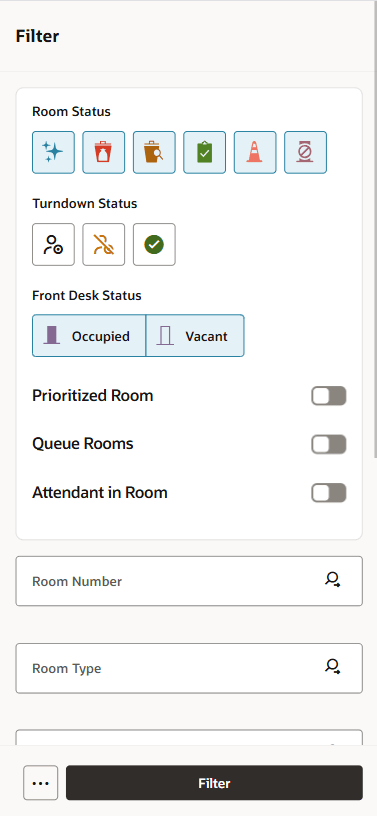
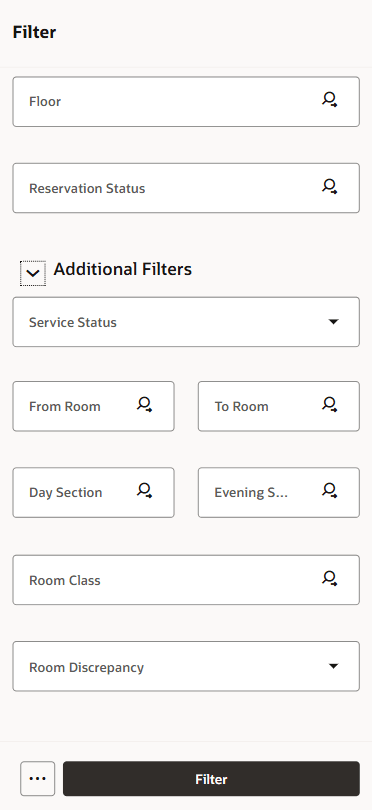
OPERATIONAL BENEFITS
This enhancement helps your housekeeping team find and manage the rooms that need attention more quickly. With clearer room and reservation information, improved filters, and relevant actions in one place, your team can support faster room turnover and better guest service coordination.
ACTION REQUIRED (STEPS TO ENABLE)
To use the enhanced Room Status search criteria, room details, and actions, complete the following steps for each applicable property.
ENABLE OPERA CONTROLS
- From the Side Menu, select Administration, select Enterprise, and then select OPERA Controls.
- Select or confirm the applicable Property.
- In the Room Management group, locate and activate the controls applicable to your operation:
- Inspected Status
- Pickup Status
- Discrepant Rooms
- Out of Order
- Out of Service
- Guest Service Status
- Turndown
- Queue Rooms
- Service Order Management
- Room Class
- Person Discrepancy
- In the Cashiering group, activate Post It if you want to use the Post It action from Room Status.
ASSIGN USER TASKS
- From the Side Menu, select Role Manager, then select Manage Chain Roles or Manage Property Roles, as appropriate.
- Enter search criteria and select Search.
- Select the role to update, click the vertical ellipsis Actions menu, and select Edit.
- Grant the applicable tasks:
- OPERA Cloud Mobile: Access OPERA Cloud Mobile - Room Status
- Inventory > Manage Room Status:
- Setting of a Room to Dirty Status
- Setting of a Room to Clean Status
- Setting of a Room to Pickup Status
- Setting of a Room to Inspected Status
- Change Status of an Out of Service Room
- Change Status of an Out of Order Room
- Inventory: Show Guest Name in Task Sheets and Housekeeping Board
- Miscellaneous: New/Edit Service Order and Delete Service Order
- Financials > Cashiering Workspace: Post It, if applicable.
- Select Save.
Service Order Management Added
OVERVIEW
OPERA Cloud introduces Service Order Management, providing one connected workflow for guest and internal service requests. You can create, prioritize, assign, track, update, and complete Service Orders associated with a reservation, profile, block, room, or other operational context from desktop, tablet, and mobile devices.
A new Service Order Management OPERA Control is available in the General group, and when active administrators can configure Service Order priorities, statuses, skills, specialties, resource groups, resources, types, and tasks. Configured tasks can provide default values and, when a follow-up task is configured, completing the original Service Order automatically creates the follow-up Service Order.
You can access Service Orders from Reservations, Profiles, Task Sheets, and Task Companion. The Service Order Management miscellaneous option on desktop provides Grid and Board views to monitor work, search and filter the workspace, and select multiple Service Orders to assign resources, update status, change priority, or delete records when the required user tasks are granted.
In OPERA Cloud Mobile, you can filter work, start an assigned Service Order, update progress, add photos, and complete work from Service Order Management, Reservations, Room Status, and Task Companion.
FEATURE SUMMARY
Service Order Management enables property teams to:
- Create Service Orders from the main workspace and supported operational entry points.
- Assign work to a resource, resource group, or department.
- Use configurable tasks, priorities, statuses, skills, specialties, resource groups, resources, and types.
- Monitor work in Grid or Board view.
- Search and filter by operational details such as task, assignment, priority, status, due date, reservation, profile, location, and department.
- Select multiple records to assign resources, update status, change priority, or delete records when the applicable user task is granted.
- Follow-up tasks are created automatically when the original Service Order is completed.
- Add photos to provide useful context for the assigned resource.
DESKTOP WORKSPACE
From Miscellaneous — Service Order Management, you can access the Service Order Tasks workspace.
The workspace provides summary filters for work such as All, Late, Today, Requested by Guest, Unassigned, Open, In Progress, and Closed. Use Grid view for detailed records, sorting, selection, and authorized bulk actions. Use Board view to monitor Service Orders by status.
Users can create a Service Order, open an existing order, update its details using the Edit pencil icon, or delete it using the Delete trash can icon. When multiple records are selected in Grid view, the available bulk actions include Assign Resource, Update Status, Change Priority, and Delete, based on assigned user tasks.
Service Orders can be created and managed from the operational area where the work is identified:
- Reservations: Select the Service Orders indicator to review or create work related to a reservation, guest, or room.
- Profiles: Select the Service Orders indicator to manage profile-related service work.
- Blocks: Select the Service Orders indicator to manage work associated with a block.
- Task Sheets and Task Companion: Select the Service Orders action after selecting or starting a room to preserve room context.
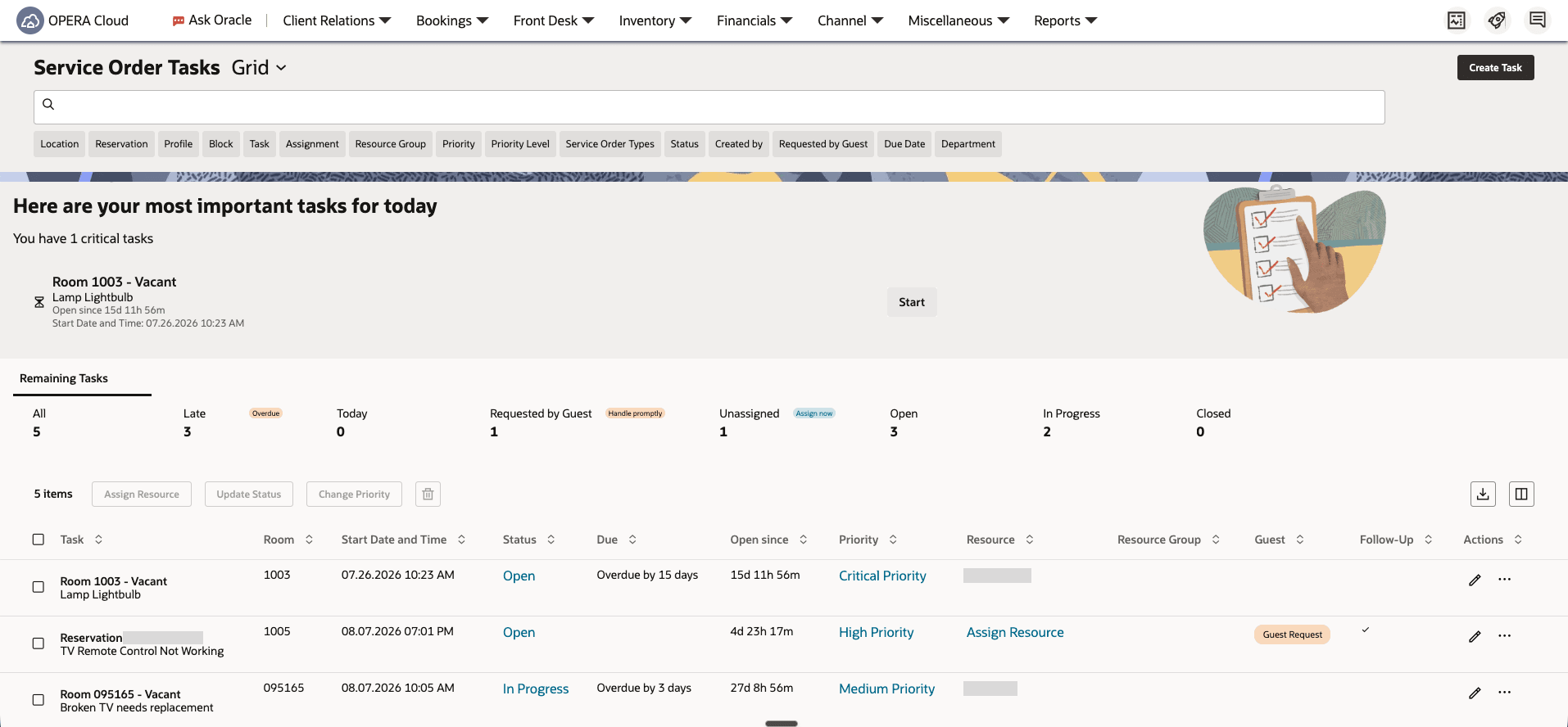
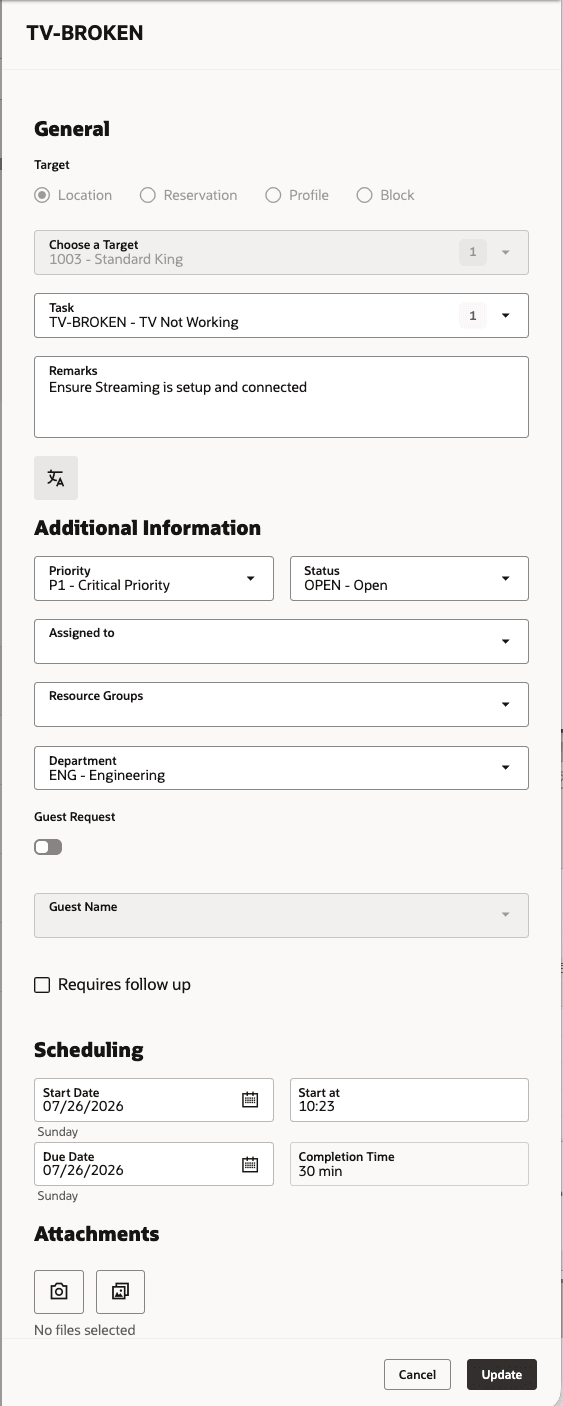
OPERA CLOUD MOBILE
In OPERA Cloud Mobile, resources can access Service Order Management from the navigation menu. You can use Filter to focus the work list, open a Service Order to review or update it, and add photos when needed.
A resource signed in at hub level can view Service Orders for authorized properties, including work assigned to the resource, the resource’s resource groups, or the resource’s department. You can swipe left on an assigned Service Order to select Start and swipe right to select Delete when authorized.
You can also access Service Orders from a reservation by selecting More actions in Arrivals, Departures, or In-House. In Task Companion and Room Status, select the Service Orders action.
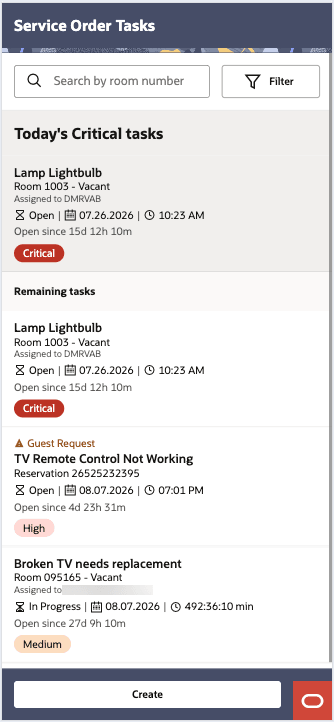
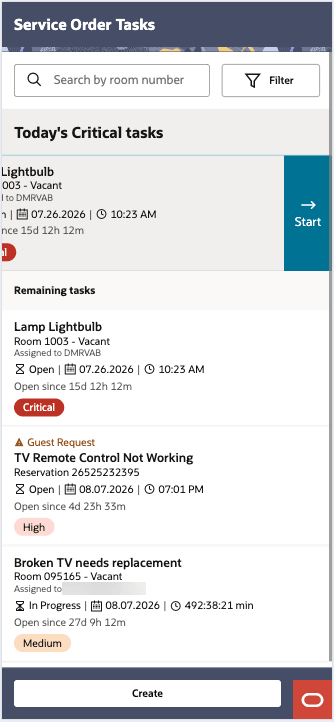
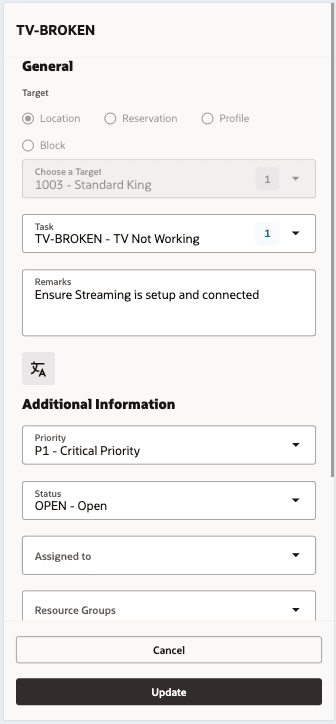
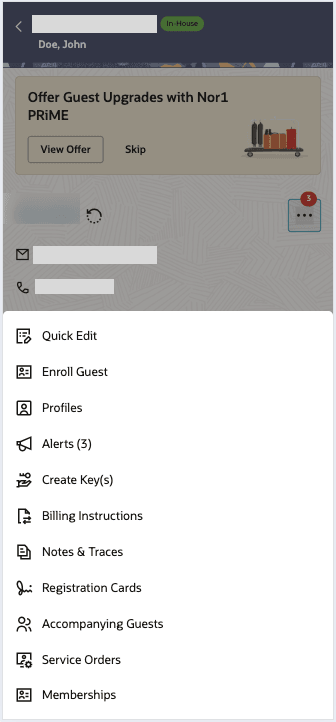
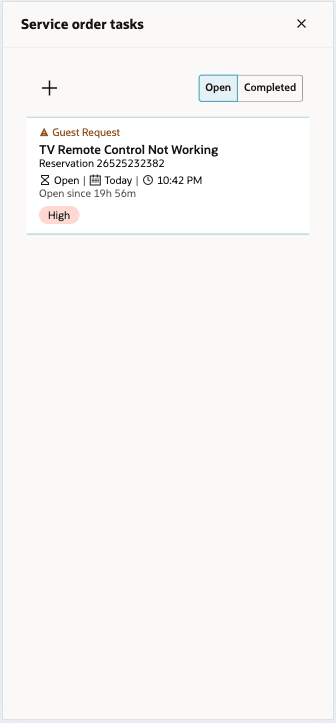
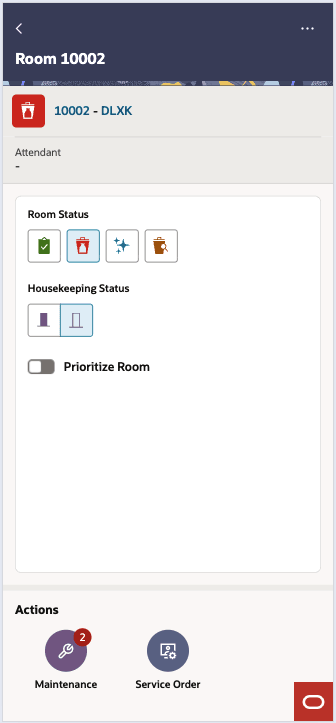
ADMINISTRATION
Before operational use, administrators configure the records that standardize Service Order processing:
| Configuration item | Purpose | Example |
|---|---|---|
| Priorities | Define the urgency of Service Orders. | P1, P2, P3,...,P1 Internal, P2 Internal,... |
| Statuses | Define the lifecycle used to progress and complete Service Orders and defines Quick Actions for Open, In Progress, and Complete statuses. | Open, Unassigned, On Hold, In Review |
| Skills | Define broad work capabilities, such as electrical or plumbing. | Plumbing, HVAC, Flooring, Carpentry |
| Specialties | Define a more specific area of expertise within a skill. | Electrician I, Electrician II, Plumber |
| Resource Groups | Define dispatchable teams or pools of resources. | Electricians, Plumbers, Houseman |
| Resources | Define individual employees or external providers who perform work. | John Doe, Jane Doe, Cleaning Services |
| Types | Define Service Order classifications. | Engineering, Housekeeping, Sales Events |
| Service Order Tasks | Define reusable work codes and default values for new service orders, including priority, department, type, notes, time to complete, and follow-up behavior. | TV-IMAGE, TV-REMOTE, TV-BROKEN, FOLLOWUP |
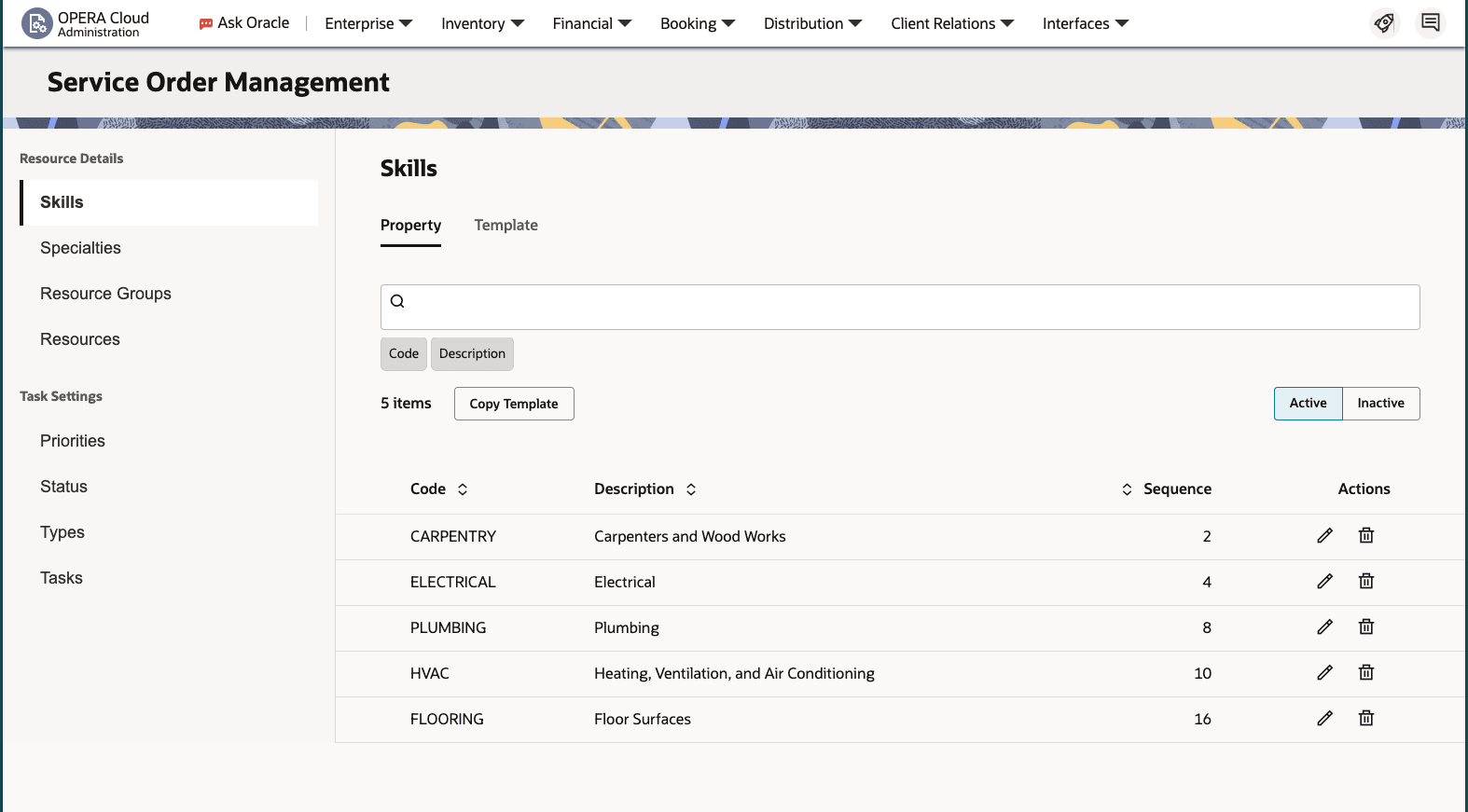
OPERATIONAL BENEFITS
Service Order Management streamlines property operations by giving your teams one connected work queue for guest and operational requests, helping them respond faster, reduce missed handoffs, and keep ownership clear. Real-time visibility of priority, assignment, and status updates help supervisors focus resources on the work that matters most—whether they are working from the desktop workspace or around the property using OPERA Cloud Mobile.
IMPACT OR OTHER CONSIDERATIONS
- Service Order Management is available when the Service Order Management OPERA Control is active.
- Administrators must configure the tasks, statuses, priorities, skills, specialties, resource groups, resources, types, and tasks in Role Manager before operational use.
- A Service Order supports photos and images only; file and document attachments are not supported.
- The available entry points and actions depend on the user’s granted tasks and property access.
- A task configured with a follow-up task automatically creates the configured follow-up Service Order when the original Service Order is completed.
ACTION REQUIRED (STEPS TO ENABLE)
Service Order Management OPERA Control
- From the side menu, select Administration, select Enterprise, and then select OPERA Controls.
- Select or confirm the property.
- Select the General group.
- Activate the Service Order Management function.
Service Order Management Tasks
- From the side menu, select Role Manager, then select Manage Chain Roles or Manage Property Roles.
- Enter search criteria and click Search.
- Select the role to update, click the vertical ellipsis Actions menu, and select Edit.
- Select the Inventory Admin group and grant the tasks for Service Order Management.
- Select the Miscellaneous group and grant the tasks for Service Orders.
- Select the OPERA Cloud Mobile group and grant the tasks for Access OPERA Cloud Mobile - Service Order Management
- Click Save.
Service Order Configuration
- From Administration — Inventory — Service Order Management,
- Configure values in this recommended sequence:
- Skills
- Specialties
- Resource Groups
- Resources
- Priorities
- Status
- Types
- Tasks
- Confirm that the default Quick Action statuses are set for Open, In Progress, and Complete workflows.
Smart Image Analyze for New Maintenance Request OPERA Control Added

When the Smart Image Analyze for New Maintenance Request OPERA Control Parameter is enabled, you can capture or upload multiple photos to be analyzed to automatically generate the relevant details for a new maintenance task.
Important to Note: Supported image formats are PNG, JPG, JPEG, GIF, and BMP. Maximum allowed size is 5 MB per file.
Upon uploading a maintenance image, you can select 'Analyze' and have pre-filled remarks for the request generated:
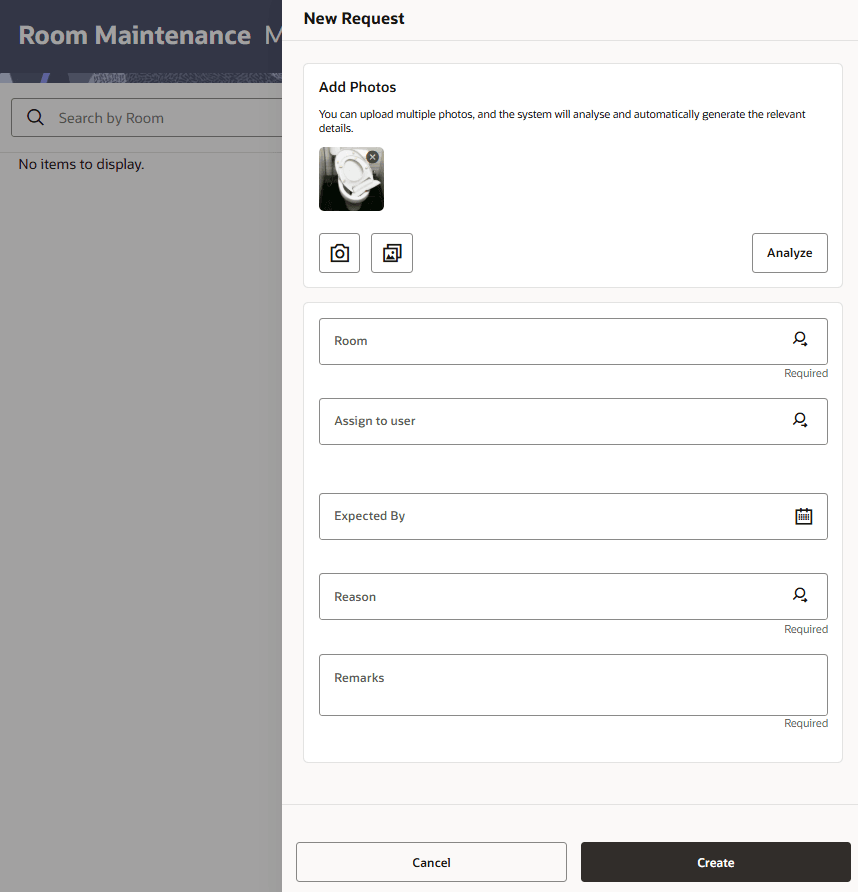
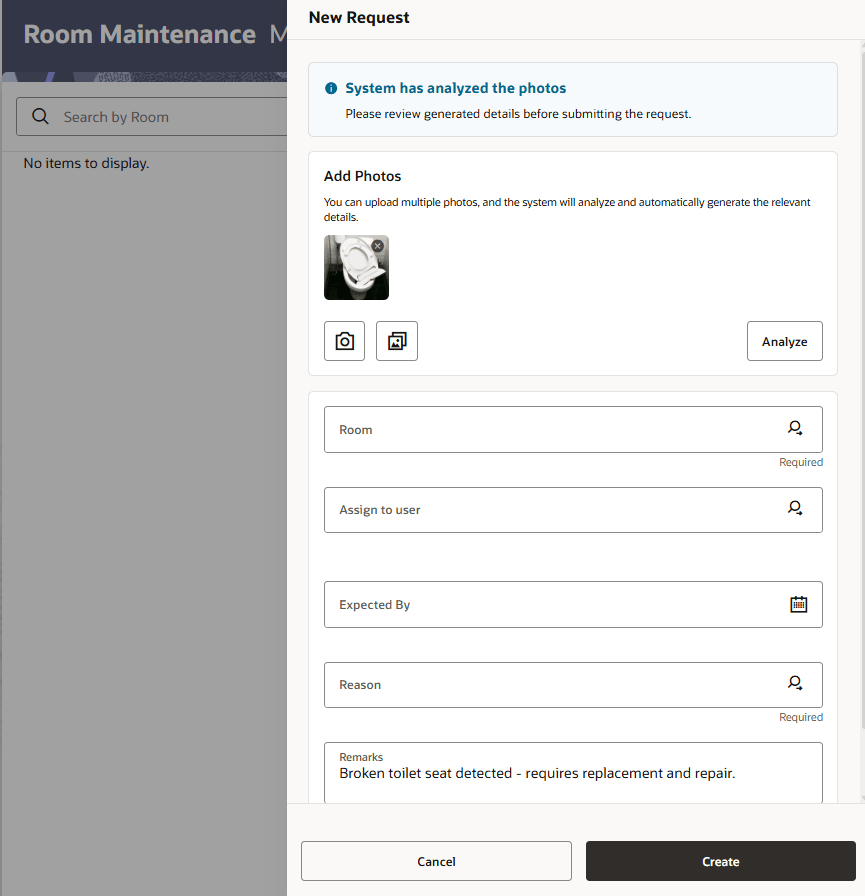
OPERATIONAL BENEFITS
Adding Smart Image Analyze functionality to OPERA Cloud Mobile transforms maintenance image review from a manual, inconsistent process to a faster, standardized, and proactive operation.
IMPACT OR OTHER CONSIDERATIONS
- Supported image formats are PNG, JPG, JPEG, GIF, BMP.
- Maximum allowed size is 5 MB per file.
ACTION REQUIRED (STEPS TO ENABLE)
- From the Side Menu, select Administration, select Enterprise and then select OPERA Controls.
- Select or confirm the Property.
- Select the Room Management group.
- Locate and activate the Smart Image Analyze for New Maintenance Request parameter.
Task Companion Move Rooms Between Task Sheets
With OPERA Cloud Mobile Task Companion you can lock and unlock task sheets when the Lock/Unlock Task Sheet task is assigned to your role. You are unable to Move Rooms when a Task Sheet is 'Locked'.
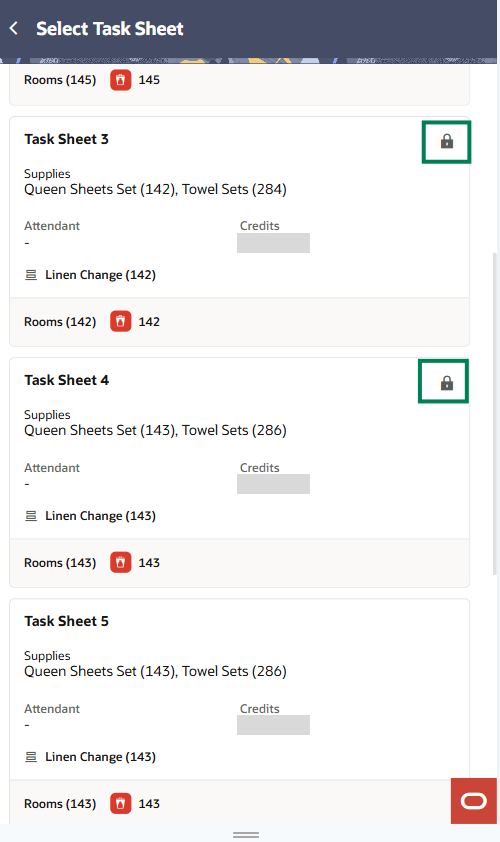
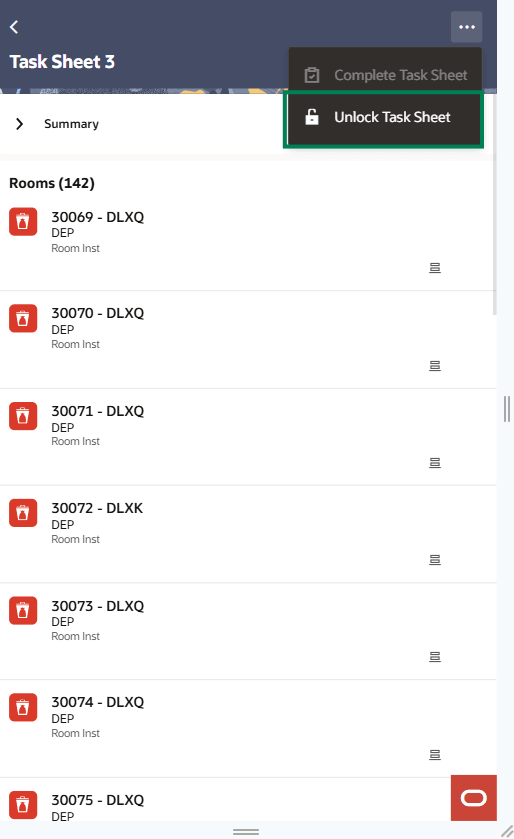
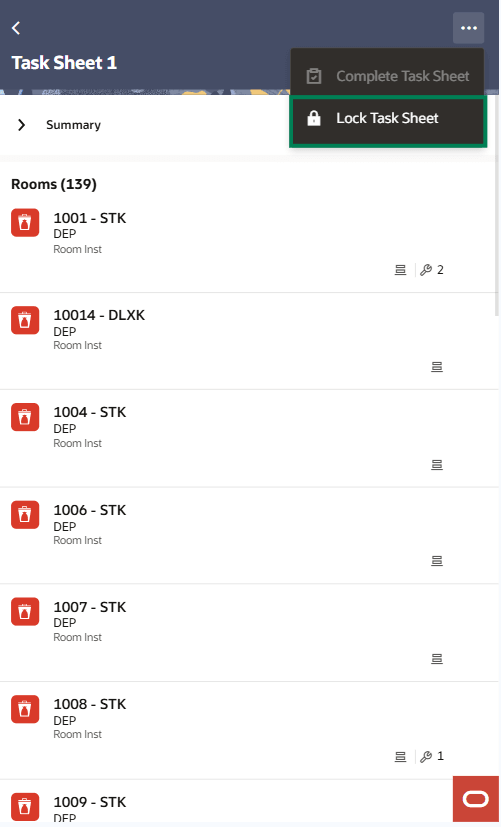
With the Access All Task Assignments in Task Companion task, you can move a room that has not started cleaning from one eligible task sheet to another, including the Float Task Sheet.
Swipe right on a room to display the Move Room option. Select Move Room to open the Move Room to Task Sheet drawer, select an available destination task sheet, and then select Move Room to complete the reassignment.
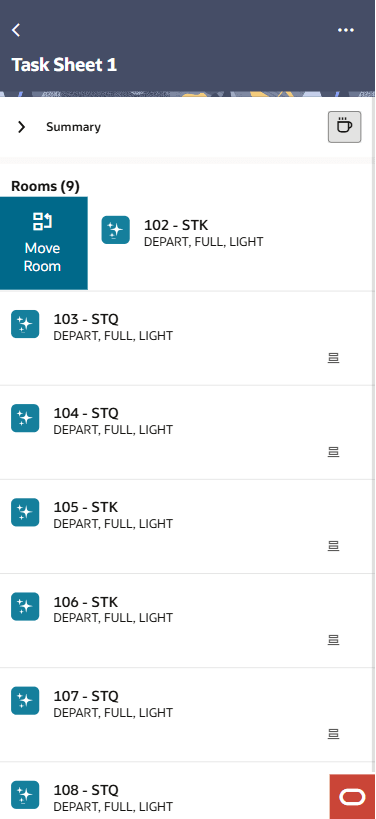
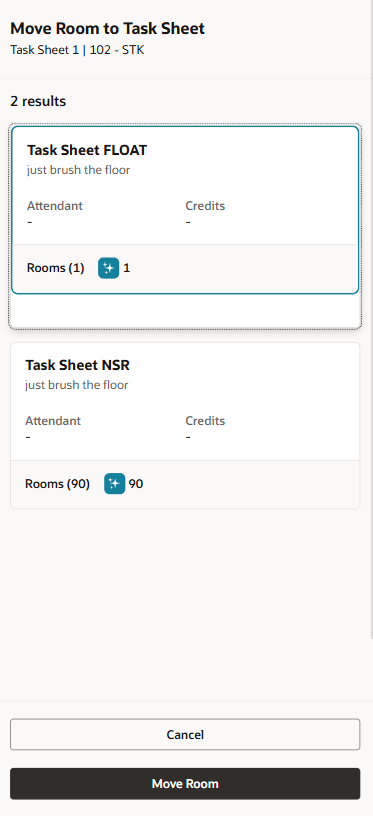
When the confirmation message displays you can select the hyperlink yellow text to navigate to the Task Sheet the room was moved to:
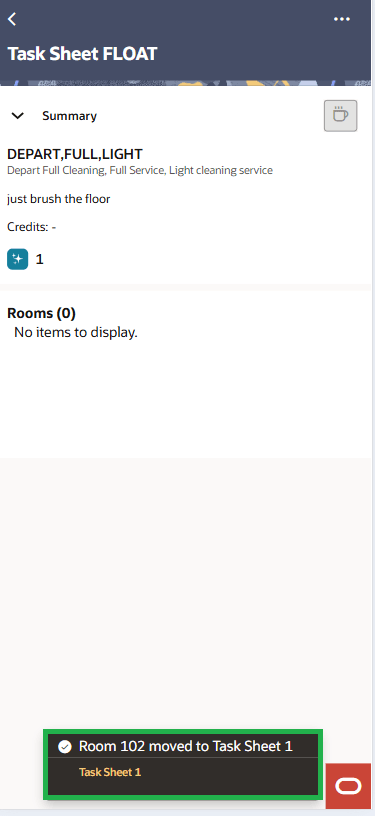
The No Service Required (NSR), Do Not Disturb (DND), and Float Task Sheets remain visible when they contain no rooms. The NSR Task Sheet requires NSR in the Additional Task Sheets OPERA Control, while the DND Task Sheet requires DND in the Additional Task Sheets OPERA Control and in the Guest Service Status OPERA Control to be active.
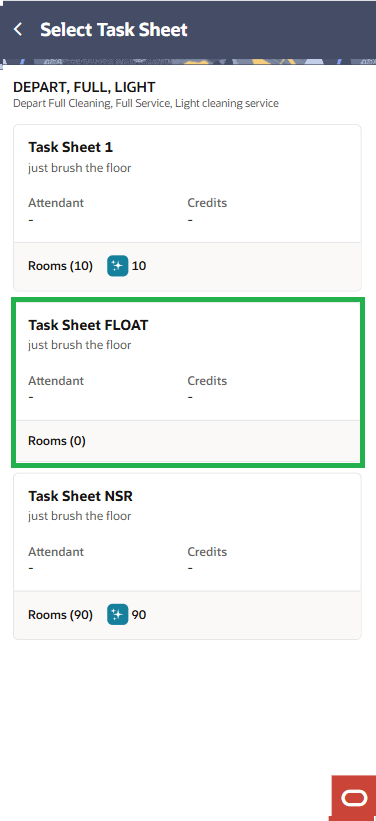
OPERATIONAL BENEFITS
These improvements give housekeeping supervisors better control and visibility over daily room assignments. They can quickly rebalance workloads, protect task sheets from unintended changes, and access Float, NSR, and DND Task Sheets even when no rooms are assigned.
ENABLE THE OPERA CONTROLS
- From the Side Menu, select Administration, select Enterprise, and then select OPERA Controls.
- Select or confirm the Property.
- Select the Room Management group.
- Locate and activate either the Task Sheets or Advanced Task Sheets function.
- Locate and activate the Guest Service Status function. This is required for the Do Not Disturb Task Sheet.
- Locate the Additional Task Sheets setting and select both NSR and DND.
- Click Save.
The NSR selection enables the No Service Required Task Sheet. The DND selection, together with the Guest Service Status function, enables the Do Not Disturb Task Sheet. The Float Task Sheet does not require a separate OPERA Control.
GRANT THE USER TASKS
- From the Side Menu, select Role Manager, and then select either Manage Chain Roles or Manage Property Roles, according to your needs.
- Enter the search criteria and click Search.
- Select the role to update, click the vertical ellipsis Actions menu, and select Edit.
- Select the Inventory group.
- Under Task Sheets, grant the Lock / Unlock Task Sheet task.
- Under Room Management Workspace, grant the Access All Task Assignments in Task Companion task. This task allows housekeeping supervisors to access other task sheets and move eligible rooms between task sheets.
- Click Save.
The role must also have Access OPERA Cloud Mobile - Task Companion to access Task Companion in OPERA Cloud Mobile.
Task Sheet Instructions Translation OPERA Control Added
A Task Sheet Instructions Translation OPERA Control is available in the Rooms Management group allowing users to select the Translation icon in an OPERA Cloud Mobile Task Companion task sheet to view free-text Room Instructions in their login language.
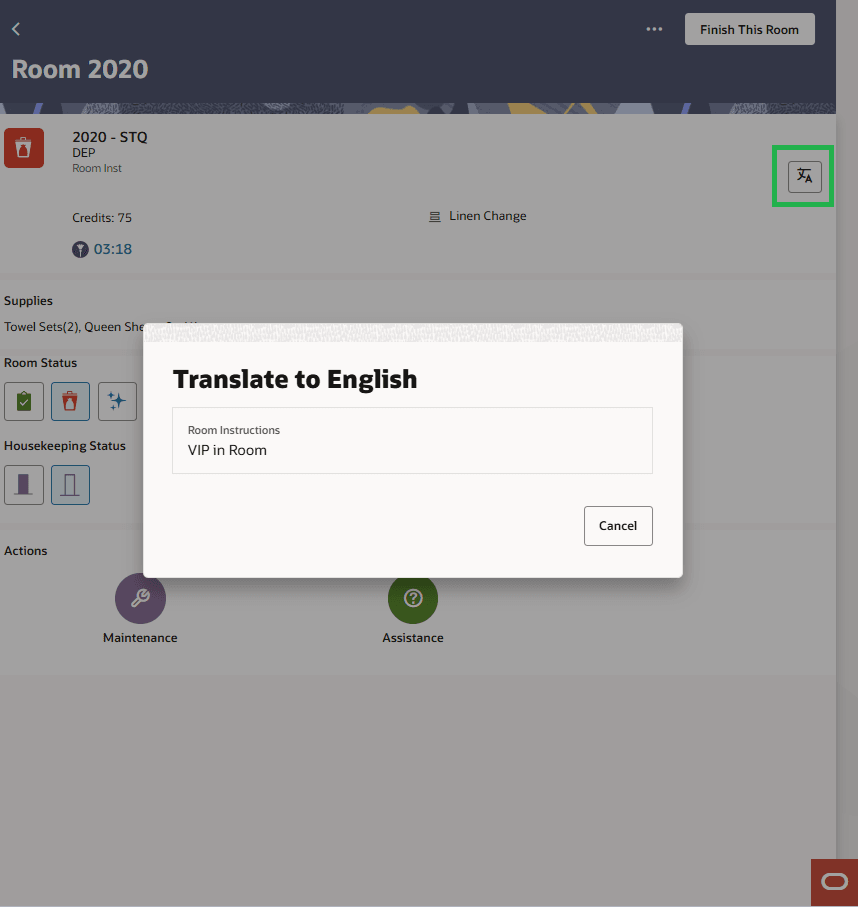
OPERATIONAL BENEFITS
Translating room instructions and task sheets within OPERA Cloud Mobile delivers a very tangible operational impact—especially in hotels where housekeeping teams are multilingual. The benefit isn’t just convenience; it directly improves productivity, accuracy, and service quality.
ACTION REQUIRED (STEPS TO ENABLE)
- From the Side Menu, select Administration, select Enterprise and then select OPERA Controls.
- Select or confirm the Property.
- Select the Room Management group.
- Locate and activate the Task Sheet Instructions Translation parameter.
Today's Traces Updated for Last Department Selected
OPERA Cloud Mobile stores the department you select in Today's Traces and restores it when you return to the page. To remove the stored department, clear your cache in OPERA Cloud Mobile.
OPERATIONAL BENEFITS
OPERA Cloud Mobile improves efficiency by remembering the last department selected in Today's Traces, reducing repetitive navigation, saving time, and enabling staff to access the relevant department's traces more quickly and consistently.
PROPERTY APIs
Asynchronous APIs for Changing Block and Catering Status Added
A new asynchronous API is available for updating the block and catering status to improve performance, and includes the following operations:
- startChangeBlockStatusProcess
- getChangeBlockStatusProcessStatus
- getChangeBlockStatusProcessInfo
A new asynchronous API is available for updating onlycatering status to improve performance, and includes the following operations:
- startChangeCateringStatusProcess
- getChangeCateringStatusProcessStatus
- getChangeCateringStatusProcessInfo
OPERATIONAL BENEFITS
New asynchronous APIs improve performance when updating block and catering statuses, enabling status changes to run in the background while your integrations continue processing other work. Separate APIs support combined block-and-catering updates or catering-only updates, with status and information endpoints to monitor each process through completion.
Asynchronous APIs for Updating Catering Package Details Added
A new asynchronous API is available for updating catering package details to improve performance, and includes the following operations:
- startChangeCateringPackagesProcess
- getChangeCateringPackagesStatus
- getChangeCateringPackageResults
OPERATIONAL BENEFITS
These asynchronous API provides a more resilient integration experience, while OPERA Cloud can process updates safely in the background
BLK - postBlock API Updated
When an incoming postBlock REST API call contains missing or invalid values for mandatory fields, the system uses the configured default values instead of validating the missing or invalid values.
OPERATIONAL BENEFITS
This enhancement enables integrations to create blocks successfully even when mandatory postBlock fields are missing or invalid, by automatically substituting configured default values.
IMPACT OR OTHER CONSIDERATIONS
This change applies only to the postBlock API.
BLK - putBlock API Updated
A new header has been added to the putBlock API. x-applyDeltaChanges can be set to true or false. Default is false. When set to true only the elements in the message will be updated. Not included elements will be maintained and not overwritten or nullified. If set to false, behavior will be maintained as is today, and the putBlock will be handled as a full overlay.
OPERATIONAL BENEFITS
The new x-applyDeltaChanges header gives customers greater control when updating blocks through the putBlock API. By setting it to true, customers can submit only the changes they need, while existing data not included in the request is preserved—reducing integration effort and helping prevent unintended data loss.
IMPACT OR OTHER CONSIDERATIONS
This change applies only to the putBlock API.
Business Event Generated for Reservation Auto-Attached Data Elements
OPERA Cloud generates a business event when Auto Attachment Rules add data elements during an API-based reservation create or update. This enables subscribed external systems to stay synchronized with all data automatically attached to the reservation.
OPERATIONAL BENEFITS
Subscribed external systems can identify rule-driven reservation updates, maintain synchronized reservation data, and reduce manual reconciliation.
CRM - Telephone Country Dialing Code Added
CRM - ADDED NEW ATTRIBUTES
Added the phoneCountryCode and countryDialingCode attributes to the telephoneType object, allowing you to provide phoneCountryCode when adding or updating telephone and fax information for a profile using the postProfile or putProfile API operation. If countryDialingCode is included in the request, it is ignored and the corresponding dialing code is derived automatically from the provided phoneCountryCode.
When retrieving profile communication details, the response includes both the phoneCountryCode and its corresponding countryDialingCode.
OPERATIONAL BENEFITS
Provides API consumers with a standardized way to submit structured, country-aware telephone and fax details using phoneCountryCode, while OPERA Cloud derives the corresponding countryDialingCode. This supports consistent data exchange and prevents mismatched dialing-code values in profile communication records.
CRMCFG - expiryPeriod Description Updated
Updated the expiryPeriod attribute description in the putMembershipType and getMembershipType APIs to support configuring a Membership Type without an expiry period. The new description is "Membership card expiration period. If no value is provided, no expiration period is set.”
OPERATIONAL BENEFITS
Enables API integrations to configure non-expiring Membership Types without providing a placeholder expiry period, supporting programs with lifetime or indefinite memberships while keeping membership configuration aligned across systems.
CSH - PRO_FORMA_FOLIO_VIA_API Added
The Cashiering API PRO_FORMA_FOLIO_VIA_API is added with startProformaFolioAsync, getProformaFolioProcessStatusAsync, getProformaFolioAsync operations, offering a convenient way to generate Pro-Forma Folios for reservations with stays up to 100 days, with optional email delivery, and an option to return the generated PDF folio as Base64.
The service creates the temporary transactions needed for the Proforma folio, persists the async result for polling, and cleans up those transactions afterwards.
Access requires the Cashiering Generate Pro-Forma Folio OPERA Controlto be active, and the Role Manager Task Generate Pro-Forma Folio- This is applicable only for use of the postProformaFolio API under Financials group to be granted. The task controls access at property and cluster (HUB) levels.
OPERATIONAL BENEFITS
The ability to generate Pro-Forma Folios for long stay reservations with the option for email delivery and PDF Folio generation as Base64 allows more flexibility for customers using Pro-Forma Folio functionality.
ACTION REQUIRED (STEPS TO ENABLE)
- From the side menu, select Administration, select Enterprise, and then select OPERA Controls.
- Select or confirm the Property.
- Locate the Generate Pro-Forma Folio OPERA Control and activate.
- Click Save.
- From the side menu, select Role Manager, select either Manage Chain Roles or Manage Property Roles according to your needs.
- Enter search criteria and click Search.
- Select the required role to update, click the vertical ellipsis Actions menu, and select Edit.
- Select the Financials group and grant the task: Generate Pro-Forma Folio - This is applicable only for use of the postProformaFolio API.
- Click Save.
emailAddress Added to generateFolio API
The generateFolio API is enhanced with a new field called emailAddress. When you populate the field with a valid email address in a Checkout request, the original folio that is generated by the API is emailed to the specified email address.
In a scenario where the folio already exists (new folio is not being generated), the copy of the folio (for example, COPY OF INVOICE) is emailed to the specified email address.
OPERATIONAL BENEFITS
Customers can include an email address during a Checkout request, and the folio is emailed to the specified email address.
FOF - getFrontOfficeStatisticsWithDateRange Updated
Four new optional query parameters were added to the getFrontOfficeStatisticsWithDateRange API to receive statistics for Child Buckets 4 & 5 for Arrivals and In House reservations.
{ "name": "metric", "in": "query", "type": "array", "collectionFormat": "multi", "description": "Supported housekeeping statistical codes.", "uniqueItems": true, "items": { "type": "string", "enum": [ "Children4Arrivals", "Children5Arrivals", "Children4InHouse", "Children5InHouse" ] }, "required": false },
OPERATIONAL BENEFITS
The ability to query additional Child Buckets supports more accurate housekeeping planning.
HSK - getHousekeepingOverview API Updated
Two new optional query parameters, roomDiscrepancyStatus and queueOnly, are added to the getHousekeepingOverview API.
roomDiscrepancyStatus allows consumers to filter rooms by discrepancy status.
Supported values are Sleep, Skip, and PersonDiscrepancy.
{ "name": "roomDiscrepancyStatus", "in": "query", "type": "array", "collectionFormat": "multi", "description": "Simple type for discrepant room status instructions to be used in requests for fetching housekeeping and front office room discrepancy. Valid values are Sleep, Skip, Person Discrepancy.", "uniqueItems": true, "items": { "type": "string", "enum": [ "Sleep", "Skip", "PersonDiscrepancy" ] }, "required": false },
queueOnly allows consumers to retrieve only rooms associated with queued reservations for the current business date. { "name": "queueOnly", "in": "query", "required": false, "description": "Determines whether fetching queue rooms only.", "type": "boolean" },
OPERATIONAL BENEFITS
- The new roomDiscrepancyStatus filter allows housekeeping users to identify and prioritize rooms with specific room-status discrepancies.
- The new queueOnly filter allows housekeeping users to identify rooms associated with queued reservations and prioritize them for room preparation.
Leisure Management APIs (LMS and LMSCFG)
LEISURE MANAGEMENT APIs (LMS AND LMSCGF)
A Leisure Management System(LMS) API module is added to the API collection. LMS refers to the management area specific to the leisure management functionality within OPERA Cloud.
The following operations are added to the Leisure Management System API (LMS):
| API / request | Method | Description |
|---|---|---|
getAvailableLeisureExperiences |
GET | Finds available leisure experiences for a resort and requested date/time window. |
postLeisureExperience |
POST | Creates a leisure experience linked to a guest profile and reservation. |
postLeisureExperiencesConfirmation |
POST | Confirms one or more created leisure experiences. |
getLeisureExperience |
GET | Retrieves one leisure experience by its ID. |
getLeisureExperiences |
GET | Lists resort leisure experiences, normally for a specified date range and optional filters. |
getLeisureExperiencesByReservation |
GET | Lists leisure experiences associated with a reservation. |
getLeisureExperiencesByProfile |
GET | Lists leisure experiences associated with a guest profile. |
searchLeisureExperiences |
GET | Searches the configured leisure-experience catalog. |
getAvailableResourcesByExperience |
GET | Finds resources available for a specific leisure experience during a requested time window. |
putLeisureExperience |
PUT | Updates a single leisure experience, such as time, location, resource, status, features, or comments. |
putLeisureExperiences |
PUT | Performs a bulk update of one or more leisure experiences. |
getLeisureExperienceLog |
GET | Retrieves activity, lifecycle, and update history for a leisure experience. |
postLeisureExperiencesCheckIn |
POST | Checks in a leisure experience. |
postLeisureExperiencesCheckOut |
POST | Checks out a leisure experience. |
deleteLeisureExperience |
DELETE | Deletes a leisure experience, primarily for smoke-test cleanup. |
A Leisure Management System Configuration(LMSCFG) API module is added to the API collection. LMSCFG refers to the configuration settings and management area specific to the leisure management functionality within OPERA Cloud.
The following operations have been added to the Leisure Management System Configuration API (LMSCFG):
Leisure Experience Group
| API / request | Method | Description |
|---|---|---|
getLeisureExperienceGroups |
GET | Lists leisure experience groups. |
postLeisureExperienceGroup |
POST | Creates a leisure experience group. |
putLeisureExperienceGroup |
PUT | Updates a leisure experience group. |
deleteLeisureExperienceGroup |
DELETE | Deletes a leisure experience group after dependent experience types are removed. |
Leisure Experience Types
| API / request | Method | Description |
|---|---|---|
getLeisureExperienceTypes |
GET | Lists leisure experience types. |
postLeisureExperienceType |
POST | Creates a leisure experience type. |
putLeisureExperienceType |
PUT | Updates a leisure experience type. |
deleteLeisureExperienceType |
DELETE | Deletes a leisure experience type after dependent experiences are deleted. |
Leisure Experiences
| API / request | Method | Description |
|---|---|---|
getLeisureExperiences |
GET | Lists configured leisure experiences for a hotel. |
postLeisureExperience |
POST | Creates a hotel-scoped leisure experience using its type, location, resources, features, and price package. |
getLeisureExperienceDetails |
GET | Retrieves one configured leisure experience by code. |
getPrimaryResourceFeatureTypesForExperience |
GET | Retrieves the primary resource feature types configured for an experience. |
putLeisureExperience |
PUT | Updates a hotel-scoped leisure experience. |
deleteLeisureExperience |
DELETE | Deletes a configured leisure experience. |
Resource Feature Types
| API / request | Method | Description |
|---|---|---|
getLeisureResourceFeatureTypes |
GET | Lists leisure resource feature types. |
postLeisureResourceFeatureType |
POST | Creates a resource feature type. |
putLeisureResourceFeatureType |
PUT | Updates a resource feature type. |
deleteLeisureResourceFeatureType |
DELETE | Deletes a resource feature type after dependent features and resource types are removed. |
Resource Features
| API / request | Method | Description |
|---|---|---|
getLeisureResourceFeatures |
GET | Lists leisure resource features. |
postLeisureResourceFeature |
POST | Creates a resource feature. |
putLeisureResourceFeature |
PUT | Updates a resource feature. |
deleteLeisureResourceFeature |
DELETE | Deletes a resource feature after dependent resources are removed. |
Location Types
| API / request | Method | Description |
|---|---|---|
getLeisureLocationTypes |
GET | Lists leisure location types. |
postLeisureLocationType |
POST | Creates a location type. |
putLeisureLocationType |
PUT | Updates a location type. |
deleteLeisureLocationType |
DELETE | Deletes a location type after dependent locations and experience types are removed. |
Locations
| API / request | Method | Description |
|---|---|---|
getLeisureLocations |
GET | Lists hotel-scoped leisure locations. |
postLeisureLocation |
POST | Creates a resort- or hotel-scoped leisure location. |
getLeisureLocation |
GET | Retrieves one hotel-scoped leisure location. |
putLeisureLocation |
PUT | Updates a hotel-scoped leisure location. |
deleteLeisureLocation |
DELETE | Deletes a hotel-scoped leisure location. |
Resource Types
| API / request | Method | Description |
|---|---|---|
getLeisureResourceTypes |
GET | Lists leisure resource types. |
postLeisureResourceType |
POST | Creates a resource type and associates applicable feature types. |
putLeisureResourceType |
PUT | Updates a resource type. |
deleteLeisureResourceType |
DELETE | Deletes a resource type after dependent resources are removed. |
Resources
| API / request | Method | Description |
|---|---|---|
getLeisureResources |
GET | Lists hotel- or resort-scoped leisure resources. |
postLeisureResource |
POST | Creates a hotel-scoped resource using a resource type, location, and resource features. |
getLeisureResource |
GET | Retrieves one hotel-scoped resource. |
getAvailableResourceFeatures |
GET | Returns available features for a specified resource and resource type. |
putLeisureResource |
PUT | Updates a hotel-scoped resource. |
deleteLeisureResource |
DELETE | Deletes a hotel-scoped resource. |
OPERATIONAL BENEFITS
The APIs automate leisure bookings, reduce conflicts, and improve visibility across guest, reservation, resource, and property operations.
IMPACT OR OTHER CONSIDERATIONS
These APIs support the new Leisure Management solution integrated with OPERA Cloud and should not be confused with the legacy Leisure Activities functionality.
Package Code APIs Updated
You can filter Package Codes by Rate Code and expand each package row to view all attached Rate Codes, including inactive Rate Codes.
The RTP package listing response includes the usedInRates flag. This flag indicates whether the package is attached to one or more Rate Codes.
OPERATIONAL BENEFITS
Connected applications can identify packages that are used by Rate Codes without retrieving and evaluating each Rate Code configuration separately.
ResNotif Inventory Availability Override Enhancements
Reservations created through Reservation Notification that use available inventory are created without an override entry or reservation note. When inventory is insufficient or applicable restrictions require an override, OPERA Cloud records the override and adds the appropriate reservation note.
OPERATIONAL BENEFITS
Improves reservation accuracy and audit clarity by distinguishing genuine inventory overrides, enabling reservation agents to focus on exceptions that require attention.
RSV Async - startReservationDetailsMassUpdateProcess Operation Updated
The startReservationDetailsMassUpdateProcess operation in the Reservation Async (RSV Async) API is updated to support Mass Update Reservation Details for eligible share and block reservations.
The operation includes the following new element:
- Update All Shared Reservations — Select this option to apply the same changes to all shared reservations associated with the selected reservation.
OPERATIONAL BENEFITS
Apply the same updates to eligible share and block reservations through a single Mass Update action. The Update All Shared Reservations option reduces manual effort by applying selected changes across all reservations in a share.
RTP - post/ put/getPackage and validateRateInfo APIs Updated
Package APIs (postPackage, putPackage, getPackage):
Enhanced the postPackage, putPackage, and getPackage APIs to support the PriceByAgeCategory package calculation rule. The packageCalculationRuleType enum now includes the PriceByAgeCategory value, packageChildBuckets supports the Adult value, and ageBucketPricing has been expanded to support a dedicated Adult pricing and allowance row alongside existing Rates Defined by Buckets or Guest Age Category OPERAControl pricing.
Reservation API (validateRateInfo):
Enhanced the validateRateInfo API to return the new adultUnitPrice and adultUnitAllowance fields in reservationPackageScheduleType when the associated package uses the PriceByAgeCategory calculation rule.
OPERATIONAL BENEFITS
Simplifies package configuration by allowing adult and child pricing, and age-based allowances (when Advanced Packages is enabled), to be managed within a single package. This reduces the need for separate packages for different guest types, minimizes configuration effort, and ensures accurate pricing based on the configured Rates Defined by Buckets or Guest Age Category OPERAControl definitions.
IMPACT OR OTHER CONSIDERATIONS
This feature is not supported by OPERA Cloud Distribution.
RTP - PostRatePlan and PutRatePlan APIs Updated
The PostRatePlan and PutRatePlan APIs have been enhanced to support automatic resolution of package details from the OPERA Package configuration.
When the request contains ratePlan.ratePackages.packages.code but does not contain ratePlan.ratePackages.packages.header, the API automatically retrieves all package details from the OPERA Package configuration using the specified package code. When the request contains both ratePlan.ratePackages.packages.code and ratePlan.ratePackages.packages.header, the API expects the complete package definition to be provided in the request and does not retrieve package details from the OPERA Package configuration.
OPERATIONAL BENEFITS
Simplifies API integration by allowing clients to reference existing OPERA Cloud packages using only the package code, reducing request complexity while ensuring consistent package details are retrieved from the OPERA Cloud Package configuration.
RTP - postRatePlan Updated
Updated RTP POST postRatePlan to support the property-level Default Rate Category/Class configuration. When creating a rate code, if no Rate Category is provided the configured default is used as both the Rate Category and Rate Class. If the provided Rate Category does not exist, it is automatically created using the configured default as its Rate Class.
OPERATIONAL BENEFITS
This enhancement enables integrations to create rate codes without requiring every rate category to be manually configured in advance. It provides consistent Rate Category and Rate Class configuration across properties and reduces failed postRatePlan requests caused by a missing setup.
IMPACT OR OTHER CONSIDERATIONS
The change applies only to the postRatePlan API.
RTP - postRatePlan, putRatePlan, getRatePlan Updated
Rate Plan APIs (postRatePlan, putRatePlan, getRatePlan):
Updated the existing Rate Plan APIs to support Post Discounted Rate Every X Nights in rate plan transaction details.
When you create or update a rate plan, you can provide the discounted posting rhythm with the Discount Rate, percentage indicator, Every-X-Nights cadence, and Repeat indicator. The Rate Plan GET responses return the saved discounted posting rhythm configuration.
OPERATIONAL BENEFITS
Connected applications can create, update, and retrieve discounted every-X-night rate configurations using the existing Rate Plan APIs. This supports consistent promotion configuration across OPERA Cloud and connected applications.
IMPACT OR OTHER CONSIDERATIONS
No new RTP endpoint is added. The existing Rate Plan create, update, and GET operations are extended. The discounted-rhythm branch is separate from the existing doNotPostEveryXNights branch; existing clients remain compatible when they do not provide the new configuration.
TemplateCountries APIs Updated
Added the Description attribute to the templateCountryType object in the postTemplateCountries, getTemplateCountries, and changeTemplateCountries Enterprise Configuration REST API (ENTCFG) operations to support country-name translations.
OPERATIONAL BENEFITS
Integrations can create, retrieve, and update translated country descriptions, helping maintain consistent localized country data across OPERA Cloud and connected systems.
REPORTS
Grppickup Report Added in R&A
The Group Pickup report is available in Reporting and Analytics, and located in /Shared Folders/Templates/Blocks and Groups folder.
The report can be generated for the selected Property, From and To Date Range, Block ID and other parameters.
OPERATIONAL BENEFITS
Details block pickup day by day making it easy to track and manage reservations for group blocks.
Reporting and Analytics Reports Access From OPERA Cloud Added
- Reservation Forecast 1
- Matrix Report Calendar Date Range
- Matrix Report Calendar Month
- Matrix Report Calendar YTD
- Matrix Report Fiscal Period
- Matrix Report Fiscal PTD
- Reservation Statistics 2 Month
- Reservation Statistics 2 Month to Date
- Reservation Statistics 2 Week
- Rooms on the Books
- Inventory Forecast Report
- Business on the Books
- LOS Market Forecast Report
REQUIRED ACCESS
Ensure you have the required permission to run reports and access to the data included in those reports. See Accessing Reporting and Analytics for more information.
OPERATIONAL BENEFITS
Users can access and generate these R&A reports directly from the OPERA Cloud reporting workflow, using access aligned with the organization’s selected security model.
IMPACT OR OTHER CONSIDERATIONS
The existing OPERA Cloud versions of these reports may have data discrepancies. The R&A versions have been introduced to provide more consistent reporting results and should be used where applicable.
RESERVATIONS
AI Booking Suggestions OPERA Control Added
CENTRAL
An AI Booking Suggestions OPERA Control is added to the Look to Book Sales Screen group, AI-generated booking and package suggestions are available in the Reservation Sales Screen based on the stays history of the guest associated with the booking.
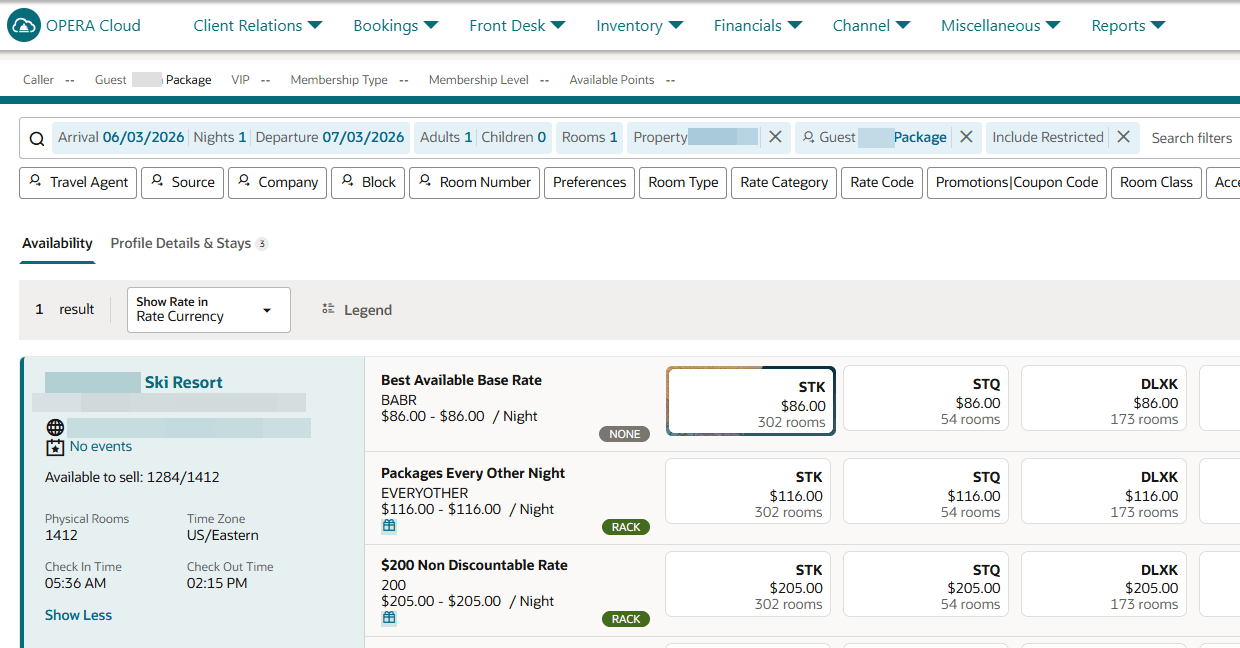
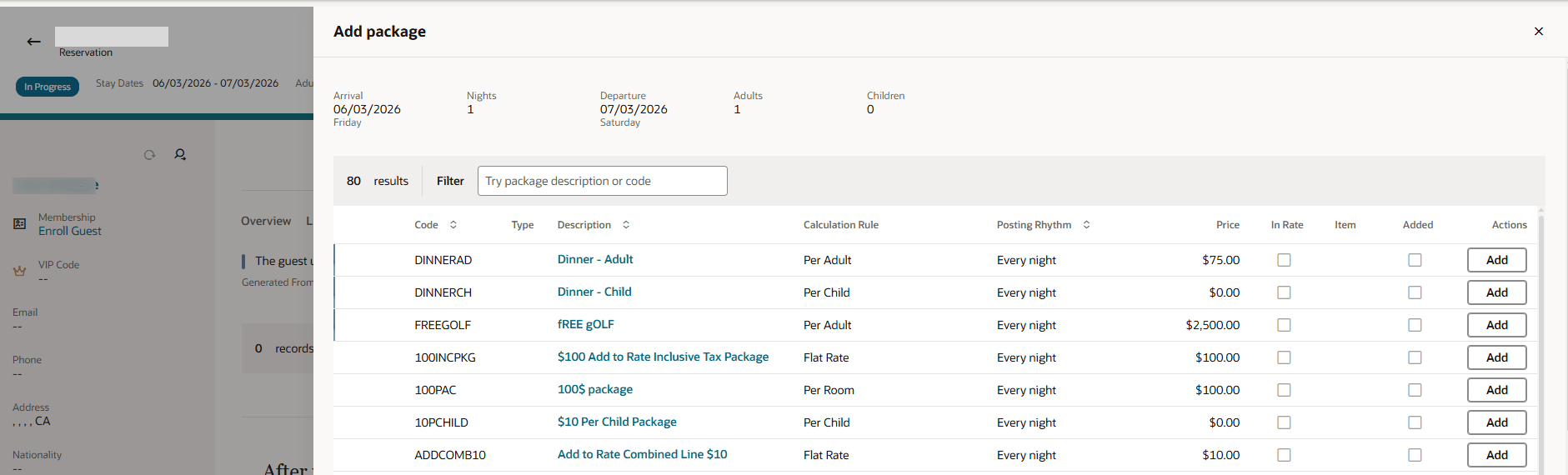
OPERATIONAL BENEFITS
Helps identify relevant booking and package recommendations directly in the Reservation Sales Screen, supporting faster upsell opportunities and more personalized reservation offers based on guest stay history.
ACTION REQUIRED (STEPS TO ENABLE)
- From the Side Menu, select Administration, select Enterprise and then select OPERA Controls.
- Select or confirm the Property.
- Select a property and click Search.
- Select the Look to Book group.
- Locate and activate the AI Booking Suggestions parameter.
Auto Attach Elements Configuration Updated
Auto Attachment Rules support Room Type to Charge as an available condition. You can configure rules that automatically attach reservation elements when the reservation matches the specified Room Type to Charge value.
OPERATIONAL BENEFITS
Properties can create more targeted automation by using the Room Type to Charge when determining which reservation elements are attached. This reduces manual updates and supports business processes that depend on the charged room type.
ACTION REQUIRED (STEPS TO ENABLE)
- From the OPERA Cloud menu, select Administration, select Booking, and then select Reservation Management.
- Select Auto Attachment Elements.
- Select or confirm the property.
- Create a new Auto Attachment Rule or edit an existing rule.
- In Based on Condition, select Condition.
- Select Room Type to Charge as the condition.
- Complete the remaining rule criteria and save the rule.
Auto Send Confirmation Letter OPERA Control Added
CENTRAL
The Auto Send Confirmation Letter OPERA Control enables automatic delivery of confirmation letters for eligible bookings created through the Reservation Sales Screen. When enabled, the confirmation letter is automatically sent to the primary guest email address after a successful booking, without requiring users to review or send it manually.
If the confirmation letter cannot be sent automatically due to missing recipient information, configuration, or delivery issues, the Confirmation Letter screen is displayed, allowing users to review and send the confirmation manually.
OPERATIONAL BENEFITS
Reservation sales agents can complete eligible booking workflows more efficiently by automatically sending confirmation letters, reducing manual effort and streamlining the reservation process. The existing manual confirmation workflow remains available whenever user review or intervention is required.
ACTION REQUIRED (STEPS TO ENABLE)
- From the Side Menu, select Administration , select Enterprise and then select OPERA Controls.
- Select or confirm the Property.
- Select the Reservations group.
- Locate and activate the AUTO SEND CONFIRMATION LETTER parameter.
- Locate and update the AUTO SEND APPLIES TO setting.
Casino Comp Rate Validation Added
GAMING
OPERA Cloud now prevents you from applying a Casino Comp rate from Stay Details or Daily Details when the reservation does not have a patron profile.
OPERATIONAL BENEFITS
This validation helps to ensure Casino Comp rates are applied only to eligible reservations and prevents incorrect rate changes during reservation updates. It also gives you clear guidance to attach a patron profile before applying a Casino Comp rate.
Commission Icon Added to Reservation Sales Screen Availability
CENTRAL
The Reservation Sales Screen displays a Commission icon for commissionable rates throughout the Availability experience when approved commission data exists. The Commission icon is displayed in the Availability results, rate card popups, Availability legend, and Room & Rate Details. Rates that are non-commissionable or have missing, stale, or unavailable commission data do not display the Commission icon.
OPERATIONAL BENEFITS
Reservation sales agents can quickly identify commissionable rates during the booking process, improving efficiency and providing consistent, accurate commission visibility across the reservation workflow.
Create New Shares Membership Handling Updated
The Create New Share workflow is enhanced to honor the configured Membership Handling behavior when creating a share reservation using a profile with an attached membership. Membership information is automatically attached or a membership prompt is displayed based on the Membership Type configuration, ensuring consistent membership processing during share creation. This enhancement supports membership types configured for Auto Attach or Always Prompt, allowing eligible membership information to be associated with the newly created share reservation during booking.
OPERATIONAL BENEFITS
You can create share reservations without having to manually add membership information after the reservation is created. By honoring the configured Membership Handling settings during share creation, the enhancement improves operational efficiency, ensures consistent membership processing, and helps support accurate membership benefits and point accrual.
Default Block Availability View OPERA Control Added
A new Default Block Availability View OPERA Control is available under the Look To Book Sales Screen group to determine the default block availability view in the Look To Book Sales Screen and Reservation Sales Screen.
The control supports the following values:
- Available.
- Allocated (Default)
Room types in the block availability results are ordered by availability across the stay, with the most available room types shown first.
OPERATIONAL BENEFITS
Reservation agents can identify sellable block room types more quickly and start with the preferred Block Availability view.
ACTION REQUIRED (STEPS TO ENABLE)
- From the Side Menu, select Administration.
- Select Enterprise, and then select OPERA Controls.
- Select or confirm the Property.
- Open the Look To Book Sales Screen control group.
- Locate Default Block Availability View.
- Select one of the following values.
- Available.
- Allocated.
- Save your changes.
Default Market Code for No Show Reservations OPERA Control Added
The Default Market Code for No Show Reservations OPERA Control enables eligible no-show reservations to be updated with a configured market code under the Reservations group. When the control is enabled and a default market code is selected, eligible end-of-day no-show processing updates the reservation market code automatically. When the control is off, or when no default market code is selected, existing behavior remains unchanged.
The enhancement also preserves the current no-show market code during reinstatement in this phase and supports share separation behavior for eligible and noneligible shares, while keeping reporting and reservation-change visibility consistent.
OPERATIONAL BENEFITS
You can reduce manual market code correction for no-show reservations and improve downstream reporting consistency by automatically applying the configured market code where applicable. The enhancement preserves existing behavior when the control is not configured, helping keep current workflows stable while improving no-show attribution.
ACTION REQUIRED (STEPS TO ENABLE)
- From the Side Menu, select Administration, select Enterprise, and then select OPERA Controls.
- Select or confirm the Property.
- Select the Reservations group.
- Locate and activate the Default Market Code for No Show Reservations parameter.
- Locate and update the Market Code setting.
Default Rate View for HUB and Default Rate View OPERA Controls Added
New Default Rate View for HUB and Default Rate View OPERA Controls are introduced under the Look to Book Sales Screen group to determine the default rate view for multi-night availability results in Look to Book Sales Screen (LTB) and the Reservation Sales Screen (RSS).
The controls support the following values:
- First Night
- Average
- Total
The Default Rate View for HUB OPERA Control applies when users are logged in at the HUB level. The Default Rate View OPERA Control applies when users are logged in at the property level.
The configured value determines the initial rate view displayed for multi-night availability results. Users can continue to change the rate view during the booking workflow without changing the configured OPERA Control value.
OPERATIONAL BENEFITS
This enhancement allows properties and HUBs to configure the preferred default rate view for multi-night availability results in Look to Book and the Reservation Sales Screen. It reduces manual rate view selection during reservation searches while supporting different operational preferences for HUB and property users.
IMPACT OR OTHER CONSIDERATIONS
- The default value for both controls is First Night to preserve existing behavior until another value is selected.
- Properties should review the new OPERA Control settings under the Look to Book Sales Screen group and select the preferred default rate view.
- The configured value applies only to multi-night availability results.
- Users can continue to manually change the rate view during the booking workflow without changing the configured OPERA Control.
Note:
The Default Rate View for HUB OPERA Control applies when users are logged in at the HUB level. The Default Rate View OPERA Control applies when users are logged in at the property level.ACTION REQUIRED (STEPS TO ENABLE)
- From the Side Menu, select Administration, s elect Enterprise, and then select OPERA Controls.
- Select or confirm the Property or HUB.
- Open the Look to Book Sales Screen control group.
- Locate Default Rate View for HUB or Default Rate View.
- Select one of the following values:
- First Night
- Average
- Total
- Save your changes.
Destination Radius Distance Units OPERA Control Added
CENTRAL
A new Destination Radius Distance Units OPERA Control is available under the Reservation Sales Screen section of the Look To Book Sales Screen group to determine the default distance unit for destination searches and property distance displays.
The control supports the following values:
- Miles
- Kilometers
In the Reservation Sales Screen - New Reservation search, you can search for properties within a selected radius of the Destination, such as an address, airport, city, landmark, or point of interest. Country searches return properties within the selected country without applying a search radius.
Availability Results display properties within the selected radius of the destination. Each property card includes the distance from the selected destination in kilometers, miles, estimated walking time, or estimated driving time, based on the value selected in the Show Distance In field.
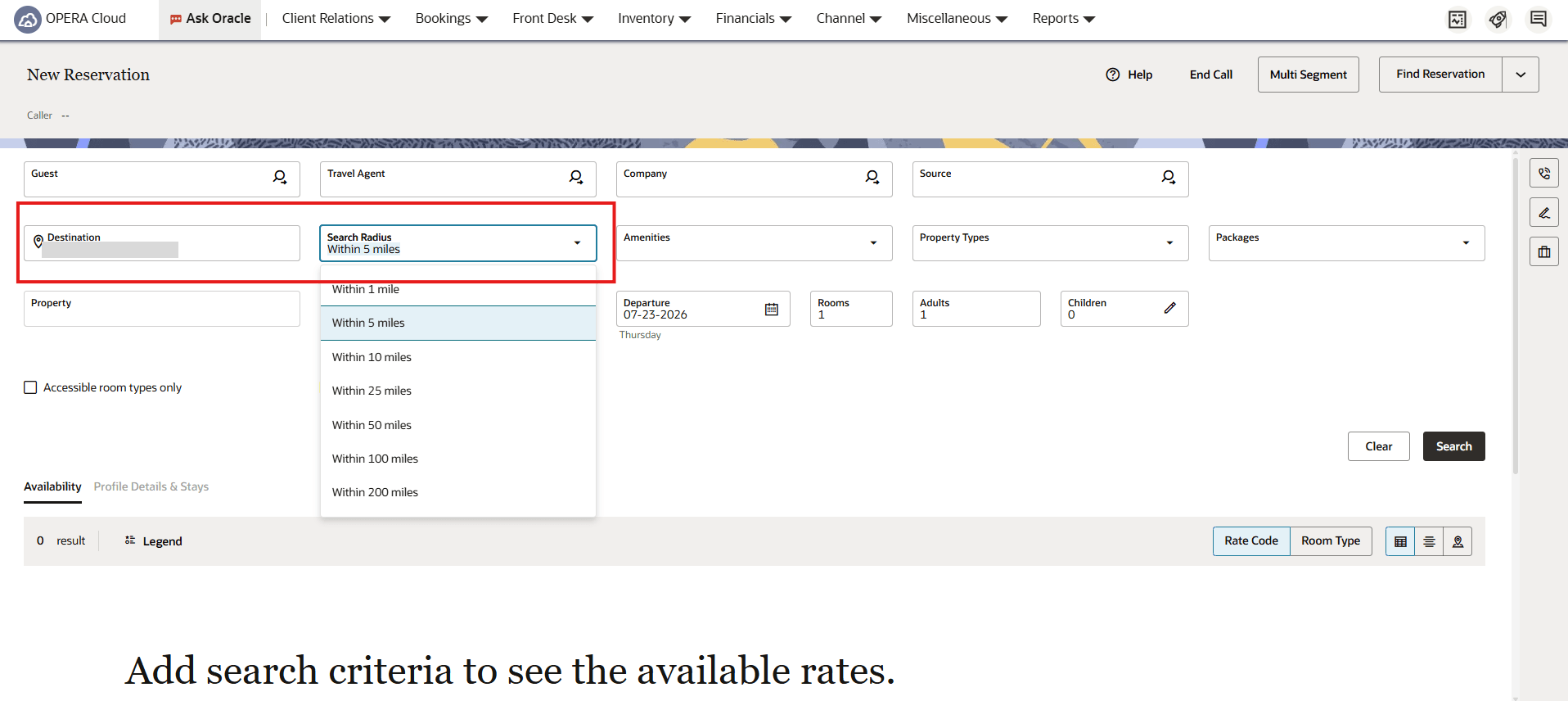
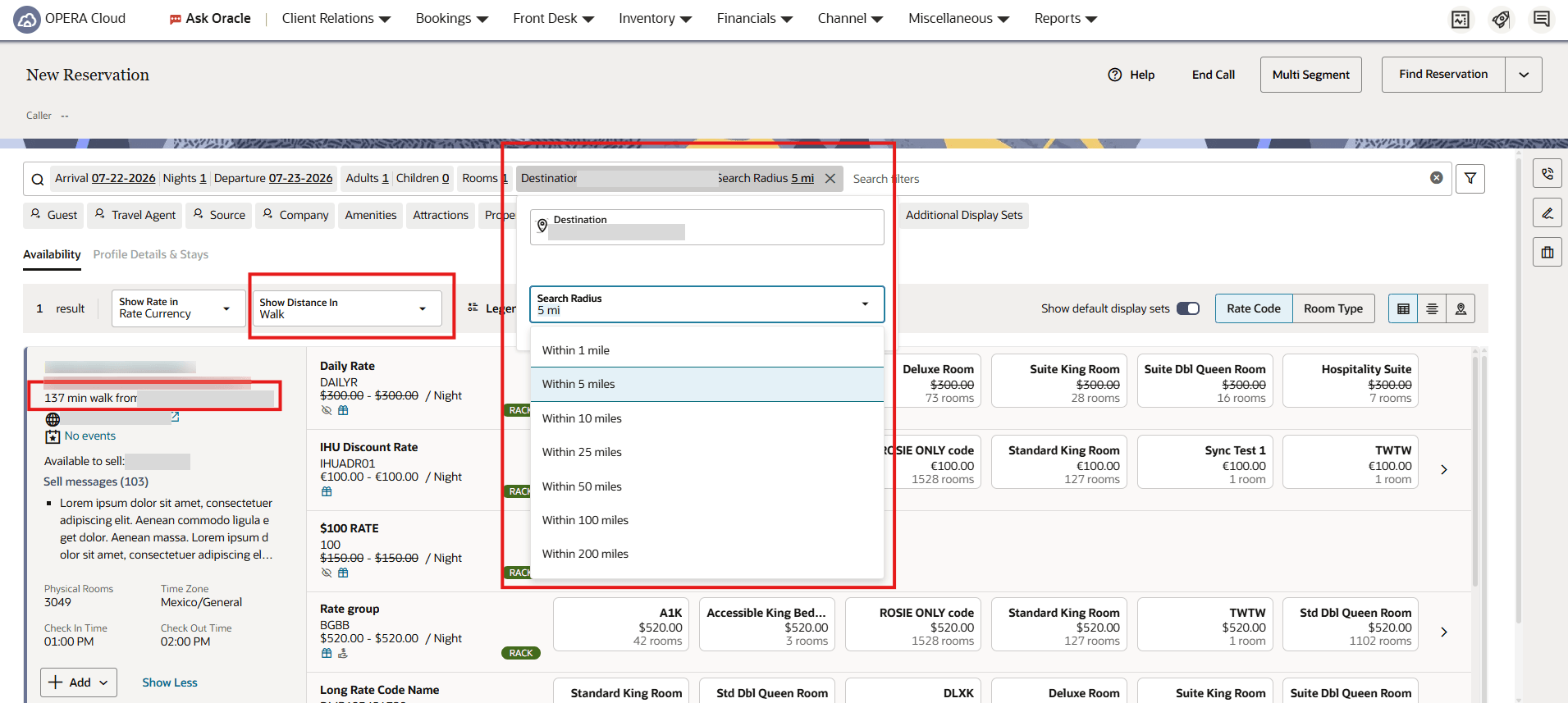
OPERATIONAL BENEFITS
Reservation agents can define how far from a selected destination to search, identify nearby properties, and compare the distance to each property in the selected unit.
IMPACT OR OTHER CONSIDERATIONS
The default value for Destination Search Radius Distance Units is Miles. No action is required when Miles is the preferred value.
The default search radius varies by destination type.
| Destination Type | Default Radius |
| Address | 5 |
| Landmark, Attraction, or Point of Interest | 5 |
| Airport | 10 |
| Property | 5 |
| City | 25 |
| Country | Not applicable |
Country searches return properties within the selected country without applying a search radius.
ACTION REQUIRED (STEPS TO ENABLE)
- From the Side Menu, select Administration.
- Select Enterprise, and then select OPERA Controls.
- Select or confirm the Property or HUB.
- Open the Look To Book Sales Screen control group.
- Open the Reservation Sales Screen section.
- Locate Destination Radius Distance Units.
- Select one of the following values:
- Miles
- Kilometers
- Save your changes.
Global Alert Definitions - Date of Birth Filter Conditions
Global Alert Definitions support filter conditions based on a guest’s date of birth matching the current OPERA Business Date. Alerts can be generated when the day, month, and/or year match.
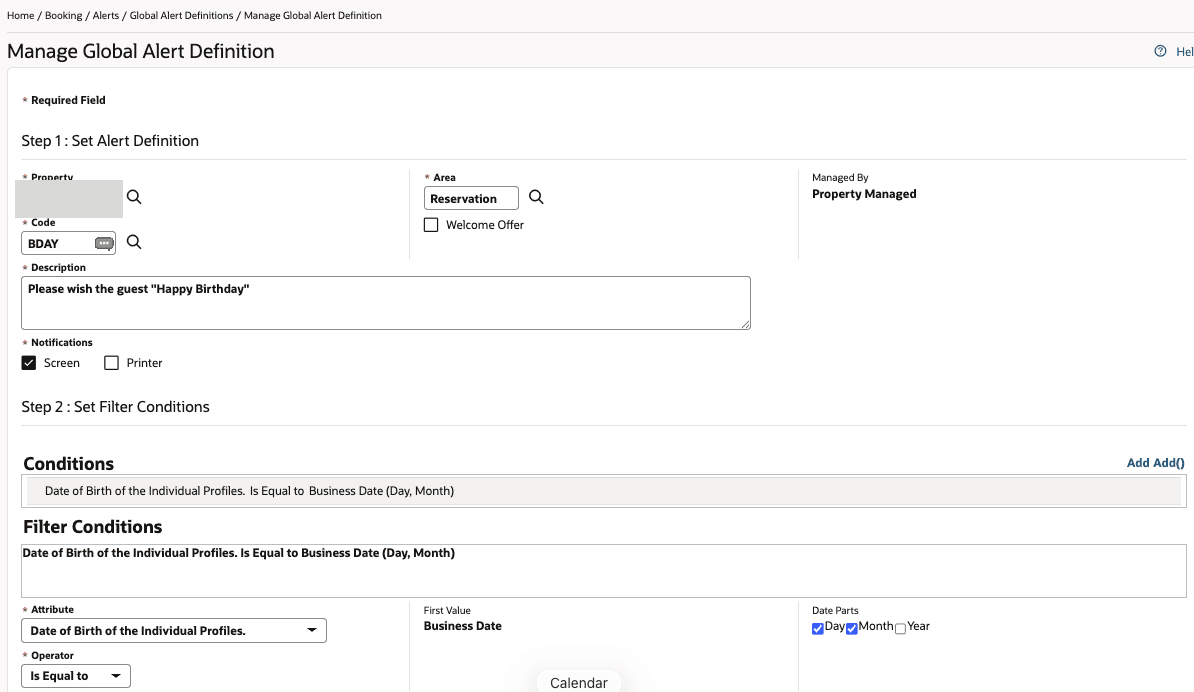
OPERATIONAL BENEFITS
Global Alerts can be used to recognize guests birthday's within the application to improve guest engagement. For example, an alert can be configured to display when the guest's birthday falls on the current day, and/or month.
House Posting Accounts Do Not Require a Rate Code
The Rate Code field is optional when creating House Posting Accounts, regardless of whether the Rate Code Mandatory OPERA Control is enabled.
See Creating House Posting Account s.
OPERATIONAL BENEFITS
You can create a House Posting Account without entering a Rate Code when it is not needed for your business process. This change simplifies House Posting Account creation by reducing the information required to complete the setup.
Linked Reservations Updated
Linked Reservations in Card View include a vertical ellipsis action menu for managing linked reservations. The Unlink action is available for linked reservations. For properties with the Back to Back Handling for Linked Reservations OPERA Control enabled, eligible linked reservations also display Select as Back to Back or Unselect as Back to Back, as applicable.
OPERATIONAL BENEFITS
Reservation agents can manage linked reservations directly from Card View. Eligible reservations can be designated or removed as back-to-back without leaving the card view, helping to streamline the reservation management workflow.
IMPACT OR OTHER CONSIDERATIONS
The Unlink action is available for linked reservations. The Select as Back to Back and Unselect as Back to Back actions are available only when the Back to Back Handling for Linked Reservations OPERA Control is enabled, the Edit Back to Back Reservations user task is assigned, and the linked reservation meets the existing eligibility requirements.
Manage Reservation Advanced Search Updated
The Manage Reservation Advanced Search is enhanced to support searching by Payment Method. You can add the Payment Method field through Advanced Search customization and personalization, after which it is available as a single-select search criterion. In HUB mode, the field remains visible but disabled until one or more properties are selected, when it then displays active payment methods for the selected property or properties.
The search applies the selected payment method across payment windows 1 through 8, excluding comp windows 101 through 108. Existing Advanced Search functionality remains unchanged.
OPERATIONAL BENEFITS
You can personalize the Advanced Search experience by adding the Payment Method search criterion, making it easier to locate reservations based on payment method. This improves search precision while preserving existing Advanced Search behavior and personalization capabilities.
Mass Update Reservation Details for Share and Block Reservations Enhanced
The Mass Update - Reservation Details feature is enhanced to support updates for share and block reservations.
- Share reservations: Select the Update All Shared Reservations check box to apply the same changes to all reservations in the share.
- Block reservations: Reservations associated with a block can be updated through Mass Update when the requested changes comply with the block’s restrictions and available inventory. Reservations that require a block restriction override or Borrow From House due to insufficient block inventory are not updated during the mass update. Update these reservations directly from the block reservation to apply the required override or inventory adjustment.
OPERATIONAL BENEFITS
Apply the same updates to eligible share and block reservations through a single Mass Update action. The Update All Shared Reservations option reduces manual effort by applying selected changes across all reservations in a share.
Merging Reservations Updated
When the Advanced Daily Details OPERA Control is enabled, the Matching Reservations panel is updated to support merging reservations with different room types or room assignments. During the merge process, you can merge room details or keep the original daily room details. Keeping the original daily room details preserves the room type and room assignment for each applicable stay date and maintains scheduled room moves. Choosing to merge room details applies the room type and room assignment from the earliest arrival reservation where they can be applied. Existing merge behavior remains unchanged when Advanced Daily Details is inactive or when the reservations have the same room types or room assignments.
See Merging Matched Reservations.
OPERATIONAL BENEFITS
Front desk staff can choose the merge option that best supports the guest stay while preserving planned room assignments and scheduled room moves when needed.
IMPACT OR OTHER CONSIDERATIONS
This enhancement applies only when the Advanced Daily Details OPERA Control is active and eligible reservations are merged from the Matching Reservations panel. Existing merge behavior remains unchanged in all other scenarios.
Notes Formatting Preserved in View Mode
Notes and comments preserve line breaks in read mode, making longer content easier to read and maintaining its original formatting.
This update applies to Notes and Traces in Profiles, Reservations, Blocks, and Accounts Receivables, as well as to Activities, Property Brochure, Guest Messages, Alerts, Locators, Wake Up Calls, and Service Requests. (Available when the respective OPERA Controls are active.)
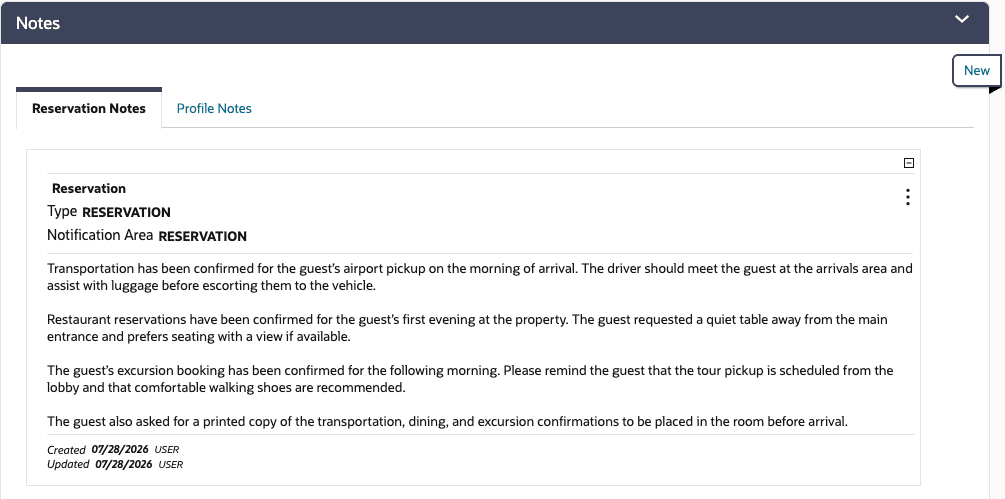
OPERATIONAL BENEFITS
You can view notes with the same line breaks and formatting used when they were entered, making longer notes easier to read and understand.
Rate Access Exclusions Updated
For properties with Access Exclusion OPERA Control active, the existing Allow Create/Modify Reservation setting in Admin - Financial - Rate Management - Rate Codes - Rate Access Exclusions is separated into Allow Create Reservation and Allow Modify Reservation settings.
You can configure whether reservations using a rate code can be created or modified separately for selected Central Reservation Offices (Hubs). Warnings are displayed when a reservation cannot be created, modified, or cancelled due to rate access exclusion.
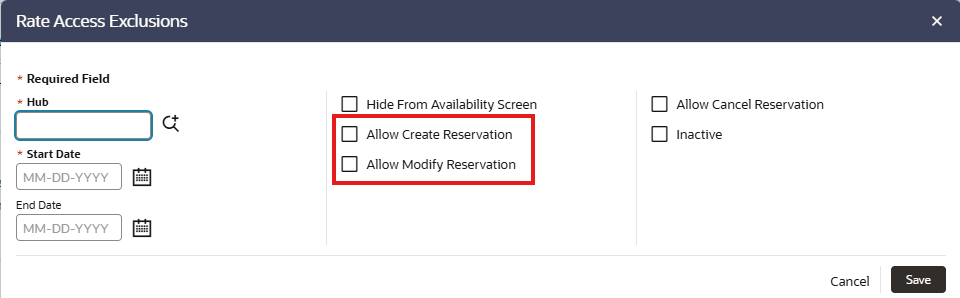
OPERATIONAL BENEFITS
This enhancement provides for Central Reservation Offices (Hubs) a more precise control over rate access exclusions by allowing reservation creation and reservation modification to be managed separately.
IMPACT OR OTHER CONSIDERATIONS
For properties with Access Exclusion OPERA Control active, review existing rate access exclusion records and confirm the Allow Create Reservation and Allow Modify Reservation values meet your operational requirements.
Reservation Preferences Added to Look to Book Sales Screen
You can add reservation preferences while booking a reservation using the Look to Book Sales Screen before confirming the reservation. The Preferences option is available from the More menu. Available preferences are displayed from the configured preference groups. You can save preferences to the reservation only, or when an associated guest profile exists, save the same preferences to both the reservation and the guest profile. Preferences selected during booking remain associated with the reservation after confirmation.
OPERATIONAL BENEFITS
Reservation agents can capture guest preferences during the booking process without leaving the Book Now workflow. This helps improve booking efficiency, reduces follow-up work after reservation confirmation, and helps ensure guest preferences are captured accurately during the sales process.
Reservation Sales Screen - Discount Field Updated
CENTRAL
Within the Reservation Sales Screen, the Discount field is enhanced to support additional reservation scenarios, including multi-segment and block reservations. The Discount field is displayed and editable only when the selected rate is eligible for discounts.
For reservations where discounts are not applicable, the Discount field is not displayed, providing a consistent and streamlined reservation experience.
OPERATIONAL BENEFITS
Reservation sales agents can apply discounts more efficiently across supported reservation scenarios while viewing the Discount field only when applicable. This improves usability, reduces confusion, and helps ensure discounts are applied accurately during the reservation process.
Reservation Sales Screen - Child Age Buckets Updated
CENTRAL
The Reservation Sales Screen is enhanced to support Child Age Bucket 4 and Child Age Bucket 5 across reservation search, booking, Edit Reservation, Trip Composer, Room & Rate Details, Daily Details, and Shares workflows. You can view and maintain configured child bucket values throughout the reservation process, with the total Children count automatically updated based on the bucket values entered.
The enhancement honors the existing Child Rates By Defined Buckets OPERA Control. When the control is enabled and bucket labels are configured, the additional child age buckets are displayed; otherwise, the existing child bucket behavior is preserved.
OPERATIONAL BENEFITS
You can manage reservations with additional child age bucket classifications more efficiently while maintaining consistent child occupancy information throughout the reservation workflow. Support for the Child Rates By Defined Buckets OPERA Control provides greater flexibility for properties that use extended child age classifications without impacting existing reservation behavior.
Reservation Sales Screen - Filter Package By Category Added
CENTRAL
Reservation Sales Screen Add Package supports smart search with multi-select package category filtering while preserving existing add behavior, row state, eligibility, and reservation rule handling.
OPERATIONAL BENEFITS
Reservation sales agents can locate and add packages more efficiently using package category filters and multi-select search, reducing the time required to find relevant packages. The enhancement streamlines package selection while maintaining existing package eligibility, reservation rules, and add-package behavior.
Reservation Sales Screen - Shares Updated
CENTRAL
The Reservation Sales Screen Shares is enhanced to support additional share management capabilities during both booking and Edit Reservation workflows. You can add and combine shares, manage payee routing, apply Split Rate, Full Rate, Entire Rate, and Custom Split rate distribution, and perform share separation without leaving the reservation workflow. The enhancement also introduces support for payment methods, child and child-age details, and additional share validation while honoring existing OPERA Controls, including Custom Split Rate, Same Stay Dates for Sharers, Same Rate Code for Sharers, and configured routing and payment controls.
OPERATIONAL BENEFITS
You can complete share setup and maintenance more efficiently within a single workflow, reducing the need for additional reservation updates. Existing Custom Split Rate, Same Stay Dates for Sharers, Same Rate Code for Sharers, and routing controls continue to govern share behavior, providing a consistent and streamlined reservation experience.
Reservation Sales Screen Caller Information Visibility Updated
CENTRAL
The Reservation Sales Screen adheres to the existing Caller Information OPERA Control under the Look to Book Sales Screen control group, which determines whether caller information is displayed.
When the Caller Information OPERA Control is enabled, caller information is available in supported Reservation Sales Screen screens, including caller information panels, headers, icons, links, and drawers. Caller information entered during the reservation workflow is saved with the reservation.
When the Caller Information OPERA Control is disabled, caller information is hidden throughout the Reservation Sales Screen, including caller information panels, headers, icons, links, and drawers.
OPERATIONAL BENEFITS
This enhancement provides a consistent caller information experience between Look to Book and the Reservation Sales Screen. Properties that do not use caller information can simplify the Reservation Sales Screen by hiding caller information while preserving existing reservation data.
IMPACT OR OTHER CONSIDERATIONS
The Reservation Sales Screen follows the existing Caller Information OPERA Control. No additional configuration or new OPERA Controls are introduced.
Disabling the OPERA Control hides caller information in the Reservation Sales Screen but does not remove existing caller information stored with reservations.
Reservation Sales Screen Customization Updated
CENTRAL
The Reservation Sales Screen supports separate customization for reservations in progress and existing reservation edits. This allows each screen to maintain its own layout and behavior based on the reservation stage.
OPERATIONAL BENEFITS
Reservation agents can tailor each workflow independently, improving efficiency by displaying the most relevant fields and behavior for creating reservations and editing existing reservations.
IMPACT OR OTHER CONSIDERATIONS
Customizations made for the Reservation Sales Screen in-progress workflow do not affect the edit reservation workflow. Likewise, customizations made for the edit reservation workflow do not affect the in-progress workflow.
Configure the Reservation Sales Screen customizations separately for the In Progress and Edit reservation workflows by following the Reservation Sales Screen customization procedures in the User Guide.
Reservation Sales Screen Manage Reservation Updated
CENTRAL
The Reservation Sales Screen Edit Reservation experience is enhanced to improve usability and consistency across reservation update workflows. The update reduces unnecessary screen refreshes, preserves user context during editing, and improves the behavior of Recent Reservations, shares, pricing details, and toolbar actions.
The enhancement also introduces the Payment Instructions link for supported reservation entry points, supports Accept Reservation for eligible waitlist reservations, displays currency rates in Total Cost of Stay and Room & Rate Details, and includes layout improvements for a more streamlined editing experience.
OPERATIONAL BENEFITS
Reservation sales agents benefit from a more stable and efficient reservation editing experience with improved navigation, reduced screen interruptions, and enhanced access to payment instructions and waitlist actions. These enhancements streamline reservation updates while providing a more consistent and intuitive workflow.
Reservation Sales Screen Reservation Search Updated
CENTRAL
The Reservation Sales Screen Find Reservation is enhanced to support searching by Payment Method. You can select Payment Method from Smart Search > More and use it as a single-select search filter to refine reservation search results.
The search applies the selected payment method across payment windows 1 through 8, excluding comp windows 101 through 108. Existing Find Reservation search functionality remains unchanged.
OPERATIONAL BENEFITS
You can locate reservations more efficiently by filtering search results based on payment method, reducing the time spent reviewing unrelated reservations. This enhancement improves search accuracy while preserving the existing Reservation Sales Screen Find Reservation workflow.
Reservation Sales Screen Room and Rate Details Updated
CENTRAL
Within the Reservation Sales Screen, Room & Rate Details are enhanced to display configured room and rate information more consistently across create and edit reservation workflows. The Generates label is updated to Taxes and fees, and configured Rate Short and Rate Long Descriptions are displayed when available. When rate descriptions are not configured, the corresponding labels and sections are automatically hidden, providing a cleaner and more consistent Room & Rate Details experience.
OPERATIONAL BENEFITS
Reservation sales agents can review complete room and rate information, including guest-facing tax and fee details and configured rate descriptions, while creating or editing reservations. This improves consistency across reservation workflows and provides clearer rate information without impacting existing pricing or booking functionality.
Reservation Sales Screen Updated for Offshore Reservations
CENTRAL
For properties with Offshore Trading Rates OPERA Control enabled, offshore reservations can be opened, viewed, and edited in the Reservation Sales Screen when the Reservation Sales Screen Manage Reservation Display is set to OPERA Cloud Central Reservation Sales Screen.
Offshore rates and pricing are displayed throughout the edit workflow.
When Reservation Sales Screen Manage Reservation Display is set to OPERA Cloud Property Manage Reservation Screen, offshore reservations remain disabled for viewing and editing from the Reservation Sales Screen.
OPERATIONAL BENEFITS
Call center agents can manage existing offshore reservations from the Reservation Sales Screen while maintaining the correct offshore rate visibility and pricing.
IMPACT OR OTHER CONSIDERATIONS
- The feature applies to offshore reservations at properties with Offshore Trading Rates enabled.
- When Reservation Sales Screen Manage Reservation Display is set to OPERA Cloud Central Reservation Sales Screen, offshore reservations can be viewed and edited in the Reservation Sales Screen.
- When Reservation Sales Screen Manage Reservation Display is set to OPERA Cloud Property Manage Reservation Screen, offshore reservations remain unavailable for viewing and editing from the Reservation Sales Screen.
- Reservations opened from OPERA Cloud Manage Reservations continue to display local rates.
Share Reservations Updated
The Add Share workflow is enhanced to capture Reservation Type, child count, and child ages when adding sharing guests. This reduces the need to reopen the reservation later and complete missing share details. The update applies to both the Look to Book Book Now flow and Manage Reservations add-share flow.
The enhancement also honors configured child-rate behavior and Guest Age Categories, including correct handling of Bucket 4 and Bucket 5 where applicable, so child counts are carried forward correctly during booking and share allocation.
OPERATIONAL BENEFITS
You can complete share setup more efficiently in a single step, with fewer follow-up edits after the reservation is created. The improved flow provides more accurate Reservation Type and child-age capture, while maintaining consistent guest-count allocation across supported booking and share scenarios.
Traces Search Updated
The Traces screen includes optional Name, Block Name, Created On, Created By, Completed On, and Completed By search fields. These fields work with the existing Property, Department, From Date, and To Date fields. To filter completed traces by Completed On or Completed By, select Show Completed.
See Managing All Block and Reservation Traces.
OPERATIONAL BENEFITS
The additional search fields help you locate relevant pending and completed traces by guest name, block name, creator, completion user, and applicable dates.
Transportation OPERA Control Updated
The existing Transportation OPERA Control eligibility is updated to allow properties with an active OPERA Cloud Central Management subscription to configure and use reservation transportation without requiring an active OPERA Cloud Services subscription. The Transportation OPERA Control remains configured at the property level.
OPERATIONAL BENEFITS
Reservation and call center users can manage reservation transportation for eligible OPERA Cloud Central properties based on the property's subscription, while preserving the existing behavior for properties that already use OPERA Cloud Services.
IMPACT OR OTHER CONSIDERATIONS
This change updates the subscription eligibility for the existing Transportation OPERA Control. Properties without an active OPERA Cloud Central Management subscription continue to follow the existing eligibility requirements.
ACTION REQUIRED (STEPS TO ENABLE)
Enable the Transportation OPERA Control for eligible properties with an active OPERA Cloud Central Management subscription. No additional configuration changes are needed.
ROOMS MANAGEMENT
Child buckets 4 & 5 added to Housekeeping Forecast
In properties where the Housekeeping Task Scheduling OPERA Control and the Child Rates By Defined Buckets OPERA Control are active, Rate Buckets 4 and 5 are included in the Arrival Persons and In House Persons statistics on the Housekeeping Forecast screen. Select the plus sign next to either statistic to expand the rows and view the applicable rate bucket details. , supporting more accurate housekeeping planning.
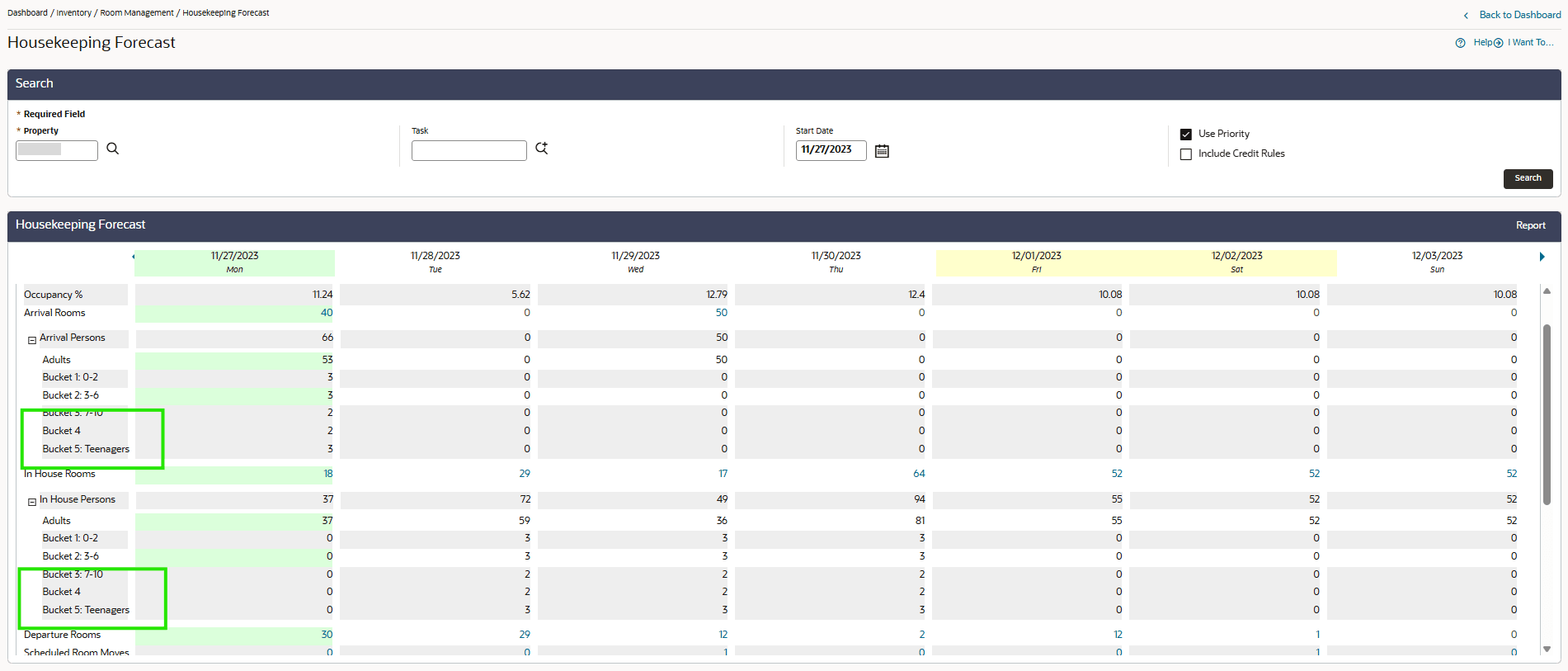
OPERATIONAL BENEFITS
Having additional Child Buckets available on the Housekeeping Forecast supports more accurate housekeeping planning.
Room Type Added to Floor Plan
The Floor Plan is enhanced to display room types directly alongside rooms.
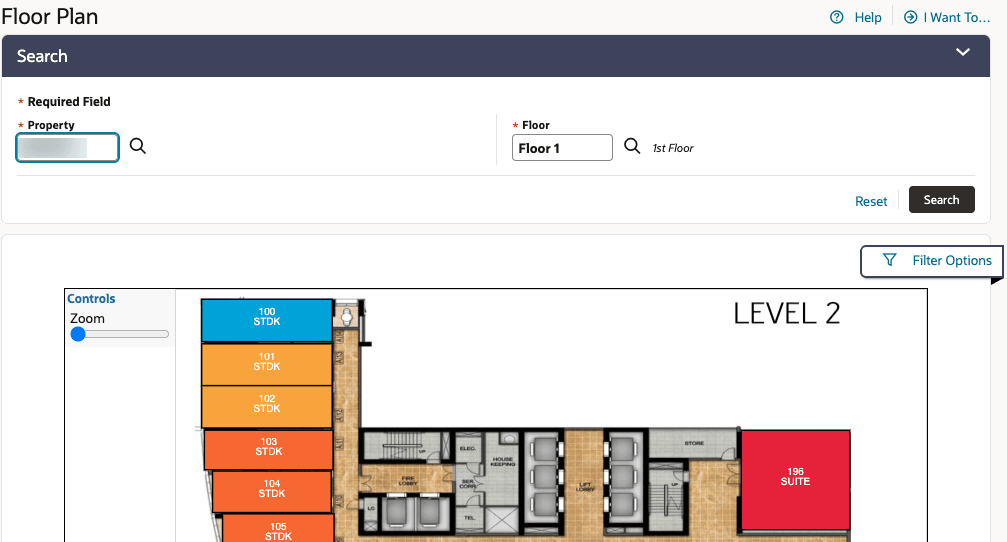
OPERATIONAL BENEFITS
You can easily identify each room by its room type without needing to open or select individual rooms.
AI Room Types Description Assistant OPERA Control Added
An AI Room Types Description Assistant OPERA Control is added to the Room Management group, enabling AI-generated text for Room Types Long Description. Using details from Primary Details, Room Features, Definition, Bed Type Description,and any additional information provided, the Long Description text is automatically generated.
OPERATIONAL BENEFITS
Enhances efficiency and consistency in creating Room Types Long Description by automatically generating detailed, accurate text using AI, reducing manual effort and ensuring brand standardsare consistently applied.
ACTION REQUIRED (STEPS TO ENABLE)
- From the Side Menu, select Administration, select Enterprise, and then select OPERA Controls.
- Select or confirm the Property.
- Select the Room Management group.
- Locate and activate the AI Room Types Description Assistant parameter.
AI Room Types Description Assistant Updated
For properties with the AI Room Types Description Assistant OPERA Control active, when you update a Room Type that already includes a Long Description, you are prompted to decide if the description should reflect your latest configuration changes. When you select Save, a dialog appears asking: “Room Type configuration is updated. Would you like to regenerate the Room Type long description to reflect these changes?” and providing a preview of the newly generated text, which you can review before saving. If you select Yes, your existing Long Description is removed and replaced with the previewed AI-generated description; if you select No, your existing Long Description remains unchanged and your updates are saved as usual. This ensures your Room Type content stays aligned with configuration changes while giving you full control over description updates.(see )
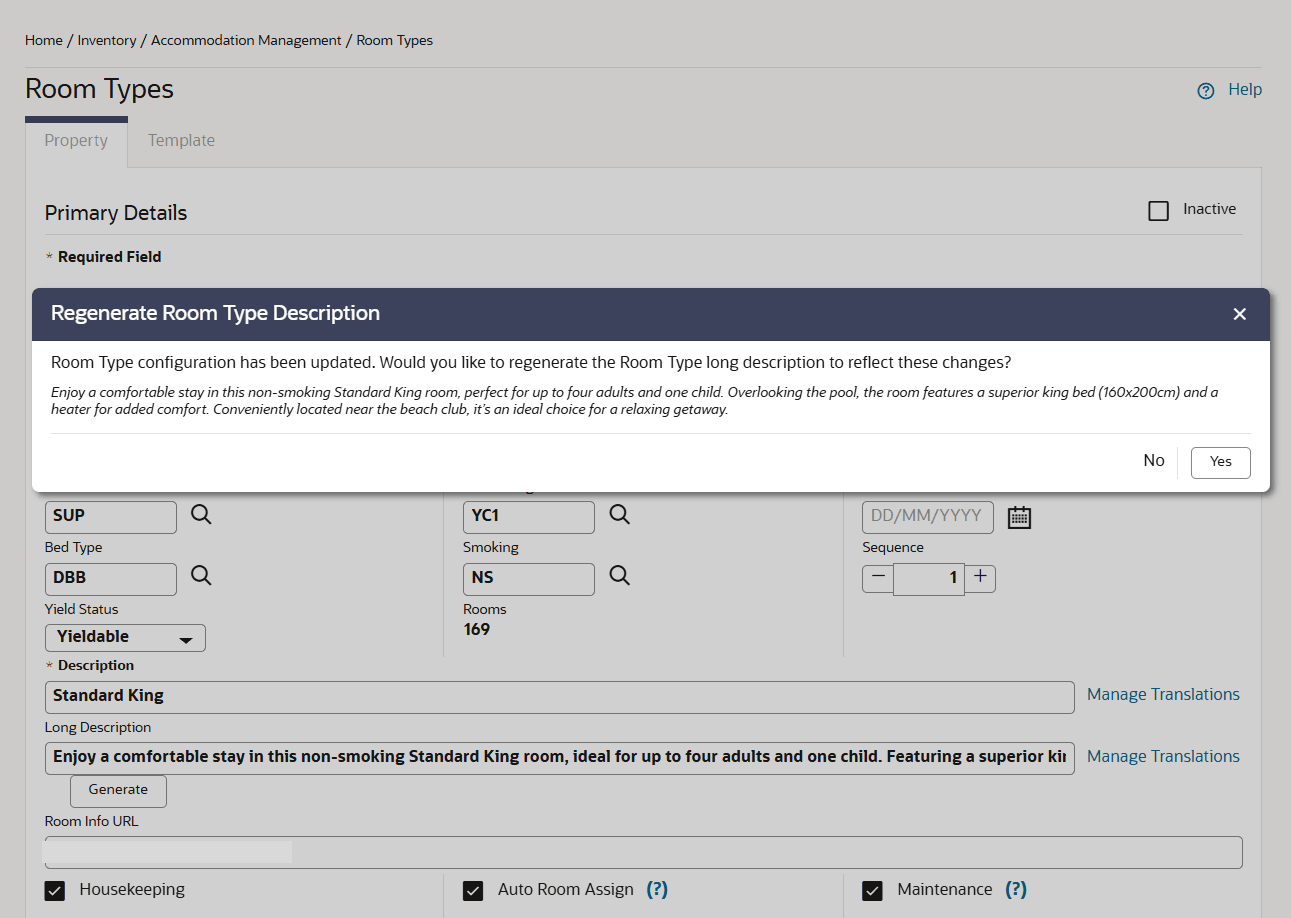
OPERATIONAL BENEFITS
This enhancement ensures your Room Type Long Descriptions remain consistent with the latest configuration changes, reducing the risk of outdated or inaccurate content presented by providing an AI-generated preview at the time of update. You can quickly review and approve refreshed descriptions without manual rewriting, improving efficiency and saving time. The optional regeneration also gives you full control, allowing you to maintain existing content when needed while benefiting from automated, up-to-date descriptions when changes impact the room’s features or configuration.